# Google Tag Manager
> Learn how to install AnyTrack via the official Google Tag Manager Template, and how to trigger AnyTrack events through your existing GTM triggers for eCommerce platforms not natively integrated with AnyTrack.
Google Tag Manager (GTM) is a tag management system that lets you deploy and manage tracking tags on your website from an easy-to-use web-based interface.
You can install AnyTrack via the official [Google Tag Manager Template](https://tagmanager.google.com/gallery/#/owners/anytrack/templates/google-tag-manager-template) available in the Google Tag Manager Template Gallery.
### How AnyTrack Compares to Google Tag Manager
If you're currently using Google Tag Manager, you know that you need to configure various triggers that will fire your tags according to the events you want to track.
Depending on the complexity of your setup, these triggers can be hard to configure.
With AnyTrack, event tracking functions such as outbound clicks and form submissions are automatically triggered and the variables associated with these events are automatically captured and sent to the AnyTrack servers.
## Install AnyTrack GTM Template
Watch the video tutorial or follow the step-by-step guide to install the AnyTrack GTM Template.
1. ### Navigate to [Google Tag Manager](https://tagmanager.google.com)
2. ### Click on the "New" button to add tag
3. ### Click on the TAG icon to select a Tag
4. ### Click on the Community Template Gallery option
5. ### Search for the AnyTrack Template
6. ### Select the "AnyTrack Tracking Tag"

7. ### Click on the "Add to workspace" button.
8. ### Click on the "Add" Button
By clicking on the Add button you confirm your selection.
9. ### Switch to AnyTrack Property Settings
Locate the property ID and copy it to your clipboard (ctrl+c)
10. ### Switch to Google Tag Manager
Switch to the AnyTrack Tag Configuration
11. ### Now Paste the Property ID
Now paste the Property ID in the selected field.
12. ### Click on Add Trigger
Now Click on Add Trigger configure the rule that will load the AnyTrack tag.

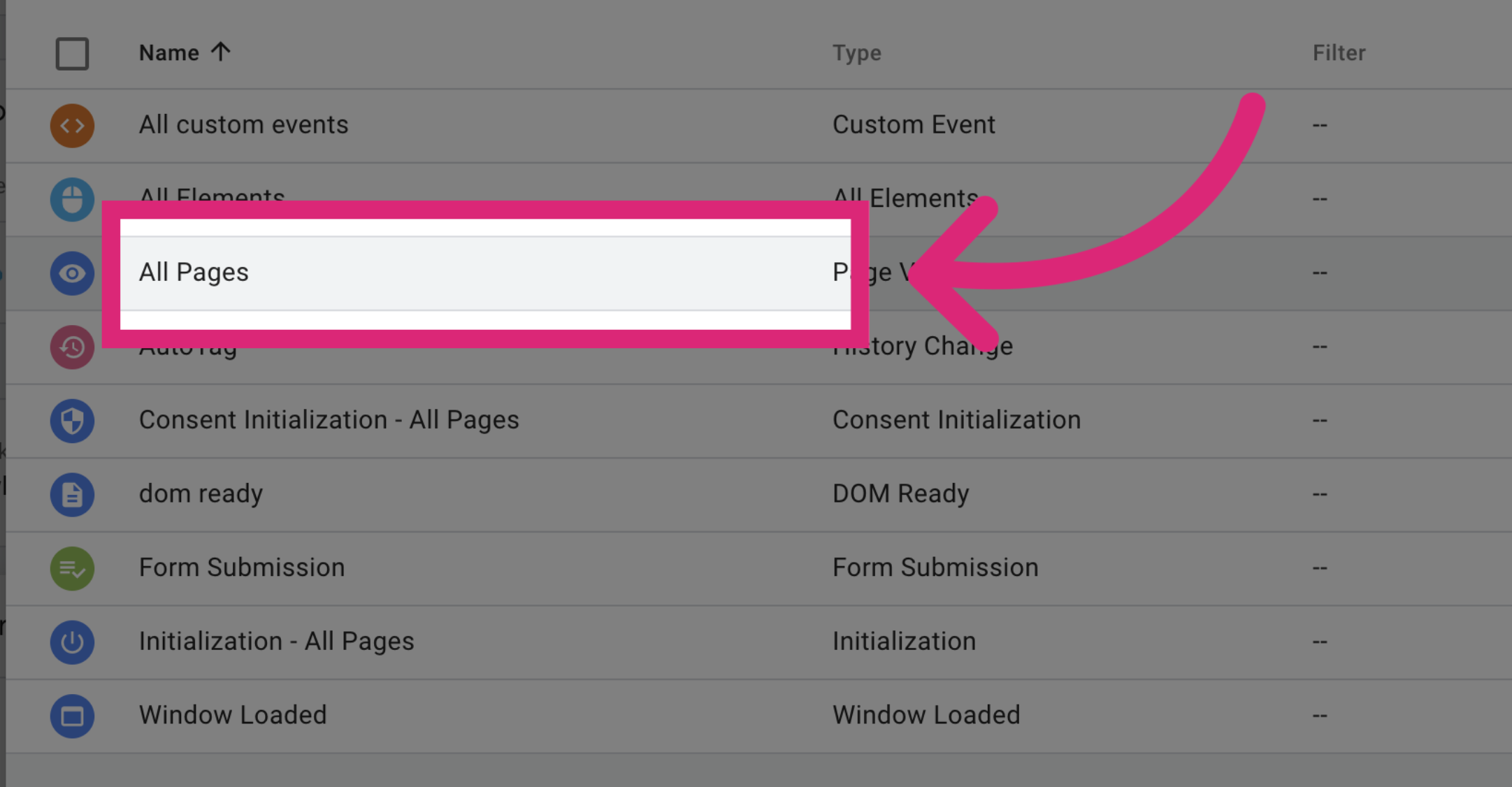
13. ### Select All Page Views
Select the "All Pages" option so that the AnyTrack tag will load on every page where your container loads.
14. ### Save the Tag
Now Save the AnyTrack Tag.
15. ### Submit your container
16. ### Click on the "Publish" button
17. ### Save the new Container Version
Update the Container version name and description if you wish to and Click on Continue.
## Video Tutorial: Install AnyTrack Tag via GTM
Watch this video for another detailed overview of how to install the AnyTrack Tag on your website using a Google Tag Manager container and trigger.
***
## Trigger AnyTrack Events via GTM
If you use an eCommerce platform that is not natively integrated with AnyTrack but already pushes eCommerce events to the GTM `dataLayer`, you can use your existing GTM triggers to fire AnyTrack event snippets. This lets you send [standard events](/docs/standard-events) like `Purchase`, `AddToCart`, or `ViewContent` to AnyTrack without writing any additional tracking code on your site.
### When to Use This Approach
Use GTM to trigger AnyTrack events when your eCommerce platform already emits `dataLayer` events through GTM, but does not have a built-in AnyTrack integration. Common examples include:
* Shopware
* BigCommerce
* Adobe Commerce (Magento)
* PrestaShop
* Any platform with a GTM eCommerce `dataLayer` implementation
If AnyTrack already has a native integration for your platform (such as Shopify or WooCommerce), use that instead. Native integrations handle event tracking and attribution automatically.
### How It Works
Your GTM container already has triggers that fire when eCommerce events occur (for example, when a purchase completes). You create a new Custom HTML tag that calls the AnyTrack event snippet, and attach it to those same triggers. AnyTrack receives the event with all the [event attributes](/docs/event-attributes) you pass, then forwards the conversion data to your connected ad platforms.
> ❗ **Important**
>
> The AnyTrack Tracking Tag must load before any event snippet fires. If the Tracking Tag has not loaded yet, the `AnyTrack()` function will not be available and the event will not be tracked. Use GTM tag sequencing to guarantee the correct load order.
### Step 1: Set Up Tag Sequencing
Tag sequencing tells GTM to fire the AnyTrack Tracking Tag before your event snippet tag. This is required because the event snippet depends on the `AnyTrack()` function that the Tracking Tag loads.
1. Open the Custom HTML tag that will contain your AnyTrack event snippet (created in Step 2 below)
2. Scroll down to **Advanced Settings** and expand **Tag Sequencing**
3. Check **"A tag that fires before [this tag]"**
4. Select your **AnyTrack Tracking Tag** from the dropdown
5. Check **"Don't fire [this tag] if the setup tag fails or is paused"**
This ensures the Tracking Tag is fully loaded before the event snippet runs.
### Step 2: Create the Event Snippet Tag
Create a new **Custom HTML** tag in GTM that calls the AnyTrack event snippet. Use the [standard event names](/docs/standard-events) that AnyTrack supports, such as `Purchase`, `AddToCart`, `InitiateCheckout`, or `ViewContent`.
Map your existing GTM `dataLayer` variables to [AnyTrack event attributes](/docs/event-attributes) using GTM variable references (`{{variable_name}}`).
**Example: Purchase Event**
```html
```
Replace the `{{dlv - ...}}` placeholders with the actual GTM variable names from your `dataLayer` configuration. For example, if your platform pushes the total purchase value to a variable called `ecommerce.purchase.value`, create a Data Layer Variable in GTM for that path and reference it here.
**Example: AddToCart Event**
```html
```
**Example: ViewContent Event**
```html
```
### Step 3: Attach Your Existing Triggers
Attach the same triggers you already use for your eCommerce tracking. For example, if you have a trigger that fires on the `purchase` dataLayer event, use that same trigger for your AnyTrack Purchase event snippet tag.
There is no need to create new triggers. The triggers you already have in your GTM container for events like `purchase`, `add_to_cart`, or `view_item` work with the AnyTrack event snippet tags.
### Step 4: Test and Publish
1. Open GTM **Preview** mode and complete a test transaction on your site
2. Verify in the GTM debugger that the AnyTrack Tracking Tag fires before the event snippet tag
3. Check the [AnyTrack Event Log](/docs/integration-event-log) in your dashboard for the incoming event
4. Install the [AnyTrack Pixel Helper](https://chromewebstore.google.com/detail/anytrack-pixel-helper/ojmhkmdpagjeopleoeihbhgejcfoijjn) Chrome extension to confirm events fire in the browser
5. Once verified, **Submit** and **Publish** your GTM container
### Supported Standard Events
You can trigger any [standard event](/docs/standard-events) through GTM. The most common eCommerce events are:
| Event Name | When to Trigger | Required Attributes |
| :----------------- | :----------------- | :-------------------------------------------- |
| `ViewContent` | Product page view | `items` (with product `id` and `price`) |
| `AddToCart` | Item added to cart | `items`, `value`, `currency` |
| `InitiateCheckout` | Checkout started | `items`, `value`, `currency` |
| `Purchase` | Order completed | `value`, `currency`, `transactionId`, `items` |
For the full list of supported event attributes, including customer data (email, name, phone) and product data (id, name, price, quantity), see the [Event Attributes](/docs/event-attributes) documentation.
***
## GTM Tips and Tricks
### Retrieve the `atclid` and Push It to the dataLayer
Use this snippet to capture the AnyTrack click ID and make it available as a GTM variable. You can then use it to decorate forms, links, or pass it to other tags.
```javascript
```
***
## Validation
### Install the AnyTrack Pixel Helper Extension
Install the [AnyTrack Pixel Helper](https://chromewebstore.google.com/detail/anytrack-pixel-helper/ojmhkmdpagjeopleoeihbhgejcfoijjn) Chrome extension to verify the AnyTrack Tag is installed on your website. It also shows connected ad platforms and browser-side events. [View the Pixel Helper guide](/docs/anytrack-chrome-extension).
***
AnyTrack Pixel Helper Chrome extension also shows browser-side events in real time."
},
{
question: "When should I use GTM to trigger AnyTrack events instead of a native integration?",
answer: "Use GTM when your eCommerce platform does not have a built-in AnyTrack integration but already emits eCommerce events to the GTM dataLayer. Platforms like Shopware, BigCommerce, Adobe Commerce (Magento), and PrestaShop are common examples. If a native AnyTrack integration exists for your platform, use that instead."
},
{
question: "Can I pass dataLayer variables to the AnyTrack event snippet?",
answer: "Yes, and it is recommended. Map your GTM dataLayer variables to AnyTrack event attributes like value, currency, transactionId, email, and items. Use the standard GTM variable syntax (double curly braces) in your Custom HTML tag."
},
{
question: "Why is my AnyTrack event snippet not firing?",
answer: "The most common cause is that the AnyTrack Tracking Tag has not loaded before the event snippet fires. Set up tag sequencing in GTM so the Tracking Tag fires first. Open GTM Preview mode and verify the Tracking Tag appears before your event snippet in the firing order."
},
{
question: "What standard events can I trigger through GTM?",
answer: "You can trigger any AnyTrack standard event through GTM, including Purchase, AddToCart, InitiateCheckout, ViewContent, Lead, and more. Use the exact event names from the standard events documentation."
},
{
question: "Can I trigger custom events through GTM?",
answer: "Yes. If you have custom events that are not part of the standard event list, you can trigger them the same way. Use a Custom HTML tag with the AnyTrack event snippet and pass your custom event name. For example: AnyTrack('trigger', 'MyCustomEvent'). Attach it to whatever GTM trigger fits your use case."
}
]}
/>