
Systeme.io integration
Connect Systeme.io with AnyTrack to track leads, improve Facebook Event Match Quality, and optimize your marketing ROI with advanced client and server-side tracking.
Overview: Systeme.io & AnyTrack integration
Section titled “Overview: Systeme.io & AnyTrack integration”The Systeme.io and AnyTrack integration enables marketers to track opt-in, sale, and upsell conversions from Systeme.io funnels with precision. By leveraging both client-side and server-side tracking, AnyTrack automatically tracks form submissions, purchases, and upsells (including combined orders that bundle a main offer with order bumps), then sends them to platforms like Facebook Ads via the Conversion API. This results in higher Event Match Quality, better attribution, and improved campaign performance — all with a no-code setup that takes less than 1 minute.
Technical details:
Section titled “Technical details:”- Tracking method: Server-side
- Setup method: API Key
- Tracking Group:
systemeio - Tracked Events:
FormSubmit(opt-in),Purchase(sale),Upsell - Combined orders: bundled into a single
Purchasewith the full order value (main offer plus order bumps and upsells) - Conversion attributes: Customer Data, Conversion value, type, product, currency
Guide: How to integrate Systeme.io with AnyTrack
Section titled “Guide: How to integrate Systeme.io with AnyTrack”Step by step guide
Section titled “Step by step guide”-
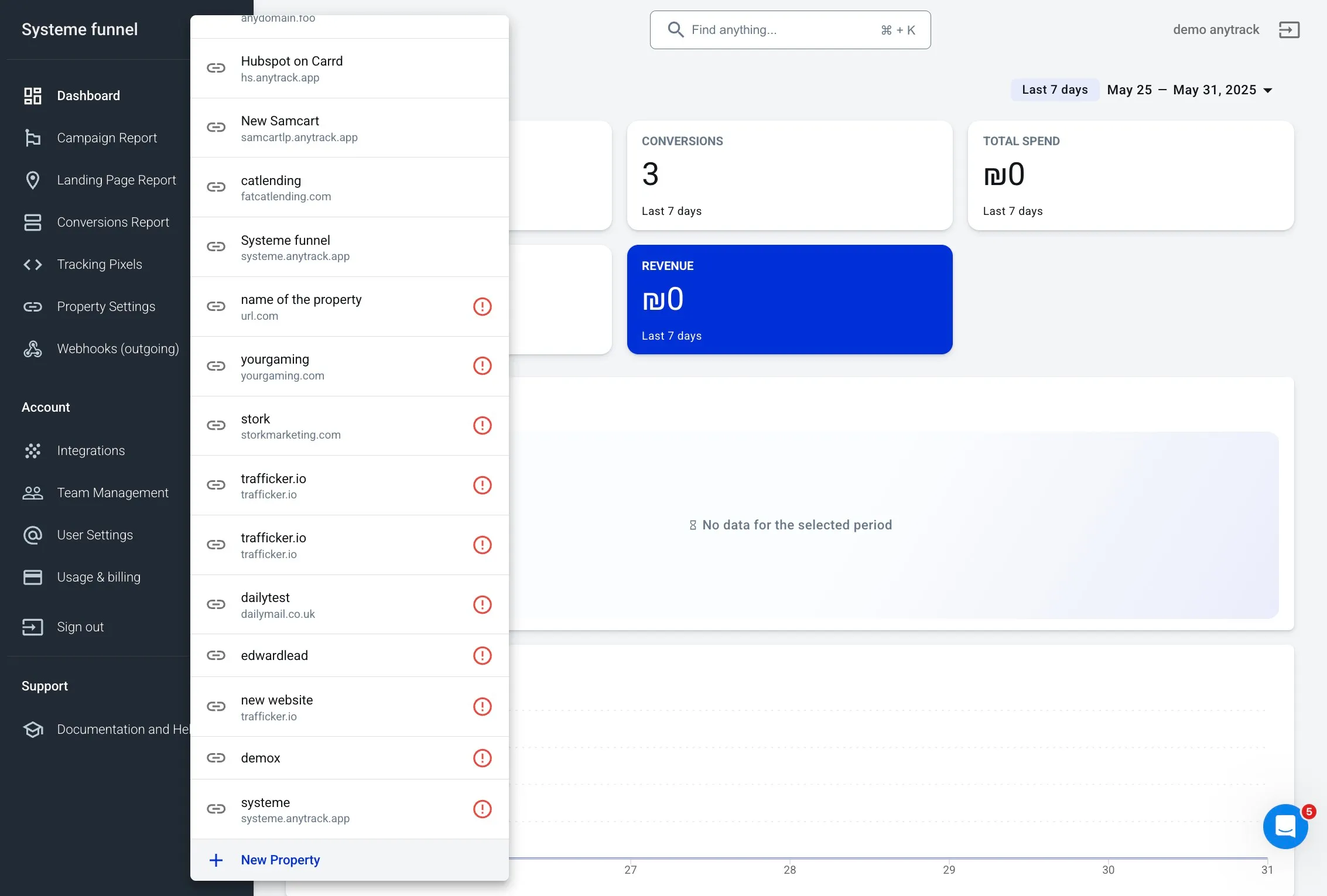
Create a new property in AnyTrack
Section titled “Create a new property in AnyTrack”
From the AnyTrack dashboard, create a new property to track your Systeme.io funnel.
-
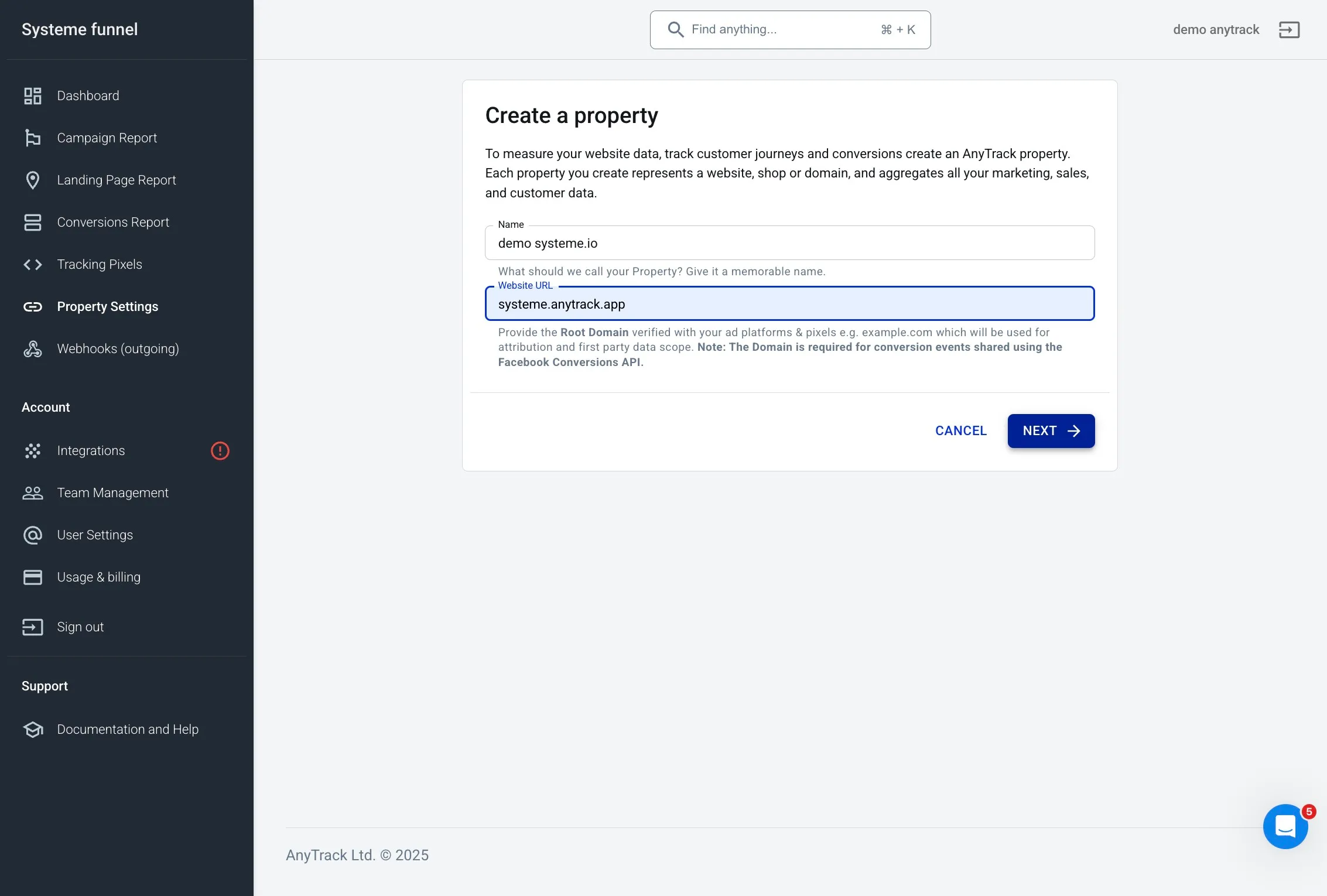
Set the Name and Domain
Section titled “Set the Name and Domain”
Enter the name and domain of your Systeme.io sales funnel.
-
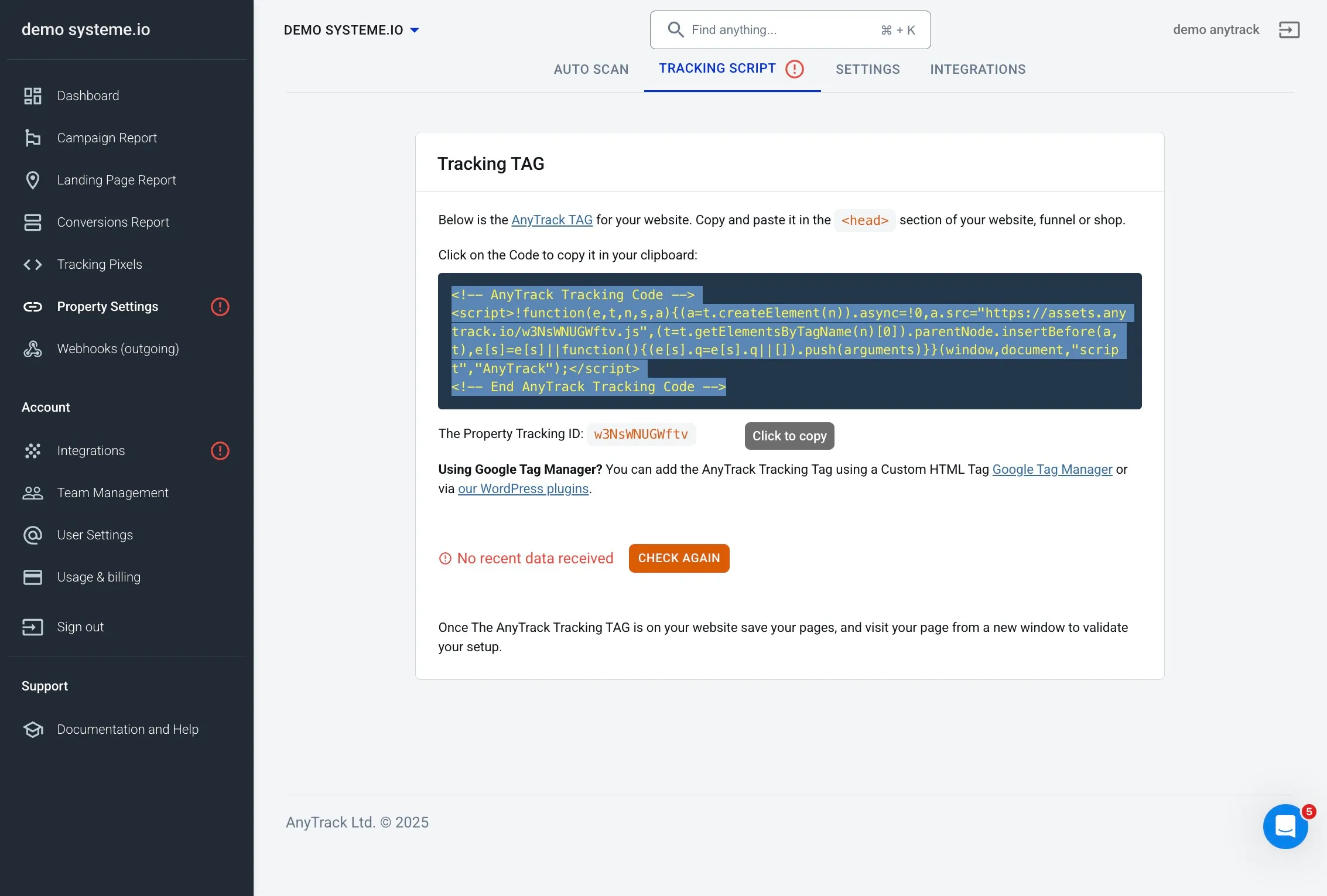
Copy the AnyTrack tracking tag
Section titled “Copy the AnyTrack tracking tag”
Click on the AnyTrack tracking tag to copy it to your clipboard.
-

Open Systeme.io funnel settings
Section titled “Open Systeme.io funnel settings”
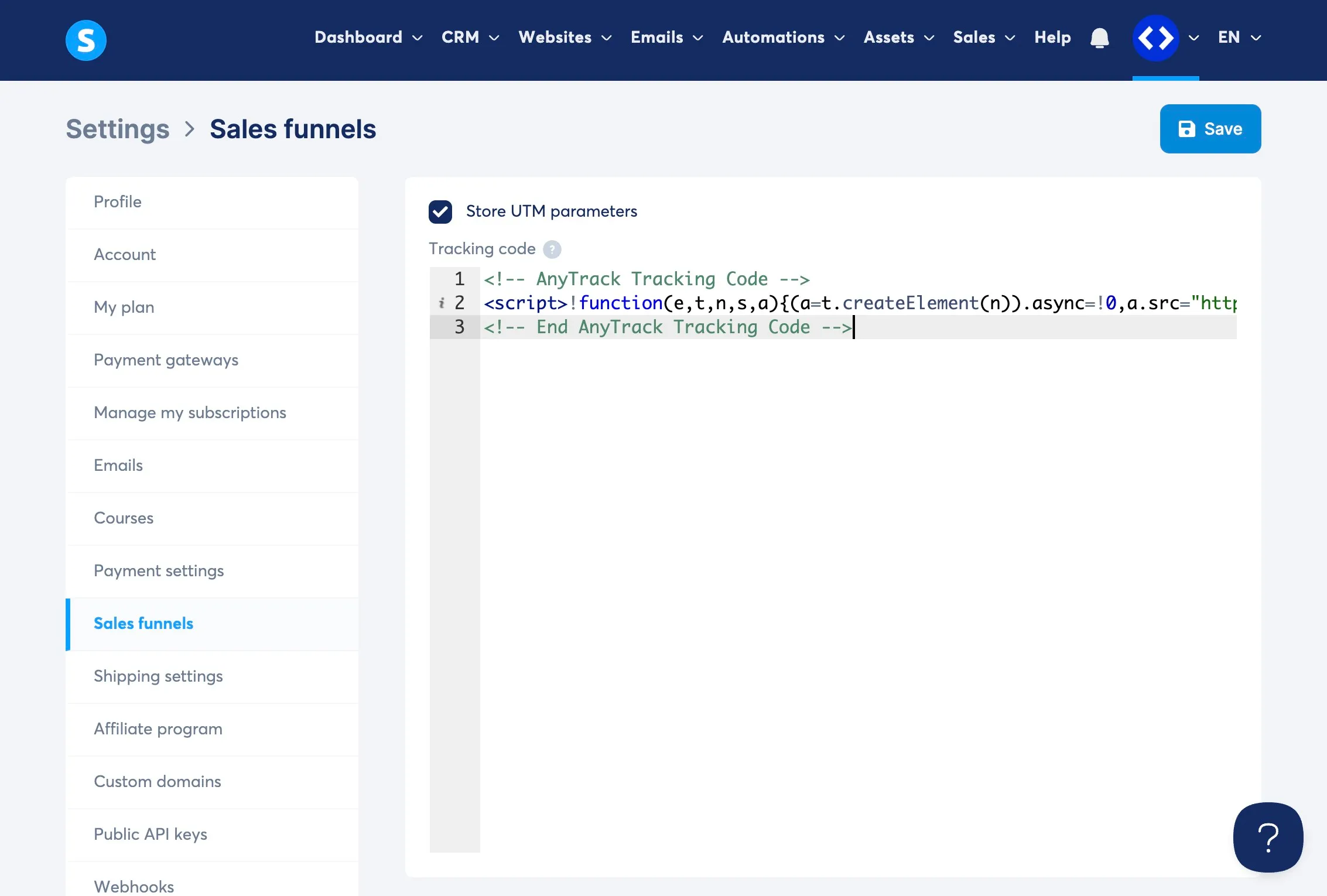
Return to Systeme.io and navigate to the Sales funnels settings.
-
Paste the AnyTrack tag and save
Section titled “Paste the AnyTrack tag and save”
Paste the copied AnyTrack tag into the funnel settings and save changes.
-
Copy your Systeme.io API Key
Section titled “Copy your Systeme.io API Key”
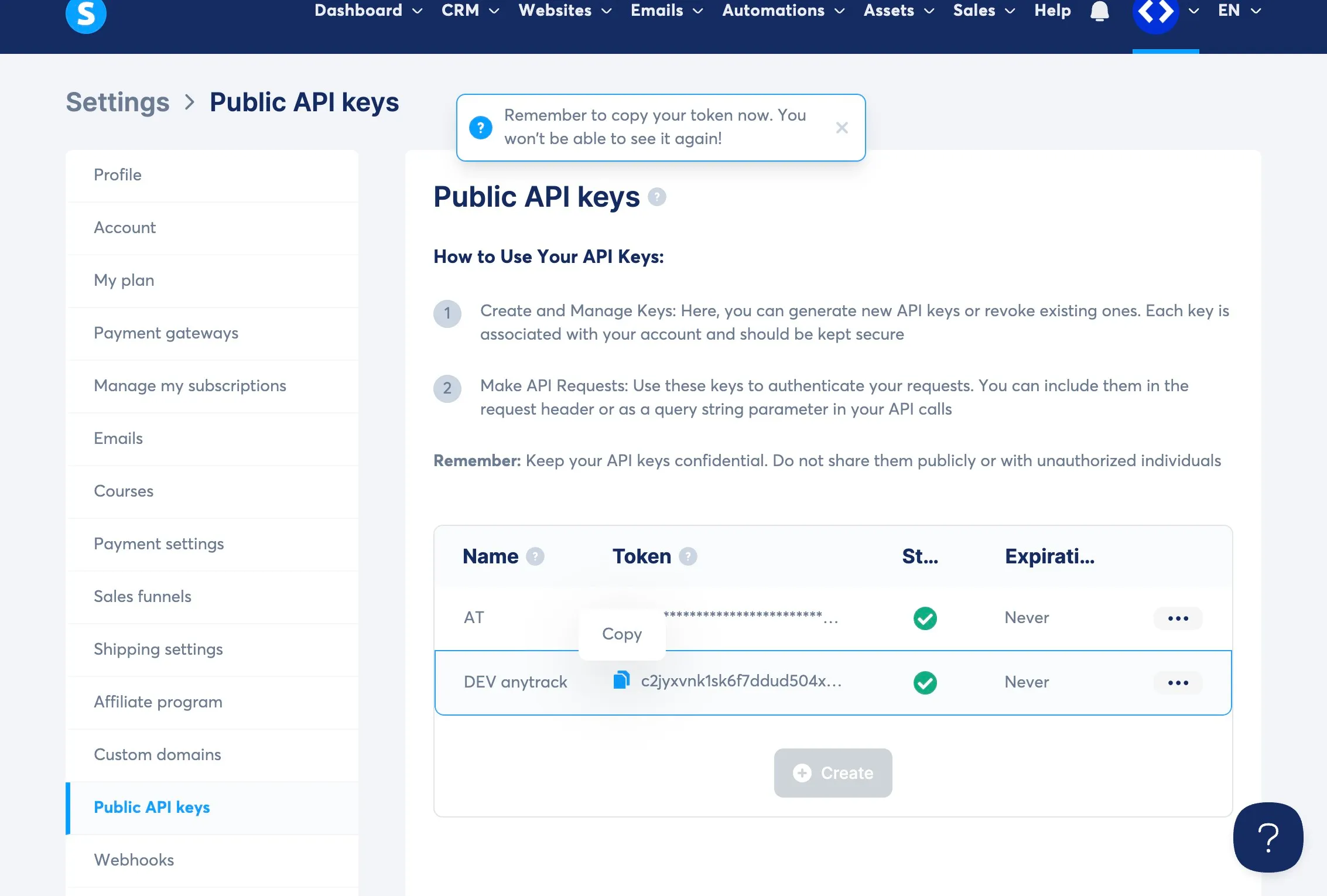
In Systeme.io, open the Public API Key tab and copy your API key.
-
Open the Integration Catalog in AnyTrack
Section titled “Open the Integration Catalog in AnyTrack”
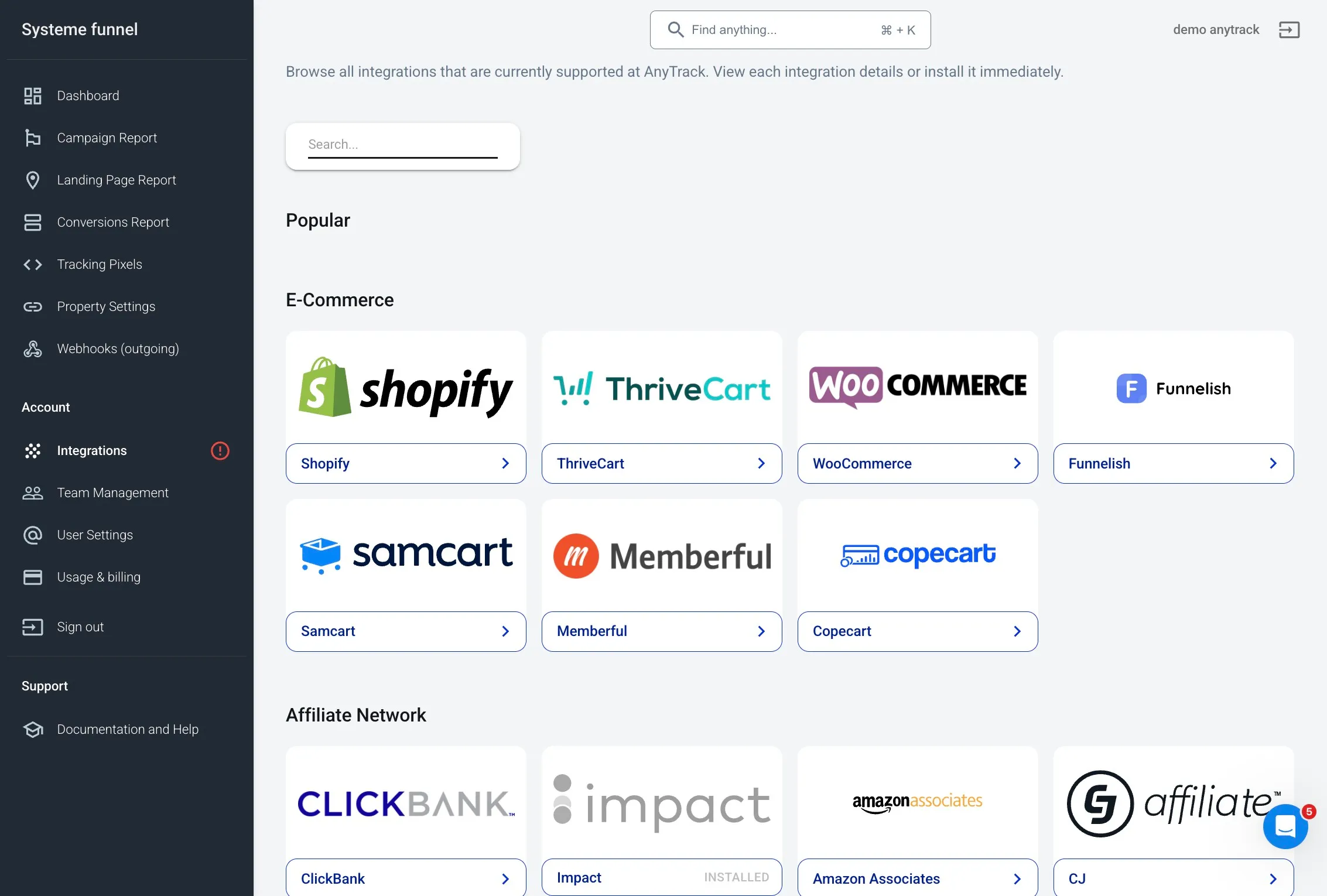
Return to AnyTrack and open the Integration Catalog.
-
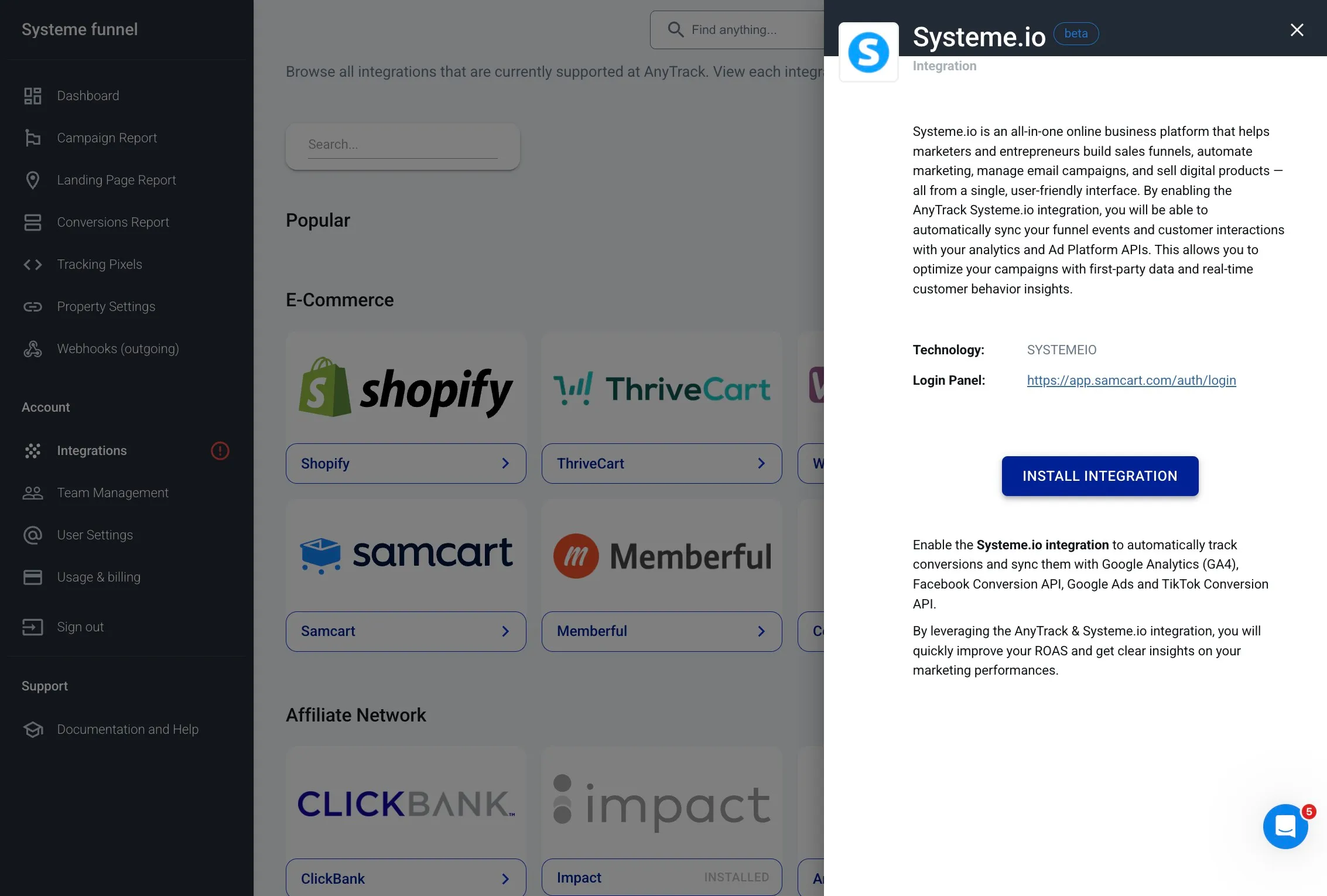
Select Systeme.io integration
Section titled “Select Systeme.io integration”
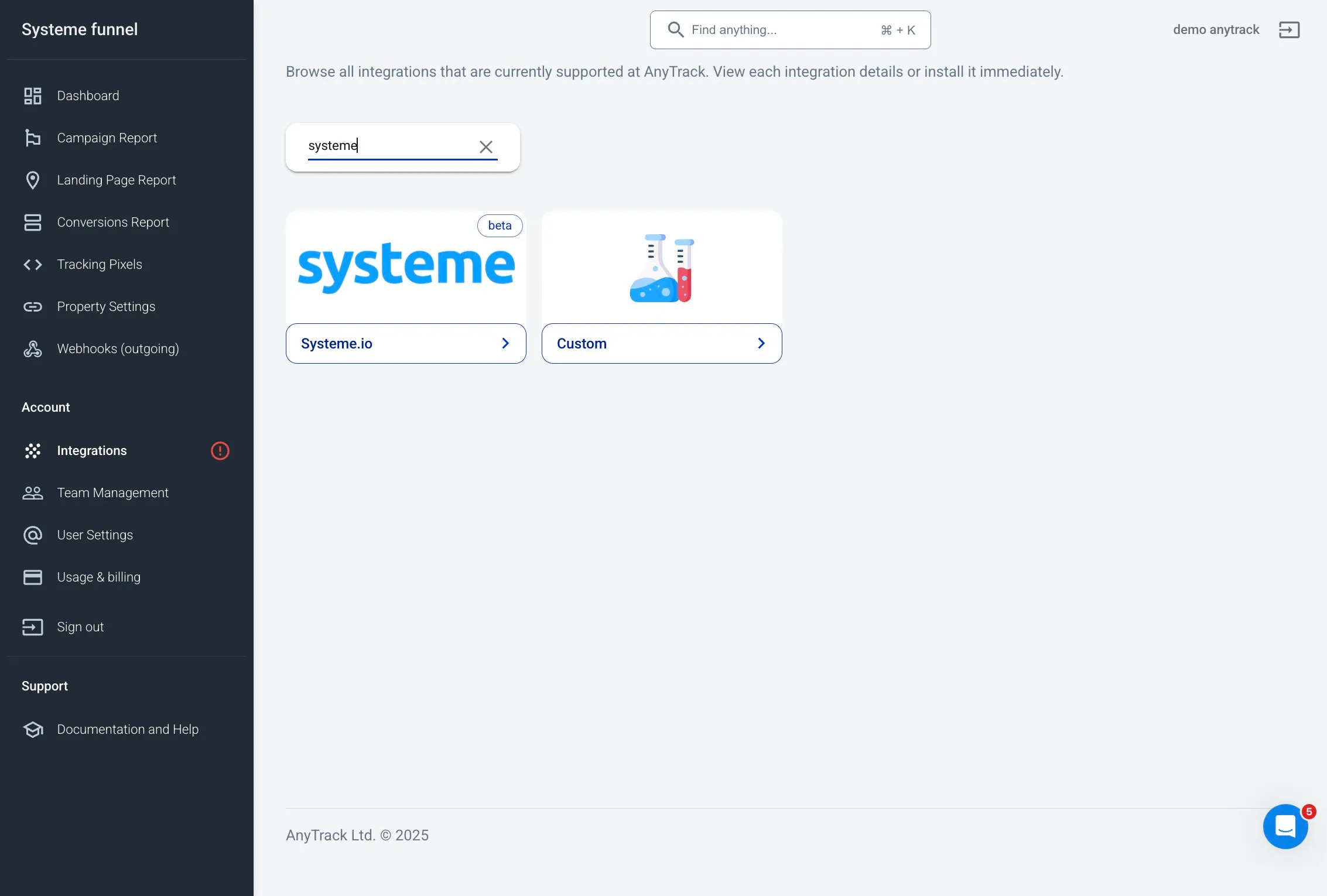
Search for Systeme.io in the catalog and click on the card.
-
Install the integration
Section titled “Install the integration”
Click on “Install Integration” to proceed.
-
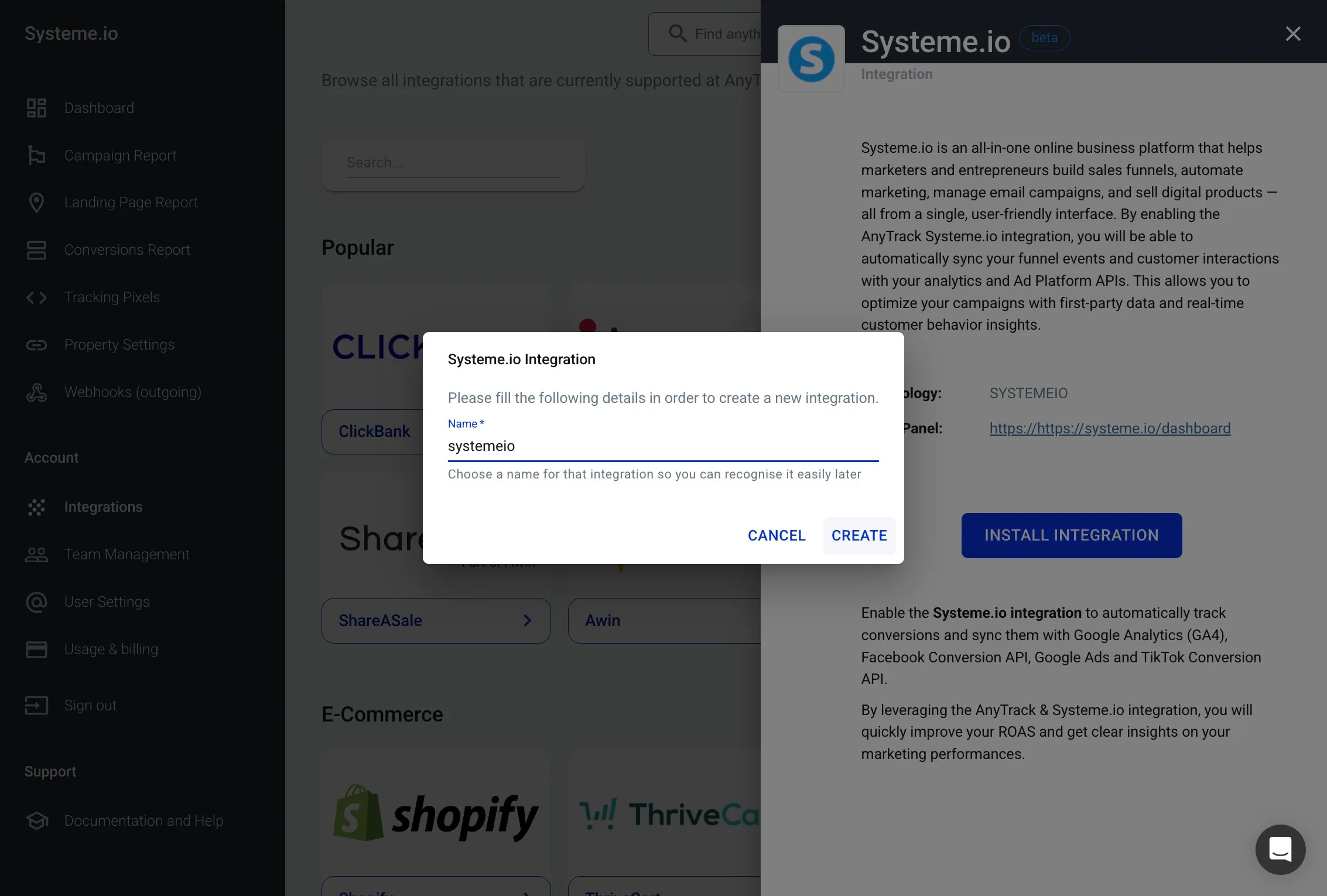
Create the integration
Section titled “Create the integration”
Click “Create” to add the Systeme.io integration.
-
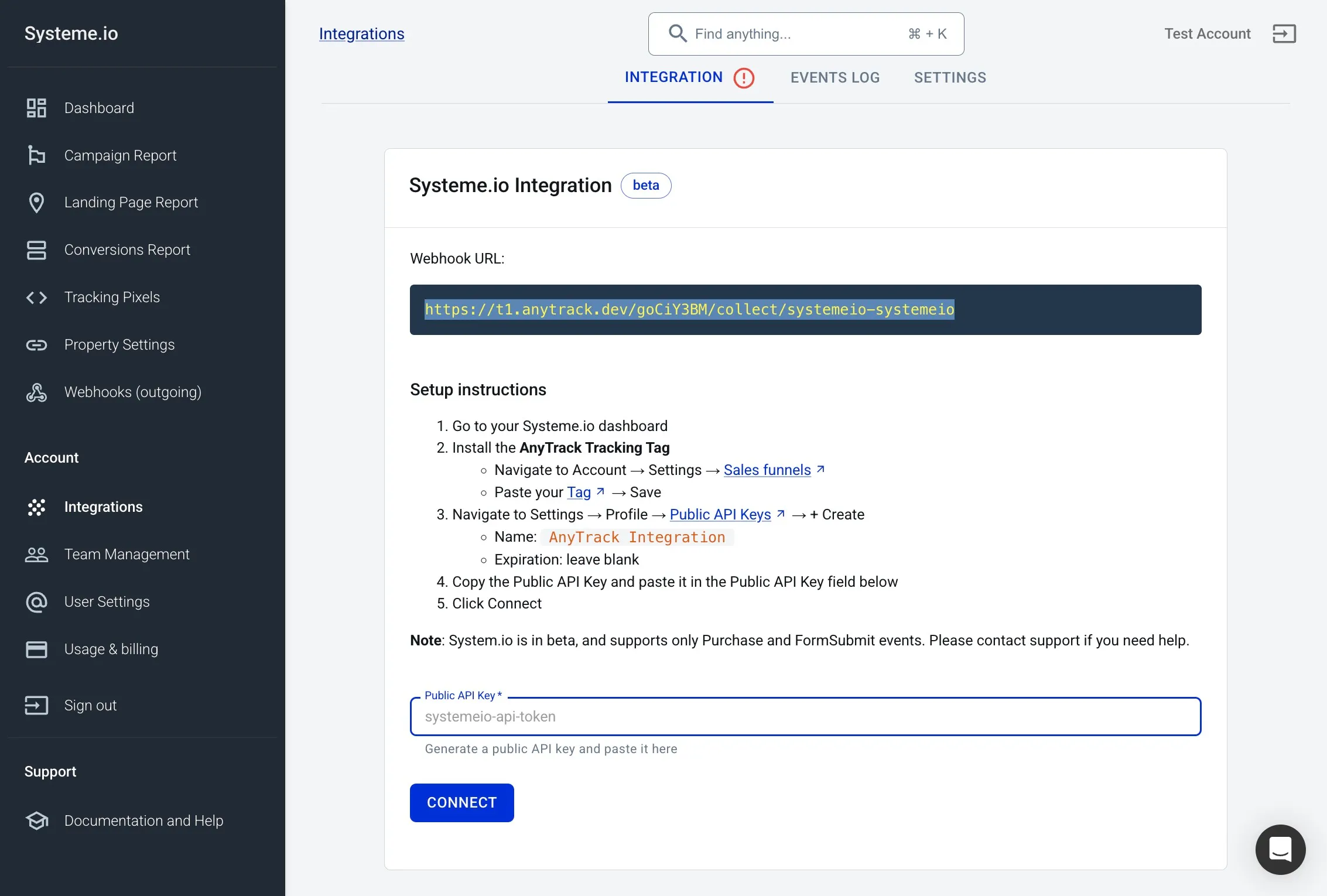
Paste your Systeme.io API Key
Section titled “Paste your Systeme.io API Key”
Enter your Systeme.io API key into the integration settings.
-
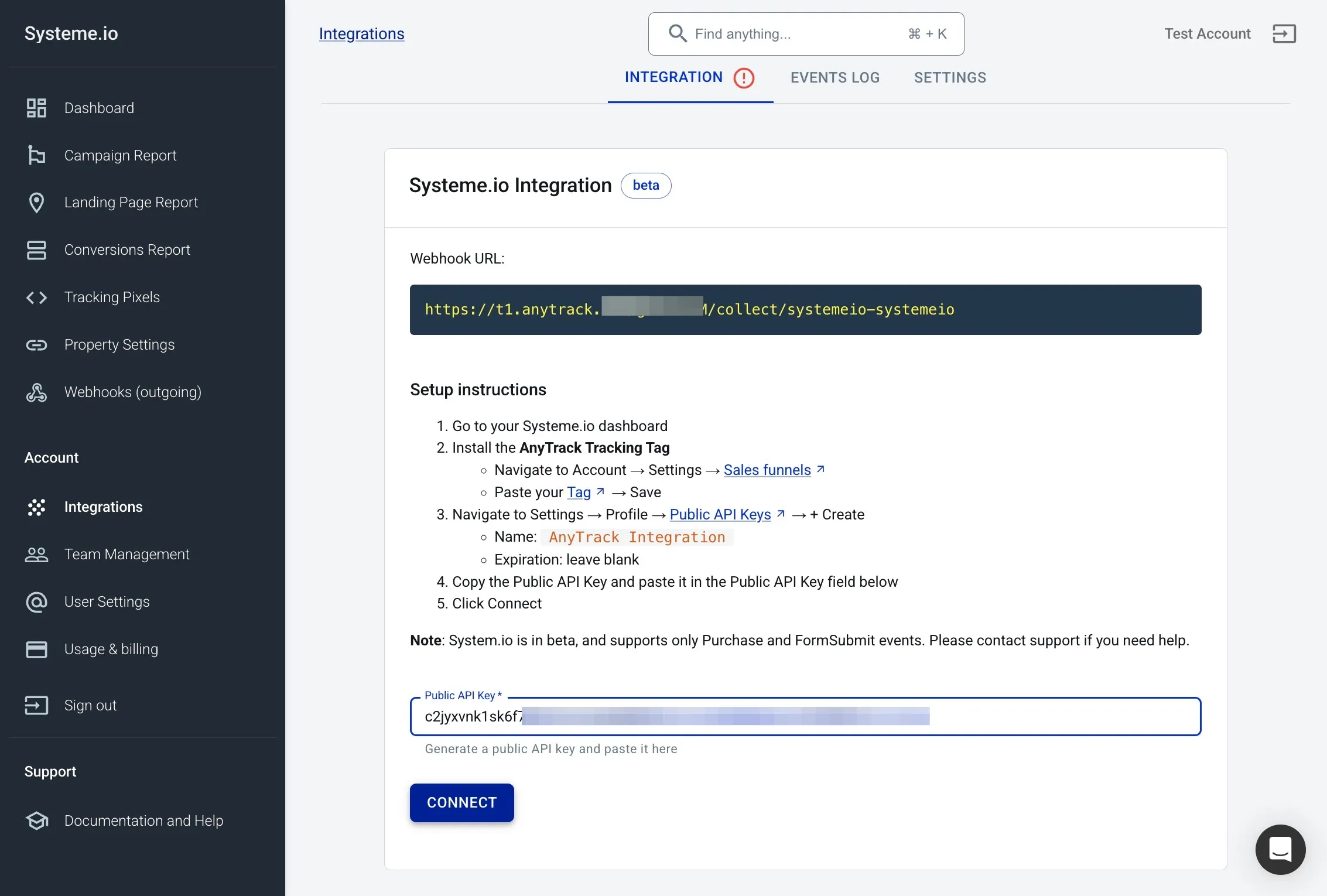
Connect and validate the API key
Section titled “Connect and validate the API key”
Click “Connect” to validate your Systeme.io API key and complete the integration.
Verify your Systeme.io setup
Section titled “Verify your Systeme.io setup”-
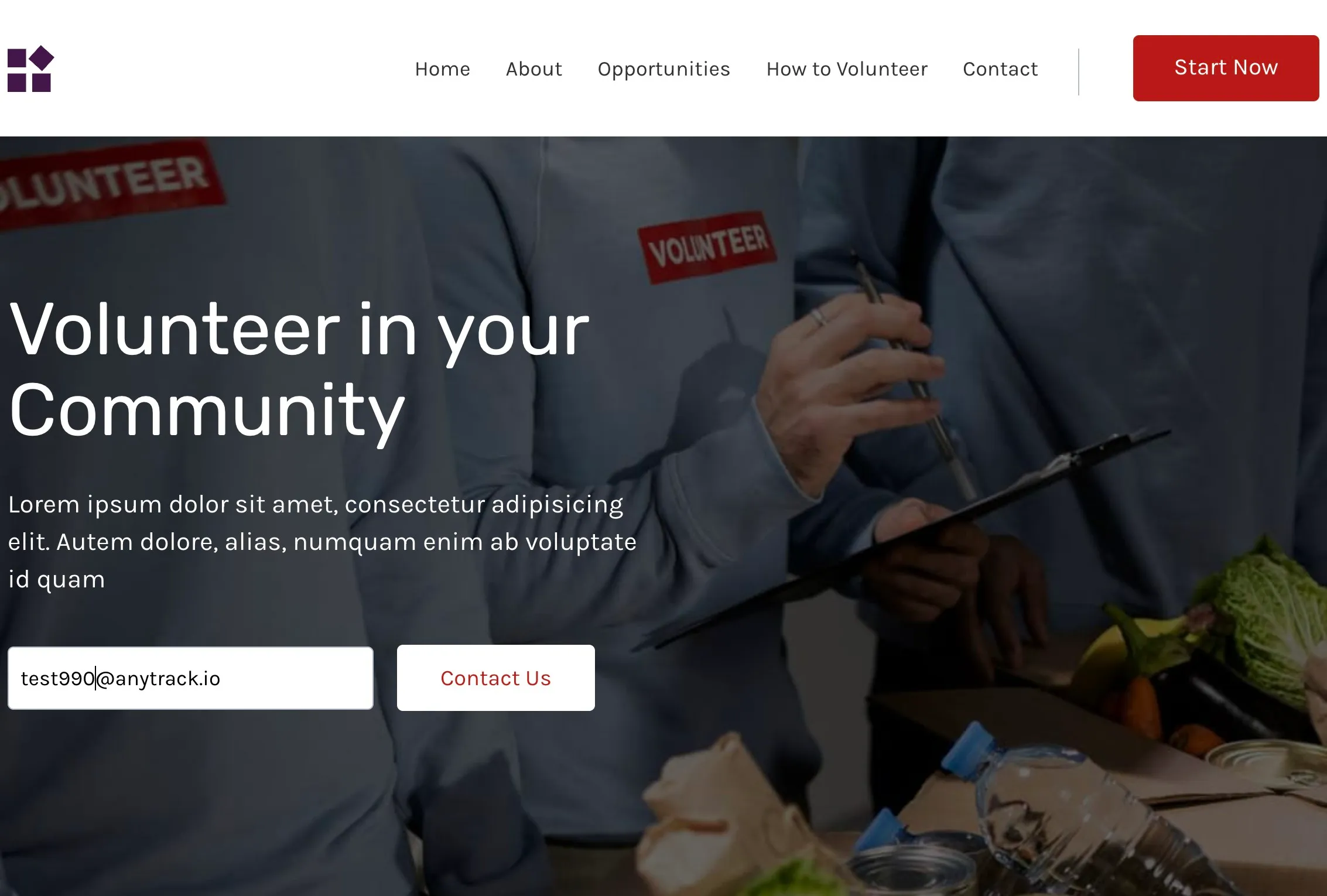
Test your funnel for conversions
Section titled “Test your funnel for conversions”
Run a test on your funnel to confirm that conversions are tracked in AnyTrack.
-
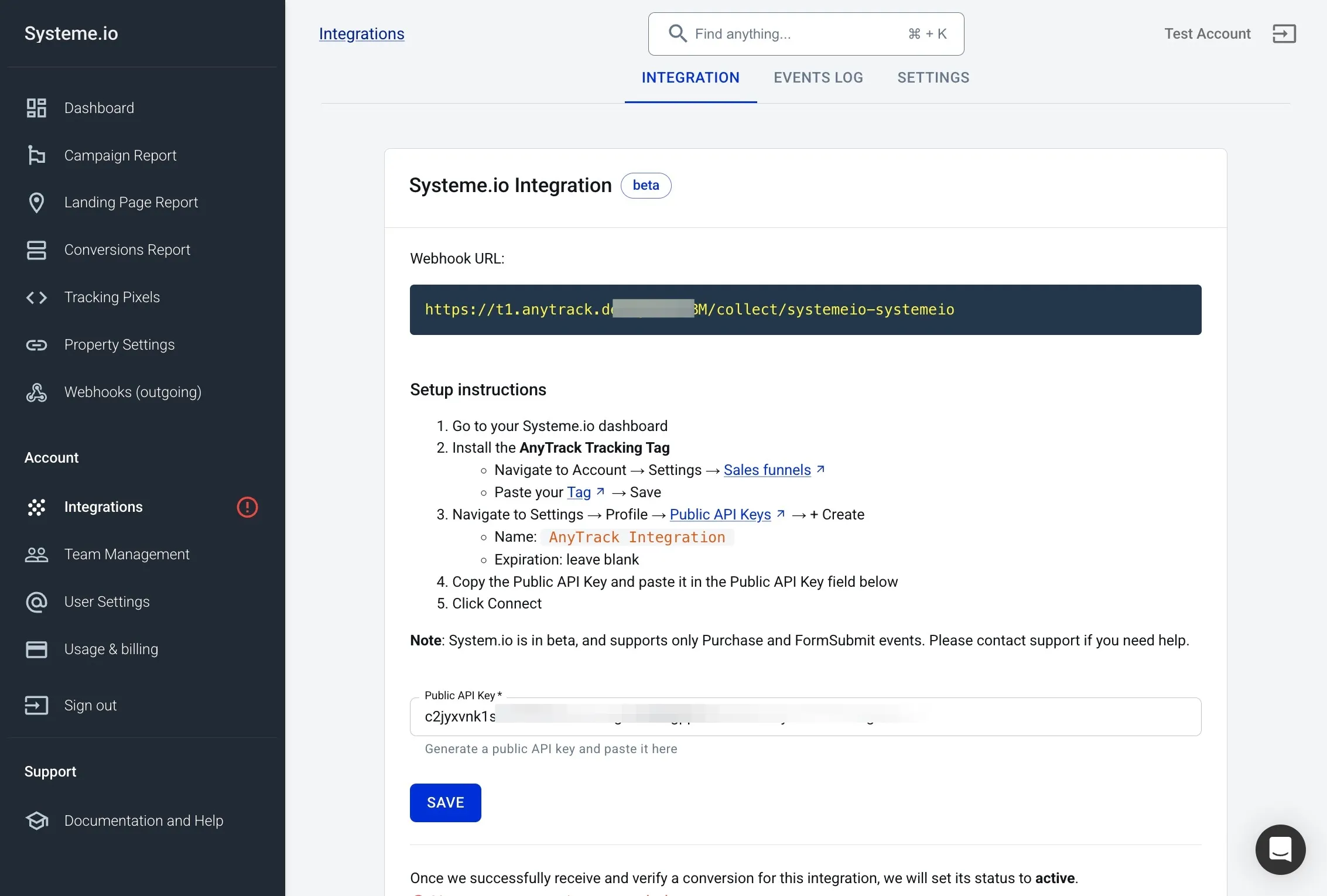
Open the Systeme.io Events Log in AnyTrack
Section titled “Open the Systeme.io Events Log in AnyTrack”
In AnyTrack, open the Systeme.io Events Log to review received events.
-
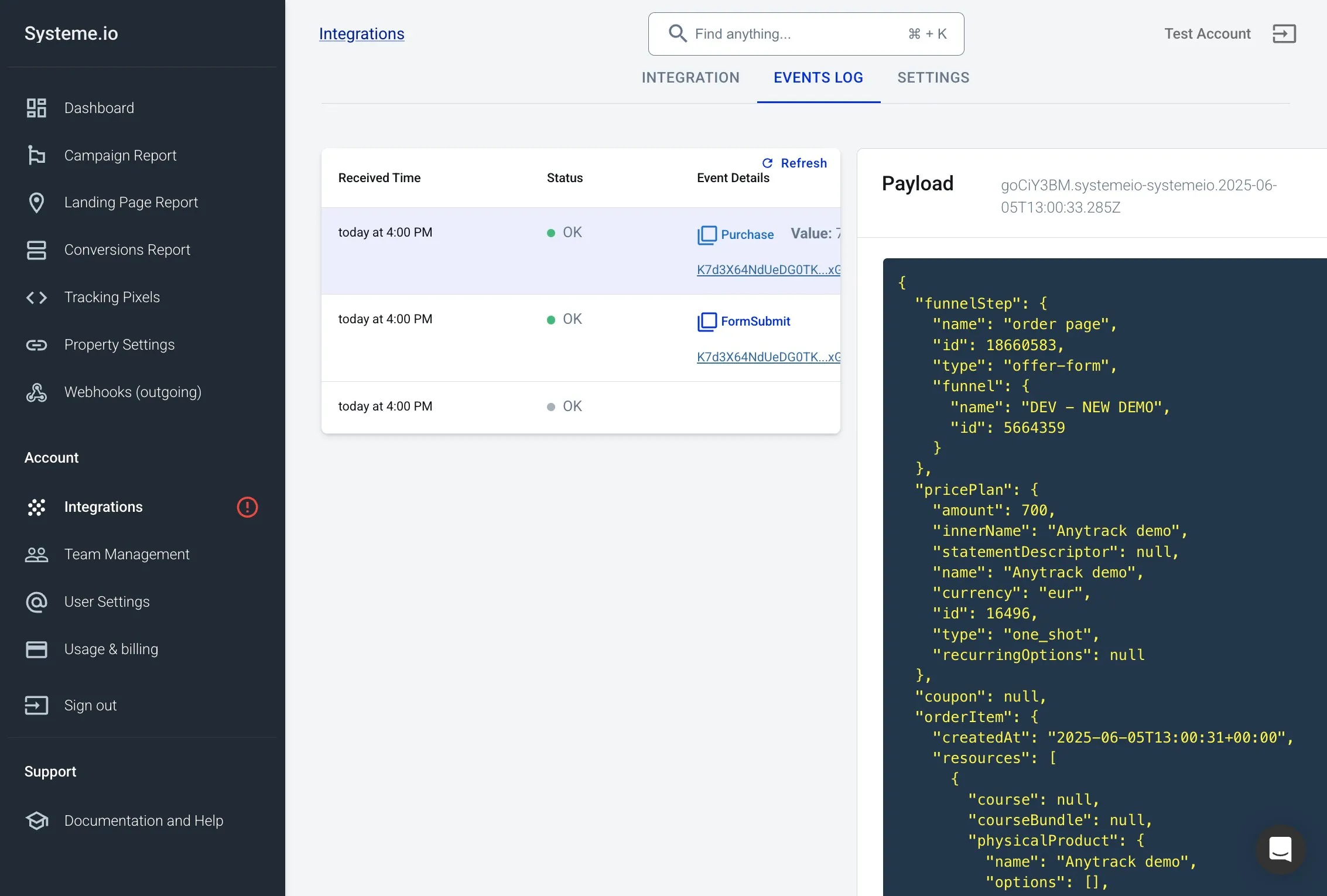
Inspect received conversion events
Section titled “Inspect received conversion events”
Inspect the conversion events received from Systeme.io to ensure proper tracking.
Related Resources
Section titled “Related Resources”Frequently Asked Questions
FAQ was last reviewed on 2026-06-30
What events does the Systeme.io integration send to AnyTrack?
FormSubmit event for opt-ins, a Purchase event for sales, and an Upsell event for post-purchase upsells. When a single Systeme.io order bundles multiple products (a main offer plus order bumps or upsells), AnyTrack sends one Purchase with the full combined order value. You can update the event mapping if you want to report different event names.Is the tracking tag GDPR / CCPA compliant?
Does the integration work with custom domains in Systeme.io?
How fast do events appear in AnyTrack?
How do I test the integration before going live?
What happens if I edit my funnel after installing the tag?
Can I track purchases as well as leads?
Does adding the AnyTrack tag slow down my pages?
How do I disable or delete the integration?
What permissions do I need in Systeme.io?
Can I pass UTM parameters and custom fields?
gclid, fbclid, ttclid, etc.), and Form fields included in the Systeme.io submission payload. You'll see these attributes in the Lead timeline and can forward them to Google Analytics 4, ad platforms, or your CRM.How do I prevent duplicate leads?
clickid, the lead email address, and other uniquely identifiable values passed to AnyTrack through the integration.