
WooCommerce Integration
Complete guide to integrating AnyTrack with WooCommerce for automated conversion tracking, real-time data sync, and optimized ad performance across Google Ads, Facebook Ads, and TikTok Ads.
WooCommerce Integration Overview
Section titled “WooCommerce Integration Overview”The AnyTrack WooCommerce integration automatically syncs customer behavior data between your store and AnyTrack. Once connected, you can track and measure key customer actions like:
- Product page views
- Add-to-cart events
- Purchases and other conversions
AnyTrack sends this data automatically to your connected ad platforms (Google Ads, Facebook Ads, and TikTok Ads) via their Conversion APIs, so your campaigns optimize on real purchase data instead of modeled conversions.
What this integration does
Section titled “What this integration does”- Sends accurate conversion data to ad platforms so they can optimize bidding and targeting.
- Tracks the full customer journey from click to purchase, across sessions and devices.
- Attributes revenue to the correct campaigns, ad groups, and creatives.
How does the WooCommerce AnyTrack integration work?
Section titled “How does the WooCommerce AnyTrack integration work?”Here’s the simple 4-step process that happens automatically:
-
Traffic Collection: When visitors arrive on your site, AnyTrack collects UTM parameters, referrer data, and first-party data.
-
Customer Journey Tracking: AnyTrack automatically monitors customer interactions such as product views, add-to-cart actions, and purchases.
-
Attribution Processing: Conversion data is processed and displayed in your AnyTrack dashboard reports.
-
Ad Platform Sync: AnyTrack sends conversion data to your advertising platforms via their Conversion APIs. This powers campaign optimization and audience targeting.
Technical Details
Section titled “Technical Details”| Reference | Value | Information |
|---|---|---|
| Tracking Group | WooCommerce | Use this to activate the integration programmatically. |
| Subid Parameter | click_id | The click ID passed and stored in WooCommerce. |
| Integration Method | Plugin | The official AnyTrack plugin tracks both browser and server-side events. |
WooCommerce Standard Events and Conversions
Section titled “WooCommerce Standard Events and Conversions”| Event Name | Description | Data Source | Meta Ads Mapping |
|---|---|---|---|
ViewContent | A visitor views a product page | JS | ViewContent |
AddToCart | A visitor adds an item to the cart | JS | AddToCart |
InitiateCheckout | A visitor begins the checkout process | JS | InitiateCheckout |
AddPaymentInfo | A user enters payment information | Server | AddPaymentInfo |
Purchase | A user completes a purchase | Server | Purchase |
Upsell | A user orders a product set as Upsell through FunnelKit | Server | Upsell |
The WooCommerce Plugin
Section titled “The WooCommerce Plugin”The AnyTrack Plugin for WooCommerce lets you connect your store, track conversion events, and send them to your ad platforms through the AnyTrack Conversion API. If you need to install the Tracking Tag separately, the plugin handles this automatically.
Setup Guide
Section titled “Setup Guide”Step 1: Set up the integration in AnyTrack
Section titled “Step 1: Set up the integration in AnyTrack”- In the AnyTrack Dashboard, create a property for your WooCommerce site.
- Open the Integration Catalog and add the WooCommerce integration.
- Copy the Property ID shown in the integration setup screen.
Step 2: Install and connect the WooCommerce plugin
Section titled “Step 2: Install and connect the WooCommerce plugin”- In WordPress, go to Plugins → Add New and search for AnyTrack for WooCommerce.
- Click Install, then Activate.
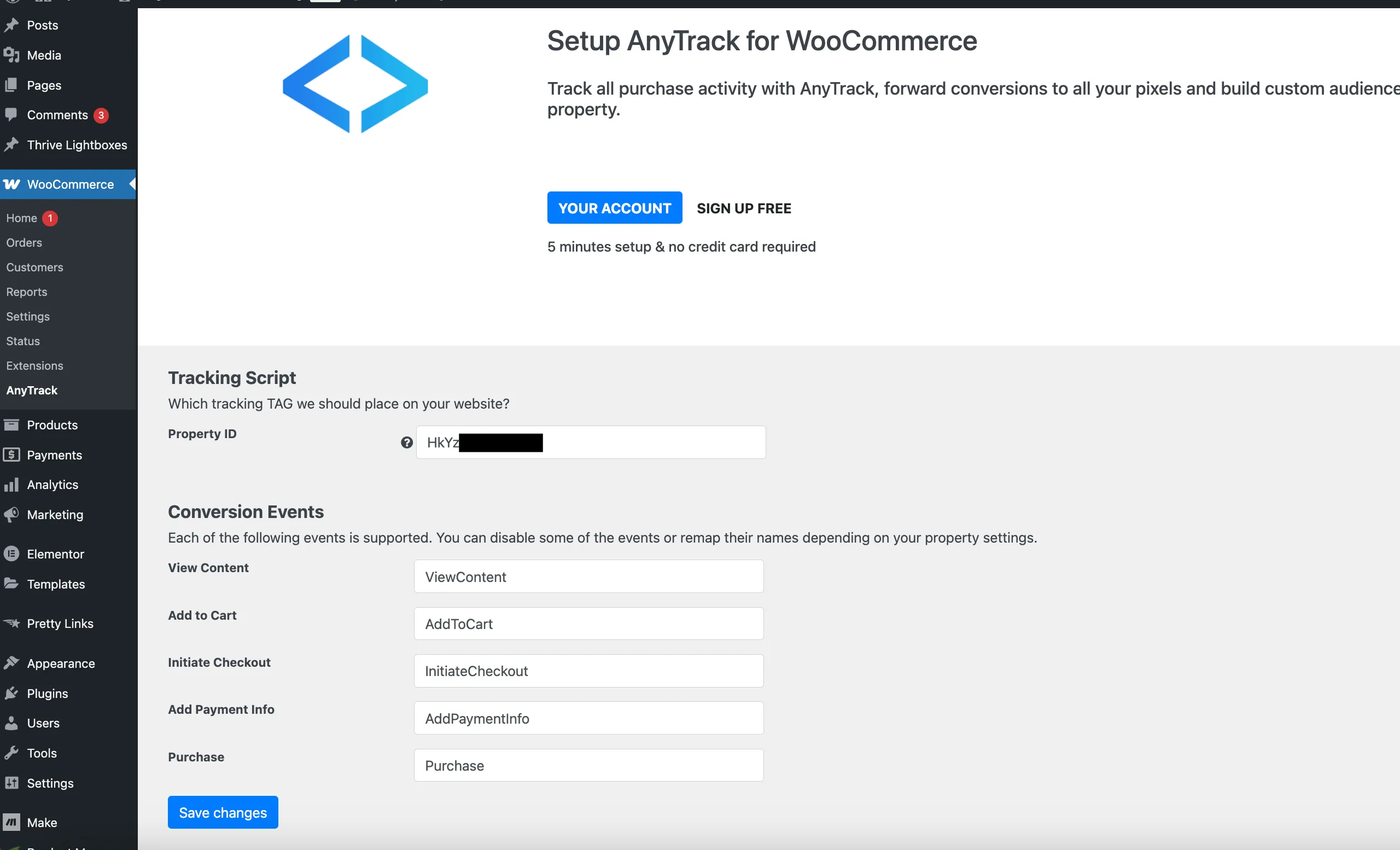
- In WordPress, go to WooCommerce → AnyTrack and paste the Property ID you copied. Save.
📽️ Watch the integration tutorial on YouTube
Validate Your Integration
Section titled “Validate Your Integration”Use the Event Log in the AnyTrack dashboard to confirm WooCommerce events are flowing in. The Event Log is a new feature for WooCommerce and shows both server-side and client-side events in near real time.
- In the AnyTrack dashboard, open the Event Log for your WooCommerce property.
- In a private/incognito window on your store, trigger a
ViewContent, anAddToCart, and a testPurchase. - Confirm each event appears in the Event Log within a few seconds.
You can also install the AnyTrack Pixel Helper Chrome Extension to inspect client-side events on your store as they fire.
WooCommerce Integration - Frequently Asked Questions
FAQ was last reviewed on 2026-06-30