Combined Orders
Learn how Combined Orders group multiple purchase events from the same funnel session into a single order. AnyTrack sends one Purchase event with the total value to ad platforms by default, with an option to map it to a custom event name, for accurate CPA, correct AOV, and better ad optimization.
Combined Orders group all purchase-type events from the same funnel session into one order. When a customer buys a main product and accepts upsells, your integration sends a separate event for each step. Without grouping, ad platforms see multiple Purchase events for what is really one sale. This inflates conversion counts, lowers CPA artificially, distorts AOV, and splits the order value across several weaker optimization signals.
| Funnel Step | Event Type | Value |
|---|---|---|
| Main product | Purchase | $47.00 |
| Premium add-on | Upsell | $97.00 |
| Bonus package | Upsell | $27.00 |
| Combined Order | Purchase (sent to ad platforms) | $171.00 |
AnyTrack keeps every individual event in your reports and, by default, sends a single Purchase event with the total order value to your connected ad platforms. You can also map the Combined Order to a custom event name per pixel.
Supported Integrations
Section titled “Supported Integrations”Combined Orders is available on these conversion sources:
- ClickBank
- ClickFunnels classic
- ClickFunnels 2.0
- Funnelish
- GoHighLevel
- Systeme.io
- WooCommerce
If your integration is not listed, individual events are sent to ad platforms as-is. Contact support to request Combined Orders for another integration.
SamCart needs no combining: its Order Completed webhook sends the whole order, so AnyTrack records one Purchase for each SamCart order.
Setting Up Combined Orders
Section titled “Setting Up Combined Orders”Open your integration settings (for example, ClickFunnels or WooCommerce) and turn on the Combine Order toggle. That is the only required setting. By default, AnyTrack sends each Combined Order to every connected ad platform as a Purchase event. You do not need to change anything in Event Mapping. To send a custom event name instead, see Send the Combined Order as a Custom Event.
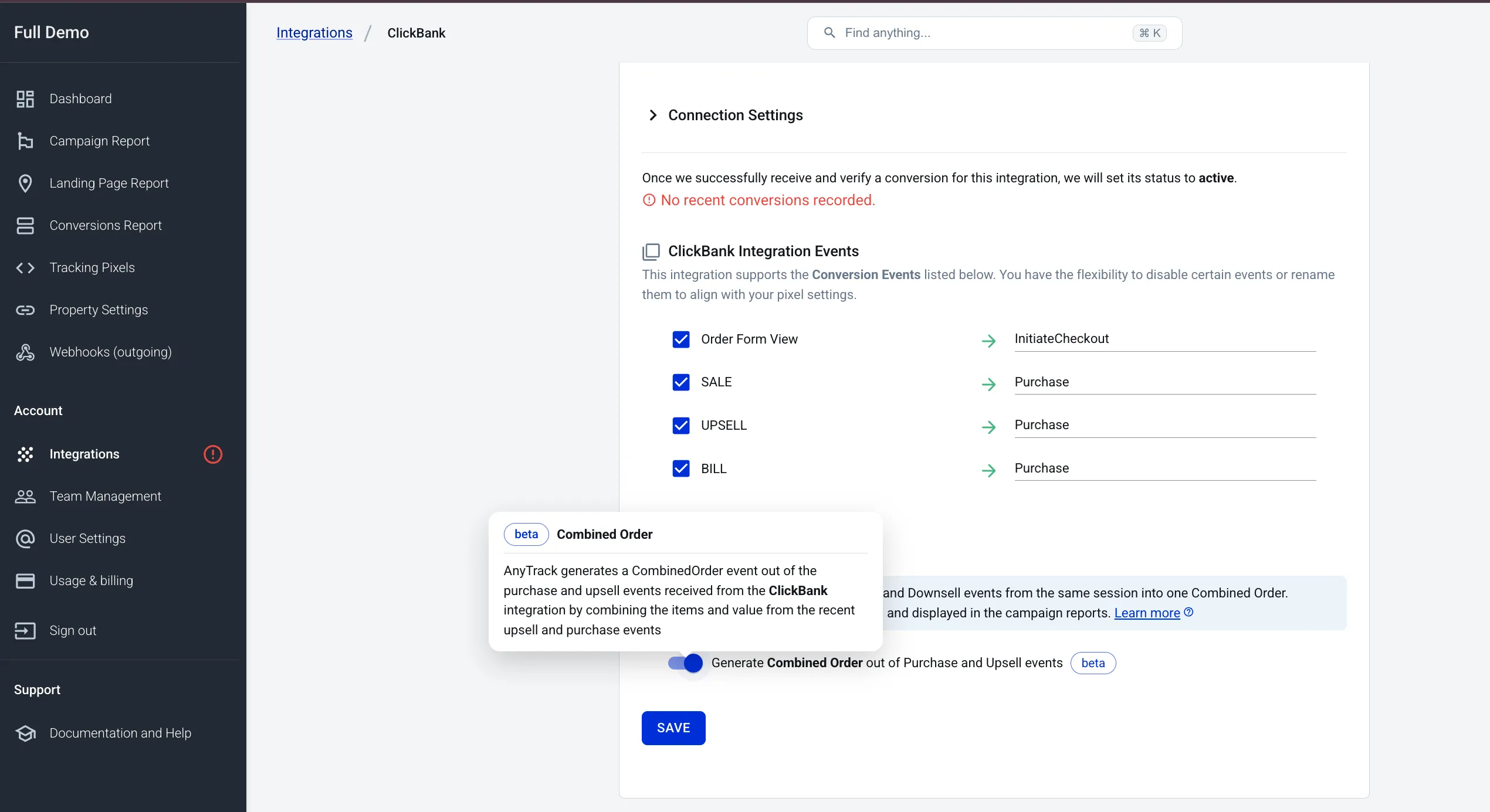
Once enabled:
- Individual events continue to arrive and are recorded normally
- AnyTrack creates a Combined Order for each session with multiple purchase-type events
- By default, AnyTrack sends each Combined Order to every connected ad platform as a single
Purchaseevent with the total order value and the product data from every grouped event - Your dashboard and Conversions Report show both the individual events and the Combined Order
Send the Combined Order as a Custom Event
Section titled “Send the Combined Order as a Custom Event”By default, AnyTrack maps the Combined Order to the Purchase event and sends it to your ad platforms as a Purchase. To send a custom event name instead, map the CombinedOrder event in the pixel’s event mapping.
To map a custom event name:
- Open Tracking Pixels and select the pixel you want to update.
- In the events list, select CombinedOrder.
- Enter your custom event name in the Event Name field.
- Click Save.
Each pixel has its own event mapping. Pixels without a custom mapping continue to receive the Combined Order as a Purchase event.
Verify Your Setup
Section titled “Verify Your Setup”After enabling, confirm everything works:
- ✅ Combine Order toggle is ON for each integration with multi-step funnels
- ✅ The
CombinedOrderevent appears in the Conversions Report after the 15-minute window closes - ✅ Individual events still appear in the Conversions Report with full detail
How It Works
Section titled “How It Works”When the first purchase-type event arrives (Purchase, Upsell, or Downsell), AnyTrack starts a fixed 15-minute session window. Any additional purchase events received within that window are grouped into the same order. When the window closes, AnyTrack creates a Combined Order with the total value and sends it to your ad platforms.
The window does not reset when new events arrive. If the first Purchase arrives at 2:00 PM, the window closes at 2:15 PM regardless of when the Upsell arrives.
How Combined Orders Group Events
From individual funnel events to a single Purchase sent to ad platforms (default mapping)
Customer Buys the Main Product
The customer completes the initial checkout on your funnel. Your integration (ClickFunnels, ClickBank, or WooCommerce) sends a Purchase event to AnyTrack.
Purchase — $47.00 — 2:00 PM Customer Accepts the First Upsell
The customer accepts an upsell offer. Your integration sends an Upsell event for the same session.
Upsell — $97.00 — 2:04 PM Customer Accepts the Second Upsell
A second upsell arrives. All three events arrive within the same 15-minute session window.
Upsell — $27.00 — 2:09 PM AnyTrack Holds the Events in a 15-Min Window
AnyTrack records each individual event in full and groups them into a single in-progress order.
The session window opens at 2:00 PM with the first event and closes at 2:15 PM. New events that arrive during this window join the same order.
Window Closes — Combined Order Created
At 2:15 PM the session closes. AnyTrack sums all purchase-type events ($47 + $97 + $27) into one Combined Order.
Combined Order — Purchase $171.00 One Purchase Event Sent to Ad Platforms (Default)
By default, ad platforms receive a single Purchase event with the true order value, so CPA and AOV reflect real customer spend. Pixels with a custom mapping receive the Combined Order under the custom event name instead.
AnyTrack builds one normalized event from the grouped events. This is the payload for the example above, before AnyTrack translates it for each connected platform.
{ "event_name": "CombinedOrder", "click_id": "f8e3bf8dfba8b51ce3340", "transactionId": "#24356562534585", "value": 171.00, "currency": "USD", "email": "jsmith@example.com", "firstName": "John", "lastName": "Smith", "phone": "+16505554444", "country": "US", "state": "CA", "city": "Menlo Park", "zipcode": "94025", "items": [ { "id": "SKU-MAIN-01", "name": "Main product", "quantity": 1, "price": 47.00 }, { "id": "SKU-UPSELL-01", "name": "Premium add-on", "quantity": 1, "price": 97.00 }, { "id": "SKU-BONUS-01", "name": "Bonus package", "quantity": 1, "price": 27.00 } ]}The transactionId is the order id, and the items prices sum to the value of the Combined Order. AnyTrack then maps this one event to each connected platform in that platform’s own schema: the Meta Conversion API, Google Ads, Google Analytics, and the TikTok Events API. The default mapping sends it under the Purchase event name.
Customer traits stay raw in this payload. AnyTrack normalizes and hashes each trait to the receiving platform’s rules at delivery. See Event Attributes for the full schema.




What AnyTrack Records
Section titled “What AnyTrack Records”AnyTrack records every individual event in full, so you never lose data. AnyTrack adds the Combined Order on top of the individual events:
| Event Type | Source | Visible in AnyTrack | Sent to Ad Platforms |
|---|---|---|---|
| Purchase | Affiliate network | Yes | No (held) |
| Upsell | Affiliate network | Yes | No (held) |
| Downsell | Affiliate network | Yes | No (held) |
| Combined Order | AnyTrack (auto-generated) | Yes | Yes, as Purchase by default |
These events follow the same naming as Standard Conversions. AnyTrack sends the Combined Order to ad platforms as a Purchase event by default, so you do not need to configure anything in Event Mapping. To send a custom event name instead, map the CombinedOrder event in the pixel’s event mapping (see Send the Combined Order as a Custom Event).
What Ad Platforms Receive
Section titled “What Ad Platforms Receive”By default, ad platforms receive one Purchase event with the combined total. If you mapped the CombinedOrder event to a custom event name for a pixel, that pixel receives the custom event instead. Using the example above:
- Before Combined Orders: 3 events sent (Purchase $47, Upsell $97, Upsell $27)
- After Combined Orders: 1 event sent (Purchase $171)
Why One Event Optimizes Better
Section titled “Why One Event Optimizes Better”Combined Orders change more than your reports. Ad platforms bid, prioritize, and build audiences from the events they receive, so the shape of the event affects delivery.
| What the platform does | 3 separate events | 1 Combined Order |
|---|---|---|
| Value optimization | Bids against three small values ($47, $97, $27) | Bids against the real order value ($171) |
| Reported conversions | 3 purchases for 1 customer | 1 purchase for 1 customer |
| Limited-signal traffic | Only the highest-priority event is reported, so revenue is under-reported | The full order value arrives in one event |
| Value-based audiences | The order value is split across three purchase events | The order value sits on one purchase event |
| Catalog matching | Each event describes one line item | One event describes the whole basket |
Meta prioritizes up to eight conversion events per domain in Aggregated Event Measurement. When more than one prioritized event happens in the same conversion window, Meta reports the highest-priority event only. A funnel that sends a separate event per upsell therefore loses the upsell revenue on limited-signal traffic, such as iOS users who opted out of tracking. One Combined Order carries the whole order value in a single prioritized event, so no part of the order is dropped.
Value-based Custom Audiences and Lookalike Audiences read the value on the purchase events Meta receives. One Combined Order gives each buyer a single event that holds the real amount they spent.
Product Data on the Combined Order
Section titled “Product Data on the Combined Order”AnyTrack sends product data with the Combined Order by default. The Combined Order merges the line items from every grouped event, so the contents array that reaches Meta holds the main product and each upsell, each with its own id, quantity, and price.
This keeps catalog matching intact. Meta requires contents or content_ids on the Purchase event for Advantage+ catalog ads, and matches the ids against your product catalog. One Combined Order presents the whole basket as one purchase, which is what dynamic retargeting reads. Separate events split the basket, so no single event describes what the customer actually bought.
To send product data, pass the items array on your events. See Event Attributes for the fields AnyTrack accepts.
How Reports Change
Section titled “How Reports Change”Campaign Report
Section titled “Campaign Report”The Campaign Report has one column for each event. Combined Orders add the CombinedOrder event and do not change the other event columns:
| Column | What It Shows |
|---|---|
Purchase | Count of individual Purchase events from the integration |
Upsell | Count of individual Upsell events from the integration |
CombinedOrder | Count of Combined Orders. Ad platforms receive these as Purchase by default |
To show the CombinedOrder column, open Customize Columns and select CombinedOrder in the Tracking Events group. The Campaign Report lists this column when the property recorded a Combined Order in the last 14 days. The Cost per CombinedOrder column shows the ad spend for each order. The Campaign Report has no AOV column.
Conversions Report
Section titled “Conversions Report”The Conversions Report shows every individual event with its value and timestamp, plus the Combined Order that groups them. Drill into any order to see the breakdown: a $171 order made of one $47 Purchase and two Upsells at $97 and $27.
AnyTrack Dashboard
Section titled “AnyTrack Dashboard”The dashboard shows both individual events and Combined Orders.
Metric Definitions with Combined Orders
Section titled “Metric Definitions with Combined Orders”This example shows the metrics that your ad platforms report. With Combined Orders, each ad platform receives one Purchase for each order. In the Campaign Report, the individual events keep their own columns.
| Metric | Without Combined Orders | With Combined Orders |
|---|---|---|
| Revenue | $1,710 (sum of 30 individual events) | $1,710 (sum of 10 Combined Orders) |
| Conversions | 30 (every event counts) | 10 (one per order) |
| AOV | $1,710 / 30 = $57 | $1,710 / 10 = $171 |
| CPA | $500 / 30 = $16.67 | $500 / 10 = $50 |
| ROAS | $1,710 / $500 = 3.42x | $1,710 / $500 = 3.42x |
Edge Cases
Section titled “Edge Cases”Single-Event Sessions
Section titled “Single-Event Sessions”If a customer only completes the initial purchase with no upsells, the Combined Order equals that single purchase. By default, AnyTrack sends one Purchase event to the ad platform, same as before.
Late-Arriving Events
Section titled “Late-Arriving Events”If a purchase event arrives after the 15-minute window has closed, the late event is recorded individually and sent as a separate event to ad platforms. It cannot be added to the already-sent Combined Order. Late events are flagged in the Conversions Report so you can spot orders with potentially incomplete totals.
Disabling Combined Orders
Section titled “Disabling Combined Orders”Turning off the toggle reverts to sending individual events. In-flight sessions still within the 15-minute window will complete as Combined Orders first. New events after the toggle is off are sent individually.
Combined Orders FAQ
FAQ was last reviewed on 2026-10-08
Do Combined Orders cover order bumps?
Purchase, Upsell, and Downsell) inside a fixed 15-minute window. Whether an order bump is grouped therefore depends on how your platform reports it: as part of the main order, or as its own purchase-type event. Either way you must turn on the Combine Order toggle in the integration settings first; it is not automatic. To see how your bump arrives, place a test order and open the Conversions Report, which lists every individual event alongside the Combined Order that groups them.Which integrations support Combined Orders?
Purchase for each SamCart order.Does Shopify support Combined Orders?
How long does AnyTrack wait before sending the Combined Order?
Do I need to configure anything in Event Mapping?
Purchase event. To send a custom event name to a specific ad platform instead, open the pixel in Tracking Pixels, select the CombinedOrder event, and enter your custom event name.Will I lose visibility into individual upsell and downsell events?
Do Combined Orders affect ad optimization, or only reporting?
Purchase event.Does the Combined Order keep the product data from every upsell?
contents array that reaches Meta holds the main product and each upsell with its own id, quantity, and price. Meta requires contents or content_ids on the Purchase event for Advantage+ catalog ads, so catalog matching and dynamic retargeting see the whole basket. Pass the items array on your events to supply this data.Should I send the Combined Order as a custom event name?
Purchase standard event, so on Meta the order reports under its own custom conversion column instead of the standard Purchase and Purchase ROAS columns, and it needs its own prioritized slot in Aggregated Event Measurement. To report and optimize on order revenue, keep the default Purchase mapping.Why does my CPA look different after enabling Combined Orders?
See all standard event types and how AnyTrack translates them across platforms.