
GoHighLevel and Elementor
Follow this step-by-step guide to set up GoHighLevel and Elementor with AnyTrack. Learn how to configure tracking, set up postback URLs, and enable accurate conversion attribution for your campaigns.
Integration Overview
Section titled “Integration Overview”If you’re already using WordPress with Elementor forms connected to GoHighLevel, and you want to connect AnyTrack to your marketing flow to improve your attribution data, you need to make some adjustments to your current setup in order to benefit from AnyTrack conversion data and attribution enrichment via server side tracking.
How This Integration Works
Section titled “How This Integration Works”Enhance your existing setup with AnyTrack:
- Visitor arrives: Facebook ad click brings visitor to your WordPress page, AnyTrack collects attribution data
- Form interaction: Visitor fills out your existing Elementor form, hidden
_atidfield collects their unique session ID - Data bridge: Form submission sends both lead data AND attribution data to GoHighLevel
- Conversion tracking: AnyTrack app in GoHighLevel processes the conversion and sends complete data back to Facebook, Google Ads and other connected Advertising Integrations.
- Attribution complete: You now know exactly which ad, campaign, and keyword drove each conversion
Technical Specifications
Section titled “Technical Specifications”Below is the configuration reference for GoHighLevel integration:
| Reference | Value | Information |
|---|---|---|
| Tracking Group | ghl | The Tracking Group reference can be used to activate AutoTag |
| Subid Parameter | _atid | The parameter that bridges WordPress visitor data with GoHighLevel conversion data |
| Tracking Method | Client-Side + Server-Side | WordPress tracking tag + GoHighLevel app integration for complete attribution chain |
Conversion Events
Section titled “Conversion Events”The Elementor form submission is collected client-side as a FormSubmit event. Everything created afterward in GoHighLevel is collected server-side by the AnyTrack app:
| GoHighLevel Event | AnyTrack Event | Default Status | Description |
|---|---|---|---|
Form submit | FormSubmit | System | Browser-side form submission event from Elementor or GoHighLevel form. |
Contact created | Lead | Enabled | When a new contact is created in GoHighLevel |
Appointment created | Schedule | Enabled | When a contact books an appointment through GoHighLevel |
Order created | Purchase | Enabled | When a contact completes a purchase in GoHighLevel |
For the complete event mapping (invoices, upsells, and pipeline opportunities), see GoHighLevel Events.
Setup Guide
Section titled “Setup Guide”Step 1: Install AnyTrack on Your WordPress Site
Section titled “Step 1: Install AnyTrack on Your WordPress Site”Add visitor tracking to collect traffic sources:
- Create new property in AnyTrack dashboard
- Name it descriptively (e.g., “WordPress Lead Gen Site”)
- Enter your WordPress site URL
- Copy the AnyTrack Tracking Tag provided
- Install the tag in your WordPress
<head>section using one of these methods:- AnyTrack Plugin: Add the AnyTrack plugin which automatically adds the tracking tag.
- Google Tag Manager: Via the AnyTrack Official Google Tag Manager Template.
- Elementor: Go to Elementor → Settings → Advanced → Custom Code → Head section
- Test the installation: Visit your website and check the AnyTrack dashboard for visitor data
Step 2: Bridge Your Existing Forms
Section titled “Step 2: Bridge Your Existing Forms”Connect form submissions to visitor attribution data:
Choose the option that matches your current setup:
Option A: Elementor Pro Forms with Direct GoHighLevel Integration
Section titled “Option A: Elementor Pro Forms with Direct GoHighLevel Integration”If your Elementor forms send data directly to GoHighLevel via webhooks:
-
In GoHighLevel: Create custom field
- Go to CRM → Settings → Custom Fields
- Add new field: Name =
_atid, Scope = Contact - Save the custom field
-
In WordPress: Update each Elementor form
- Edit the page containing your form
- Select the Form widget in Elementor
- Go to Content → Fields → Add Item
- Field Type: Hidden
- Field ID:
_atid - Default Value:
--CLICK-ID--
- Save the form
-
Update webhook mapping:
- In Elementor form Actions, find your webhook action
- Add the
_atidfield to your webhook payload - Enable Advanced Data slider
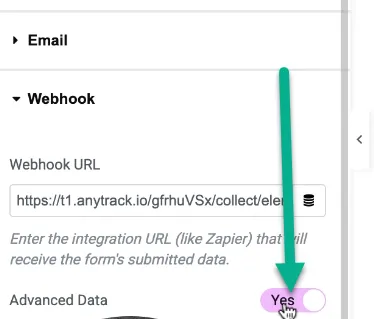
Advanced Data allows to include more form details. - Test the form submission
Option B: Elementor Forms with Zapier/Make.com Integration
Section titled “Option B: Elementor Forms with Zapier/Make.com Integration”If you’re using Zapier or Make.com to connect Elementor to GoHighLevel:
-
In GoHighLevel: Create the
_atidcustom field (same as Option A) -
In WordPress: Add hidden field to forms (same as Option A)
-
In Zapier/Make: Update your automation
- Edit your existing Elementor → GoHighLevel automation
- Map the new
_atidfield from Elementor to the custom field in GoHighLevel - Test the updated automation
Option C: GoHighLevel Forms Embedded in Elementor
Section titled “Option C: GoHighLevel Forms Embedded in Elementor”If you’re embedding GoHighLevel forms directly in Elementor:
- In GoHighLevel: Create the
_atidcustom field - Edit each GoHighLevel form to include the
_atidfield as hidden - Re-embed the updated forms in your Elementor pages
Step 3: Connect AnyTrack to GoHighLevel
Section titled “Step 3: Connect AnyTrack to GoHighLevel”Collect conversions and send them to your ad platforms:
- Navigate to the AnyTrack Integration Catalog
- Search for “GoHighLevel” (or “HighLevel”)
- Click “Install Integration”
- Select the property you created in Step 1
- Click “Next” to proceed
- Authenticate with your GoHighLevel account
- Select the correct GoHighLevel sub-account
- Save the integration settings
Verify Your Enhanced Setup
Section titled “Verify Your Enhanced Setup”Test the Complete Attribution Chain
Section titled “Test the Complete Attribution Chain”- Clear your browser cache and visit your WordPress site
- Fill out and submit one of your updated forms
- Check AnyTrack dashboard for the form submission event (data appears within seconds in the Conversions Report)
- Check GoHighLevel to confirm the lead was created with the
_atidfield populated with an AnyTrack Click ID value - Check integration logs in AnyTrack to see the conversion data flow
Validate Attribution Data
Section titled “Validate Attribution Data”-
Visit your WordPress site with UTM parameters (simulate an ad click):
yoursite.com?utm_source=facebook&utm_campaign=test -
Submit a form
-
In AnyTrack dashboard, verify the conversion shows the correct UTM attribution
-
If you have Google Analytics 4 connected to AnyTrack, you can see real-time data there as well
-
Check Meta Events Manager for conversion data (appears within 20 minutes)
Advanced Configuration
Section titled “Advanced Configuration”Multiple Forms on Same Page
Section titled “Multiple Forms on Same Page”If you have multiple Elementor forms on the same page:
- Add the
_atidhidden field to every form - Each form submission will maintain proper attribution
- Use different form names for better tracking granularity
Landing Page Variations
Section titled “Landing Page Variations”For different landing pages or campaigns:
- The same AnyTrack Tag works across all WordPress pages
- Each form submission automatically inherits the visitor’s attribution data
- Use the AnyTrack Conversions Report to see conversion data for specific pages
- No additional configuration needed per page
Attribution Requirements
Section titled “Attribution Requirements”The only parameter required for proper attribution is the AnyTrack Click ID value (_atid) being passed to GoHighLevel. Any other data passed from your Elementor form to GoHighLevel follows your existing setup and doesn’t need modification for AnyTrack functionality.
Important Configuration Notes
Section titled “Important Configuration Notes”Disable Conflicting Tracking
Section titled “Disable Conflicting Tracking”To prevent duplicate conversions:
- Remove Meta Pixel from WordPress (AnyTrack will load it automatically when you connect Facebook)
- Disable conversion tracking in other plugins
- Let AnyTrack handle all ad platform communication
- Keep Google Analytics for website analytics (it won’t conflict)
Data Deduplication
Section titled “Data Deduplication”AnyTrack automatically handles deduplication when sending data to ad platforms:
- No duplicate conversions sent to Facebook or Google Ads
- Clean attribution data for algorithm optimization
- Proper visitor journey tracking across platforms
Related Resources
Section titled “Related Resources”Common Tracking Issues with GoHighLevel
Section titled “Common Tracking Issues with GoHighLevel”Forms Submit But No Attribution Data in AnyTrack
- Verify the AnyTrack Tag is installed in WordPress
<head>section - Check that hidden
_atidfield was added to all forms - Ensure your webhook/integration includes the
_atidfield mapping - Test with browser developer tools to see if
_atidhas a value
GoHighLevel Shows Leads But AnyTrack Doesn’t Show Conversions
- Confirm AnyTrack app is installed and connected in GoHighLevel
- Check that the correct GoHighLevel sub-account is selected
- Look at integration logs for error messages
Attribution Shows “Direct” Instead of Actual Source
- Visitor may have visited site before tracking was installed
- UTM parameters might not be properly formatted in ads
- Verify ad campaigns include proper UTM tracking templates
Multiple Form Builders on Same Site
- Each form builder requires specific configuration for hidden fields
- Contact support for multi-form-builder setups
- Consider standardizing on one form solution for easier tracking
Data Accuracy Notes
Section titled “Data Accuracy Notes”Your enhanced setup provides:
- First-party data collection on your WordPress site
- Server-side conversion tracking (resilient to browser privacy restrictions such as iOS ITP)
- Cross-platform attribution (WordPress → GoHighLevel → Ad platforms)
- Real-time data processing for immediate optimization
Once this is in place, you can see which ads, campaigns, and keywords drive each GoHighLevel conversion — instead of leaving those leads under Unknown.
FAQ and Troubleshooting
FAQ was last reviewed on 2026-10-23
I use Gravity Forms, Contact Form 7, or WPForms instead of Elementor. Will this work?
--CLICK-ID-- and map it into the GoHighLevel _atid custom field. Each form builder adds hidden fields differently, so check its documentation.Do I need to change my existing GoHighLevel workflows?
What if I have multiple forms on different pages?
_atid hidden field to every form you want to track. Each form inherits the correct attribution data based on how the visitor arrived.Can I track phone calls and other offline conversions?
Will this slow down my WordPress site?
What happens to visitors with ad blockers?
How do I know the attribution data is working?
_atid custom field holds a 34-character Click ID such as IBTO9lOfAMybrKiiB1U9YG91IFjs3Dv9AV. Then check the AnyTrack Conversions Report to confirm the conversion is attributed to the right campaign instead of Unknown.