
AnyTrack Multiaccount
AnyTrack is a conversion tracking and attribution platform that helps digital marketers, affiliate marketers, and eCommerce marketers improve ROAS by streamlining conversion data.
AnyTrack Integration Overview
Section titled “AnyTrack Integration Overview”AnyTrack is a conversion tracking and analytics platform that integrates with Google Ads, the Facebook Conversion API, TikTok Ads, and more. Track every user interaction on your website to measure ROI across multiple channels. Send detailed data from AnyTrack directly to other platforms for real-time insights into campaign performance.
How AnyTrack Multiaccount Integration Works
Section titled “How AnyTrack Multiaccount Integration Works”- Traffic: AnyTrack collects traffic source and first-party data when visitors land on your website
- Engagements: When visitors click AnyTrack affiliate links, AnyTrack collects granular
OutboundClickdata and triggers Event Tracking API requests to your tracking pixels and analytics - Conversions: AnyTrack receives real-time conversion data through webhook when visitors convert on the merchant’s website
- Attribution: AnyTrack processes conversion data and reports it across the AnyTrack Dashboard
- Conversion API: AnyTrack sends conversions to your Ad Platforms’ Conversion API for machine learning and automatic optimization based on 100% of your conversion data
Technical Details
Section titled “Technical Details”| Reference | Value | Information |
|---|---|---|
| Tracking Group | anytrack | Use this to activate AutoTag |
| Subid Parameter | atrefid | Passes the AnyTrack click_id |
| Tracking Method | Webhook | Conversion data is sent via webhook |
Standard Conversions
Section titled “Standard Conversions”| Event Name | Details | Data Source |
|---|---|---|
OutboundClick | When a visitor clicks AnyTrack offer links | AnyTrack JS Tag |
Lead | When a free registration is recorded | Webhook |
Purchase | When a user generates a commission | Webhook |
The AnyTrack Webhook
Section titled “The AnyTrack Webhook”The Webhook is fully pre-defined and ready to be implemented with your AnyTrack account.
https://t1.anytrack.io/hBtoE3hN/collect/anytrack-testSetup Guide
Section titled “Setup Guide”Step 1: Add AnyTrack to Your Account
Section titled “Step 1: Add AnyTrack to Your Account”-
Go to Integration Catalog and search for AnyTrack
-
Click the AnyTrack card and click Install
Step 2: Connect Your AnyTrack Account
Section titled “Step 2: Connect Your AnyTrack Account”-
Copy the predefined postback URL
-
Go to your property webhook settings
-
Click New Webhook
-
Paste the postback URL in the Webhook URL field
-
Choose the events you want to send
-
Save
Step 3: Adjust Event Mapping
Section titled “Step 3: Adjust Event Mapping”Event Mapping defines which events to track and maps them to Conversion Events you’ll send to your Ads Integrations (e.g., the Facebook Conversion API)
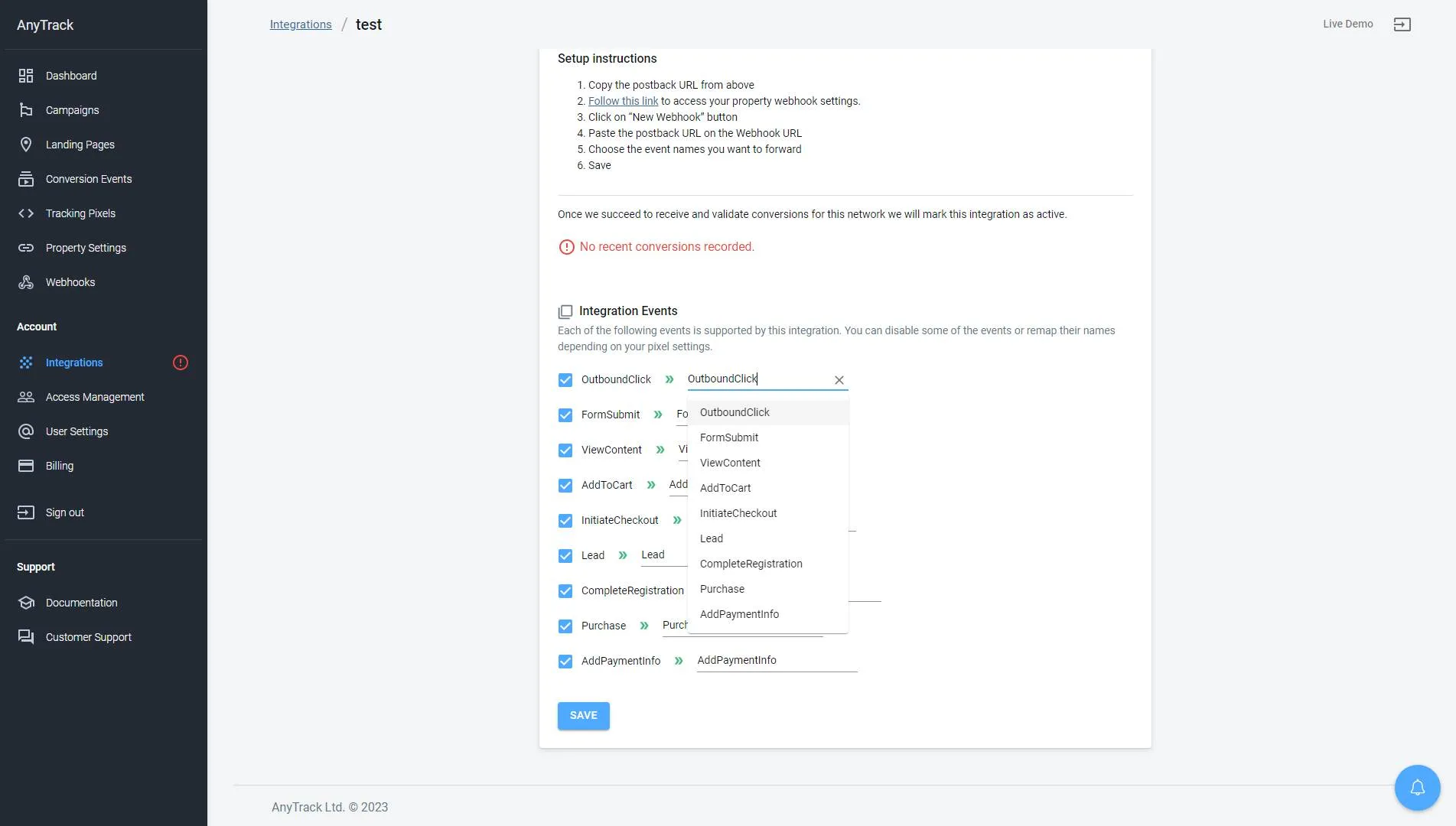
Validate your integration
Section titled “Validate your integration”This section will enable you to validate the main aspects of your setup.
Link Tracking
Section titled “Link Tracking”Verify that your links are tracked and AutoTagged since tracking starts when visitors click offer links.
AutoTag Methods
Section titled “AutoTag Methods”- Default: AnyTrack automatically identifies and AutoTags AnyTrack links on your website
- AutoScan: AnyTrack scans links embedded in redirect plugins and AutoTags them accordingly
- Manual:
- Tracking Group Attribute: Add the tracking group attribute to links:
data-tracking-group="anytrack"orrel="anytrack". More about Tracking Group. - Click ID Token: Manually append
&atrefid=--CLICK-ID--to the offer link
- Tracking Group Attribute: Add the tracking group attribute to links:
Once the links are set up, you can check in your AnyTrack account reports and see whether the atrefid parameters are passed to the offer links.
Example of manually updating links from AnyTrack:
<a href="https://example.foo/goto/anytrack" data-tracking-group="anytrack">Hover on the AnyTrack Demo Link to see the AnyTrack click_id</a>Conversion Tracking
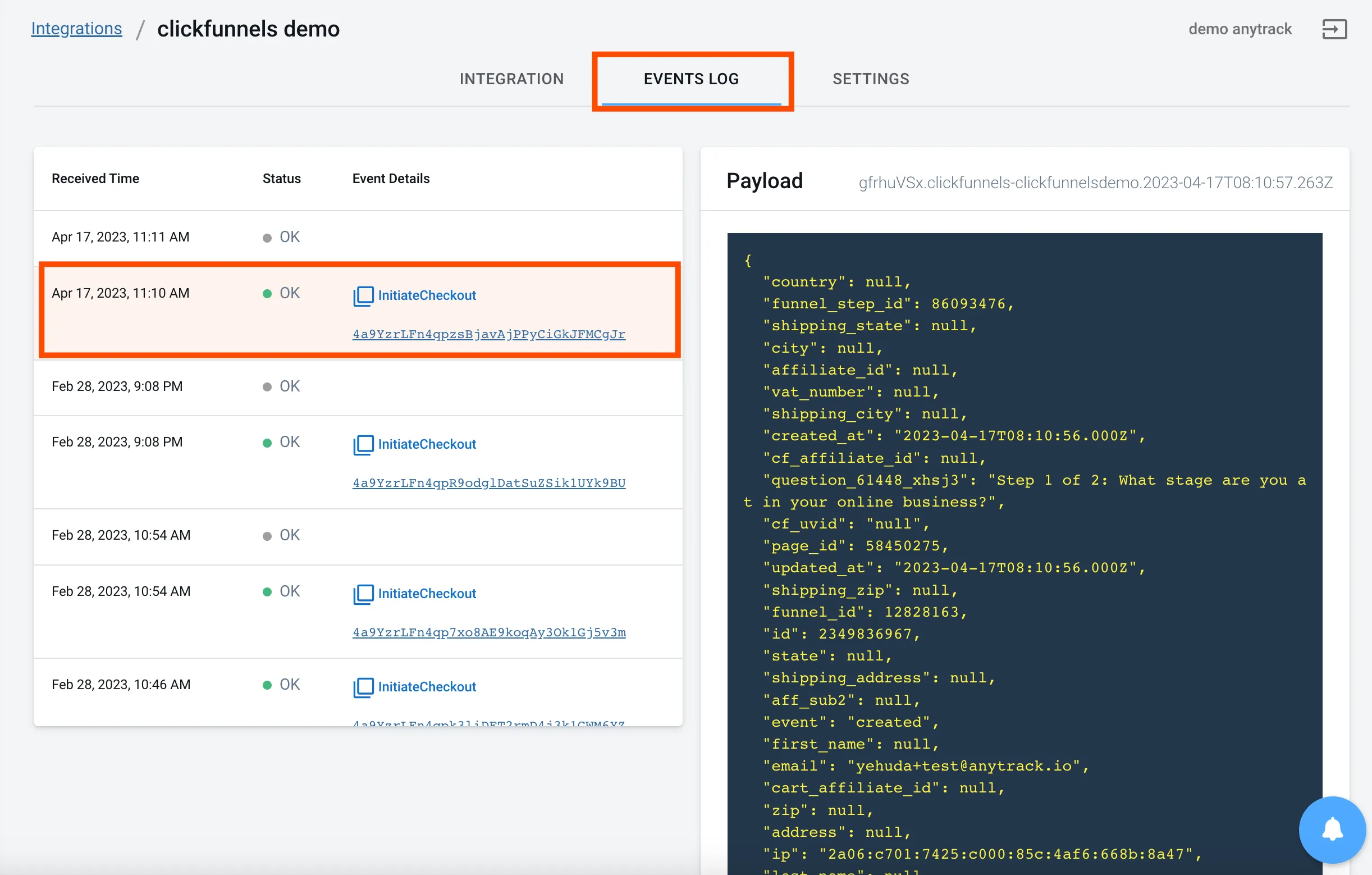
Section titled “Conversion Tracking”To validate your setup, you should either wait for a conversion or trigger a test conversion yourself and inspect the conversion logs.
AnyTrack conversion payload example
{ "AnyTrack": "1100l35864", "customer_type": "existing", "country": "US", "referer": "https://www.chewy.com/", "search_keyword": null, "search_engine_id": null, "conversion_time": "1684692689", "conversion_id": "1011l2002827904", "publisher_reference":"mz7yYainzaN6hkc52QVBg", "publisher_commission": "10.57", "creative_id": "0", "source_referer": null, "advertiser_reference": null, "conversion_type": "1", "creative_type": "0", "conversion_reference": "1354998698", "metadata_query_string": null, "currency": "USD", "tracking_method": "clickref", "value": "52.85", "items": [ { "item_code": null, "item_id": "1011l860699483", "item_sku": "332503", "item_commission": "3.5720", "item_type": "S", "item_gp": null, "item_publisher_commission": "3.5720", "item_meta": null, "item_status": "1", "item_value": "17.8600", "item_category": "11130", "item_vertical": null }, { "item_code": null, "item_id": "1011l860699484", "item_sku": null, "item_commission": "0.0000", "item_type": "S", "item_gp": null, "item_publisher_commission": "0.0000", "item_meta": null, "item_status": "1", "item_value": "0.0000", "item_category": "COMMISSION", "item_vertical": null }, { "item_code": null, "item_id": "1101l859617416", "item_sku": "677350", "item_commission": "6.9980", "item_type": "S", "item_gp": null, "item_publisher_commission": "6.9980", "item_meta": null, "item_status": "1", "item_value": "34.9900", "item_category": "2802", "item_vertical": null } ], "campaign_id": "1100l517", "query_string": null, "user_agent": "Mozilla/5.0 (iPhone; CPU iPhone OS 16_4_1 like Mac OS X) AppleWebKit/605.1.15 (KHTML, like Gecko) Version/16.4 Mobile/15E148 Safari/604.1"}Related Resources
Section titled “Related Resources”FAQ and Troubleshooting
FAQ was last reviewed on 2026-10-20
Can I import past conversions into AnyTrack?
Can I track direct linking campaigns?
Can I use a different subid parameter?
atrefid).Can I track conversions without the click_id?
click_id passed to AnyTrack links is required for conversion tracking.How do I change the Conversion Event Name?
Troubleshoot Errors
Section titled “Troubleshoot Errors”General Troubleshooting
Section titled “General Troubleshooting”- Verify your Tracking Tag is in the
headsection of your website - If on the Free plan, verify you haven’t reached the monthly traffic limit and upgrade if needed
Conversion Sources
Section titled “Conversion Sources”When conversions aren’t tracking or most trigger errors, follow the guidelines below.
Native Integrations
Section titled “Native Integrations”Native integrations are predefined in the catalog and should provide error-free data flow. The most common error is an unknown or missing click_id when AutoTag couldn’t be activated.
- Verify links are not hidden behind JavaScript or double redirects
- Check that links are in standard
aelements - Try manually setting the tracking group attribute (see integration guidelines)
- Verify offers aren’t getting traffic from sites without the AnyTrack Tag
- If newly installed, errors may be from traffic not yet tracked by AnyTrack
Conversion data shows no error but isn’t validated:
- Verify the webhook in the integration matches the predefined webhook
- Copy the Event Reference from the Events Log and contact support
Not receiving any conversions:
- Verify the webhook is set and active in your platform
- Check that you’re passing the correct
atrefidparameter to the offer link - Verify the postback URL is correctly inserted in the custom integration