
Rakuten
The article provides an overview of the integration between Rakuten and AnyTrack, highlighting its ability to simplifies conversion tracking for affiliate marketing.
Rakuten Integration Overview
Section titled “Rakuten Integration Overview”Rakuten and AnyTrack are joining forces to bring you the ultimate conversion tracking experience. With Rakuten, you can easily access valuable data from your affiliate network that shows which campaigns are performing best - all in one place. And with AnyTrack’s powerful integration technology, this data is automatically sent to Google Ads, Facebook Conversion API and TikTok API for further analysis.
How does the Rakuten AnyTrack integration work:
Section titled “How does the Rakuten AnyTrack integration work:”- Traffic: When visitors land on your website, AnyTrack collects traffic source data and First Party data.
- Engagements: When visitors click on your Rakuten affiliate links, AnyTrack does a few things:
- Collects granular data tied to the
OutboundClick. - Triggers Event Tracking API requests to your Tracking Tags and analytics.
- Collects granular data tied to the
- Conversions: When visitors convert on the merchant’s website, AnyTrack receives real time conversion data through Postback URL.
- Attribution: AnyTrack processes the conversion data and reports it across various reporting sections of the AnyTrack Dashboard.
- Conversion API: AnyTrack then sends your conversions to your Ad Platforms’ Conversion API so you can feed your ad platform’s Machine Learning, AI and automatic optimization according to 100% of your conversion data.
Technical details
Section titled “Technical details”| Reference | Value | Information |
|---|---|---|
| Tracking Group | rakuten | The Tracking Group reference can be used to activate AutoTag. |
| Subid Parameter | u1 | The Subid Parameter used to pass the AnyTrack click_id. |
| Tracking Method | Postback URL | - |
Standard Conversions
Section titled “Standard Conversions”| Event Name | Details | Data Source |
|---|---|---|
OutboundClick | When a visitor clicks on Rakuten offer links. | AnyTrack JS Tag |
Lead | When a free registration is recorded in Rakuten. | Postback URL |
Purchase | When a user generates a commission in Rakuten. | Postback URL |
The Rakuten Postback URL
Section titled “The Rakuten Postback URL”The Postback URL is fully pre-defined and ready to be implemented with your Rakuten account.
https://t1.anytrack.io/hBtoE3hN/collect/rakutenConfiguring Rakuten Integration with AnyTrack Dashboard
Section titled “Configuring Rakuten Integration with AnyTrack Dashboard”This guide provides step-by-step instructions on how to configure Rakuten integration with the AnyTrack dashboard. By following these steps, users can easily set up the integration and add a Global postback URL to fire conversion events for all offers in Rakuten. This guide is essential for anyone looking to simplifies their advertising efforts and track conversions accurately.
Interactive tutorial
Section titled “Interactive tutorial”1. From the AnyTrack Dashboard, Click on the Integration Catalog
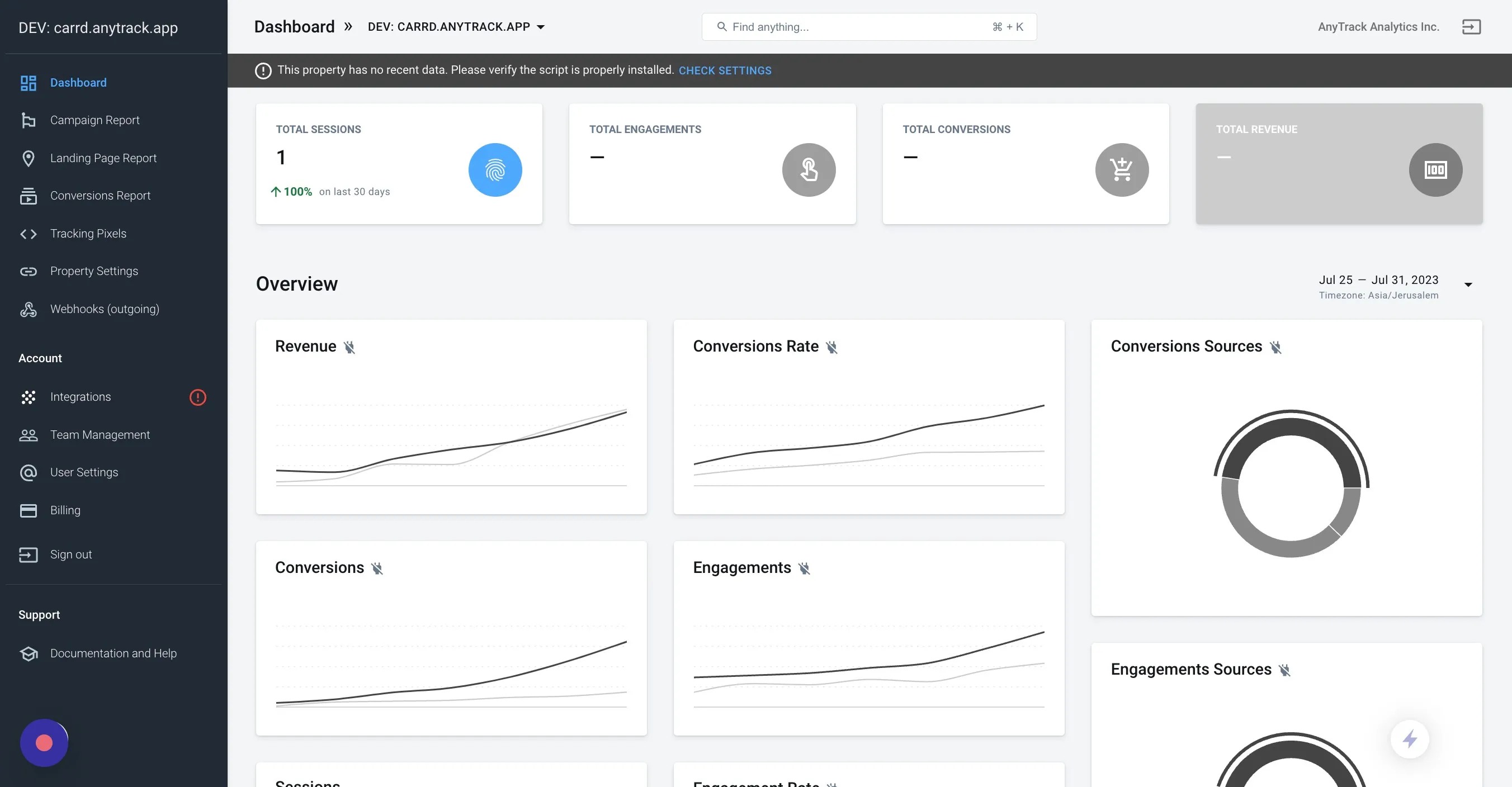
2. Click on Add Integration
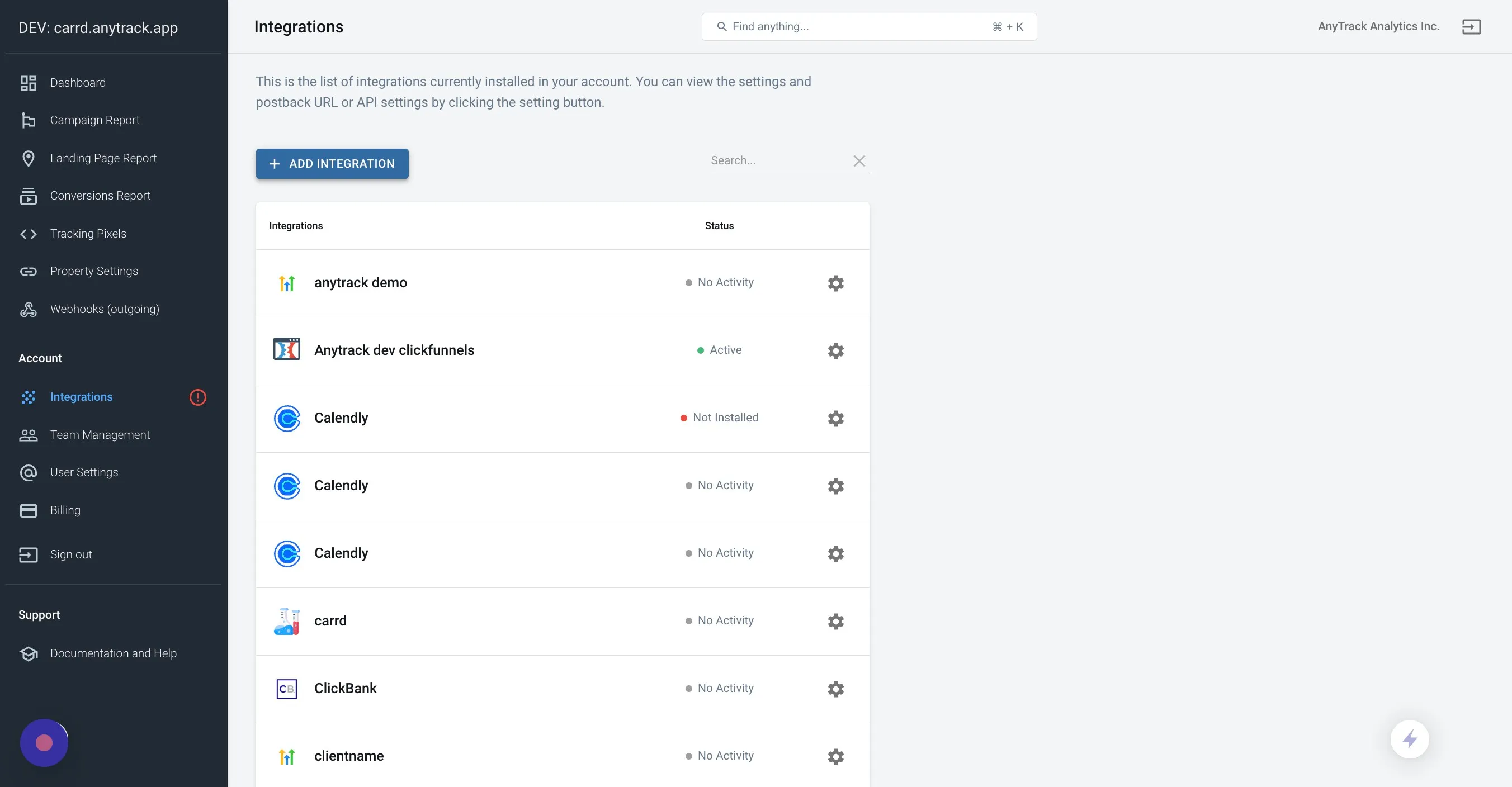
3. Search for the Rakuten Integration
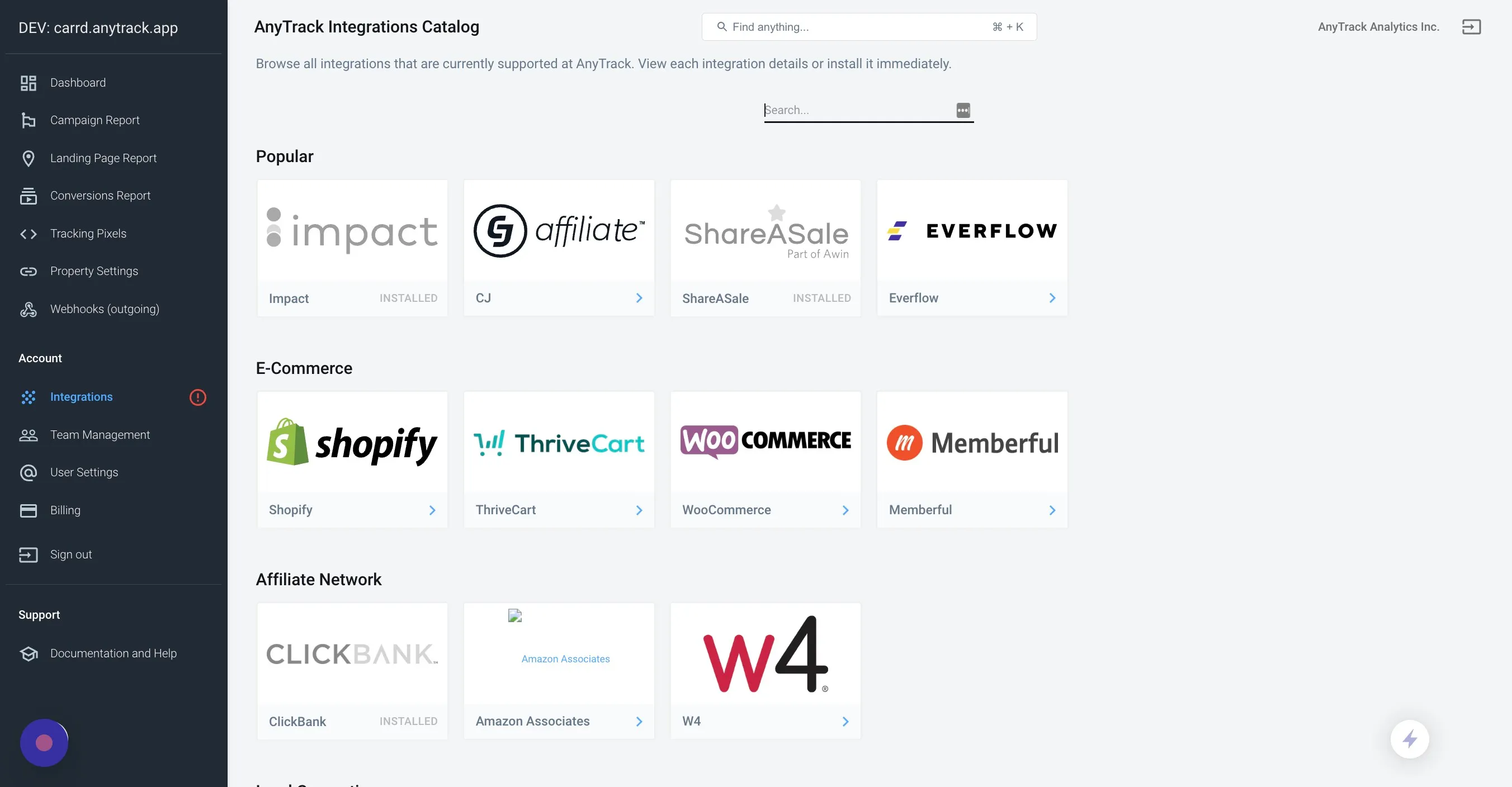
4. Click on the Rakuten Card
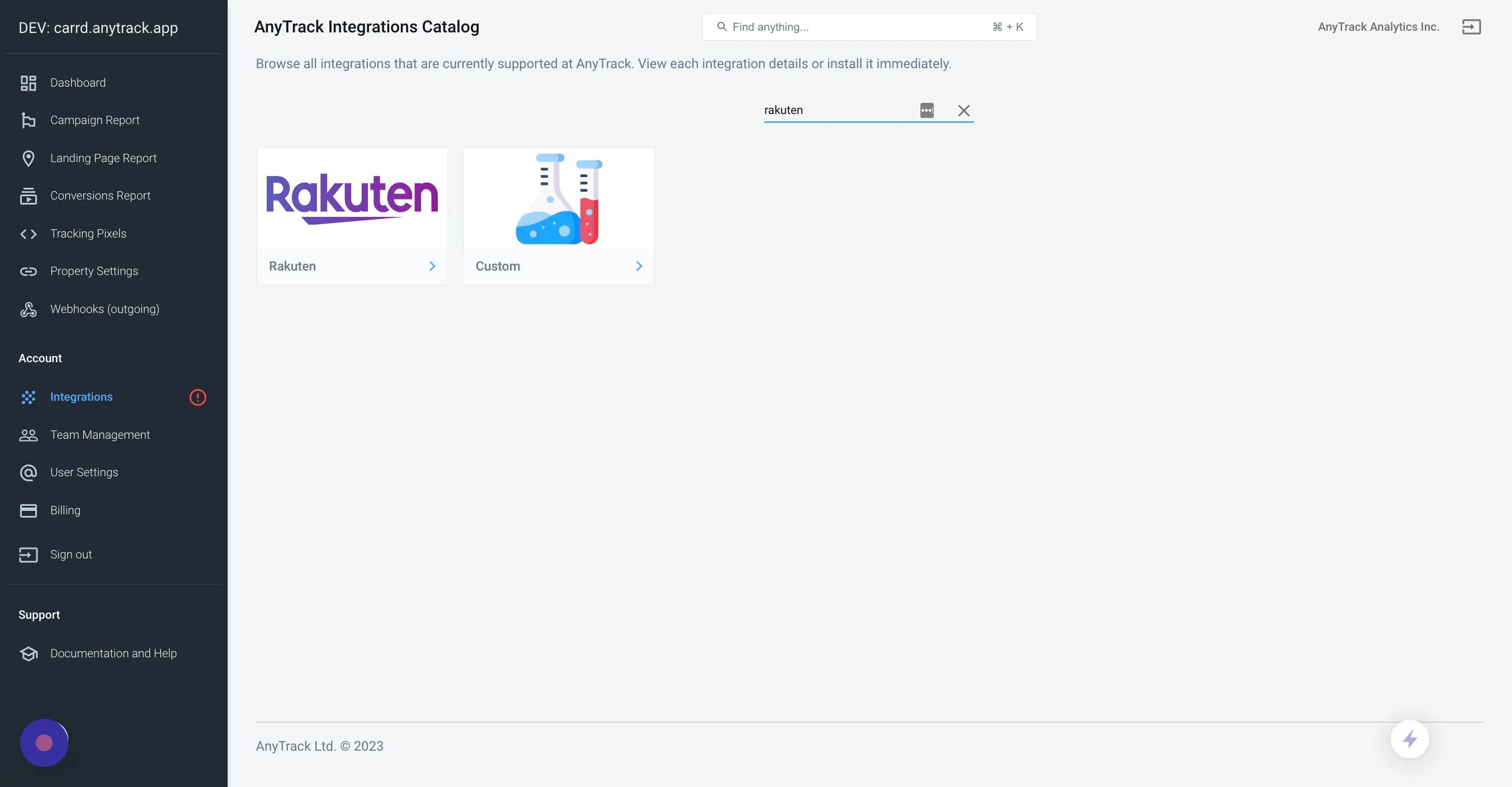
5. Now click on Install Integration to access the detailed instructions.
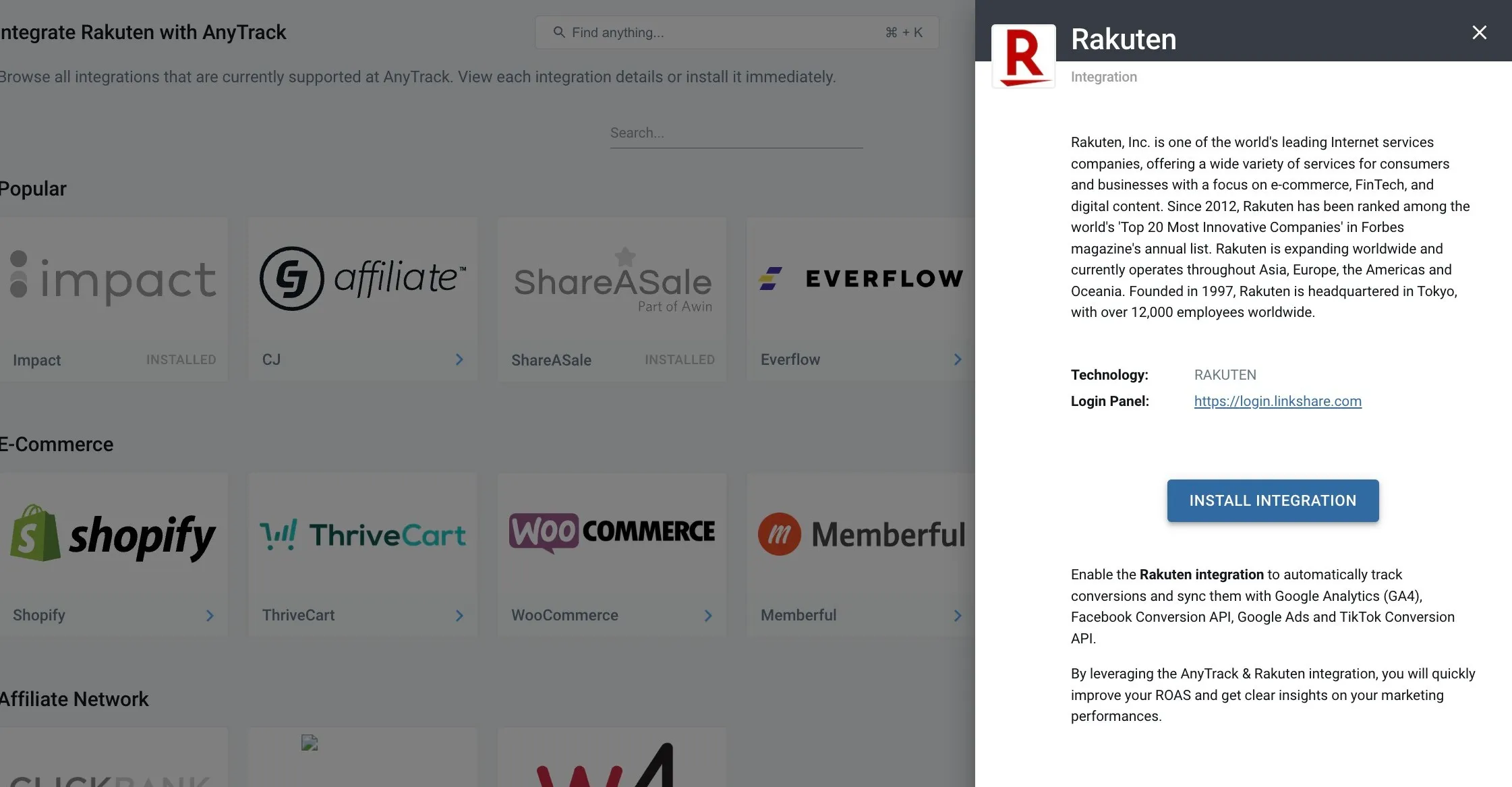
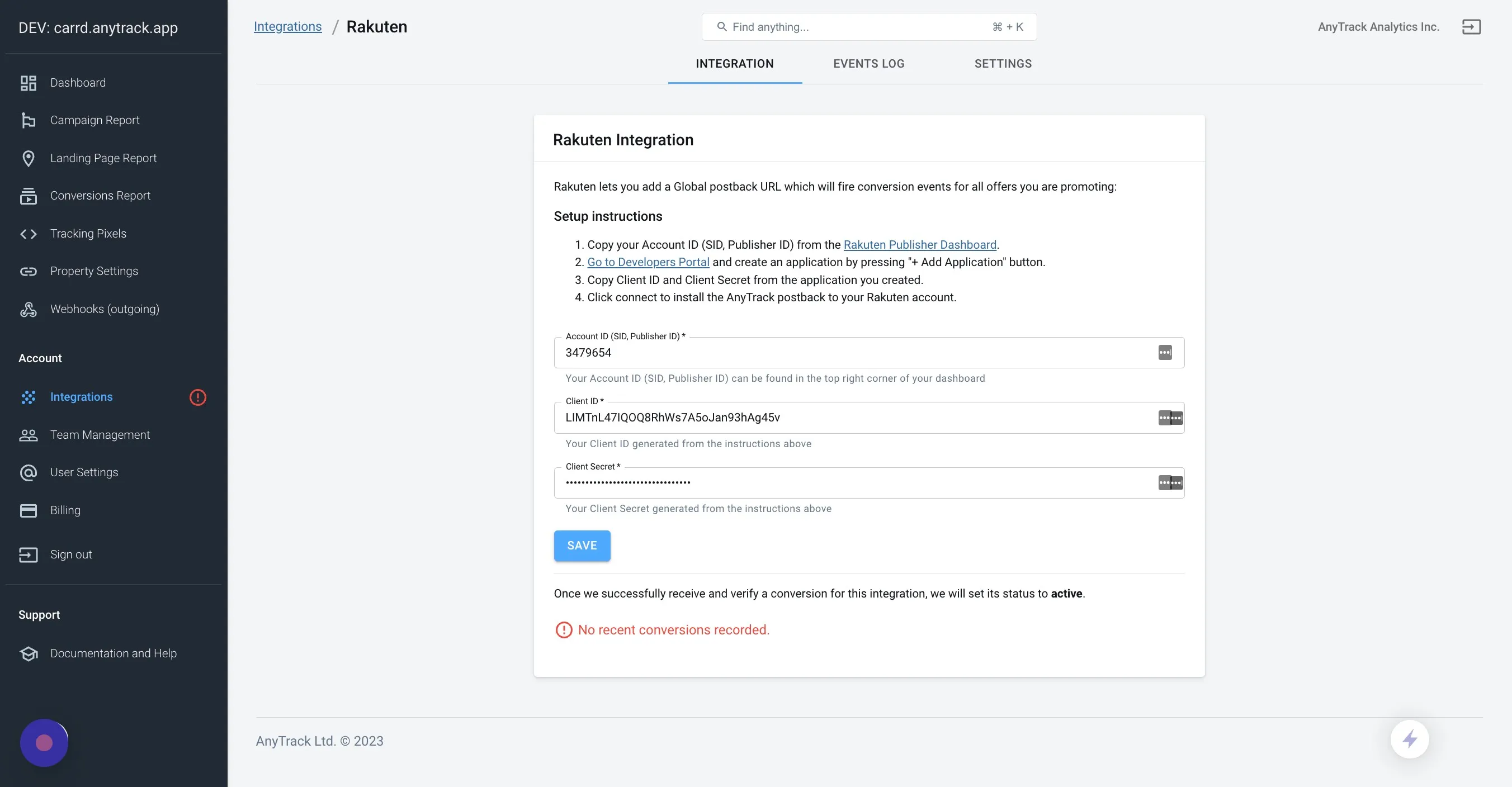
6. Add your Rakuten Account Credentials
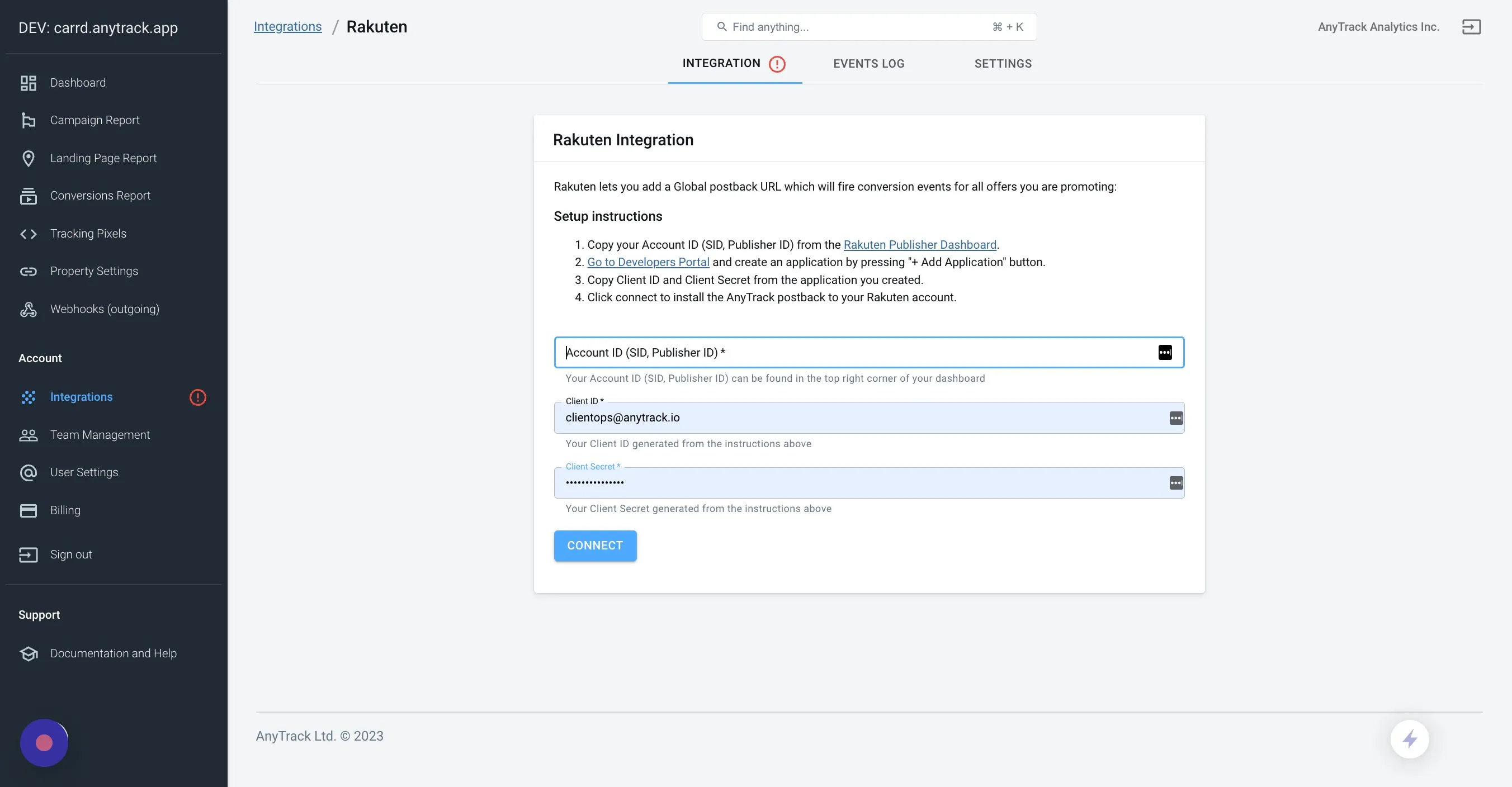
7. Access your Rakuten Publisher Account and copy the Publisher ID
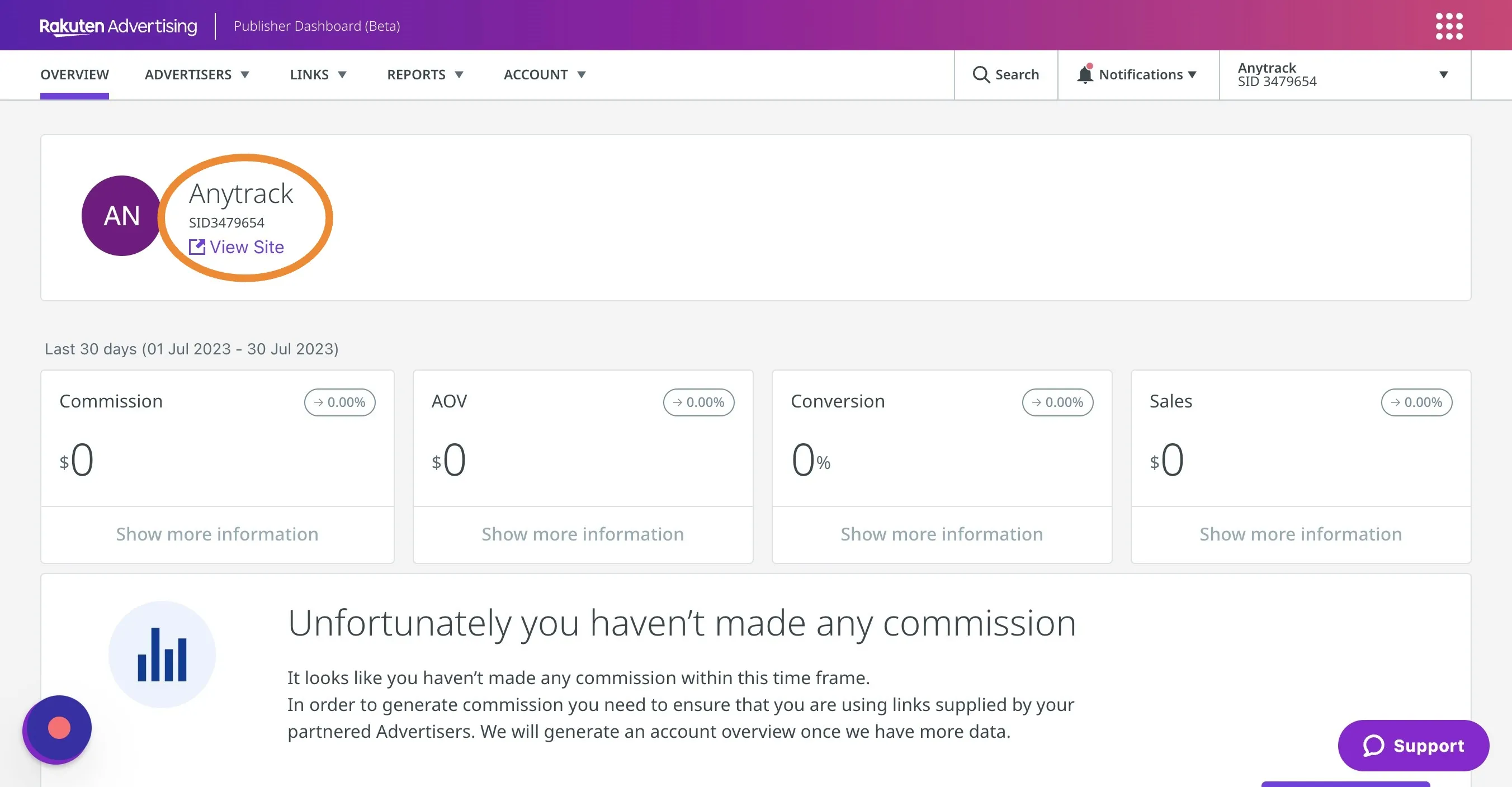
8. Return to AnyTrack and Paste your Publisher ID.
9. Now “Go to Developers Portal” To get your API Credentials.
10. Now Click on “Add Application”.
11. Name it AnyTrack and Click Create.
12. Copy the Client ID
13. Return to AnyTrack and Paste the Client ID.
14. Return to Rakuten Developer Portal and Copy the Client Secret.
15. Return to AnyTrack and Paste the Client Secret.
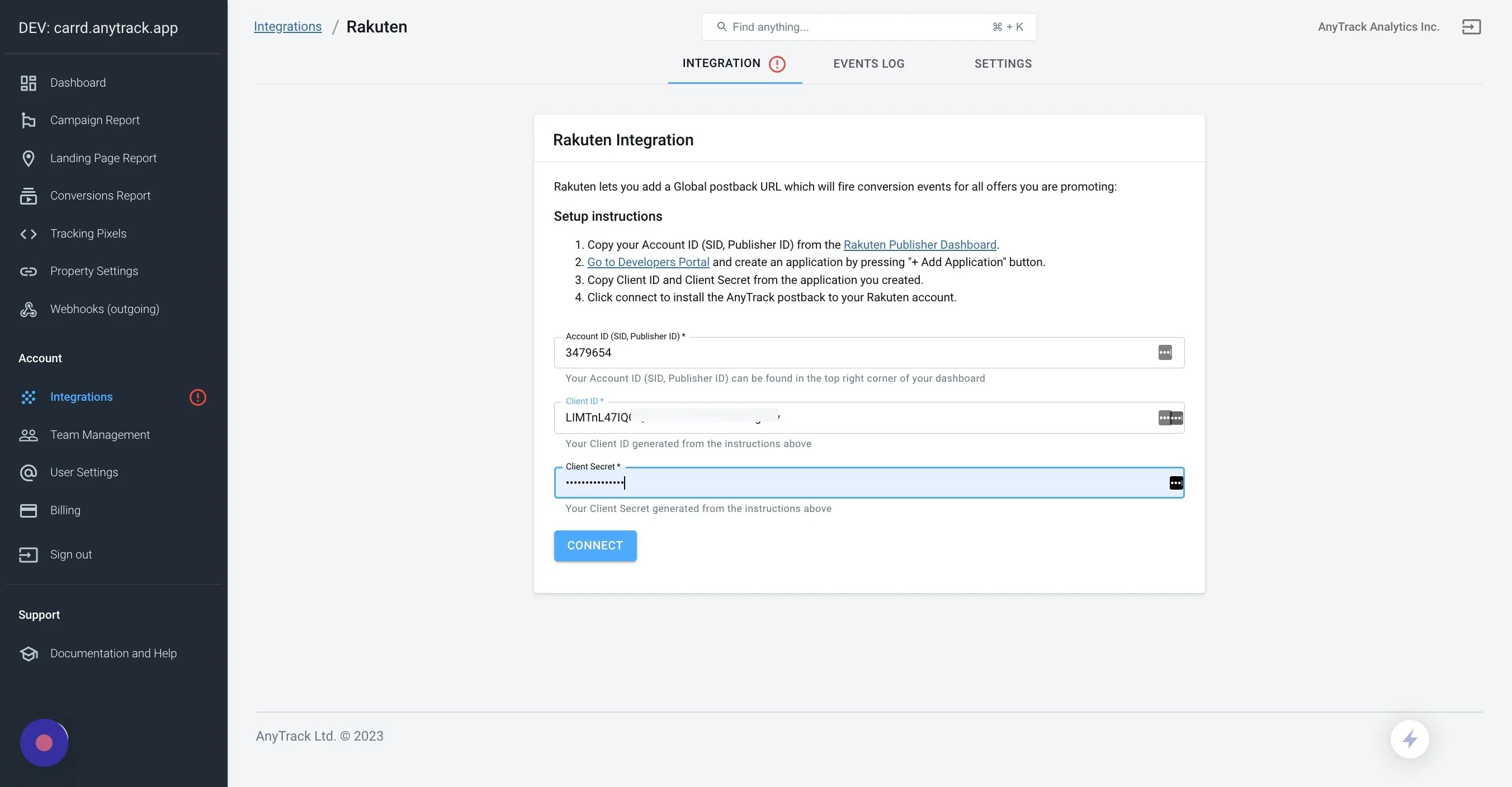
16. Now Click Connect!
AnyTrack will send an API call to Rakuten which will add and activate your Postback URL in your account.
17. Finally Save your account settings.
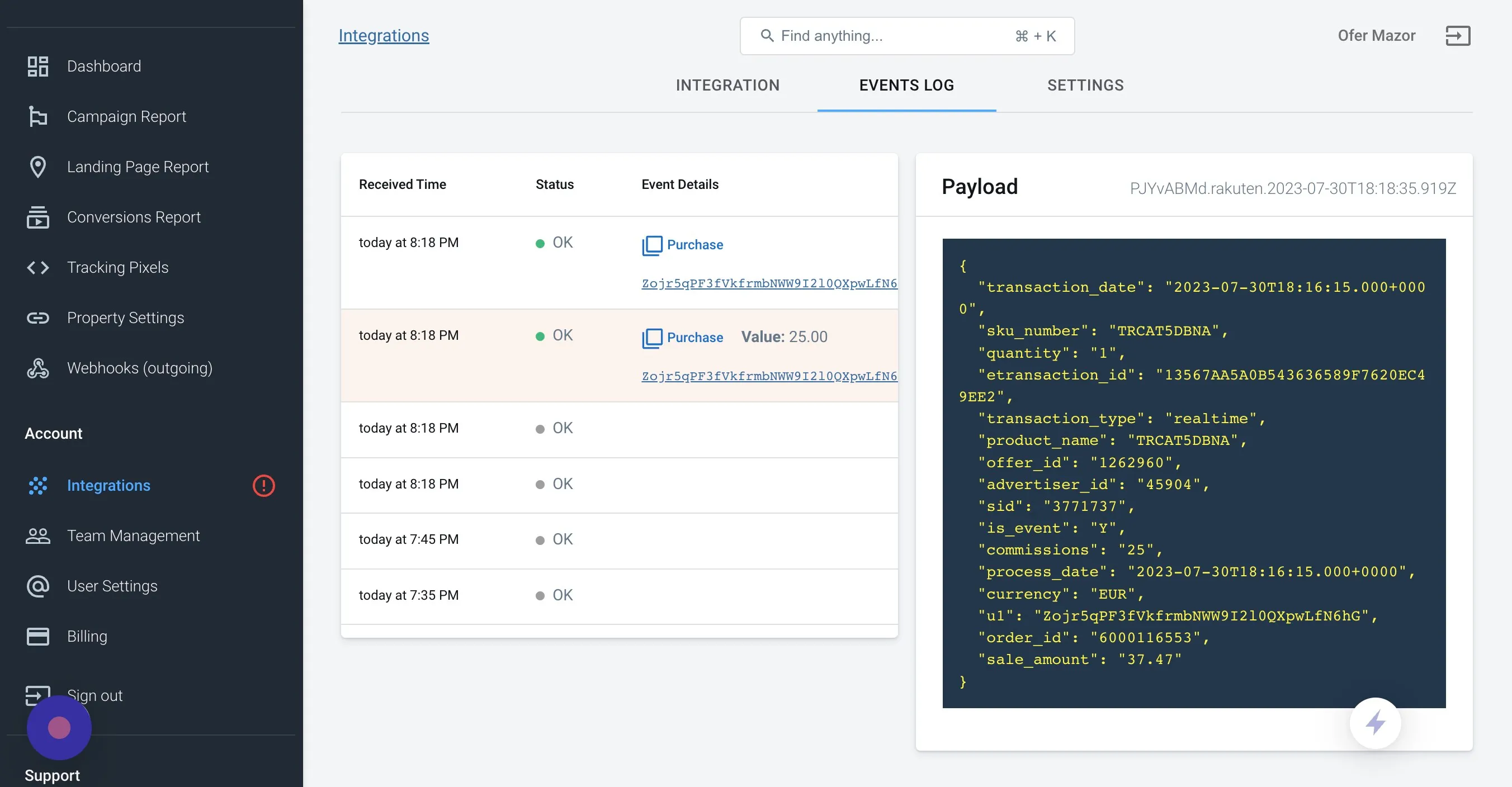
18. Check the Events Log tab to see your conversions coming through.
19. Here you can see a conversion Payload From Rakuten.
Validate your integration
Section titled “Validate your integration”This section will enable you to validate the main aspects of your setup.
Link tracking
Section titled “Link tracking”Since tracking starts when visitors click on offer links, verify that your links are tracked and AutoTagged.
AutoTag Methods
Section titled “AutoTag Methods”- Default: By default, AnyTrack automatically identifies and AutoTags Rakuten links found on your website.
<!DOCTYPE html><html><body>
<h4>Rakuten regular offer link</h4><p><a href="https://click.linksynergy.com/fs-bin/click?id=3EXBwEUh9KI&offerid=311675.10000157&bids=311675.10000157&type=3&subid=0">Technology Used by Successful Businesses</a><img border="0" width="1" height="1" alt="" src="https://ad.linksynergy.com/fs-bin/show?id=3EXBwEUh9KI&offerid=311675.10000157&bids=311675.10000157&type=3&subid=0" /></p>
<h4>Rakuten Deep link</h4><p><a href="https://click.linksynergy.com/deeplink?id=7VeMhFdLOPg&mid=36310&murl=https://www.dyson.com/vacuum-cleaners/cordless/v8/silver-nickel" data-tracking-group="rakuten">With Data Tracking Group</a></p><p><a href="https://click.linksynergy.com/deeplink?id=7VeMhFdLOPg&mid=36310&murl=https://www.dyson.com/vacuum-cleaners/cordless/v8/silver-nickel">Without Data Tracking Group</a></p>  </body></html>
Now the real link embedded in the page:
- AutoScan: AnyTrack scans links that are embedded in redirects plugins and AutoTags them accordingly.
- Manual:
- Tracking Group Attribute: You add the tracking group attribute to links according to their tracking requirements. For example:
data-tracking-group="rakuten"orrel="rakuten". More about Tracking Group. - Click ID Token: Manually append the
u1parameter:&u1=--CLICK-ID--to the offer link.
- Tracking Group Attribute: You add the tracking group attribute to links according to their tracking requirements. For example:
Once the links are set up, you can check in your Rakuten account reports and see whether the u1 parameters are passed to the offer links.
Here is an example of how you would manually update links from rakuten:
<a href="https://example.foo/goto/rakuten" data-tracking-group="rakuten">Hover on the Rakuten Demo Link to see the AnyTrack click_id</a>Conversion Tracking
Section titled “Conversion Tracking”To validate your setup, wait for a conversion or trigger a test conversion yourself and inspect the conversion logs.
Rakuten Postback Data Example
{ "transaction_date": "2023-05-21T06:58:45.000+0000", "sku_number": "TRCAT5DB", "quantity": "1", "etransaction_id": "B7B2BE0B83ECDD168FD50BC789F508AC", "transaction_type": "realtime", "product_name": "TRCAT5DB", "offer_id": "1262960", "advertiser_id": "45904", "sid": "3771737", "is_event": "Y", "commissions": "25", "process_date": "2023-05-21T06:58:45.000+0000", "currency": "EUR", "u1": "Zojr5qPF3fVk9OckC3bBS8H4tHkcn7pGuE", "order_id": "4000110733", "sale_amount": "43.17"}Related Resources
Section titled “Related Resources”FAQ and Troubleshooting
FAQ was last reviewed on 2026-10-25