
GoHighLevel Integration
Set up the GoHighLevel and AnyTrack integration to track conversions from forms, orders, invoices, and pipeline opportunities. On Starter and above, AnyTrack sends that data server-side to Google Ads, Facebook Ads, and TikTok Ads.
What is the GoHighLevel Integration?
Section titled “What is the GoHighLevel Integration?”The AnyTrack integration for GoHighLevel collects conversion data from forms, orders, invoices, and pipeline opportunities. On Starter and above, AnyTrack sends that data server-side to your ad platforms (Google Ads, Facebook Ads, TikTok Ads) through the Conversion API, for campaign optimization and attribution. The Free plan does not include the Conversion API.
This page shows how to set up the integration. For the list of events and their default mapping, see GoHighLevel Events. To fix Unknown leads, IP-match errors, or the GoHighLevel OrderFormPurchase event in Meta, see GoHighLevel Troubleshooting.
Watch the complete GoHighLevel setup from start to finish, including the Click ID field that every native form needs.
Technical details
Section titled “Technical details”| Supported features | GoHighLevel |
|---|---|
| Plan Ad platforms need Starter or higher. | All plans |
| Required | |
| Tracking method Via Webhook | Server-side tracking |
| Setup method | OAuth |
| |
| Event attributes | |
| Conversion Mapping Rename or turn off events. | Yes |
| Combined Orders Groups upsells with the purchase. | Yes |
| Tracking Group Integration reference for AutoTag. | ghl |
| Tracking parameter Carries the click_id. | _atid |
Setup Guide
Section titled “Setup Guide”Step 1: Create a New Property
Section titled “Step 1: Create a New Property”- Navigate to your AnyTrack dashboard
- Create a new property
- Assign a descriptive name to the property
- Enter the main URL for your website or funnel
- Copy the AnyTrack Tracking Tag provided
Step 2: Install the AnyTrack Tracking Tag
Section titled “Step 2: Install the AnyTrack Tracking Tag”- Log into your GoHighLevel account
- Navigate to the funnel you want to connect
- Open the funnel settings
- Locate the “Head Tracking Code” section
- Paste the AnyTrack Tracking Tag in the head tracking code field
- Save your settings
Step 3: Install the AnyTrack App in GoHighLevel
Section titled “Step 3: Install the AnyTrack App in GoHighLevel”- Navigate to the AnyTrack Integration Catalog
- Search for “GoHighLevel” (or “HighLevel”)
- Click “Install Integration”
- Select the property
- Click “Next” to proceed
- Authenticate with your GoHighLevel account
- Select the GoHighLevel sub-account to connect
- Save the integration settings
Step 4: Add the Click ID Field to Your Forms
Section titled “Step 4: Add the Click ID Field to Your Forms”The Tracking Tag writes the AnyTrack Click ID onto the page URL as the _atid parameter. A form field with the Query Key _atid reads that value, and GoHighLevel stores it on the contact. Add the field to every form that collects leads.
- In GoHighLevel, open the form in the form builder
- Click “Add Object Fields”
- Open the ADDITIONAL INFO group and find the
_atidfield - Drag the
_atidfield onto the form - Open the field’s settings panel and confirm the Query Key is
_atid - Set the field to Hidden
- Save the form
Repeat these steps for each form, survey, and order form that collects leads.
Step 5: Verify Your Setup
Section titled “Step 5: Verify Your Setup”- Visit your funnel from a new browser window
- Navigate through the funnel as a potential customer would
- Submit a form or complete a checkout
- In the AnyTrack dashboard, open the GoHighLevel integration’s Events Log and check for recorded events
- Verify that the conversion data and attribution source appear correctly
Disconnect Other Integrations
Section titled “Disconnect Other Integrations”After you verify that AnyTrack sends conversions to an ad platform, disconnect the direct tracking between GoHighLevel and that ad platform. Two senders create duplicate conversions.
- Disable Facebook Pixel tracking on your GoHighLevel forms and workflows
- Remove Google Ads conversion tags from GoHighLevel form submission automations
- Disable any direct TikTok or other ad platform tracking configured in GoHighLevel
AnyTrack deduplicates the conversions it sends. AnyTrack cannot deduplicate conversions that another system sends to the same ad platform. Those duplicates inflate your conversion counts and give the ad platform algorithms wrong signals.
If Meta Events Manager shows an OrderFormPurchase event, GoHighLevel sends it from its own Meta Pixel field. To stop the event, see Meta Shows a GoHighLevel OrderFormPurchase Event.
Conversion Events
Section titled “Conversion Events”GoHighLevel reports three groups of events to AnyTrack:
- Web events. The Tracking Tag collects
FormSubmitandInitiateCheckouton your funnel pages. - Server-side events. GoHighLevel sends contacts, appointments, orders, upsells, invoices, and opportunities through the AnyTrack app. By default, AnyTrack maps them to
Lead,Schedule,Purchase,Upsell,InitiateCheckout,DealNew, andDealWon. - Advanced events.
Invoice sent,Invoice partially paid,Opportunity status: open, and pipeline stage changes are unmapped by default.
For each event and its default mapping, see GoHighLevel Events. That page also explains how event mapping works and pipeline and opportunity tracking.
Advanced Configuration
Section titled “Advanced Configuration”Turn On Combine Order for Order Bumps and Upsells
Section titled “Turn On Combine Order for Order Bumps and Upsells”Combine Order is not automatic. If your funnel produces more than one purchase-type event per sale (a main product plus an order bump, an upsell, or a downsell), turn on Combine Order in the integration settings. AnyTrack then groups those events into a single order with the total value. On Starter and above, AnyTrack sends that order to your ad platforms as one conversion, so your cost per acquisition (CPA) and average order value (AOV) stay accurate. Until you turn the toggle on, AnyTrack sends each event as its own conversion.
AnyTrack groups the purchase-type events GoHighLevel reports for the session. To see how your order bump arrives, place a test order and open the Conversions Report: GoHighLevel reports Order created as a Purchase and Order upsell created as an Upsell. See Combined Orders.
Tracking Embedded Forms on External Websites
Section titled “Tracking Embedded Forms on External Websites”If you embed GoHighLevel forms on WordPress, Elementor, Unbounce, or other website builders, the form needs the same _atid field as a native funnel form, and the Tracking Tag must run on the page that hosts the embed.
- In GoHighLevel, go to CRM > Contacts and add a new custom field named
_atidwith scope set to “contact” - Edit each embedded form and add the
_atidcustom field as a hidden field - Make sure the AnyTrack Tracking Tag is installed in the
headsection of the external website
Tracking Calendar Links
Section titled “Tracking Calendar Links”If you share GoHighLevel calendar links via email or outside your website:
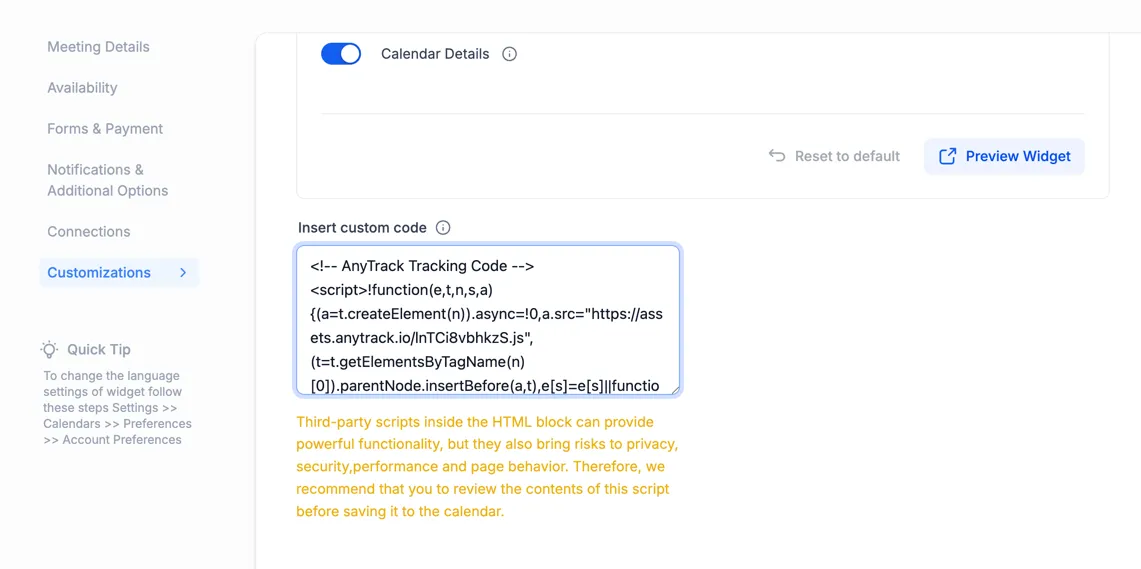
- Navigate to your calendar settings > Customization
- Paste the AnyTrack Tracking Tag in the Custom Code field
- Save the settings
FAQ
FAQ was last reviewed on 2026-10-08
Do I need to set up webhooks manually?
Does the GoHighLevel integration work on the Free plan?
Can I import past conversions into AnyTrack?
What if I have existing Facebook or Google tracking on my GoHighLevel forms?
Map GoHighLevel events to ad platform events for standard and custom conversions.