
Facebook CAPI Test Mode
Verify that AnyTrack sends conversion data correctly to Facebook by using Meta Test Events. Copy the test event code from Events Manager, paste it into your Facebook Pixel settings in AnyTrack, and inspect server events in real time.
After connecting your Facebook Pixel and enabling the Conversion API in AnyTrack, you need a way to confirm that conversion data is actually reaching Meta and that the event payload contains the right parameters.
Meta provides a Test Events tool inside Events Manager that shows server-side events in near real-time. AnyTrack supports this by letting you paste the test event code directly into your Facebook Pixel settings, so every Conversion API call AnyTrack makes gets flagged as a test event in Meta.
How It Works
Section titled “How It Works”Meta Events Manager includes a Test Events tab that listens for incoming events tagged with a specific test code. When you paste that code into AnyTrack, every server-side event AnyTrack sends to the Conversion API includes the test_event_code parameter. Meta then routes those events into the Test Events view instead of processing them silently, giving you a near real-time feed of what AnyTrack is sending.
This lets you validate your setup without waiting for data to appear in Events Manager (typically up to 20 minutes for event parameters) or Ads Manager (which can take several hours to report attributed conversions).
Step-by-Step Setup
Section titled “Step-by-Step Setup”1. Get the Test Event Code from Meta
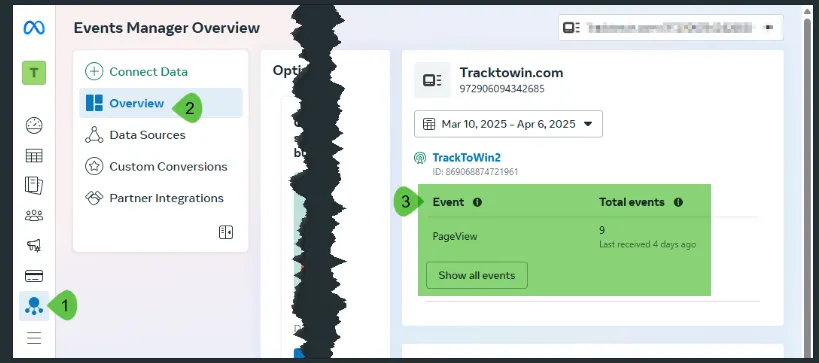
Section titled “1. Get the Test Event Code from Meta”- Open Meta Events Manager
- Select the pixel (data source) connected to AnyTrack
- Click the Test Events tab
- Copy the test event code displayed at the top of the page (e.g.,
TEST12345)
2. Paste the Code into AnyTrack
Section titled “2. Paste the Code into AnyTrack”- Go to your AnyTrack Dashboard
- Navigate to Tracking Pixels and open your Facebook Pixel
- Scroll to the Facebook Conversion API section
- Paste the test event code into the Test Event Code field
- Click Server events test mode to expand the test event viewer
3. Trigger a Test Conversion
Section titled “3. Trigger a Test Conversion”Generate a real event on your website or landing page — submit a form, complete a checkout, or click an affiliate link. The event should appear in both:
- AnyTrack: Under the Server events test mode section in your Facebook Pixel settings
- Meta Events Manager: Under the Test Events tab, marked as a Server event
What to Check in Meta Test Events
Section titled “What to Check in Meta Test Events”Once your test event appears in Events Manager, click into it to review the details:
Event Basics
Section titled “Event Basics”Confirm the event name matches what you expect (e.g., Purchase, Lead, AddToCart). If you use custom Event Mapping, verify that your custom events appear under the correct Facebook event name.
User Matching Parameters
Section titled “User Matching Parameters”Meta shows which customer information parameters were included in the event payload. These directly affect your Event Match Quality score. Look for:
- Client IP Address and Client User Agent: collected automatically by the AnyTrack Tracking Tag
- Facebook Click ID (fbclid): collected from the ad click URL when the UTM template is configured
- Facebook Browser ID (fbp): first-party cookie set by the Meta Pixel
- Email or Phone: available when passed through form submissions, CRM integrations, or webhooks
Revenue and Content Data
Section titled “Revenue and Content Data”For events that carry monetary values (Purchase, InitiateCheckout), confirm:
- Value and Currency match the actual transaction
- Content IDs and Content Type are present for product-level events
Incorrect revenue values will skew ROAS calculations in Ads Manager.
When to Use Test Mode
Section titled “When to Use Test Mode”Test Mode is most useful in these situations:
- Initial setup: After connecting your Facebook Pixel for the first time, confirm events flow correctly before running ads.
- Custom event mapping changes: After modifying your event mapping, verify that custom events appear under the correct Facebook event names.
- New property onboarding: When adding a new website or funnel, confirm the AnyTrack Tracking Tag fires events and that they reach Meta.
- Debugging match quality: When your EMQ scores are lower than expected, inspect the payload to see which parameters are missing.
- After troubleshooting: After resolving issues from the Troubleshooting Guide, confirm the fix by checking that events appear correctly in Test Events.
Removing the Test Event Code
Section titled “Removing the Test Event Code”Once you have verified your setup, remove the test event code from your Facebook Pixel settings. Test events still count toward your event totals in Events Manager, and leaving the code active will mix test traffic with production data.
- Go to Tracking Pixels and open your Facebook Pixel
- Clear the Test Event Code field
- Save changes
Playbook
-
 Shopify
 -
 Facebook Ads
Send Shopify Purchases to Meta Conversions API
The 20-minute fix for iOS signal loss. Full-funnel checkout events, sent server-side and deduplicated by AnyTrack before they reach Meta.
Related Resources
Section titled “Related Resources”Facebook CAPI Test Mode FAQ
FAQ was last reviewed on 2026-10-23
Where do I find the test event code in Meta?
How quickly do events appear in the Test Events tab?
Why do I see hashed values for email and phone?
Can I use AnyTrack test mode and the Meta Test Events tool at the same time?
Do test events count toward my event totals?
Some events appear in the Test Events tab and others do not. Why?
The test event code expired. What do I do?
Connect your Facebook Pixel and Conversion API to AnyTrack for automated conversion tracking.
Understand which parameters Meta evaluates for Event Match Quality and what scores to expect.
Fix common Facebook Ads integration issues including warnings and match quality problems.