
Append Click ID to URL
Automatically append the AnyTrack click ID to your page URL so forms and embedded video players that read URL parameters can pass it on. Includes setup instructions, prerequisites, and best practices.
Overview
Section titled “Overview”Attribution breaks when your form can’t collect the Click ID. Without that identifier, the CRM lead never connects back to the Facebook ad that generated it. Facebook stops optimizing your campaigns and your cost per lead climbs.
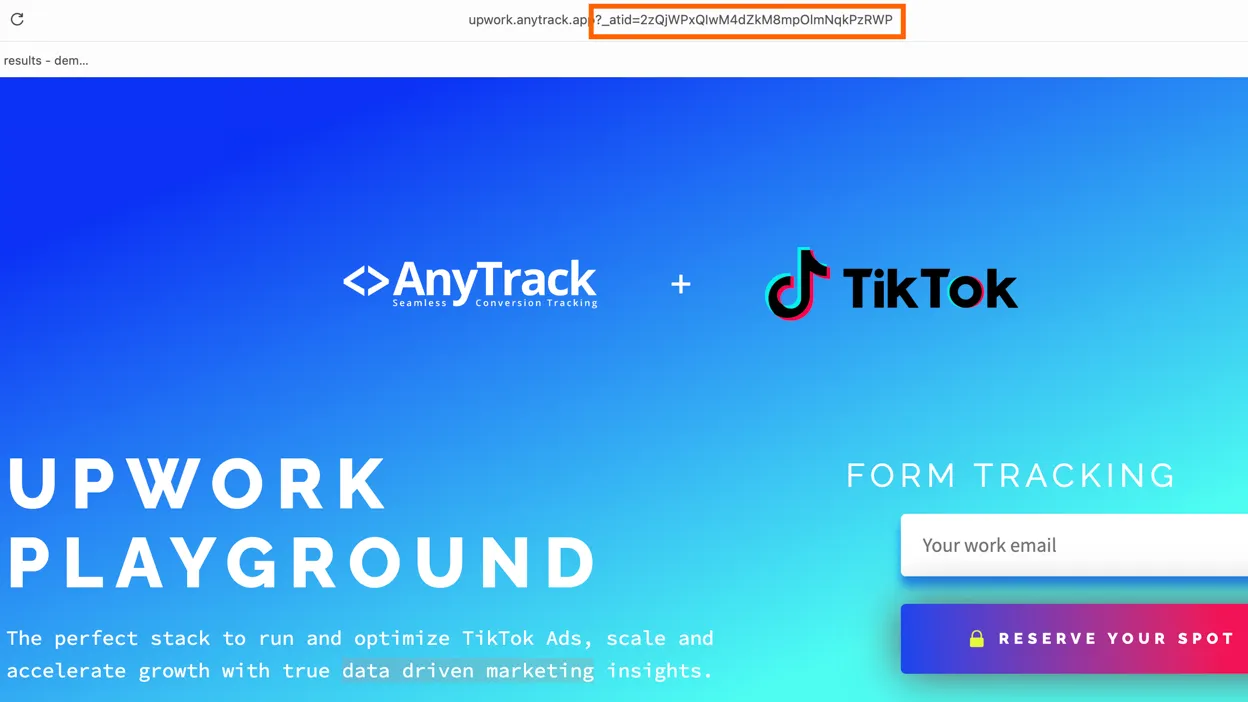
Some form builders (like Jotform embeds, external widgets, or legacy tools) don’t support hidden field injection. They can’t read values from the Tracking Tag, but they can collect URL parameters. This custom JavaScript snippet automatically appends the AnyTrack Click ID to your page URL, ensuring forms collect the tracking parameter and your attribution stays intact.
The same applies to an embedded video player whose call-to-action button lives inside an iframe — a VSL funnel, for example. AutoTag runs in your page and cannot reach a link inside an iframe, but players that build their button URL from the parent page’s URL parameters will pick the Click ID up from there. See Embedded Video Players and Other Iframes below.
Prerequisites
Section titled “Prerequisites”Recommended Form Tracking Method (When Supported)
Section titled “Recommended Form Tracking Method (When Supported)”Before using this URL-based approach, we strongly recommend using standard AnyTrack form tracking whenever your form builder supports it.
Standard setup:
-
Add a hidden field to your form.
-
Set its default value to:
--CLICK-ID-- -
The Tracking Tag automatically substitutes this token with the real click ID at runtime.
-
The click ID is:
- Sent to your CRM or backend with the form submission.
- Returned to AnyTrack for server-side conversion tracking and attribution.
This method is more reliable and should be preferred whenever hidden fields and default values are supported.
When to Use the URL-Based Click ID Appending
Section titled “When to Use the URL-Based Click ID Appending”Use this solution if:
- Your form or call-to-action is hosted on your website
- It cannot read values from the Tracking Tag — including anything rendered inside an iframe
- It can collect values from URL parameters
Typical examples include external form tools, embedded widgets, legacy form builders with limited customization options, and embedded video players. This method works well with Jotform embeds.
Embedded Video Players and Other Iframes
Section titled “Embedded Video Players and Other Iframes”If your call-to-action button is rendered by an embedded video player — a VSL page where the buy button appears inside the player after a delay — the button is inside an iframe. AutoTag runs in your page’s own document and cannot reach links inside an iframe, so the button never receives the Click ID and your conversions arrive unattributed.
Most players build their button URL from the query parameters on the parent page URL. Appending the Click ID there lets the player carry it through to your checkout.
Use the parameter name your destination expects, not the default _atid. For a Digistore24 checkout link, that parameter is cid:
<script>AnyTrack(function() { AnyTrack('atclidToUrl', 'cid');});</script>To verify the fix, load the page and check the address bar: it should show your chosen parameter with a real Click ID value. Then click the player’s button and confirm the same value arrives on the checkout URL. If you are testing a long VSL, temporarily swap in a short video so the button appears immediately instead of waiting out the full runtime.
Additional Use Cases
Section titled “Additional Use Cases”- JavaScript Form Widgets: If the form is a JavaScript widget that the Tracking Tag cannot interact with, the Tracking Tag cannot fill a hidden field in the widget. The widget can still collect the
_atidparameter from the page URL. - Third-Party Forms That Load After the Page: For your own forms, you do not need this method: trigger a custom event such as
AnyTrack('trigger', 'ViewForm')after the form appears, and the Tracking Tag fills the hidden field (see Form Tracking). A third-party form that the Tracking Tag cannot modify can still collect the Click ID from the URL parameter. - Links Inside Iframes: If a link that needs autotagging is inside an iframe, the Tracking Tag cannot modify the link. Scripts inside the iframe can read the URL, including the
_atidparameter, and collect or store the Click ID. - Third-Party Form Integrations: If you are using third-party form services that do not allow direct script injections but can read URL parameters, this method ensures tracking continuity.
- Email Campaign Landing Pages: When directing traffic from email campaigns to landing pages, appending the click ID to the URL can help track conversions effectively.
- A/B Testing Scenarios: In A/B testing environments where different forms are tested, using URL parameters ensures consistent tracking across variations.
How It Works
Section titled “How It Works”- The script waits until the AnyTrack library is fully loaded.
- It retrieves the AnyTrack click ID (
atclid). - It appends the click ID to the current page URL as a query parameter.
- The page URL is updated with no page reload.
Default URL Query Parameter
Section titled “Default URL Query Parameter”By default, the click ID is appended using the following parameter:
_atidExample:
https://example.com/landing-page?_atid=ANYTRACK_CLICK_IDInstallation Instructions
Section titled “Installation Instructions”- Copy the
atclidToUrlscript in the section below. - Paste it into the
<head>section of your website. - Place it alongside your regular Tracking Tag — see Install AnyTrack Tag for the base install.
The atclidToUrl Command
Section titled “The atclidToUrl Command”Add the atclidToUrl command in the head section of the page if you want it across all the pages, or in the body if you want it only on specific pages.
By default, the URL parameter will be set as ?_atid=9asd9f7asdf
<script>AnyTrack(function() { AnyTrack('atclidToUrl');});</script>Customizing the URL Query Parameter
Section titled “Customizing the URL Query Parameter”If your form expects a different URL parameter name, you can change it in the script.
<script>AnyTrack(function() { AnyTrack('atclidToUrl', 'custom_query_parameter');});</script>Replace custom_query_parameter with the parameter name required by your form provider.
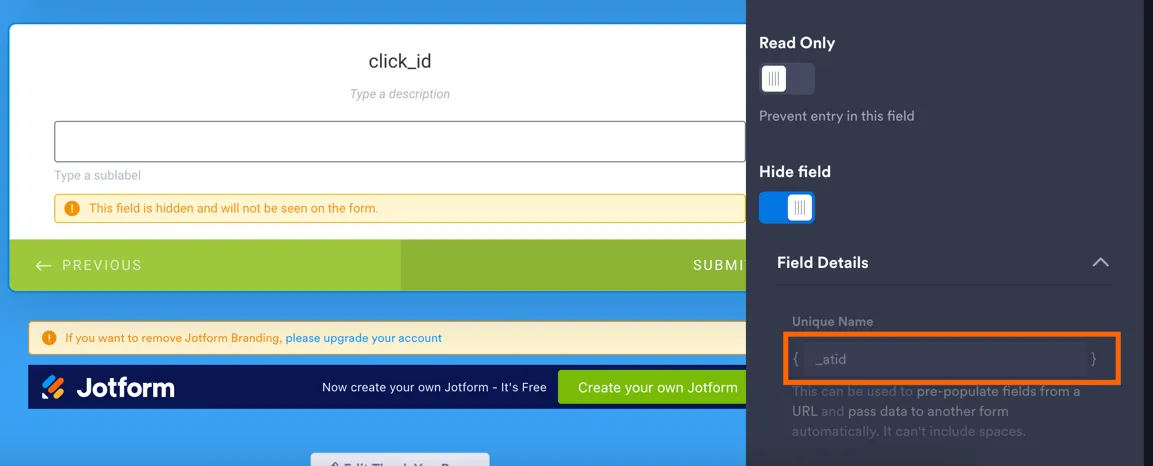
Some form builders reject field names that start with an underscore. If your form builder rejects _atid, set a custom parameter name such as click_id, and map the form field to that name.
For example, in Jotform you create a custom field and you should manually set the query parameter in the field. If the unique name is in the page URL, it will be picked up by Jotform.
Notes and Best Practices
Section titled “Notes and Best Practices”- This script does not reload the page.
- The URL is updated safely using browser history APIs.
- Compatible with hash-based URLs.
- Designed for privacy-first, first-party tracking setups.
- For forms, use only when hidden field injection is not supported. For iframe content, it is the only option.
- All URL parameters are preserved.
- This method is not specific to single page applications, but it also works in them.
Once configured, your form or embedded player collects the AnyTrack Click ID from the page URL and passes it to your backend, CRM, or checkout, enabling accurate server-side conversion tracking and attribution.
Related Resources
Section titled “Related Resources”FAQ & Troubleshooting
FAQ was last reviewed on 2026-10-16
Does the URL-based method work with all form builders?
Will the URL change cause a page reload?
Should I use hidden fields or URL parameters?
Can I turn off the _atid parameter on Shopify, Systeme.io or GoHighLevel?
_atid to the page URL automatically so the platform stores the Click ID with its own data. There is no setting that disables it. The parameter is expected, and it is unrelated to Cross-Domain Tracking. See AnyTrack Identifiers.Can I use atclidToUrl to rename the _atid parameter?
atclidToUrl command adds the Click ID to the page URL — it does not rename a parameter that is already there. On Shopify, Systeme.io and GoHighLevel you do not need this script at all, because AnyTrack appends the parameter automatically. Adding it on those platforms gives you a second Click ID parameter under the new name, next to the automatic _atid. Change the parameter name only when you install the script yourself on a platform where AnyTrack does not append it, and your form provider requires a different name.A third-party app on my site breaks when _atid is in the URL. What do I do?
atclidToUrl script to work around it — on a platform where the parameter is added automatically, the script cannot remove or rename it. Contact support with the name of the app, what it does when the parameter is present (wrong page, redirect loop, error), and one URL where it fails. Most apps ignore query parameters they do not recognize, so a failure is worth investigating rather than working around.Does the _atid parameter affect my SEO?
_atid to the page URL after the page loads, through the browser History API. The browser sends no new request to the server, so the server response and the tags inside the page stay the same. AnyTrack also adds _atid to some links on your pages. If a visitor or a crawler opens one of those links, the browser sends the parameter to the server. To measure the effect on your own site, request one page with ?_atid=test and the same page without the parameter, then compare the two responses.My translation app removes the hreflang tags when _atid is in the URL. What do I do?
?_atid=test and without the parameter. Count the hreflang tags in each response. If the response without the parameter contains all the alternate tags, and the response with the parameter does not, the translation app controls this behavior. Report the two responses to your translation app vendor. Contact AnyTrack support with the same two responses and one link on your site that carries the parameter. Do not add the atclidToUrl script: the script cannot remove or rename the automatic parameter.