
Meta CAPI for CRM
Connect your CRM or funnel platform (HubSpot, GoHighLevel, Systeme.io, ClickFunnels, LeadByte) to Meta Conversion API for CRM with AnyTrack. Connect Facebook Ads and your Page, grant Lead Access, map lifecycle events like Qualified Lead and Customer, and send them back to Meta for campaign optimization, better Event Match Quality, and full-funnel attribution.
AnyTrack connects your CRM or funnel platform (HubSpot, GoHighLevel, Systeme.io, ClickFunnels, LeadByte) to Meta Conversion API (CAPI) for CRM, so lifecycle events from your sales pipeline reach Meta for campaign optimization. As an official Meta Business Partner, AnyTrack handles data formatting, identifier enrichment, and deduplication automatically.
Conversion API for CRM is one of three tracking methods AnyTrack orchestrates for Meta. To understand how it fits alongside the Meta Pixel and the standard Conversion API, see Meta Pixel vs CAPI vs CAPI for CRM.
What This Integration Does
Section titled “What This Integration Does”Without AnyTrack, Meta has no visibility into what happens after a lead submits an Instant Form. Your CRM tracks lifecycle changes (qualified, meeting booked, customer), but that data never reaches Meta.
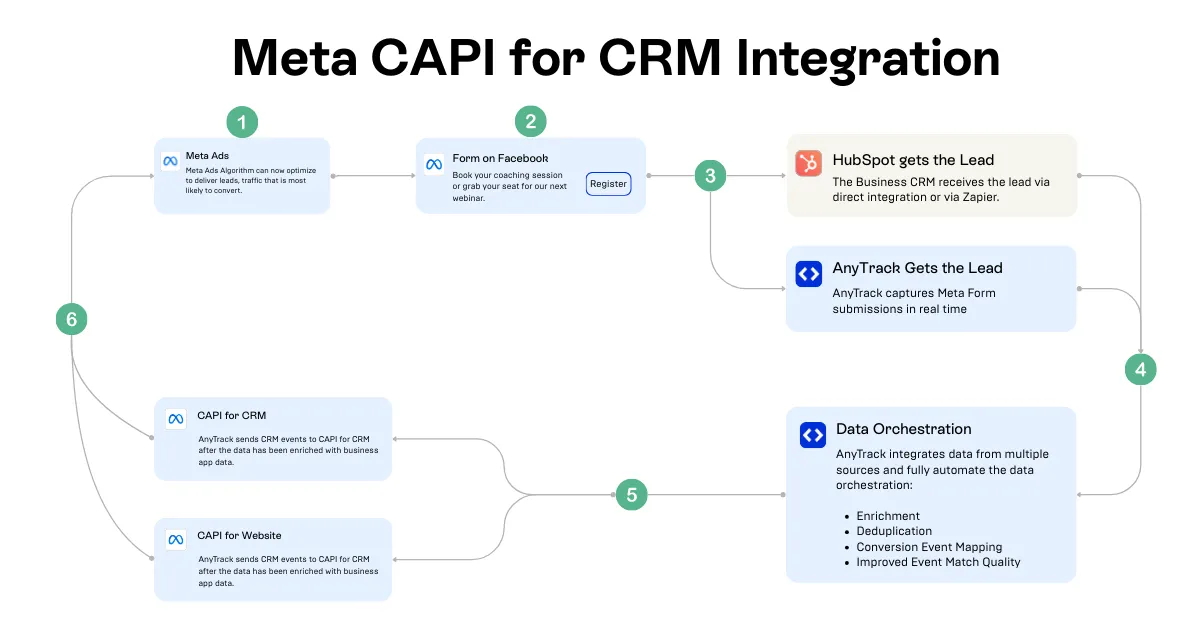
With AnyTrack in place, the data flow works like this:
- A lead submits a Facebook or Instagram Instant Form.
- Meta sends the lead data to your CRM and to AnyTrack simultaneously.
- As your sales team qualifies leads and updates lifecycle stages, the CRM sends those updates to AnyTrack.
- AnyTrack matches the CRM update to the original lead, enriches it with Meta identifiers (
fbc,fbp,external_id), and streams the event to Meta via Conversion API for CRM. - Meta uses these server-side funnel events to optimize ad delivery and build better audiences.
Supported Platforms
Section titled “Supported Platforms”Conversion API for CRM works with the CRM and lead generation platforms below. Each one connects to AnyTrack differently, so follow its own integration guide for the connection step.
Those guides cover only how to connect the platform to AnyTrack. They describe general funnel and website tracking, not this integration — none of them set up Meta Lead Ads or Lead Access. Complete the steps on this page as well, in the order given, or lifecycle events will have no Meta lead to attribute back to.
| Platform | How it connects to AnyTrack | Setup guide |
|---|---|---|
| HubSpot | App connection (approve permissions) | HubSpot |
| GoHighLevel | App connection (approve permissions) | GoHighLevel |
| Systeme.io | API key | Systeme.io |
| ClickFunnels (classic) | Webhook | ClickFunnels |
| ClickFunnels 2.0 | Webhook | ClickFunnels 2.0 |
| LeadByte | Webhook | LeadByte |
Unified Conversion API for Web and CRM
Section titled “Unified Conversion API for Web and CRM”AnyTrack runs Conversion API for Web and Conversion API for CRM in parallel, giving Meta a complete picture of the customer journey. This enables two campaign strategies:
- Top-of-funnel optimization: Run Lead Ads campaigns optimized for downstream CRM events like Qualified Lead or Customer. AnyTrack routes the CRM event to Meta with the correct match keys so Meta learns which leads actually convert.
- Bottom-of-funnel retargeting: Run retargeting campaigns where users return to your site and complete a purchase. AnyTrack combines first-party web events (via Conversion API for Web) with CRM lifecycle events (via Conversion API for CRM), so Meta optimizes based on the full journey.
Setup Overview
Section titled “Setup Overview”Follow these steps in order — each one depends on the previous. You connect Facebook Ads first, then your Page, and only then can you grant Lead Access in Meta. The remaining steps define and validate the funnel events you send to Meta.
Connect your Facebook Ads account and Meta Pixel in AnyTrack, then enable the Conversion API.
Connect the Page running your Lead Ads so AnyTrack can collect Instant Form leads.
Assign AnyTrack as your CRM in Meta Business Settings so Meta releases those leads to AnyTrack.
Connect your CRM or funnel platform, map events to Meta, configure the funnel, and test.
Step 1: Connect Your Facebook Ads Account
Section titled “Step 1: Connect Your Facebook Ads Account”Everything downstream depends on your Facebook Ads account being connected first. This links your ad account and Meta Pixel to AnyTrack.
Follow the Facebook Ads setup guide to connect your account — it takes about five minutes. Once your Meta Pixel is connected, enable the Conversion API integration in your Meta Pixel settings so AnyTrack can send server-side events to Meta.
Step 2: Connect Your Facebook Page in AnyTrack
Section titled “Step 2: Connect Your Facebook Page in AnyTrack”Connecting your Facebook Page tells AnyTrack which Page to collect Instant Form leads from, and it authorizes AnyTrack on the Page — the authorization Meta requires before you can grant Lead Access in the next step. AnyTrack records each lead as an AdLeadInitialLead event, which is the anchor every later CRM event attributes back to.
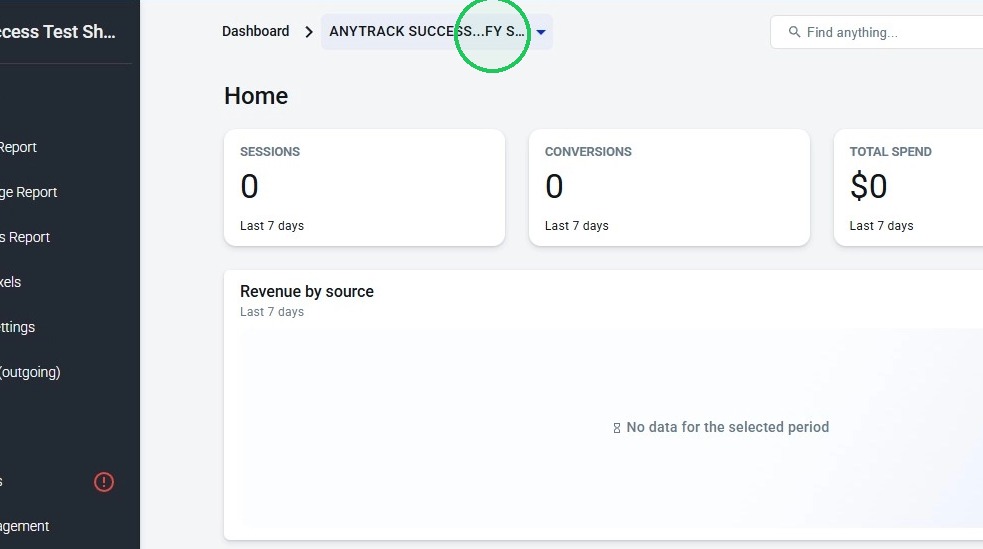
- Select your AnyTrack property.
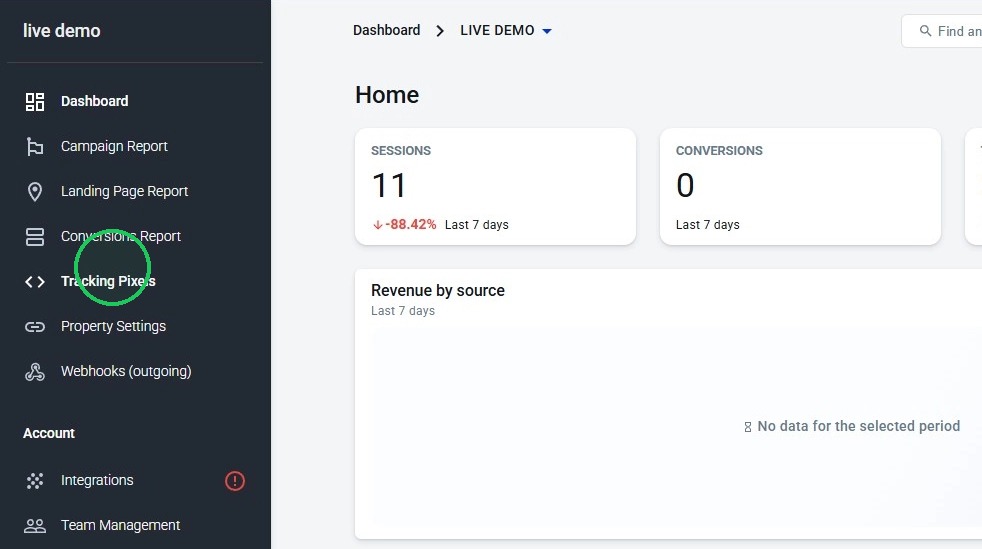
- Open Tracking Pixels.
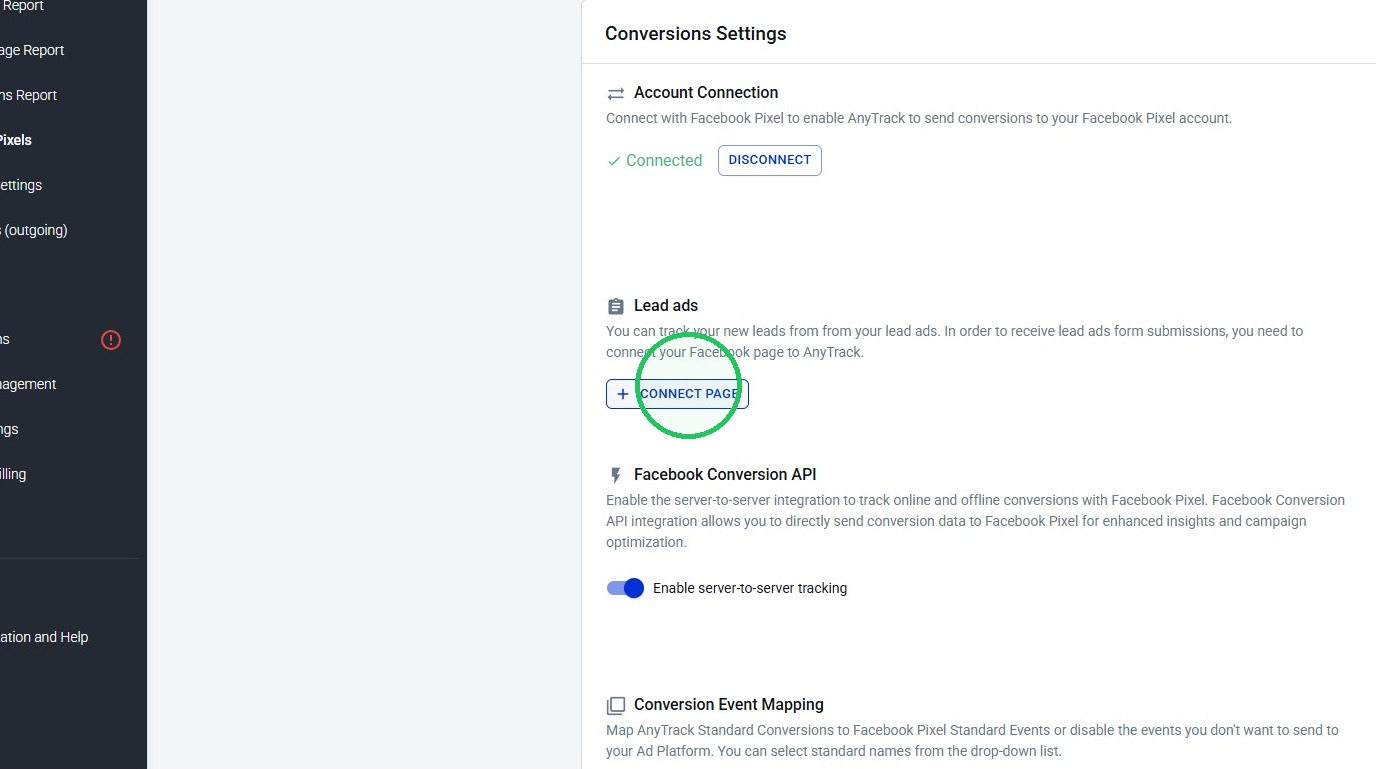
- Select your Facebook Pixel and click Lead Ads +CONNECT PAGE.
- Log into your Facebook account and click Connect As.
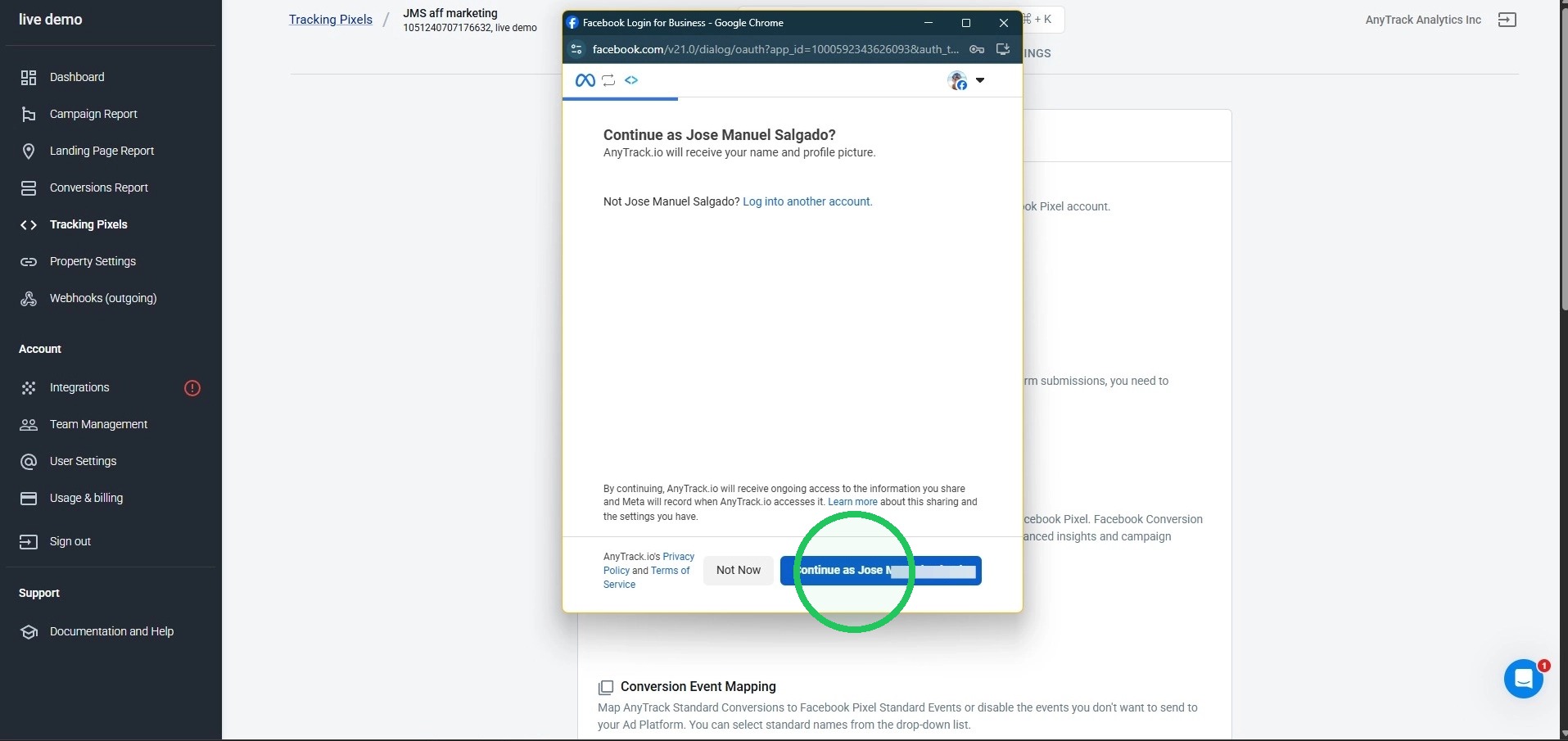
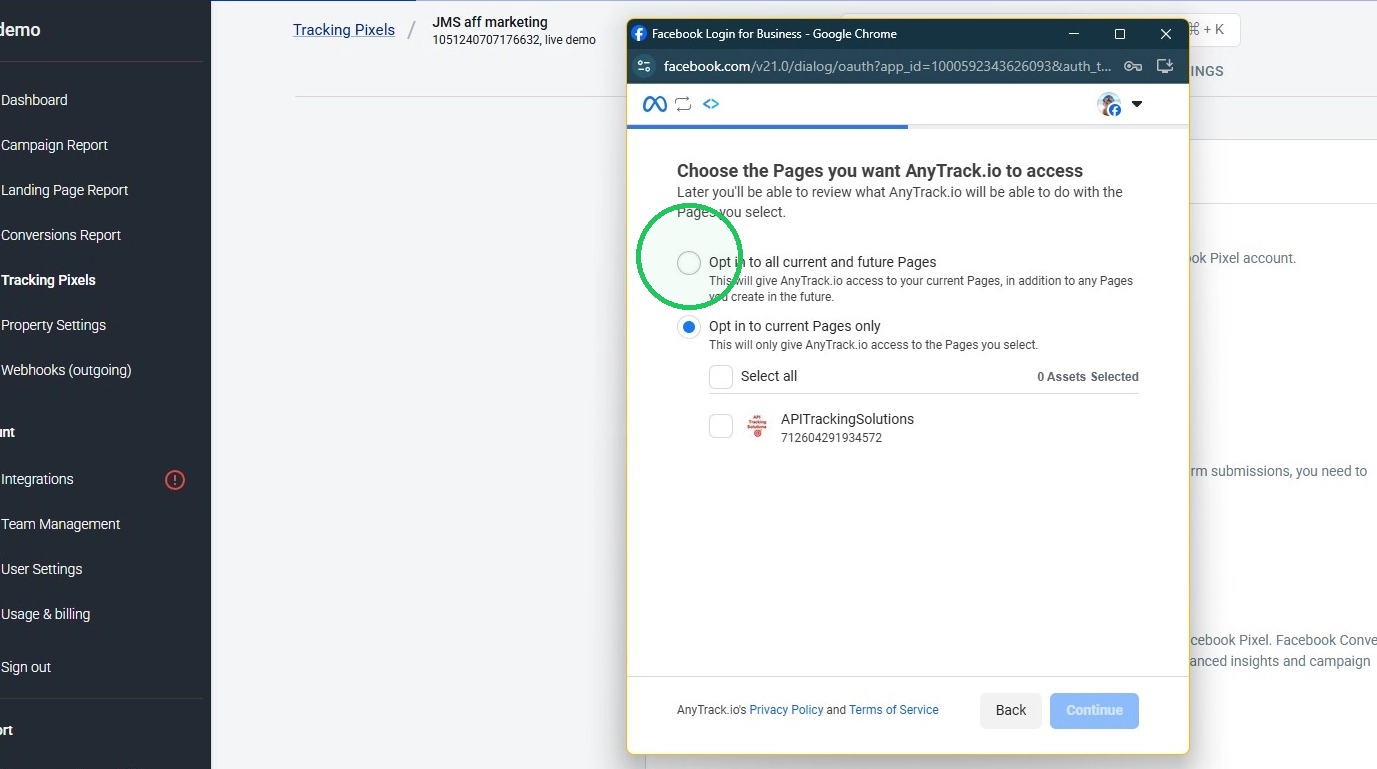
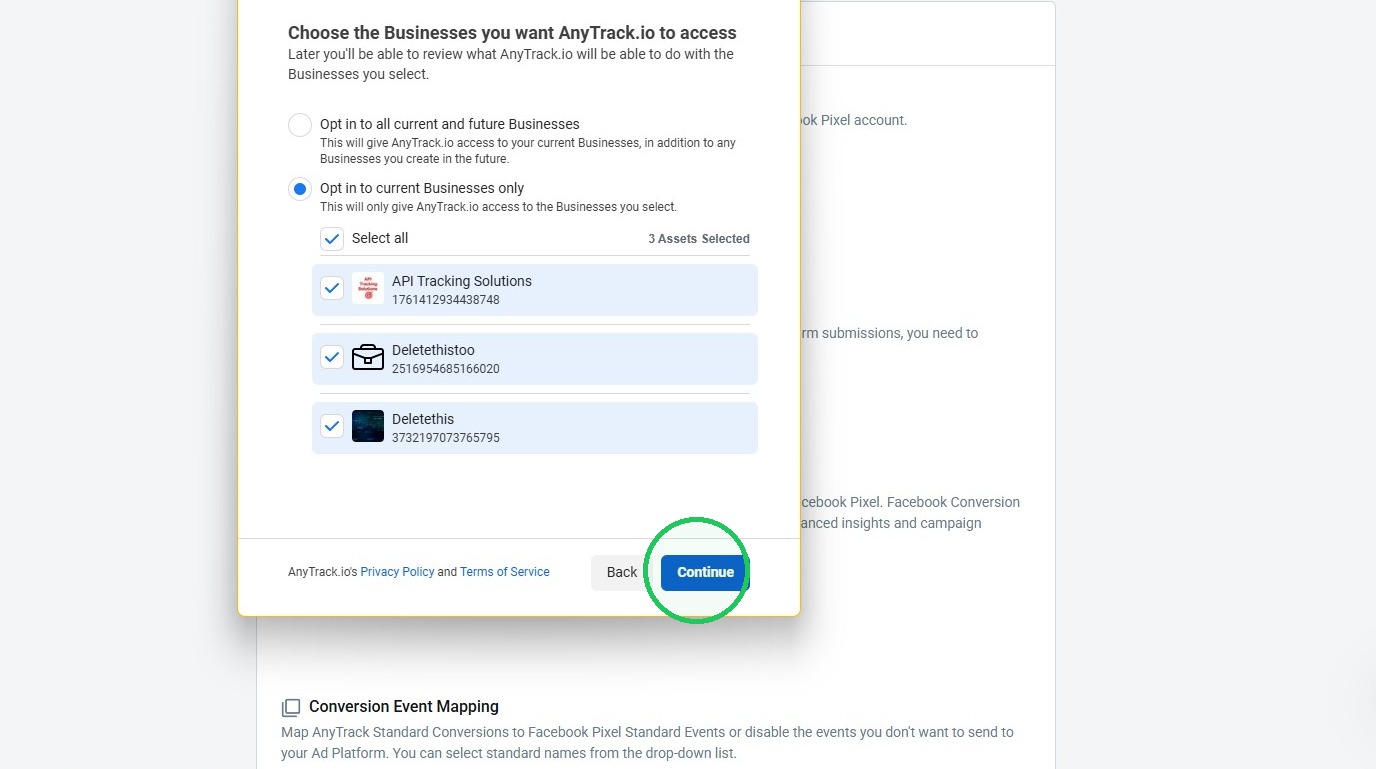
- Choose your Facebook Page, click Continue, then choose the Facebook Business(es) and continue.
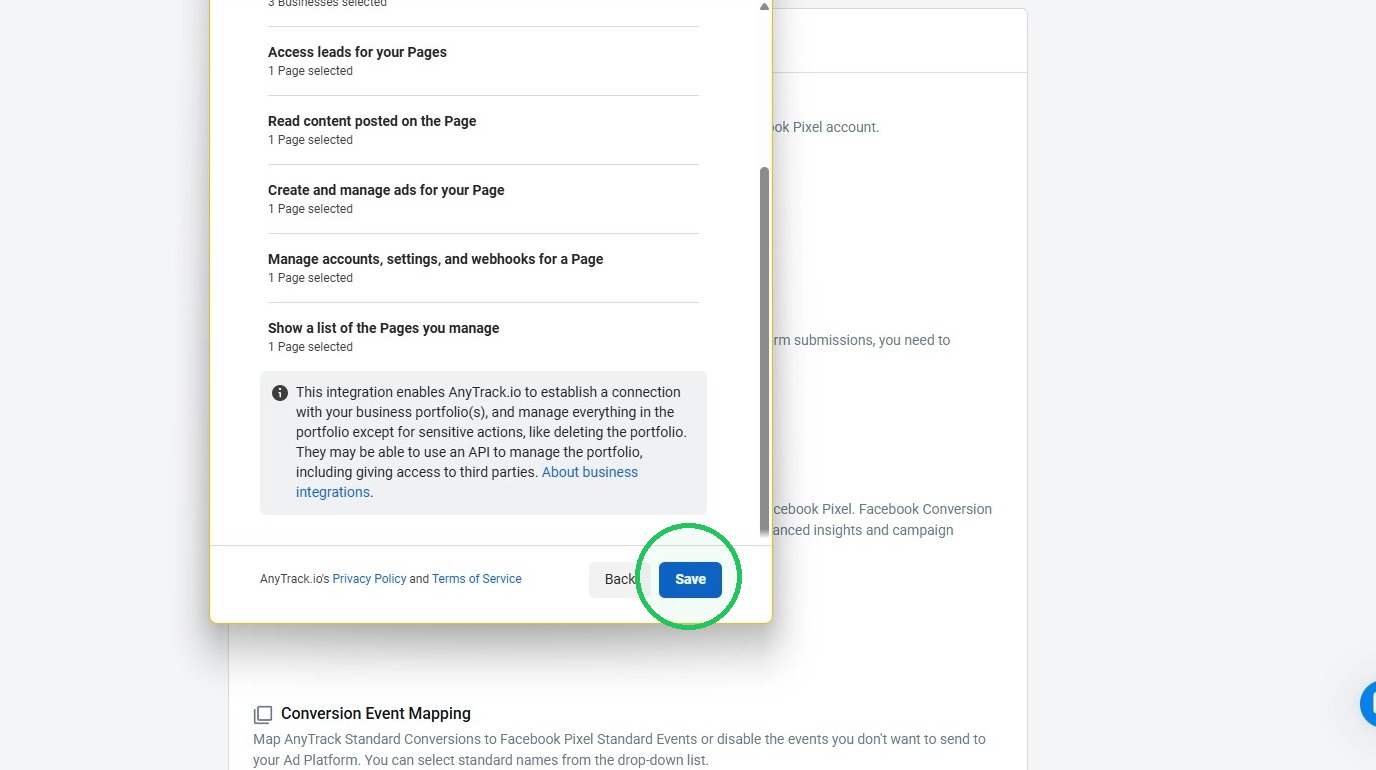
- Click Save to grant the requested permissions.
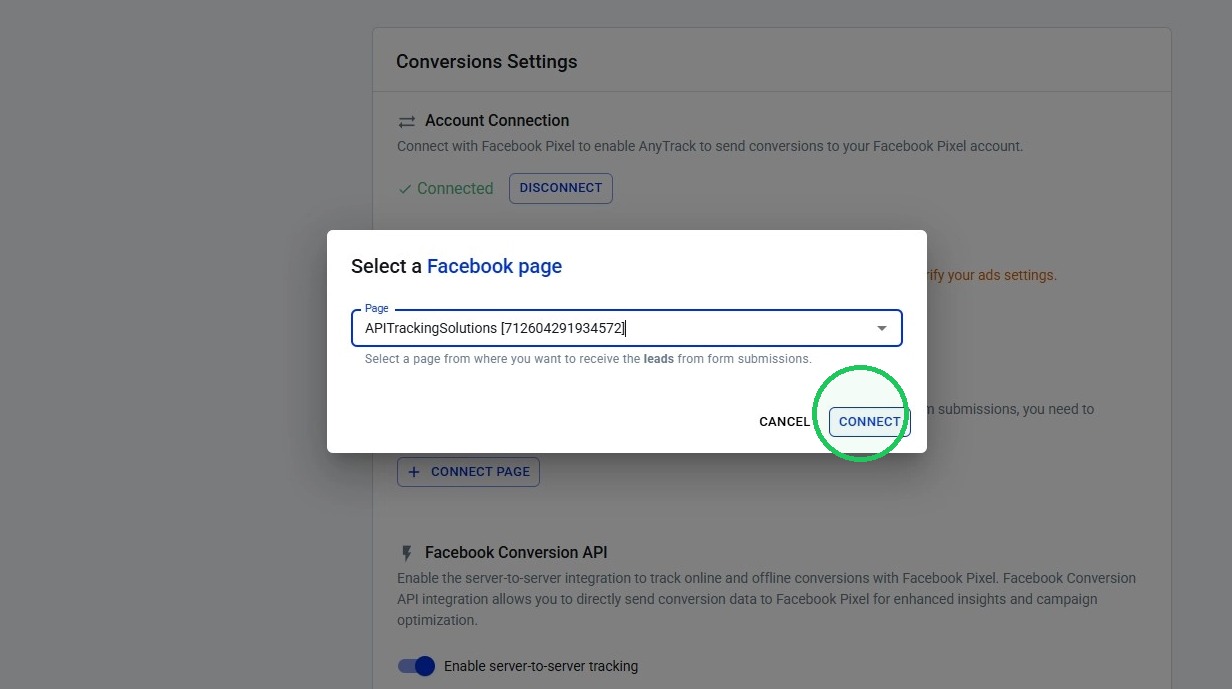
- Select the Page you want to connect and click CONNECT.
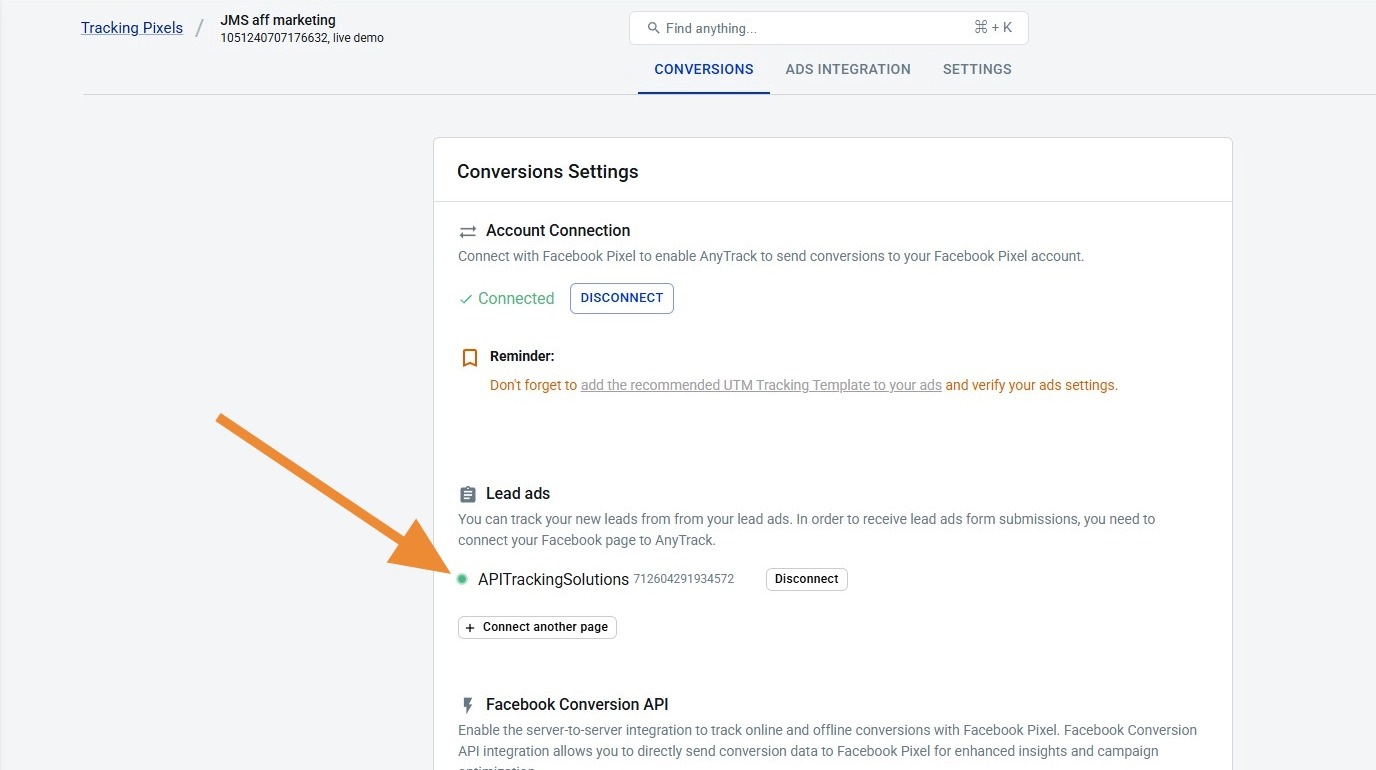
- The connected Page shows a green indicator.
Step 3: Grant AnyTrack Lead Access in Meta
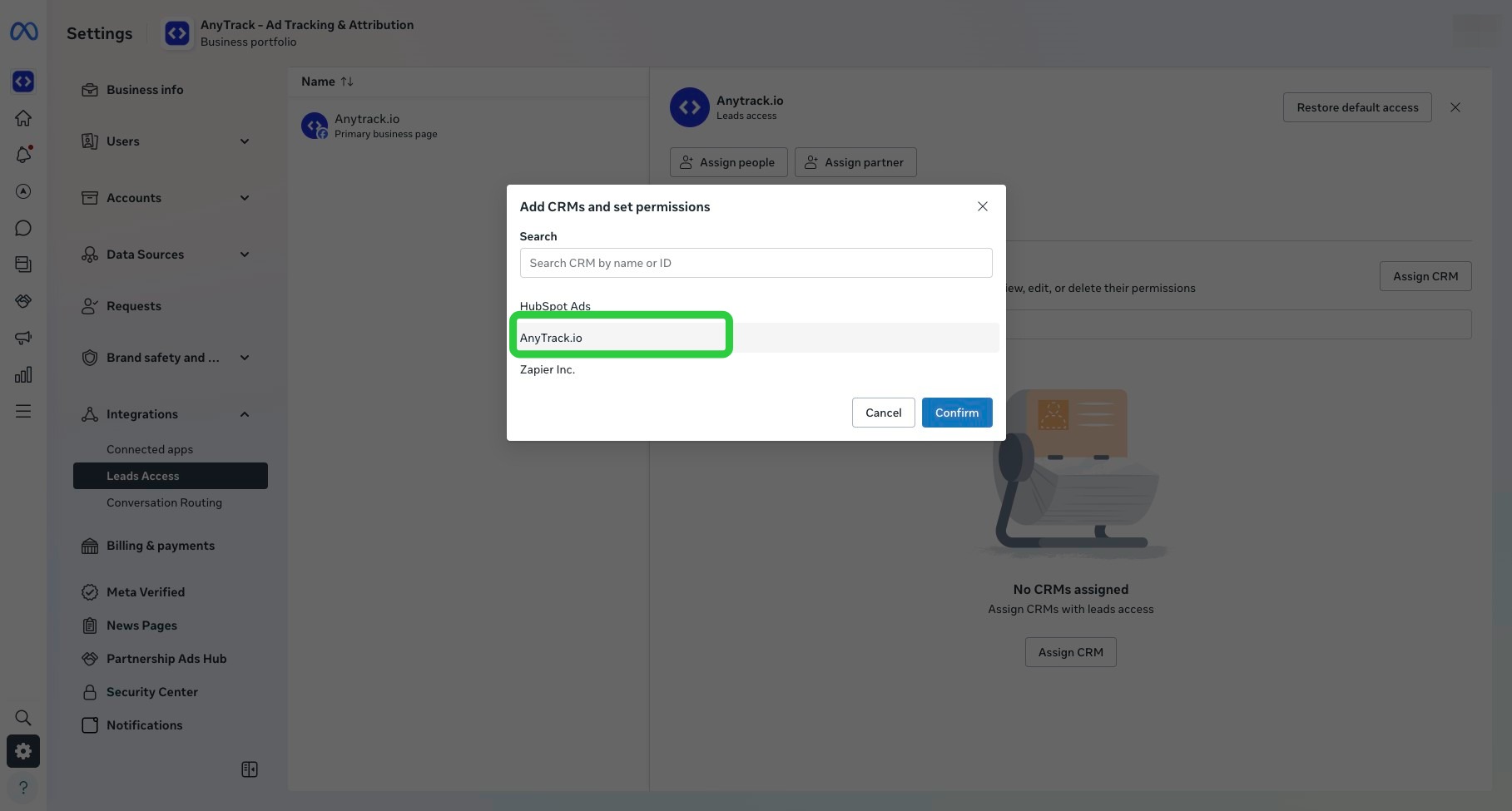
Section titled “Step 3: Grant AnyTrack Lead Access in Meta”Now that your Page is connected in AnyTrack, grant AnyTrack Lead Access in Meta so it can receive your leads. Meta only releases Instant Form leads to a connected CRM that has Lead Access on the Page. Without it, leads submit successfully but never reach AnyTrack, so no CRM events can be attributed later.
Assign AnyTrack as your CRM
Section titled “Assign AnyTrack as your CRM”- Open Meta Business Settings.
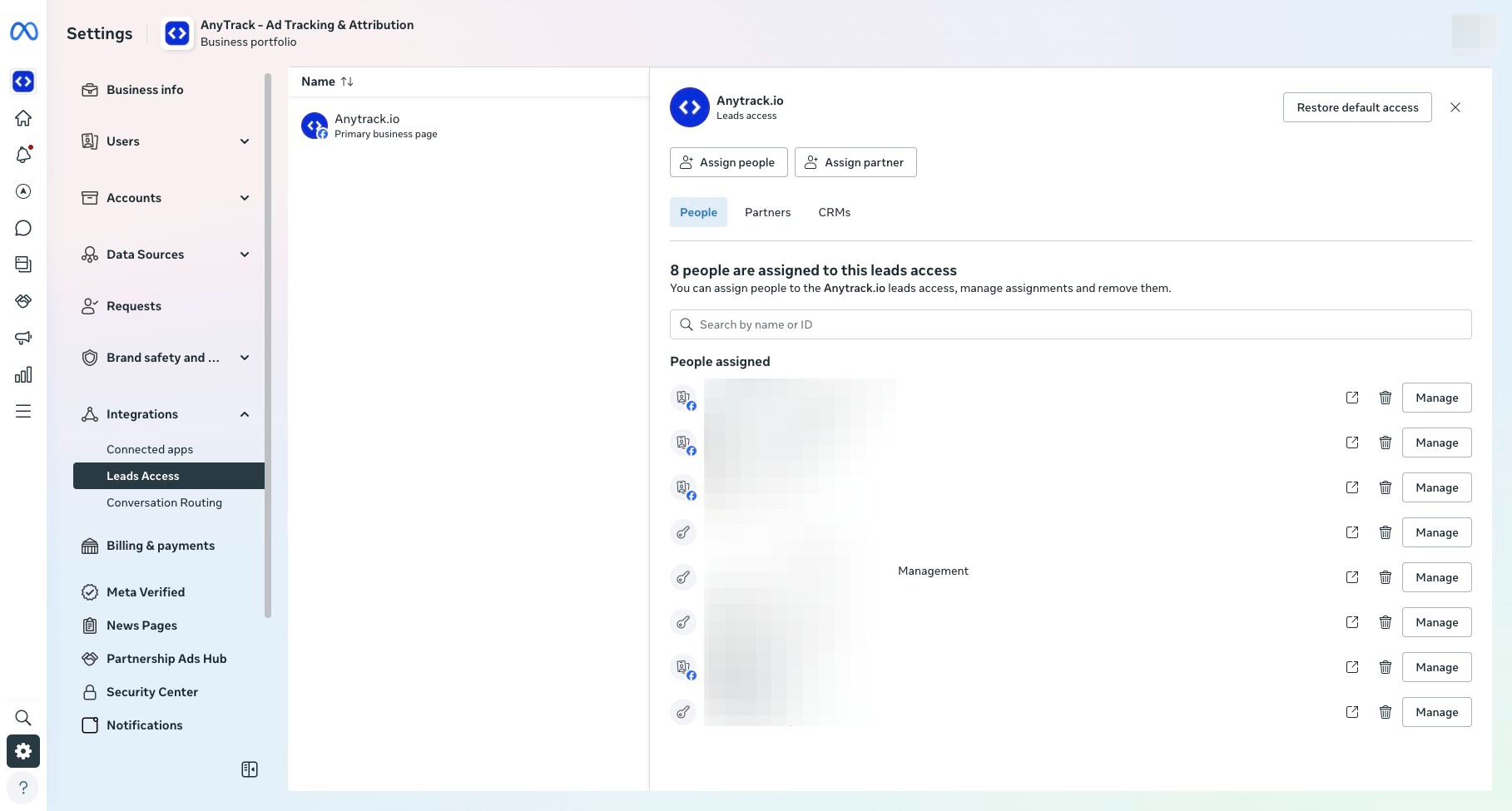
- In the left navigation, go to Business Settings.
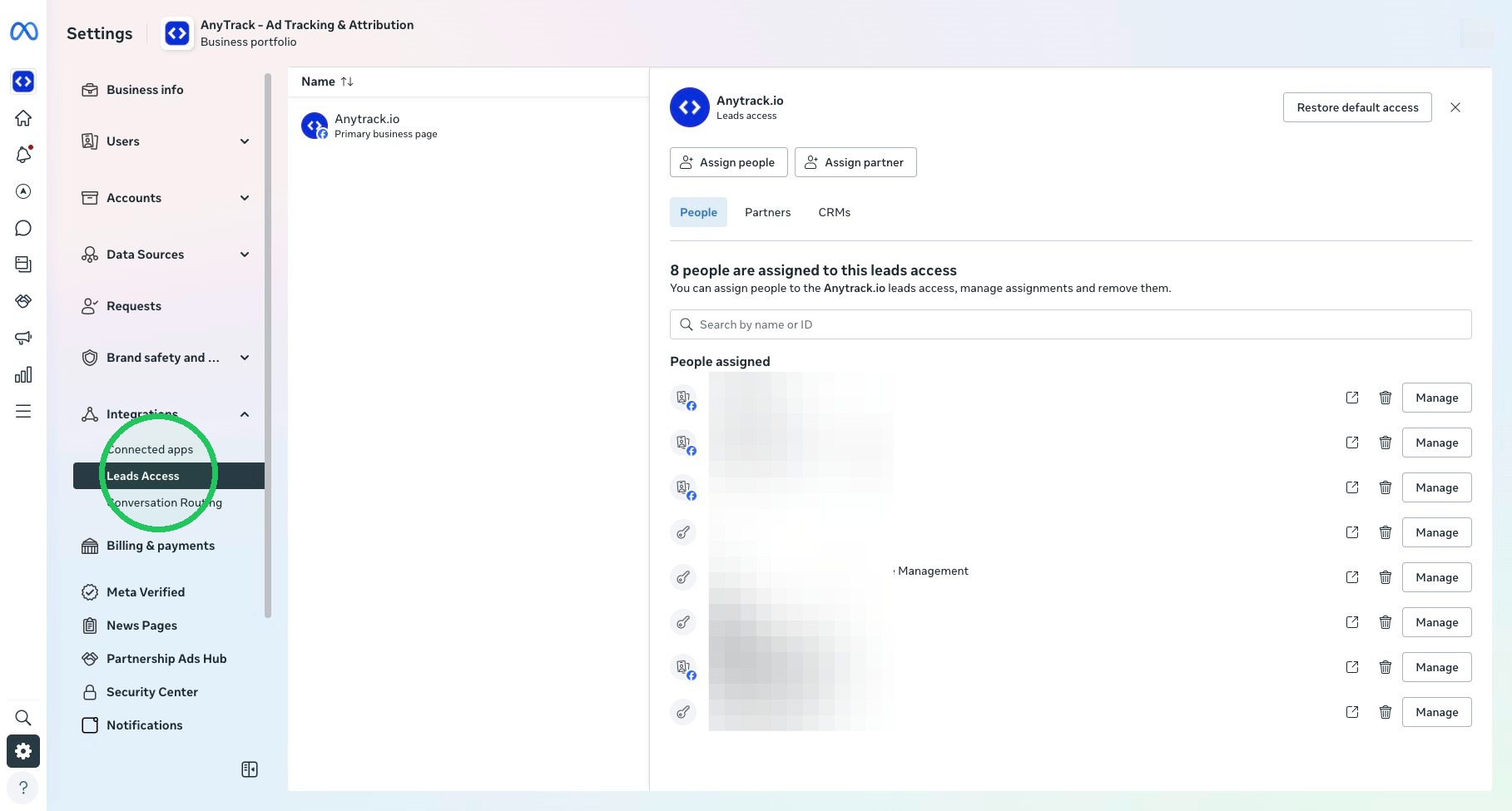
- Open Lead Access.
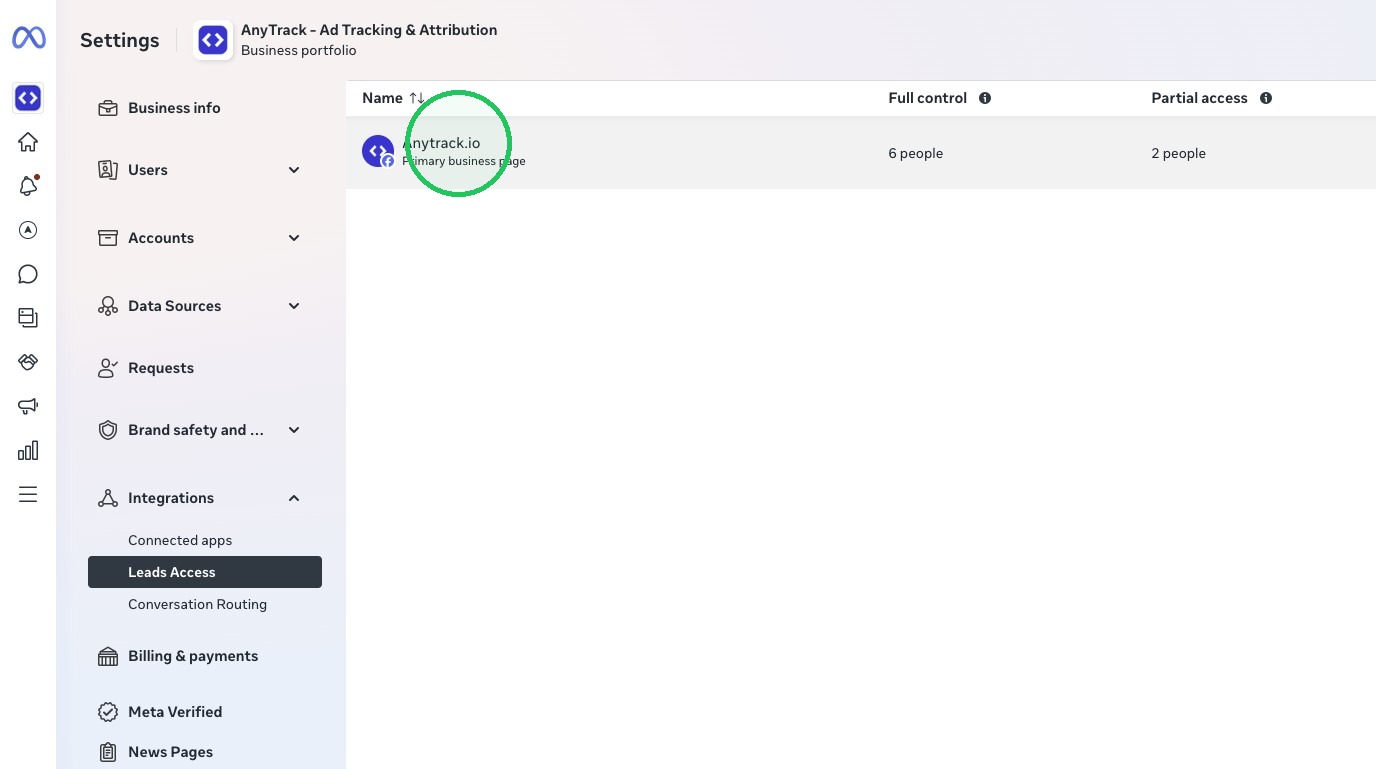
- Select the Facebook Page running your Lead Ads.
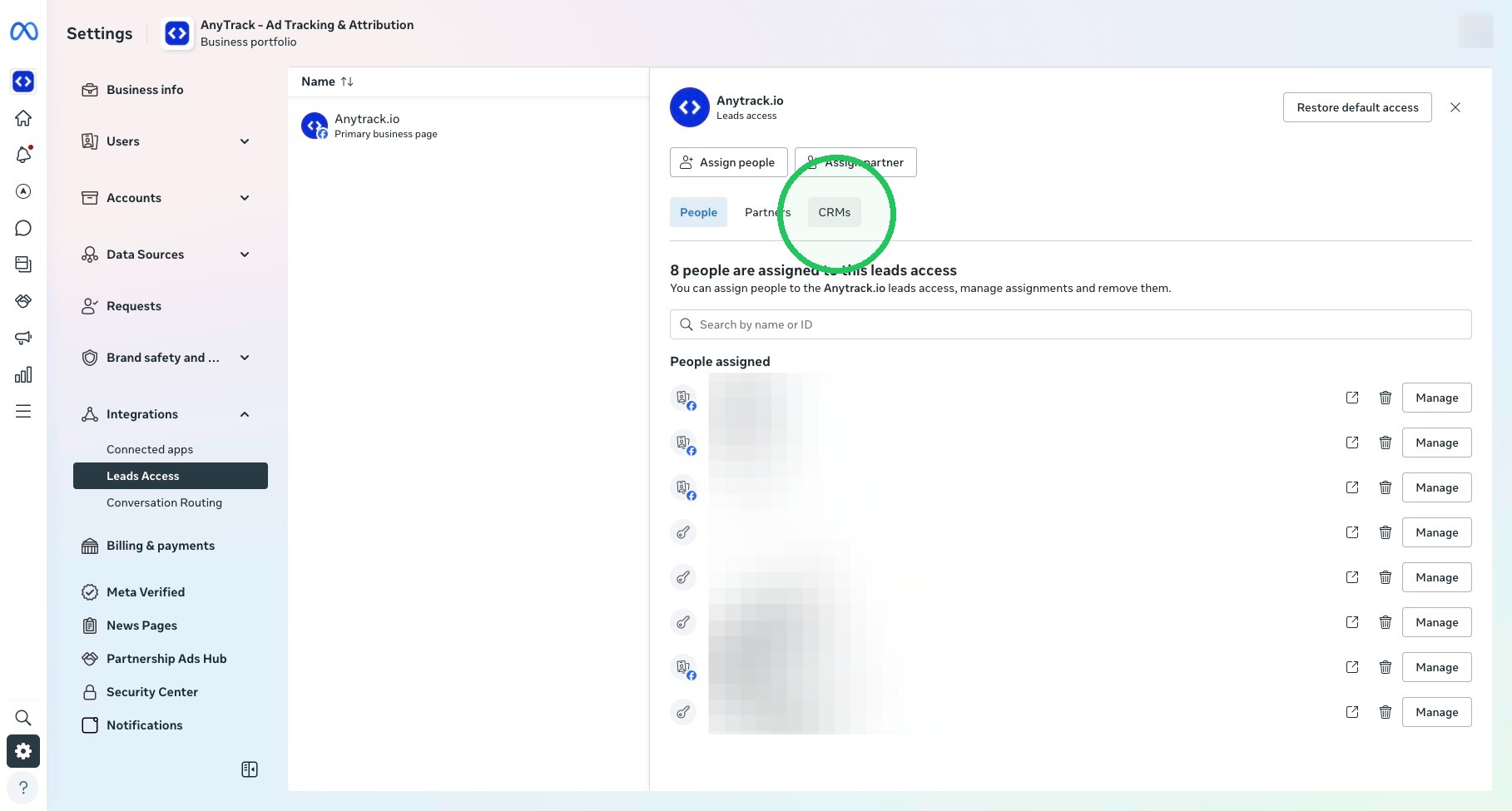
- Open the CRM tab. Connected CRMs are listed here.
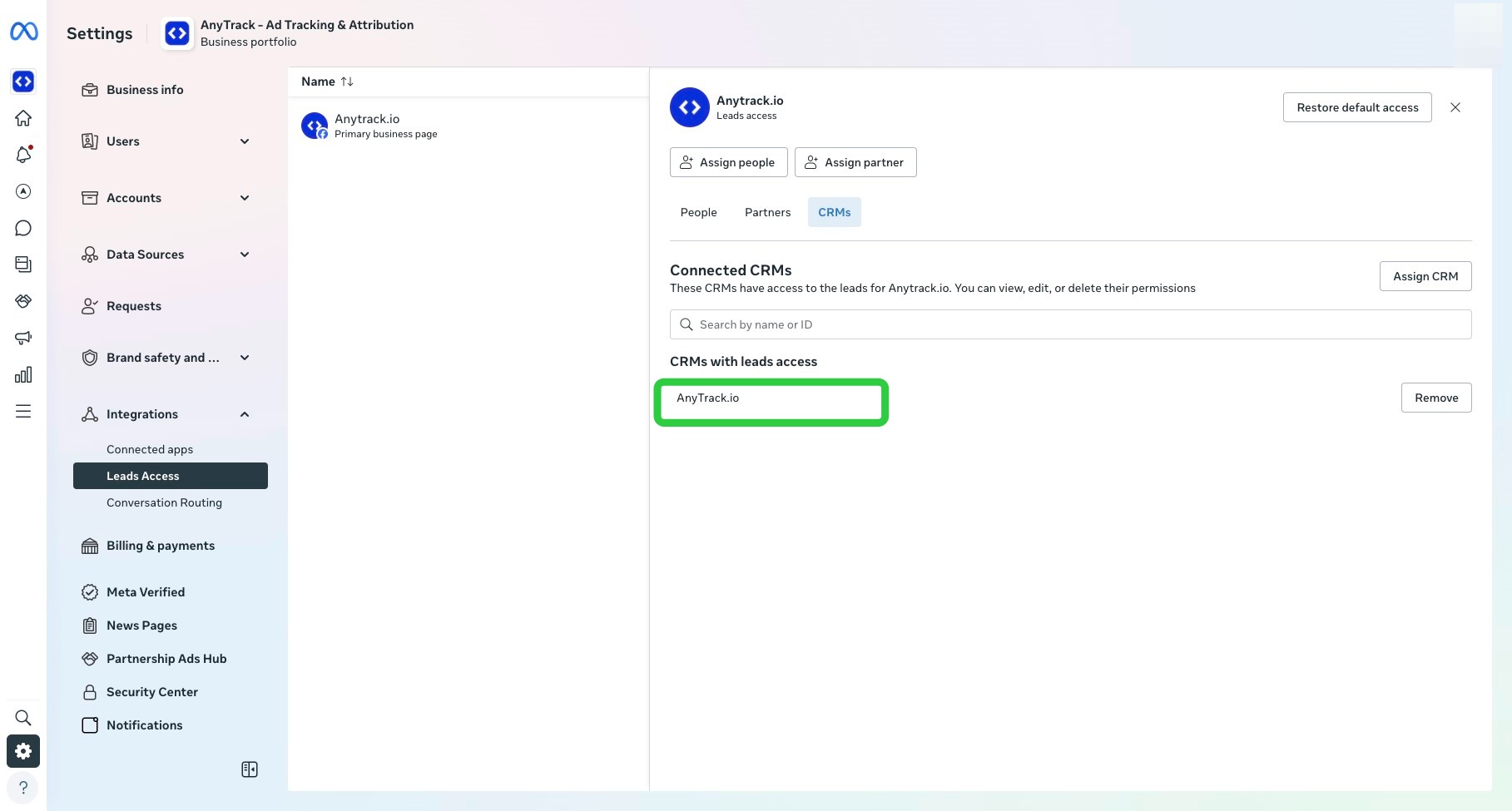
- If AnyTrack is not listed, click Assign CRM.
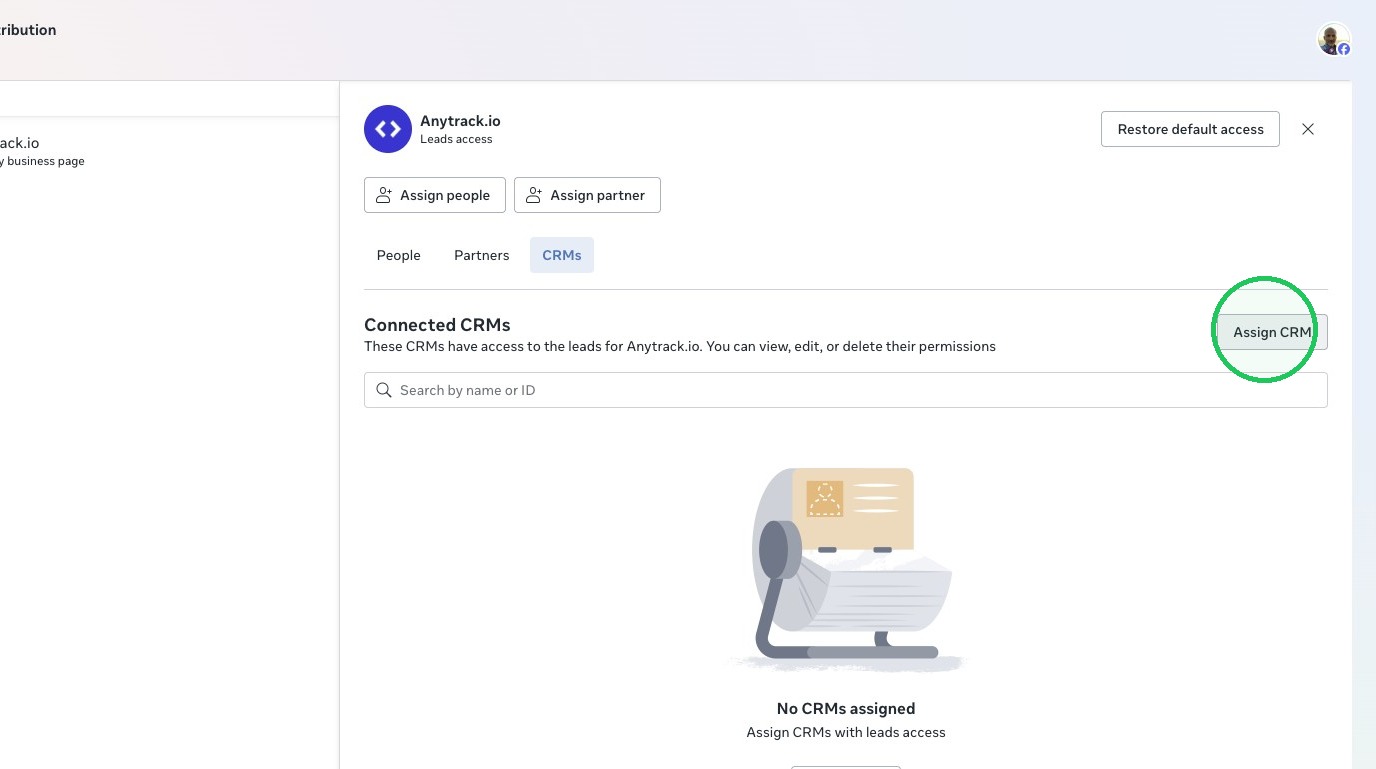
- Select AnyTrack, then confirm. AnyTrack now appears as a connected CRM with Lead Access.
Review Lead Access on an existing connection
Section titled “Review Lead Access on an existing connection”If AnyTrack is already connected and you need to confirm or re-enable Lead Access, manage it from Business Integrations instead.
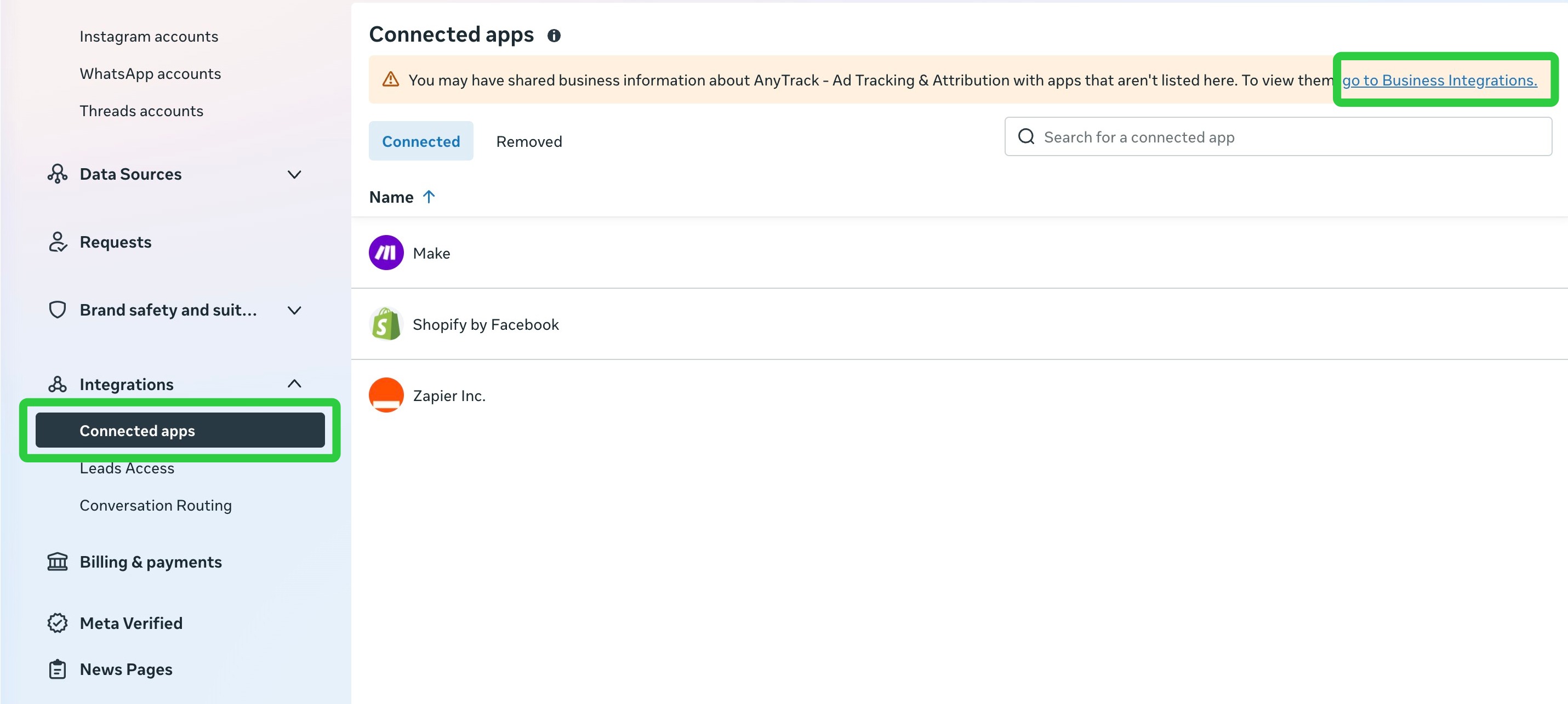
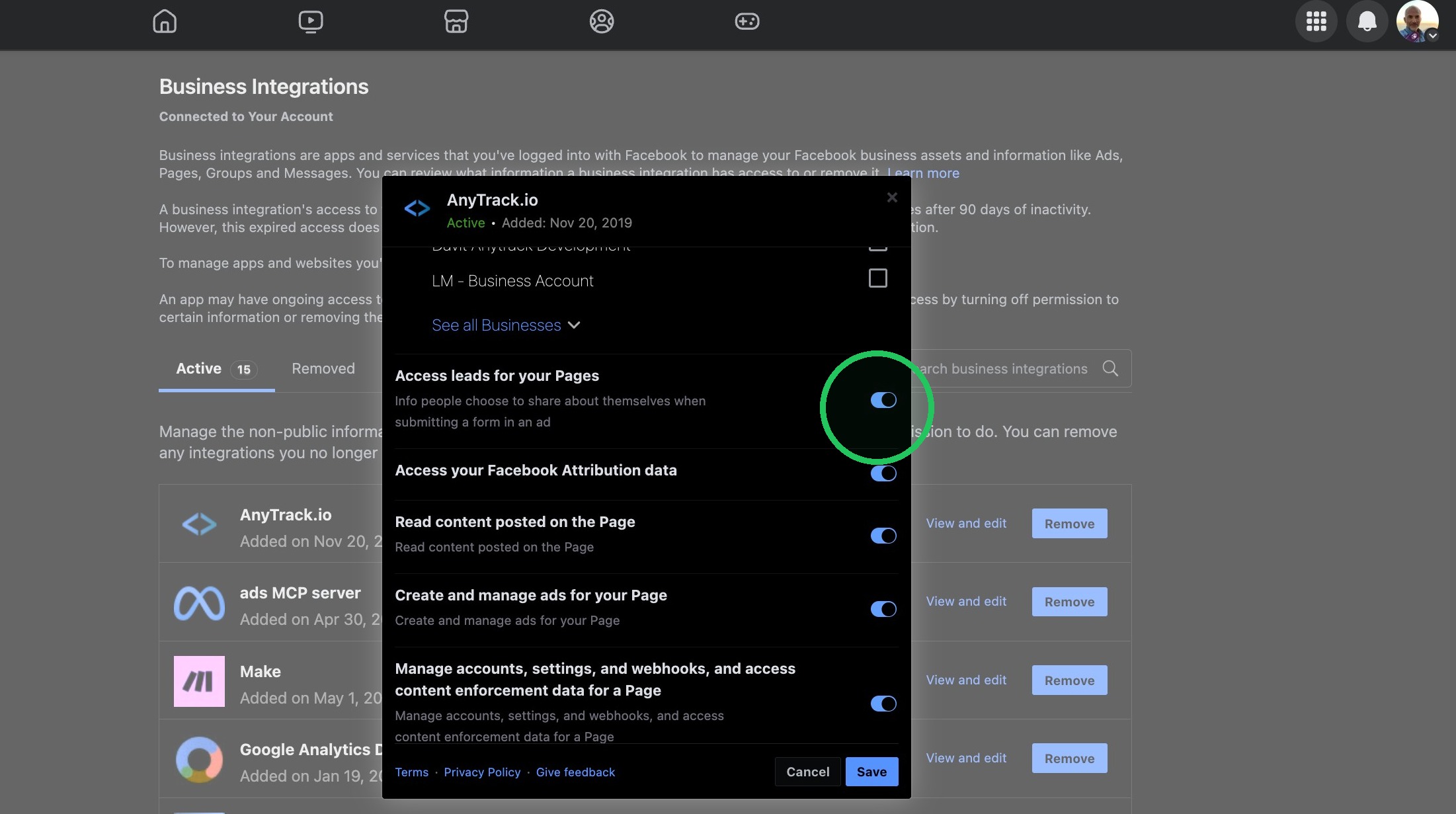
- In the notification banner, click the go to Business Integrations link (or open Business Settings → Integrations → Business Integrations).
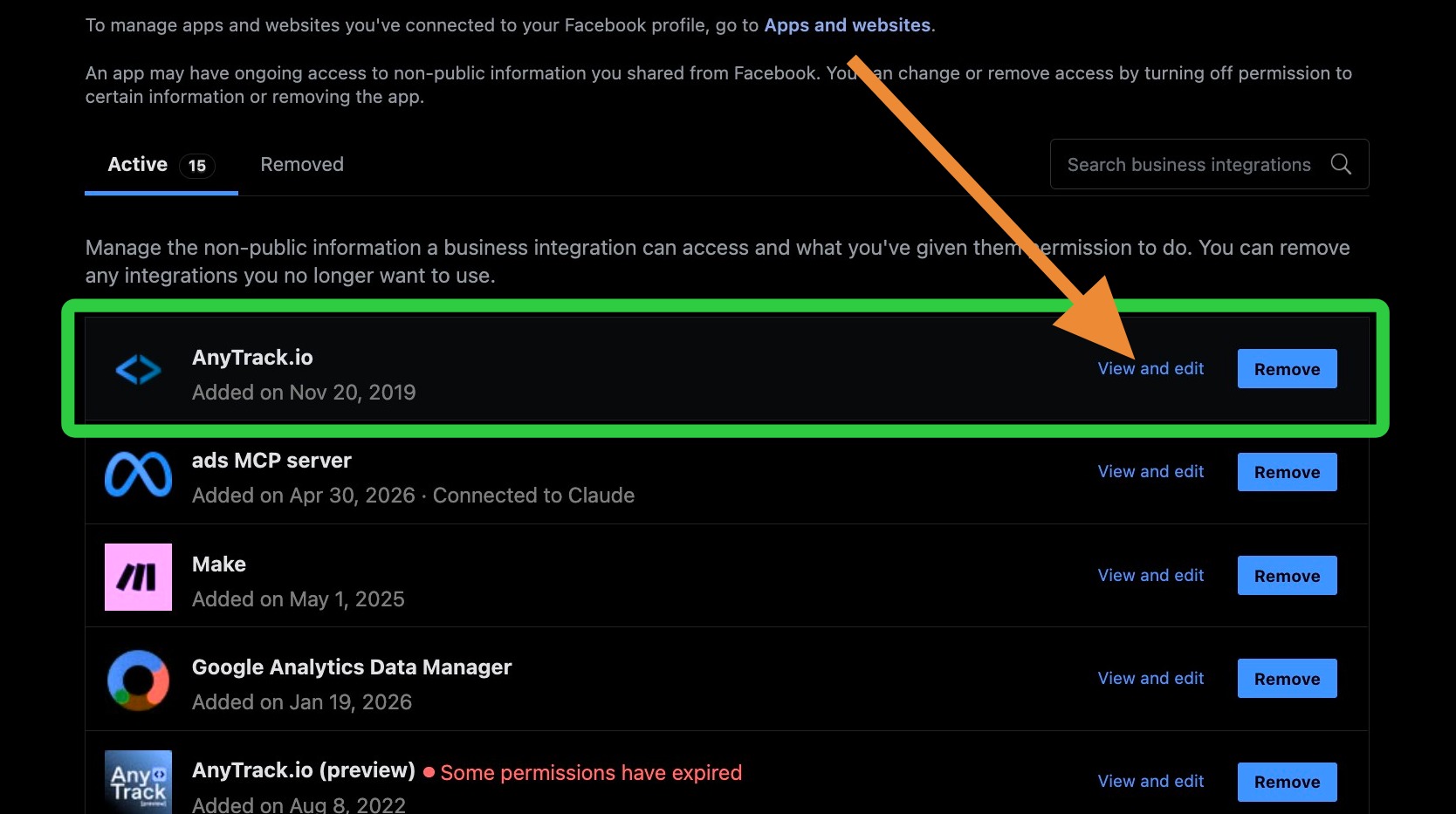
- Find AnyTrack in the list and click View and edit.
- Locate the Access leads for your Pages setting.
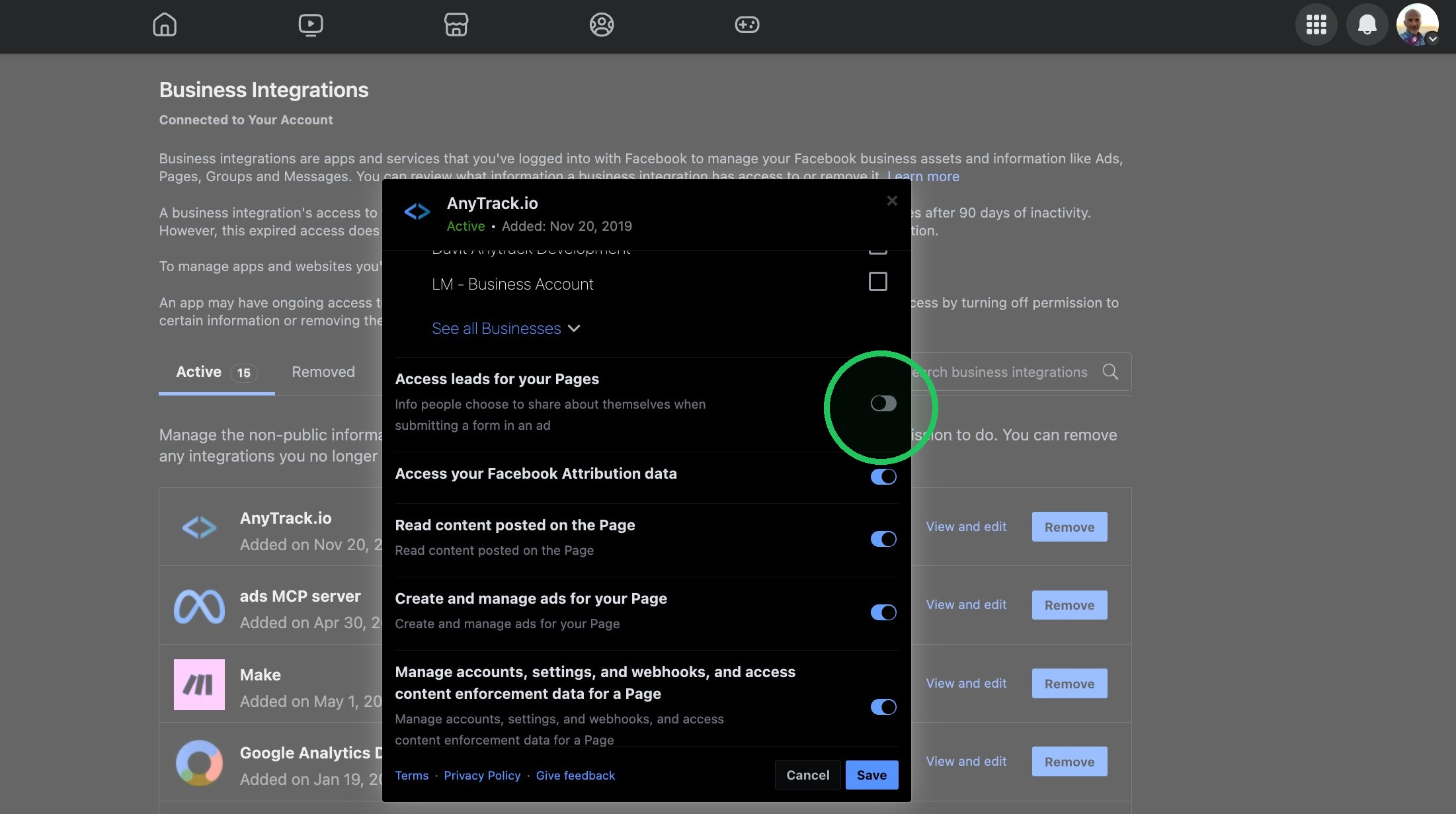
- Enable Access leads for your Pages.
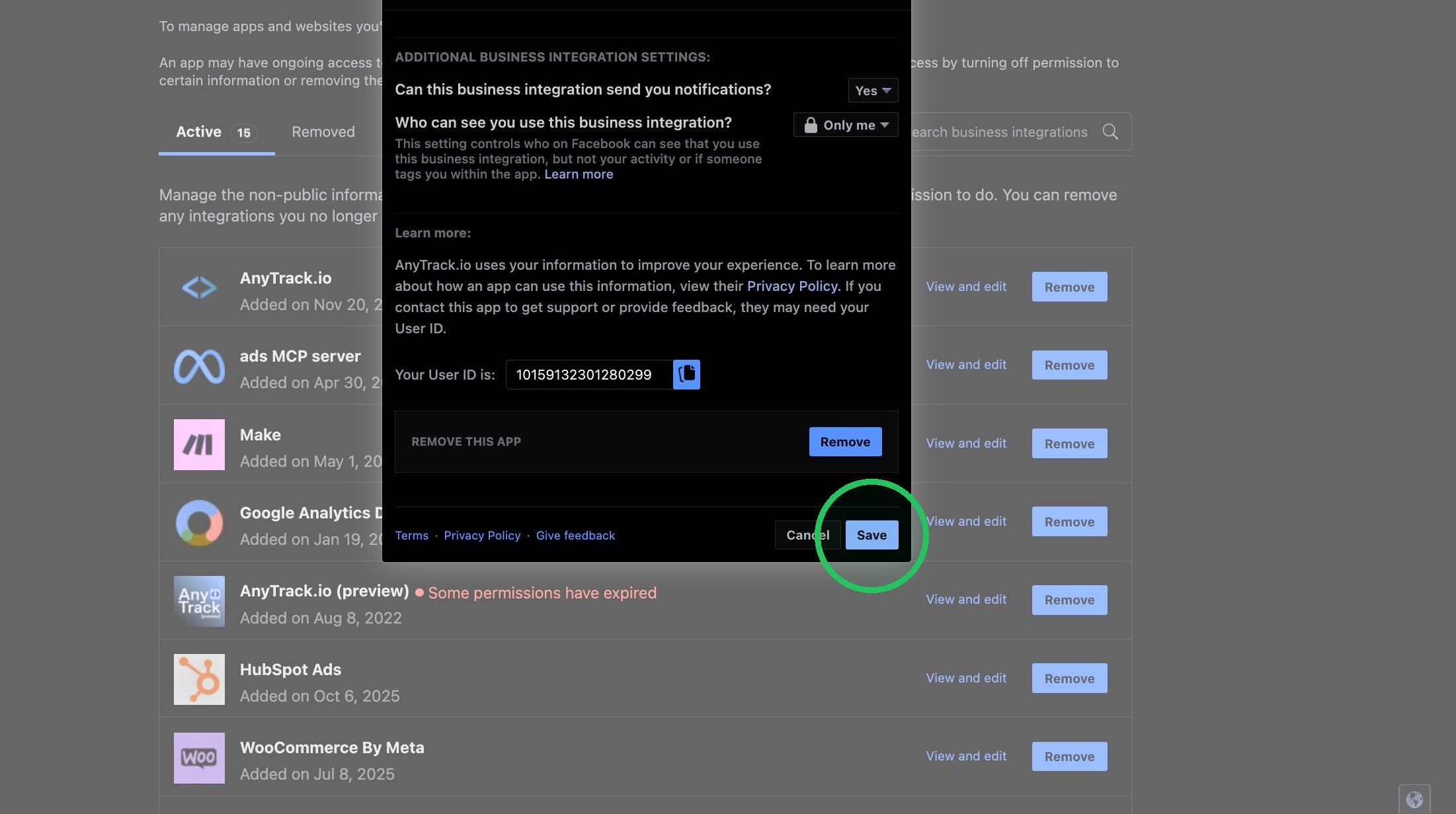
- Click Save to apply the updated permissions.
Step 4: Connect Your CRM
Section titled “Step 4: Connect Your CRM”- In AnyTrack, go to Integrations and select your platform — see Supported Platforms for the full list and each platform’s setup guide.
- Complete the connection the way that platform requires: approve permissions for HubSpot and GoHighLevel, paste an API key for Systeme.io, or configure a webhook for ClickFunnels and LeadByte. Use the platform’s guide for that step only — it does not replace Steps 1 to 3 above.
- Once the connection is saved, return to the AnyTrack integration settings.
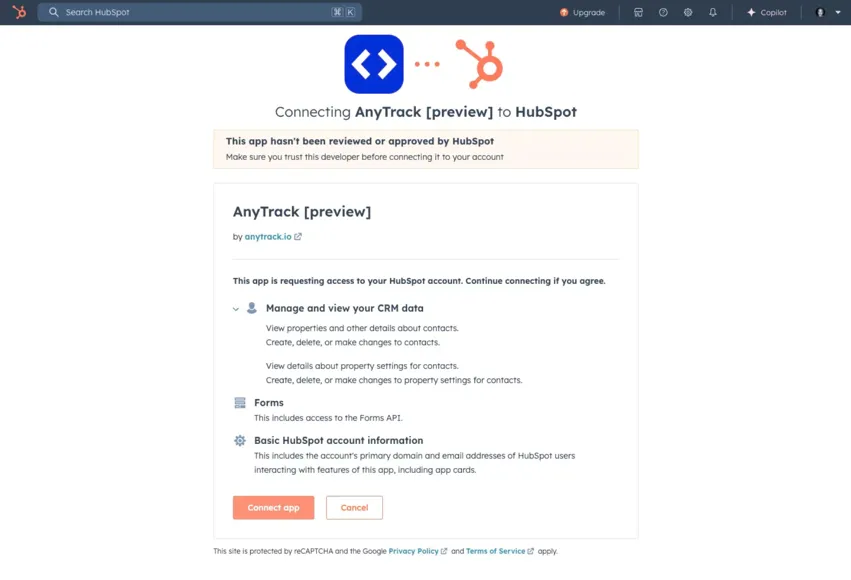
- Select the CRM lifecycle events you want to track and map them to AnyTrack event names.
Step 5: Map Your Events
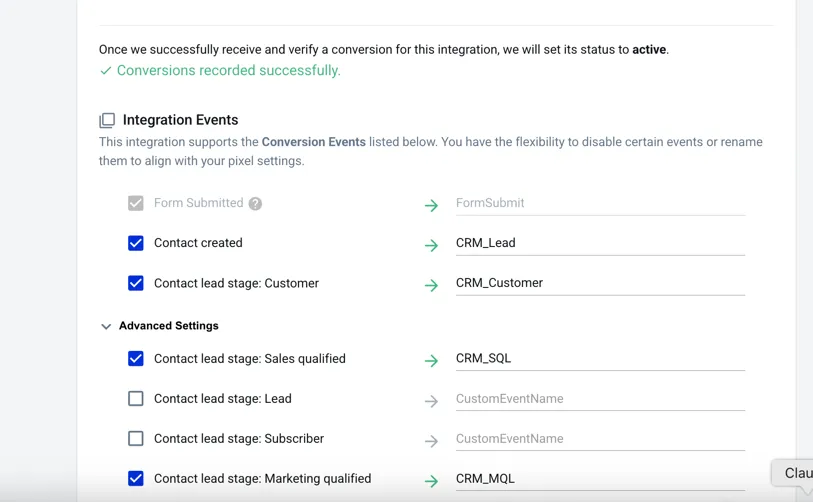
Section titled “Step 5: Map Your Events”Event mapping has two layers, and both must be configured for data to flow correctly:
- CRM event → AnyTrack event (configured in Step 4, in your CRM integration settings).
- AnyTrack event → Meta Conversion API event (configured in your Meta Integration settings).
The mappings below are examples; see the canonical funnel table on the Lead Ads hub.
| CRM Event (HubSpot example) | AnyTrack Event | Meta Ads Event |
|---|---|---|
| Contact Created | CRM_Lead | crm_lead |
| Meeting Booked | Schedule | Schedule |
| Contact Sales Qualified | CRM_SQL | crm_sql |
| Deal created | DealCreated | DealCreated |
| Deal Won | Purchase | Purchase |
To map the second layer, return to the Meta Integration settings and scroll to the Event Mapping section. The CRM events you configured in Step 4 appear there and can be mapped to Meta Conversion API events. Set the mapping based on your funnel stages, then save.
Step 6: Configure Your Sales Funnel in Meta Events Manager
Section titled “Step 6: Configure Your Sales Funnel in Meta Events Manager”This step tells Meta which sales funnel stages to optimize for.
- Open Events Manager in Meta Business Suite.
- Go to Data Sources and select the Dataset you connected in AnyTrack.
- Click Configure Sales Funnel and then Continue.
- Add each CRM event as a funnel stage and save.
- Select the earliest positive lead stage you want Meta to optimize for, include any subsequent positive stages, and click Finish.
Choosing an earlier stage (like Interested) increases event volume for optimization. Choosing a later stage (like Customer) focuses on higher-quality leads but provides fewer signals.
Step 7: Validate Event Match Quality
Section titled “Step 7: Validate Event Match Quality”- Open Meta Events Manager.
- Check Event Match Quality scores for incoming CRM events.
- Confirm that strong match keys are included: email, phone, city/zip, first name, and last name.
Step 8: Test the Integration
Section titled “Step 8: Test the Integration”- Submit a test lead via your Instant Form (or use the Meta Lead Ads Testing Tool).
- Confirm the lead appears in your CRM and in AnyTrack.
- Update the test lead lifecycle stage in your CRM (for example, change to Sales Qualified Lead).
- Check the AnyTrack Integration Log to verify the lifecycle event was received and queued for Meta Conversion API.
- After 10-20 minutes, verify the event appears in Meta Events Manager under your Dataset.
Practical Examples
Section titled “Practical Examples”HubSpot: Your sales team updates a lead to Qualified. AnyTrack sends the update to Meta as a CompleteRegistration event, so Meta knows which Lead Ad produced a real opportunity.
GoHighLevel: When a meeting is booked in GoHighLevel, the CRM sends this event to AnyTrack. AnyTrack syncs it to Meta as a Schedule event, giving Meta a mid-funnel optimization signal.
Troubleshooting
Section titled “Troubleshooting”AnyTrack can only send conversions to Meta Conversion API for CRM after the initial lead has been collected in AnyTrack. If the initial lead submission was not tracked, subsequent CRM events cannot be attributed.
Leads never reach AnyTrack: This is almost always a Lead Access problem. Confirm your Facebook Page is connected in AnyTrack, then confirm AnyTrack is assigned as a CRM with Lead Access on the Page and that Access leads for your Pages is enabled under Business Integrations. See Step 3.
Permission issues: The user who connects AnyTrack to Meta must have admin access to the Business Manager, ad accounts, Pages, and Datasets. Without full admin permissions, lead data will not sync correctly.
No events in Meta Events Manager: Verify that Meta is properly connected in AnyTrack, then check the Integration Log to confirm CRM events are being received. If events show in AnyTrack but not in Meta, check the Meta Ads integration logs for error responses.
Low Event Match Quality: EMQ depends on the customer data in your CRM. AnyTrack maps all standard fields automatically, but if your CRM records are missing phone numbers, country, or zip codes, those parameters cannot be sent to Meta. Adding a phone number field to your forms improves match quality. See Event Match Quality for a detailed breakdown.
Playbook
-
 GoHighLevel
 -
 Facebook Ads
Send GoHighLevel Phone Closes to Facebook Ads
Your best conversions close on the phone, and Meta never hears about them. Connect GoHighLevel so every booked call and won deal flows back to Facebook Ads with its value.
Related Resources
Section titled “Related Resources”- Facebook Ads: Connect your Facebook Ads account and Meta Pixel
- Facebook Lead Ads: Connect your Facebook Page and track initial leads
- Event Match Quality: Understand and improve your EMQ scores
- Event Mapping: Configure how AnyTrack maps events to ad platforms
- Meta Conversion API for CRM Documentation
FAQ
FAQ was last reviewed on 2026-10-20