Microsoft Ads Advanced Options
Connect Learn About the for the with AnyTrack to enable Conversion API tracking and campaign reporting. Send server-side conversion data for better ad optimization and accurate attribution.
Find the UET Tag ID
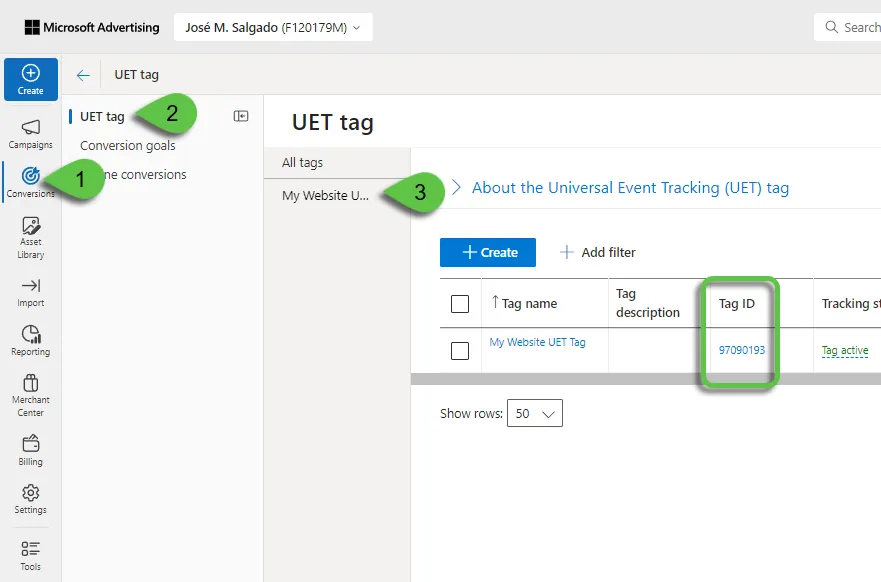
Section titled “Find the UET Tag ID”Find the UET Tag ID in Microsoft Ads by navigating to Conversions > UET tag. Select the tag of interest and the Tag ID displays on the right panel.
Load the UET Tag via AnyTrack Tag
Section titled “Load the UET Tag via AnyTrack Tag”When you load the UET Tag through the AnyTrack Tag (the default behavior after completing Microsoft Ads Setup), our system initializes the UET Tag, allowing us to fine-tune settings and add important parameters from the start. This ensures all events sent by the UET Tag are properly configured.
If the UET Tag is installed directly or by a third-party, we can only tune it post-initialization, which may result in some events not containing all necessary parameters and potentially affecting match rate and overall Tracking Tag performance. AnyTrack’s initialization ensures optimal tracking and data accuracy for your Microsoft Ads campaigns.
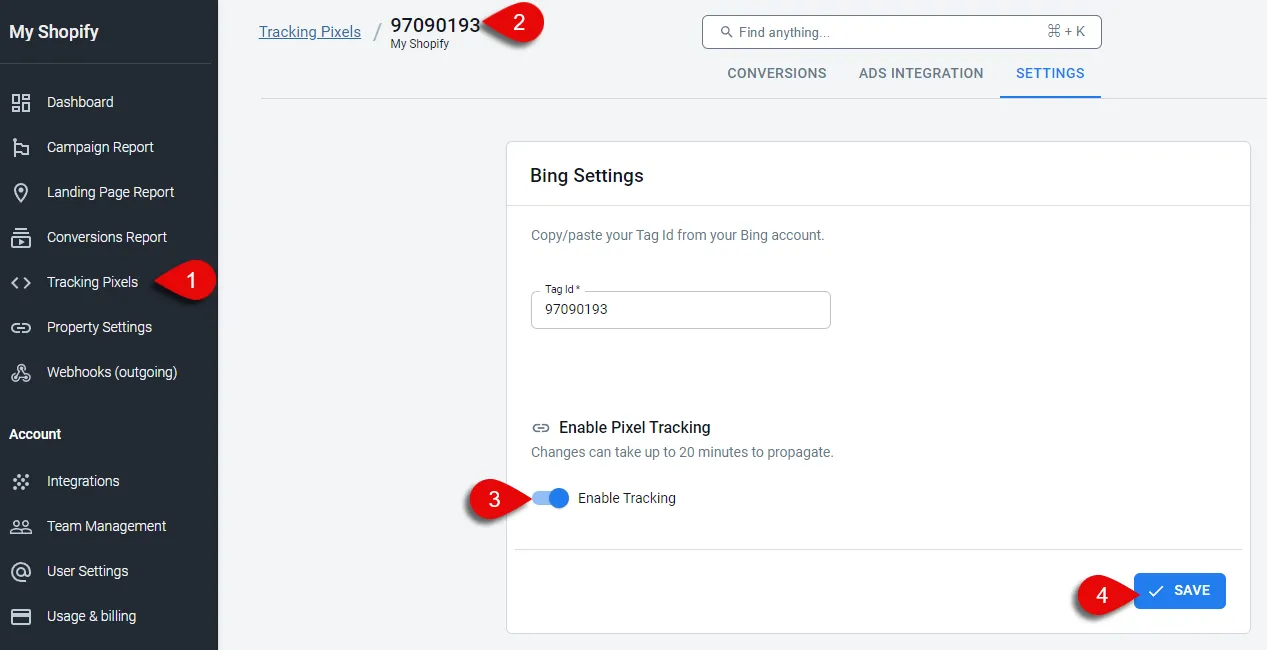
To prevent the UET Tag from loading in the browser via the AnyTrack Tag, navigate to Tracking Pixels, select the Tracking Tag, go to the Settings tab, and turn off the slider in the Enable Pixel Tracking section. We do not recommend this setting by default.
Recommended Event Mapping for Microsoft Ads
Section titled “Recommended Event Mapping for Microsoft Ads”This mapping is a recommendation, you can make your own configuration.
| AnyTrack Conversions | Conversion Goal Category | Conversion Goal Name | Event Action / Bing Events |
|---|---|---|---|
| OutboundClick | Outbound click | OutboundClick | OutboundClick |
| FormSubmit | Submit lead form | FormSubmit | FormSubmit |
| Lead | Sign up | Lead | Lead |
| CompleteRegistration | Subscribe | CompleteRegistration | CompleteRegistration |
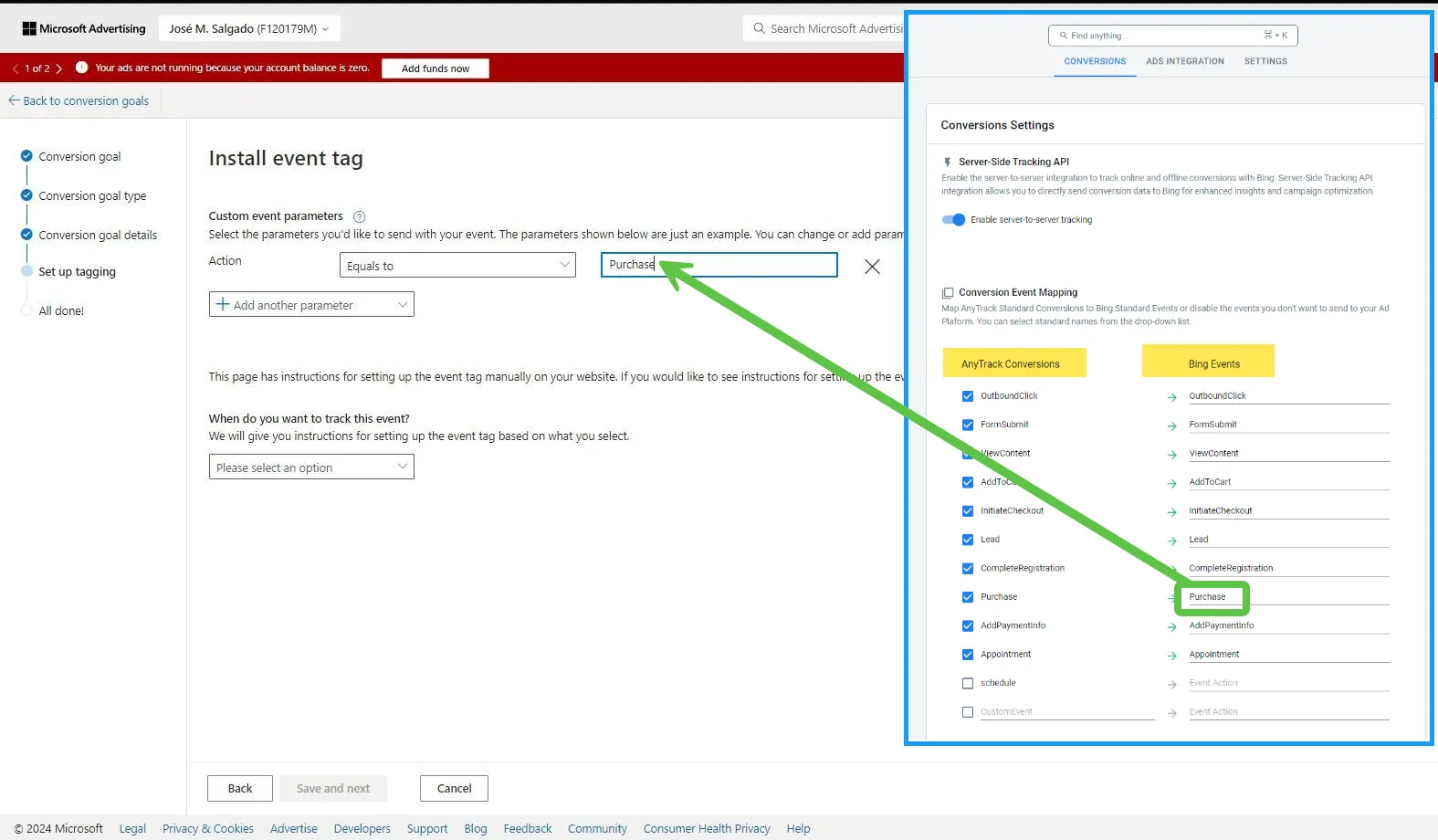
| Purchase | Purchase | Purchase | Purchase |
| InitiateCheckout | Begin Checkout | InitiateCheckout | InitiateCheckout |
| ViewContent | Page view | ViewContent | ViewContent |
Enhanced Conversions in Microsoft Ads
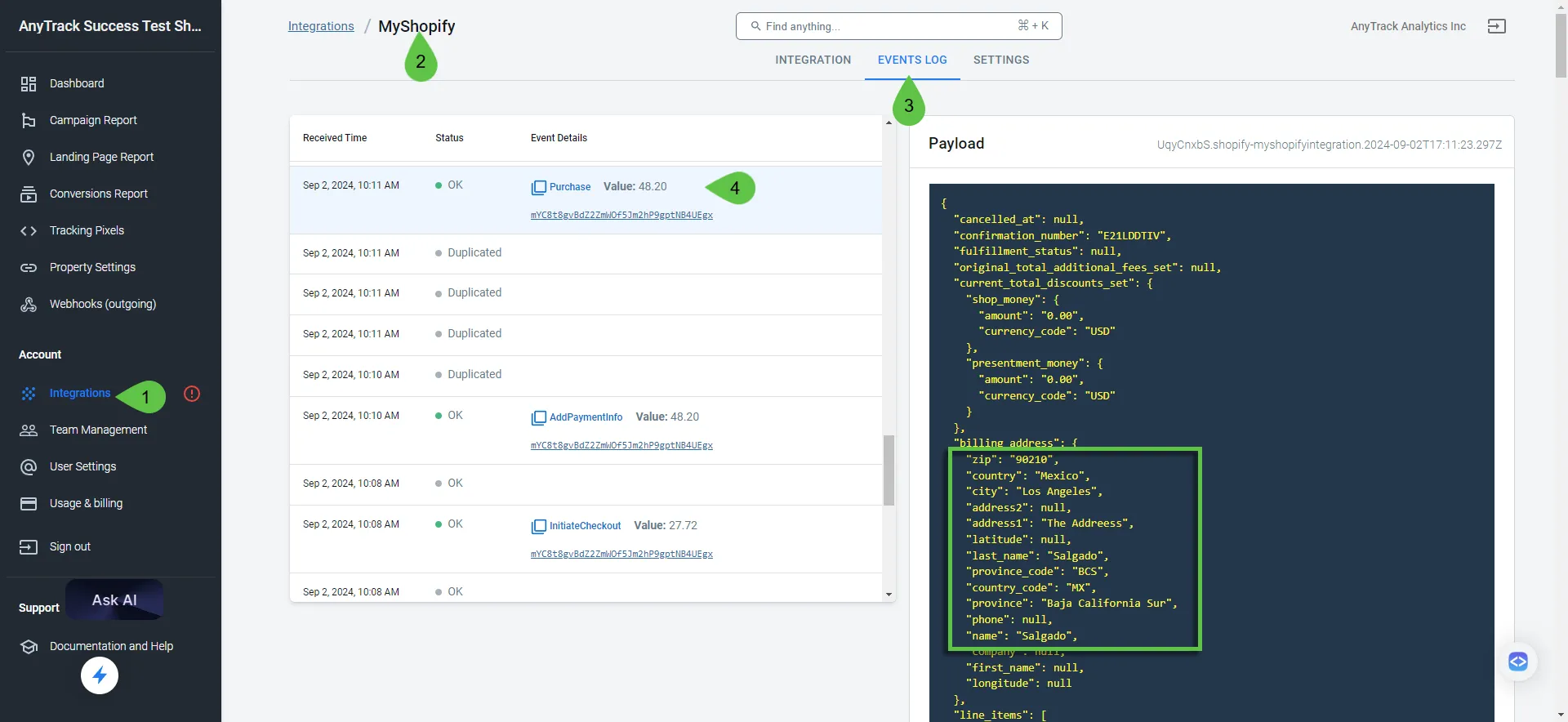
Section titled “Enhanced Conversions in Microsoft Ads”When creating a Conversion Goal for Microsoft Ads in AnyTrack, enable Enhanced Conversions. This feature works only if the conversion event includes personal information such as email, name, or address. Not all conversion events provide this information. For example, in Shopify, personal details are not available during AddToCart or InitiateCheckout events but are present during the Purchase event.
Check if a conversion event includes personal information by reviewing the Events Log of the integration that collects conversions from your connected conversion source. If personal identification parameters are present, enable Enhanced Conversions for that conversion goal.
Understand Conversion Goals and Event Actions in Microsoft Ads
Section titled “Understand Conversion Goals and Event Actions in Microsoft Ads”In Microsoft Ads, a Conversion Goal optimizes your campaigns using data sent from AnyTrack (shown in the AnyTrack Conversions column). An Event Action is a parameter within the event that triggers the Conversion Goal (shown in the Bing Events column). You define the Event Action name when creating the Conversion Goal, and names must match exactly; otherwise, the Conversion Goal won’t trigger. Event Actions are case sensitive.