
Elementor Integration
Get answers about index. Understand the key concepts and how they apply to your conversion tracking setup for optimal performance and tracking accuracy.
What is Elementor integration?
Section titled “What is Elementor integration?”Connect your Elementor-powered WordPress website with AnyTrack to automatically track form submissions, leads, and multi-step forms. This integration collects visitor data and conversion events from your Elementor forms.
Why use Elementor integration?
Section titled “Why use Elementor integration?”- Accurate conversion tracking: Collect every lead and form submission automatically
- Better attribution: Connect form submissions to their traffic sources
- Improved ROAS: Make data-driven decisions with complete conversion data
- Streamlined setup: Use webhooks (automated data transfers) to send form data directly to AnyTrack
About Elementor
Section titled “About Elementor”Elementor is the leading website building platform for WordPress. It enables web creators to build professional, pixel-perfect websites with an intuitive drag-and-drop interface.
Elementor’s form widget allows marketers to:
- Set custom webhooks (automated data transfers to external services)
- Add over 20 different field types, including hidden fields
- Create powerful lead collection forms
flowchart LR A[User Clicks Ad] --> B[Landing Page with AnyTrack Tag] B --> C[Click ID Generated] C --> D[Form Submission or Purchase] D --> E[AnyTrack Receives Conversion] E --> F["Ad Platform API (Facebook, Google, etc.)"] F --> G[Conversion Synced for Optimization]Step by step guide
Section titled “Step by step guide”Step 1: Add AnyTrack Tag to your website
Section titled “Step 1: Add AnyTrack Tag to your website”Install the AnyTrack tracking tag in your website’s head section to enable conversion tracking. This tag will collect visitor data and click IDs automatically.
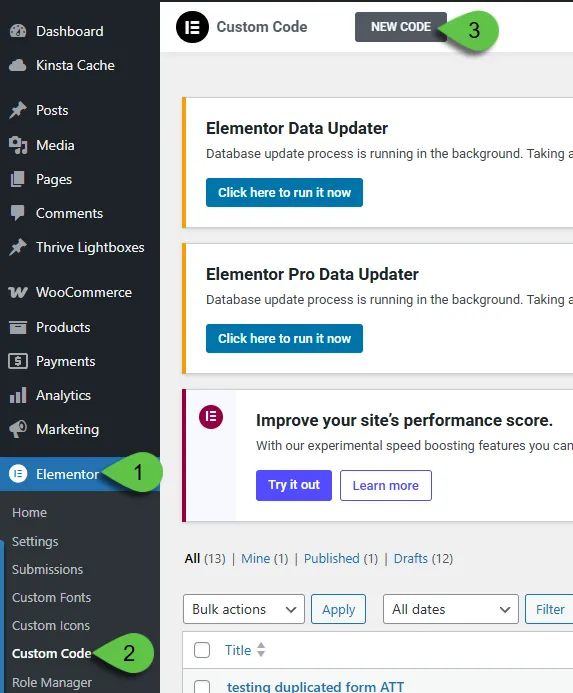
- From your WordPress dashboard, select the Elementor menu
- Click Custom Code
- Click New code
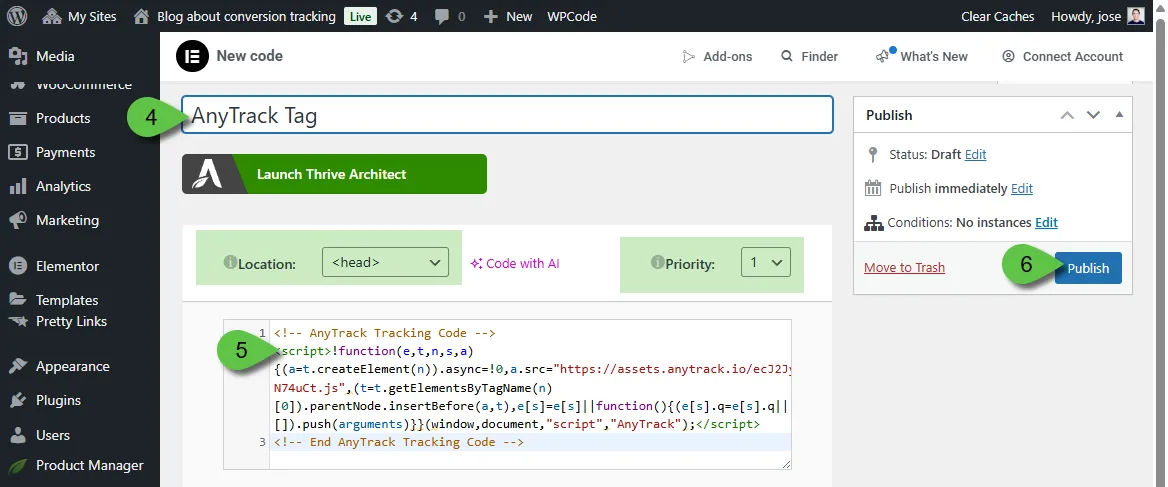
- Name the code (e.g., “AnyTrack Tag”)
- Paste the AnyTrack Tag in the code section
- Make sure Location: Head is selected
- Click Publish
- Select Entire Site and Save
Step 2: Add the Elementor Integration in AnyTrack
Section titled “Step 2: Add the Elementor Integration in AnyTrack”- Open the Integration Catalog and search for Elementor
- Click the Elementor card, then click Install
- Click the webhook URL to copy it to your clipboard
Step 3: Configure Elementor Form
Section titled “Step 3: Configure Elementor Form”- Edit the page where your form is located
- Edit the form to reveal its settings
- Open Actions After Submit Settings
- Select the Webhook option
- Open the Webhook settings
- Paste the webhook URL you copied in Step 2
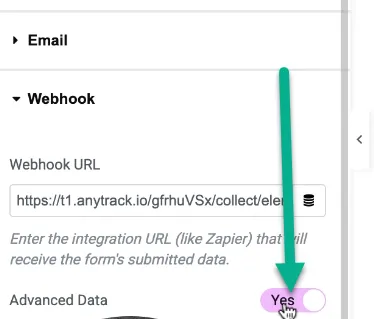
- Enable the Advanced Data option
- Save and Publish your form
Step 4: Configure the Elementor Form fields
Section titled “Step 4: Configure the Elementor Form fields”- Add a new field
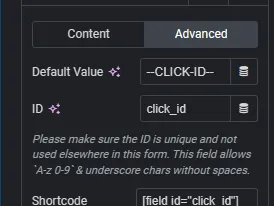
- Select Hidden as the field type
- Set Label to:
click_id - Set Default Value to:
--CLICK-ID--
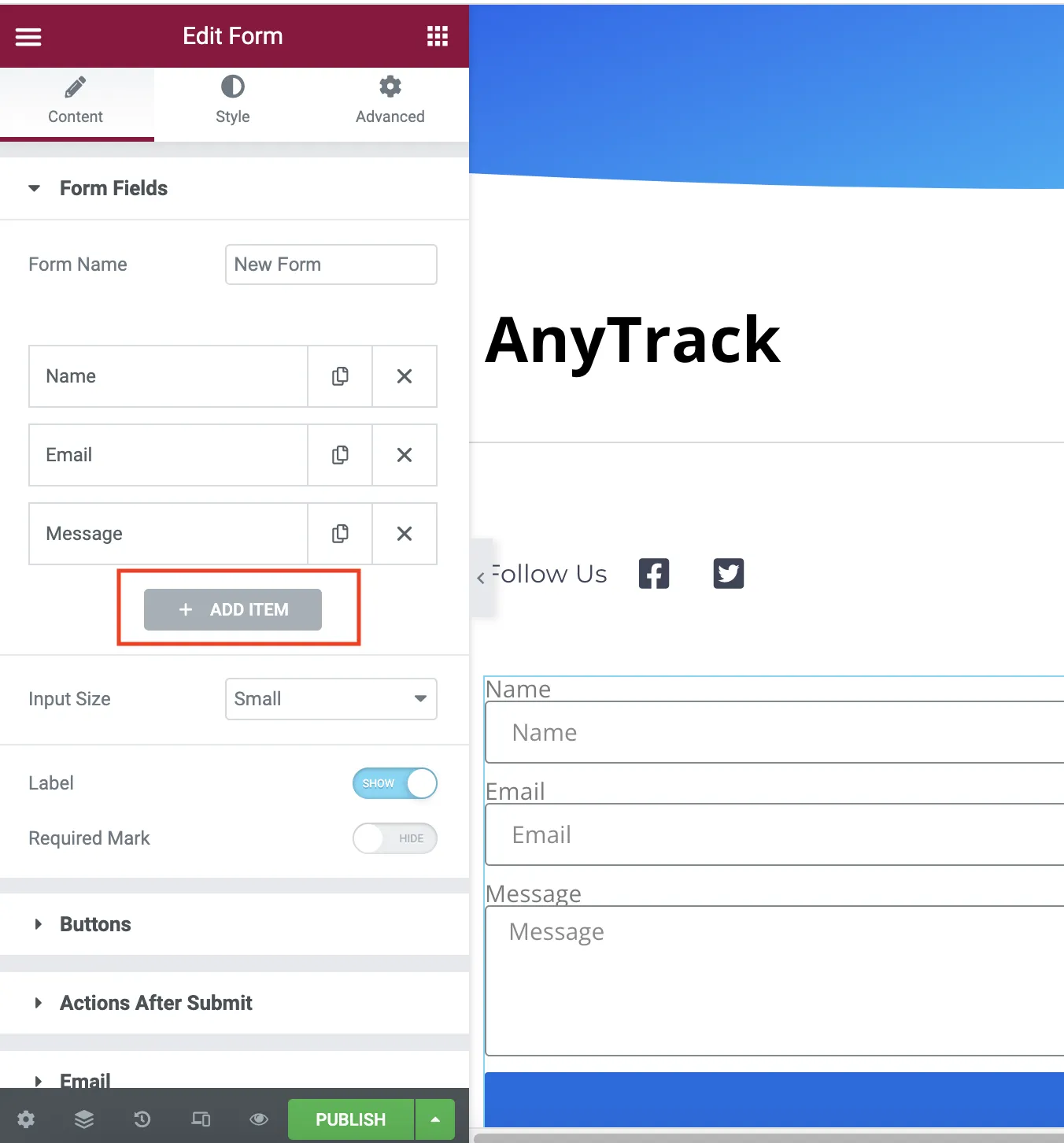
- Update other fields to follow the supported Event Attributes such as
email,phone,firstName, etc.
Step 5: Rename event (Optional)
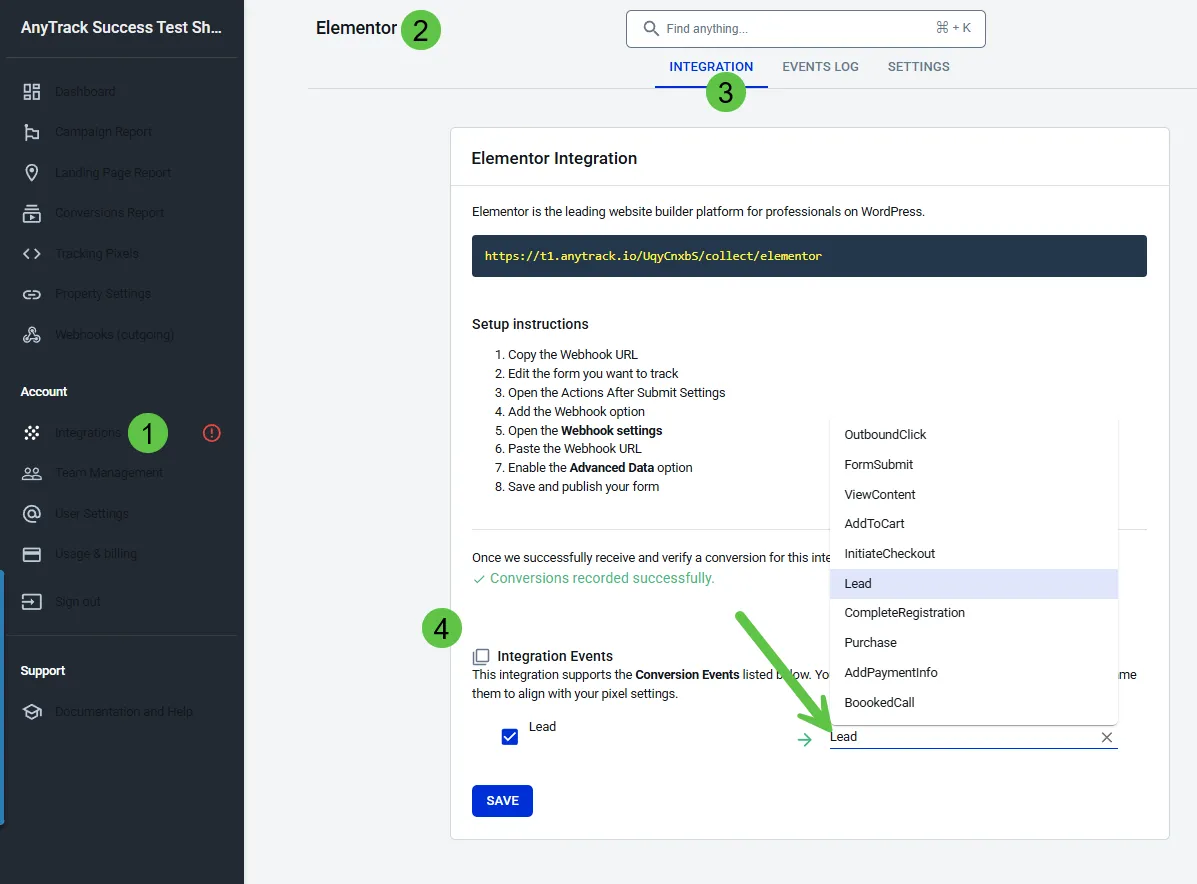
Section titled “Step 5: Rename event (Optional)”By default, Elementor forms appear in AnyTrack as Lead events. To rename the conversion:
- Navigate to Integrations > Elementor > Integration tab > Integration Events
- Select a conversion name from the dropdown menu
Step 6: Form Redirect (optional)
Section titled “Step 6: Form Redirect (optional)”To redirect users after form submission with tracking data:
- Add a Redirect form action
- Add your redirect URL
- Include parameters you want to send:
https://trafficker.io/elementor-thank-you-redirect/?clickid=[field id="field_6dc4d6d"]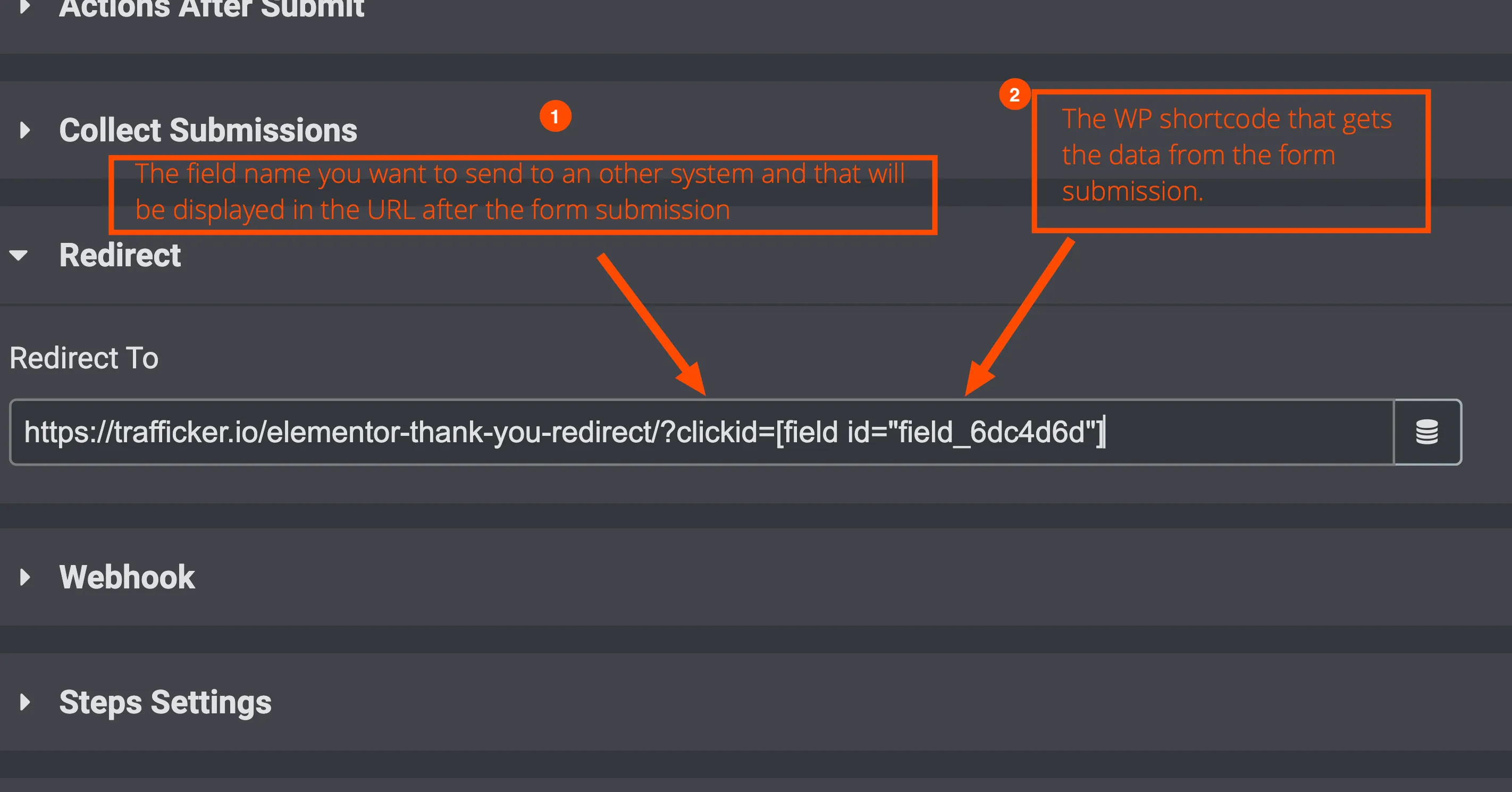
Validation
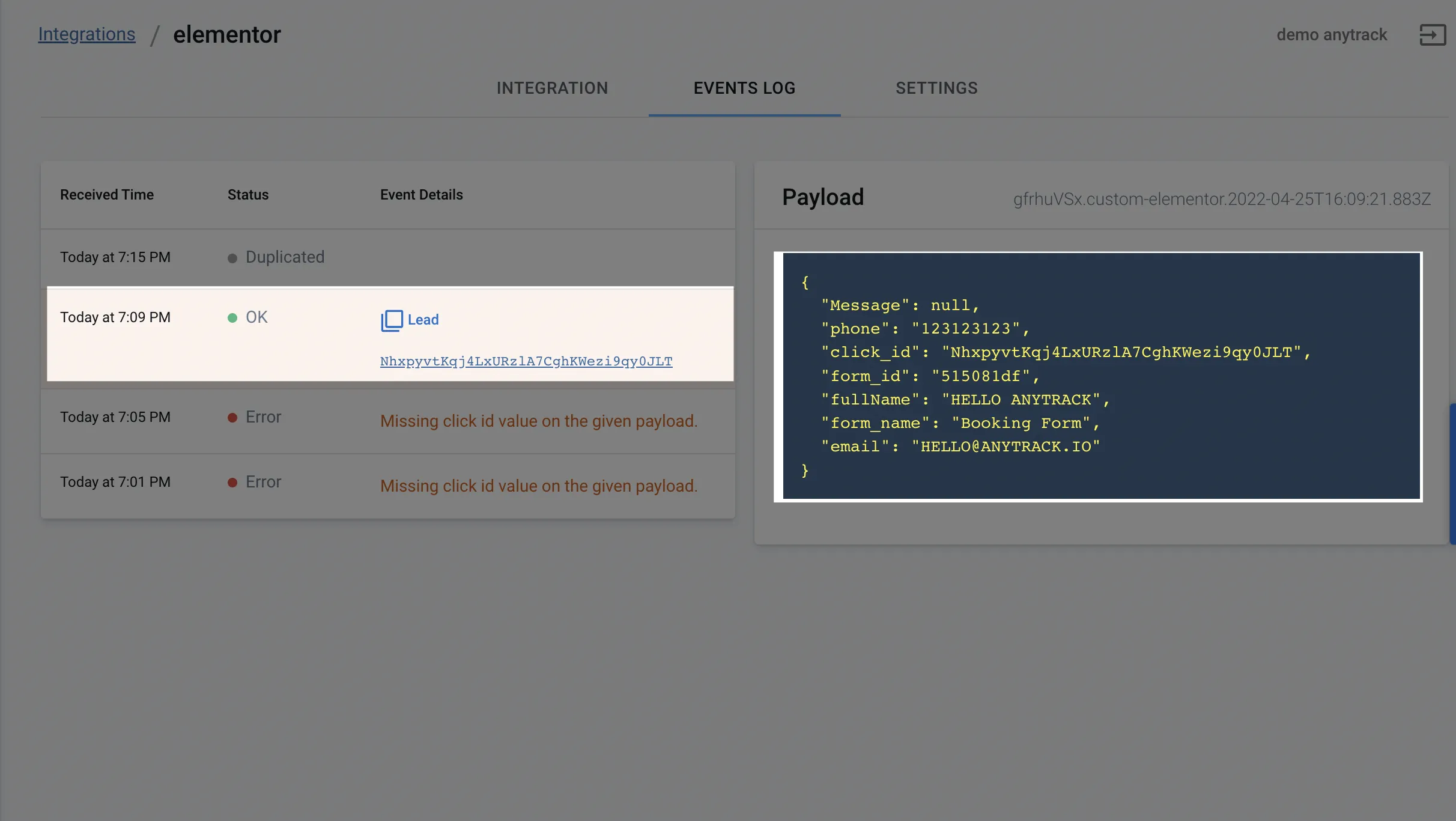
Section titled “Validation”Test your form to verify data passes correctly:
Send Elementor Leads to Your CRM
Section titled “Send Elementor Leads to Your CRM”If your Elementor form feeds a CRM, the Elementor lead is attributed on its own, but the CRM-side events (new contact, lead stages, deal progression) will land under Unknown unless the Click ID travels with the lead into the CRM.
AnyTrack passes the Click ID into Elementor’s _atid hidden field (default value --CLICK-ID--). To carry it downstream, map that value into the field your CRM reads:
| Destination CRM | Map _atid into |
|---|---|
| HubSpot | the AnyTrack Click ID property (parameter atclid) |
| GoHighLevel | the _atid custom field |
| LeadByte | c3 |
| Any custom CRM | a custom field you create |
For the GoHighLevel walkthrough, see GoHighLevel and Elementor. For the full pattern across every platform, see Pass the Click ID from External Forms to Your CRM.
Related Resources
Section titled “Related Resources”FAQ and Troubleshooting
FAQ was last reviewed on 2026-07-27