
Webhooks
Discover how to set up incoming and outgoing webhooks in AnyTrack to track events, automate conversions, and connect with thousands of apps via Zapier, Make, and more.
Webhooks are instant notifications sent by an application to a unique target URL that enables server-side processing.
With AnyTrack, webhooks send and receive data:
- Incoming webhooks enable AnyTrack to receive data from HubSpot, Stripe, or any web application integrated with Zapier
- Outgoing webhooks enable AnyTrack to send conversion data to Zapier, Make, and their integrated applications

Webhook Providers
Section titled “Webhook Providers” Webhooks are automated messages sent from apps when something happens. They have a message (or payload) and are sent to a unique URL. Essentially, it's like an app's phone number or address.
Companies like Zapier and Make enable anyone to implement what previously required special development skills.
Webhook providers enable scenarios with preset formats and data structures. Each server has predefined send/receive structures. Build the scenario and let it run in the background with content dynamically updated according to the event sent.
Why are webhooks so important to digital marketers?
Section titled “Why are webhooks so important to digital marketers?”Sometimes you need to send or receive data from and to applications that are not directly integrated into AnyTrack. In such cases, Webhooks can be used to send data from AnyTrack (outbound) or to send data to AnyTrack (inbound).
Outbound Webhooks
When you want to send data from AnyTrack to a third party application like Google Data Studio.
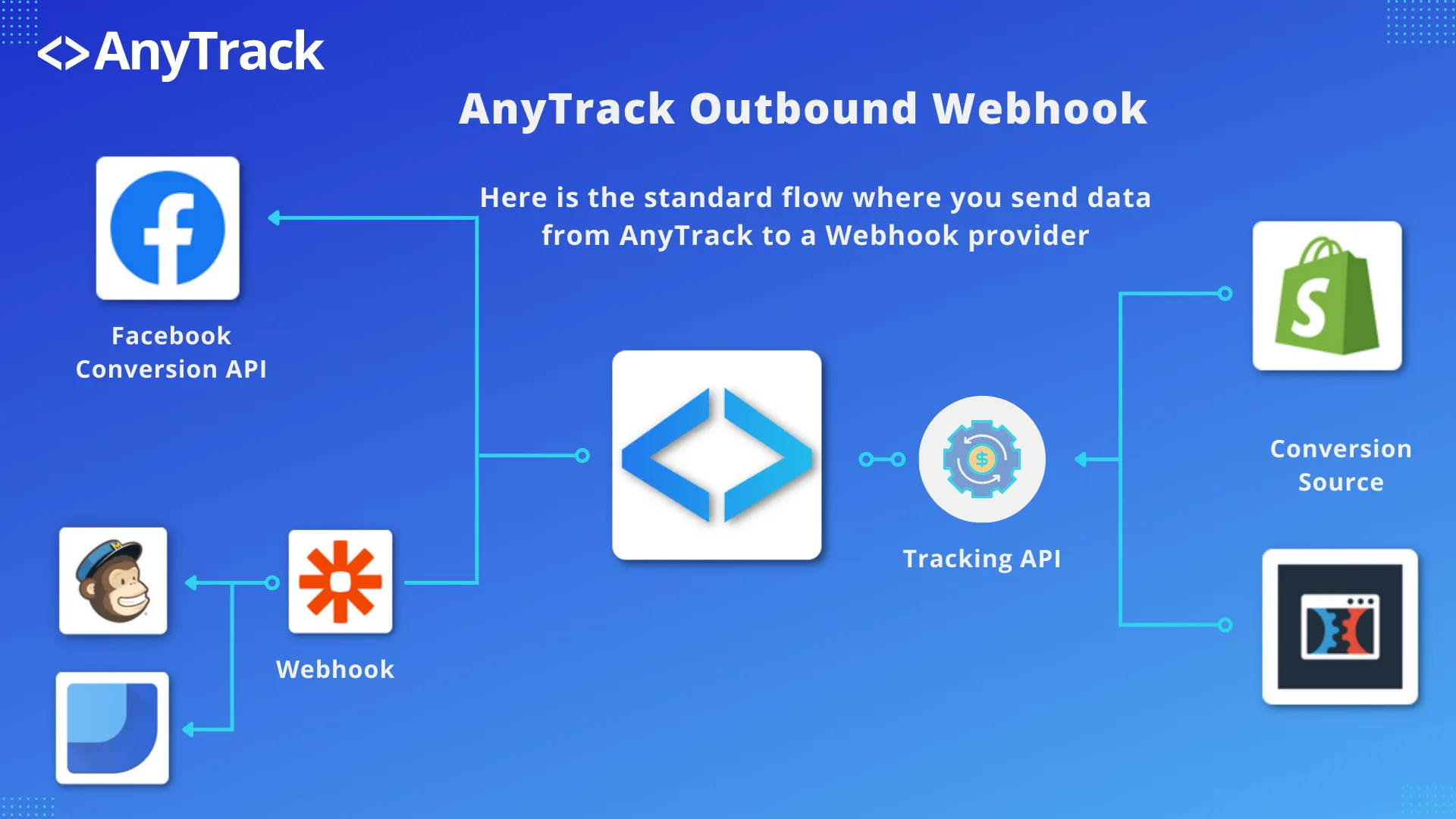
Use cases:
- Send conversion data to Google Data Studio
- Trigger automated email campaigns
- Update CRM records with conversion data
- Send data to business intelligence tools
Incoming Webhooks
When you want to send data from a third party app to AnyTrack.
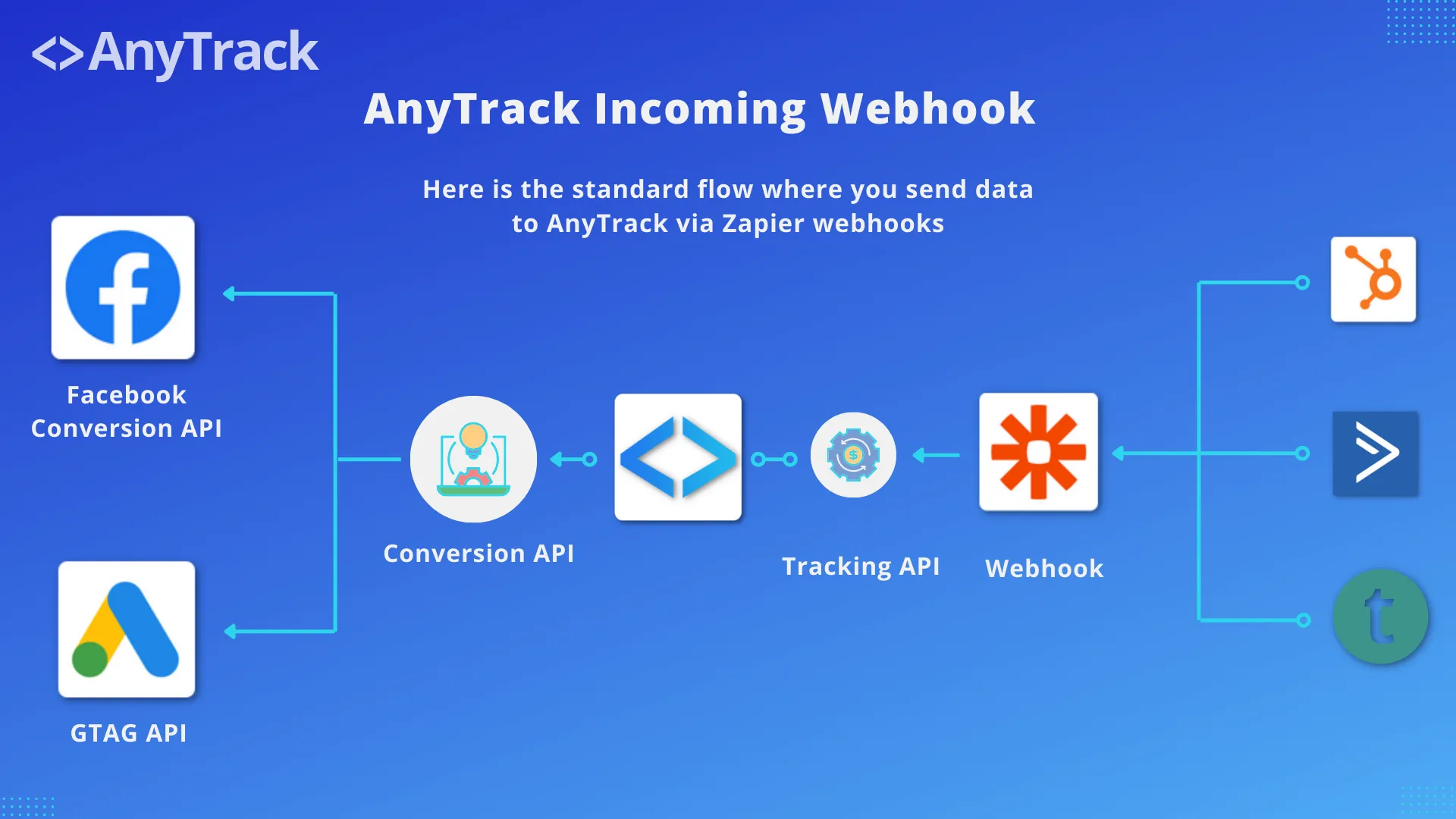
Use cases:
- Receive conversion data from Stripe
- Import leads from HubSpot
- Track events from custom applications
- Sync data from eCommerce platforms
Use AnyTrack inbound or outbound webhooks to connect your marketing and sales stack to send and receive data with thousands of business apps.
The Anatomy of a Webhook
Section titled “The Anatomy of a Webhook”The Webhook URL
Section titled “The Webhook URL”The webhook URL is provided by the receiving server. Here’s an example from Make:
https://hook.integromat.com/j8s8l9y0odfxokmb9ino98jxxxxxxxxxThe Payload
Section titled “The Payload”The payload is the data sent alongside the webhook URL. It contains all the event information in JSON format, including:
- Event details (name, time, value)
- Attribution data
- Customer information
- Custom parameters
Related Resources
Section titled “Related Resources”View Complete Payload Example
FAQ was last reviewed on 2026-06-30
View Complete Payload Example
[{"assetId": "IBTO9lOfAMyb", "clientId": "WS1Rxx07V9MG2I", "externalClientIds": {"googleAnalytics4": "1758379098.1741266432"}, "clickId": "IBTO9lOfAMybWS1Rxx07V9MG2IvXUIPO0J", "externalClickId": "Sn40FJ3pUJn843YIfr1cSBG1WovXU4OjFX", "eventName": "Purchase", "eventTime": "2025-03-06T13:38:57.616Z", "eventTimestamp": 1741268337, "eventValue": 37.99, "currency": "EUR", "userAgent": "Mozilla/5.0 ...", "location": "https://unbounce.anytrack.io/?utm_source=facebook&utm_medium=cpc&utm_content=unbounce+adset&utm_campaign=unbounce+campaign&utm_term=unbounce+ads&fbclid=Sn40FJ3pUJn843YIfr1cSBG1WovXU4OjFX", "brandName": "TRY FREE_cj", "linkId": "lp-pom-button-194", "trackingGroupId": "custom", "integrationId": "custom-integromat", "transactionId": "ebf390c5-6677-4b6f-9d44-ea21b1791a49", "customParams": {"clickid": "IBTO9lOfAMybWS1Rxx07V9MG2IvXUIPO0J", "eventName": "Purchase", "eventValue": "35.1741268337", "currency": "EUR"}, "mainAttribution": {"identifier": "fbclid", "source": "facebook", "medium": "cpc", "campaign": "123123123123", "term": "unbounce ads", "content": "unbounce adset", "fbclid": "Sn40FJ3pUJn843YIfr1cSBG1WovXU4OjFX"}, "ip": "77.127.186.155"}]How to use AnyTrack webhook data in Zapier
Section titled “How to use AnyTrack webhook data in Zapier”- Create a Zap and select Webhook by Zapier
- Grab the Webhook URL and Add it to your AnyTrack Webhooks
- Select the events that you want to trigger the zap with and hit test
- Zapier will receive the Event Data instantly so that you can map the data for your zap action
- Then you can select the App where you want to send the conversion data to
If the webhook provider responds with an error, the webhook is disabled. To reactivate it, edit the webhook and send a test event to reset the error counter and activate it.
FAQ and Troubleshooting
FAQ was last reviewed on 2026-06-30