
LeadByte integration
Learn how to connect LeadByte affiliate management with AnyTrack for conversion tracking and reporting. Set up postback URLs and event mapping to track affiliate conversions and optimize your campaigns.
LeadByte Integration Overview
Section titled “LeadByte Integration Overview”The integration between LeadByte and AnyTrack enables you to get the most out of your marketing efforts. By connecting both platforms, conversion data is automatically sent from LeadByte to AnyTrack, which in turn sends it on to Google Ads, Facebook Conversion API or TikTok API - giving you real-time insights into how effective your campaigns are. With one click tracking set up through our simple setup wizard, recover more conversions without any extra effort! Automate repetitive tasks and save time while optimizing for better ROI results with this powerful platform combination.
How does the LeadByte AnyTrack integration work:
Section titled “How does the LeadByte AnyTrack integration work:”- Traffic: When visitors land on your website, AnyTrack collects traffic source data and First Party data.
- Form submission: When a visitor submits the form on your website, AnyTrack will automatically pass the AnyTrack
click_idinto the form. - Conversion flow:
- When a visitor submits a form and is accepted, Leadbyte sends the
leadevent to AnyTrack. - When the lead is validated, leadbyte sends a
completeregisrationevent to AnyTrack - When a lead is sold, leadbyte sends a
Purchaseevent to AnyTrack.
- When a visitor submits a form and is accepted, Leadbyte sends the
- Conversion API: As conversions happen, AnyTrack then sends your conversions to your Ad Platforms’ Conversion API.
Technical details
Section titled “Technical details”| Reference | Value | Information |
|---|---|---|
| Tracking Group | leadbyte | The Tracking Group reference can be used to activate AutoTag. |
| Subid Parameter | c3 | The Subid Parameter used to pass the AnyTrack click_id to leadbyte api. |
| Tracking Method | Webhook | - |
| hidden field form token | --CLICK-ID-- | You will need to create a hidden field in your form and add the default value --CLICK-ID-- so that AnyTrack will automatically substitute the token with a click_id value. |
Standard Conversions
Section titled “Standard Conversions”| Event Name | Details | Data Source |
|---|---|---|
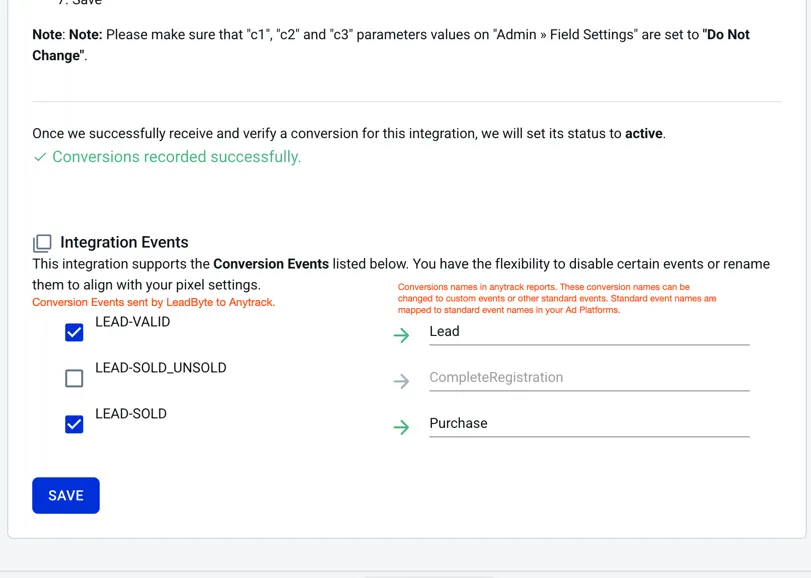
Lead | When lead is accepted by LeadByte. | Webhook |
CompleteRegistration | When a lead is valid and ready to be sold. | Webhook |
Purchase | When a lead is sold to a buyer. | webhook |
The LeadByte Webhook
Section titled “The LeadByte Webhook”The Webhook is fully pre-defined and ready to be implemented with your LeadByte account.
https://t1.anytrack.io/xxxxxxx/collect/leadbyteLeadbyte webhook Payload example:
Check line 39 for the c3 parameter and AnyTrack clickid
{ "count": 1, "index": 0, "callbackType": "LEAD-SOLD_UNSOLD", "record": { "campaign": { "name": "Campaign name", "reference": "1", "currency": "USD", "id": 1, "deliveryModel": "Hybrid" }, "buyers": [ { "name": "Lead buyer name", "reference": "12", "revenue": 260, "id": 31, "status": "Sold" } ], "lead": { "contactemail": true, "firstname": "John Doe", "county": "California", "source": "google", "ssid": null, "phone1": "7024888888", "sid": "1", "street1": null, "id": 4400320, "street2": null, "contactphone": true, "email": "johndoe@gmail.com", "optinurl": null, "received": "2023-05-29T07:10:09Z", "c1": null, "c2": null, "c3": "XXXXXXPkXHcuKgRM5NHep8dv7exre7T3a5", }, "callbackReference": "AnyTrack (Purchases)", "deliveries": [ { "reference": "any reference", "scheduleTime": "2023-05-29T07:10:10Z", "validResponse": true, "delay": 0, "rawResponse": "Lead Assigned", "requestUrl": null, "id": 51, "sentAt": "2023-05-29T07:10:10Z", "status": "Sent", "responseLabel": "Success" } ], "supplier": { "name": "The lead Supplier", "commission": 0, "id": 1, "payoutType": "Buyer Delivery Accept", "sid": "1", "status": "Buyer Rejection" } }}Setup Guide
Section titled “Setup Guide”Step #1: Add LeadByte to your AnyTrack Account
Section titled “Step #1: Add LeadByte to your AnyTrack Account”- Go to the catalog and search for LeadByte.
- Now click on the leadbyte card and then Click on Install.
Step #2: Connect your LeadByte account
Section titled “Step #2: Connect your LeadByte account”- Copy the predefined Postback URL
- Go to your LeadByte account and open the settings.
- Go to webhooks
- Add a new webhook
- Select all available parameters
- Paste the AnyTrack Webhook URL
- Save
Step #3: Adjust the Conversion Event Mapping
Section titled “Step #3: Adjust the Conversion Event Mapping”The Event Mapping allows you to define which events to track and map them to Conversion Events you will send to your Ads Integrations (ex: Facebook Conversion API)\
Checklist to verify your integration
Section titled “Checklist to verify your integration”- The AnyTrack Tag is in the head section of the website where your leads submit their form.
- You have added a hidden field to your form:
c3and default value--CLICK-ID-- - You have added the AnyTrack webhook in Leadbyte
- Trigger all events
- Send all parameters, including the
c3parameters
- You have tested the form and can see the
c3parameter populated with a unique click_id string (ex:xZDGbrPkXHcuKgRM5NHep8dv7exre7T3a5 - The Events are valid in the integration log
Where the Click ID Comes From
Section titled “Where the Click ID Comes From”LeadByte typically receives leads from an upstream form or decision tree (for example LeadsHook). For attribution to survive, the AnyTrack Click ID must be passed into LeadByte’s c3 parameter when the lead is delivered.
Each source platform exposes the Click ID under its own parameter; pass that value into c3:
| Source platform | Click ID parameter | Destination in LeadByte |
|---|---|---|
| Typeform | at_click_id | c3 |
| Unbounce | click_id | c3 |
| Elementor | _atid | c3 |
| Calendly | utm_term or sfid | c3 |
| LeadsHook | click_id | c3 |
| Any standard HTML form | hidden field, value --CLICK-ID-- | c3 |
For the full external-form → CRM pattern across every platform, see Pass the Click ID from External Forms to Your CRM.
Related Resources
Section titled “Related Resources”FAQ & Troubleshooting
Section titled “FAQ & Troubleshooting”-
No. AnyTrack can only ingest conversions that have been triggered following a visitor session on your website.
Can I import past conversions into AnyTrack?
Section titled “Can I import past conversions into AnyTrack?” -
If you don’t see the
I don’t see the
Section titled “I don’t see the c3 parameter in LeadByte?”c3parameter in LeadByte?c3& clickid value parameter in Leadbyte, it means that the form you are using to collect the leads is not configured: - Verify that you have added the hidden field (see instructions above)
- Verify that the
c3parameter is passed to the LeadByte webhook (alongside the other lead parameter data) - If you are using a form like [doc:leadshook], [doc:unbounce], [doc:elementor] or [doc:typeform], please review the corresponding guides.
-
No. The parameter is
Can I use a different
Section titled “Can I use a different subid parameter than the one predefined by LeadByte?”subidparameter than the one predefined by LeadByte?c3and this is the parameter we parse theclick_idfrom. If it’s not present in the webhook payload, the conversion will not be tracked. -
No. The
Can I track conversions without the
Section titled “Can I track conversions without the click_id?”click_id?click_idpassed to the LeadByte lead data is required to track conversions. -
You can update the Event Mapping in the LeadByte Integration settings.
The Conversion Event Name is not what I am expecting, how can I change it?
Section titled “The Conversion Event Name is not what I am expecting, how can I change it?”