
HasOffers Integration
Connect HasOffers (aka Tune) with AnyTrack to automatically track conversions across all your marketing channels. Complete setup guide with postback URLs and validation steps.
What is HasOffers Integration?
Section titled “What is HasOffers Integration?”HasOffers integration connects your affiliate network with AnyTrack to automatically track and report conversions across all your marketing channels.
When a visitor clicks your affiliate links and converts, AnyTrack collects this data and sends it to platforms like Google Ads, Facebook, and TikTok. This eliminates manual tracking and gives you complete visibility into your campaign performance.
Why Use HasOffers Integration?
Section titled “Why Use HasOffers Integration?”Stop manually uploading conversion data. AnyTrack automatically receives and processes all conversions from HasOffers.
See which traffic sources drive real conversions, not just clicks. Track the complete customer journey from first click to final purchase.
Feed accurate conversion data to your ad platforms’ machine learning algorithms. Improve targeting and bidding based on actual results.
View conversion data instantly in your AnyTrack dashboard as sales happen.
How HasOffers Integration Works
Section titled “How HasOffers Integration Works”Tracking Flow
The Complete Process
Section titled “The Complete Process”- Visitor Lands on Your Site: AnyTrack collects traffic source data when visitors arrive
- Affiliate Link Click: When visitors click HasOffers links, AnyTrack:
- Collects detailed click data
- Sends tracking events to your Tracking Tags and analytics
- Adds a unique click ID to the link
- Conversion Happens: When visitors convert, HasOffers sends conversion data to AnyTrack via postback URL
- Data Attribution: AnyTrack matches conversions to original traffic sources and reports results
- Platform Integration: AnyTrack sends conversion data to your ad platforms’ APIs for optimization
Technical Specs
Integration Specifications
Section titled “Integration Specifications”| Setting | Value | Description |
|---|---|---|
| Tracking Group | hasoffers | Used to activate AutoTag for HasOffers links |
| Click ID Parameter | aff_click_id | Parameter that passes AnyTrack’s unique click identifier |
| Tracking Method | Postback URL | How conversion data flows from HasOffers to AnyTrack |
Standard Events Tracked
Section titled “Standard Events Tracked”| Event | Trigger | Data Source |
|---|---|---|
| OutboundClick | Visitor clicks HasOffers affiliate link | AnyTrack JavaScript |
| Lead | Free registration recorded in HasOffers | Postback URL |
| Purchase | Commission-generating sale in HasOffers | Postback URL |
How to Set Up HasOffers Integration
Section titled “How to Set Up HasOffers Integration”- Open the Integration Catalog in AnyTrack
- Search for “HasOffers”
- Click the HasOffers card
- Click Install
- Copy the postback URL from AnyTrack (automatically generated after installation)
- Log into your HasOffers account
- Navigate to your offer you want to track
- Open Pixel/Postback settings (scroll down to find this section)
- Add new pixel/postback
- Select “postback” as code type
- Choose the appropriate goal
- Paste the AnyTrack postback URL
- Click Create
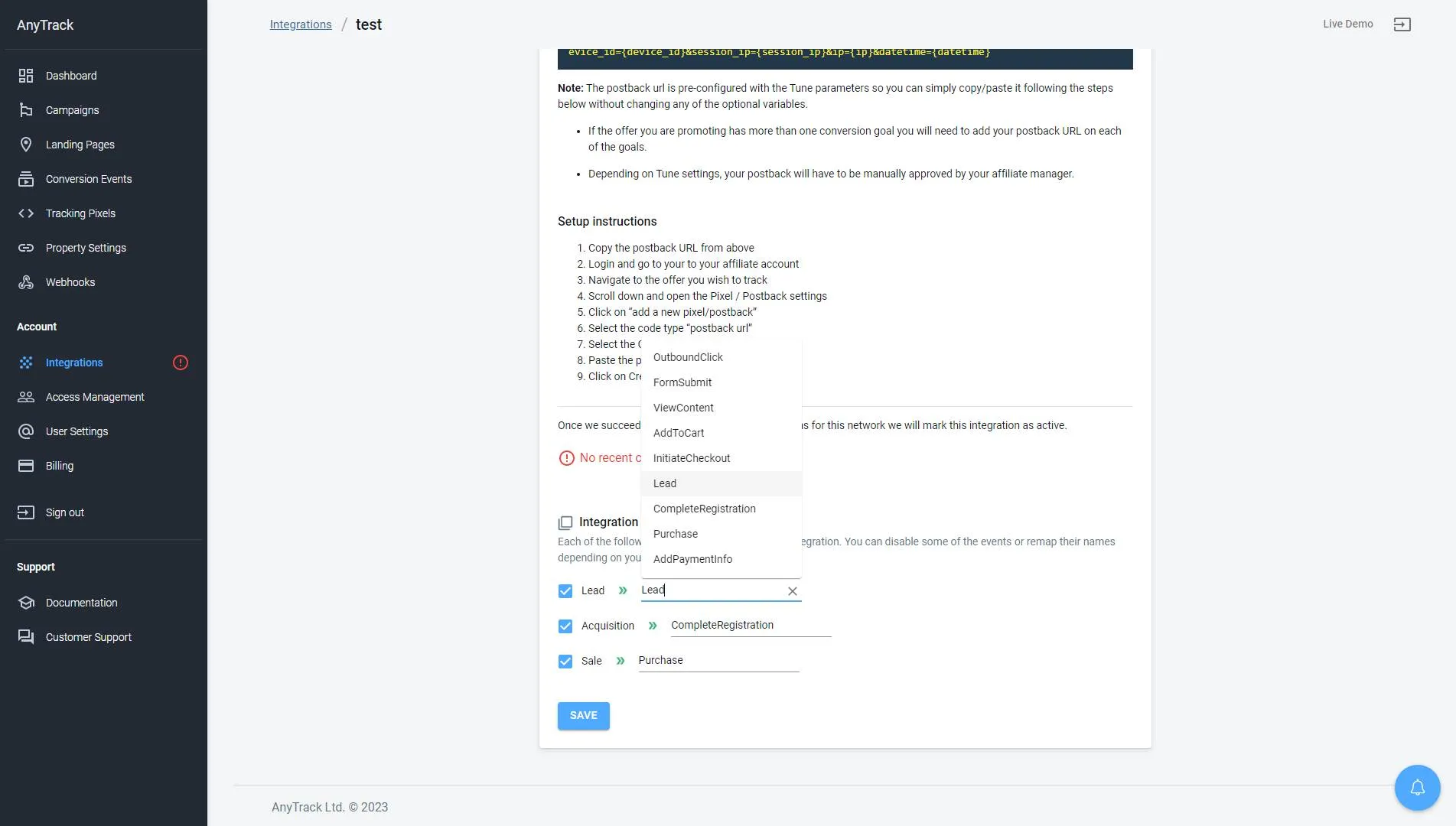
Event mapping tells AnyTrack which HasOffers events to track and how to label them for your ad platforms.
- Go to your HasOffers integration page in AnyTrack
- Review the Event Mapping section
- Adjust event names if needed to match your conversion tracking setup
How AutoTag Works with HasOffers
Section titled “How AutoTag Works with HasOffers”AutoTag Methods
Automatic Detection (Recommended) AnyTrack automatically finds and tags HasOffers links on your website. No setup required.
AutoScan AnyTrack detects links hidden in redirect plugins and tags them appropriately.
Manual Tagging For custom setups, add the tracking group attribute to your links:
<a href="https://example.com/offer-link" data-tracking-group="hasoffers"> Your Offer Link Text</a>Or manually append the click ID parameter:
https://example.com/offer-link?aff_click_id=--CLICK-ID--Example
How to Test Your Integration
Section titled “How to Test Your Integration”Test Link Tracking
Section titled “Test Link Tracking”- Check your links have the
aff_click_idparameter - Review HasOffers reports to confirm click IDs are being passed
- Verify AutoTag is working by inspecting link URLs after page load
Test Conversion Tracking
Section titled “Test Conversion Tracking”Generate a test conversion by completing a purchase or lead action, then:
- Check AnyTrack’s conversion log for the new conversion event
- Verify conversion data includes all expected fields
- Confirm attribution shows correct traffic source
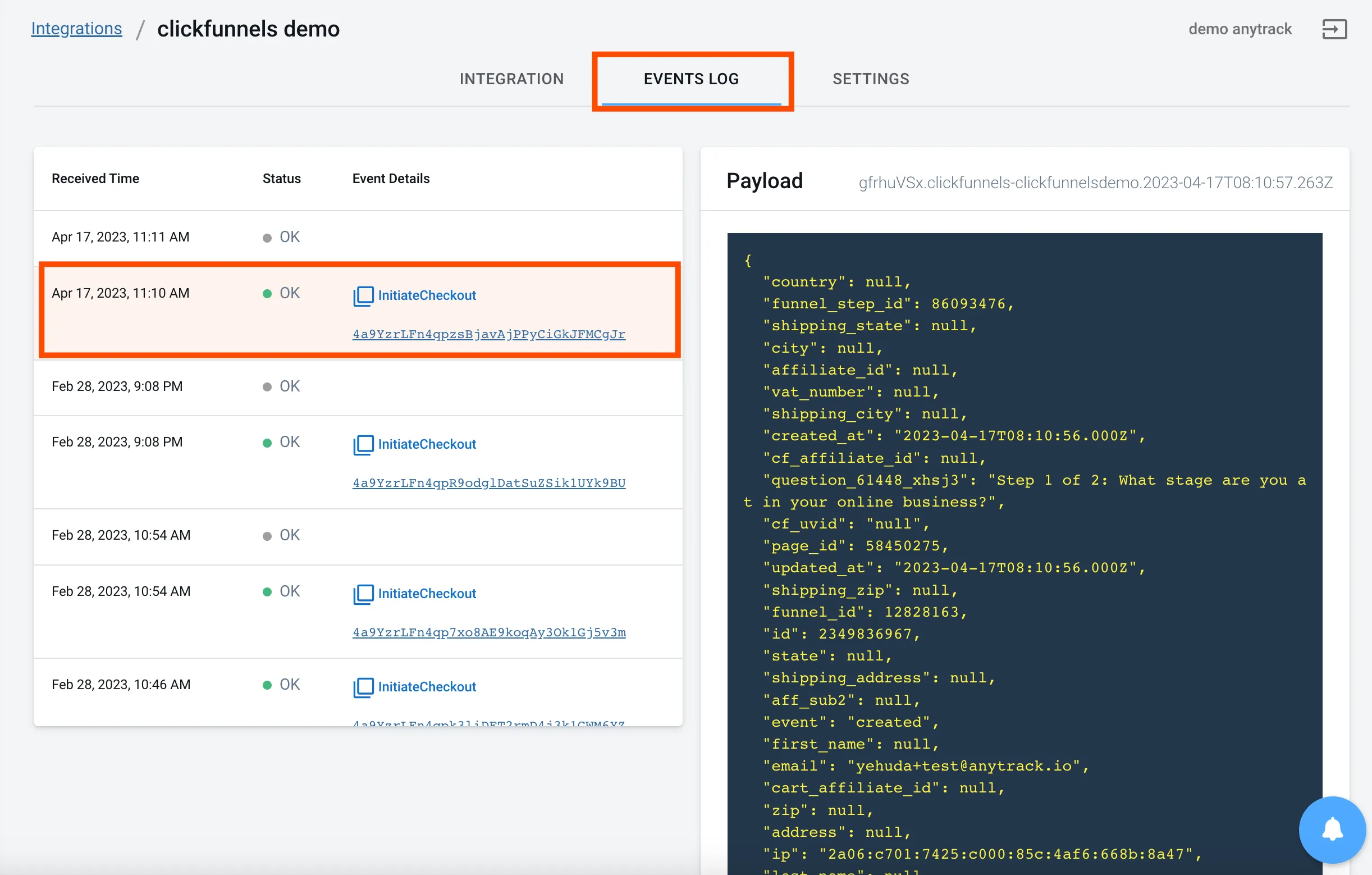
Sample conversion data structure:
{ "AnyTrack": "1100l35864", "conversion_id": "1011l2002827904", "value": "52.85", "currency": "USD", "publisher_commission": "10.57", "advertiser_reference": "merchant_123", "conversion_time": "1684692689", "items": [ { "item_sku": "332503", "item_value": "17.86", "item_commission": "3.57" } ]}Troubleshooting Common Issues
Section titled “Troubleshooting Common Issues”Missing Click ID
Problem: Conversions show “unknown click_id” errors
Solutions:
- Verify AnyTrack Tag is in your website’s
<head>section - Check that links aren’t hidden behind JavaScript or double redirects
- Ensure links use standard
<a>HTML elements - Try manual tracking group attributes for complex setups
No Conversions Appearing
Problem: No conversion data reaching AnyTrack
Solutions:
- Confirm postback URL is active in HasOffers
- Verify the postback URL exactly matches AnyTrack’s provided URL
- Check that offers are receiving the
aff_click_idparameter - Ensure conversions are triggering in HasOffers first
AutoTag Not Working
Problem: Links aren’t getting tagged automatically
Solutions:
- Verify tracking tag is properly installed
- Check for JavaScript errors blocking AutoTag
- Try manual tagging with
data-tracking-group="hasoffers" - Ensure links are visible when page loads (not dynamically generated)
Account and Support
Account Limits
Section titled “Account Limits”- Free Plan: Check you haven’t exceeded monthly traffic limits
- Solution: Upgrade your plan if needed
Getting Help
Section titled “Getting Help”Before contacting support:
- Check the conversion log for specific error messages
- Copy the Event Reference from any failed conversion
- Verify your setup using the validation steps above
Frequently Asked Questions
FAQ was last reviewed on 2026-07-27
Can I integrate HasOffers-based affiliate networks?
Can I import historical conversions?
Does this work with direct linking campaigns?
Can I use a different <code>subid</code> parameter?
aff_click_id as defined by AnyTrack. This ensures proper conversion attribution.Can I track conversions without <code>click_id</code>?
click_id parameter is required to connect conversions back to their original traffic source.How do I change conversion event names?
Ready to Get Started?
Section titled “Ready to Get Started?”- Install AnyTrack tracking tag on your website
- Add HasOffers integration from the catalog
- Paste your postback URL in HasOffers
- Test with a sample conversion
Check the conversion log for detailed error information or contact our support team.