
Lead Ads Instant Forms
Connect Meta Lead Ads with Instant with AnyTrack to enable Conversion API tracking and campaign reporting. Send server-side conversion data for better ad optimization and accurate attribution.
Track Meta Lead Ads with Instant Forms in AnyTrack. Leads are automatically attributed to their campaigns and displayed in the Campaign Report. Extend the customer journey by sending additional conversion events tied to the lead’s email for precise attribution.
Start tracking Meta Lead Ads Instant Forms in three steps.
Step 1: Connect Your Facebook Ads Account
Section titled “Step 1: Connect Your Facebook Ads Account”Follow the main setup guide to connect your Facebook Ads account.
Step 2: Connect Your Facebook Page
Section titled “Step 2: Connect Your Facebook Page”Connect your Facebook Page to AnyTrack to automatically track your Meta Lead Ads (Instant Forms).
- Select your AnyTrack property
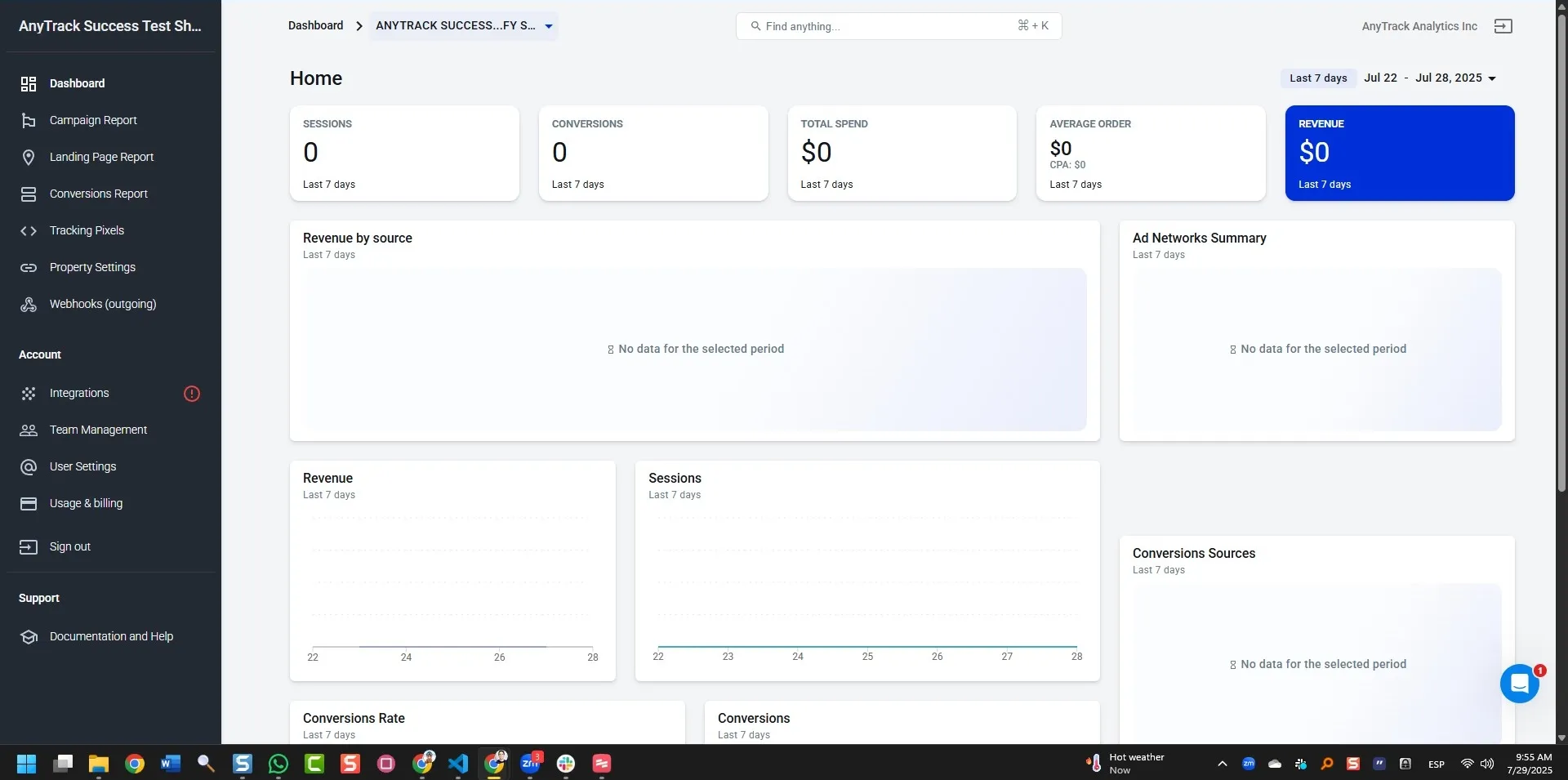
- Click on Tracking Tags
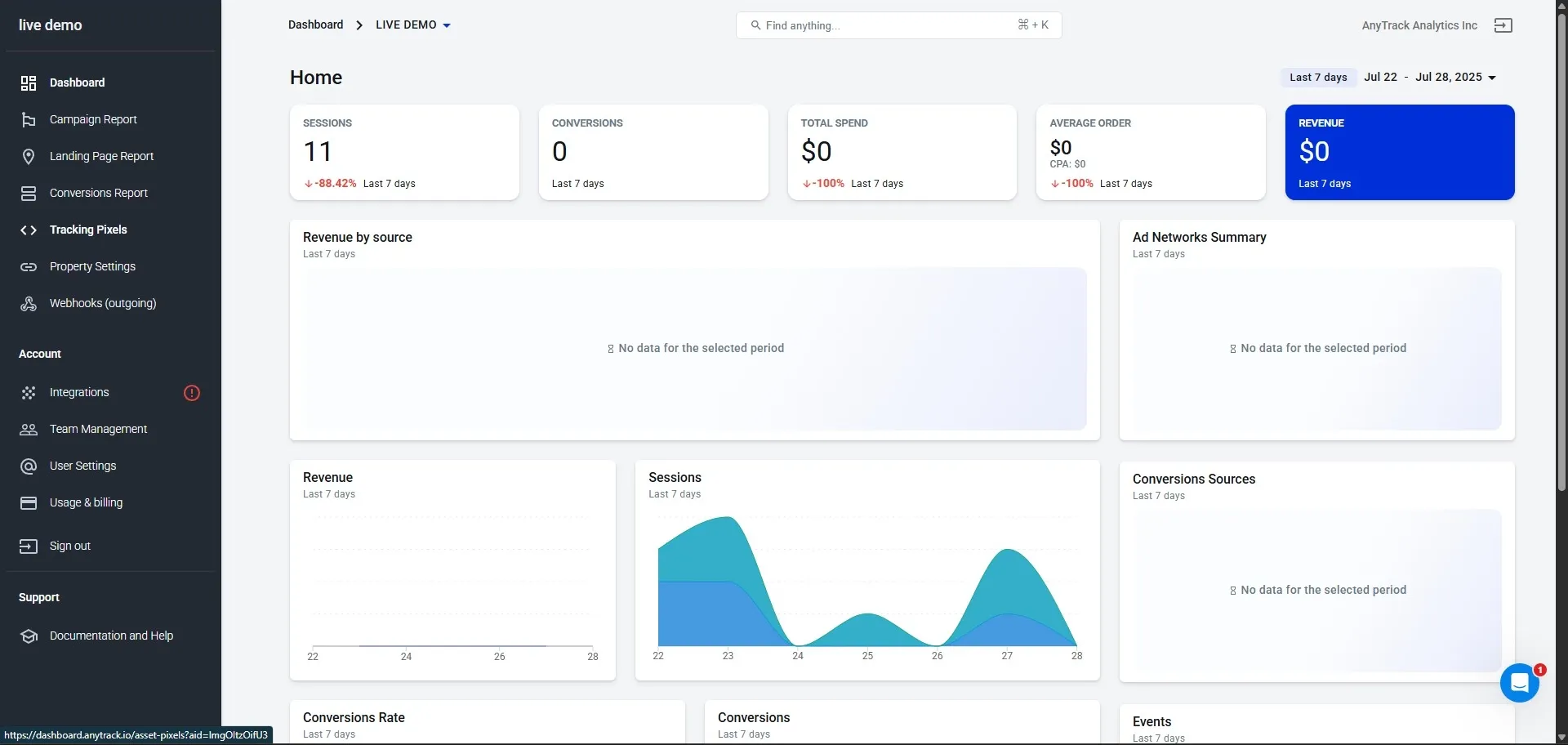
- Select your Meta Pixel and click Lead Ads +CONNECT PAGE
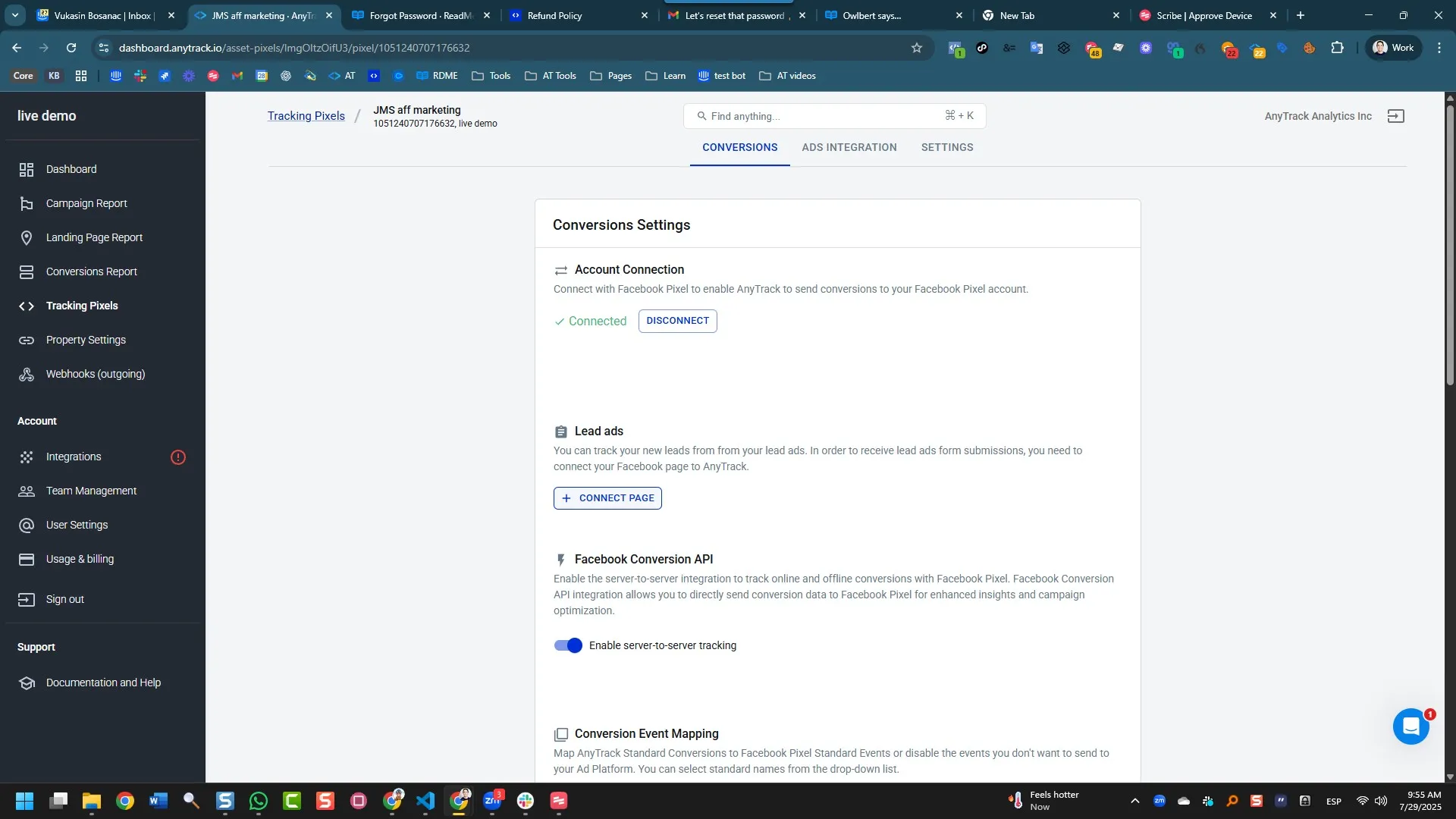
- Log into your Facebook account
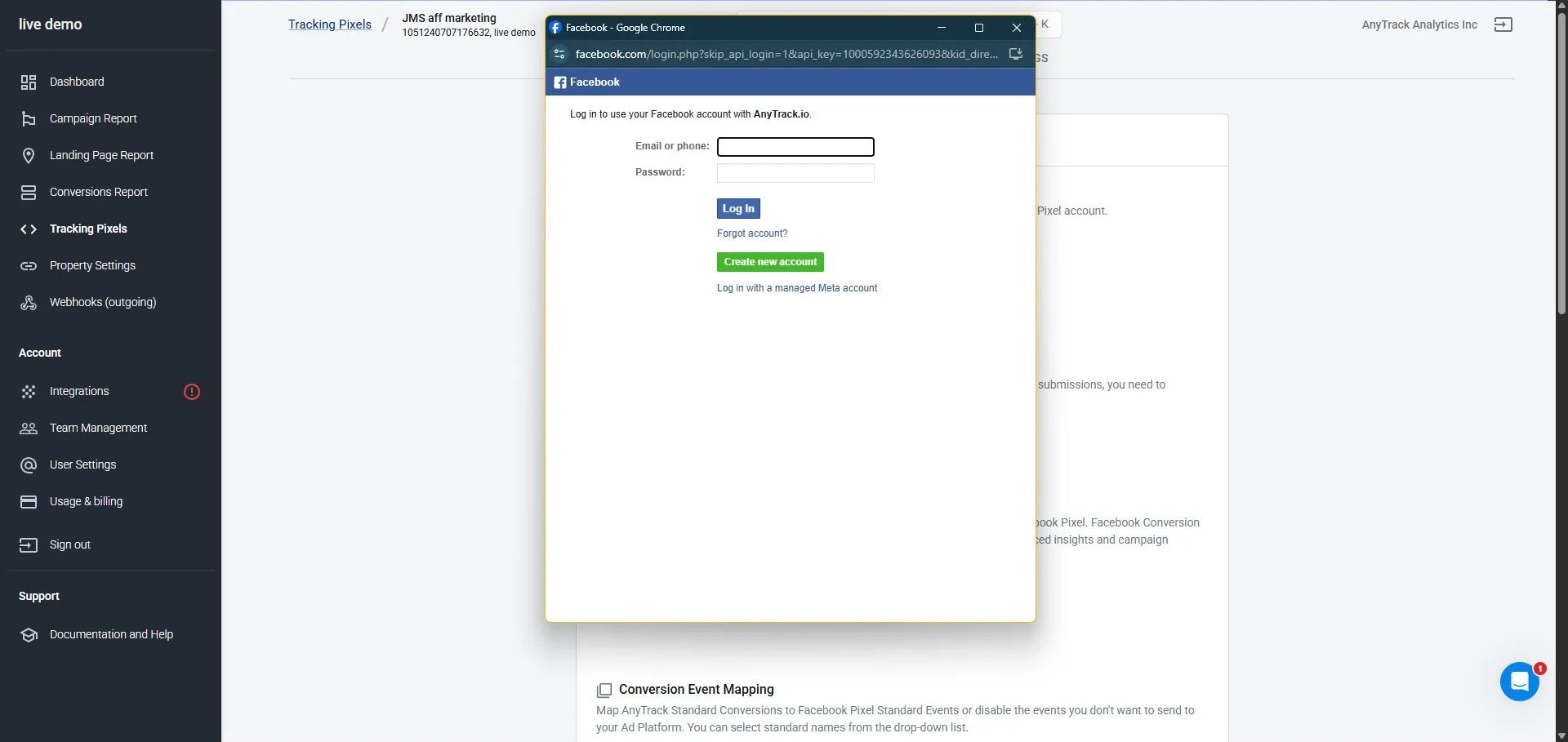
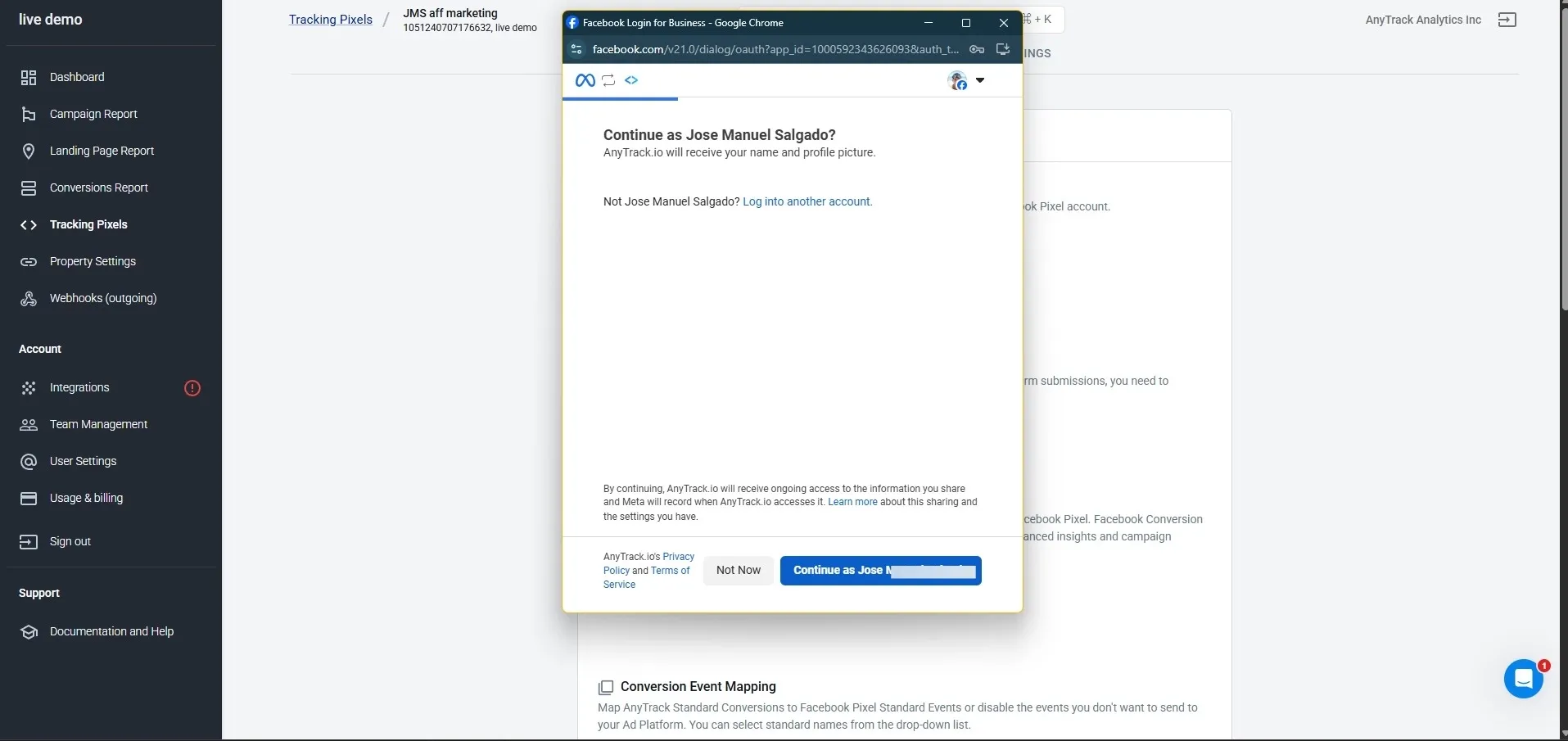
- Click Connect As
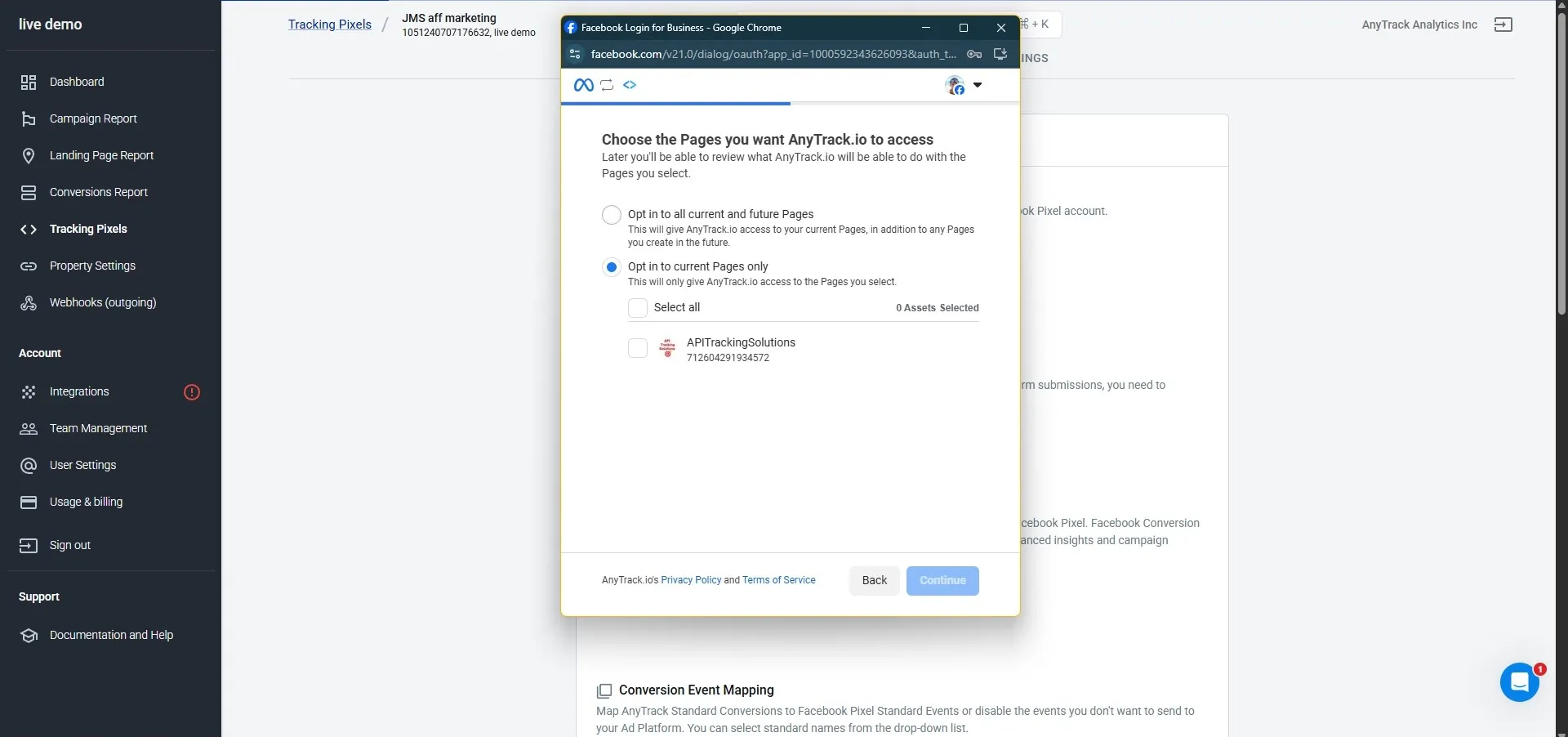
- Choose your Facebook Page
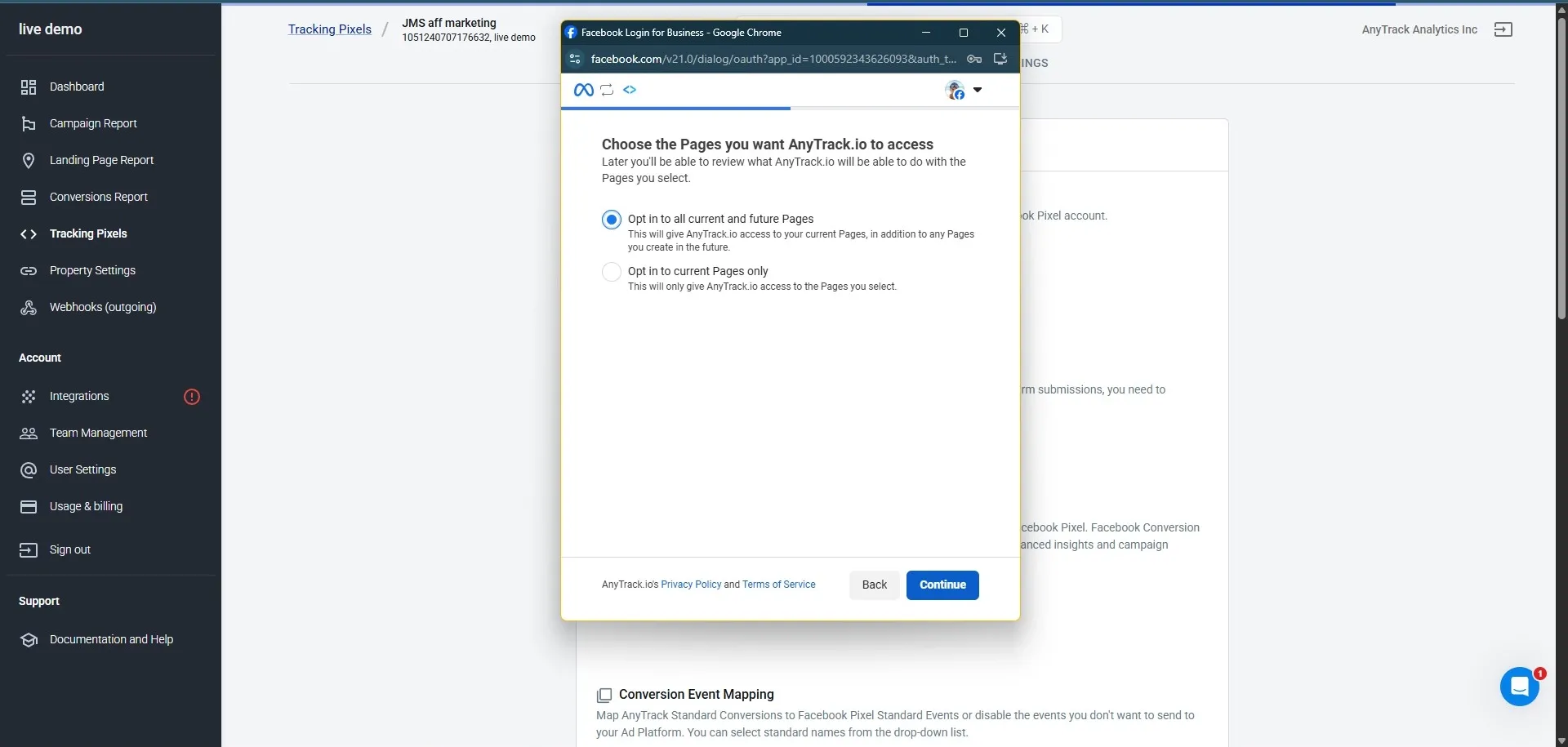
- Click Continue
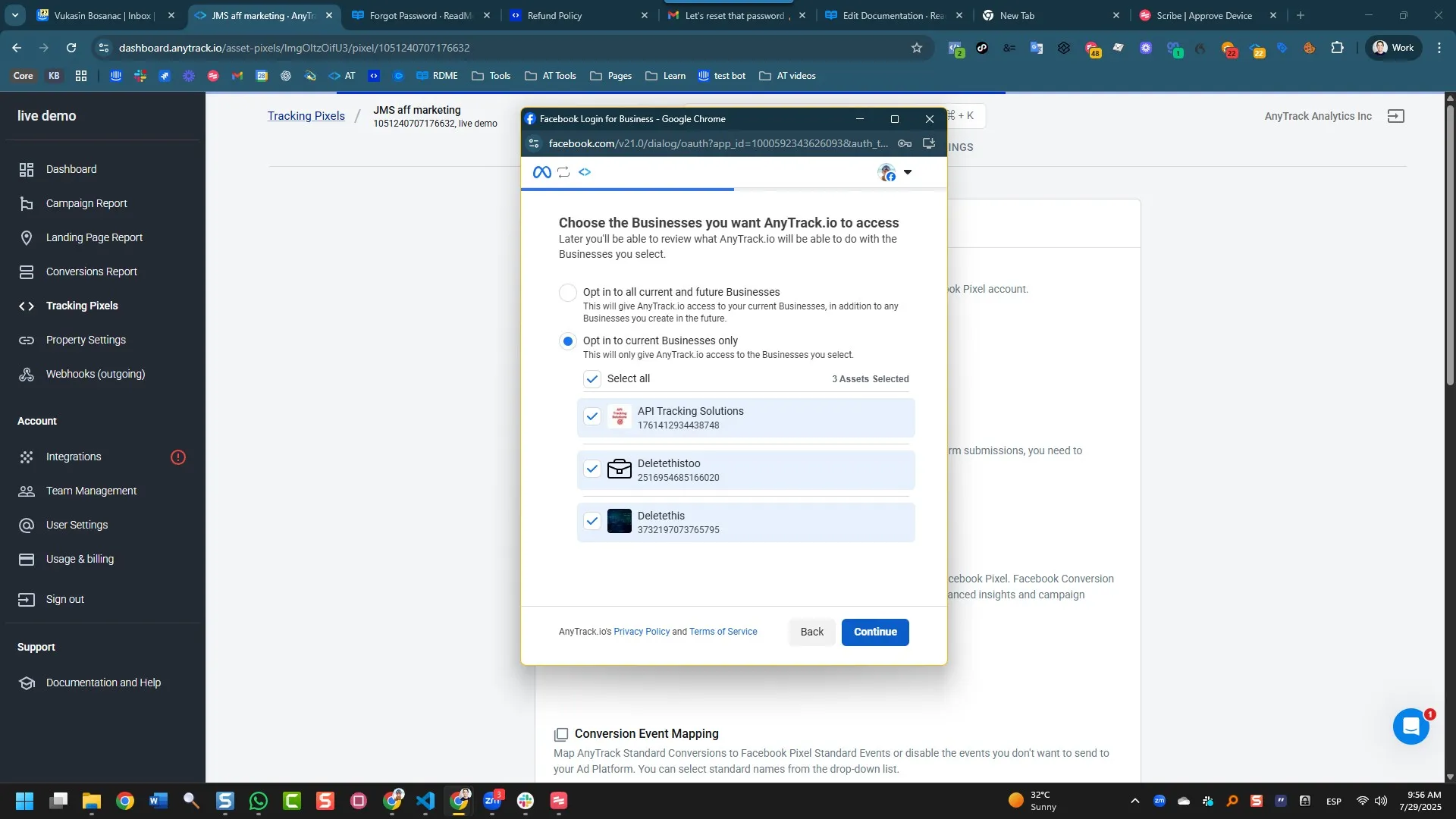
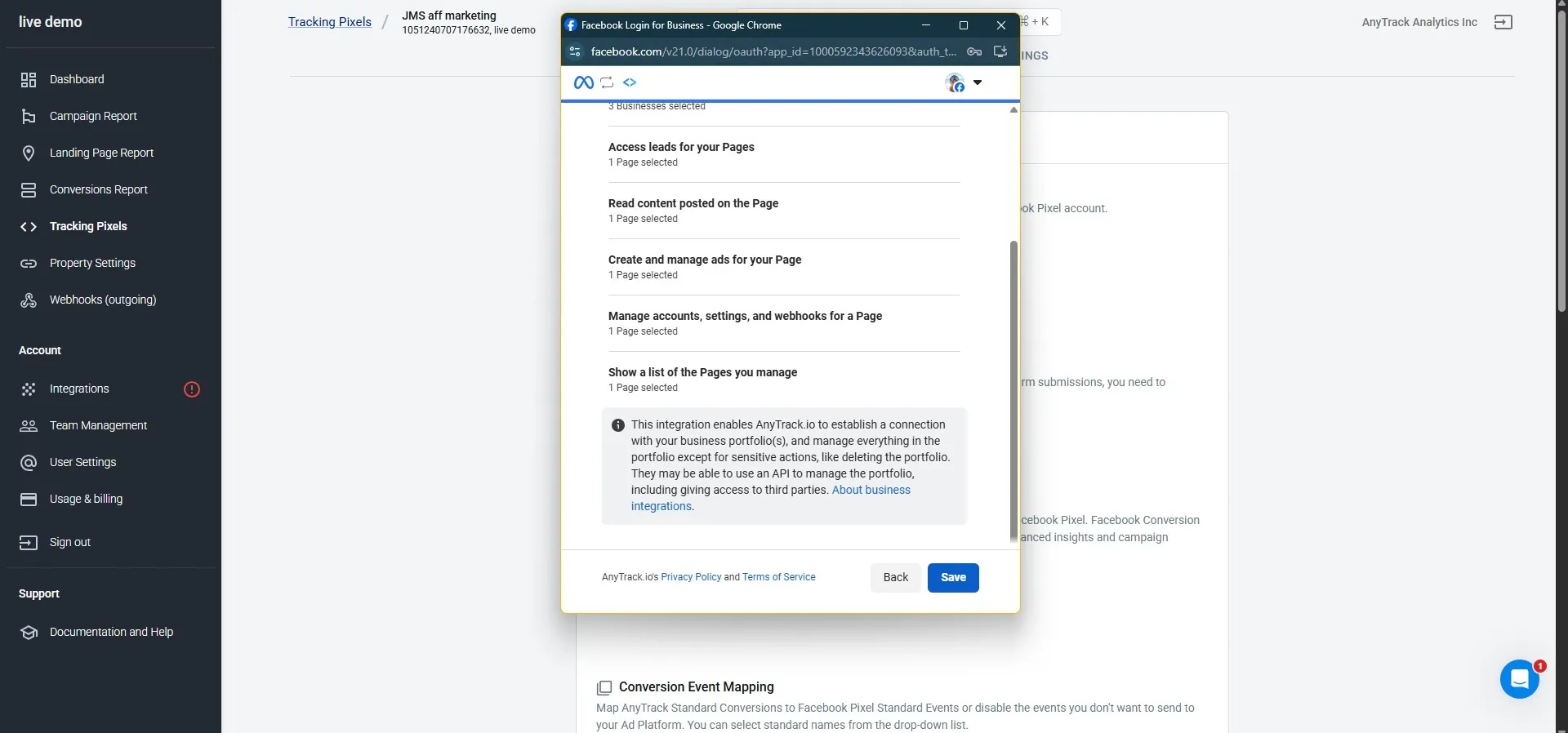
- Choose the Facebook Business(es) and continue
- Click Save
- Select the Facebook Page
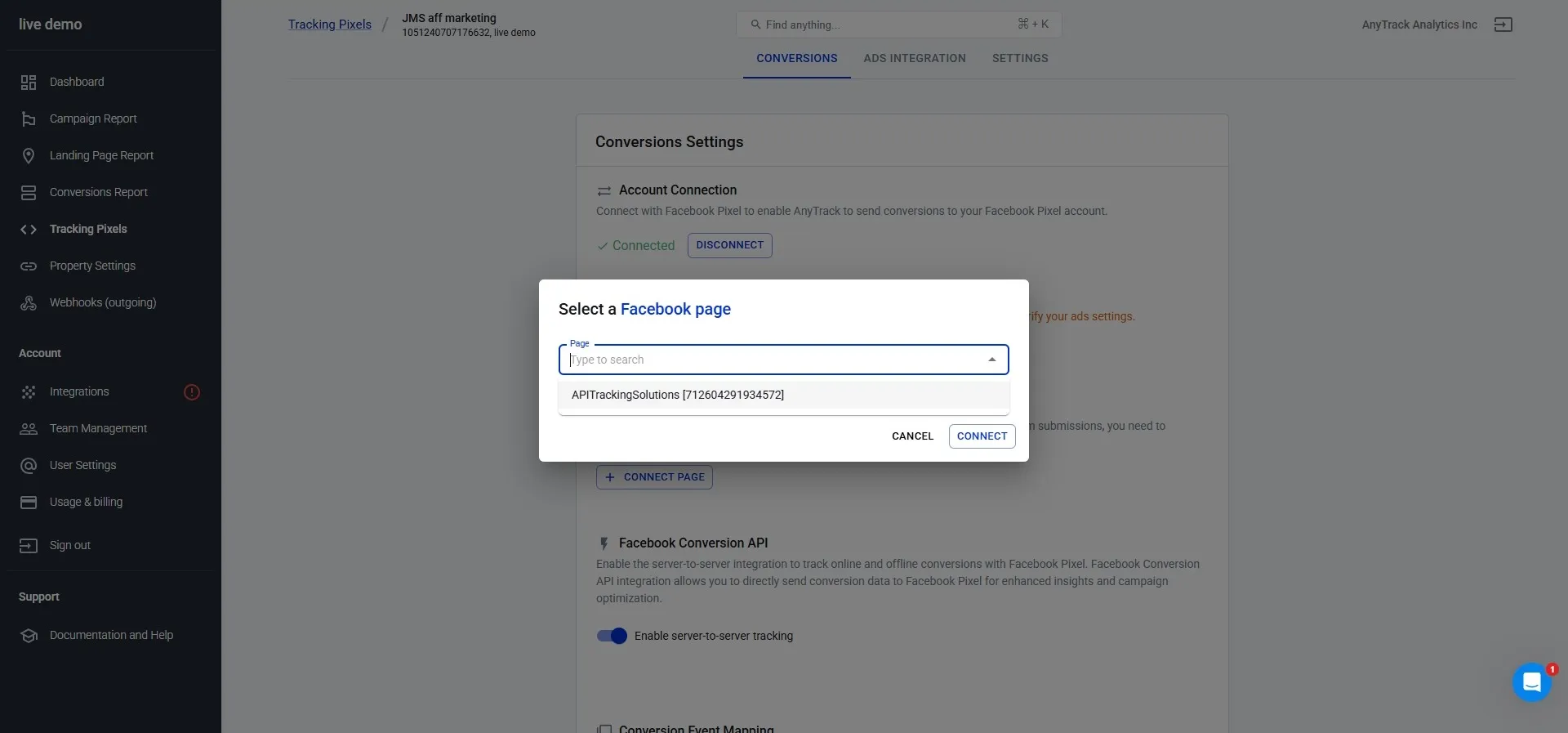
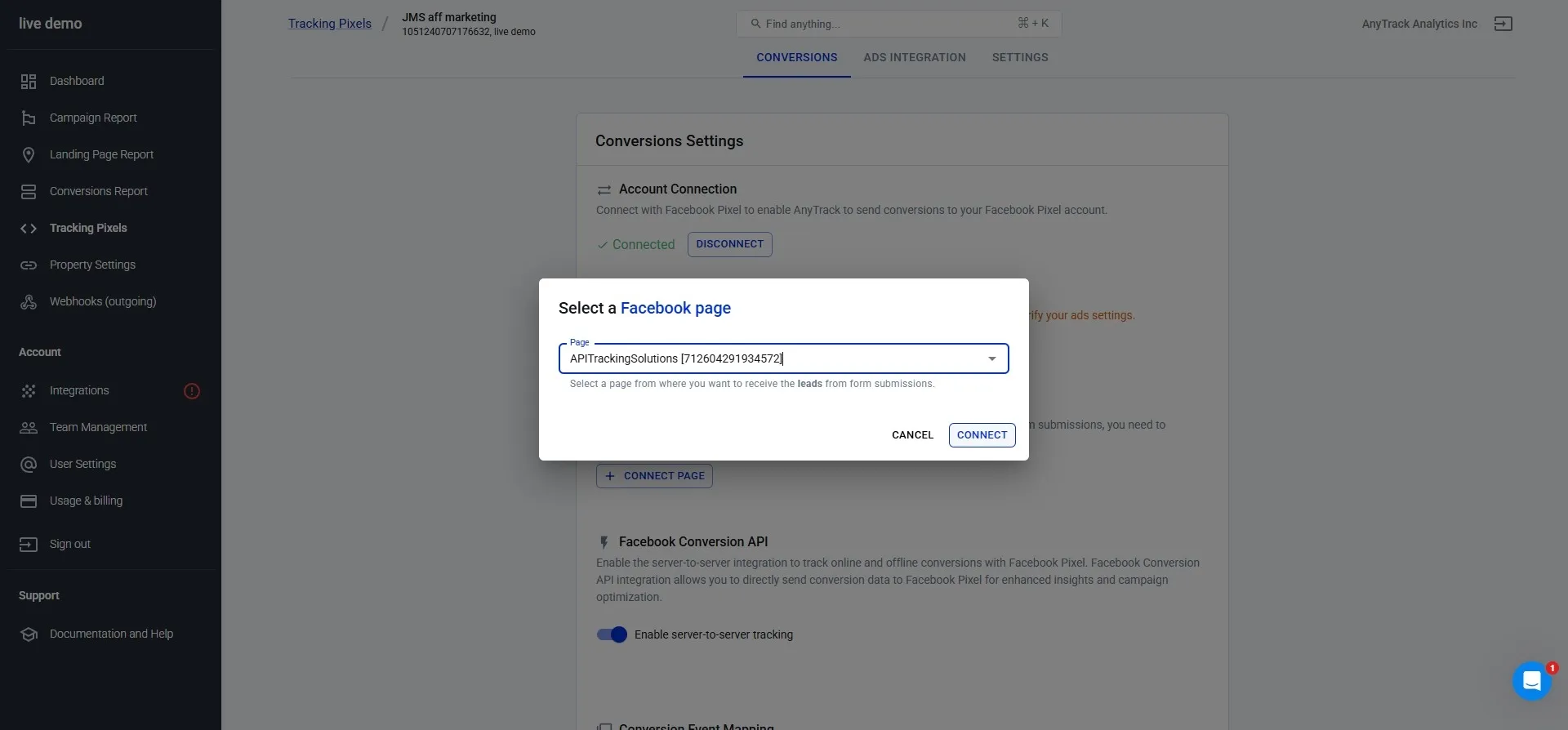
- Click CONNECT
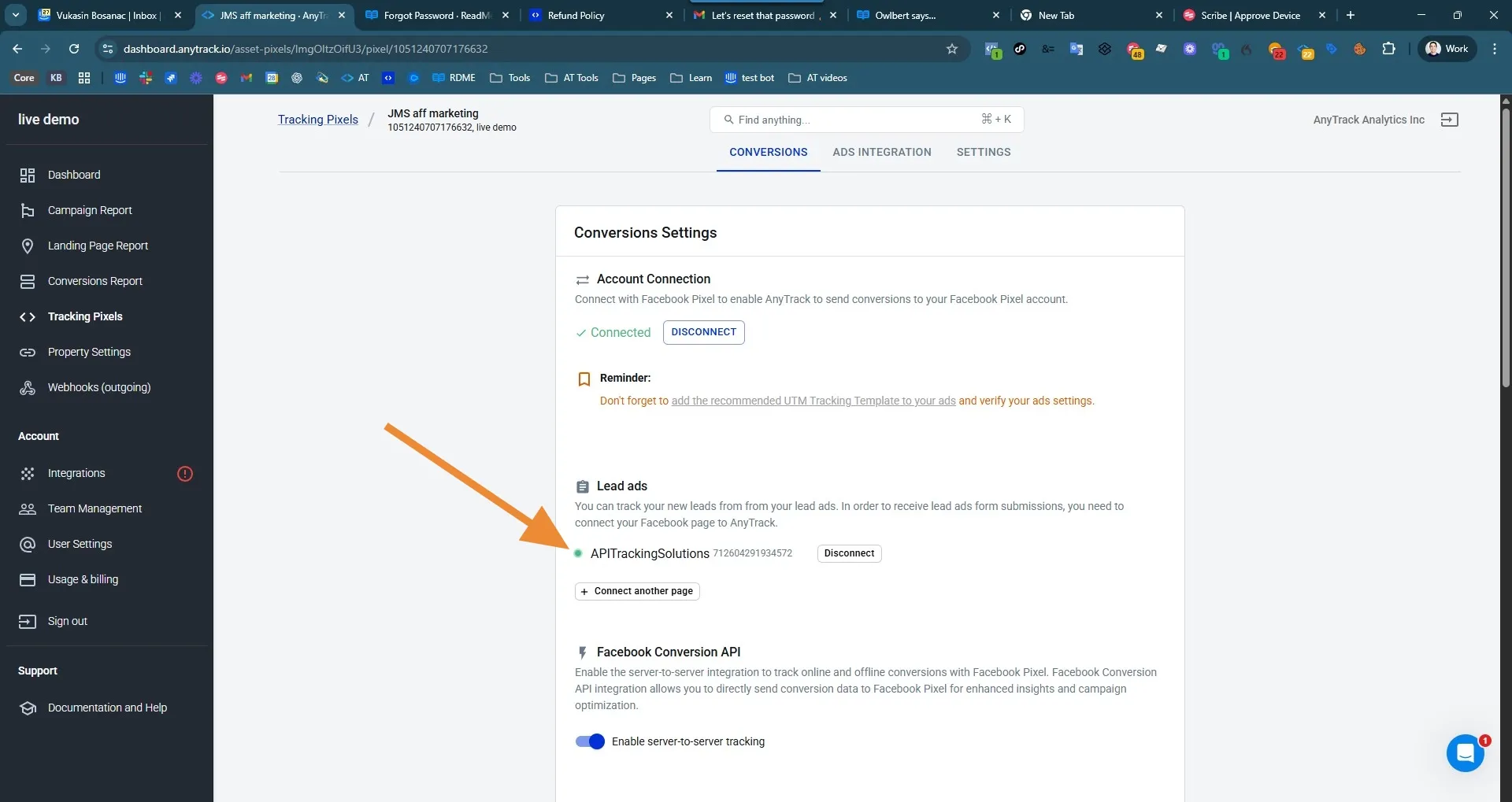
- The connected page shows a green indicator
Step 3: Add the AdLeadInitialLead Column to Campaign Report
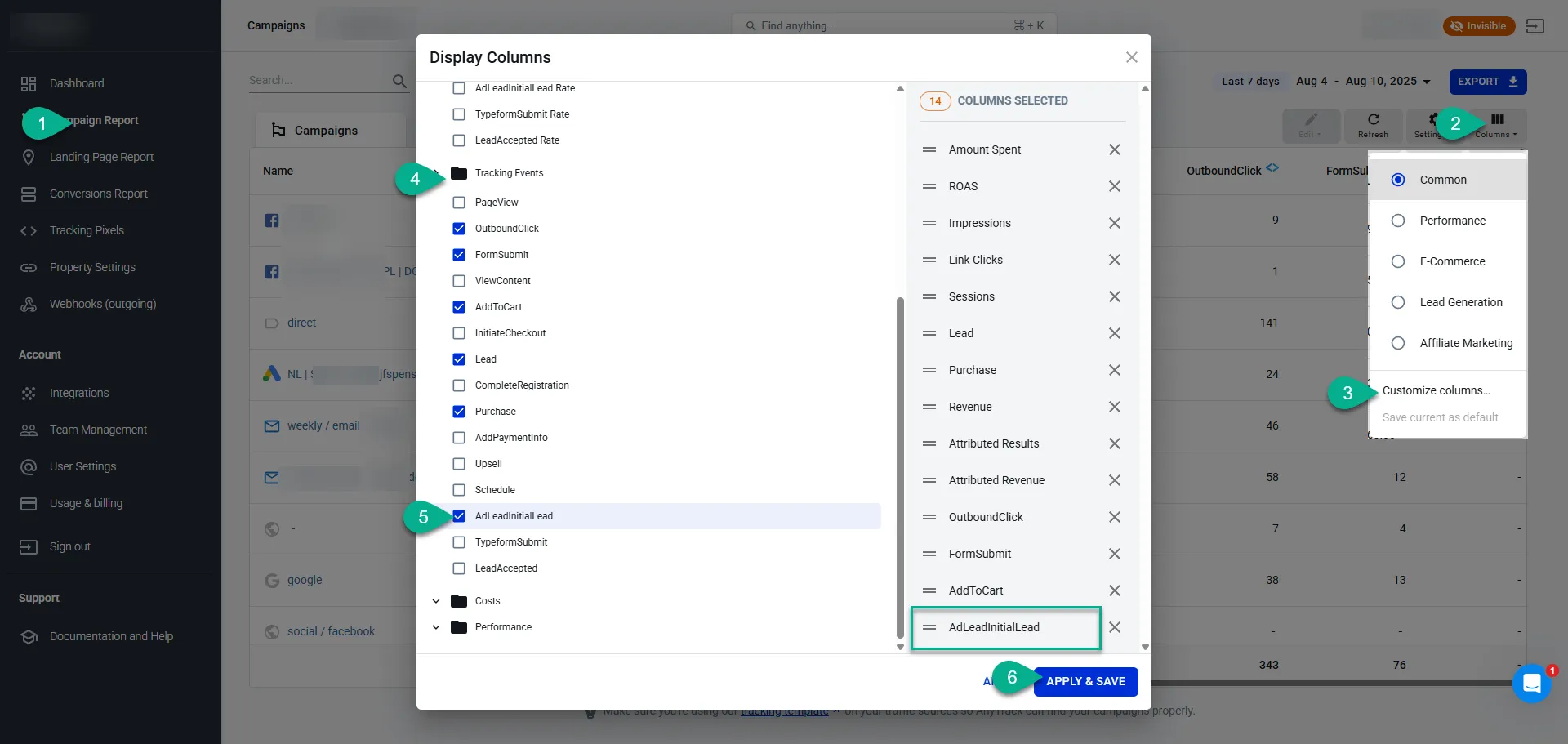
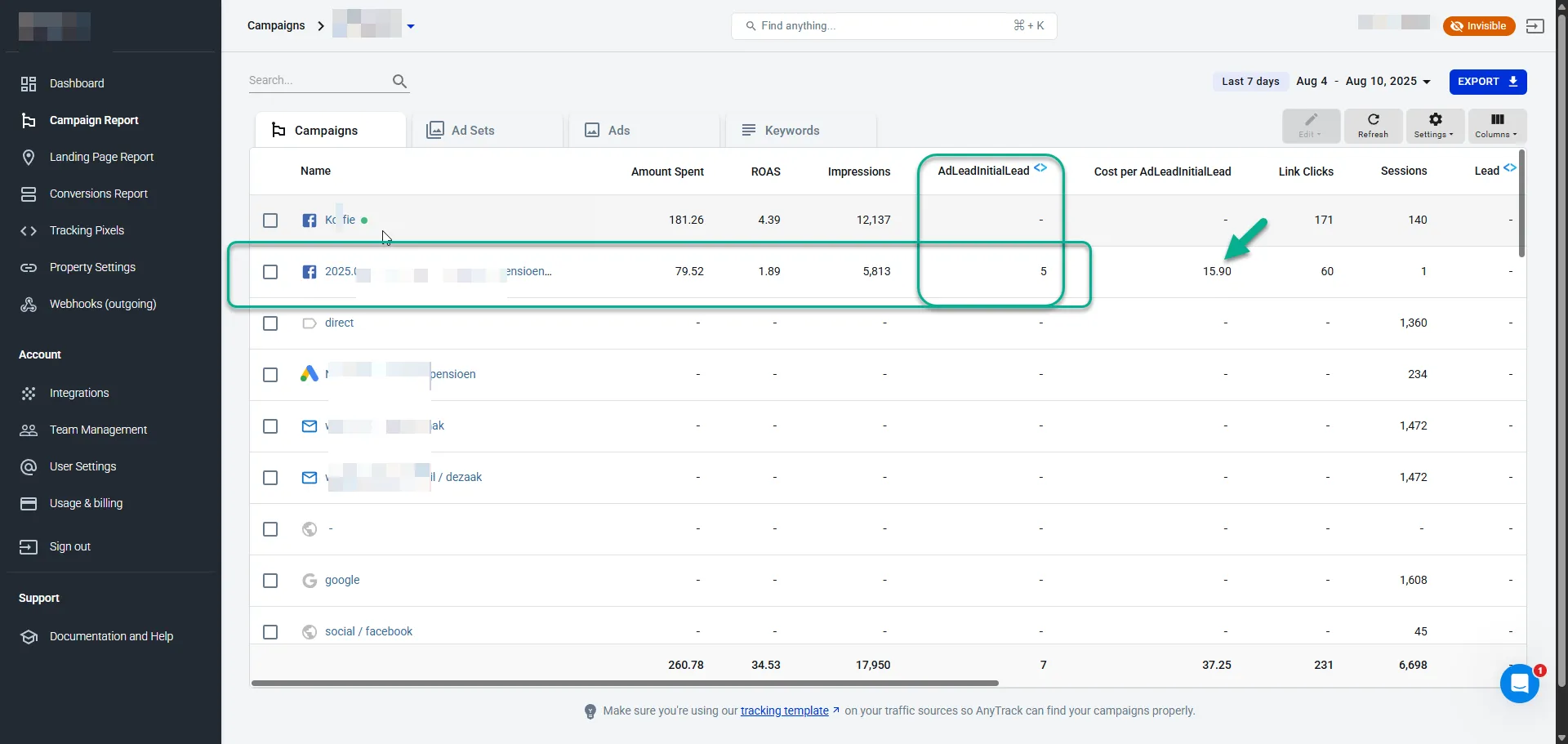
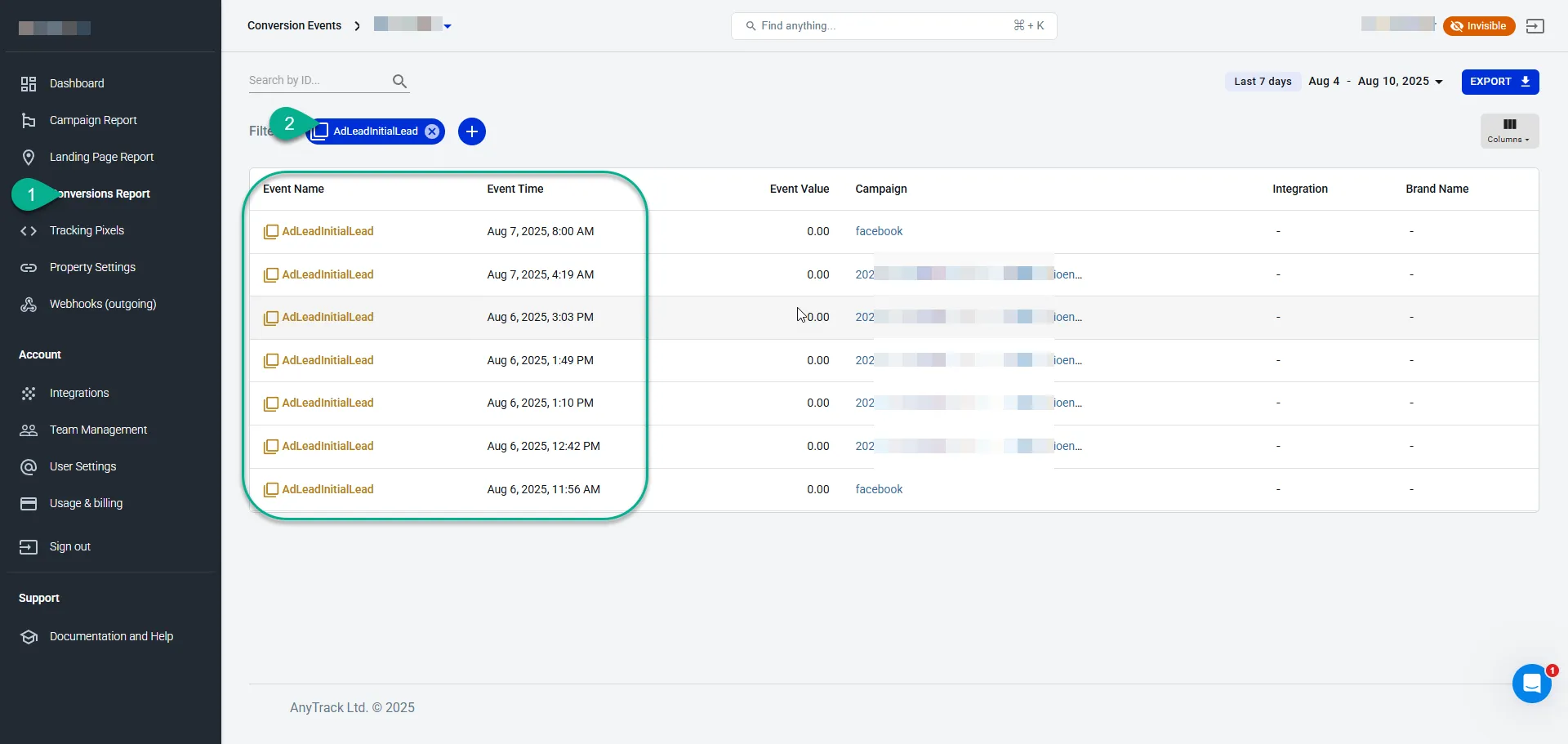
Section titled “Step 3: Add the AdLeadInitialLead Column to Campaign Report”AnyTrack receives leads as AdLeadInitialLead events. Add the corresponding column to see them in the Campaign Report.
Extending the Customer Journey
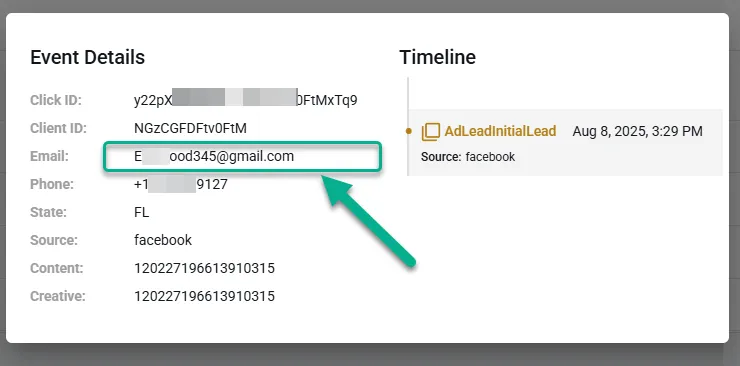
Section titled “Extending the Customer Journey”Include the email from the AdLeadInitialLead event in conversion data you send to your custom integration. Map the email to the refId attribute so AnyTrack links the new conversion to the original lead for accurate attribution.
Example: Extending the Customer Journey After a Facebook Lead
Section titled “Example: Extending the Customer Journey After a Facebook Lead”Your Facebook Lead Ad generates an AdLeadInitialLead event. Later, signal lead warmth by generating a custom conversion event like PrePurchase. Create a custom integration endpoint and send a POST request including the email from the original AdLeadInitialLead event in the refId attribute. This links the new event to the same customer journey. See all available event attributes.
{ "event_name": "PrePurchase", "refId": "Elzywood345@gmail.com", "fullName": "Elon Musk", "address": "Milky Way 1", "phone": "+1919875666", "country": "Space", "items": [ { "id": "20291", "name": "Sony MDRZX110/BLK ZX Series Stereo Headphones", "quantity": 1, "price": 20.00, "brand": "Sony" }, { "id": "49292", "name": "Beats Headphones", "quantity": 1, "price": 100.00, "brand": "Beats" } ], "currency": "USD", "id": "24356562534585", "subtotalprice": 120.00, "totalprice": 120.00, "taxPrice": 10, "value": 120.00, "transactionId": "#24356562534585"}On the Events Log of your custom integration you will find:
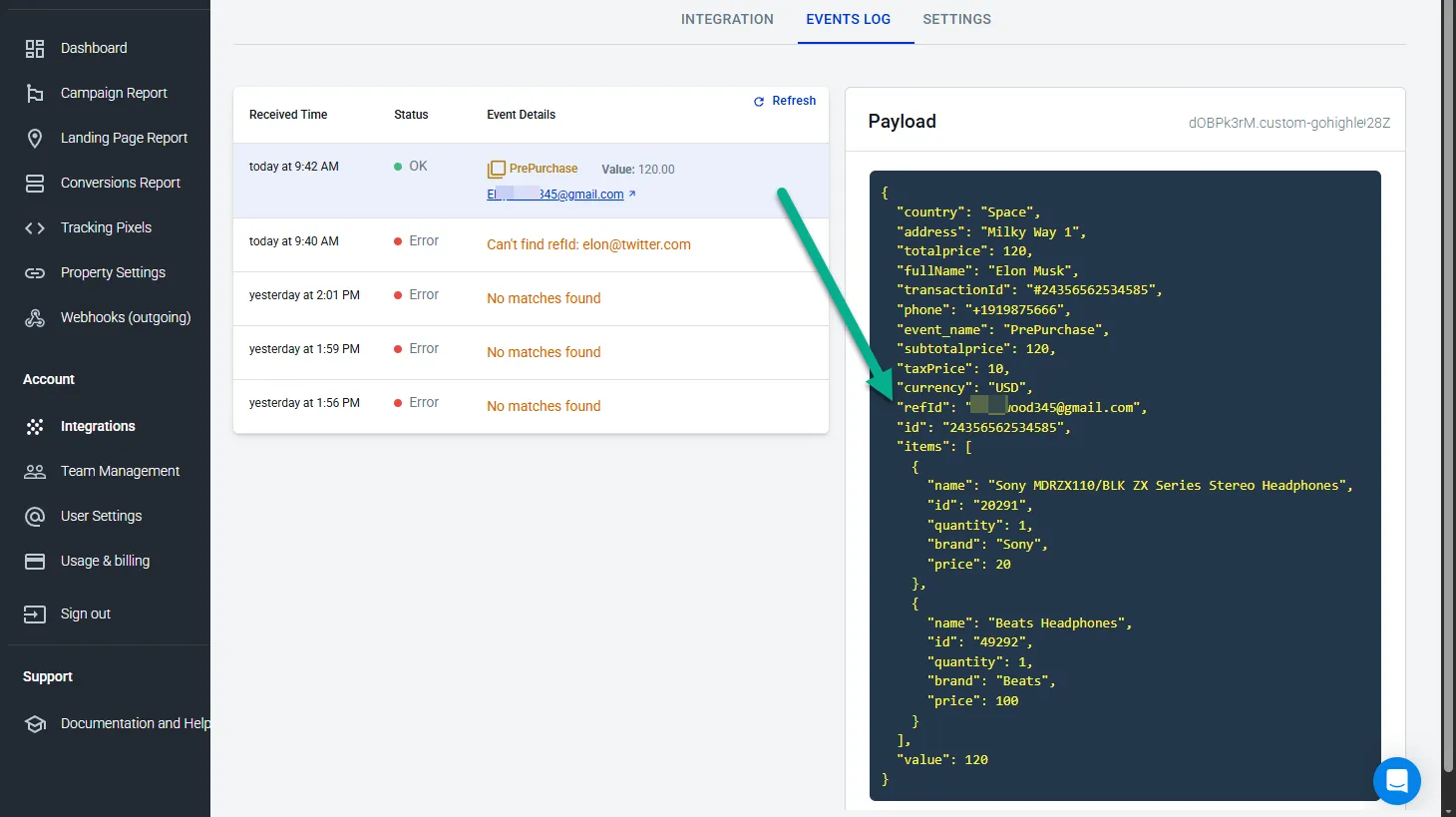
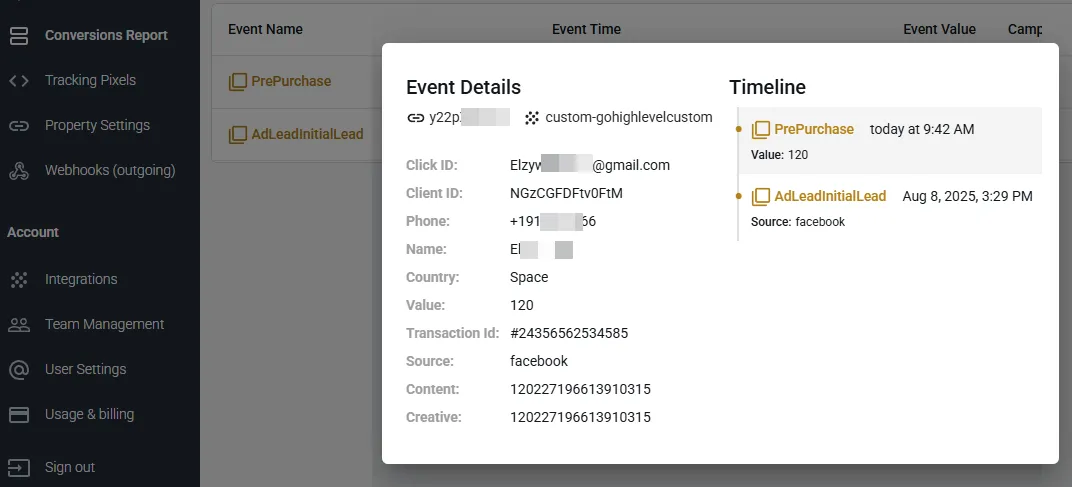
For a full overview of the Lead Ads attribution flow, CRM integration, and event mapping, see the Facebook Lead Ads integration guide.