
Typeform Integration
Connect Typeform to AnyTrack to track form submissions, attribute leads to the campaigns that drove them, and send conversions to Google Ads, Facebook, and TikTok.
What is Typeform Integration?
Section titled “What is Typeform Integration?”AnyTrack’s Typeform integration enables automatic conversion tracking from your forms. When visitors submit your forms, their data is sent from Typeform to AnyTrack, which processes it, attributes it to the original traffic source, and sends it in real time to Google Ads, Facebook, and TikTok through their Conversion APIs.
Connect your accounts to start tracking form submission ROI across your campaigns.
Why Use This Integration?
Section titled “Why Use This Integration?”Key Benefits
Section titled “Key Benefits”- Real-Time Attribution: Immediate conversion data sent to ad platforms for optimization
- Multi-Platform Reporting: Unified dashboard showing performance across Google Ads, Facebook, TikTok
- No Code Required: Simple webhook setup replaces complex tracking implementations
- Complete Attribution: Track conversions regardless of where forms are embedded
- Partial Conversion Tracking: Collect leads even when forms aren’t fully completed
Common Use Cases
Section titled “Common Use Cases”- Lead generation: Track which ad campaigns generate form completions, not just clicks, and optimize ad spend based on actual leads
- eCommerce pre-orders: Attribute pre-order form submissions across multiple domains back to the originating traffic source
- Event registration: Track the full registration funnel from initial ad click through multi-step form completion
How the Integration Works
Section titled “How the Integration Works”Here’s what happens when visitors interact with your Typeform:
1. Traffic Collection
Section titled “1. Traffic Collection”When visitors land on your website, AnyTrack collects:
- Traffic source data: Where visitors came from (ad platforms, referrers, etc.)
- First-party data: Browser information, session details, and user behavior
2. Form Engagement Tracking
Section titled “2. Form Engagement Tracking”When visitors click Typeform links or interact with embedded forms, AnyTrack:
- Collects granular data tied to the initial engagement
- Tracks an
OutboundClickevent for analytics - Triggers Event Tracking API requests to your Tracking Tags and analytics platforms
- Generates a unique click ID (a tracking identifier) and appends it as a hidden field to the Typeform
3. Conversion Detection & Attribution
Section titled “3. Conversion Detection & Attribution”When visitors interact with or submit the Typeform:
- AnyTrack receives real-time conversion data through a webhook (automated data transmission)
- The system matches the submission to the original click using the click ID
- AnyTrack processes the conversion data and attributes it to the correct traffic source
- Results are reported across various sections of the AnyTrack Dashboard
4. Conversion API Distribution
Section titled “4. Conversion API Distribution”AnyTrack sends your conversions to your Ad Platforms’ Conversion APIs (direct data connections) to:
- Feed platform machine learning algorithms
- Enable automatic optimization based on 100% of your conversion data
- Improve campaign performance through better attribution
Technical Specifications
Section titled “Technical Specifications”| Reference | Value | Information |
|---|---|---|
| Tracking Group | typeform | The Tracking Group reference can be used to activate AutoTag. |
| Subid Parameter | at_click_id | The Subid Parameter used to pass the AnyTrack click_id. |
| Tracking Method | Webhook | Real-time data transmission from Typeform to AnyTrack |
Standard Conversion Events
Section titled “Standard Conversion Events”| Event Name | Description | Data Source |
|---|---|---|
OutboundClick | Triggered when a visitor clicks on Typeform links or loads a Typeform embed | AnyTrack JS Tag |
FormSubmit | Triggered when a visitor successfully submits a form | Webhook |
PartialFormSubmit | Triggered when a visitor partially completes a form based on Typeform’s partial form submit settings | Webhook |
The Typeform Webhook
Section titled “The Typeform Webhook”The webhook (automated data endpoint) is fully pre-configured and ready to implement with your Typeform account:
https://t1.anytrack.io/:accountid/collect/typeformSetup Guide
Section titled “Setup Guide”Follow these steps to connect your Typeform account with AnyTrack:
Step 1: Create the Integration in AnyTrack
Section titled “Step 1: Create the Integration in AnyTrack”Navigate to the AnyTrack Integration Catalog and select Typeform:
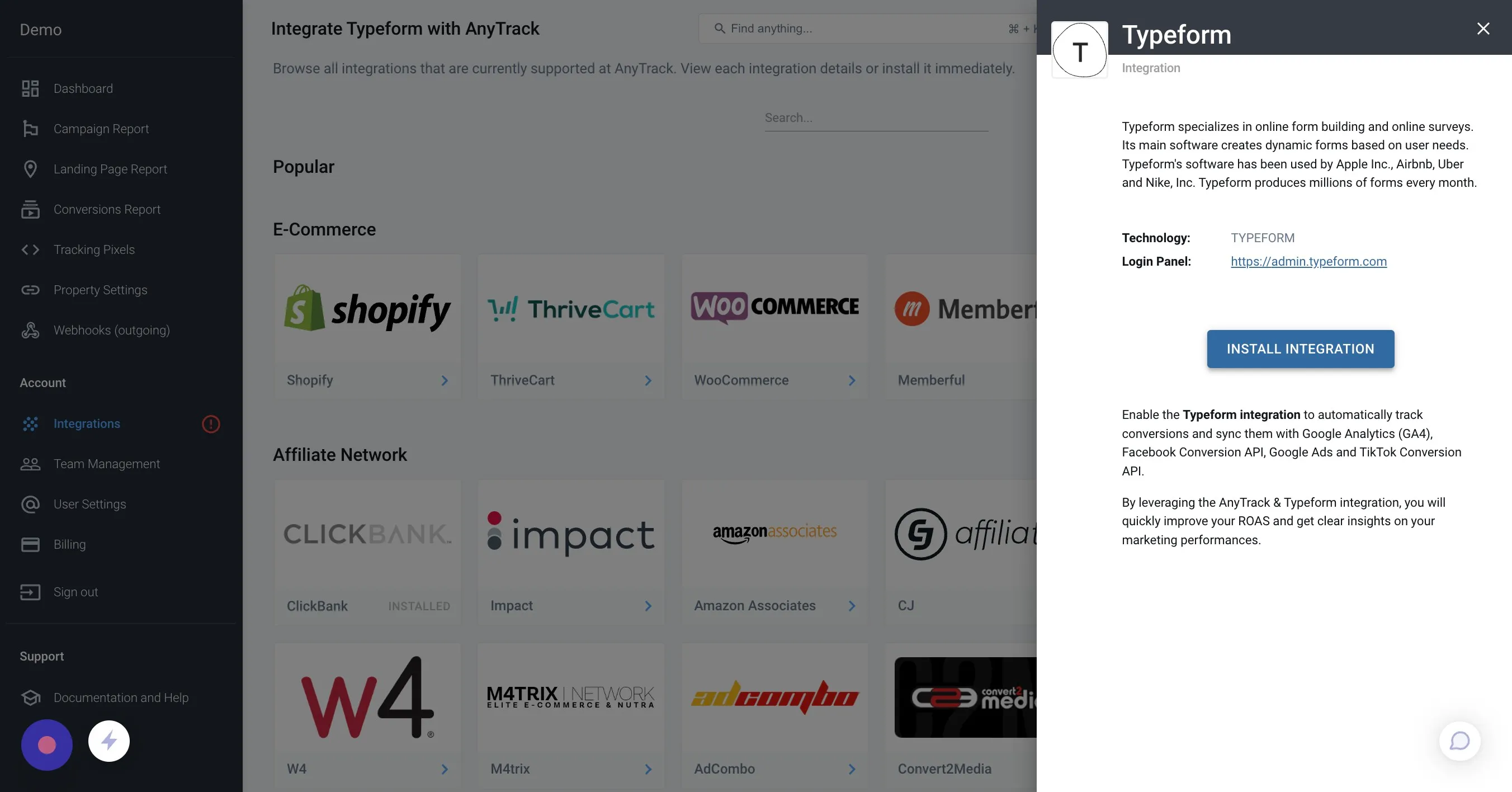
Step 2: Configure Integration Settings
Section titled “Step 2: Configure Integration Settings”Set the integration name and click Create:
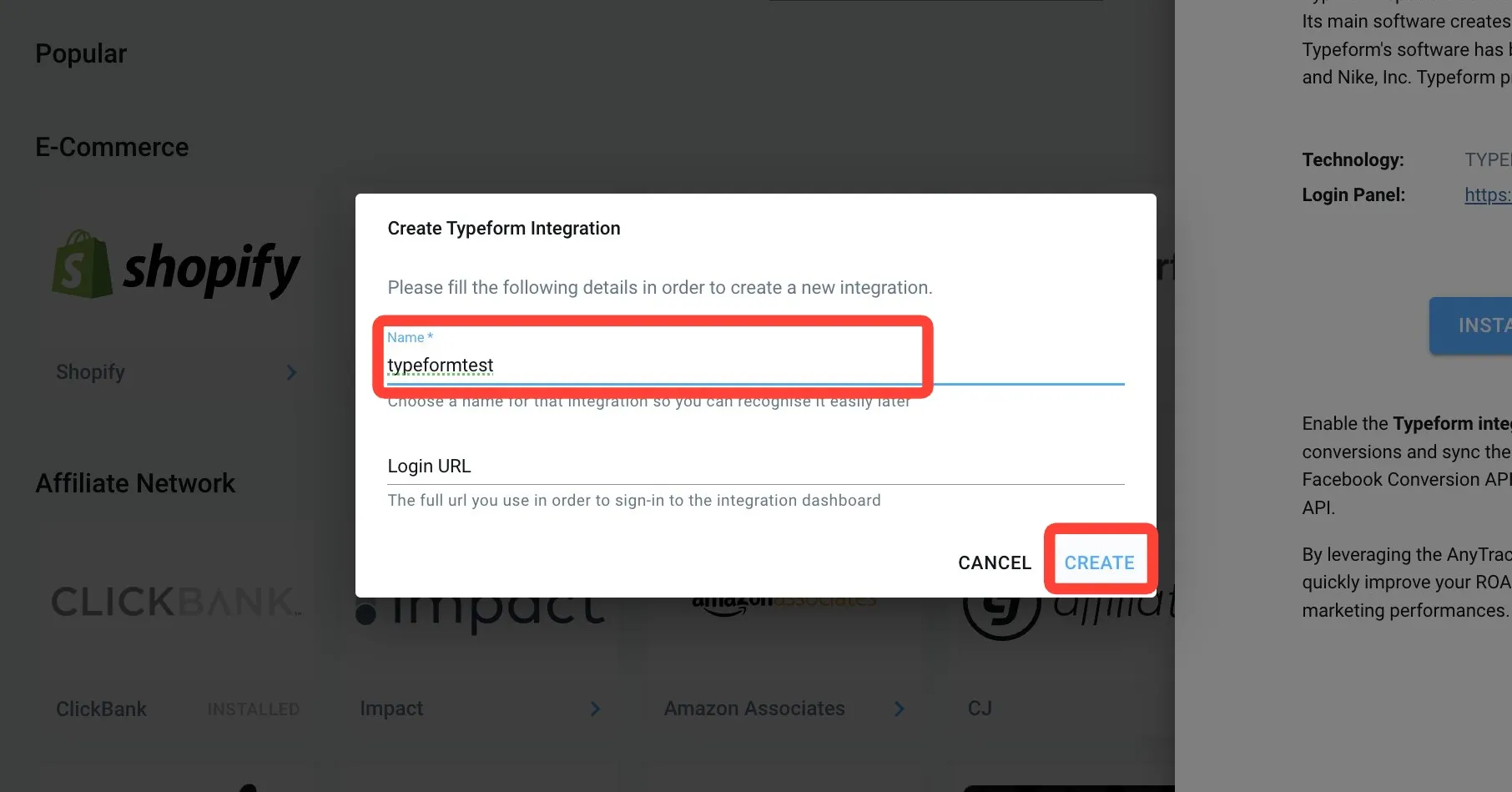
Step 3: Add Hidden Field to Typeform
Section titled “Step 3: Add Hidden Field to Typeform”In your Typeform Logic Settings, add a hidden field:

Step 4: Configure the Hidden Field
Section titled “Step 4: Configure the Hidden Field”Click Add a new field and enter at_click_id:
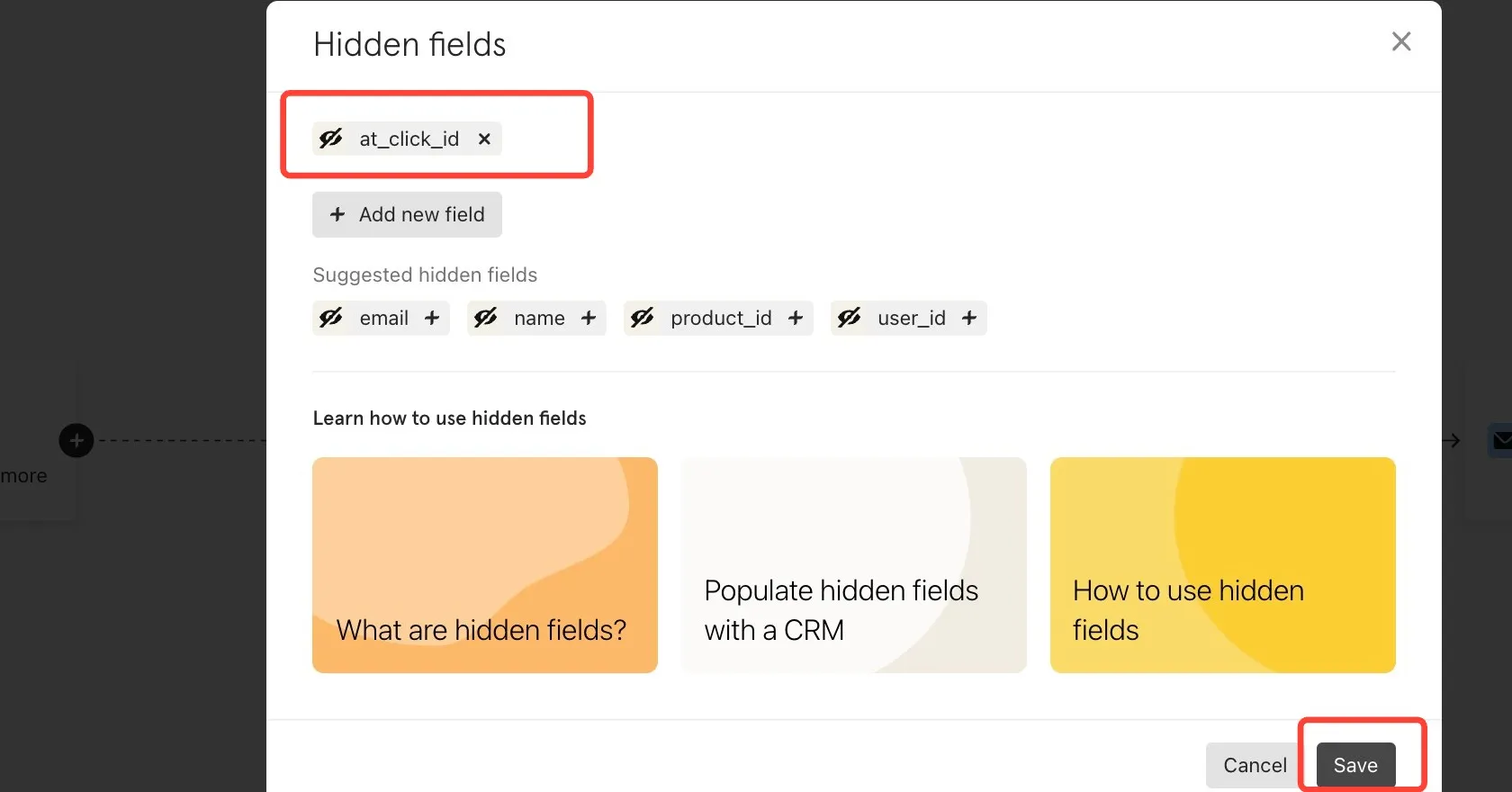
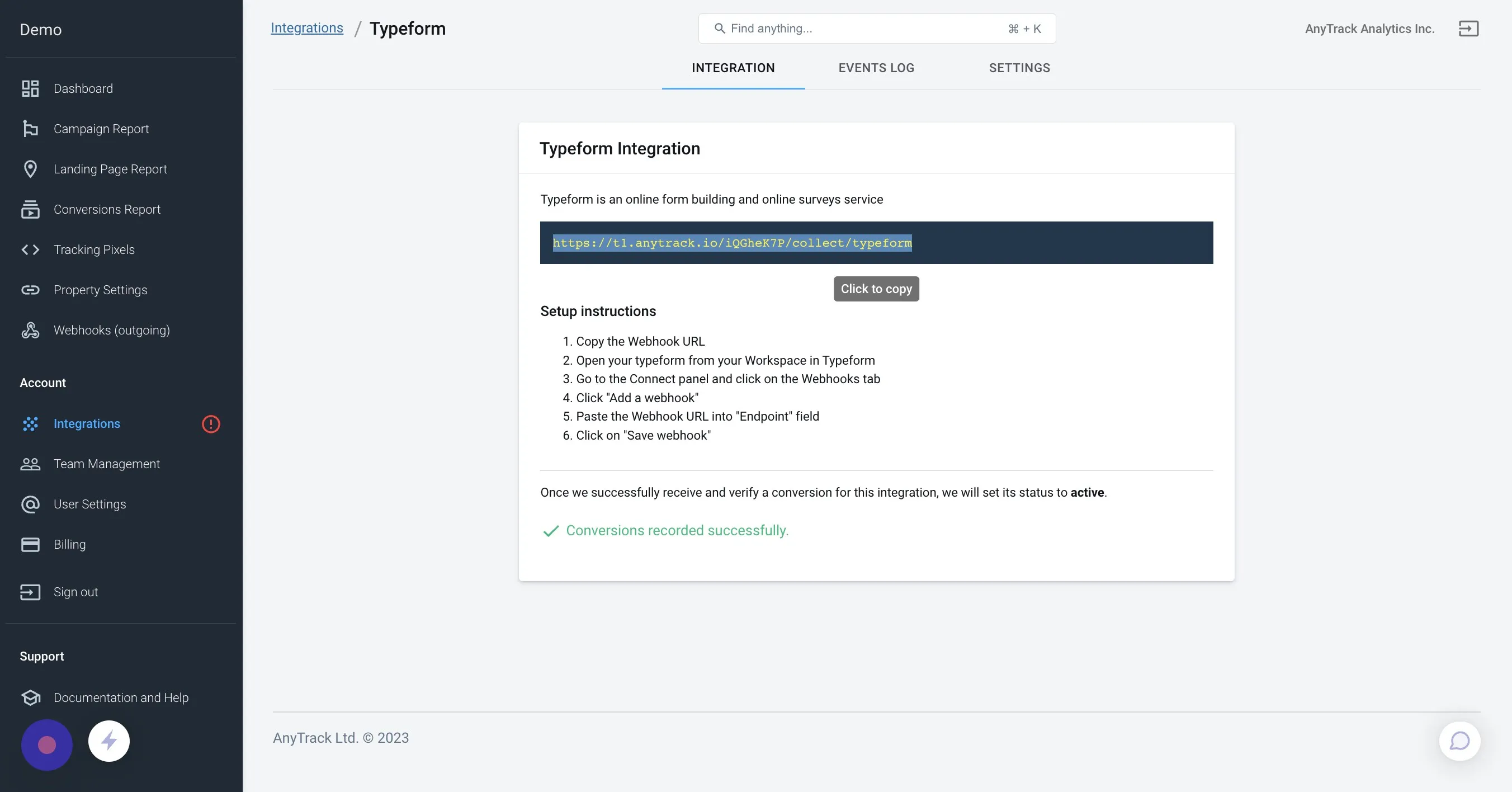
Step 5: Copy the AnyTrack Webhook URL
Section titled “Step 5: Copy the AnyTrack Webhook URL”Return to the AnyTrack dashboard and copy the webhook URL:

Step 6: Add Webhook to Typeform
Section titled “Step 6: Add Webhook to Typeform”In your Typeform, go to the Connect tab and add the AnyTrack webhook:

Step 7: Activate the Webhook
Section titled “Step 7: Activate the Webhook”Paste the webhook URL, save it, and turn it on:
Step 8: Verify Setup
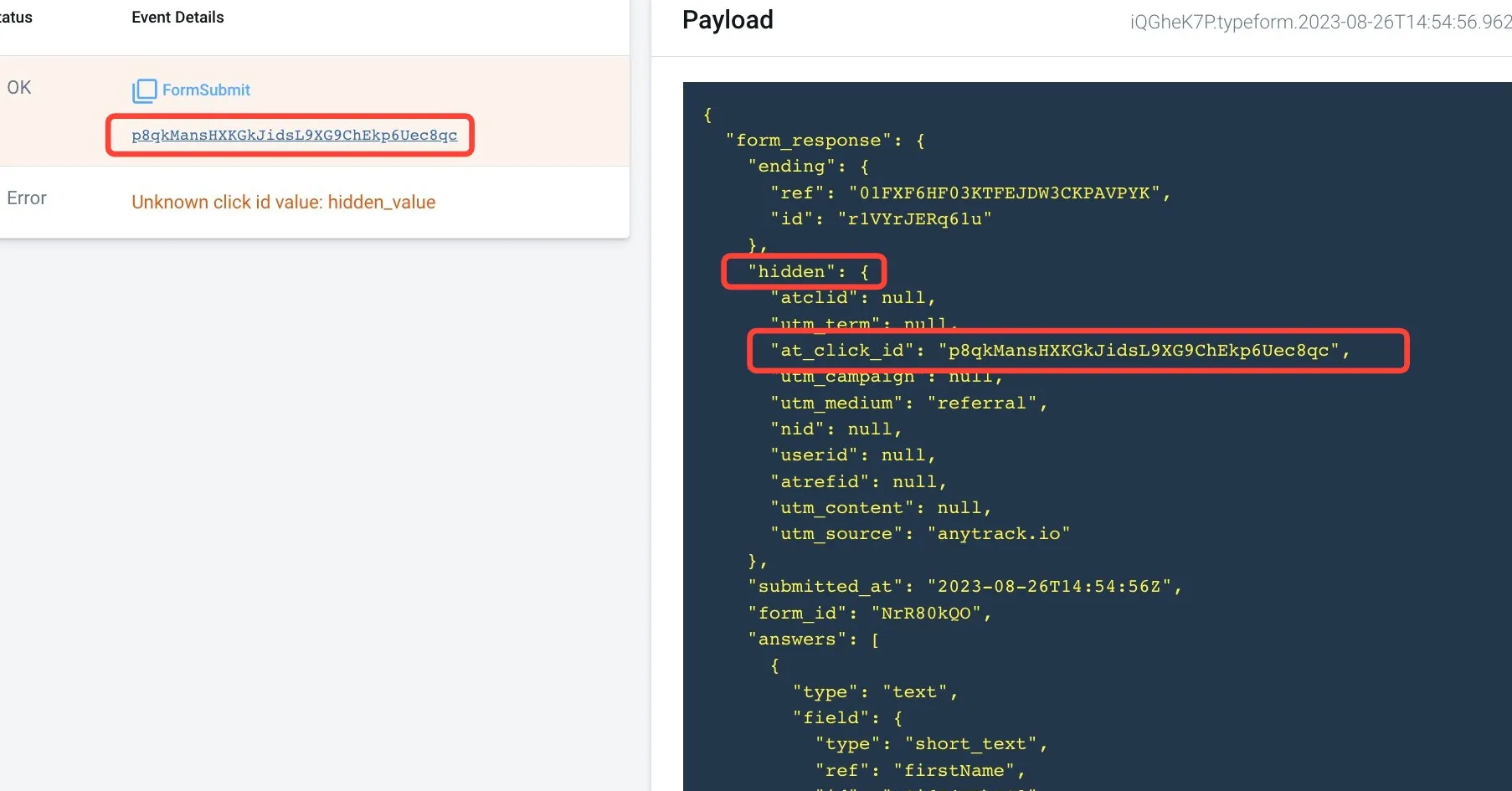
Section titled “Step 8: Verify Setup”Open the Event Log to inspect webhook data and confirm everything is working:
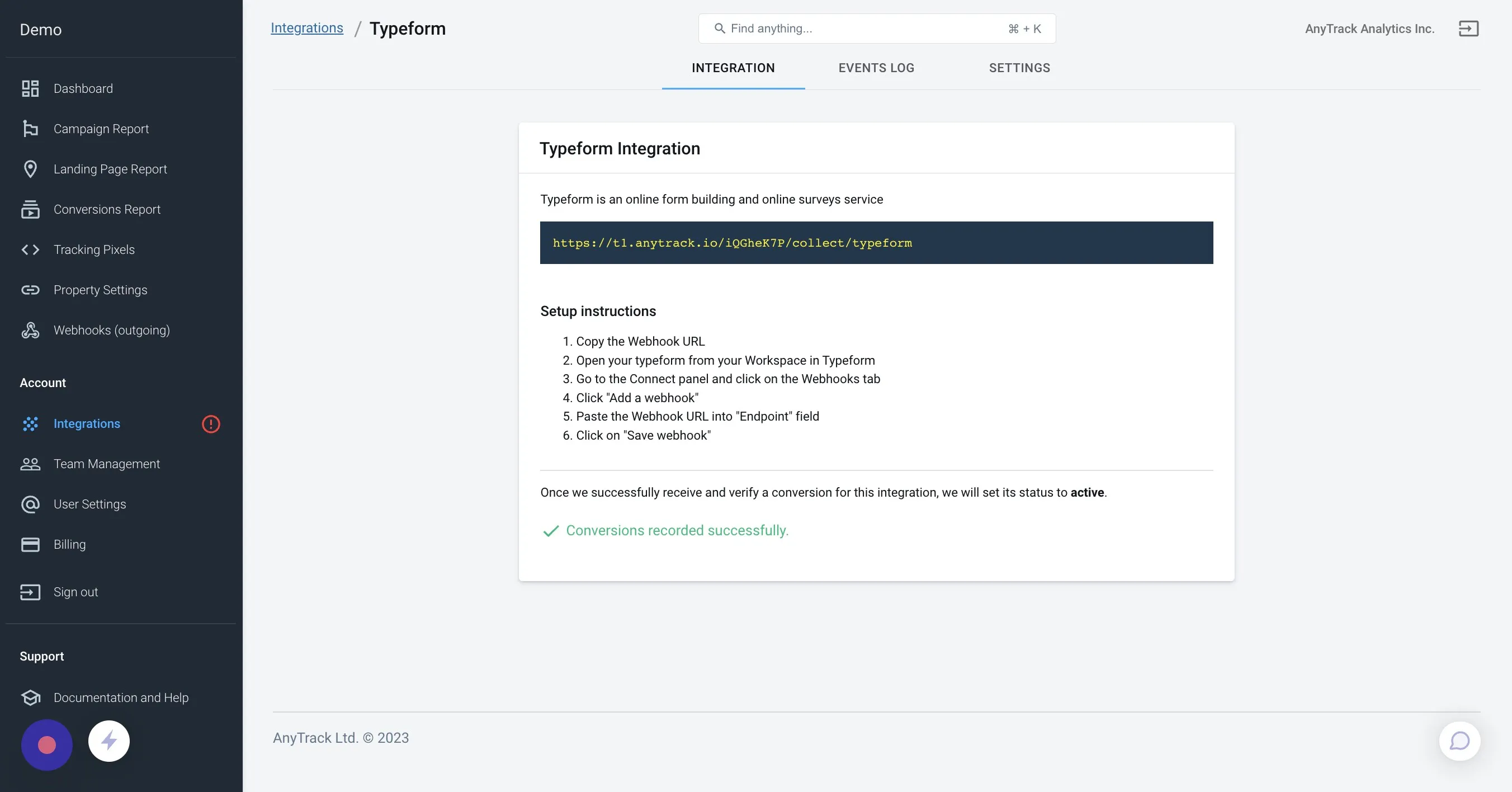
Step 9: Integration Complete!
Section titled “Step 9: Integration Complete!”Your Typeform integration is now active and tracking conversions:
Send Typeform Leads to Your CRM
Section titled “Send Typeform Leads to Your CRM”If your Typeform feeds a CRM — where the contact is created and the deal is worked — the Typeform submission itself is attributed, but the CRM-side events (new contact, lead stages, deal progression) will land under Unknown unless the Click ID travels with the lead into the CRM.
AnyTrack passes the Click ID into Typeform’s at_click_id field. To carry it downstream, map that value into the field your CRM reads:
| Destination CRM | Map at_click_id into |
|---|---|
| HubSpot | the AnyTrack Click ID property (parameter atclid) |
| GoHighLevel | the _atid custom field |
| LeadByte | c3 |
| Any custom CRM | a custom field you create |
For the full external-form → CRM pattern and the parameters for every form platform, see Pass the Click ID from External Forms to Your CRM.
Validation and Testing
Section titled “Validation and Testing”Validate that your integration is working correctly with these steps.
Typeform Links Tracking Validation
Section titled “Typeform Links Tracking Validation”Since conversion tracking begins when visitors land on your website, verify that your Typeform links are properly tracked and AutoTagged (automatically enhanced with tracking parameters).
AutoTag Methods
Section titled “AutoTag Methods”Choose the AutoTag method that works best for your setup:
- Automatic: AnyTrack automatically identifies and AutoTags Typeform links and embeds found on your website. Nothing to be done.
- AutoScan: AnyTrack scans links embedded in redirect plugins and AutoTags them accordingly. Learn about AutoScan.
- Manual Options:
- Tracking Group Attribute: Add the tracking group attribute to links:
data-tracking-group="typeform"orrel="typeform". Learn more about Tracking Groups - Click ID Token: Manually append the
subid:&at_click_id=--CLICK-ID--to the Typeform link
- Tracking Group Attribute: Add the tracking group attribute to links:
Verification Checklist
Section titled “Verification Checklist”- Check Link Tracking: Ensure your Typeform links are being tracked
- Verify Parameters: Check in your Typeform account results to see if
at_click_idparameters are being passed to submissions - Test Form Submission: Complete a test form submission and verify the data appears in AnyTrack
Conversion Tracking Validation
Section titled “Conversion Tracking Validation”Live Testing Process:
-
Prepare Test Environment:
- Clear browser cookies and cache
- Open incognito/private browsing window
- Have AnyTrack Event Log open in separate tab
-
Execute Test Journey:
- Visit your website from a tracked traffic source (or simulate with UTM parameters)
- Click on Typeform link/embed
- Complete and submit the form (or trigger partial submission)
- Check Event Log for real-time data
-
Validate Data Points:
- Confirm
OutboundClickevent appears immediately after clicking form - Verify
FormSubmitorPartialFormSubmitevent appears after form interaction - Check that
at_click_idmatches between events - Ensure traffic source attribution is correct
- Confirm
Example Typeform conversion payload received via Webhook
Section titled “Example Typeform conversion payload received via Webhook”Here’s what a typical Typeform webhook payload looks like:
{ "form_response": { "ending": { "ref": "01FXF6HF03KTFEJDW3CKPAVPYK", "id": "r1VYrJERq61u" }, "hidden": { "atclid": null, "utm_term": null, "at_click_id": "p8qkMansHXKGkJidsL9XG9ChEkp6Uec8qc", "utm_campaign": null, "utm_medium": "referral", "nid": null, "userid": null, "atrefid": null, "utm_content": null, "utm_source": "anytrack.io" }, "submitted_at": "2023-08-26T14:54:56Z", "form_id": "NrR80kQO", "answers": [ { "type": "text", "field": { "type": "short_text", "ref": "firstName", "id": "nCi6I4NPbAO3" }, "text": "john" }, { "type": "email", "field": { "type": "email", "ref": "email", "id": "VW1G1LkwtQYf" }, "email": "johnman@example.com" } ], "landed_at": "2023-08-26T14:54:17Z", "token": "uyhvrh82zns95misuyhvrwfx603yspa2" }, "event_id": "01H8S5EJXYJG4N7NWM4AFMQSZ8", "event_type": "form_response"}The key element to look for is the at_click_id in the hidden fields, which connects the form submission to the original visitor session.
Common Questions
FAQ was last reviewed on 2026-06-30
Can I import past conversions into AnyTrack?
Can I track direct linking campaigns?
Can I use a different subid parameter than at_click_id?
at_click_id parameter is required and cannot be changed. This ensures compatibility with AnyTrack's tracking system.Can I track conversions without the click_id?
click_id passed to Typeform links is essential for tracking conversions. Without it, AnyTrack cannot attribute form submissions to the original visitor sessions.How can I change the conversion event name?
What triggers the PartialFormSubmit event?
PartialFormSubmit event is triggered based on Typeform's partial form submit settings. This allows you to collect leads even when visitors don't complete the entire form.What happens if my webhook fails?
at_click_id hidden field if the issue persists.Troubleshooting Checklist
Section titled “Troubleshooting Checklist”If you’re experiencing issues, verify these common setup requirements:
- Tracking Tag Placement: Ensure your AnyTrack tracking tag is installed in the
<head>section of your website - Account Limits: If you’re on the free plan, check that you haven’t reached the monthly traffic limit. Upgrade your plan if needed
- Hidden Field: Confirm the
at_click_idhidden field is properly added to your Typeform - Webhook Configuration: Verify the webhook URL is correctly configured and active in your Typeform settings
- Link Tracking: Test that your Typeform links are being properly AutoTagged
- HTTPS Requirements: Ensure all pages use HTTPS for proper tracking functionality
- Ad Blockers: Test with ad blockers disabled to rule out interference
Getting Additional Help
Section titled “Getting Additional Help”If you continue to experience issues after checking the troubleshooting steps above, please contact our support team with:
- Your AnyTrack account details
- The specific Typeform you’re trying to track
- Any error messages you’re seeing
- Screenshots of your configuration settings
- Test results from the validation checklist
Our team can provide personalized assistance to get your integration working properly.