
Shopify Permalink
Learn how to create Shopify checkout links and embed products on external websites while maintaining accurate conversion tracking with AnyTrack.
Learn how to create checkout links and embed products on external websites while maintaining accurate conversion tracking with AnyTrack.
How to Create a Tracking-Friendly Checkout Link
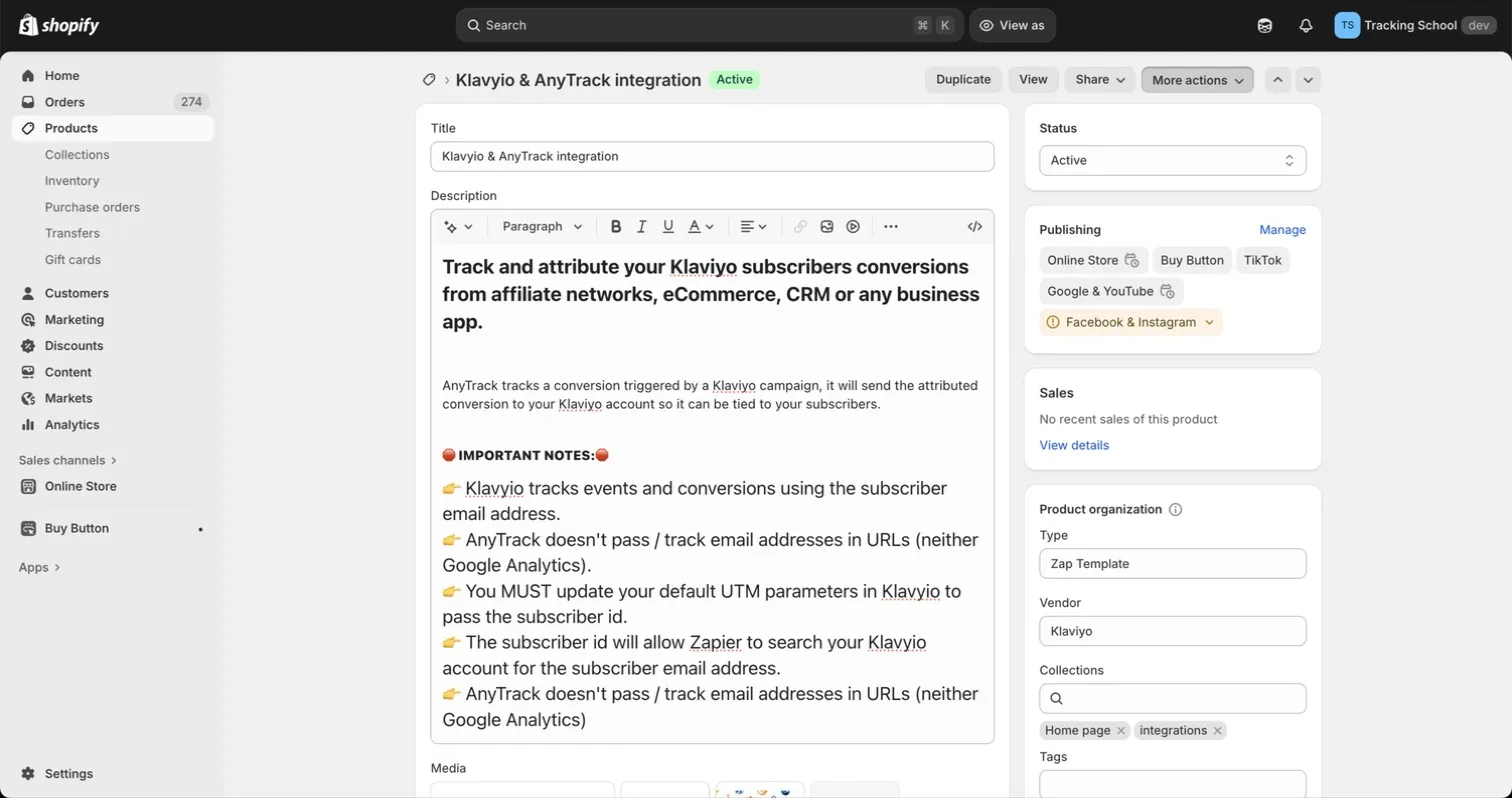
Section titled “How to Create a Tracking-Friendly Checkout Link”- Open one of your Products and click More actions > Create checkout link
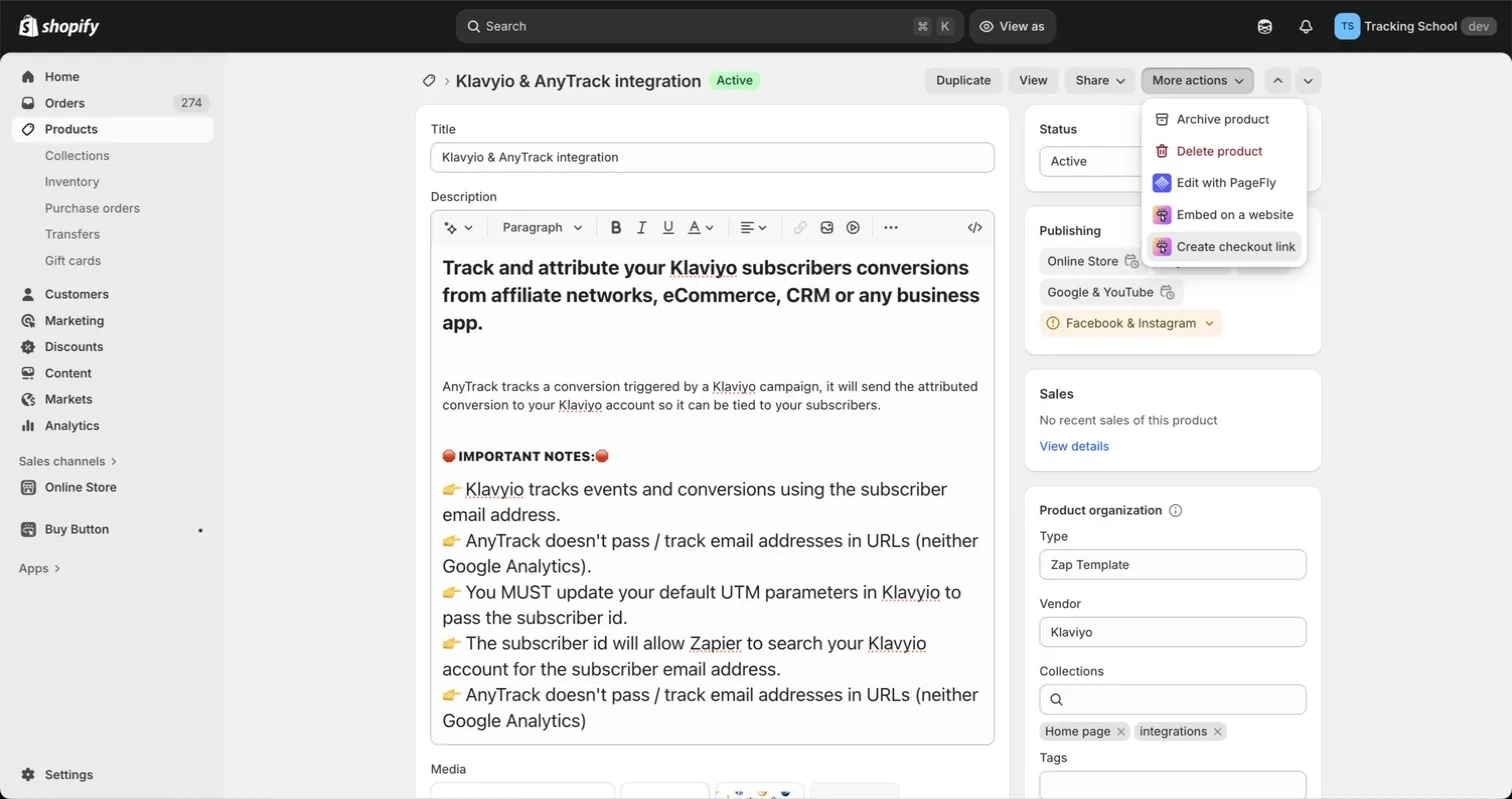
- Click on Create checkout link.
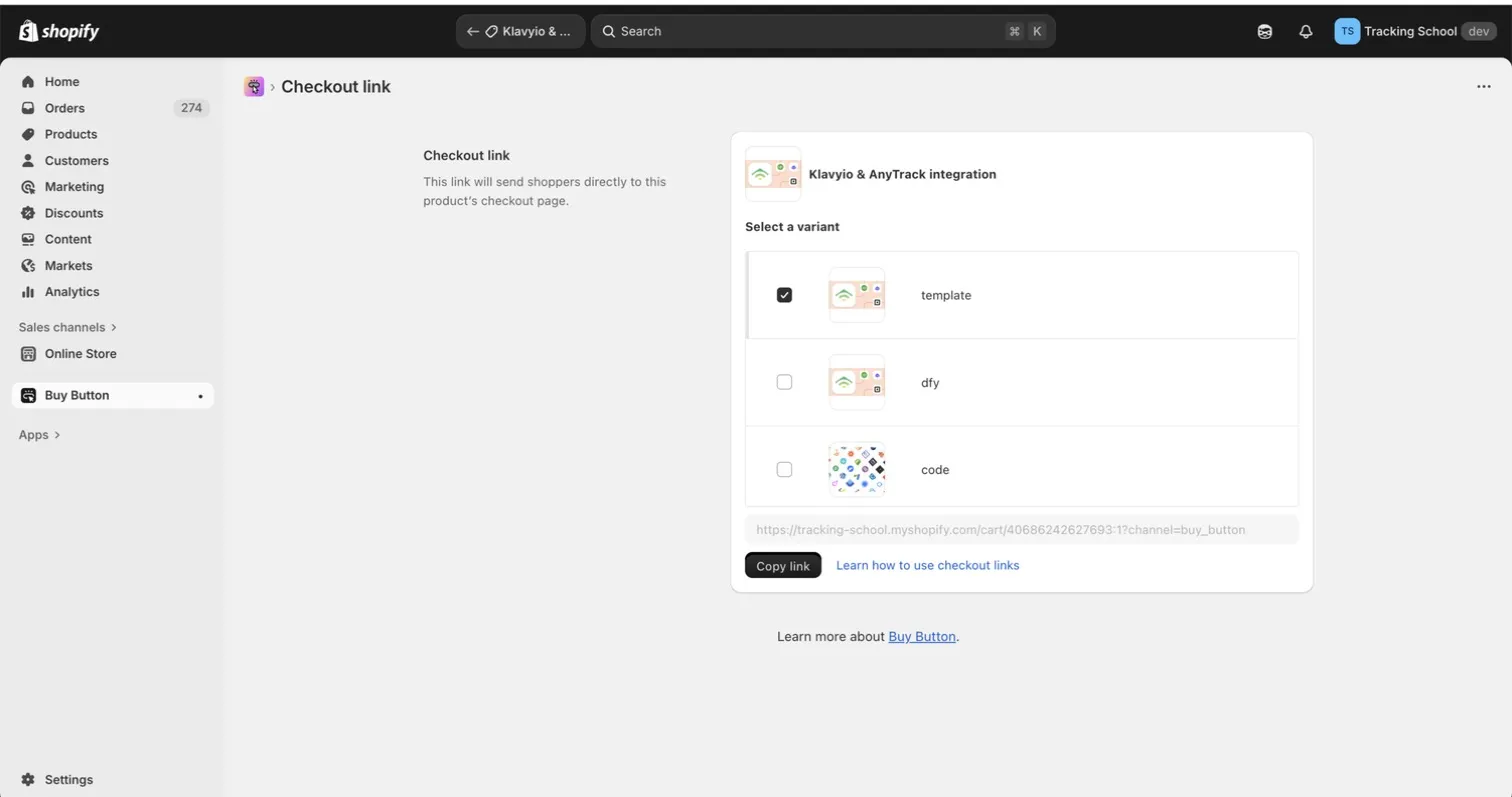
- Click the Copy Link button.
- Paste the Checkout Link on the website where you want to promote your product.
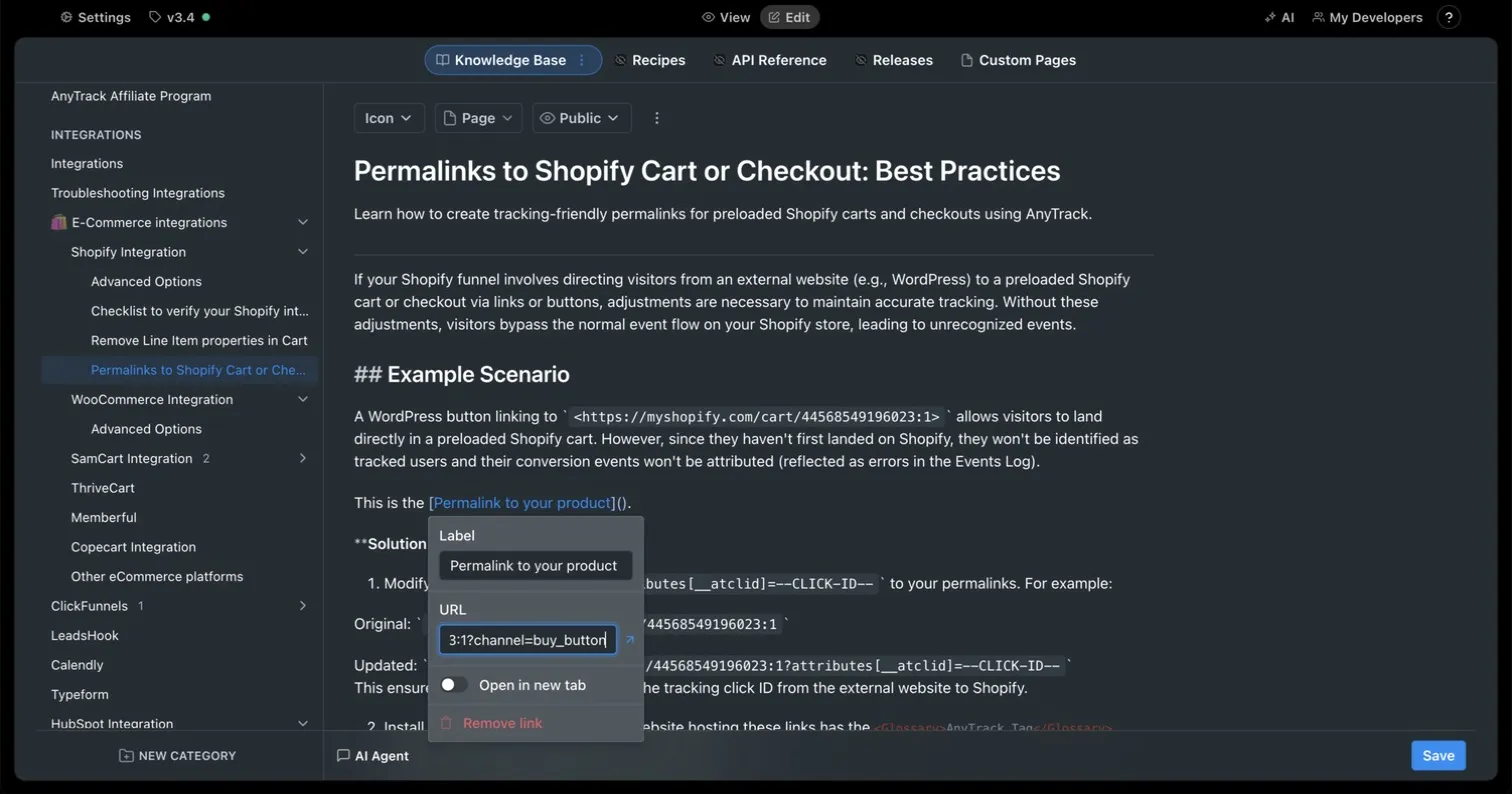
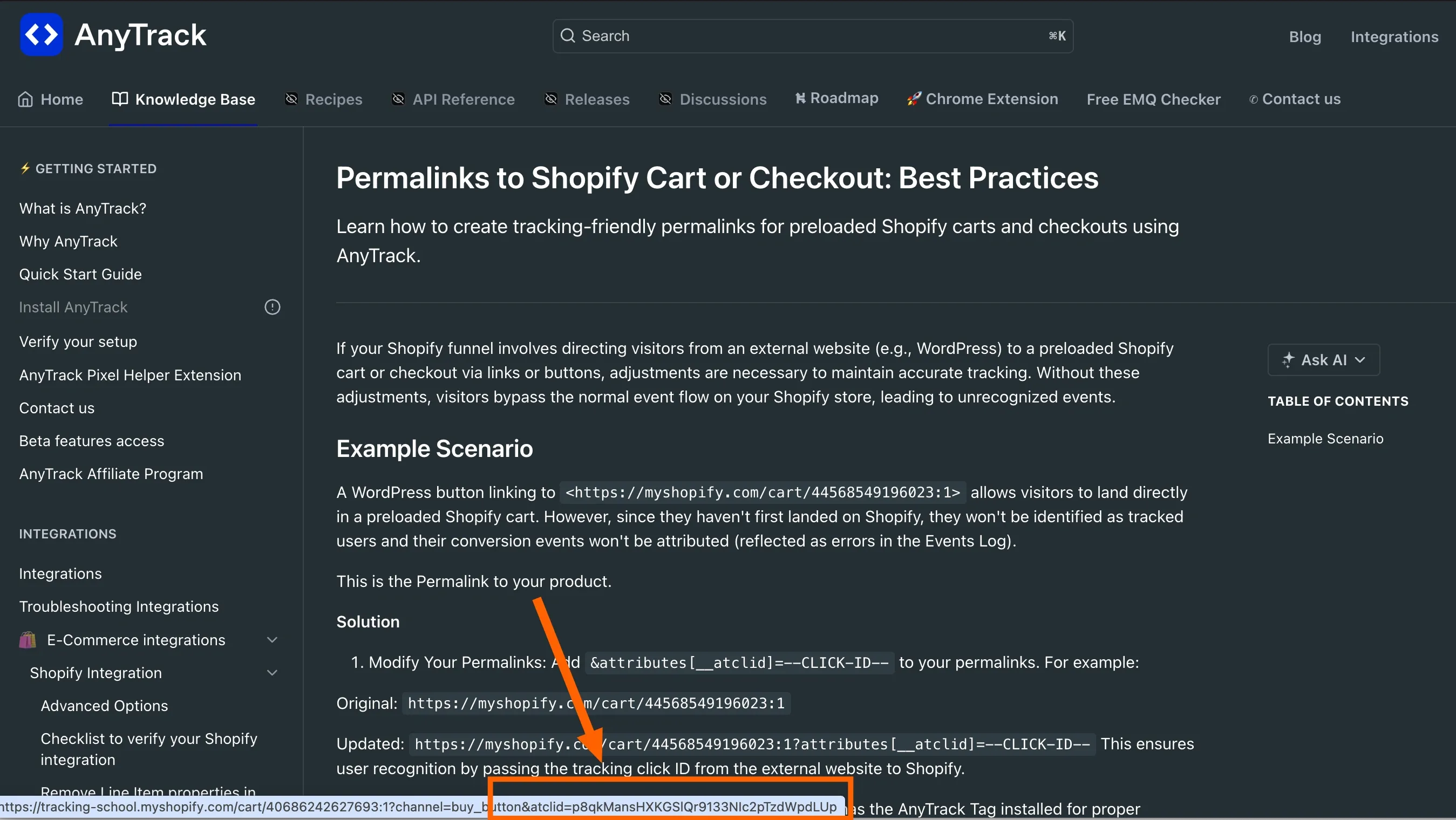
- When hovering on the checkout link, you should notice that the link is AutoTagged with the AnyTrack tracking parameter.
Shopify Permalinks - Frequently Asked Questions
FAQ was last reviewed on 2026-07-26
Does the checkout link work from any external website?
Yes, as long as the AnyTrack Tracking Tag is installed in the head section of the external website. Without the tag, AnyTrack cannot read visitor data and the tracking parameter will not be passed to Shopify.
What if the AnyTrack Tag is not on my external website?
If the external site does not have the AnyTrack Tracking Tag installed, visitors who click the checkout link will not be tracked. Install the tag on every page of the external website where you place Shopify checkout links.
Will the tracking parameter be visible to customers?
No. The AnyTrack tracking parameter is passed as a hidden cart attribute. Per Shopify conventions, any attribute beginning with an underscore is hidden from customers at checkout.