
Facebook Ads
Connect Facebook Ads with AnyTrack to enable Conversion API tracking and campaign reporting. Send server-side conversion data for better ad optimization and accurate attribution.
Connect your website or shop with Facebook Ads using AnyTrack. As a Meta Business Partner, AnyTrack connects your tracking without coding and improves ROAS, Event Match Quality, and attribution with real-time data. To understand how AnyTrack uses the Meta Pixel, Conversion API, and Conversion API for CRM together, see Meta Pixel vs CAPI vs CAPI for CRM.
Facebook Ads Integration Features
Section titled “Facebook Ads Integration Features”Main Features
Section titled “Main Features”Access real-time campaign performance data directly in AnyTrack. Sync your Facebook Ads data for detailed reporting across all your marketing channels.
- Unified reporting dashboard
- Real-time campaign metrics
- Cross-channel attribution
- Performance analytics
Server-side connection to Facebook’s Conversion API for accurate conversion tracking that bypasses browser limitations and ad blockers.
- Server-to-server tracking
- Enhanced measurement accuracy
- Improved Event Match Quality
- Privacy-compliant data delivery
Track Meta Lead Ads with Instant Forms and send CRM conversions to Facebook Conversion API to close the conversion loop.
- Lead Ads campaign tracking
- CRM conversions sent to Meta
- Complete customer journey visibility
- Offline conversion tracking
AnyTrack automatically loads and manages your Meta Pixel, ensuring proper initialization and complete event data collection without manual code implementation.
- Automatic tag loading
- No-code implementation
- Proper Meta Pixel initialization
- Centralized tag management
Configuration and Management
Section titled “Configuration and Management”Connect multiple Facebook Ad accounts to a single AnyTrack property for consolidated reporting and management across all your advertising efforts.
- Multi-account support
- Centralized management
- Consolidated reporting
- Flexible account switching
Use AnyTrack’s recommended UTM tracking template with dynamic parameters for precise attribution.
- Dynamic parameter insertion
- Standard and custom parameters
- Automated campaign tagging
- Bulk template application
Map your website or platform events to Facebook’s standard events or create custom event mappings directly from the AnyTrack dashboard.
- Standard event mapping
- Custom event support
- Visual mapping interface
- Event preview and testing
Create custom conversions directly from the AnyTrack dashboard to track business-specific goals without additional code.
- No-code custom conversions
- Rule-based conversion creation
- Advanced filtering options
- Direct API integration
Validation and Testing Tools
Section titled “Validation and Testing Tools”Automatically verify that your UTM tracking template is correctly installed across all your Facebook campaigns with visual status indicators.
- Red/yellow/green status marks
- Campaign-level verification
- Error detection and guidance
- Bulk verification tool
Monitor and optimize your Event Match Quality scores to improve attribution accuracy and ad performance.
- Real-time EMQ monitoring
- Score improvement suggestions
- Parameter completeness tracking
- Data quality insights
View conversion data sent to Facebook in real-time to verify your integration is working correctly before going live.
- Real-time event preview
- Test event validation
- Debug mode visibility
- Pre-launch verification
Meta Conversion API (CAPI) and Server-Side Tracking
Section titled “Meta Conversion API (CAPI) and Server-Side Tracking”AnyTrack sends all conversion events to Meta server-side through the Conversion API. The Meta Pixel, loaded by the AnyTrack Tracking Tag, fires only PageView, so ad blockers and browser privacy restrictions do not affect your conversion data. Connecting Facebook Ads for campaign reporting and Meta Pixel tag management works on every plan, including Free; sending conversions through the Conversion API requires a Starter plan or higher.
Set up the Facebook Conversion API for the full pipeline, setup steps, verification, and deduplication.
For how the Meta Pixel, Conversion API, and Conversion API for CRM compare and work together, see Meta Pixel vs CAPI vs CAPI for CRM.
How AnyTrack Works with Facebook Ads
Section titled “How AnyTrack Works with Facebook Ads”The Process
Here’s how AnyTrack integrates with Facebook Ads to optimize your campaigns:
When visitors land on your website, the AnyTrack Tracking Tag activates:
- Automatically loads the Meta Pixel (if not already present)
- Collects essential data (UTM parameters, referrer data,
fbclid) - Gathers first-party data (cookies, session IDs)
- Activates AutoTag on trackable elements (carts, product links, forms)
When visitors engage with your content, AnyTrack automatically tracks:
- Key events:
AddToCart,OutboundClick,FormSubmit - Tags forms, links, and carts with tracking parameters
- Shopify, ClickFunnels, WooCommerce tracking
Tracked events are processed in real-time:
- Deduplication and normalization based on Facebook’s requirements
- Event Mapping to Facebook’s standard events
- Event Attributes matched to Facebook’s expectations
Live data and reporting:
- Real-time tracking data available across AnyTrack dashboard
- Complete reports combining multiple data sources
- Instant insights into campaign performance
Data Flow Diagram
The integration follows this data flow:
Website Visitor → AnyTrack Tag → Event Processing → Facebook Conversion API → Campaign Optimization
Each step ensures data accuracy, compliance, and real-time attribution for optimal performance.
How to Set Up Facebook Ads in AnyTrack (in 5 minutes)
Section titled “How to Set Up Facebook Ads in AnyTrack (in 5 minutes)”New to AnyTrack? Learn how to create a property and browse the Integration Catalog to connect a conversion source.
Connect your accounts to allow automatic syncing of campaign data and conversions through the Conversion API. No coding needed.
- Log in to AnyTrack, navigate to Tracking Pixels, and click Connect Tag
- Follow the prompts to connect your Facebook Ads account
- Enable server-to-server tracking
- Save changes
The UTM Parameters Template allows AnyTrack to accurately identify and attribute conversions to the correct Facebook Ad.
- Select the connected Meta Pixel in the Tracking Pixels section, click the Ads Integrations tab, and copy the UTM Tracking Template
- Log in to Meta Ads Manager and navigate to the campaign level
- Access the option to add URL parameters
- Paste the tracking template with all necessary parameters (ad set name, ad ID, campaign ID)
- Verify your ads
Verify that your ads are properly configured after connecting and installing the UTM Tracking Template.
- Navigate to the Tracking Pixels section and select the Meta Pixel for your campaigns
- Click the Ads Integrations tab
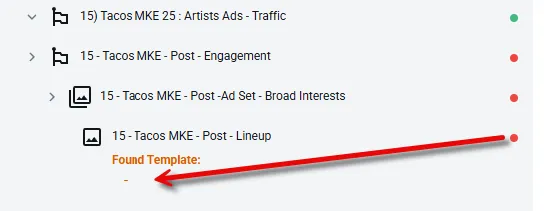
- Click Verify Ads Settings. If correctly installed, you’ll see a green mark next to your campaigns
A red mark indicates the template was not found. A yellow mark signals the template is present but contains errors. Click to see the cause of the warning.
Validate Your Facebook Integration
Section titled “Validate Your Facebook Integration”Once installed, the UTM template allows AnyTrack to track every visitor’s journey from the Facebook ad click to conversion, providing detailed insights into your campaign’s performance.
Validation Checklist
Section titled “Validation Checklist”- Check that you’ve connected the correct Meta Pixel ID.
- Check that you’ve connected your ad account.
- Check that you’ve enabled the Facebook Conversion API.
- If you’ve updated the Event Mapping, verify that the events are being recorded in the Event Manager.
- You’ve added the Facebook UTM Tracking template to all your ads.
- Check that you’ve selected the correct Meta Pixel and optimization event in your campaigns.
- Check the Facebook Event Manager to ensure you don’t see any Browser Events.
Cross-Platform Integration
Section titled “Cross-Platform Integration”Expand Your Reach: AnyTrack supports multiple advertising platforms beyond Facebook. Set up unified tracking across:
- Google Ads - Track Google’s conversion data with enhanced attribution
- TikTok Ads - Use TikTok’s growing advertising platform
- Microsoft Ads - Reach Bing’s search audience effectively
- Taboola - Native advertising with precise tracking
Connect Your Store: Integrate your eCommerce platform for complete conversion tracking:
- Shopify Integration - Tracking Tag + webhooks for automatic order tracking
- WooCommerce Integration - WordPress eCommerce tracking
- ClickFunnels Integration - Funnel-based conversion tracking
- Browse our complete Integration Catalog for more platforms
Facebook Ads Integration FAQ
FAQ was last reviewed on 2026-07-26
Do I need to add the Facebook Token in AnyTrack?
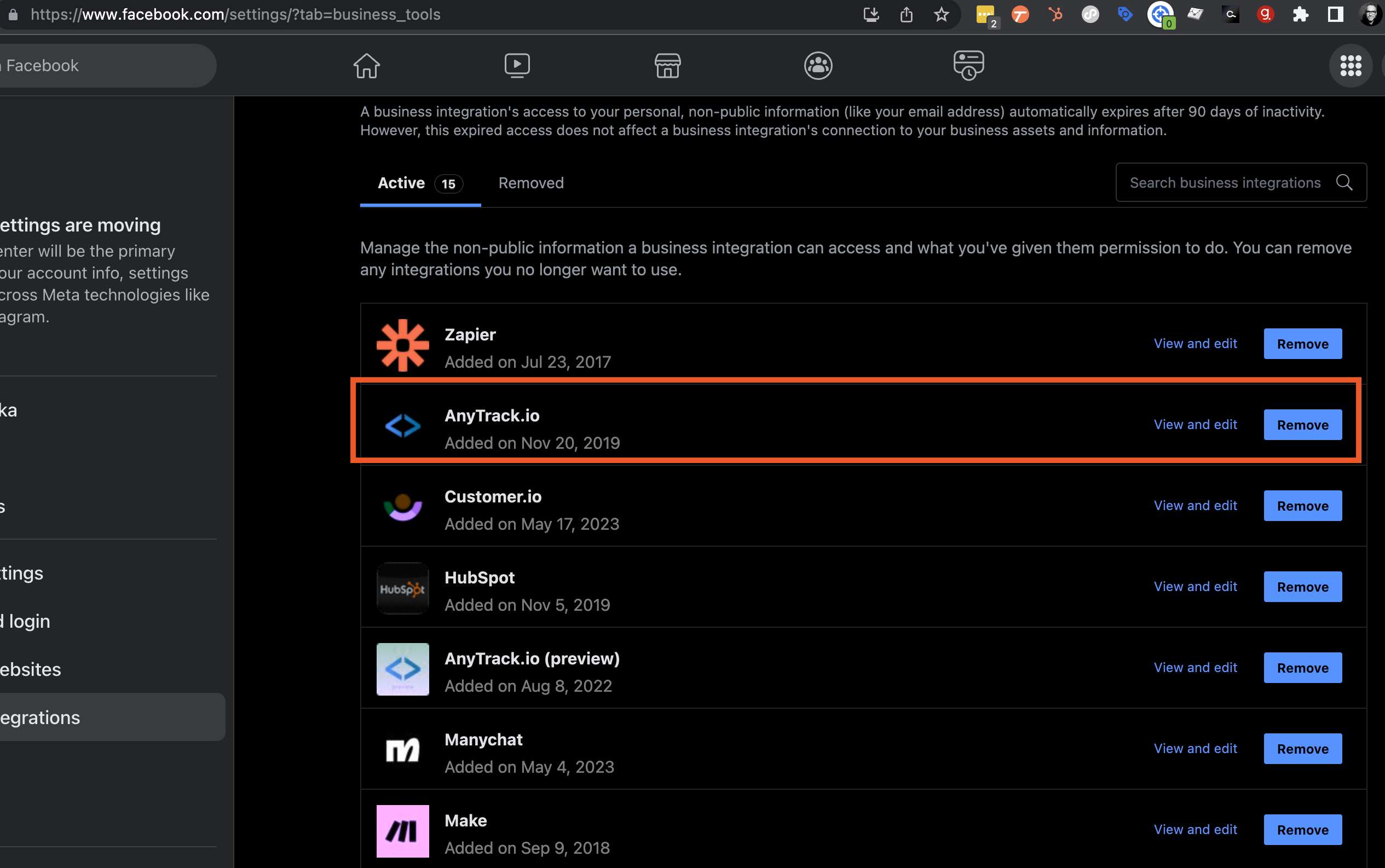
How do I verify that my Conversion API is connected?
How do I inspect conversions sent to the Facebook Conversion API?
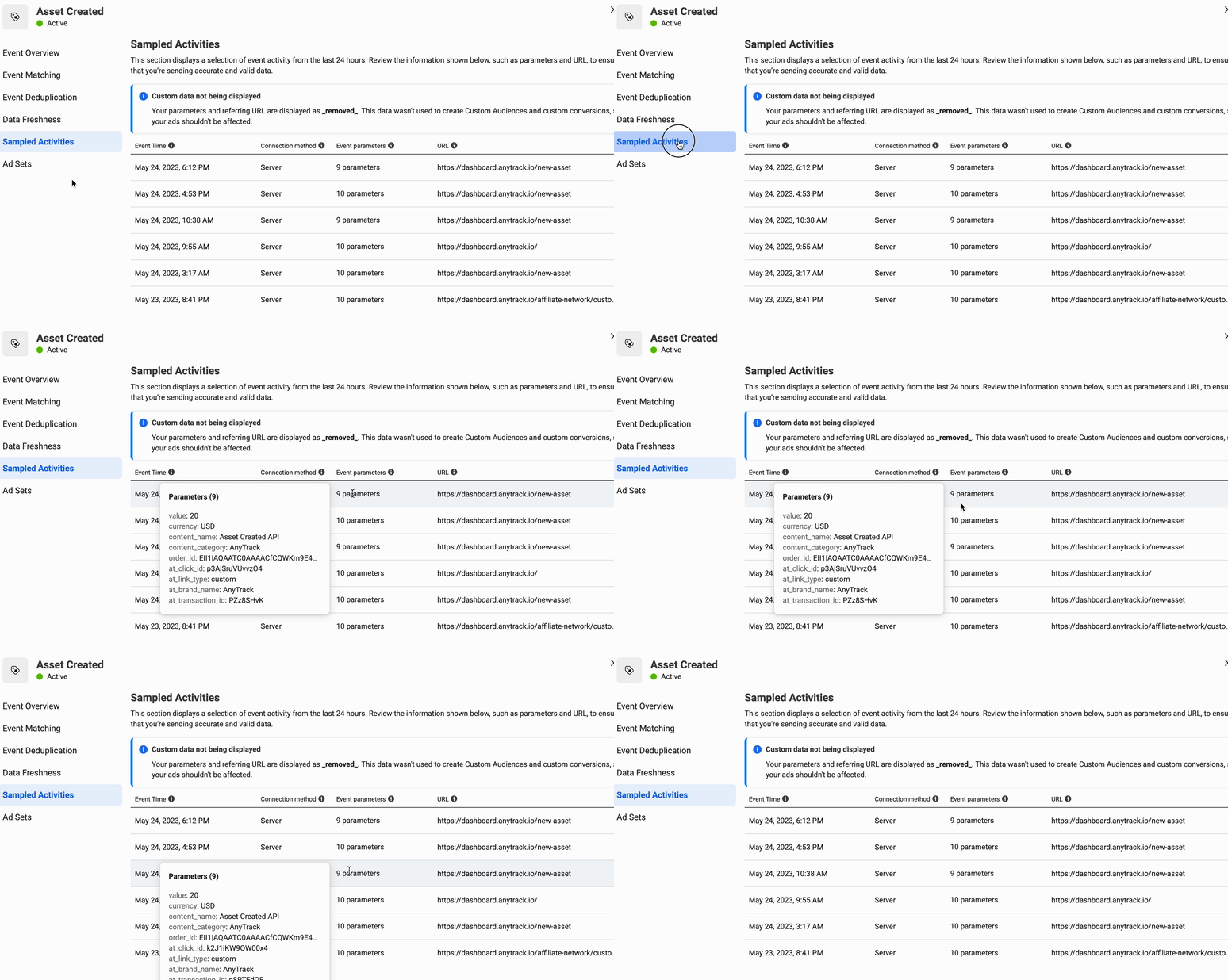
What is Facebook Ads integration in AnyTrack?
How do I set up Facebook Ads integration in AnyTrack?
What is event mapping in AnyTrack?
What are the benefits of using AnyTrack with Facebook Ads?
Why should I load the Meta Pixel through AnyTrack?
Why do my AnyTrack conversions not match what I see in Meta Ads Manager?
How do I test that my Meta Pixel events are being sent correctly through AnyTrack?
1. AnyTrack Conversions Report: Open the Conversions Report in AnyTrack. Trigger a test conversion (e.g., submit a form or complete a test purchase). You should see the event recorded in near real time.
2. Facebook Test Events Tool: In Meta Events Manager, open the Test Events tab. Events sent via the Conversion API will appear within 30 seconds of being triggered.
3. Check Event Details: Click on any event in the Events Manager to inspect the parameters sent (event name, value,
fbclid, etc.). Verify the data matches what you expect.4. Common Issues: If events don't appear, check that: (a) the Conversion API (server-to-server) is enabled in your Tracking Tag settings, (b) the UTM tracking template is installed on your ads, and (c) your Event Mapping is configured correctly.
Related Articles
Section titled “Related Articles”- Facebook Conversion API
- Install the AnyTrack Tag
- Facebook Ads Troubleshooting
- Facebook Business Manager Permissions
Next Steps
Section titled “Next Steps”Maximize Your Setup: Browse the Integration Catalog to connect all your marketing tools and platforms.
Fine-tune Your Setup: Learn about advanced configuration options, custom events, and optimization techniques.