
CAKE Integration
Learn how to connect CAKE | AnyTrack affiliate management with AnyTrack for conversion tracking and reporting. Set up postback URLs and event mapping to track affiliate conversions and optimize your campaigns. Learn why you should use it and how to install it today.
Cake Integration Overview
Section titled “Cake Integration Overview”Are you looking to get more out of your Cake and AnyTrack integration? With our integrated solution, you can now easily track conversions from any source. We bridge the gap between Cake and AnyTrack by sending conversion data directly from one platform to another. This allows for accurate tracking across multiple platforms like Google Ads, Facebook Ads, TikTok API and more! Get real-time insights into performance metrics with our powerful reporting tools so that you are able to make smarter marketing decisions quickly. All this is made easy without ever leaving the comfort of both dashboards!
How does the Cake AnyTrack integration work:
Section titled “How does the Cake AnyTrack integration work:”- Traffic: When visitors land on your website, AnyTrack collects traffic source data and First Party data.
- Engagements: When visitors click on your Cake affiliate links, AnyTrack does a few things:
- Collects granular data tied to the
OutboundClick. - Triggers Event Tracking API requests to your Tracking Tags and analytics.
- Collects granular data tied to the
- Conversions: When visitors convert on the merchant’s website, AnyTrack receives real time conversion data through Postback URL.
- Attribution: AnyTrack processes the conversion data and reports it across various reporting sections of the AnyTrack Dashboard.
- Conversion API: AnyTrack then sends your conversions to your Ad Platforms’ Conversion API so you can feed your ad platform’s Machine Learning, AI and automatic optimization according to 100% of your conversion data.
Technical details
Section titled “Technical details”| Reference | Value | Information |
|---|---|---|
| Tracking Group | cake | The Tracking Group reference can be used to activate AutoTag. |
| Subid Parameter | s2 | The Subid Parameter used to pass the AnyTrack click_id. |
| Tracking Method | Postback URL | - |
Standard Conversion Event Mapping
Section titled “Standard Conversion Event Mapping”| Event Name | Details | Data Source | Ad Platform Event Mapping |
|---|---|---|---|
OutboundClick | When a visitor clicks on Cake offer links. | AnyTrack JS Tag | ViewContent |
Purchase | When a conversion is generated in Cake with a commission > 0 | Postback URL | Purchase |
Standard Event Attributes Mapping
Section titled “Standard Event Attributes Mapping”Conversion payload sent to the Cake Postback URL
Section titled “Conversion payload sent to the Cake Postback URL”{ "s3": null, // Custom subid parameter set on offer link "s4": null, // Custom subid parameter set on offer link "s5": null, // Custom subid parameter set on offer link "campid": "8599", //cake campaign id "price": "7", //Commission Value "affid": "200", //Affiliate ID "oid": "565", //Cake Offer id "s1": "yes", // Custom subid parameter set on offer link "tid": "10232206589ae3003509aacaa07ef2", //Transaction ID generated by Cake "s2": "jxWUv1dyfyUCQnUF808u4iM7b0tMSpb88t",//Anytrack clickid passed to the cake offer link "cid": "761" // creative id set by Cake}| Cake Event Attributes | AnyTrack Attributes | Facebook Attributes |
|---|---|---|
| Not provided | Purchase | Purchase |
| s2 | click_id | external_id |
| tid | transactionId | order id used for deduplication |
| oid | itemId | product id |
| price | event_value | value |
| cid | - | - |
| affid | - | - |
| s1, s3, s4, s5 | - | - |
The Cake Postback URL
Section titled “The Cake Postback URL”The Postback URL is fully pre-defined and ready to be implemented within your Cake account.
https://t1.anytrack.io/hBtoE3hN/collect/cake-test?s1=#s1#&s2=#s2#&s3=#s3#&s4=#s4#&s5=#s5#&oid=#oid#&affid=#affid#&campid=#campid#&cid=#cid#&tid=#tid#&price=#price#Setup Guide
Section titled “Setup Guide”Step #1: Add Cake to your AnyTrack Account
Section titled “Step #1: Add Cake to your AnyTrack Account”- Go to the Integration Catalog, search for Cake.
- Now click on the Cake cardand then Click on Install.
Step #2: Connect your Cake account
Section titled “Step #2: Connect your Cake account”- Copy the predefined Postback URL
- Go to your Cake affiliate account
- Navigate to the offer tracking settings.
- Paste the postback URL
- Save
Validate your integration
Section titled “Validate your integration”This section will enable you to validate the main aspects of your setup.
Link tracking
Section titled “Link tracking”Since Tracking starts when visitors clicks on offer links, you should verify that your links are tracked and AutoTagged.
AutoTag Methods
Section titled “AutoTag Methods”- Default: By default, AnyTrack automatically identifies and AutoTags Cake links found on your website.
- AutoScan: AnyTrack scans links that are embedded in redirects plugins and AutoTags them accordingly.
- Manual:
- Tracking Group Attribute: You add the tracking group attribute to links according to their tracking requirements. For example:
data-tracking-group="cake"orrel="cake". More about Tracking Group. - Click ID Token: You Manually append the
subid:&s2=--CLICK-ID--to the offer link.
- Tracking Group Attribute: You add the tracking group attribute to links according to their tracking requirements. For example:
Once the links are set up, you can check in your Cake account reports and see whether the s2 parameters are passed to the offer links.
Here is an example of how you would manually update links fromcake:
<a href="https://example.foo/goto/cake" data-tracking-group="cake">Hover on theCake DemoLink to see the AnyTrack click_id</a>Conversion Tracking
Section titled “Conversion Tracking”To validate your setup, you should either wait for a conversion or trigger a test conversion yourself and inspect the conversion logs.
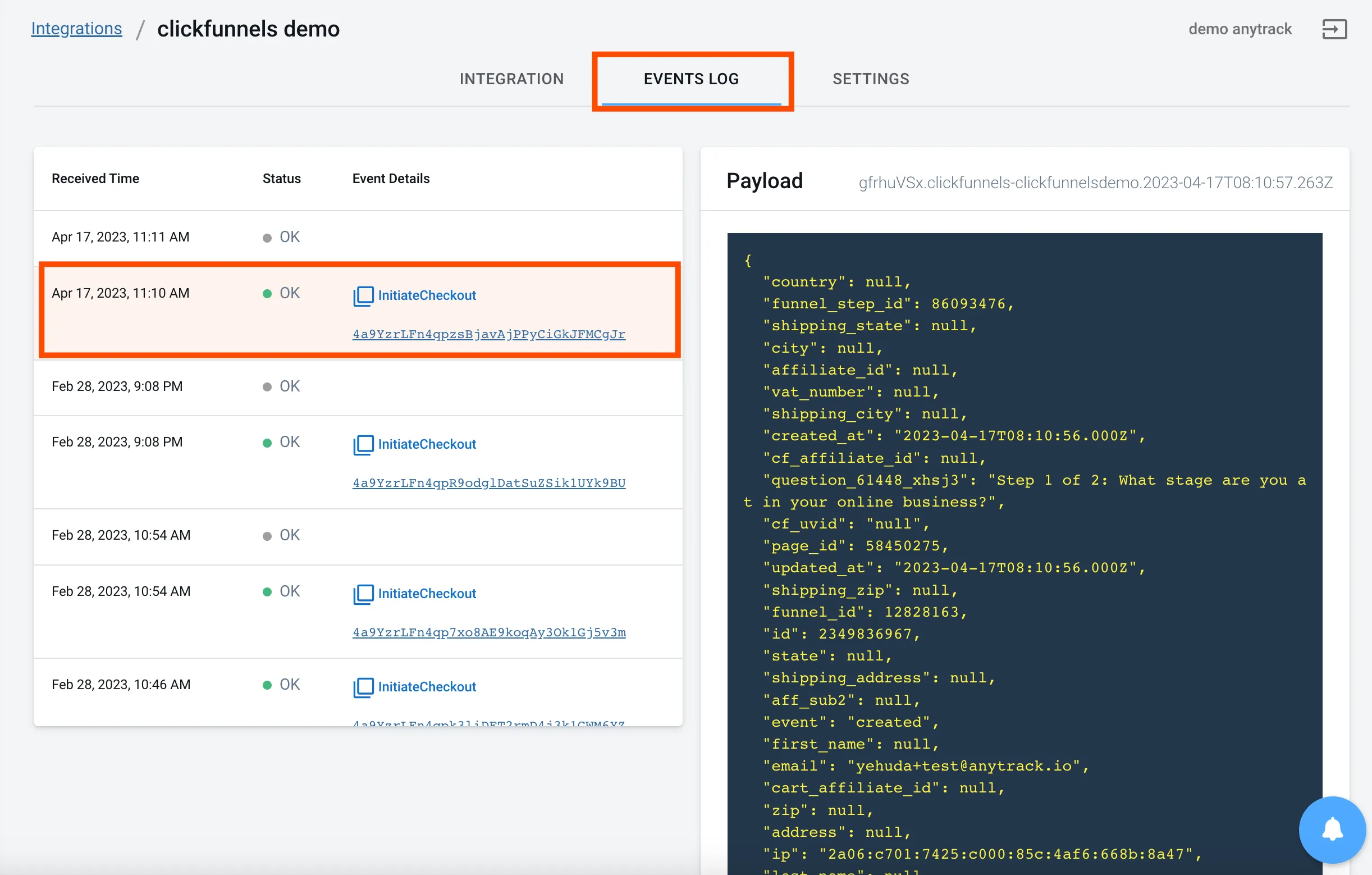
Cake conversion payload example
{ "s3": null, // Custom subid parameter set on offer link "s4": null, // Custom subid parameter set on offer link "s5": null, // Custom subid parameter set on offer link "campid": "8599", //cake campaign id "price": "7", //Commission Value "affid": "200", //Affiliate ID "oid": "565", //Cake Offer id "s1": "yes", // Custom subid parameter set on offer link "tid": "10232206589ae3003509aacaa07ef2", //Transaction ID generated by Cake "s2": "jxWUv1dyfyUCQnUF808u4iM7b0tMSpb88t",//Anytrack clickid passed to the cake offer link "cid": "761" // creative id set by Cake}Related Resources
Section titled “Related Resources”FAQ & Troubleshooting
Section titled “FAQ & Troubleshooting”-
Yes, simply install the CAKE integration from the Integration Catalog in AnyTrack to automatically generate the template needed for automatic tracking of your CAKE-based affiliate networks.
Can I integrate a CAKE-based affiliate network with AnyTrack using a template or a standard postback?
Section titled “Can I integrate a CAKE-based affiliate network with AnyTrack using a template or a standard postback?” -
No. AnyTrack can only ingest conversions that have been triggered following a visitor session on your website.
Can I import past conversions into AnyTrack?
Section titled “Can I import past conversions into AnyTrack?” -
Yes, but this requires a custom setup. Please refer to this article.
Can I track direct linking campaigns?
Section titled “Can I track direct linking campaigns?” -
No.
Can I use a different
Section titled “Can I use a different subid parameter than the one predefined by AnyTrack?”subidparameter than the one predefined by AnyTrack? -
No. The
Can I track conversions without the
Section titled “Can I track conversions without the click_id?”click_id?click_idpassed to the Cake links is required to track conversions. -
Cake doesn’t send an event name in their conversion payload. So any tracked conversion with a commission value > 0 will be tracked as a
The Conversion Event Name is not what I am expecting, how can I change it?
Section titled “The Conversion Event Name is not what I am expecting, how can I change it?”Purchaseevent. You can however, map the event to a different Event name in your ad integration. Learn how to use the Event mapping feature.
Take these steps to troubleshoot errors you encounter in AnyTrack
Section titled “Take these steps to troubleshoot errors you encounter in AnyTrack”-
General troubleshooting
Section titled “General troubleshooting”- Verify that your tracking tag is set in the
headsection of your website. - If you’re on the free plan, verify that you didn’t reach the monthly traffic limit and upgrade if needed.
- Verify that your tracking tag is set in the
-
When you are not tracking conversions, or most conversions trigger an error follow the guidelines below.
Conversion sources
Section titled “Conversion sources”
-
Native integrations refer to platforms that are predefined in the catalog and should provide an error-free data flow.
Native integrations
Section titled “Native integrations”
The most common error is that theclick_idis unknown or missing. It happens when AutoTag could not be activated.- Check that your links are not hidden behind some javascripts or double redirects.
- Check that the links are in a standard
aelement. - Try to manually set the tracking group attribute (check the integration guidelines).
- Check whether your offers are not getting traffic from websites where the AnyTrack Tag isn’t set.
- If you just installed AnyTrack, errors might be from traffic that wasn’t tracked by AnyTrack.
-
Conversion data doesn’t trigger an error 🔴, but is not validated 🟢:
Section titled “Conversion data doesn’t trigger an error 🔴, but is not validated 🟢:”- Check that the Postback URL you’ve set in the integration matches the pre-defined Postback URL we provide.
- Copy the Event Reference from the Integration Event Log and contact the support.
-
You’re not getting any conversions:
Section titled “You’re not getting any conversions:” - Check that the Postback URL is set and active in your platform.
- Check that you’re passing the correct AutoTag
s2parameter to the offer link. - Check that the Postback URL is correctly inserted in the custom integration.
CAKE LINK