
ClickFunnels Advanced
Advanced ClickFunnels tracking options including event mapping, conversion payload details, upsell differentiation, deeplink setup, and client-side tracking configuration.
How Does the ClickFunnels AnyTrack Integration Work
Section titled “How Does the ClickFunnels AnyTrack Integration Work”- Traffic: When visitors land on your website, AnyTrack collects traffic source data and First Party data.
- Engagements: When visitors optin on your ClickFunnels AnyTrack does a few things:
- Collects granular data tied to the
FormSubmit. - Triggers Event Tracking API requests to your Tracking Tags and analytics.
- Collects granular data tied to the
- Conversions: When visitors complete a Purchase, AnyTrack receives real time conversion data through Webhook.
- Attribution: AnyTrack processes the conversion data and reports it across various reporting sections of the AnyTrack Dashboard.
- Conversion API: AnyTrack sends your conversions to your ad platforms via the Conversion API, feeding their optimization algorithms with server-side conversion data.
Technical details
Section titled “Technical details”| Reference | Value | Information |
|---|---|---|
| Tracking Group | clickfunnels | The Tracking Group reference can be used to activate AutoTag. |
| Subid Parameter | click_id | The Subid Parameter used to pass the AnyTrack click_id. |
| Tracking Method | Webhook | - |
Standard Conversion mapping
Section titled “Standard Conversion mapping”| ClickFunnels Event | AnyTrack Event | Details | Data Source |
|---|---|---|---|
Form Submitted | FormSubmit | When a visitor submits a form | AnyTrack JS Tag |
Contact Created | Lead | When a contact is created | Webhook |
sale | Purchase | When a user generates a sale. | Webhook |
upsell | Purchase | When a user generates an Upsell | Webhook |
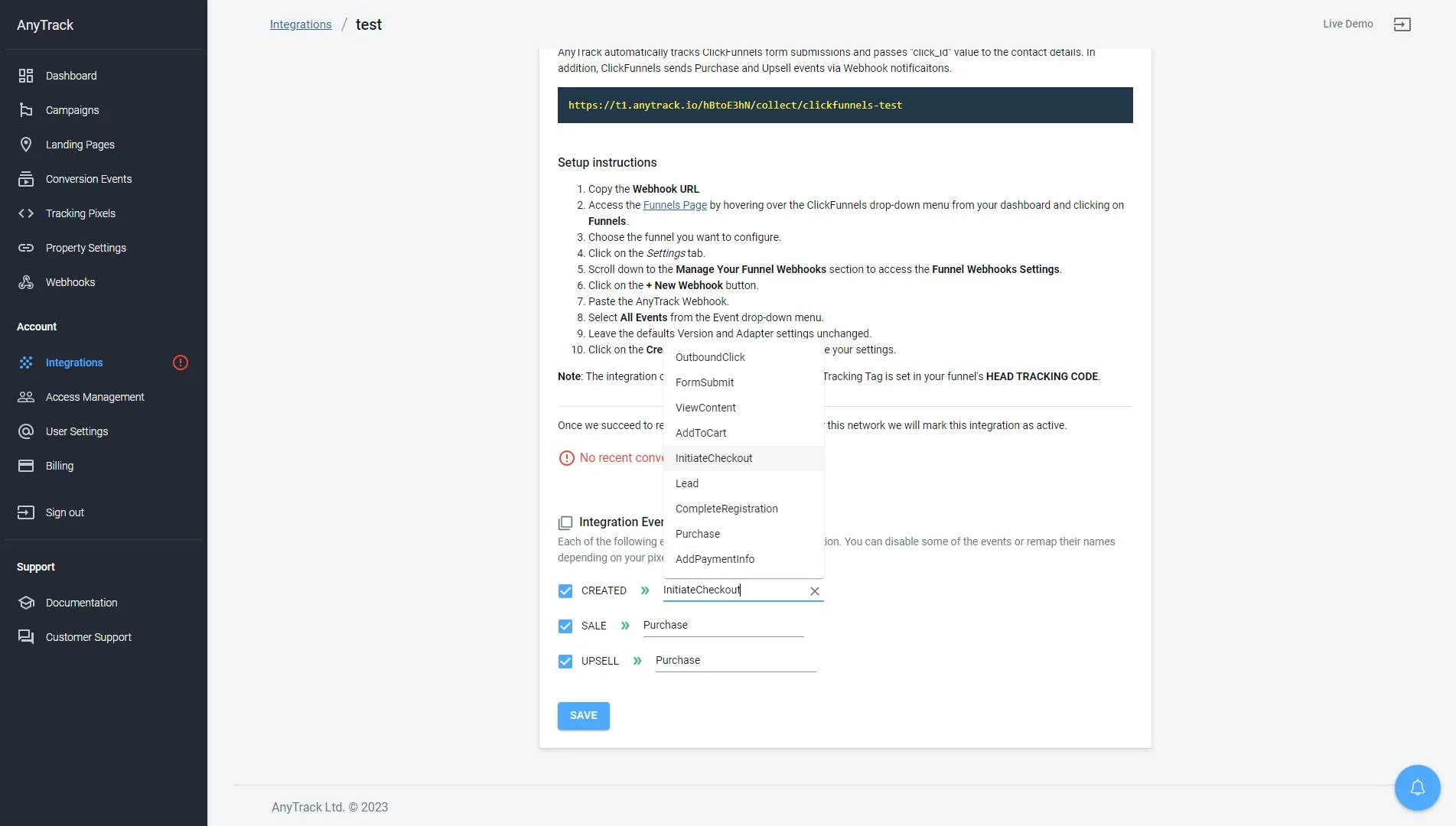
Adjust the Conversion Event Mapping (Optional)
Section titled “Adjust the Conversion Event Mapping (Optional)”The Event Mapping allows you to define which events to track and map them to Conversion Events you will forward to your Ads Integrations (ex: Facebook Conversion API)
ClickFunnels conversion payload example
{ "country": null, "funnel_step_id": 86093476, "shipping_state": null, "city": null, "affiliate_id": null, "vat_number": null, "shipping_city": null, "created_at": "2023-05-12T09:03:48.000Z", "cf_affiliate_id": null, "question_61448_xhsj3": "Step 1 of 2: What stage are you at in your online business?", "cf_uvid": "null", "page_id": 58450275, "updated_at": "2023-05-12T09:03:48.000Z", "shipping_zip": null, "funnel_id": 12828163, "id": 2373428474, "state": null, "shipping_address": null, "aff_sub2": null, "event": "created", "first_name": null, "email": "demoasdfxZss@anytrack.io", "cart_affiliate_id": null, "zip": null, "address": null, "ip": "2.54.160.75", "last_name": null, "time_zone": "Jerusalem", "answer_61448_xhsj3": null, "webinar_at": null, "webinar_last_time": null, "unsubscribed_at": null, "webinar_ext": "uXFq3Drq", "phone": null, "contact_profile": { "action_score": 50, "country": null, "shipping_state": null, "gender": null, "city": null, "vat_number": null, "deduced_location": null, "shipping_city": null, "known_ltv": "100.00", "created_at": "2023-02-20T13:32:17.000Z", "normalized_location": null, "cf_uvid": "d81ffd5cf667767b2c41d6c0cc77ca77", "updated_at": "2023-02-28T08:46:40.000Z", "globally_unsubscribed": false, "shipping_zip": null, "id": 1020309001, "state": null, "shipping_address": null, "first_name": "hello", "email": "demoasdfxZss@anytrack.io", "zip": null, "age_range_upper": null, "address": null, "last_name": "mikey", "middle_name": null, "time_zone": "Jerusalem", "tags": [], "unsubscribed_at": null, "tags_names": null, "phone": null, "location_general": null, "websites": null, "lists_names": null, "shipping_country": null, "age": null, "age_range_lower": null }, "additional_info": { "utm_campaign": null, "utm_medium": null, "purchase": { "order_saas_url": null, "payment_method_nonce": null }, "cf_affiliate_id": null, "question_61448_xhsj3": "Step 1 of 2: What stage are you at in your online business?", "time_zone": "Jerusalem", "answer_61448_xhsj3": null, "utm_term": null, "cf_uvid": "null", "click_id": "4a9YzrLFn4qpCMsUKNfEfU2YAmkWpDVsU2", "webinar_delay": "-63851109862376", "utm_source": "demo", "utm_content": null }, "click_id": "4a9YzrLFn4qpCMsUKNfEfU2YAmkWpDVsU2", "aff_sub": null, "name": null, "shipping_country": null}ClickFunnels Pro-Tips
Section titled “ClickFunnels Pro-Tips”How to differentiate between Purchase and Upsell Events?
Section titled “How to differentiate between Purchase and Upsell Events?”The default mapping Tracks and Sends a Purchase event to your ad integrations. If want to differentiate these events to improve your measurements and better understand your customer’s behavior, you can map the Upsell event to a custom event in AnyTrack and map the Upsell event to a custom conversion in Facebook (or any other ads integrations).
Step 1: Update the ClickFunnels Mapping
Section titled “Step 1: Update the ClickFunnels Mapping”- Navigate to your ClickFunnels integration
- Update the Upsell Event Mapping -
Step 2: Update Your Facebook Ads Event Mapping
Section titled “Step 2: Update Your Facebook Ads Event Mapping”- Open the Meta Pixel Settings
- Scroll down to the Event Mapping section
- Select the Upsell event the left column
- Write Upsell on the Facebook Mapping right column
- Save - You should notice that the “create conversions” button turned Red.
- Click on the Create Conversion
- By default the custom conversion name will be displayed on the Modal
- Now associate the Upsell Event to the Event Category
Purchase - Save.
How to collect lead data and AutoTag the redirect URL with the AnyTrack Click ID
Section titled “How to collect lead data and AutoTag the redirect URL with the AnyTrack Click ID”To track a form submission and pas a click_id to an external system such as ThriveCart or an affiliate link, you need to use the Deeplink and cross domain functionalities.
-
Add the following domain to your cross domain settings:
data.AnyTrack.app -
📘 Cross domain settings
-
Format your redirect URL according to the following syntax:
- Deeplink base url:
https://data.AnyTrack.app/ - Propertyid:
?aid=yourpropertyid - Destination URL:
&url=https://xxx.thrivecart.com/ebook
- Deeplink base url:
https://data.AnyTrack.app/?aid=REPLACEWITHPROPERTYID&url=https://xxx.thrivecart.com/ebook/- Now head to your ClickFunnels account and update your page.
- Edit the form Action to Submit the form
- Open the page Settings > General and paste your deeplink url in the redirect field.
Track Specific Pages with ViewContent
Section titled “Track Specific Pages with ViewContent”If you want to track specific pages, use the ViewContent event snippet and AnyTrack will fire the corresponding event to Facebook and other ad platforms.
<script>var click_id = AnyTrack('trigger', 'ViewContent',{ label: 'Funnel Step Name', linkid: 'Funnel step id', brand_name: 'Funnel Name'});</script>Client-Side Tracking Options for ClickFunnels
Section titled “Client-Side Tracking Options for ClickFunnels”When using ClickFunnels with AnyTrack, a server-side event called Form Submit is automatically triggered each time a form is submitted within your funnel. This process is enabled by the AnyTrack Tag and does not require manual addition of Event Snippets. By default, this feature is activated upon integrating ClickFunnels from the Integration Catalog.
If you need to disable this feature or rename the event, you can easily do so. Simply access the AnyTrack dashboard, go to Property Settings, use the property selector to find your funnel, navigate to the Settings tab, and adjust the Client-Side Tracking Settings for ClickFunnels.
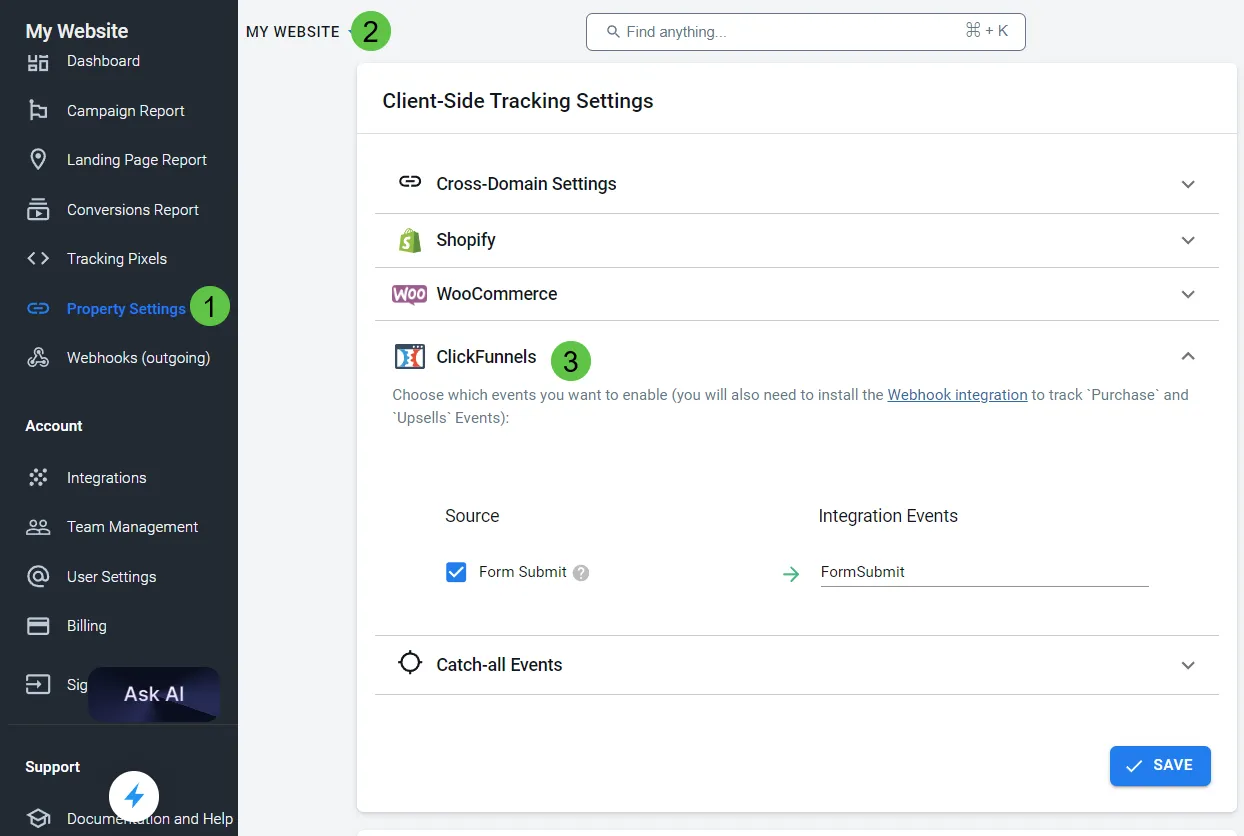
Client Side Tracking
Section titled “Client Side Tracking”Events that are emitted in the browser (client) sending data to the AnyTrack server. The method is used for collecting and sending data from your website to AnyTrack.The AnyTrack Tag automatically tracks sessions and stitches user behavioral events with campaign data.
By default, AnyTrack tracks OutboundClicks and FormSubmit events.
AutoTrack and AutoTag Form Submissions
Section titled “AutoTrack and AutoTag Form Submissions”AutoTrack: This means that any form submission will automatically trigger a FormSubmit event.
AutoTag: This means that the AnyTrack Click ID will automatically be attached to the a contact field, which will enable further Server Side Tracking.
Tag Management
Section titled “Tag Management”AnyTrack Tag automatically loads and triggers the ad Tracking Tags event snippets connected to your AnyTrack Property.
What it means:
If a FormSubmit event is AutoTracked, it will automatically fire the FormSubmit event to Facebook Conversion API (if you’ve connected your Meta Pixel to your AnyTrack account)
Server-Side Tracking
Section titled “Server-Side Tracking”ClickFunnels enables you to sell your products, courses, and coaching sessions and collect payments via Stripe, Paypal, and other gateways.
AnyTrack automatically tracks Purchase and Upsell events through the webhook integration with ClickFunnels.
Related Resources
Section titled “Related Resources”FAQ and Troubleshooting
Section titled “FAQ and Troubleshooting”How do I verify my ClickFunnels is properly integrated?
Section titled “How do I verify my ClickFunnels is properly integrated?”There are several ways to verify your integration is accurately set up.
In AnyTrack:
- In the Integration Event Log you should see conversions such as purchases and upsells. If the log shows errors, please check this article to understand what should be adjusted.
- The Conversion Events Screen (this is where all events are being displayed)
In ClickFunnels
Open a contact and verify that the click_id is set. If it’s not, double-check that the AnyTrack tag is properly set up on your funnel.
-
Yes, in most cases. However, this is not something we can guarantee since each form provider might have different ways to load on Clickfunnels. Please follow these instructions to track an embed form.
Is AnyTrack able to track a custom form on ClickFunnels?
Section titled “Is AnyTrack able to track a custom form on ClickFunnels?” -
I see duplicate conversions in Facebook Event Manager.
Section titled “I see duplicate conversions in Facebook Event Manager.”- That’s because you have a Facebook event snippet on your funnel, which also fires conversion to the Meta Pixel. You should remove the Facebook Event snippet. Find out why Tag Management section.
- In general, you should see only Server Side Events in the Facebook Event Manager. If you see Browser events it means that an other plugin or system is firing the Meta Pixel and you should disable it.
-
Using images as “buttons” does not mark the images as buttons, and therefore they are not treated as such by the standard tracking tags.
Conversions are not showing in AnyTrack, and the event logs show “ok”. Why?
Section titled “Conversions are not showing in AnyTrack, and the event logs show “ok”. Why?”
In the image link configuration, you should add the following tag to the button url
next-url#?contact[click_id]=--CLICK-ID-- -
Ensure that the time-zone configuration in your AnyTrack Property matches the time-zone setting in ClickFunnels.
There are no errors in the Event Log, but the number of events between ClickFunnels and AnyTrack reports is not aligned.
Section titled “There are no errors in the Event Log, but the number of events between ClickFunnels and AnyTrack reports is not aligned.” -
AnyTrack maps both Purchase and Upsell events to the standard
I see more purchases events in AnyTrack than in Clickfunnels, but the total
Section titled “I see more purchases events in AnyTrack than in Clickfunnels, but the total revenue is identical.”revenueis identical.Purchaseevent. So if you have one upsell and one purchase, we will track two Purchases, and send Two purchases to Facebook Conversion API. If you want to track these events separately, then map the Upsell event to a custom Upsell event in AnyTrack, and create a Custom Conversions in Facebook. -
No. AnyTrack can only ingest conversions that have been triggered following a visitor session on your website.
Can I import past conversions into AnyTrack?
Section titled “Can I import past conversions into AnyTrack?” -
You can update the Event Mapping in the Integration page.
The Conversion Event Name is not what I am expecting, how can I change it?
Section titled “The Conversion Event Name is not what I am expecting, how can I change it?”