
Pixel Helper Extension
AnyTrack Pixel Helper is a free Chrome extension that detects Meta, Google, TikTok, Reddit, and 30+ tracking pixels on any website. Inspect live event fires, validate parameters, and debug your AnyTrack Tag without touching code.
Install the AnyTrack Pixel Helper Chrome Extension for direct access to essential tracking data from your AnyTrack properties. Use it to validate your AnyTrack Tag configuration, verify your Tracking Tags, and inspect your events—all without leaving your browser.

Overview
Section titled “Overview”The AnyTrack Pixel Helper is a free Chrome extension that installs in your browser, enabling you to inspect the setup of the Properties you are tracking with AnyTrack. Also verify the presence of your Tracking Tags and the code of your snippets. The extension provides you with event log data, allowing you to track the action right where it happens.
Installing the Extension
Section titled “Installing the Extension”Follow these steps to install the AnyTrack Pixel Helper Chrome Extension:
- Visit the Chrome Web Store and find the AnyTrack Pixel Helper extension.
- Install the extension and add it to your browser.
- Pin the extension to keep it visible in the browser bar.
Using the Extension
Section titled “Using the Extension”-
Visit the website where you have installed the AnyTrack Tag.
-
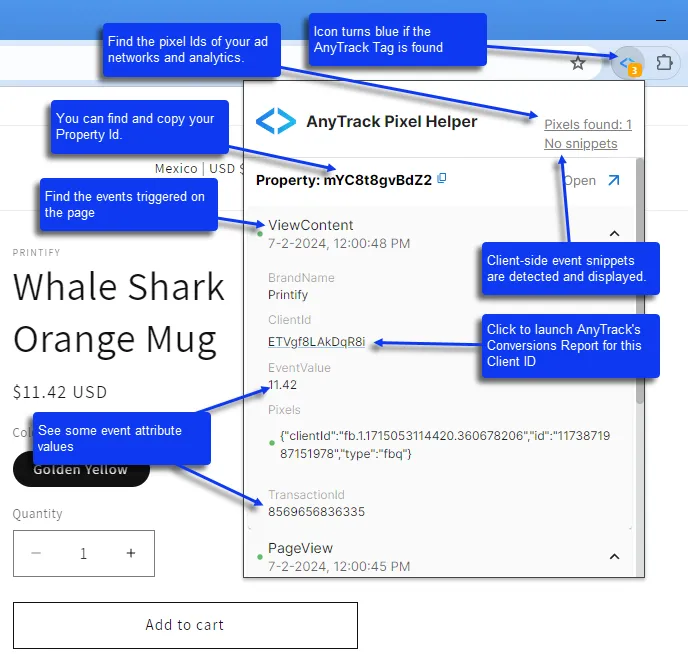
If the AnyTrack Tag is detected on the page, the extension icon turns blue. A grey icon means no AnyTrack Tag was found.

-
Click the extension icon to open the inspection panel.
What the Extension Shows
Section titled “What the Extension Shows”When you open the Tracking Tag Helper, it displays the following information for the current page:
- AnyTrack Tag Status . Confirms the AnyTrack Tag is present and shows the associated Property ID.
- Tracking Tags Detected . Lists all Tracking Tags found on the page (e.g., Meta Pixel, Google Ads tag, TikTok Pixel). This helps you verify that your ad platform Tracking Tags are firing correctly.
- Event Log . Shows browser-based events as they happen in real time. Each event displays the event name, associated parameters, and which Tracking Tags received the data. Use this to confirm that clicks, form submissions, and other actions are being tracked.
How to Use the Event Log
Section titled “How to Use the Event Log”The event log is the most useful part of the extension for debugging. To test your setup:
- Open the Tracking Tag Helper on your website.
- Perform the action you want to track (click a link, submit a form, visit a page).
- Watch the event log for the corresponding event to appear.
- Verify the event name matches what you expect and that the correct Tracking Tags received it.
If an event does not appear, check that the action triggers a browser-based event and that your ad blocker is disabled.
Troubleshooting
Section titled “Troubleshooting”| Problem | Cause | Solution |
|---|---|---|
| Extension icon stays grey | AnyTrack Tag is not installed on the page | Verify the tag is present by checking your page source for the AnyTrack script. See Install the AnyTrack Tag. |
| Pixels not showing | Ad blocker is active | Disable your ad blocker or whitelist the website. Ad blockers commonly block Meta Pixel, TikTok Pixel, and similar scripts. |
| Events not appearing in the log | The event is server-side, not browser-based | the Tracking Tag Helper only detects browser-based events. Server-side events (postback, webhooks, API) are tracked in the Integration Event Log inside your AnyTrack dashboard. |
| Extension not working after install | Browser needs a refresh | Close and reopen the browser tab. If the issue persists, remove and reinstall the extension. |
Related Resources
Section titled “Related Resources”Frequently Asked Questions
FAQ was last reviewed on 2026-07-26