
SamCart Integration via Zapier
Set up Samcart Via Zapier conversion tracking with AnyTrack to track purchases, cart events, and revenue. Connect your store data to ad platforms for accurate attribution and ROAS optimization.
Introduction
Section titled “Introduction”You can integrate SamCart with AnyTrack using either a direct webhook or Zapier—depending on your SamCart plan.
- SamCart Scale and Enterprise plans support native webhook integrations, allowing you to connect AnyTrack’s webhook URL directly within SamCart.
- All SamCart plans support integration via Zapier, enabling you to send order data to AnyTrack without relying on built-in webhook access.
Since AnyTrack’s SamCart integration is based on a simple webhook URL, it works automatically in both setups. Whether you’re on a Starter or Enterprise plan, you can reliably track conversions and sync them with AnyTrack using the method that fits your stack.
Samcart via Zapier integration step by step guide
Section titled “Samcart via Zapier integration step by step guide”⏱️ About 15 minutes
💸 Estimated cost: $0
Step by step guide
Section titled “Step by step guide”-
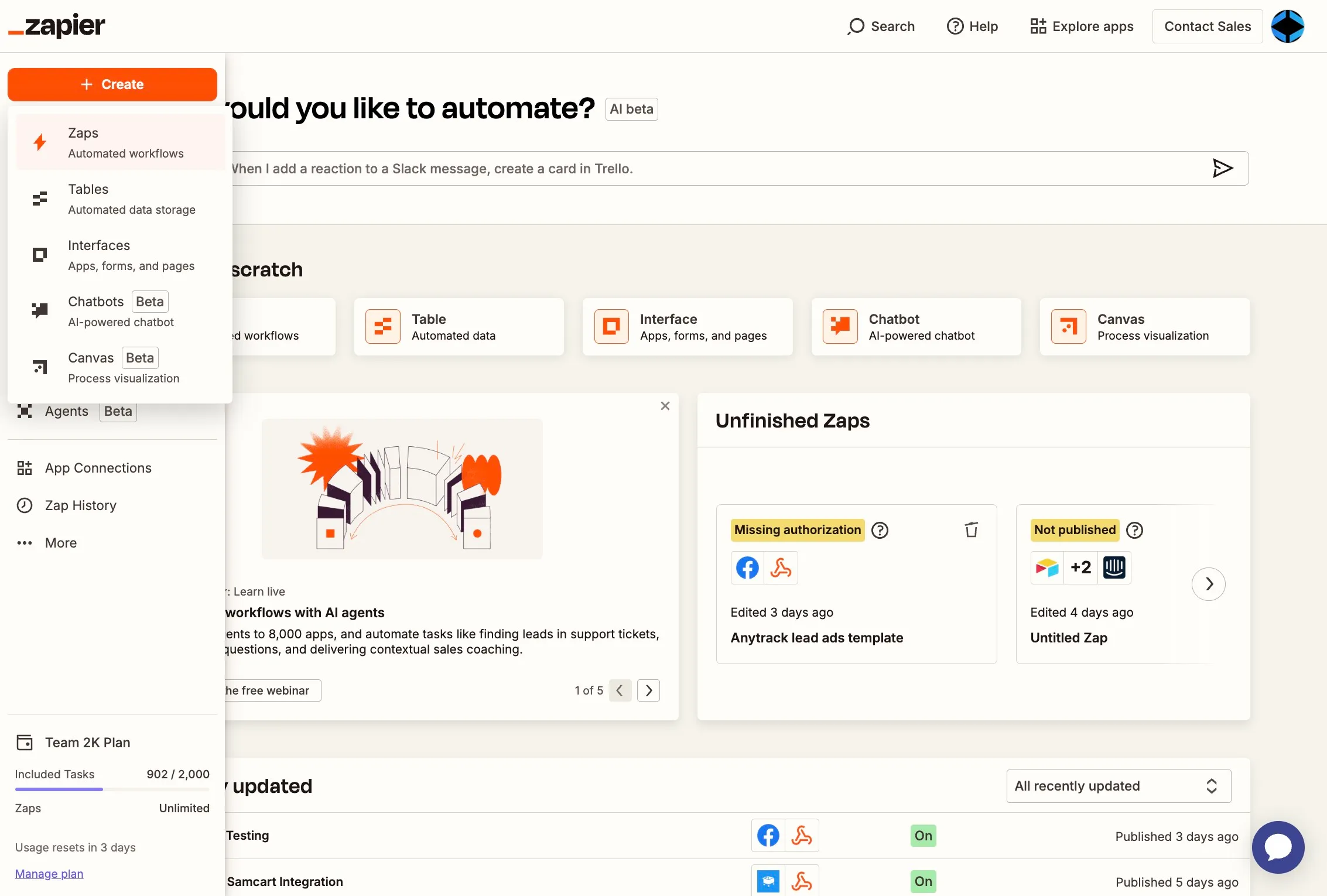
Create a New Zap
Section titled “Create a New Zap”
Start by creating a new Zap in your Zapier account to begin the integration process.
-
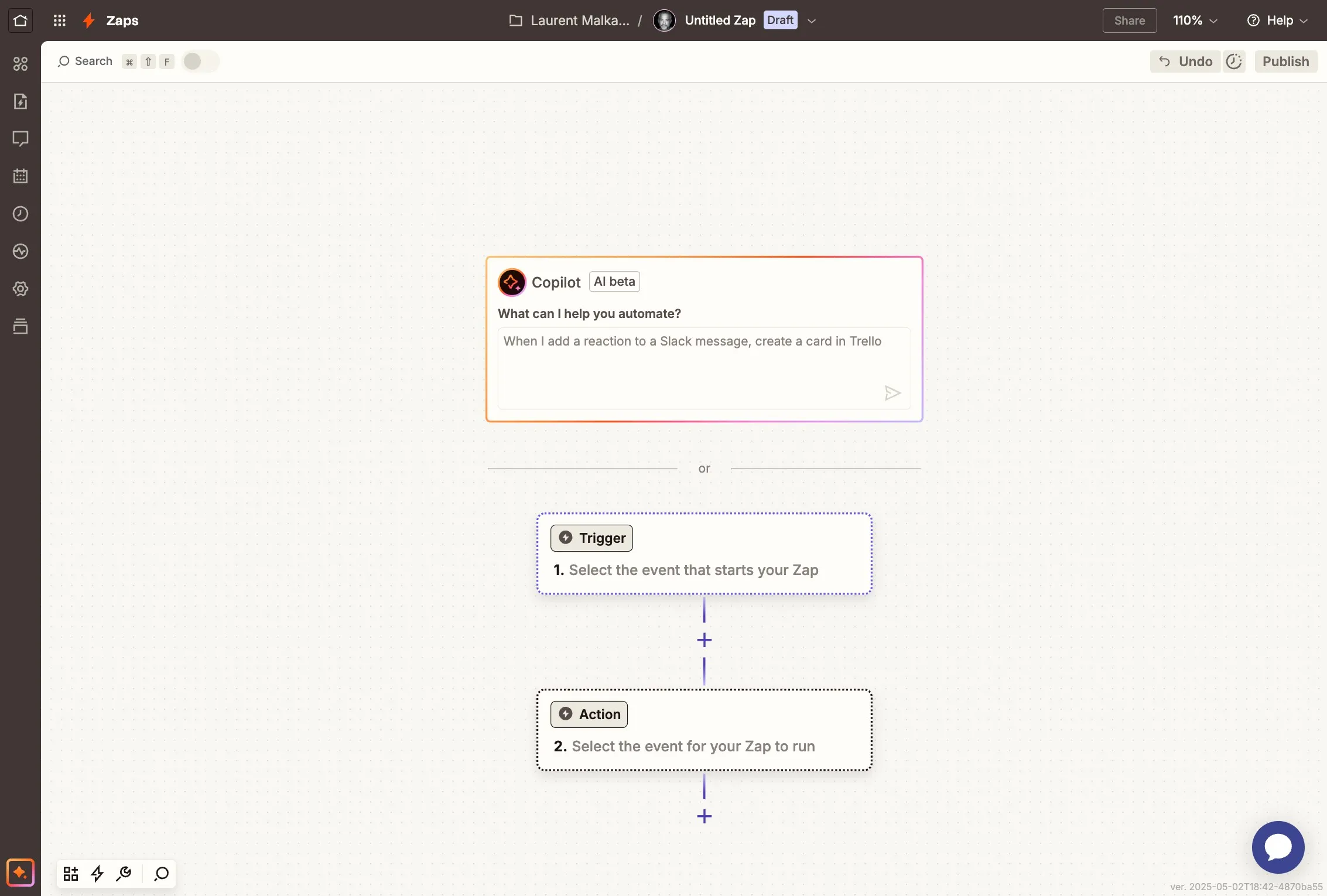
Select the event that starts your Zap
Section titled “Select the event that starts your Zap”
Click to choose the trigger event that will initiate your Zap workflow.
-
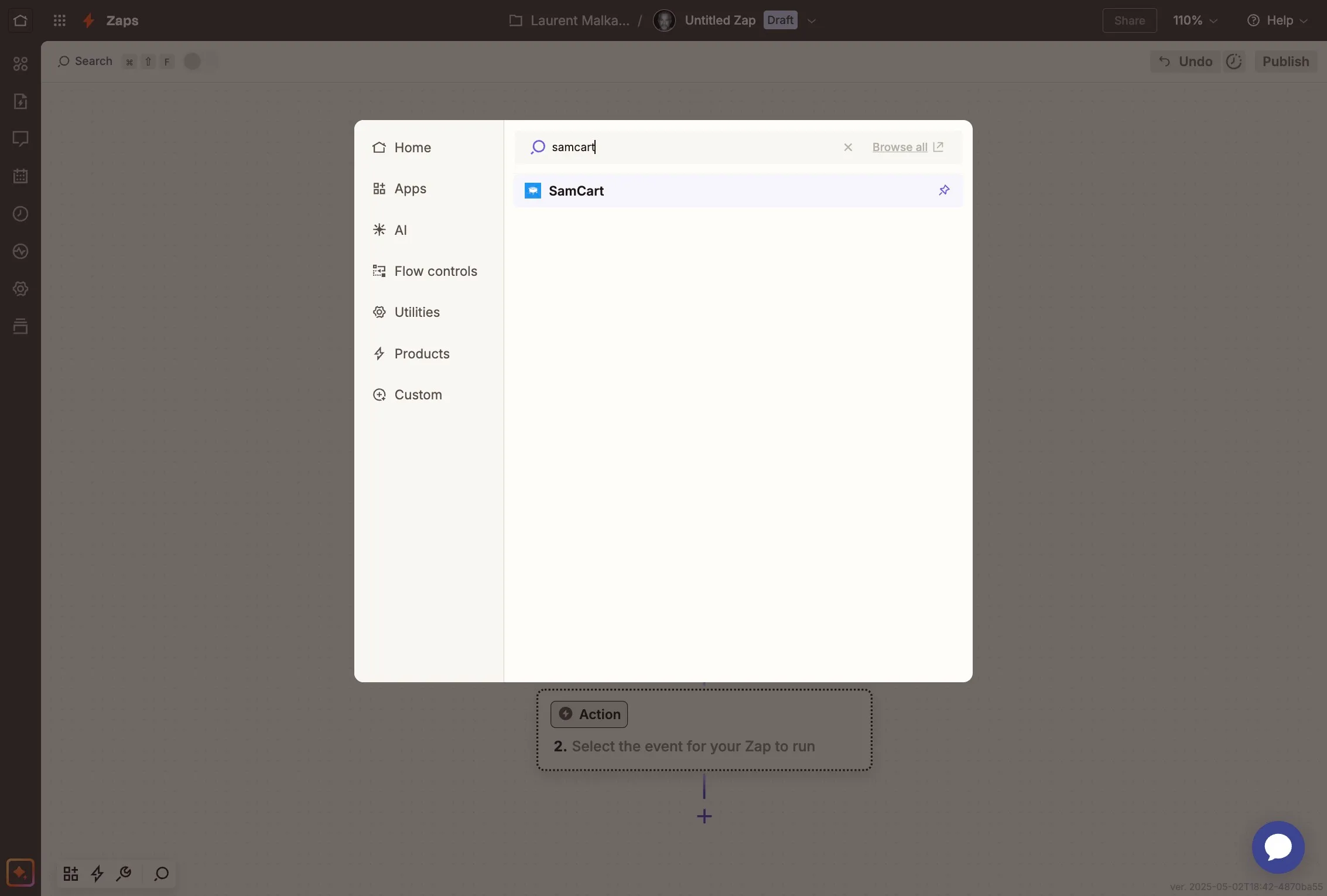
Search and select SamCart
Section titled “Search and select SamCart”
Search for and choose SamCart as the trigger app for your Zap.
-
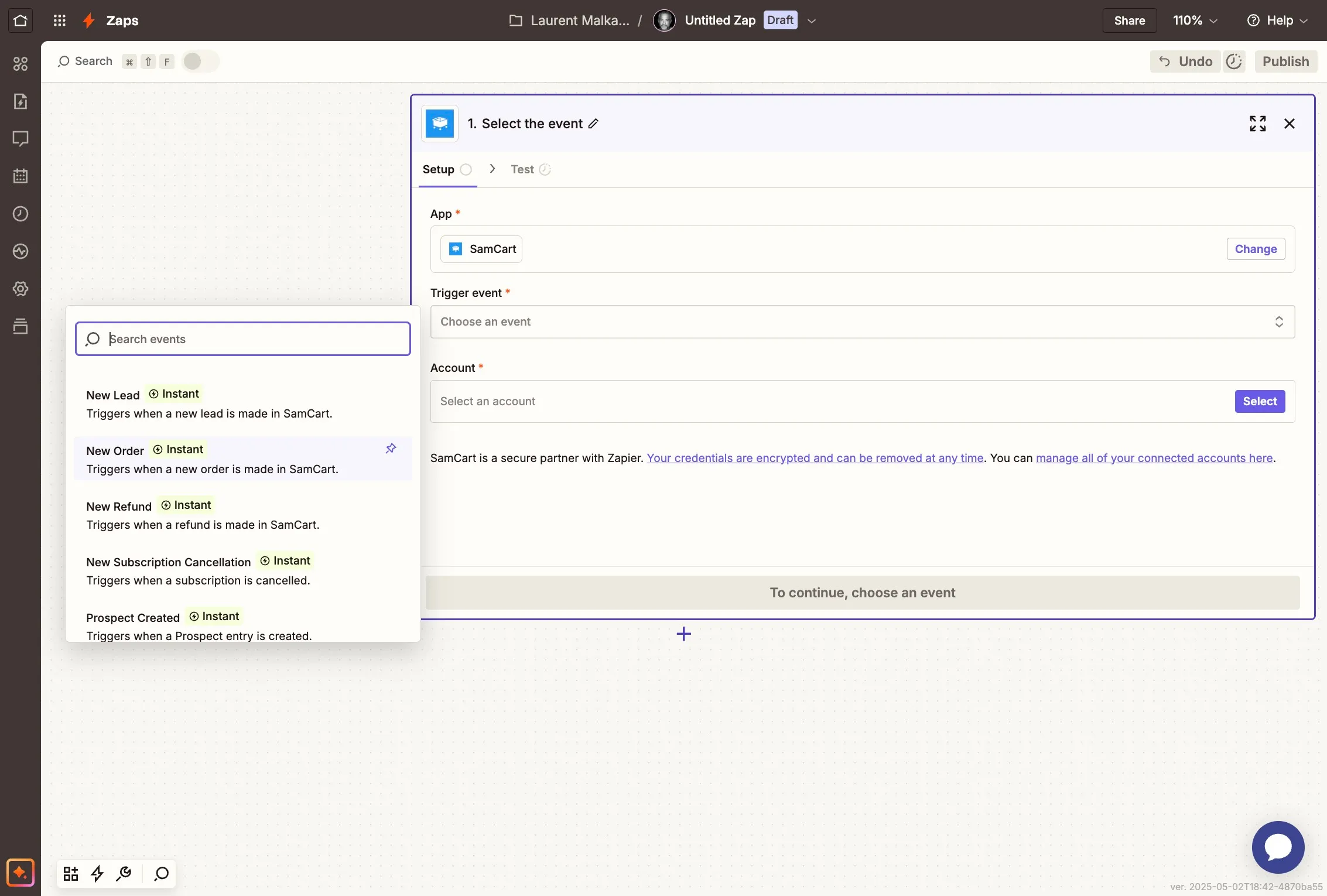
Choose the trigger event
Section titled “Choose the trigger event”
Click on “Triggers when a new order is made in SamCart.”
-
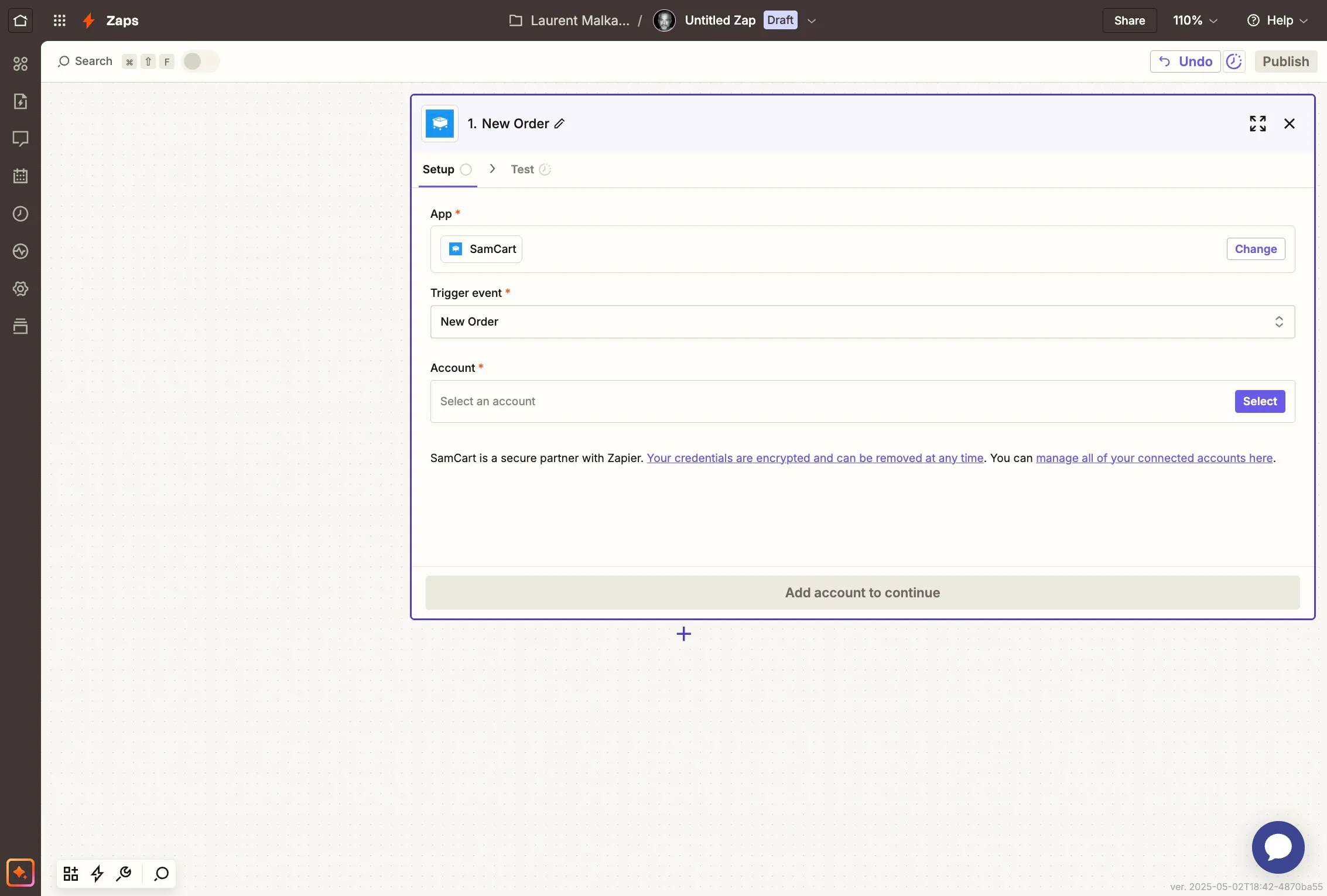
Connect your SamCart account
Section titled “Connect your SamCart account”
Select your SamCart account and click Continue to connect it with Zapier.
-
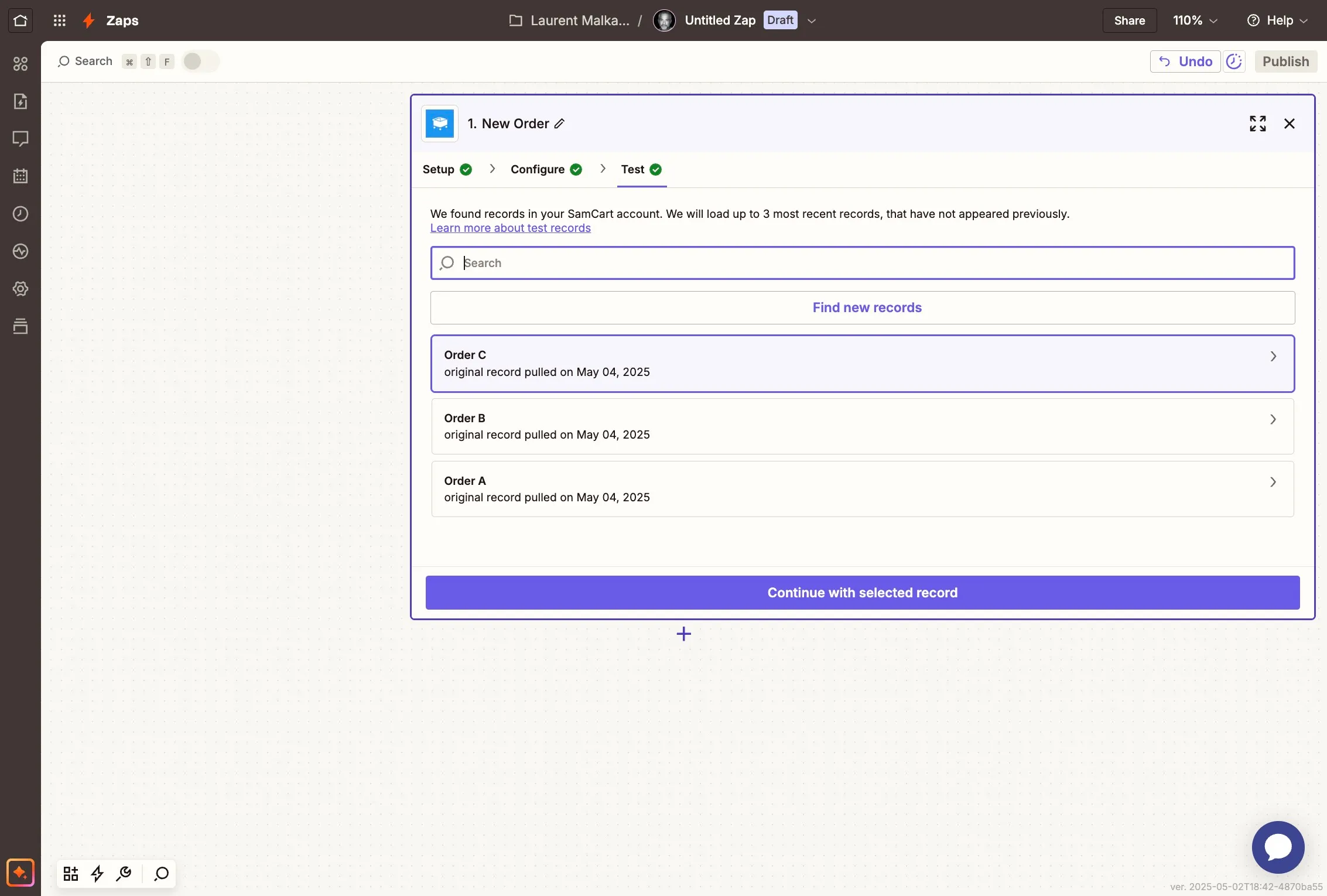
Test the trigger with sample data
Section titled “Test the trigger with sample data”
Click on Test, select a sample order, and continue with the selected record to confirm your setup.
-
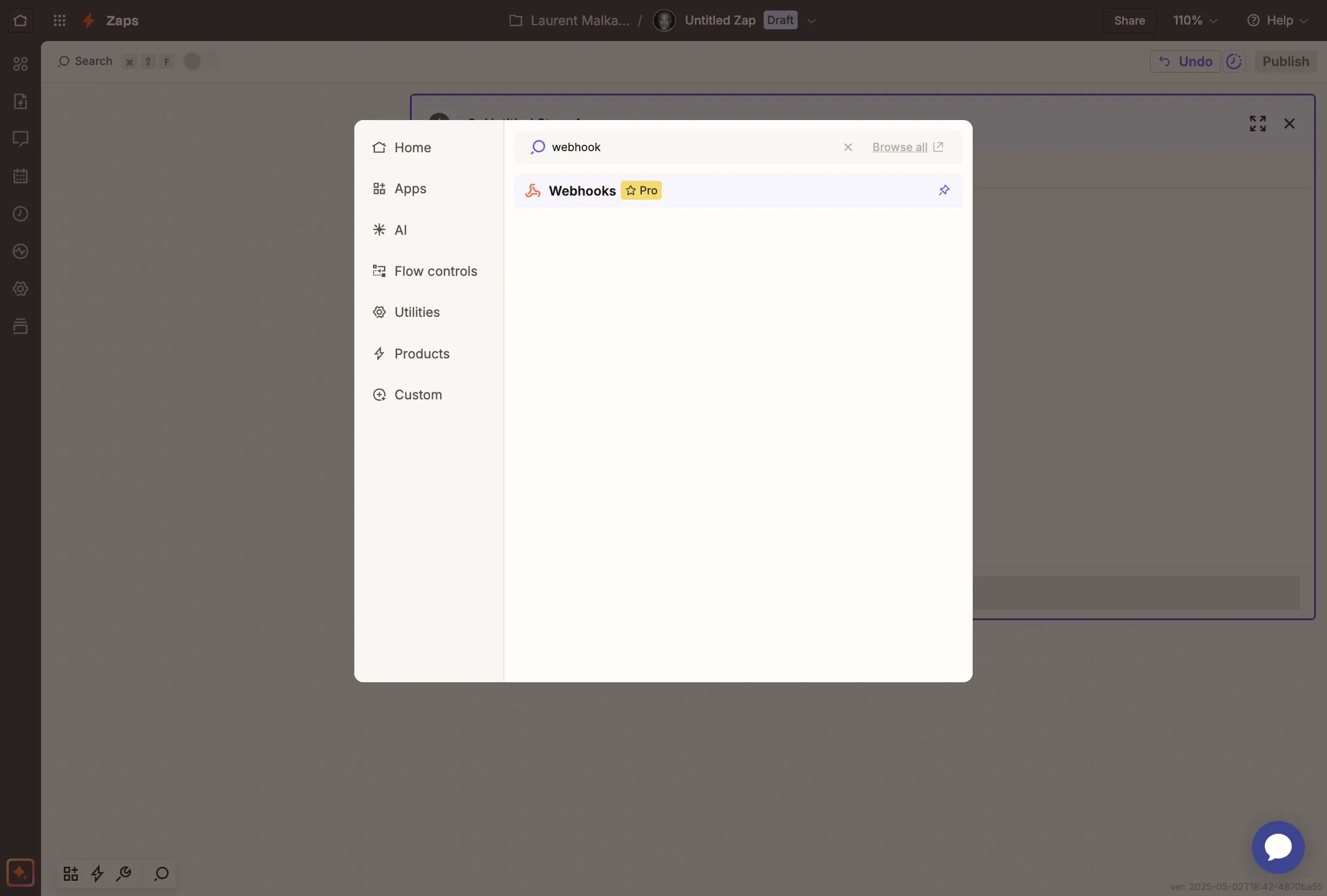
Set your Zap Action with Webhooks
Section titled “Set your Zap Action with Webhooks”
Choose Webhooks as the action event type for your Zap.
-
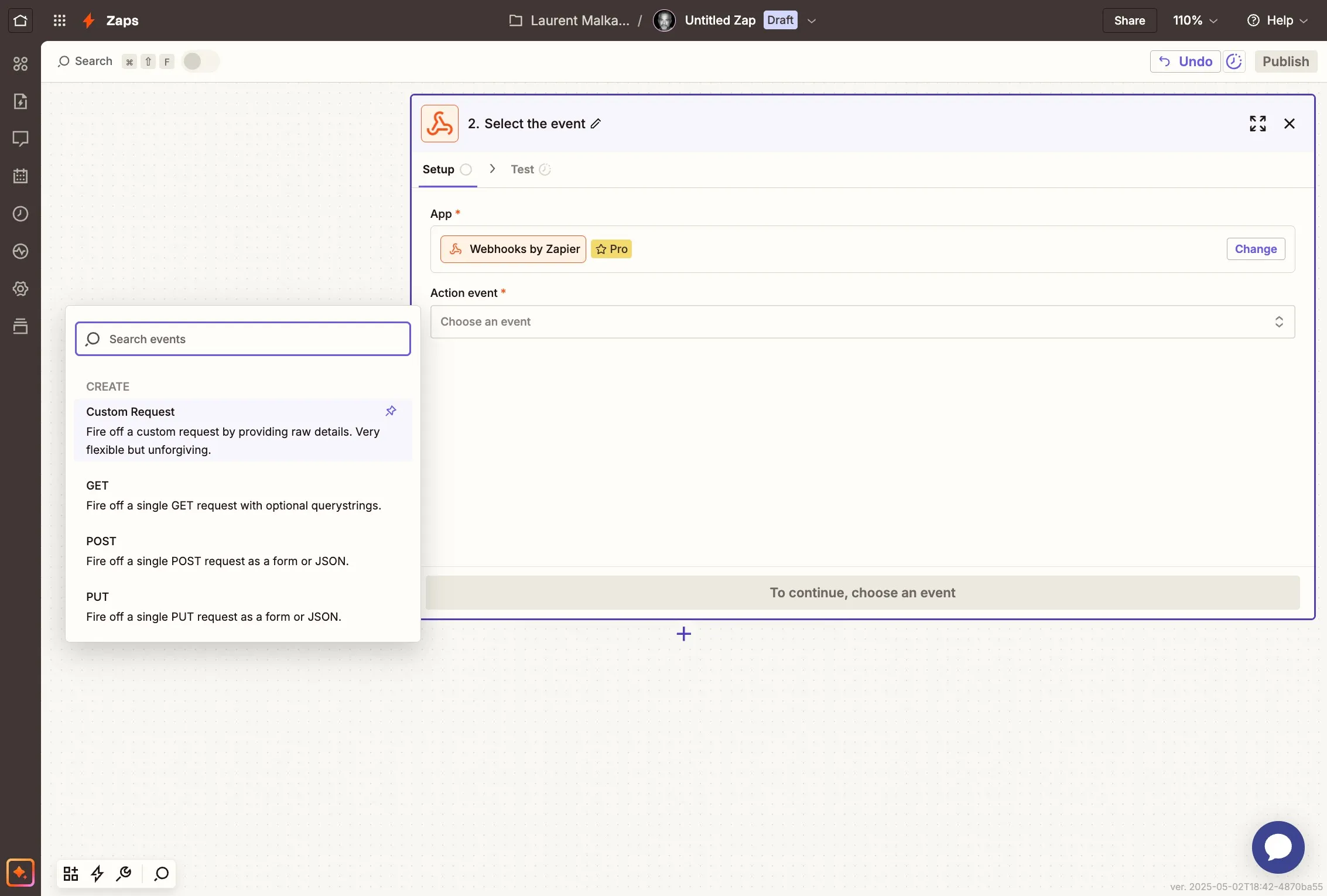
Click on Custom Request
Section titled “Click on Custom Request”
Select the “Custom Request” option to configure the webhook request manually.
-
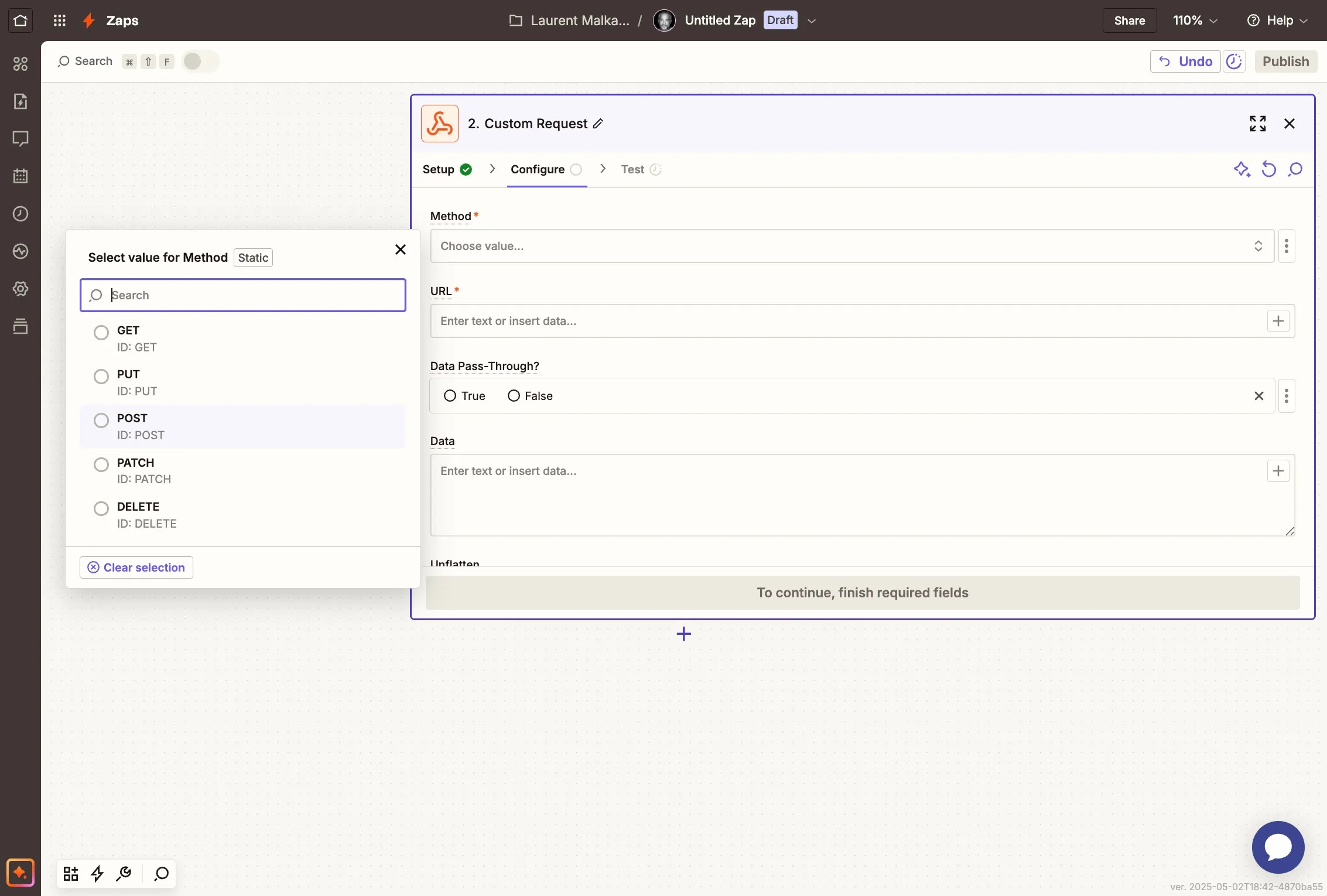
Select the POST method
Section titled “Select the POST method”
Choose the POST method to send conversion data to AnyTrack via webhook.
-
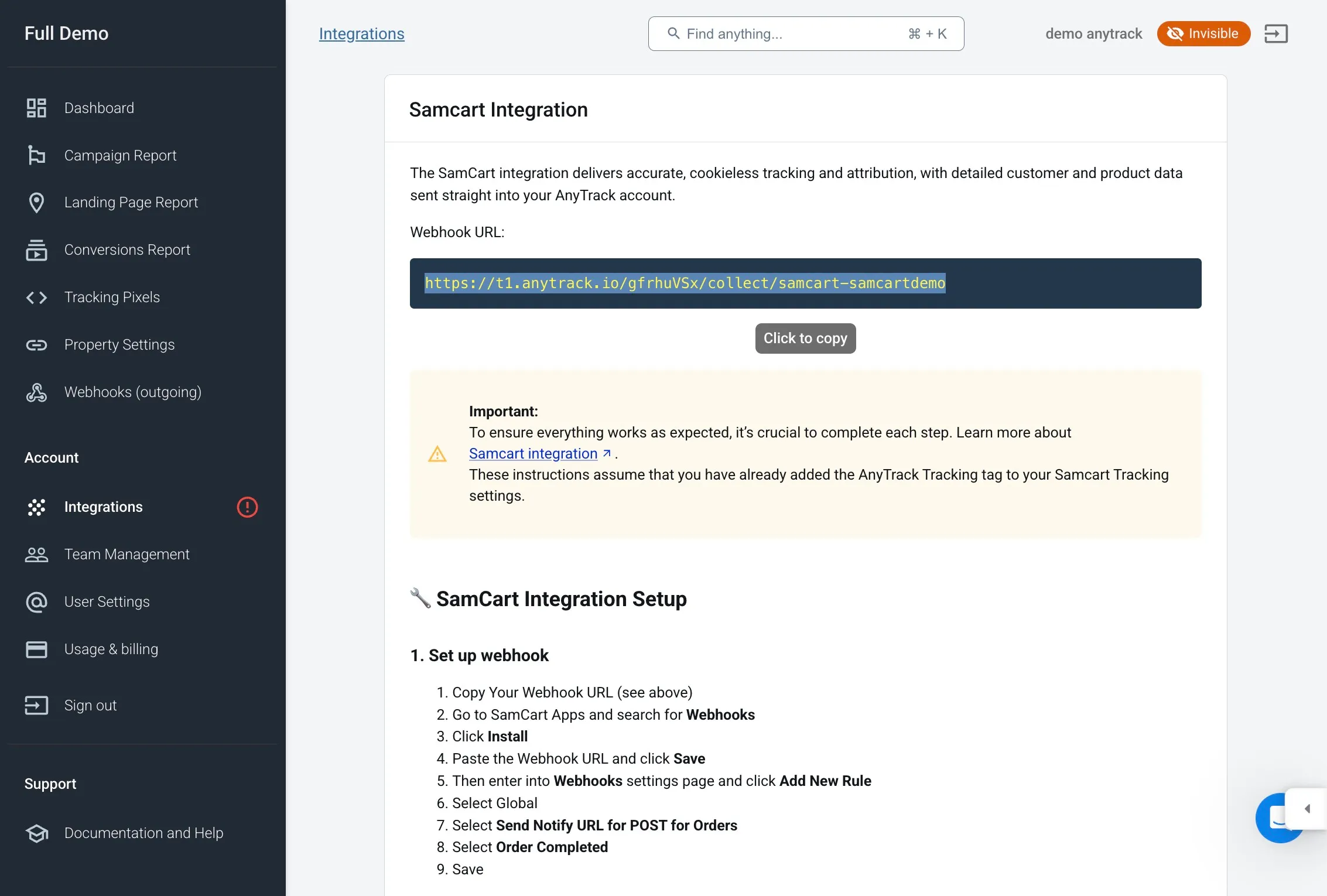
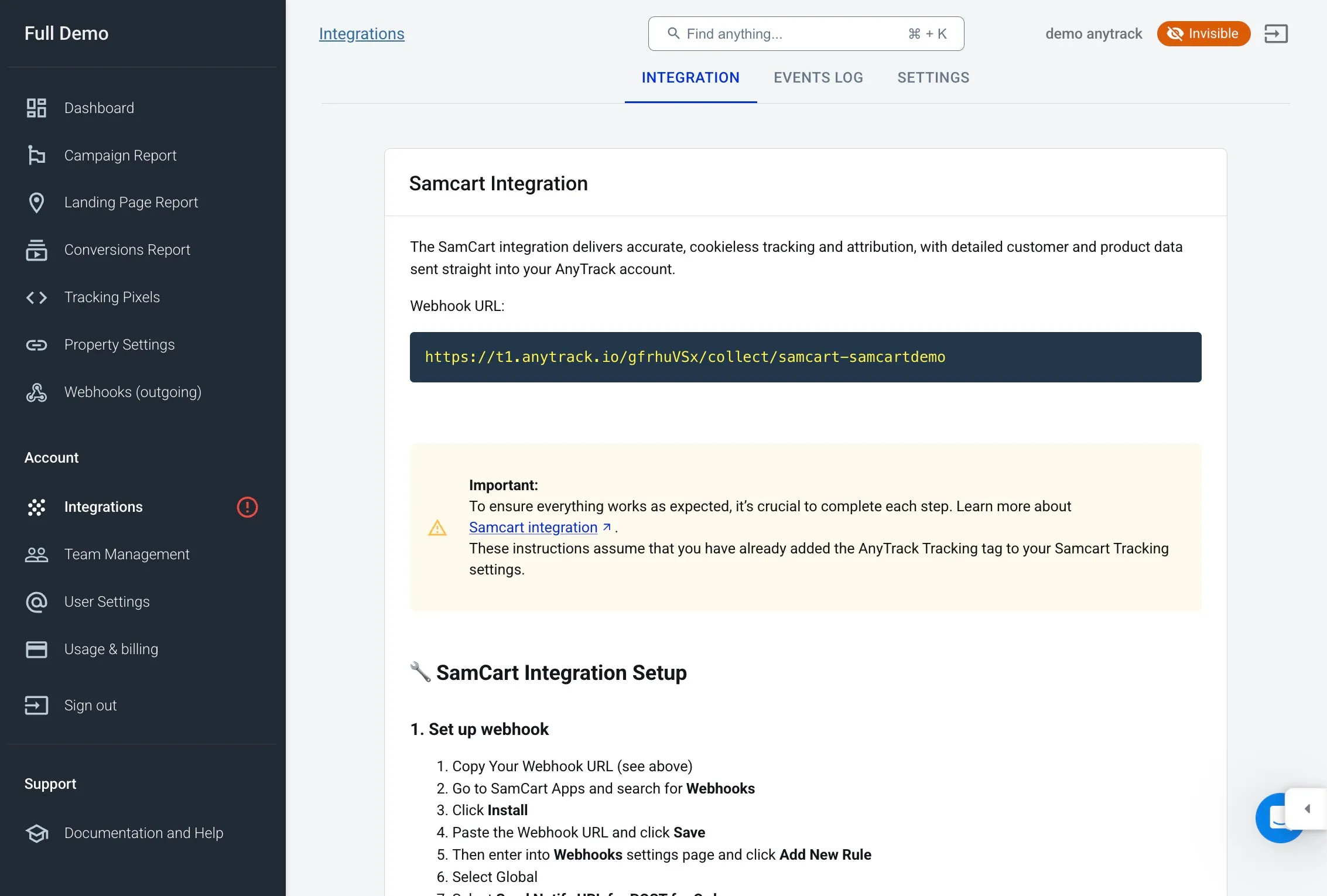
Copy the AnyTrack Webhook URL
Section titled “Copy the AnyTrack Webhook URL”
Go back to your AnyTrack dashboard and copy the webhook URL provided for integrations.
-
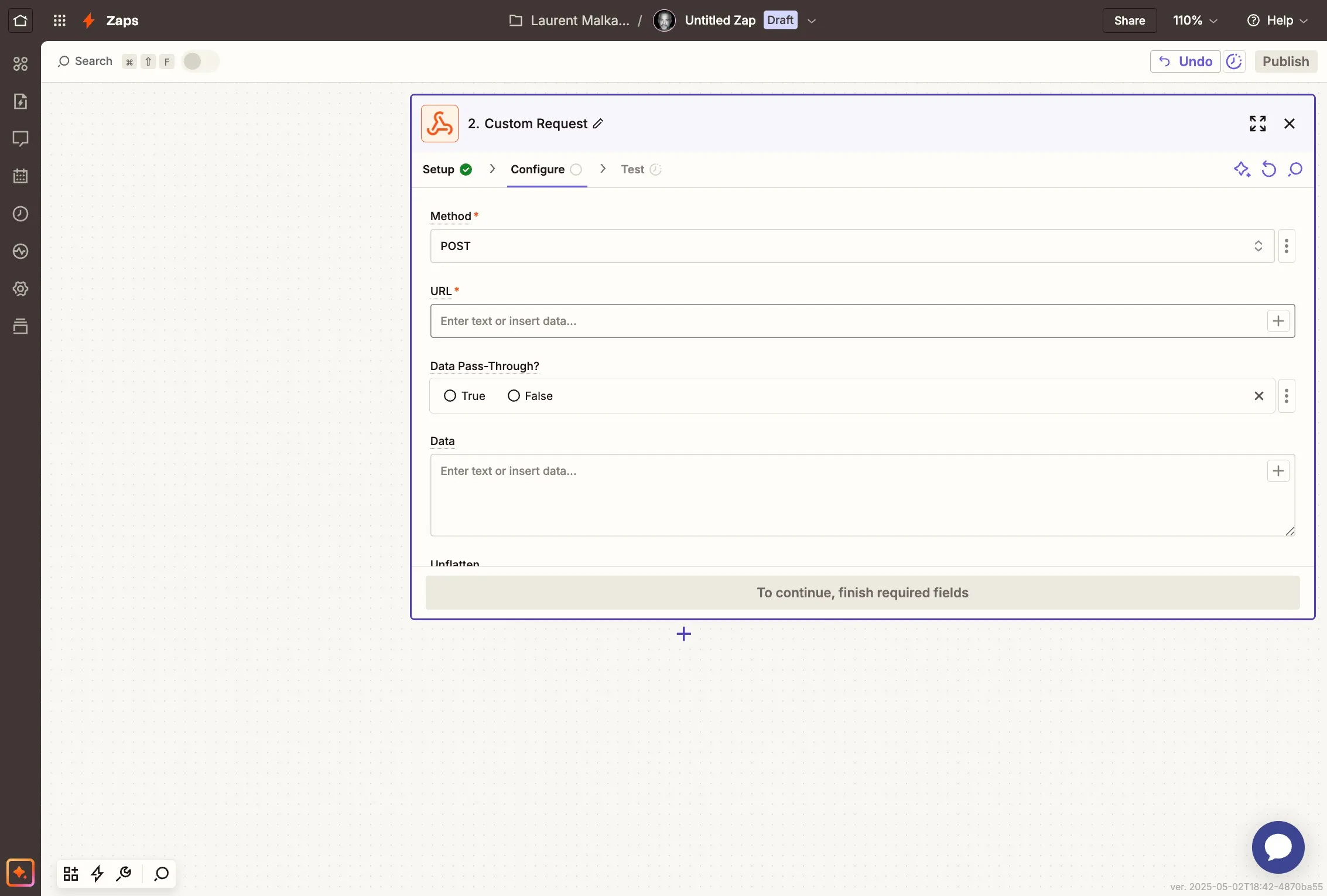
Paste the AnyTrack Webhook URL in Zapier
Section titled “Paste the AnyTrack Webhook URL in Zapier”
Paste the copied webhook URL into the URL field in the Zapier webhook configuration.
-
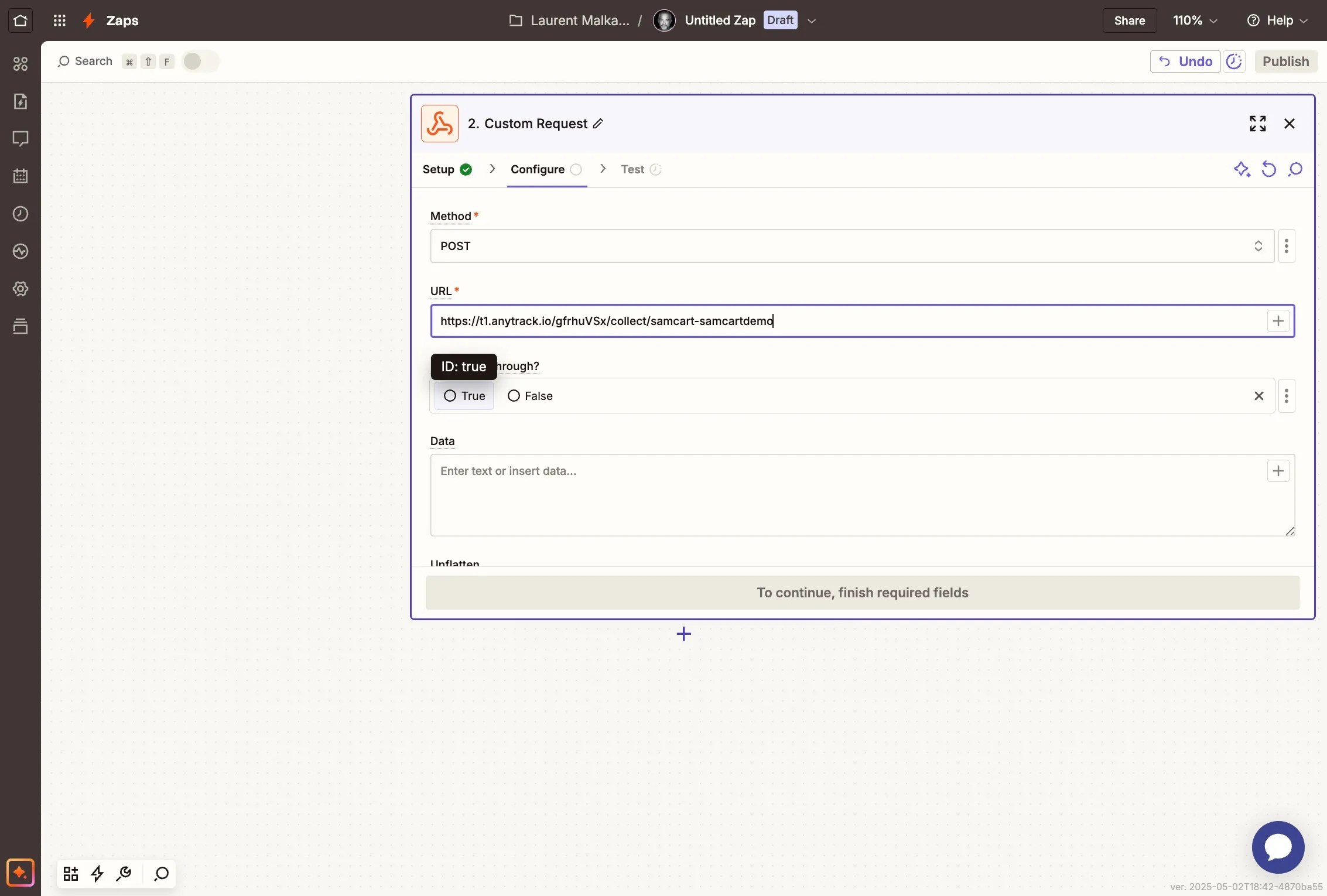
Enable Data Pass Through
Section titled “Enable Data Pass Through”
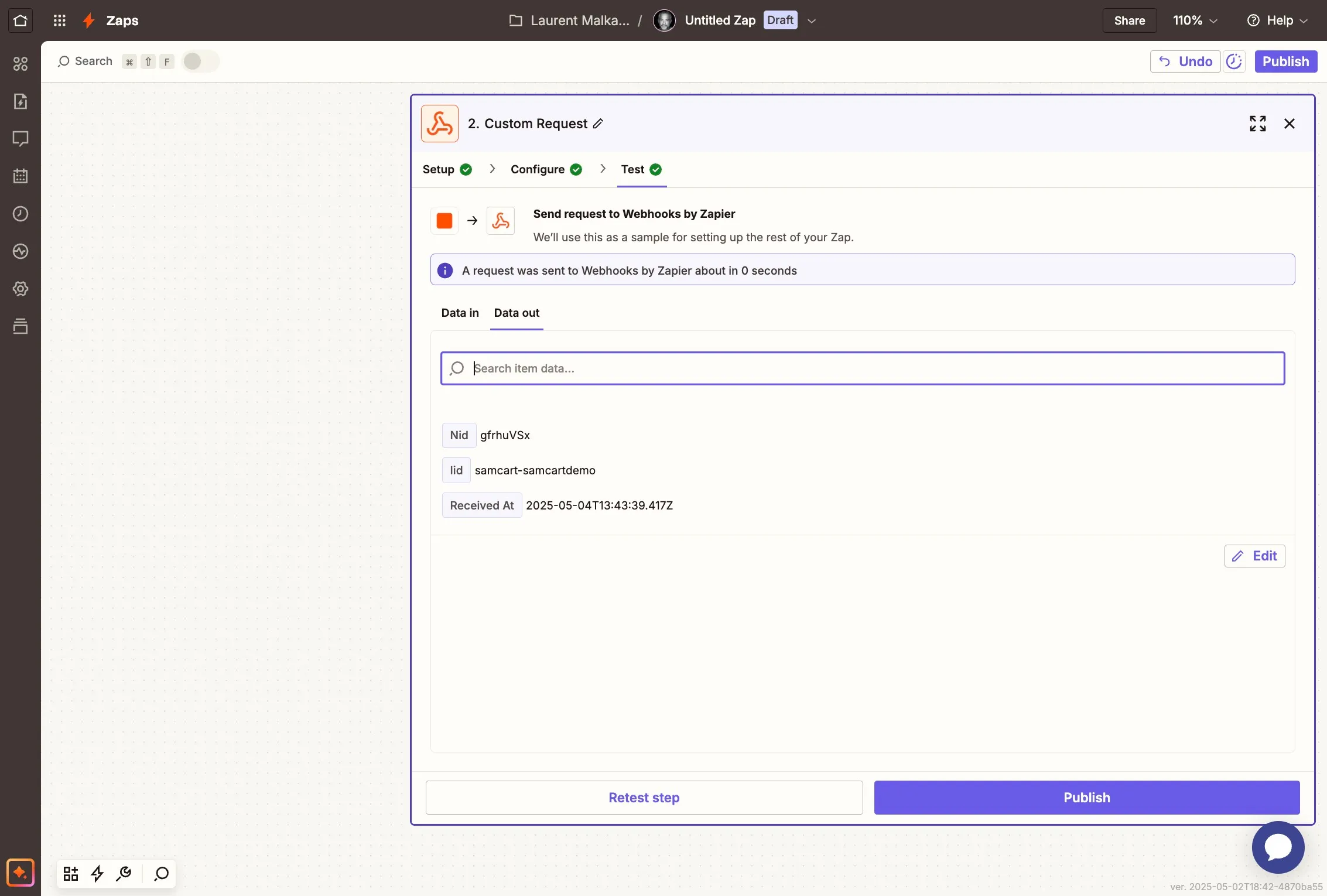
Select the “Data Pass Through” option and test the data to ensure it’s flowing correctly.
-
Run the test and publish your Zap
Section titled “Run the test and publish your Zap”
Execute the test to verify the connection, then publish your Zap to activate it.
-
Verify the conversion in AnyTrack
Section titled “Verify the conversion in AnyTrack”
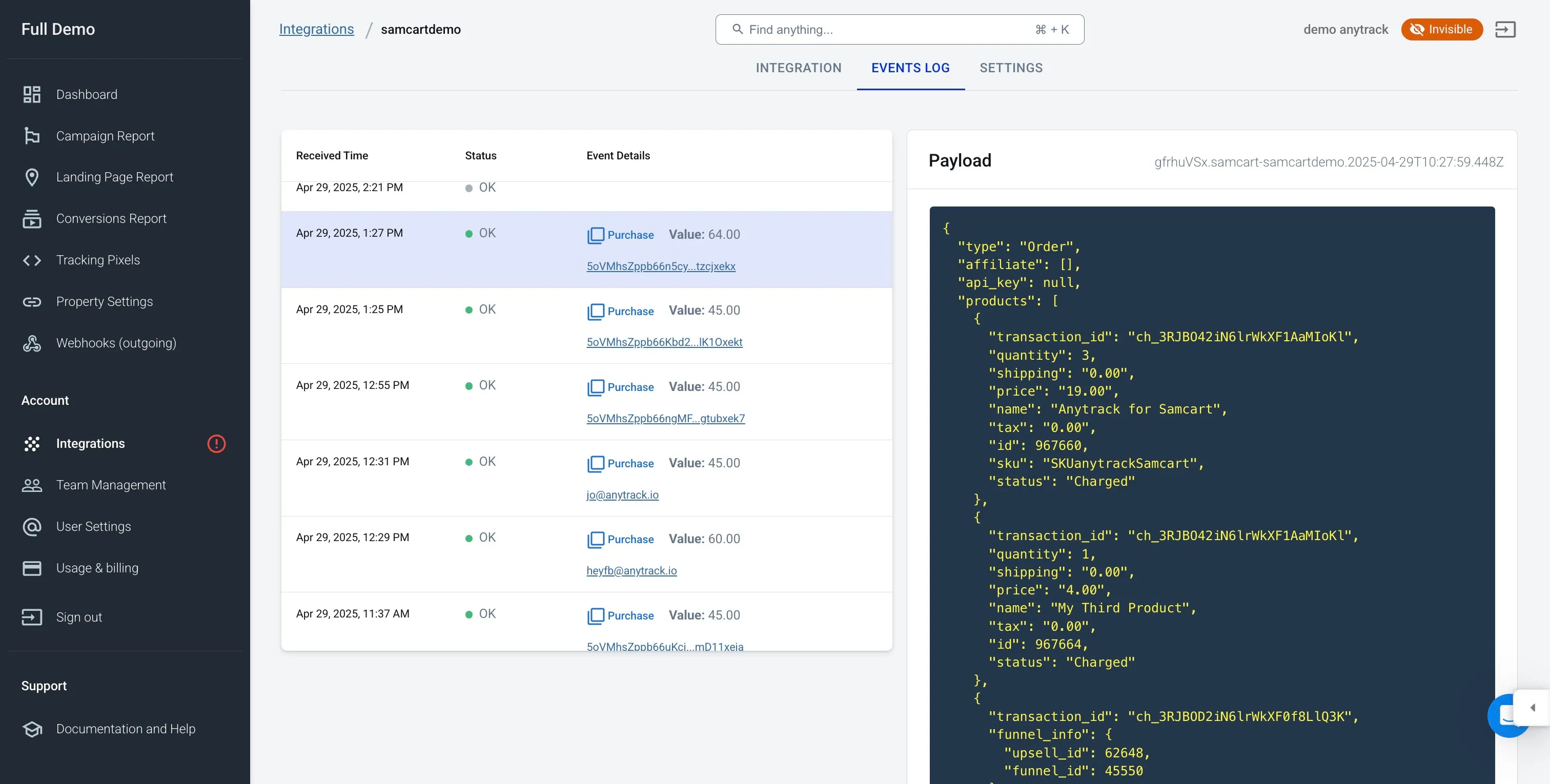
Return to AnyTrack and open the Events Log to confirm that conversion data has been received.
-
Review conversion data
Section titled “Review conversion data”
You’ll see the conversion data as it was sent from SamCart to AnyTrack, confirming a successful setup.
Samcart verification checklist> 📘 Recommended steps to test your samcart integration
Section titled “Samcart verification checklist> 📘 Recommended steps to test your samcart integration”Zapier integration checklist
Section titled “Zapier integration checklist”- You have added the Samcart integration in AnyTrack and added the webhook in Zapier.
- You have followed meticulously each integration step.
- Trigger: Samcart New Order
- Action: webhook > custom request > POST and Data Pass Through is enabled.
- You did not modify or added any parameters in the webhook integration setup.
Samcart integration checklist
Section titled “Samcart integration checklist”- You have added the tracking tag on ALL pages of your funnel, including pages that are not hosted in Samcart
- You have added the tracking tag in the head section of your samcart tracking settings.
- You have added the
atclidparameter in the Content URL Parameter settings. - You have disable the Meta Pixel integration from Samcart tracking settings (in Samcart)
If you have integrated Samcart before May 1st 2025
Section titled “If you have integrated Samcart before May 1st 2025”- You have switch from the custom integration to the native Samcart integration.
- You have updated the content url parameter from
utm_contenttoatclid. - You have added the
atclidcustom parameter. - You have removed the cross domain tracking settings.
Related Resources
Section titled “Related Resources”FAQ about Samcart Integration via Zapier
Section titled “FAQ about Samcart Integration via Zapier”This FAQ is for the zapier integration. For the regular Samcart integration, please refer to the SamCart Integration.
-
This usually means the click ID (
Why am I seeing a “Missing
Section titled “Why am I seeing a “Missing click_id parameter” error?”click_idparameter” error?atclid) was not collected or passed correctly from your landing page to the samcart checkout.-
Possible causes:
Section titled “Possible causes:”- The tracking tag wasn’t added to all funnel pages, especially non-SamCart pages.
- The
Content URLand / or custom parameter in the webhook is missing theatclid.
-
Ensure the AnyTrack Tag is installed on every entry point of your funnel, and confirm that
Solution:
Section titled “Solution:”atclidparameter is visible when you hover on the samcart URL.
-