
SamCart Integration
Step-by-step guide to integrate SamCart with AnyTrack for automated conversion tracking. Sync purchases to Google Ads, Meta, TikTok with server-side tracking and improved ROAS.
Overview
Section titled “Overview”Transform your SamCart checkout experience with AnyTrack’s powerful conversion tracking. Automatically sync every purchase, upsell, and customer interaction across Google Ads, Facebook Ads (Meta Ads), TikTok, and other major advertising platforms.
What you’ll achieve:
- Complete customer journey visibility from first click to final purchase
- Real-time conversion data sent directly to ad platforms via Conversion APIs
- Improved ROAS through better attribution and audience targeting
- Automatic tracking of upsells, order bumps, and checkout events
How It Works
Section titled “How It Works”When you connect SamCart to AnyTrack, every step of your customer’s journey gets tracked and attributed to the right marketing channel
Step 1: Visitor land on your Samcart checkout page
AnyTrack collects traffic source data and assigns unique visitor IDs
Step 2: Visitor starts the checkout flow
AnyTrack automatically tracks each step of the checkout and sends each event to ad platforms via Conversion API
Step 3: Visitor completes the Purchase
Samcart Instantly sends the conversion data to AnyTrack
Step 4: AnyTrack sends conversion to Ad platforms Conversion API
Instantly sync conversion data to all connected ad platforms via Conversion API
The AnyTrack Conversion APIAn ad platform's server-to-server endpoint for receiving conversions directly from a server — bypassing the browser pixel — which AnyTrack enriches, deduplicates, and delivers automatically. Read more → approach ensures your ad platforms receive rich first-party data for better targeting, audience building, and campaign optimization.
Integration Capabilities
Section titled “Integration Capabilities”Track every touchpoint from initial visit to final purchase, including cross-device attribution
Automatically send purchase data to Google Ads, Meta Conversion API, TikTok Events API, and other platforms via secure APIs
Collect all revenue including main purchases, upsells, and order bumps
Centralized tag management.AnyTrack handles all your Tracking Tags automatically
Setup Guide
Section titled “Setup Guide”Step 1: Configure AnyTrack Property
Section titled “Step 1: Configure AnyTrack Property”Start by setting up your tracking foundation:
- Create New Property in your AnyTrack dashboard
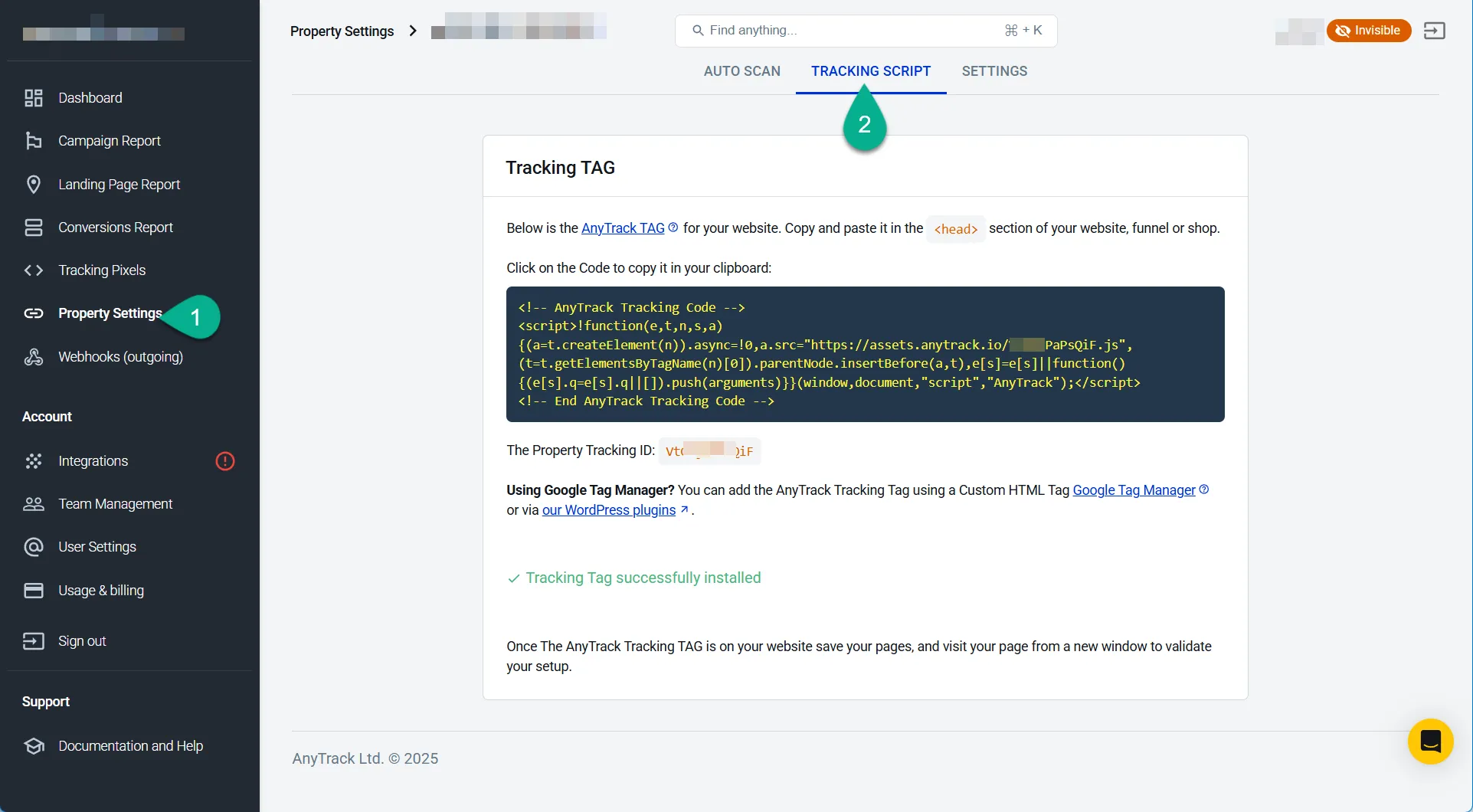
- Copy Tracking Tag from Property Settings > Tracking Script
- Note your Property ID for reference
Step 2: Install Tracking in SamCart
Section titled “Step 2: Install Tracking in SamCart”Configure SamCart to work with AnyTrack’s tracking system:
-
Navigate to SamCart Dashboard > Account Settings > Tracking & Pixels
-
Add Tracking Tag: Paste your AnyTrack Tag in “Embed HTML/Scripts in Header”
-
Enable Pre-Redirect Tracking: Turn on “Fire Pixels Before Redirect”
-
Set URL Parameter: Enter
atclidin “Content URL parameter” -
Add Custom Parameter: Click “Add Parameter” and enter
atclid -
Save Changes
Step 3: Create Hidden Custom Field
Section titled “Step 3: Create Hidden Custom Field”This step ensures customer data flows correctly to AnyTrack:
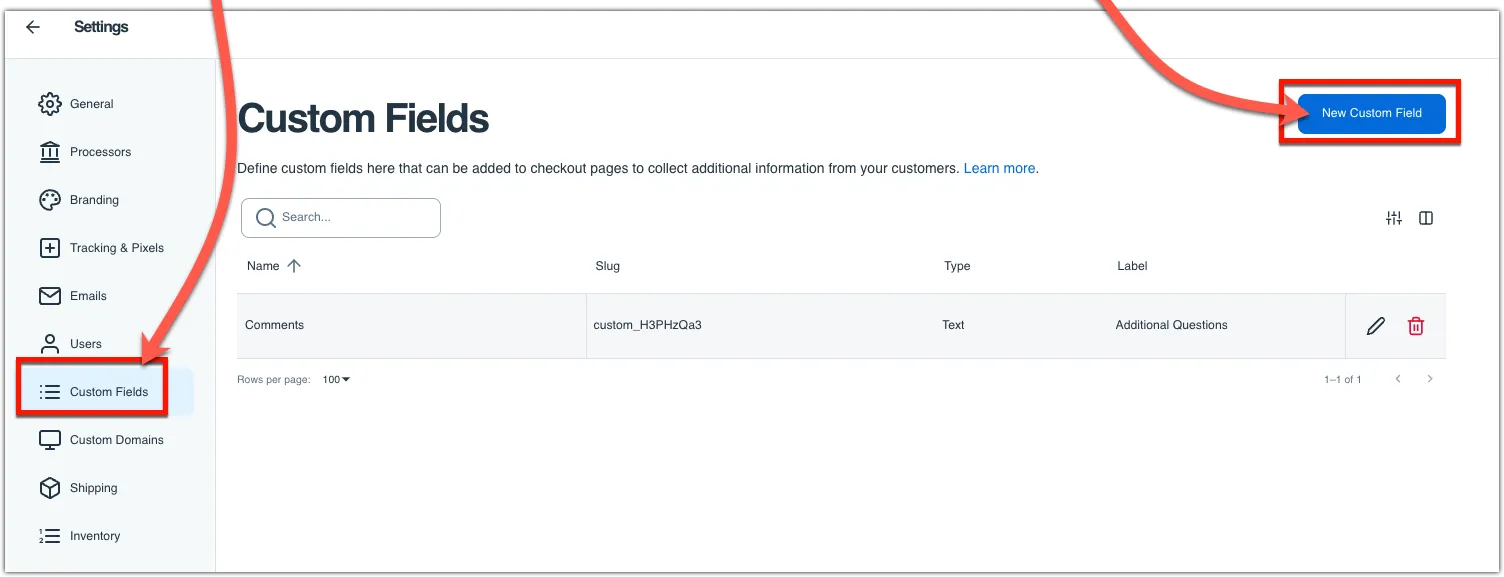
- Go to Custom Fields > New Custom Field
- Set both Name and Label to
atclid - Select Hidden as the field type
- Save the custom field
Step 4: Connect the Integration
Section titled “Step 4: Connect the Integration”Link your SamCart account with AnyTrack:
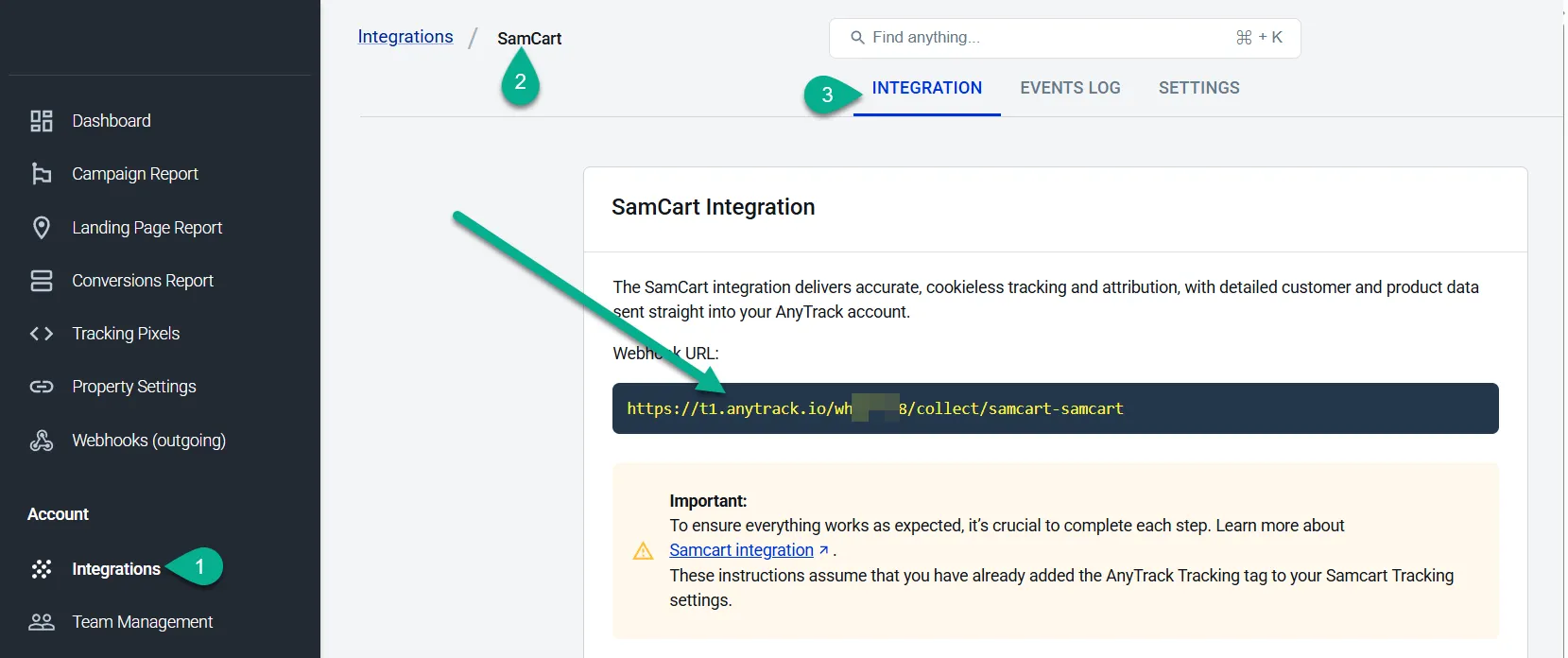
- Install Integration: Go to AnyTrack’s Integration Catalog
- Find SamCart and click install
- Copy Webhook URL provided by the integration
Step 5: Set Up Webhooks
Section titled “Step 5: Set Up Webhooks”Configure SamCart to send purchase data to AnyTrack:
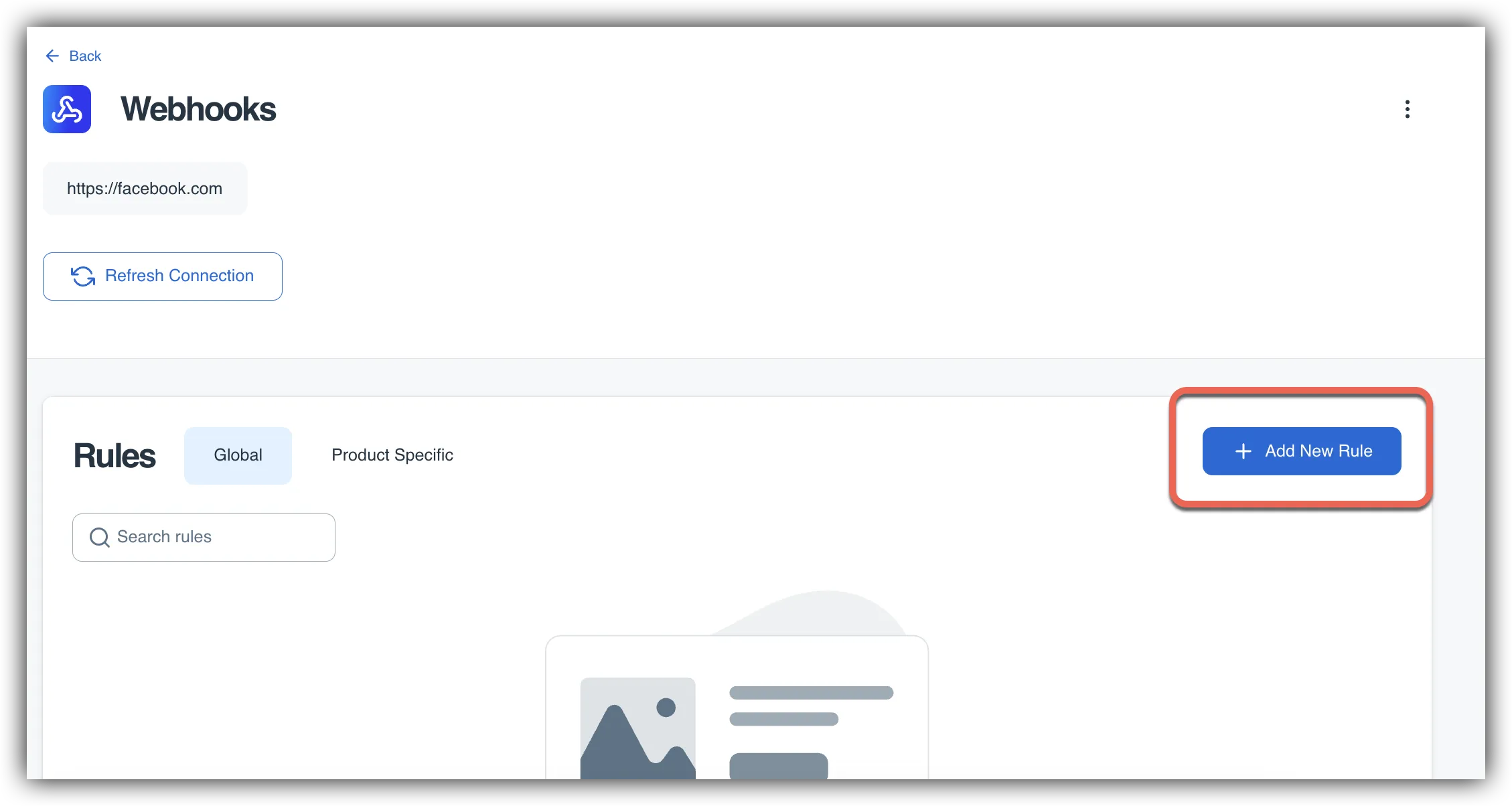
- Install Webhooks App: Search for “Webhooks” in SamCart’s App Marketplace
- Enter Webhook URL: Paste the URL from Step 4
- Create Webhook Rule with these settings:
- Rule Type: Global Rule
- Action: Send Notify URL for POST for Orders
- Trigger: Order Completed
Step 6: Test Your Setup
Section titled “Step 6: Test Your Setup”Verify everything works correctly:
- Enable Test Mode in SamCart
- Complete Test Purchase using a test product
- Check Events Log in your AnyTrack integration dashboard
- Verify Data Flow - ensure purchase events appear within minutes
Advanced Configuration
Section titled “Advanced Configuration”Slide Checkout Setup
Section titled “Slide Checkout Setup”If you use SamCart’s embedded Slide Checkout:
Multi-Page Funnels
Section titled “Multi-Page Funnels”For funnels that include external landing pages:
Legacy Account Settings
Section titled “Legacy Account Settings”If you connected SamCart before May 1st, 2025:
Technical Reference
Section titled “Technical Reference”Tracked Events
Section titled “Tracked Events”| Event | Description | Source | Timing |
|---|---|---|---|
PageView | Page visits across funnel | JS Tag | Real-time |
OutboundClick | Clicks to checkout pages | JS Tag | Real-time |
InitiateCheckout | Checkout process starts | JS Tag | Real-time |
AddPaymentInfo | Payment details entered | JS Tag | Real-time |
Purchase | Order completed (includes upsells) | Webhook | Server-side |
Integration Parameters
Section titled “Integration Parameters”| Parameter | Value | Purpose |
|---|---|---|
| Tracking Group | samcart | For passing click IDs to SamCart links |
| Subid Parameter | atclid | Automatic click ID collection and attribution |
| Webhook Format | JSON POST | Server-side purchase data transmission |
Connect Your Ad Accounts
Section titled “Connect Your Ad Accounts”Once tracking is active, connect your advertising platforms:
Troubleshooting
Section titled “Troubleshooting”Events not appearing in AnyTrack
Section titled “Events not appearing in AnyTrack”Check these common issues:
- Verify the tracking tag is installed in SamCart’s header section
- Confirm the
atclidcustom field is created and set to Hidden - Test that webhooks are properly configured with the correct URL
- Ensure test mode is enabled for initial testing
Still having issues? Check the browser console for JavaScript errors or contact support with your Property ID.
Purchase values are incorrect
Section titled “Purchase values are incorrect”Potential causes:
- Currency mismatch between SamCart and AnyTrack
- Tax or shipping handling differences
- Upsells not being included in total value
To resolve: Check your SamCart webhook payload in the integration logs and verify all products and fees are included.
Attribution data missing for some conversions
Section titled “Attribution data missing for some conversions”This typically happens when:
- Customers use different devices or browsers
- Long consideration periods exceed cookie lifespans
- Customers disable JavaScript or use ad blockers
AnyTrack’s server-side tracking minimizes these issues, but some attribution gaps are normal in privacy-focused browsing environments.
SamCart Integartion - Frequently Asked Questions
FAQ was last reviewed on 2026-07-26
What does the AnyTrack integration for SamCart do?
Do I need to install tracking code on every page?
How does this affect my existing Facebook and Google Ads tracking?
Will this track upsells and order bumps separately?
revenue from the complete order, including main products, upsells, and order bumps as a single purchase event with the total value.How quickly do conversions appear in my ad platforms?
Where do I see the customer's name for a SamCart order?
Can I use this with other analytics tools?
Next Steps
Section titled “Next Steps”Ready to optimize your campaigns? With SamCart tracking active, you can now build powerful retargeting audiences, optimize for higher-value customers, and improve your return on ad spend across all connected platforms.