Form Builders
Get answers about index. Understand the key concepts and how they apply to your conversion tracking setup for optimal performance and tracking accuracy.
AnyTrack supports automatic lead tracking with popular form builders through native integrations and custom setup options.
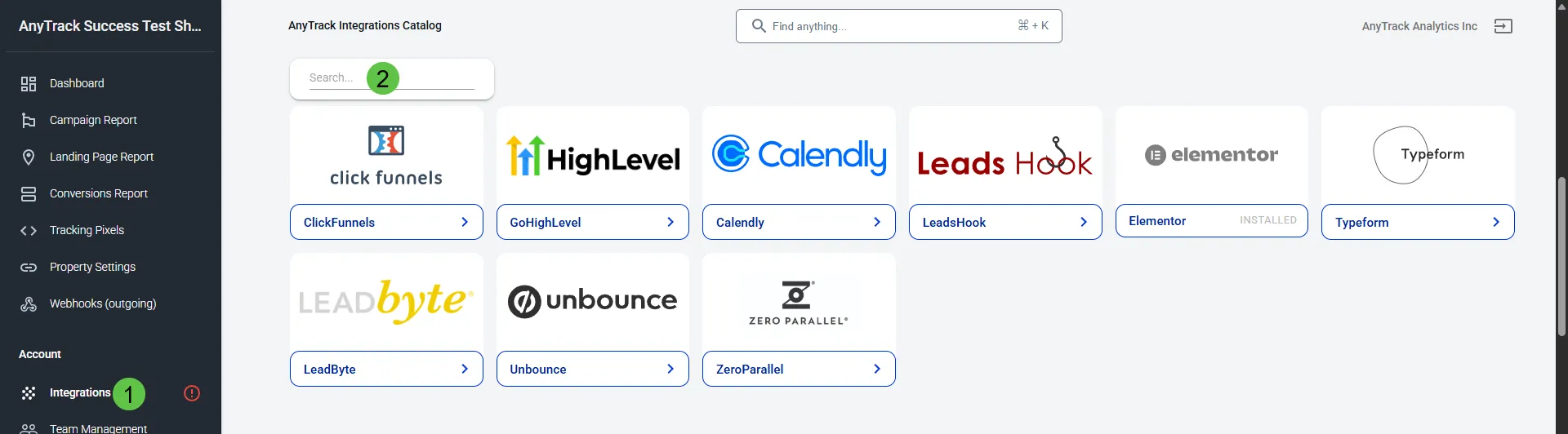
👉 Browse available form integrations
When to Use a Custom Integration
Section titled “When to Use a Custom Integration”If your form builder isn’t listed in the integration catalog, you can still track submissions using a custom setup — provided the platform meets the following conditions:
- 🔄 Can send a POST request to a webhook when a form is submitted
- 🧩 Allows installing JavaScript code (to load the AnyTrack Tag)
- 🔒 Supports adding a custom hidden field to the form
If these are met, you can set up server-side form tracking via a custom integration.
🛠️ Prerequisites
Section titled “🛠️ Prerequisites”Make sure you have the following before starting:
- ✅ An active AnyTrack account with a connected Property
- ✅ The AnyTrack Tracking Tag installed on your form page
- ✅ Access to your form builder’s configuration panel
- ✅ Ability to add JavaScript and hidden fields to the form
- ✅ (Optional) Ability to configure a POST webhook
🔧 Setup Guide
Section titled “🔧 Setup Guide”1. Install the AnyTrack Tag
Section titled “1. Install the AnyTrack Tag”Install the AnyTrack Tag on the page that hosts your form.
Learn how →
2. Add a Hidden Field for the Click ID
Section titled “2. Add a Hidden Field for the Click ID”Insert this hidden input field into your form markup:
<input type="hidden" name="click_id" value="--CLICK-ID--" />The --CLICK-ID-- placeholder will be dynamically replaced with the actual tracking click ID.
3. Create a Webhook Endpoint in AnyTrack
Section titled “3. Create a Webhook Endpoint in AnyTrack”Follow this video to generate your custom webhook URL:
🎥 Create a Custom Integration Webhook →
4. Configure Your Form Submission action
Section titled “4. Configure Your Form Submission action”In your form settings:
- Set the form to POST to your AnyTrack webhook URL
- Include the
click_idfield in the request payload - You may also include other form data (e.g.,
event_name,email,phone)
5. Test the Form Submission
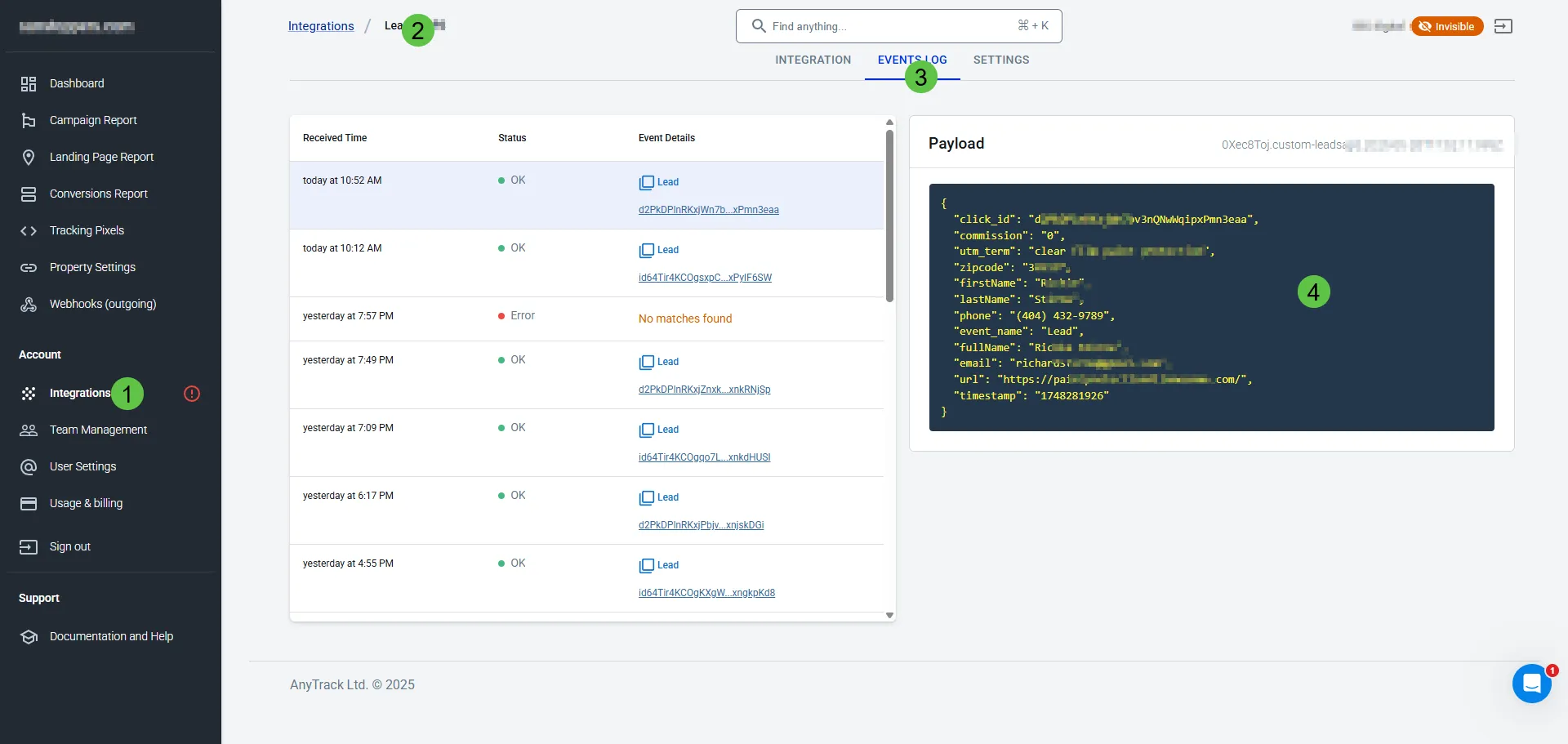
Section titled “5. Test the Form Submission”Submit a test entry through your form. Then check the:
AnyTrack Dashboard → Custom Integration → Events Log
You should see the collected event data.
6. Map the Event to Your Ad Platform
Section titled “6. Map the Event to Your Ad Platform”In your Integration settings, make sure to:
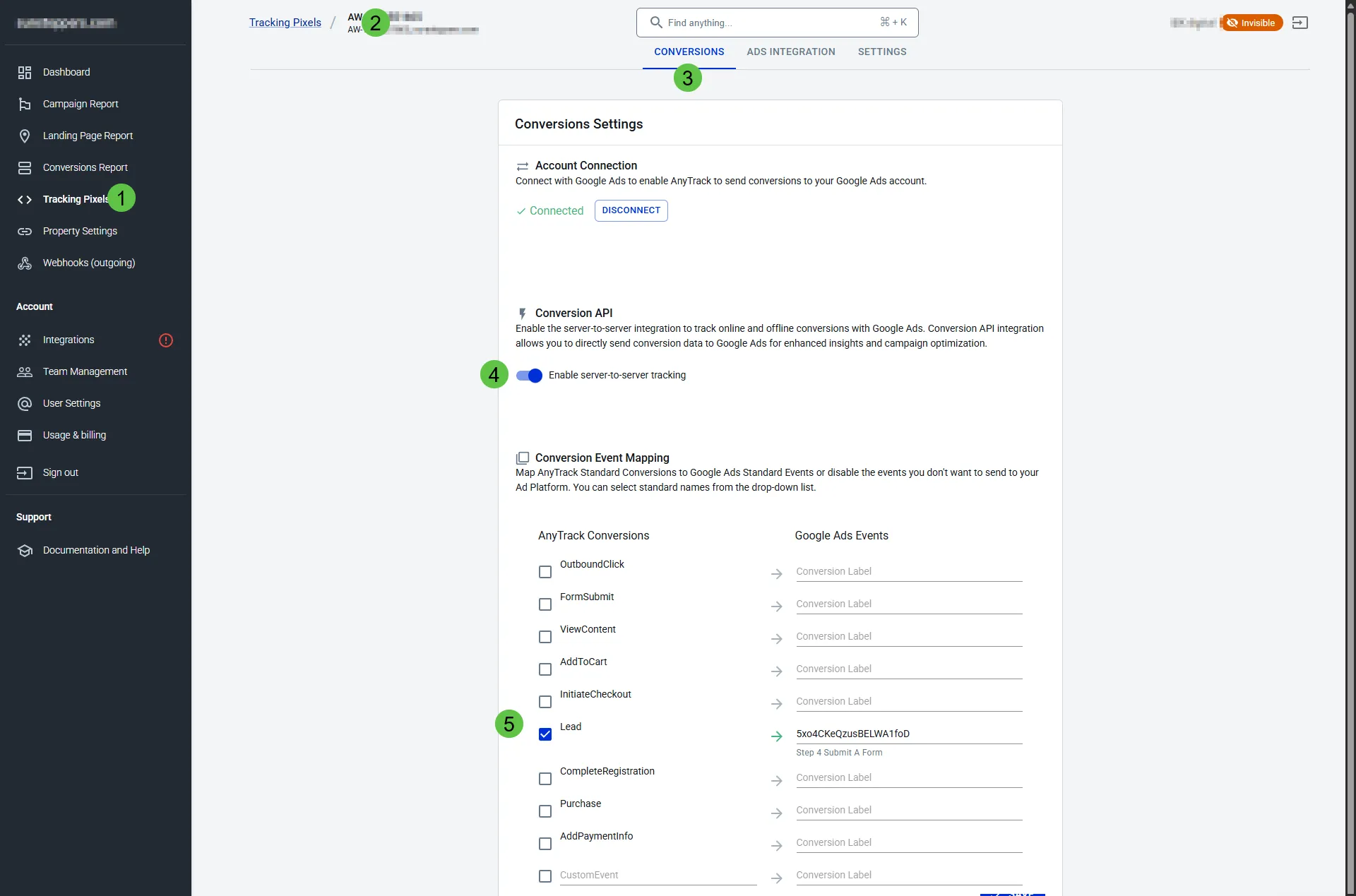
- Map the tracked event to a conversion goal in your ad platform
- Enable the ad integration
Conversion API