
Google Ads Enhanced
Set up Google Ads Enhanced Conversions with AnyTrack to improve conversion accuracy, measure performance in a privacy-safe way, and optimize campaigns with first-party conversion data. Boost ROAS without cookie restrictions.
Enhanced Conversions improve the accuracy of your conversion measurement and unlock more powerful bidding. This feature supplements your existing Conversion Tag by sending hashed first-party conversion data from your website to Google in a privacy-safe way.
Learn more on the Google Ads support website.
What Are Google Ads Enhanced Conversions?
Section titled “What Are Google Ads Enhanced Conversions?”Google Ads Enhanced Conversions are an attribution feature that improves campaign measurement accuracy by matching your conversions to signed-in Google users via hashed first-party data. When a conversion fires, your site sends Google a hashed email, phone, or name alongside the standard conversion event. Google compares the hash against signed-in user data to confirm which ad click drove the conversion, even when third-party cookies are blocked.
Enhanced Conversions typically recover 15-25% of conversions that traditional Google Ads tracking loses to cookie restrictions, iOS App Tracking Transparency, and browser privacy modes. Better attribution improves Smart Bidding and conversion-based campaign optimization, which compounds into higher ROAS.
The feature ships in two modes:
- Enhanced Conversions for Web — improves attribution for conversions that happen on your website (purchases, sign-ups, form submissions).
- Enhanced Conversions for Leads — improves attribution for offline conversions that happen later in your CRM, sales pipeline, or by phone.
AnyTrack supports both modes. Connect Google Ads in the Integration Catalog and AnyTrack handles the hashing, field mapping, and delivery.
Enhanced Conversions vs Standard Conversion Tracking
Section titled “Enhanced Conversions vs Standard Conversion Tracking”Standard Google Ads conversion tracking writes a cookie when someone clicks your ad and reads it back when they convert. The model breaks when:
- The user blocks third-party cookies (default in Safari and Firefox)
- The cookie expires (Safari ITP shortens lifetime to seven days)
- The conversion happens on a different device or browser than the click
- The conversion happens after the 90-day Google Ads attribution window
Enhanced Conversions add a parallel signal: hashed user data. When a conversion fires, the page sends Google a SHA-256 hash of the user email, phone, or name. Google compares the hash against signed-in account data and credits the conversion to the original ad click without needing the cookie.
The two methods are complementary. Standard tracking still runs; Enhanced Conversions improve match rates for the conversions standard tracking misses.
| Standard Conversions | Enhanced Conversions | |
|---|---|---|
| Signal | Third-party cookie | Hashed user data |
| Privacy | Cookie-based | First-party data, hashed |
| Cross-device | No | Yes (for signed-in Google users) |
| Recovers conversions from cookie blockers | No | Yes (typically 15-25% lift) |
For server-to-server delivery of these conversions outside the browser, see Server-Side Tracking — AnyTrack runs browser-side and server-side delivery in parallel by default.
Enhanced Conversions for Web vs Enhanced Conversions for Leads
Section titled “Enhanced Conversions for Web vs Enhanced Conversions for Leads”Google Ads exposes two distinct Enhanced Conversions products. Pick the one that matches where the conversion actually happens.
Enhanced Conversions for Web
Section titled “Enhanced Conversions for Web”Use Enhanced Conversions for Web when the conversion fires on your website (a purchase, sign-up, completed form, or downloaded asset). The page sends the hashed user data to Google Ads at the moment of conversion. AnyTrack handles this automatically through its standard Google Ads connection.
Common AnyTrack sources that feed Enhanced Conversions for Web:
- Shopify — purchase data including email, phone, and address
- ClickFunnels — checkout and lead form data
- SamCart — purchase and customer data
- Custom checkouts via Webhooks
Enhanced Conversions for Leads
Section titled “Enhanced Conversions for Leads”Use Enhanced Conversions for Leads when the conversion completes outside your website, typically after a sales team or CRM stage advances the deal. A form lead becomes an “Opportunity Qualified” event in your CRM two days later; that downstream event is what Google should optimize against.
AnyTrack receives the offline event from your CRM (via integration or webhook), enriches it with the hashed user data collected at the original form fill, and uploads it to Google Ads as an Enhanced Conversion for Leads.
This is the right pattern for:
- Lead-gen funnels with sales team qualification
- B2B SaaS trial-to-paid flows
- Phone-call conversions from inbound calls
- Long-cycle nurture campaigns where the sale happens weeks after the click
Prerequisites
Section titled “Prerequisites”- An AnyTrack account with a Basic plan or higher
- A Google Ads account with Standard or Admin permissions
- A conversion goal configured in your Google Ads account
- A conversion source that sends personal data to AnyTrack (for example, Shopify, ClickFunnels)
How AnyTrack and Google Ads Enhanced Conversions Work
Section titled “How AnyTrack and Google Ads Enhanced Conversions Work”When AnyTrack receives a conversion from your conversion sources, it parses the conversion data and sends it to Google Ads according to Enhanced Conversion requirements.
Setup Guide
Section titled “Setup Guide”In Google Ads
Section titled “In Google Ads”- Navigate to your conversion settings
- Select the conversion goal you want to configure, or create a new conversion following this guide
- Edit the conversion
- Scroll down to the Enhanced Conversions option
- Turn on Enhanced Conversions
- Select Global Site Tag or Google Tag Manager and click Next
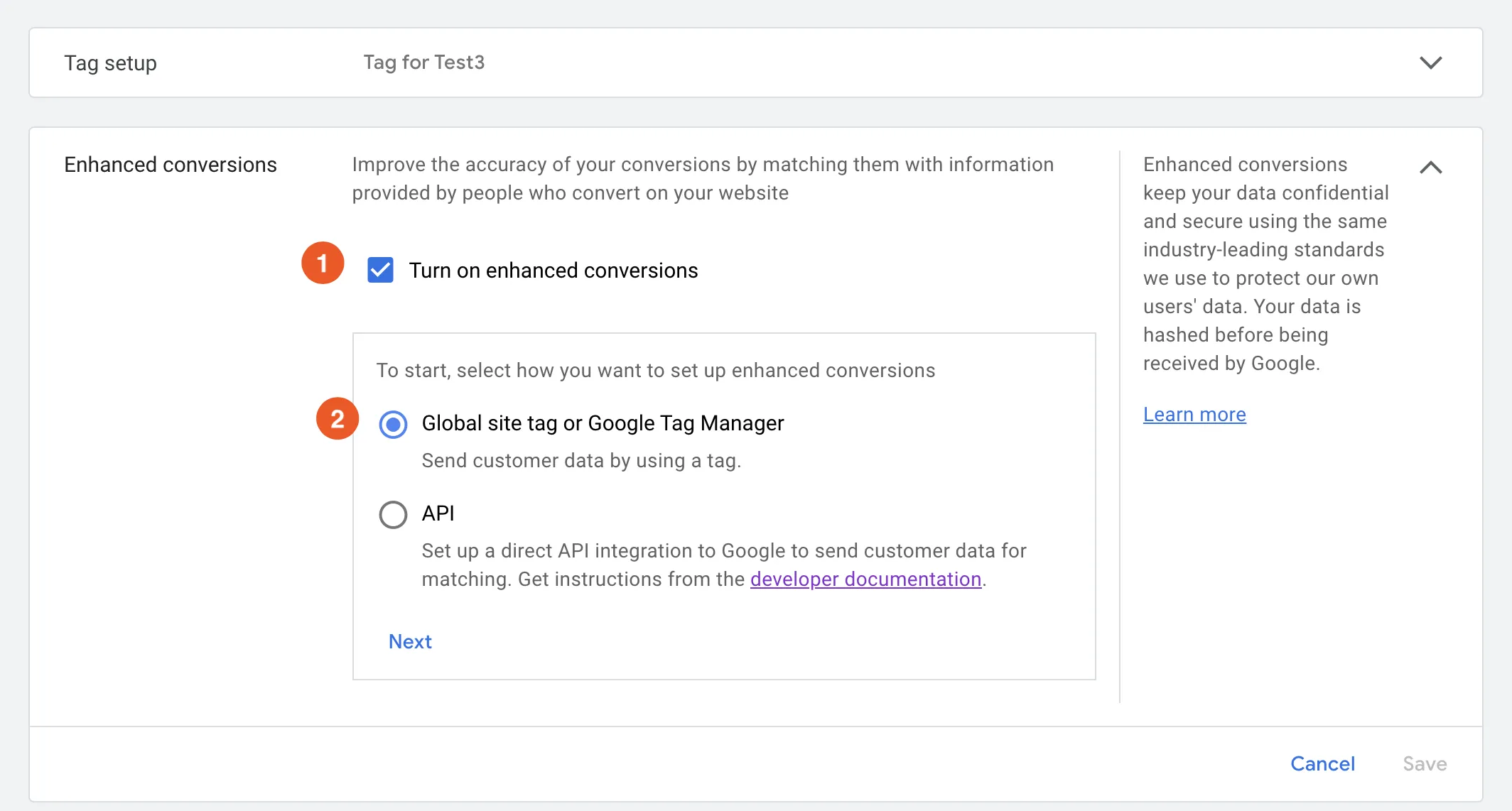
- Add your site’s URL so your
Gtagis identified - Select the Edit Code option and Save
In AnyTrack
Section titled “In AnyTrack”AnyTrack handles the data flow automatically—no code modifications required.
- Connect with Google Ads (if not already done)
- Map the conversion goals according to your requirements
Complete! From now on, any conversions eligible for Enhanced Conversions carry the relevant parameters and improve your ad attribution.
Required vs Optional User Data Fields
Section titled “Required vs Optional User Data Fields”Google Ads accepts several hashed user data fields. More fields means higher match rates, which means more recovered conversions.
| Field | Status | Notes |
|---|---|---|
| Required | The single most important field. Hash with SHA-256 after lowercasing and trimming whitespace. | |
| Phone | Recommended | Normalize to E.164 format before hashing. |
| First name | Recommended | Lowercase, then hash. |
| Last name | Recommended | Lowercase, then hash. |
| Postal code | Recommended | Often the difference between a match and a miss. |
| Street address | Optional | Improves match for ecommerce purchases. |
| City | Optional | Pair with address fields. |
| Region (state) | Optional | Pair with address fields. |
| Country | Optional | Useful for global advertisers. |
AnyTrack collects every available field from your conversion source and sends it to Google Ads automatically. You do not need to hash anything manually. AnyTrack handles SHA-256 hashing, normalization, and field mapping at conversion time.
Verify Enhanced Conversions Are Working
Section titled “Verify Enhanced Conversions Are Working”After setup, confirm Google Ads is receiving and matching your enhanced data. Three places to check.
Google Ads Diagnostic Status
Section titled “Google Ads Diagnostic Status”- In Google Ads, go to Tools and settings > Measurement > Conversions
- Select the conversion goal you connected to AnyTrack
- Open the Diagnostics tab
Look for a status of Recording recent conversions with no critical errors. A warning like “missing email” means AnyTrack is sending conversions but the email field is empty on the inbound event, which is usually a conversion source configuration issue.
Enhanced Conversions Match Rate
Section titled “Enhanced Conversions Match Rate”The diagnostics tab also shows a match rate percentage. A match rate above 50% is good. Above 70% means you are sending most of the recommended fields. Below 30% indicates email or other key fields are missing from your conversion source.
Compare AnyTrack and Google Ads Counts
Section titled “Compare AnyTrack and Google Ads Counts”Conversions reported in your AnyTrack Campaign Report should approximately match the conversion totals shown in Google Ads for the same period, with a few hours of delay for Google processing. A persistent gap larger than 10% suggests a data flow issue worth investigating.
Troubleshooting Enhanced Conversions
Section titled “Troubleshooting Enhanced Conversions”The four most common Enhanced Conversions problems and how to fix them.
Missing required parameter: email
Section titled “Missing required parameter: email”Your AnyTrack property is firing conversions, but the email field is empty on the inbound event. Check the conversion source:
- Shopify — confirm the AnyTrack Shopify connection is authorized for customer data scopes.
- ClickFunnels — confirm the form field collecting email is mapped correctly in the AnyTrack integration.
- Webhooks — confirm the webhook payload includes the
emailproperty.
Low match rate (below 30%)
Section titled “Low match rate (below 30%)”You are sending conversions but Google is not matching them to user profiles. Almost always caused by sending only email when phone, first and last name, or postal code are also available. Audit your conversion source for additional fields and confirm they reach AnyTrack.
Tag setup conflict
Section titled “Tag setup conflict”Enhanced Conversions are configured twice — once through AnyTrack and once through Google Tag Manager or a manual gtag.js install. Pick one. Disable the non-AnyTrack configuration in the Google Ads tag editor.
Conversions not appearing at all
Section titled “Conversions not appearing at all”The Enhanced Conversions toggle is on but conversions are not reaching Google Ads. Verify:
- The conversion goal in Google Ads matches the event AnyTrack sends (case-sensitive)
- The AnyTrack property is sending conversions (check the Campaign Report)
- The Google Ads connection in AnyTrack shows a Connected status
Related Resources
Section titled “Related Resources”Enhanced Conversions FAQs
FAQ was last reviewed on 2026-07-26