
Custom Affiliate Networks
Discover how to track conversions from custom affiliate networks not available in the AnyTrack catalog. This guide explains adding tracking links, handling click IDs, and setting up postbacks to enhance conversion tracking for custom integrations.
Track conversions from affiliate networks not in the AnyTrack Integration Catalog. This guide uses Adtraction as a complete example.
Step 1: Research Your Affiliate Network
Section titled “Step 1: Research Your Affiliate Network”Collect this information from your affiliate network before setting up tracking:
Tracking Parameter
Look for the parameter name used to pass tracking data. Common examples:
- Impact:
subid1 - CAKE:
s2 - ClickBank:
TID - Adtraction:
epi(our example)
Check your network’s documentation for terms like “tracking parameters,” “custom parameters,” or “tracking tokens.”
Postback Variables
Locate the variables your network sends in postback notifications. You need:
- Click ID variable (contains your tracking data)
- Commission variable (payout amount)
- Order ID variable (transaction identifier)
- Other variables (currency, timestamp, etc.)
Adtraction postback variables:
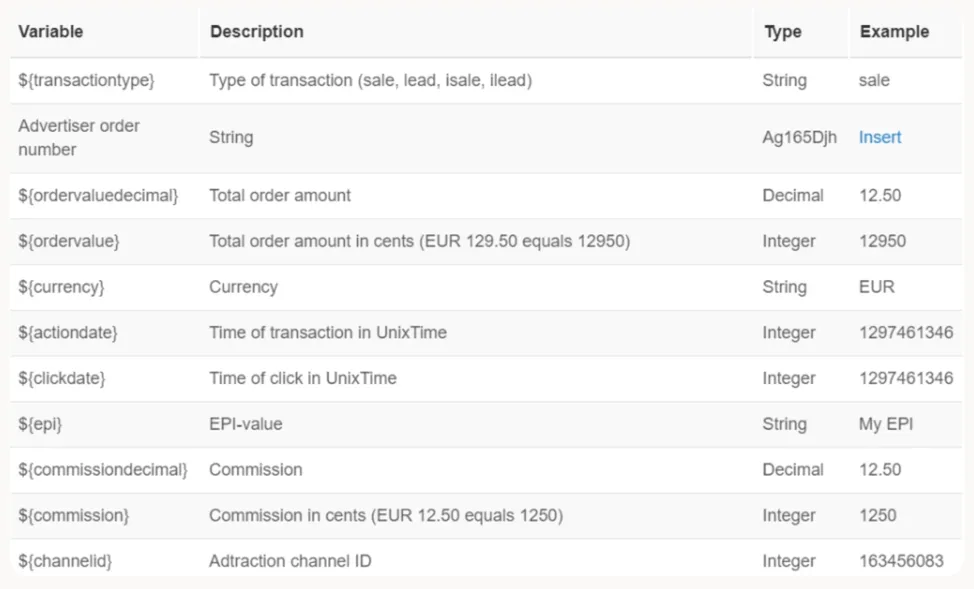
Key variables for AnyTrack:
${epi}- Contains tracking data${commissiondecimal}- Commission amountAdvertiser order number- Transaction ID
Postback Support
Verify your network can send postback notifications to external URLs when conversions occur.
Step 2: Tag Your Affiliate Links
Section titled “Step 2: Tag Your Affiliate Links”Add the tracking parameter with the --CLICK-ID-- placeholder to all affiliate links.
Adtraction example:
Original link:
https://adtraction.com/offer123Tagged link (note the ? for first parameter):
https://adtraction.foo/offer123?epi=--CLICK-ID--If the URL already has parameters, use & instead:
https://adtraction.foo/offer123?existing=param&epi=--CLICK-ID--Important: AnyTrack Autotag Feature
Section titled “Important: AnyTrack Autotag Feature”AnyTrack’s AutoTag feature automatically substitutes the --CLICK-ID-- placeholder with the actual click ID when visitors click your links.
Link Plugin Redirect Considerations
Section titled “Link Plugin Redirect Considerations”If using link redirect plugins:
- Pass the
subidparameter through to the destination URL - the redirect must pass through the tracking parameter - Make the click ID visible on your website - don’t embed the
--CLICK-ID--token inside the redirect plugin itself - The click ID should be visible in the final destination URL that visitors see
Correct redirect setup:
Your page link: yoursite.com/go/offer?epi=--CLICK-ID--Embedded offer link: adtraction.com/offer123Final destination after redirect: adtraction.com/offer123?epi=ACTUAL_CLICK_IDVerify Link Tagging
Section titled “Verify Link Tagging”- Publish the tagged links on your website
- Navigate to a page with the links
- Hover over a link to verify the
--CLICK-ID--placeholder is replaced with an actual click ID value - Click the link and confirm the click ID appears in the final destination URL
Step 3: Create Custom Integration
Section titled “Step 3: Create Custom Integration”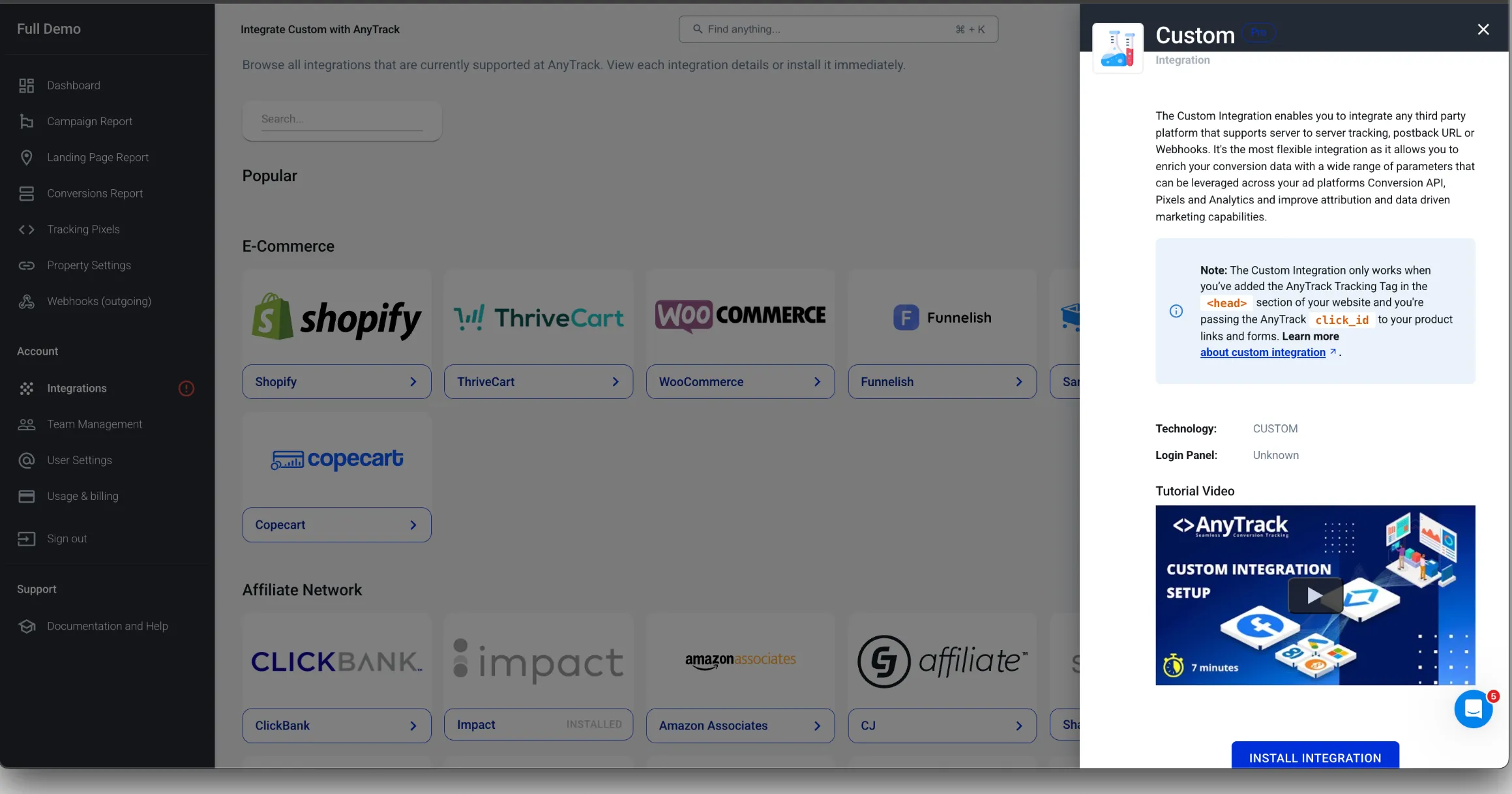
- Go to Integrations in your AnyTrack dashboard
- Search and install Custom Integration
- Fill in the integration details:
- Name: Adtraction
- Login URL: https://adtraction.com (optional)
- Click Next
Configure Postback URL Template
Section titled “Configure Postback URL Template”Map Adtraction postback variables to AnyTrack placeholders:
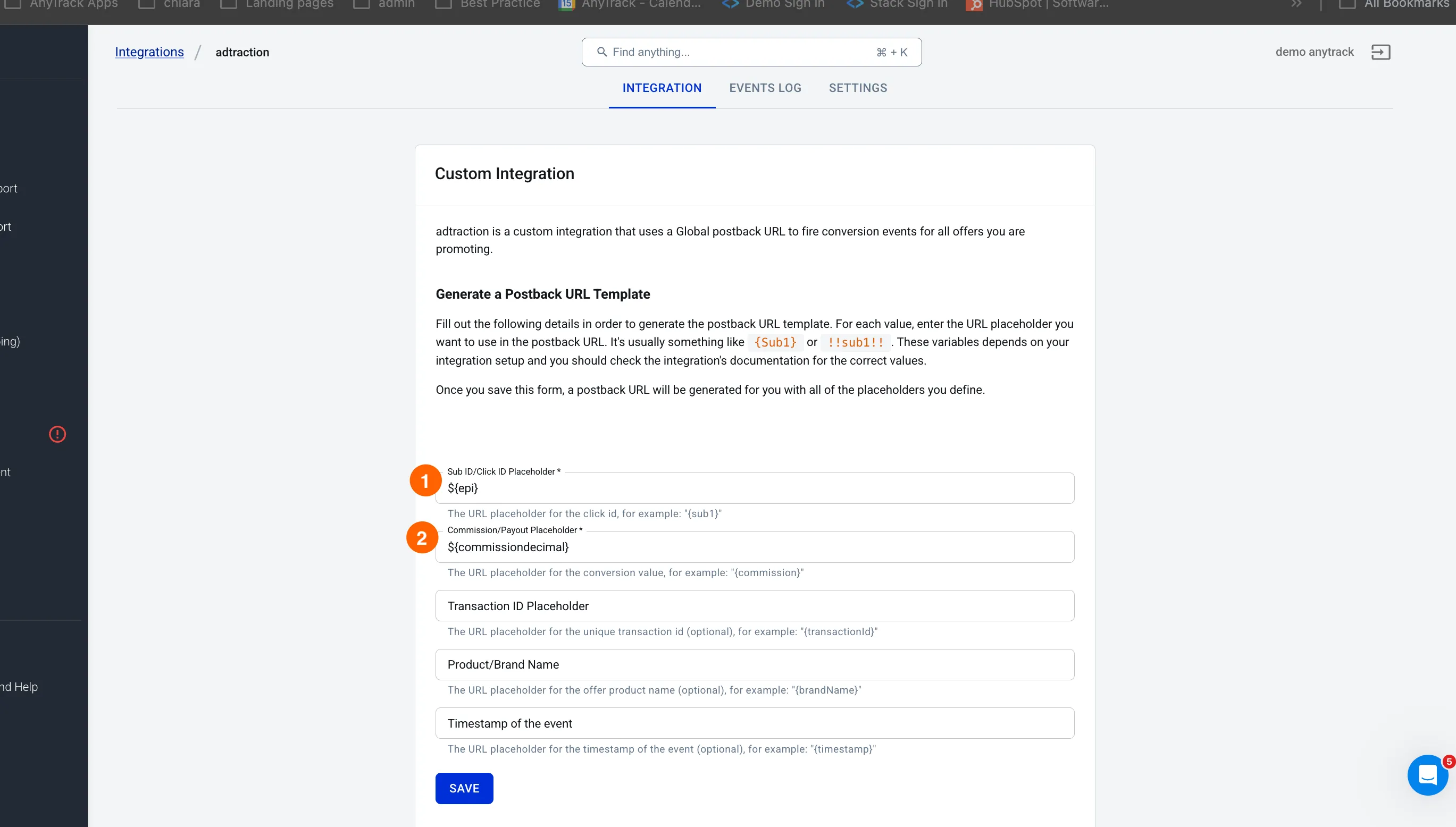
| AnyTrack Field | Adtraction Variable | Description |
|---|---|---|
| Sub ID/Click ID Placeholder | ${epi} | Required - Contains the click tracking data |
| Commission/Payout Placeholder | ${commissiondecimal} | Required - Commission amount |
| Transaction ID Placeholder | Advertiser order number | Optional - Unique transaction ID |
| Product/Brand Name | Leave empty or static value | Optional - Product identifier |
| Timestamp | ${actiondate} | Optional - Transaction timestamp |
- Click Save to generate your postback URL
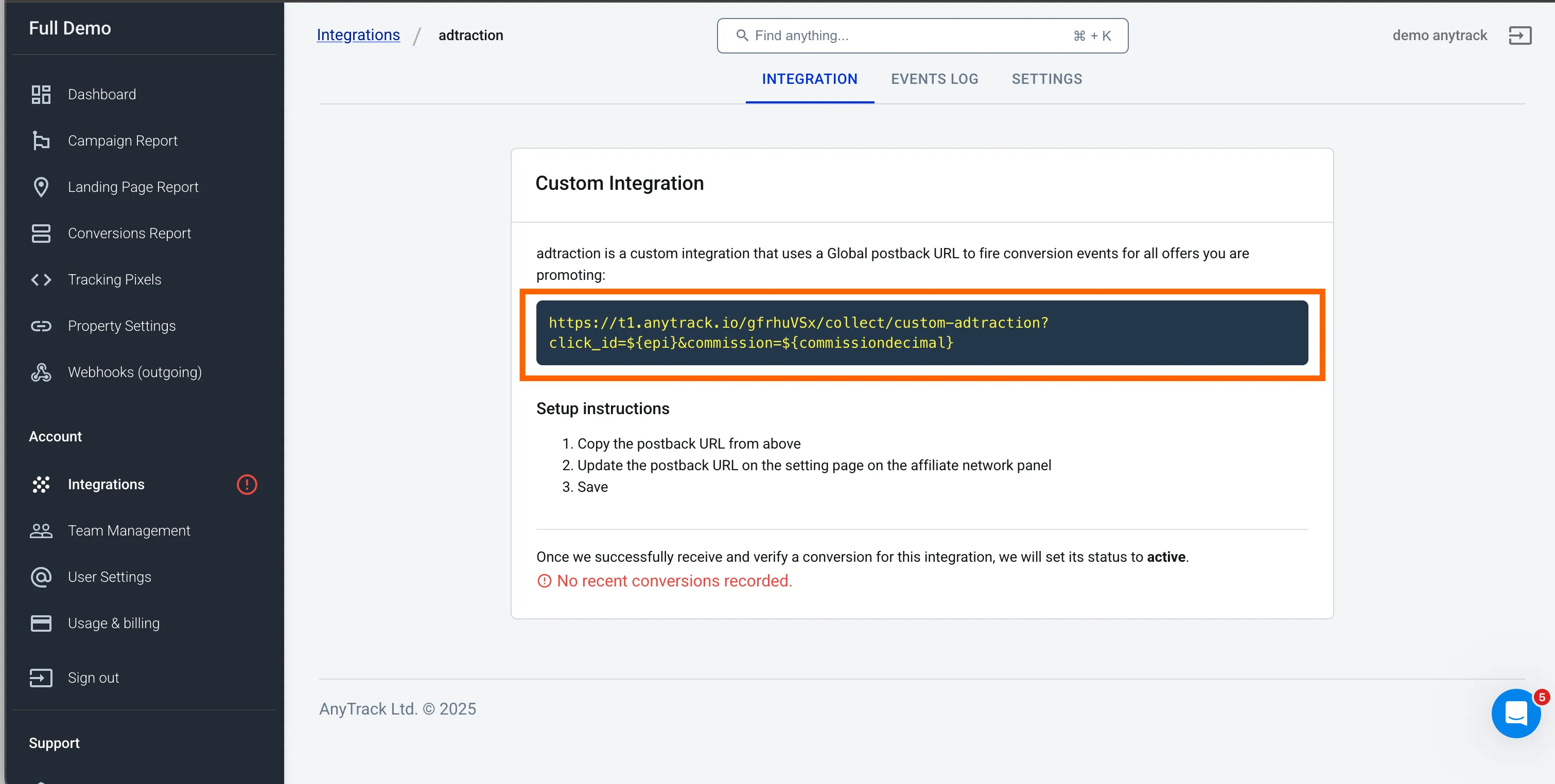
Step 4: Configure Network Postback
Section titled “Step 4: Configure Network Postback”- Copy the generated postback URL from AnyTrack
- Log into your Adtraction dashboard
- Find the postback/callback settings
- Add the AnyTrack postback URL
- Save the configuration
Step 5: Test Your Setup
Section titled “Step 5: Test Your Setup”Method 1: Test Mode
Section titled “Method 1: Test Mode”- Enable test mode in your funnel settings
- Click through an Adtraction affiliate link
- Complete a test conversion
- Check the Events Log in your custom integration
Method 2: Live Testing
Section titled “Method 2: Live Testing”- Wait for an actual conversion to occur
- Check the Events Log in your custom integration
- Verify the conversion data appears correctly
Note: You’ll only see conversion events after Adtraction confirms a sale and sends the postback notification.
Understanding Conversion Types
Section titled “Understanding Conversion Types”FAQ and Troubleshooting
FAQ was last reviewed on 2026-07-26
Which affiliate networks support postback tracking?
Can I track multiple custom affiliate networks simultaneously?
What if my network does not support postback notifications?
How do I know which parameter name my network uses for tracking?
subid1 (Impact), s2 (CAKE), and TID (ClickBank).Why are my conversions not appearing after setting up the postback?
--CLICK-ID-- placeholder, and the Sub ID field mapping matches the parameter your network sends back.