
Facebook Ads Advanced Options
Connect with AnyTrack to enable Conversion API tracking and campaign reporting. Send server-side conversion data for better ad optimization and accurate attribution.
Configure advanced AnyTrack features for experienced users managing custom tracking setups and specific Facebook Ads requirements.
Custom Event Mapping
Section titled “Custom Event Mapping”Map your custom AnyTrack events to Facebook conversion events if you use custom tracking setups (not Shopify or ClickFunnels) and track custom events such as CRM events.
How Custom Event Mapping Works
Section titled “How Custom Event Mapping Works”- Track Custom Events: Your website or CRM sends custom events to AnyTrack via
webhook,JavaScript, orAPI - Map to Facebook Events: Map these custom events to Facebook standard or custom events in AnyTrack
- Automatic Forwarding: AnyTrack forwards mapped events to
Facebook Conversion API
When to Use Custom Event Mapping
Section titled “When to Use Custom Event Mapping”- You’re tracking events from a CRM system (Salesforce, HubSpot, custom CRM)
- You have custom checkout or conversion flows
- You need to track business-specific milestones not covered by standard events
- You’re forwarding offline conversions to Facebook
How to Set Up Custom Event Mapping
Section titled “How to Set Up Custom Event Mapping”- Navigate to Tracking Pixels in your AnyTrack dashboard
- Select your Meta Pixel
- Scroll to the Event Mapping section
- Find your custom event in the left column (AnyTrack events)
- Map it to a Facebook event in the right column
- Save changes
Catch-All Event Mode
Section titled “Catch-All Event Mode”⚠️ Advanced Feature - Use with Caution
Catch-All Event mode sends every event tracked by AnyTrack to Facebook, bypassing event mapping configuration.
What It Does
Section titled “What It Does”- Forwards all events from AnyTrack to
Facebook Conversion API - Bypasses event mapping rules
- Includes events from all sources (website, CRM, webhooks)
When to Use It
Section titled “When to Use It”- You want complete event visibility in Facebook Event Manager
- You plan to create custom conversions in Facebook based on event parameters
- You need to track events that aren’t pre-defined in your event mapping
⚠️ Important Warnings
Section titled “⚠️ Important Warnings”How to Enable Catch-All Event Mode
Section titled “How to Enable Catch-All Event Mode”- Navigate to Tracking Pixels
- Select your Meta Pixel
- Find the Catch-All Event toggle
- Enable it and save
Custom Conversions
Section titled “Custom Conversions”Create custom conversions directly from the AnyTrack dashboard to track business-specific goals without additional code.
What Are Custom Conversions?
Section titled “What Are Custom Conversions?”Define conversion rules based on specific criteria. Examples include:
- Filter purchases to track only transactions over $100
- Track form submissions from specific pages
- Measure repeat purchases separately from first-time purchases
How to Create Custom Conversions
Section titled “How to Create Custom Conversions”You can create custom conversions in two ways:
Option 1: AnyTrack Dashboard
- Track your custom event in AnyTrack
- Map it to a custom conversion name in the Event Mapping section
- AnyTrack forwards it to Facebook with your custom name
Option 2: Facebook Event Manager
- Enable Catch-All Event mode or ensure events are sent to Facebook
- Open Facebook Event Manager
- Create custom conversion rules based on URL parameters, event parameters, or combinations
Custom Audiences with AnyTrack Event Data
Section titled “Custom Audiences with AnyTrack Event Data”Create highly targeted custom audiences in Facebook using conversion data tracked by AnyTrack.
Understanding: All Events Flow to Facebook
Section titled “Understanding: All Events Flow to Facebook”Why This Matters
Section titled “Why This Matters”- Larger Audiences: Build audiences from your entire customer base, not just Facebook traffic
- Better Lookalikes: Create lookalike audiences from all your best customers
- Cross-Channel Retargeting: Retarget Google Ads converters on Facebook and vice versa
- Unified Customer Data: Use your complete conversion dataset for audience building
How to Create Custom Audiences
Section titled “How to Create Custom Audiences”- Go to Facebook Ads Manager
- Navigate to Audiences
- Create Custom Audience
- Select Website as the source
- Select your Meta Pixel (connected to AnyTrack)
- Define audience rules based on:
- Standard events (Purchase, Lead, AddToCart, etc.)
- Custom events you’ve mapped
- Event parameters (purchase value, product category, etc.)
- URL parameters
- Time windows
Example Use Cases
Section titled “Example Use Cases”- High-Value Customers: Target people with Purchase value above $500
- Abandoned Cart: Target people who added to cart but didn’t purchase within 30 days
- Product Category Buyers: Target people who purchased specific product categories
- Multi-Step Funnel: Target people who completed step 1 but not step 2
- CRM Converters: Target people who converted in your CRM (tracked via
Conversion APIfor CRM)
Campaign Management from Campaign Report
Section titled “Campaign Management from Campaign Report”Pause and resume Facebook campaigns directly from the AnyTrack Campaign Report without switching to Facebook Ads Manager.
Available Actions
Section titled “Available Actions”- Pause underperforming campaigns
- Resume campaigns when ready
- Control campaigns directly from AnyTrack
How to Manage Campaigns
Section titled “How to Manage Campaigns”- Navigate to the Campaign Report in AnyTrack
- Find your Facebook campaigns
- Use the campaign action menu to pause or resume
- Changes sync with Facebook Ads Manager immediately
Event Match Quality Considerations
Section titled “Event Match Quality Considerations”When using advanced features like Catch-All Event mode or custom event mapping, keep Event Match Quality in mind.
General EMQ Guidelines
Section titled “General EMQ Guidelines”Safely ignore EMQ warnings in these cases:
- You’re an affiliate marketer without access to first-party data (email, phone)
- Your platform collects customer data only at Purchase, not at earlier funnel steps
- You’re using Catch-All Event mode and sending non-conversion events to Facebook
Address EMQ warnings in these cases:
- You have customer data available but aren’t sending it
- You see consistently low scores (below 4.0) on key conversion events
- Multiple integrations send conflicting data
About Facebook User ID (UID)
Section titled “About Facebook User ID (UID)”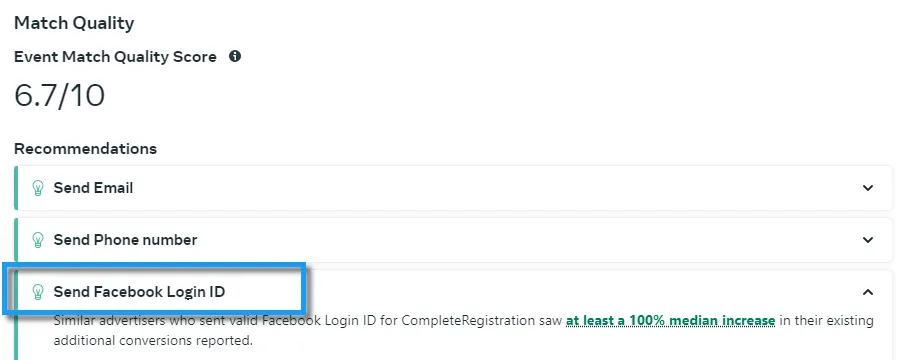
Facebook generates the User ID (UID) only when users log in with Facebook Login. This ID doesn’t pass through tracking parameters like fbclid or UTMs, so AnyTrack cannot collect it directly. Implement Facebook Login on your website to enable UID tracking and improve Event Match Quality.
Disconnected Pixel Notifications
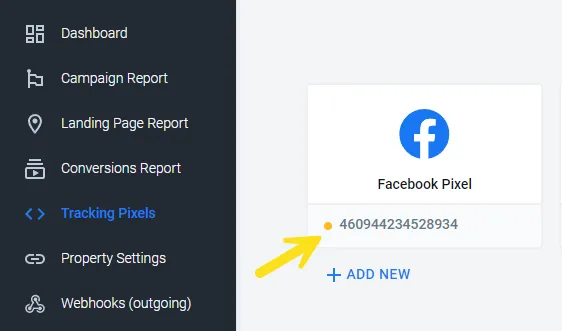
Section titled “Disconnected Pixel Notifications”AnyTrack sends an automatic email notification if your Meta Pixel disconnects, so you can resume forwarding conversion data immediately.
Common causes:
- API updates
- Permission changes
- Token expiration
- Password changes
Campaign Report Visibility
Section titled “Campaign Report Visibility”Campaigns Not Found for Awareness and Traffic Objectives
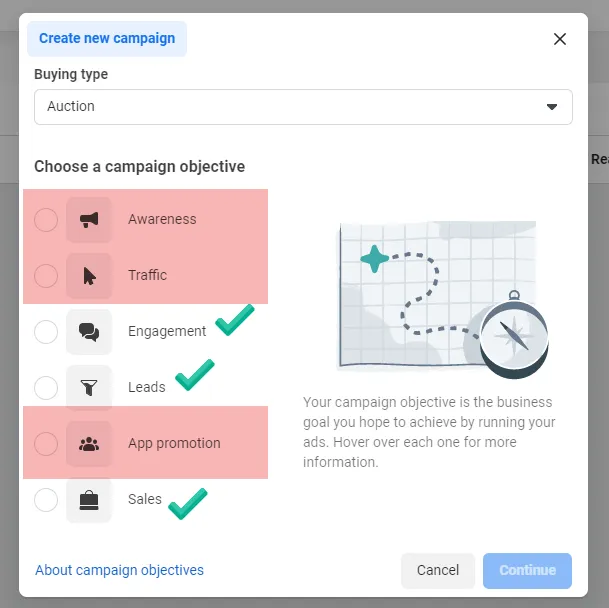
Section titled “Campaigns Not Found for Awareness and Traffic Objectives”The Campaign Report and the Verify Your Ads tool won’t display campaigns without conversion event objectives, such as Awareness and Traffic campaigns.
AnyTrack focuses on conversion tracking, and those types of campaigns don’t generate conversion events. Therefore, it’s normal for those ads not to be found.
However, if those campaigns are associated with the connected pixel and generate conversion events, they will become visible in the Campaign Report. Conversions coming from those campaigns will be correctly attributed.
Dynamic Catalog Campaigns Not Recognized as Active
Section titled “Dynamic Catalog Campaigns Not Recognized as Active”A Facebook dynamic catalog campaign (Advantage+ Catalog Ads, also called Dynamic Product Ads) can appear in AnyTrack as Meta but never register as active — no impressions, link clicks, ROAS, or attribution results — even though AnyTrack detects the campaign ID and name and the correct pixel and ad account are connected.
This happens when the product Catalog is not linked to the connected Pixel in Meta. Dynamic ads serve from a catalog, and if that catalog isn’t associated with the same Pixel/Dataset you connected to AnyTrack, the campaign’s events aren’t tied to your pixel — so AnyTrack can’t recognize the campaign as active or attribute its conversions.
As with every campaign, the Campaign Report and Verify Ads only display campaigns that generate conversion events tied to the connected pixel.
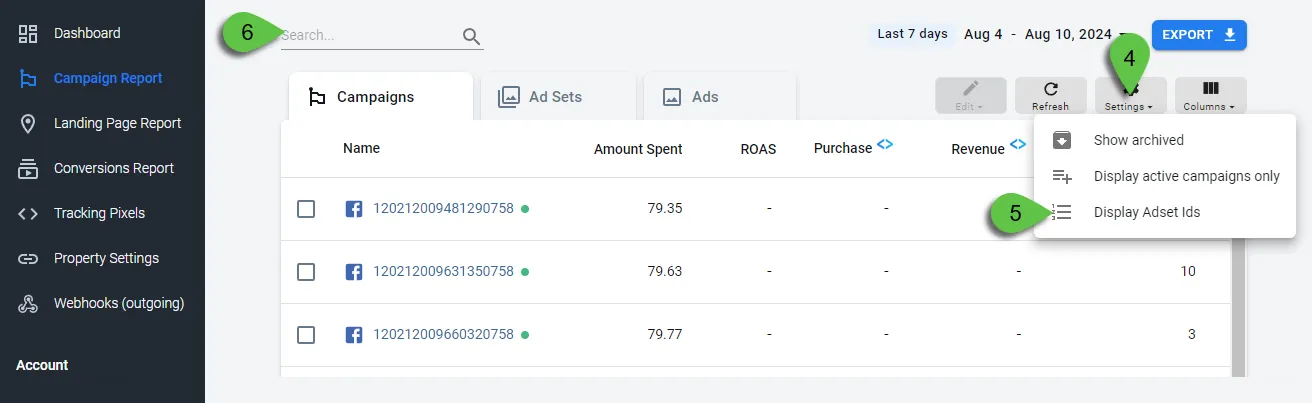
Find Campaigns Using Campaign ID
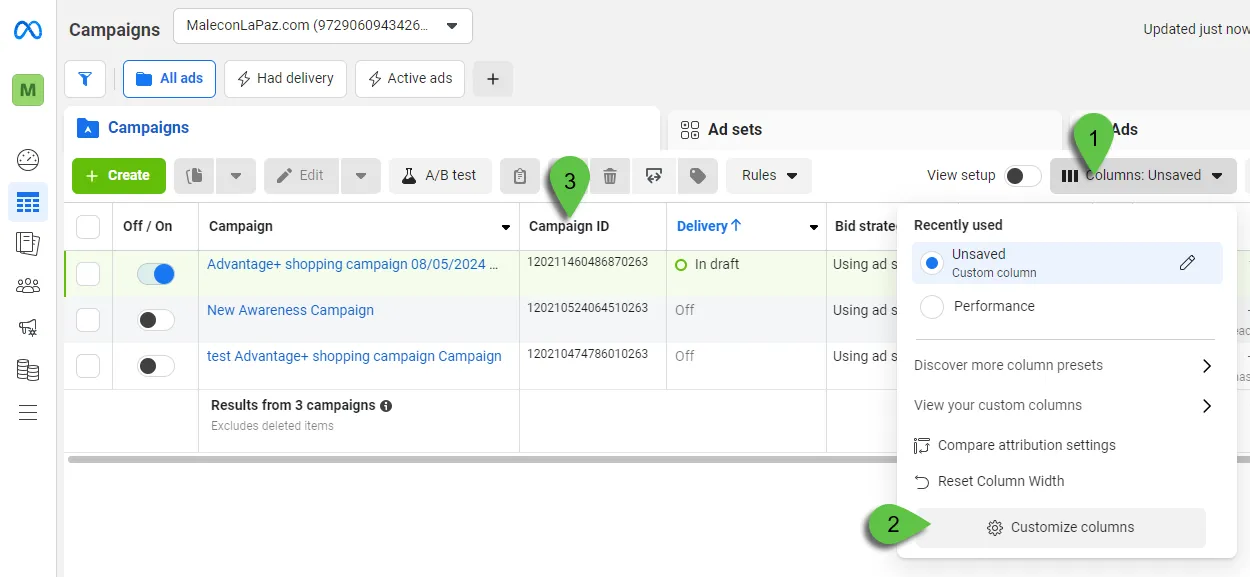
Section titled “Find Campaigns Using Campaign ID”Use Campaign IDs to find and manage your campaigns with greater precision than campaign names.
In Facebook Ads Manager:
- Click Customize columns from the Columns dropdown menu
- Add the Campaign ID column
In AnyTrack Campaign Report:
- Click the Display Adset Names/Ids selector from the Settings menu
- Use the search box to find the Campaign ID
Technical Reference: Facebook Cookies
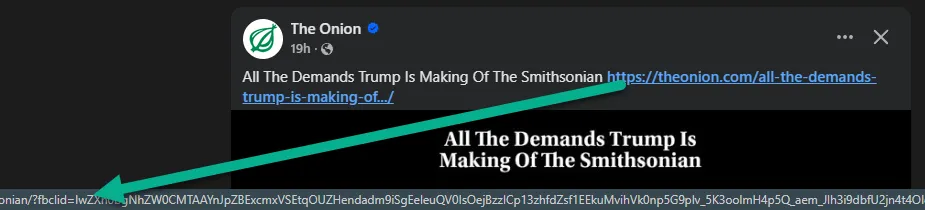
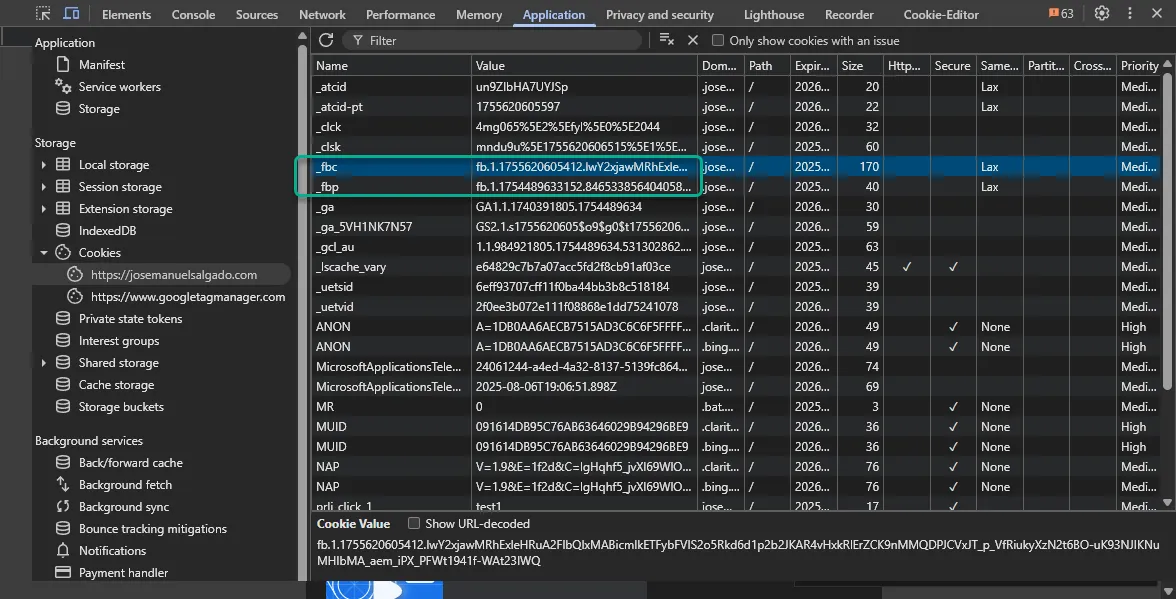
Section titled “Technical Reference: Facebook Cookies”Meta Ads uses cookies to support its attribution and tracking processes. The two main cookies relevant for advertisers are _fbc and _fbp.
How AnyTrack Handles Facebook Cookies
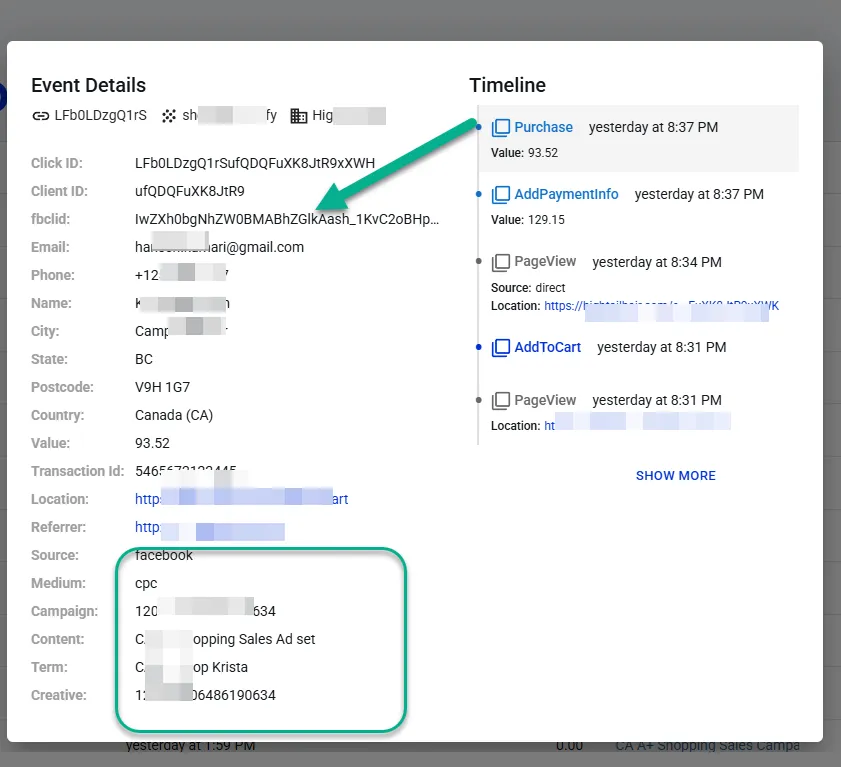
Section titled “How AnyTrack Handles Facebook Cookies”AnyTrack includes the values of these cookies and the Meta click ID (fbclid) in the attribution data for all conversion events sent to the Conversion API via your connected Tracking Tags.
AnyTrack records the values of _fbc and _fbp cookies and includes them in the attribution data for that user.
Related Resources
Section titled “Related Resources”Deep dive into EMQ scores, optimization strategies, and troubleshooting low scores.