
Integration Event Log
Monitor integration events with the Integration Event Log. Track conversion data, debug payload issues, and verify accurate data flow from your conversion sources. Check status codes and error messages for troubleshooting.
The Integration Event Log displays conversion data received from your integration sources. Use it to troubleshoot integrations and verify the exact parameters your conversion source sends.
Locate the Integration Event Log
Section titled “Locate the Integration Event Log”- Open the AnyTrack Dashboard and go to Integrations
- Click the integration you want to troubleshoot
- Open the Events Log tab
- Click an event to inspect it
- The Payload appears on the right panel
Understanding the Payload
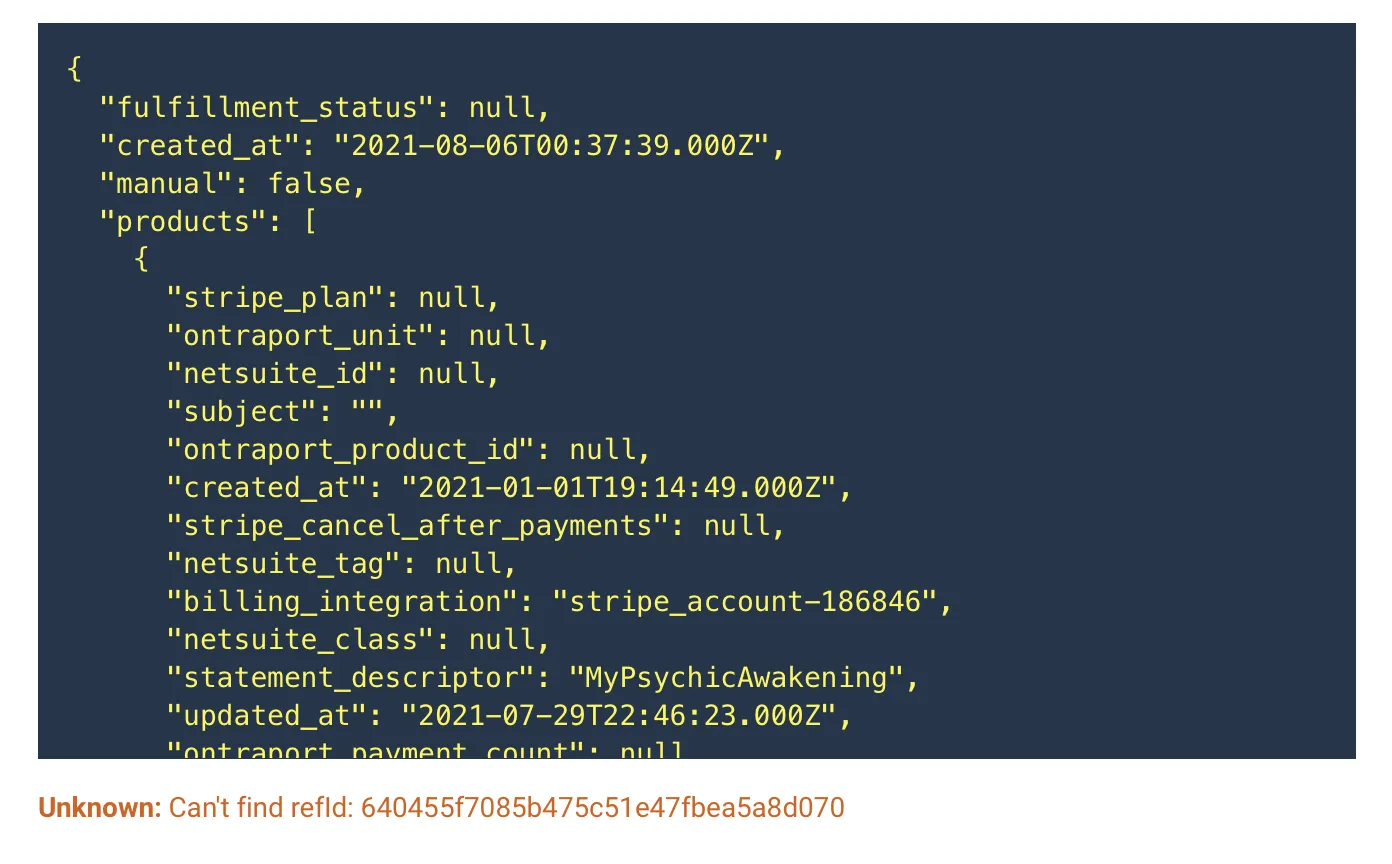
Section titled “Understanding the Payload”The payload is the raw data that AnyTrack received from your integration, typically in JSON format. It shows all parameters and their corresponding values.
Event Status Messages
Section titled “Event Status Messages”Each event in the log has a status that tells you whether the conversion was recorded, skipped, or failed.
OK (Green)
Section titled “OK (Green)”The conversion was successfully recorded. Attributes listed with the event:
- Conversion Name — For example,
Purchase - Conversion Value — The monetary value
- Click Id — Click to view the conversion timeline
Discarded (Gray)
Section titled “Discarded (Gray)”A discarded event means AnyTrack received the data but intentionally skipped it. This is normal behavior, not an error. Common reasons an event is discarded:
- Wrong conversion status — The conversion source sent a status that does not qualify as a trackable conversion. For example, a
pendingorrejectedsale from an affiliate network. AnyTrack only tracks confirmed or approved conversions. - Filtered event type — The event type is not mapped in your Conversion Mapping settings. If you only mapped
PurchaseandLead, other event types sent by the source are discarded. - Test or sandbox data — Some integrations send test conversions during setup. AnyTrack discards these when they lack valid tracking parameters.
Deduplicated (Gray)
Section titled “Deduplicated (Gray)”A deduplicated event means AnyTrack already processed this exact conversion and skipped the duplicate. AnyTrack uses the transactionId (and other event attributes) to identify duplicates. This prevents the same conversion from being counted and sent to ad platforms more than once.
Common scenarios where deduplication occurs:
- An affiliate network fires the same postback URL twice for a single sale
- A webhook retries after a timeout, sending the same conversion again
- Multiple integrations report the same transaction (for example, both a Shopify webhook and a direct API call)
Learn more about how this works in the Deduplication article.
Tracking Errors
Section titled “Tracking Errors”Errors prevent conversion tracking. Each error message points to a specific issue you can diagnose and fix.
Can’t Find refId
Section titled “Can’t Find refId”Example message: Error: Can't find refId: user@example.com
The refId (reference ID) is an identifier AnyTrack uses to match a server-side conversion back to a web session. AnyTrack automatically collects Event Attributes from your website, such as email addresses collected through form submissions. When a conversion arrives from a server-side source, AnyTrack attempts to match it using these collected attributes.
AnyTrack prefers the AnyTrack click_id for matching, but when the click ID is not available, it falls back to other identifiers like email, phone number, or external IDs. This error appears when the refId value in the conversion payload does not match any previously collected attribute in AnyTrack.
Common causes:
- The email or identifier in the conversion was never collected on the website (the visitor did not fill out a form, or the Tracking Tag was not installed on the page where the form exists)
- The visitor used a different email at checkout than the one collected on the landing page
- The attribution window expired before the conversion occurred
- The Property that recorded the visit was deleted and recreated, but the old AnyTrack Tag is still live on your pages — so visits are recorded against a Property that no longer exists and nothing matches (see No Item Returned for Asset below)
No Click ID Value Passed
Section titled “No Click ID Value Passed”Example message: Error: No click id value passed to the "cid" parameter
This error means the conversion source sent a postback or webhook, but the parameter that should carry the AnyTrack click ID was empty. The parameter name varies by integration. For example, it might be cid, sub5, sub_id, aff_sub, or whatever subid parameter your specific affiliate network or conversion source uses.
Common causes:
- The AnyTrack click ID was not appended to the affiliate link or form. Check that AutoTag is active, or that you manually added the
--CLICK-ID--token to your links. - The conversion source does not store or return the subid value. Verify that the network or platform supports passing back the click ID parameter in its postback or webhook.
- The wrong parameter name is configured in the postback URL. Double-check that the parameter name in the postback matches the one the network actually populates.
Unknown Click ID
Section titled “Unknown Click ID”Example message: Error: Unknown click_id
AnyTrack received a click ID value, but no matching click exists in the system. This typically happens when the attribution window has expired, or the click ID was generated by a different AnyTrack property.
Can’t Find Event
Section titled “Can’t Find Event”This error means AnyTrack received a conversion reference (such as a transaction ID or event identifier), but no corresponding event exists in the system. This can happen when the initial event was not tracked (for example, the Tracking Tag was missing on the page), or when the conversion source references a transaction that AnyTrack never recorded.
No Item Returned for Asset
Section titled “No Item Returned for Asset”Example message: Error: No item returned for asset "EXbzaoaX8Ts7"
The asset is the Property that the AnyTrack Tag on your page belongs to. This error means the conversion arrived tagged to a Property that AnyTrack can no longer resolve — almost always because the Property was deleted (or belongs to a different account) while its AnyTrack Tag is still installed on your site or funnel.
This most often happens after a “start over”: you delete a Property and create a new one, but the old Tag snippet stays on your pages. Every new visit is then recorded against the deleted Property, so incoming conversions have nothing to match against — and you may also see Can’t Find refId errors for the same visitors.
How to fix it:
- Open your current (active) Property in AnyTrack and copy its AnyTrack Tag
- Replace the old Tag in your website or funnel header with the new one, and delete the old snippet
- Save, then run a fresh test conversion — the event should now record with an OK status
Deleting and recreating a Property always generates a new Tag. Any page still running the old snippet keeps producing this error until you swap it.
Unauthorized Asset
Section titled “Unauthorized Asset”This error means the incoming event references a property that is not associated with your AnyTrack account. Check that the integration is connected to the correct property. If you manage multiple properties, verify the postback URL or webhook points to the right one. If you deleted the Property rather than pointing to another account’s, see No Item Returned for Asset above.
No IP Match
Section titled “No IP Match”AnyTrack attempted IP-based attribution but found no matching session. This is a fallback method used when no click ID or reference ID is available. IP matching has lower accuracy and may not find a match if the visitor’s IP changed between the click and the conversion.
No Events in the Log at All
Section titled “No Events in the Log at All”Every status above — OK, Discarded, Deduplicated, or an error — means AnyTrack received the event. If a conversion is missing from the Events Log entirely, with no entry of any kind at the transaction time, AnyTrack has not received it.
Run these checks in order:
- Confirm you opened the right log. The Events Log is per integration. If you run more than one property or integration, verify you opened the one that should have received the conversion.
- Confirm the conversion exists in the source platform. Check the order or lead record in the platform that sends the events.
- Check the source platform’s delivery log. Most platforms keep a log of the webhooks they send. For example, Systeme.io lists them under Settings → Webhooks. If the platform shows the event was sent at the transaction time and the Events Log has no matching entry, the event has not reached AnyTrack yet — it may still arrive late, as the next step explains.
- Allow for a delayed delivery. Platforms occasionally dispatch their webhooks late — from a few minutes up to several hours after the transaction — even when their own delivery log shows the event as sent at the transaction time. AnyTrack processes late events normally when they arrive, so re-check the Events Log a few hours later before treating the conversion as lost.
- Compare with earlier events. If earlier conversions from the same integration appear normally and the log stops at a specific time, note that time. It defines the window support needs to investigate.
A confirmed send on the platform side with no AnyTrack entry — even after allowing time for a delayed delivery — is not something you can fix from your account settings. Contact support with the details below so the team can trace the delivery.
FAQ and Troubleshooting
FAQ was last reviewed on 2026-07-26