
WooCommerce Advanced Options
Set up WooCommerce advanced conversion tracking with AnyTrack. Use client-side tracking as a fallback when the AnyTrack plugin cannot be deployed, and map Purchase events for accurate attribution.
Client-Side Tracking Settings for WooCommerce
Section titled “Client-Side Tracking Settings for WooCommerce”If you’re not using the AnyTrack Plugin for WooCommerce, which you should, you can activate client-side tracking for Purchase events and map them as if they were native AnyTrack integration events. However, this feature should only be used if deploying the plugin is not feasible. Using the plugin is strongly recommended as it allows you to track additional WooCommerce events, not just purchases.
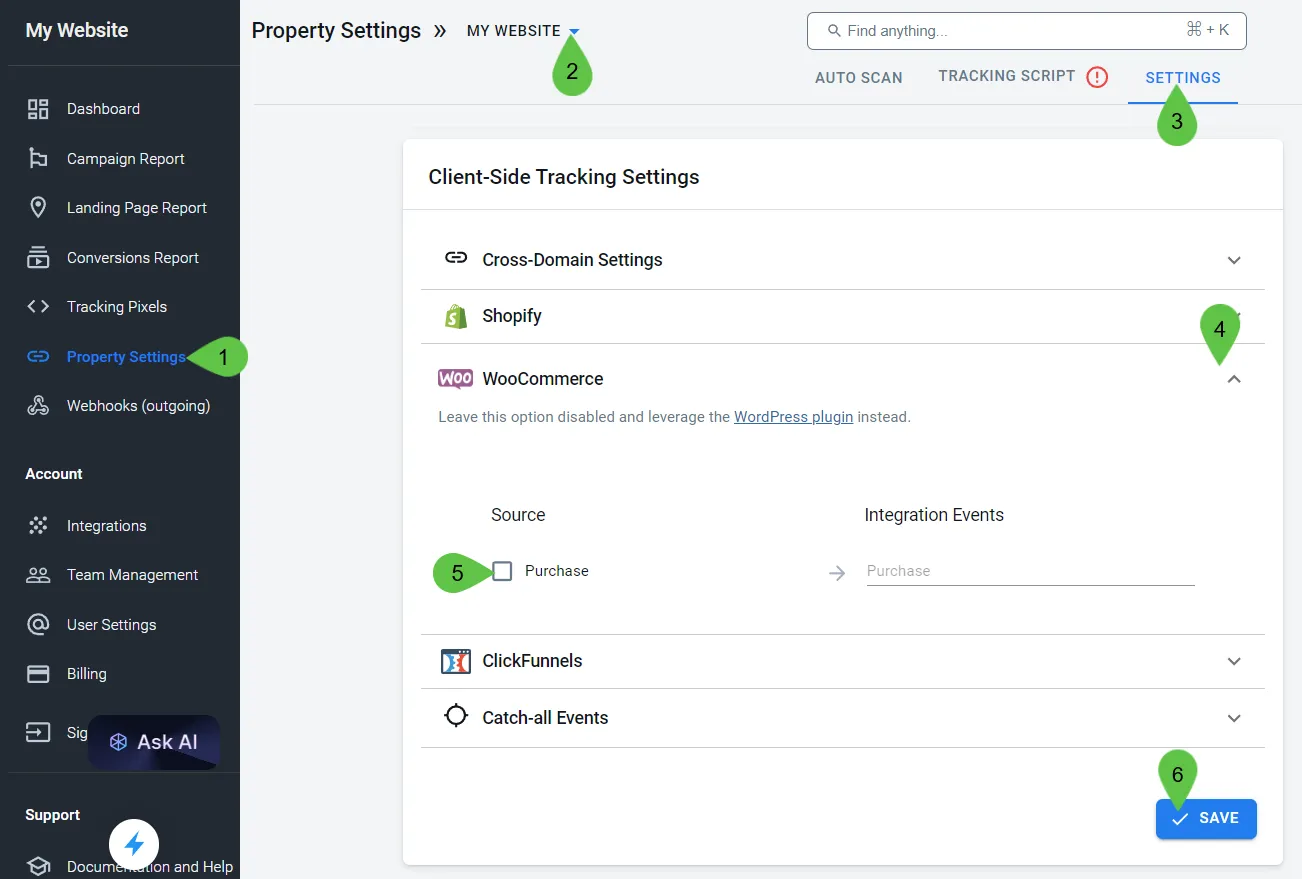
To configure client-side tracking:
- Open the AnyTrack Dashboard and go to Property Settings
- Select your WooCommerce site using the property selector
- Go to the Settings tab
- Scroll down to Client-Side Tracking Settings
- Select WooCommerce
- Choose the Purchase event and map it to a conversion
- Click Save
What client-side tracking covers
Section titled “What client-side tracking covers”Client-side tracking for WooCommerce only tracks Purchase events. It does not track earlier funnel steps like ViewContent, AddToCart, or InitiateCheckout. For full funnel coverage, use the AnyTrack Plugin for WooCommerce instead.
Advanced WooCommerce Tracking FAQ
FAQ was last reviewed on 2026-06-30