
Google Ads Affiliate Marketing
Master Google Ads for affiliate marketing with AnyTrack. Learn to set up conversion tracking, integrate Impact Network, and optimize campaigns using Google Conversion API.
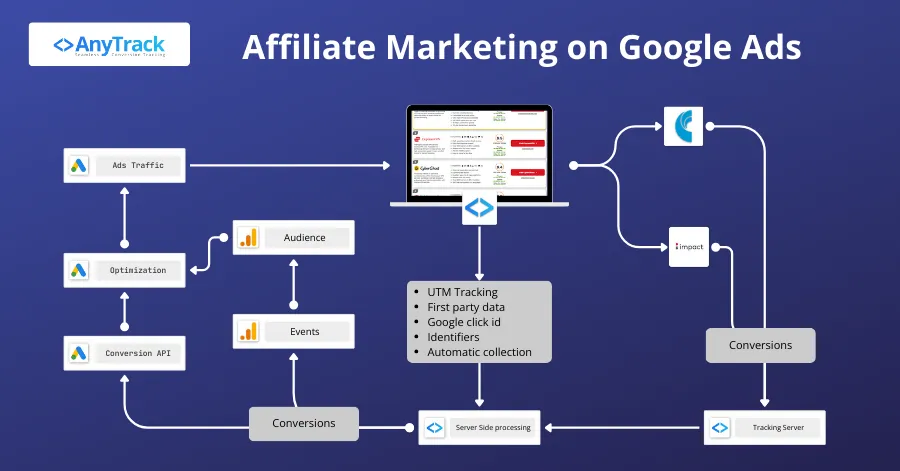
Set Up AnyTrack and Google Ads
Section titled “Set Up AnyTrack and Google Ads”-
Sign up for an AnyTrack account on AnyTrack.io
-
Log into your account
-
Add your website in the AnyTrack dashboard by clicking Add Property and entering your domain and site name
-
Install the AnyTrack Tracking Tag provided after adding your website
<!-- AnyTrack Tracking Code --><script>! function(e, t, n, s, a) { (a = t.createElement(n)).async = !0, a.src = "https://assets.anytrack.io/xxx.js", (t = t.getElementsByTagName(n)[0]).parentNode.insertBefore(a, t), e[s] = e[s] || function() { (e[s].q = e[s].q || []).push(arguments) }}(window, document, "script", "AnyTrack");</script><!-- End AnyTrack Tracking Code -->-
Install the code on your website in the head section of your HTML
-
Connect Google Ads: In the AnyTrack dashboard, go to Tracking Pixels → Google Ads, authenticate with your Google Ads account, select the Google Tag, and enable the Conversion API
-
Map conversion events with Google Conversion Goals
-
Copy the recommended UTM Tracking template from the Ads Integration Tab
-
In your Google Ads account settings, paste the UTM Tracking template in the URL tracking field
Impact Affiliate Network Guidelines
Section titled “Impact Affiliate Network Guidelines”-
In the AnyTrack dashboard, go to the Integration Catalog
-
Search for Impact and click Install Integration
-
Once installed, you’ll receive a unique postback URL
-
Log into your Impact affiliate account and navigate to the Tracking section
-
Find the Postback settings, paste the postback URL, and save
For additional details, see the Impact Integration guide.
Send Conversions to Google Ads Conversion API
Section titled “Send Conversions to Google Ads Conversion API”Option 1: Use an existing conversion goal
Section titled “Option 1: Use an existing conversion goal”-
In the AnyTrack dashboard, go to Integrations
-
Click Google Ads and connect your Google Ads account
-
Enable the Conversion API
-
Update the conversion mapping for the conversion goal you want to track
-
Save your settings
Option 2: Create a new conversion goal
Section titled “Option 2: Create a new conversion goal”Enhanced Conversions for Affiliate Marketers
Section titled “Enhanced Conversions for Affiliate Marketers”Enhanced Conversions require customer data that most affiliate networks don’t provide. If your network sends this data, AnyTrack sends it to Google Ads for Enhanced Conversions activation. However, this is uncommon in affiliate marketing. Disable Enhanced Conversions if this data is unavailable.