
Learn about the features of the Campaign section
" deprecated: false hidden: true metadata: title: "" description: "" robots: index next: description: "
In this article, you will explore the features of the campaign section and understand how you can take advantage of them to improve your decision-making, performance, and optimization.
Tutorial video - Campaign Section
In the video:
- Review how campaigns look with and without UTM
- How to compare results between the ad networks and AnyTrack
- Use pre-defined or custom reports
- How to review your campaign's conversions.
- In the campaign section, you will be able to add valuable metrics like:
- Conversions rates - each tracked event comes with its own metrics.
- You can apply this rate to every conversion like purchase, lead, add to cart, etc.
ROAS, CTR, and more metrics will help you to make decisions
- Comparing the results to the network results in AnyTrack: to manage the optimization more efficiently, you will be able to see the ads network results and AnyTrack results in one place.
This is important:Thanks to this feature, you will be able to see all the differences due to iOS 14 between AnyTrack and the network results. AnyTrack support 100% of iOS conversions.
Also: Unlike Facebook, you can review conversion attributions for more than the seven days post click attribution.
Attributed Result = the results according to the ads network
Attributed Revenue = the revenue according to the ads network.
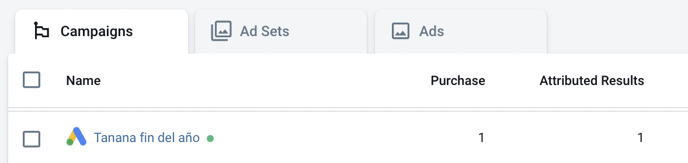
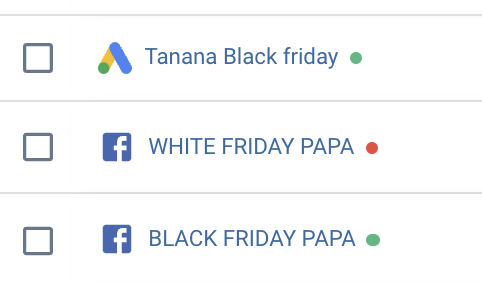
- Live status display: You can see in AnyTrack which campaigns are active and which are not.
Green dot = active
Red dot = not active
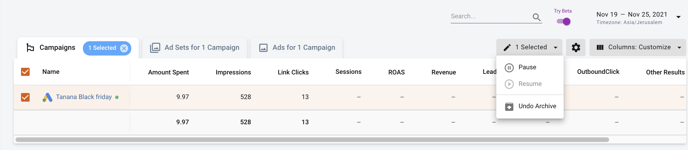
You will be able to pause the campaign in AnyTrack by selecting the relevant campaign and clicking on the Pause button:

- In the same way, you will be able to activate a campaign (▶️ Resume button)
Caution:Turning off/on a campaign in Anytrack will turn off/on the campaign in the ads networks (Facebook / Google etc) in real-time!
- Hide campaigns - If you would like to hide campaigns, you will be able to send them to the archive, and they will not be displayed anymore:

If you would like to have it back, you can click on show archived :
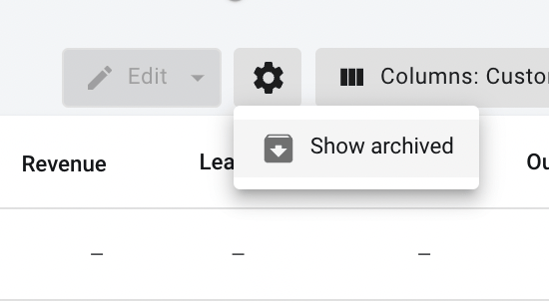
Mark the relevant campaign and click on Undo Archive, and you will have it back:
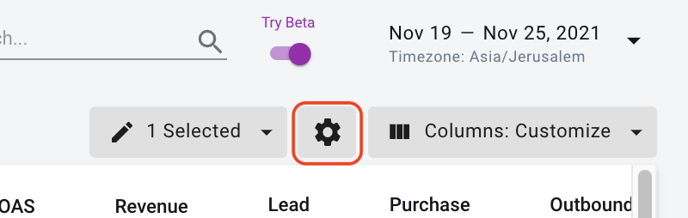
Switching between the campaign section and the archive section is made by clicking on the following gear:
- Pre-built report templates for your niche:
You will be able to choose the relevant template for your site between the templates:
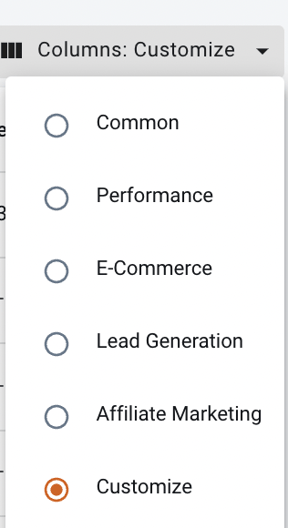
Every template has the most relevant metrics to make decisions.
Requirement for best performance:
To get the best out of the AnyTrack campaign section, we recommend the following:
Important to know:Conversion data is sent to Facebook (and other pixels integrations) in real time. Yet, each ad network has its own data processing delays.
Facebook – within an hour, but sometimes it can take up to 72 hours.
Google – between 1 hour up to 5 days, depending on the conversion sources.
Good to know:In AnyTrack, you will be able to see the attributions and the conversions in almost real time 🎉
Updated about 3 hours ago