
Shopify Setup Checklist
Verify your Shopify + AnyTrack setup is correct. This checklist covers AnyTrack settings, Shopify configuration, Facebook Ads, webhooks, and common troubleshooting issues.
This checklist helps you verify that your Shopify + AnyTrack integration is set up correctly and troubleshoot common tracking issues like duplicate conversions, missing purchase events, and incorrect attribution.
Common Issues This Checklist Solves
- Under-reporting conversions in AnyTrack
- Over-reporting conversions in ad platforms (Facebook, Google, TikTok)
- Under or over-reported Cart events in AnyTrack
- No upsell tracking
- Referral traffic instead of campaign traffic
- No Purchase events in AnyTrack
ImportantAnyTrack works best when it is the only system sending conversion data to your ad platforms. If you've added the Meta Pixel directly to your checkout page and enabled AnyTrack's Facebook Conversion API, this will trigger duplicate conversions and a low match rate.
Before you begin
- You have created a Property and added the AnyTrack Tracking Tag in the head section of your Shopify theme
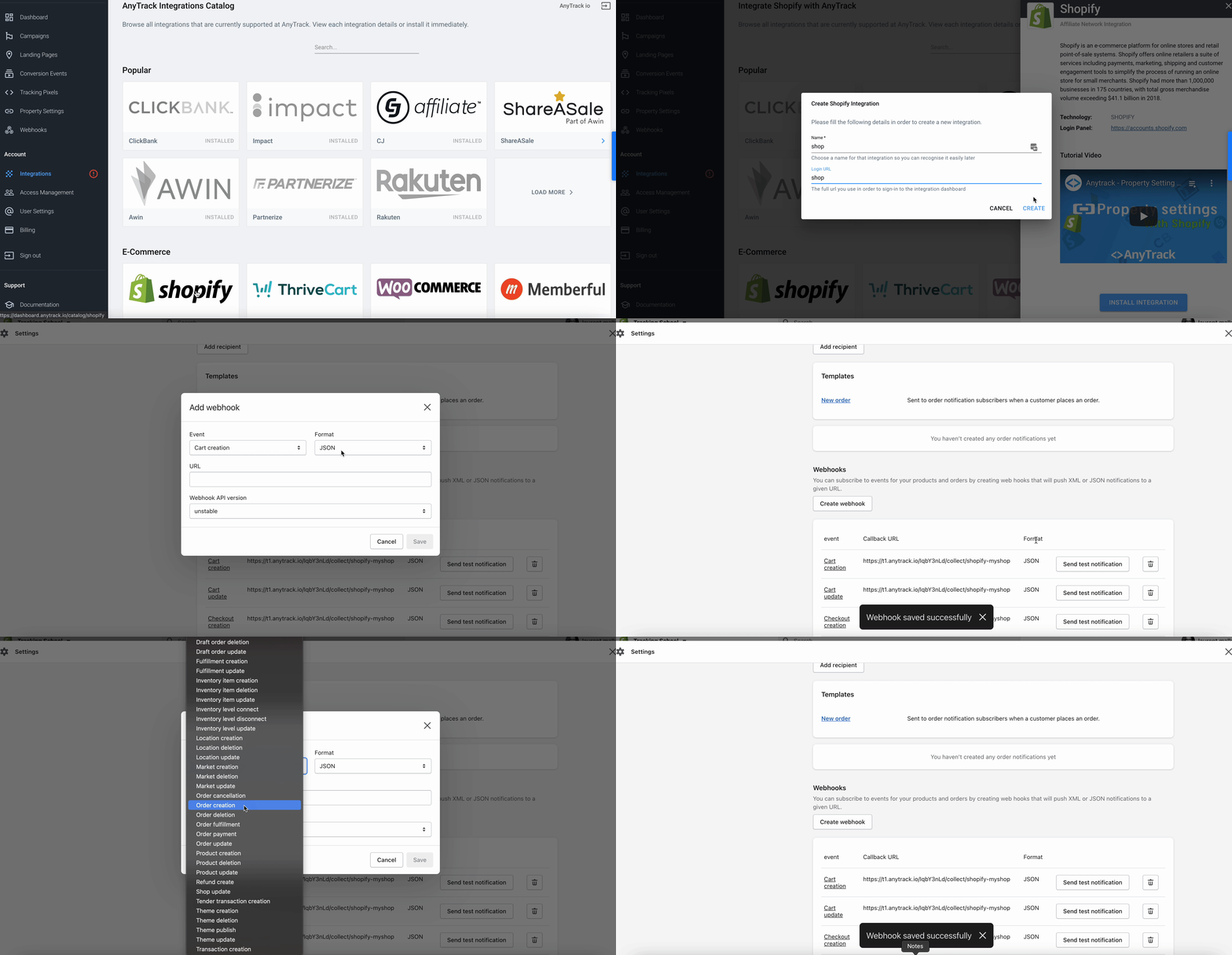
- You have created a Shopify Integration and added the AnyTrack webhooks to your shop
- You have an AnyTrack account with a paid subscription
Ads Integration Setup
If you're sending conversion data to ad platforms (Facebook, Google Ads, TikTok, etc.), confirm each of the following:
- Connected your ads account in AnyTrack:
- Linked the ad platform account
- Enabled Conversion API
- Adjusted the Conversion Event Mapping
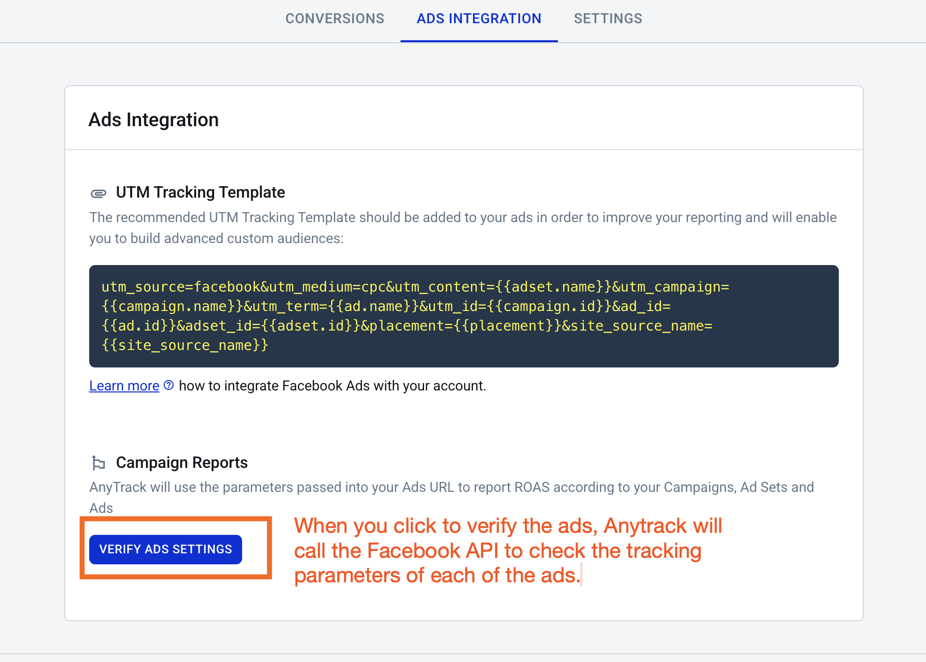
- Added the recommended UTM tracking template to your ads
- Disconnected any apps that send data directly to your ad Tracking Tags — this prevents duplicate data. Learn how Deduplication works.
- Connected your product catalog in Shopify — required only if you run catalog campaigns.
- Removed any tracking tags from the Shopify Checkout Scripts settings — to prevent duplicate data.
Checklist: AnyTrack Dashboard
- Conversions visible: Check the Integration Event Log to confirm conversions are arriving from Shopify.
- UTM parameters present: Open your Campaign Reports and verify that UTM parameters and their values appear correctly.
- Conversion API enabled: Confirm the Facebook Conversion API (or other platform API) is turned on in your ads integration settings.
- Event mapping correct: Verify that event mapping in your Shopify integration matches the events you want to send to Facebook.

- Domain matches: Confirm your AnyTrack Property domain matches the domain verified in Facebook Business Manager.
- Root domain set: Update your Property settings with the root domain of your shop (e.g.,
yourshop.com).
Checklist: Shopify Admin
- Tracking tag installed: Verify the AnyTrack Tracking Tag is in your theme's
<head>section. Use the AnyTrack Pixel Helper Chrome extension to confirm — the icon should turn blue on your site. - Data sharing disabled: Turn off Shopify's built-in data sharing to Facebook (and other ad Tracking Tags) to prevent duplicate conversions.
- Webhooks added with correct API version: Confirm all webhooks are active and using the latest API version (not "unstable"). See the Webhooks Settings section below for details.
Checklist: Facebook Ads (Meta)
Over-reporting conversions is usually caused by multiple systems sending data to the same Meta Pixel. Common culprits:
- Google Tag Manager firing a Meta Pixel
- The Shopify–Facebook app sending duplicate events
- A third-party app you've installed
- Someone manually added the Meta Pixel to your theme
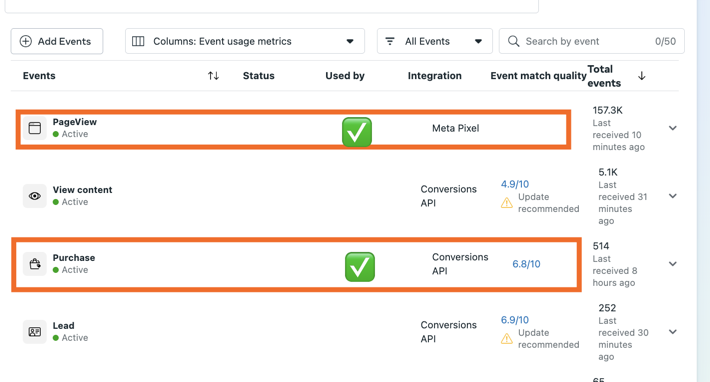
To verify, open Facebook Event Manager and check whether conversions are triggered by Conversion API, Browser Pixel, or — worst case — Multiple.
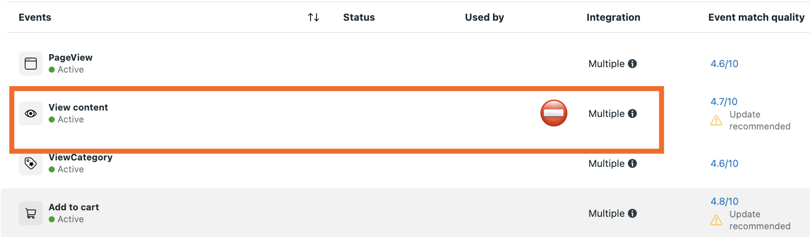
- Only Conversion API triggers conversions: Verify that only
PageViewis triggered by the browser pixel. All other events (Purchase, AddToCart, Lead, etc.) should show Conversion API only.
- Correct Pixel ID: Confirm the Pixel ID in AnyTrack matches the one in your Facebook Event Manager.
- UTM tracking template added: Verify the UTM tracking template is in the URL Parameters field of your Facebook Ads.
- Domain verified: Confirm your domain is verified in Facebook Business Manager.
- Domain allowlist complete: All domains that send data to Facebook are included in your allow list.
- First-party cookies enabled: Confirm first-party cookie tracking is enabled in your Facebook Pixel settings.
- Automatic Advanced Matching disabled: Turn off automatic matching parameters in your Tracking Tag settings — AnyTrack handles this server-side.
- Correct conversion goal selected: Verify your campaigns are optimizing for the right conversion event (e.g., Purchase, not PageView).
ImportantAnyTrack sends only server-side events via Conversion API. If you see browser-triggered conversion events (other than PageView) in Event Manager, another data source is firing the Meta Pixel and needs to be removed.
Webhooks Settings
- All webhooks are enabled according to the Shopify integration instructions.
- Webhook URLs have not been modified from the AnyTrack defaults.
- The latest webhook API version is selected (not "unstable").
ImportantShopify's default webhook version is set to unstable. Always change this to the latest stable version when creating webhooks, or conversion data may not be processed correctly.
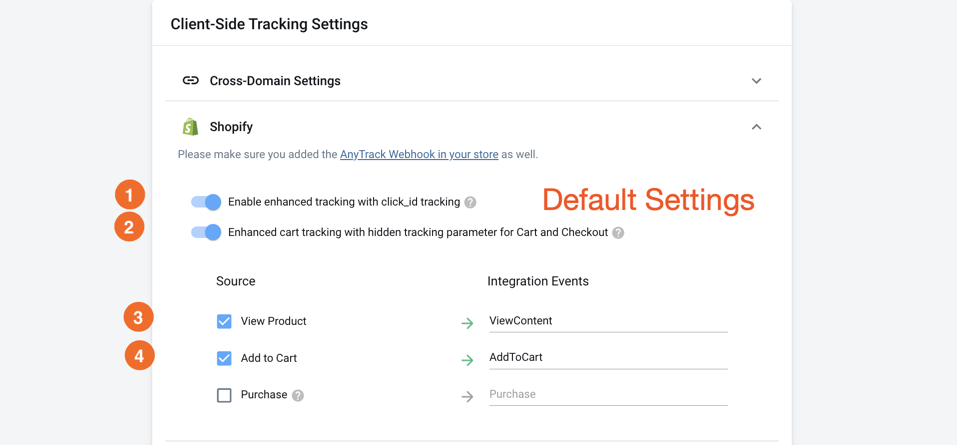
Client-Side Tracking Settings
Verify that the client-side tracking settings for Shopify match the recommended defaults.
Troubleshooting: Duplicate Conversions
Disconnect the Direct Shopify–Facebook Integration
If your Facebook Event Manager shows a warning that you are not sending a duplicate key, or that you're not using the right parameters to deduplicate conversions, it means more than one system is sending data to Facebook.
AnyTrack and Shopify use different Deduplication event_id values, so Facebook cannot deduplicate conversions when both are active. To fix this:
- Disable data sharing between Shopify and Facebook.
- Keep catalog settings enabled if you run catalog campaigns.
Still Seeing Duplication Warnings After Disconnecting?
Check that the Track events automatically without code feature is turned off in Facebook:
- Go to Event Manager
- Go to Pixel Settings
- Scroll down and make sure Track Automatic Events is turned OFF
Connect Google Analytics
Connecting Google Analytics 4 alongside your ad platforms gives you additional benefits:
- See conversions faster than in Facebook Ads reporting
- Get lifetime value data for your campaigns across all traffic sources
- Create custom audiences and retarget on Google Ads Display, YouTube, or Gmail
- Use Google Analytics 4's Debug View for real-time validation of your tracking setup
Common Questions
FAQ was last reviewed on 2026-06-05
fbc parameter is only available for traffic originating from Facebook. If you run campaigns on multiple platforms, not all conversions will carry the fbc parameter — this is expected and does not indicate a problem. Check your Google Analytics attribution reports to see which traffic sources are triggering conversions.Related Resources
Updated about 2 months ago