
Shopify Integration
The AnyTrack Shopify integration simplifies conversion tracking and attribution for eCommerce stores by automatically tracking purchases and key events, and sending data to platforms like Google Ads, Facebook Conversion API, and TikTok Ads.
Before you begin
- You have an active AnyTrack account
- You have admin access to your Shopify store
- You can edit the Theme Liquid file in your Shopify theme
- Your Shopify store is active and published
Shopify Integration Overview
The AnyTrack Shopify integration simplifies conversion tracking and attribution for your eCommerce store. With a straightforward installation process, it automatically tracks purchases and key events, sending data to platforms like Google Ads, Facebook Conversion API, and TikTok Ads. By using first-party data, AnyTrack improves Event Match Quality and ensures accurate attribution while maintaining privacy. This integration helps you build better audiences and improve marketing performance across multiple channels.
How the Shopify AnyTrack Integration Works
- Traffic: When visitors land on your website, AnyTrack collects traffic source data and First Party data.
- Customer Journey Tracking: During the customer journey, AnyTrack automatically tracks events such as
ViewContent,AddToCart, andInitiateCheckoutthrough the AnyTrack Tracking Tag.- Collects and sends product data such as sku, price, quantity and name.
- Sends hidden tracking parameter to the cart object.
- Triggers the corresponding events such as
AddToCartto the AnyTrack API which instantly forwards to your Ad Platform's Conversion API.
- Shopify Webhooks: AnyTrack also receives customer journey events via Shopify Webhook notifications and sends them to the Ad Platforms' conversion API.
- Conversions: When customers complete their
purchase, AnyTrack processes the conversion data (including customer data and product data). - Attribution: AnyTrack processes the conversion data and reports it across various reporting sections of the AnyTrack Dashboard.
- Conversion API: AnyTrack then sends your conversions to your Ad Platforms' Conversion API to feed your ad platform's Machine Learning, AI and automatic optimization with 100% of your conversion data.
Technical Details
| Reference | Value | Information |
|---|---|---|
| Tracking Group | Shopify | The Tracking Group reference can be used to activate AutoTag. |
| Subid Parameter | atclid | The Subid Parameter used to pass the AnyTrack click_id. |
| Tracking Method | Webhook | - |
Shopify Standard Customer Journey Events
AnyTrack automatically tracks standard eCommerce customer journeys and feeds the event data to your ad platforms so that you can create advanced behavioral audiences and improve attribution.
NoteEach ad platform integration has its own Event Mapping which AnyTrack handles automatically for you.
| Shopify | AnyTrack | Google Analytics 4 | Details | |
|---|---|---|---|---|
item_view | ViewContent | ViewContent | view_item | When a visitor views a product. |
cart/create | AddToCart | AddToCart | add_to_cart | When a visitor adds a product to its cart. |
checkout/create | InitiateCheckout | InitiateCheckout | begin_checkout | When a visitor starts a checkout. |
checkout/update | AddPaymentInfo | AddPaymentInfo | add_payment_info | When a visitor adds its payment details. |
orders/create | Purchase | Purchase | purchase | When a visitor completes a purchase. |
Shopify Sends Conversions to AnyTrack Using Webhook Notifications
AnyTrack provides a pre-defined webhook that you can implement with your Shopify account.
https://t1.anytrack.io/hBtoE3hN/collect/ShopifyShopify Setup Guide
Step 1: Add the AnyTrack Tag to Your Shopify Theme
-
Create a New Property in AnyTrack.
-
Set the Shop Name and URL (the root domain) and click Next.
-
Copy the AnyTrack Tracking Tag.
-
Open the Shopify Admin and Edit the Theme Code.
-
Select the Theme Liquid File and Paste the Tracking Tag in the
headsection. -
Save the Theme Liquid file.
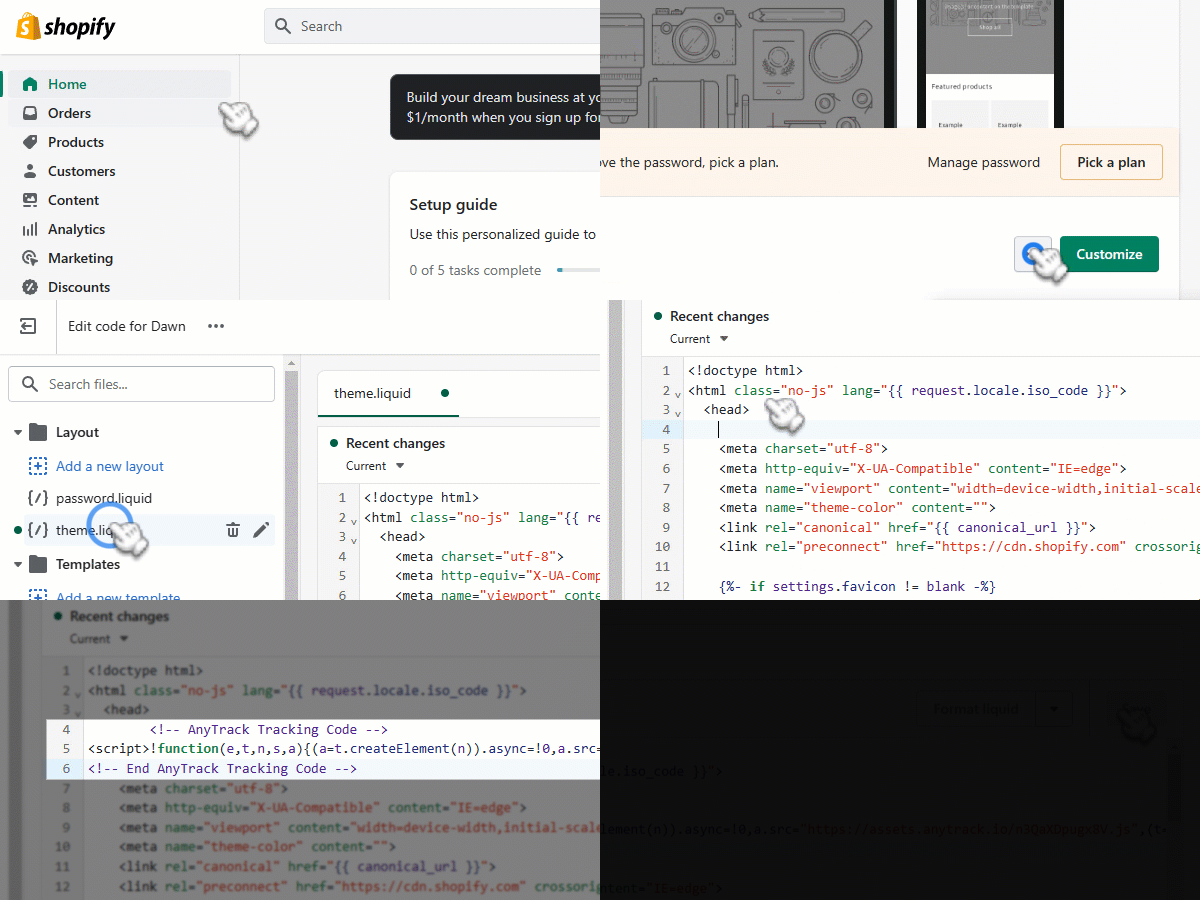
Add the AnyTrack tracking tag to the Shopify theme
-
Use the AnyTrack Pixel Helper Chrome extension to verify that AnyTrack has correctly installed the Tag.
-
Return to AnyTrack and adjust the property settings
- Time Zone: Match your shop time zone to avoid discrepancies.
- The Base Currency: Set the currency you want the dashboard to reflect. AnyTrack will convert any revenues into your base currency.
- Client Side Tracking Settings: Leave the default settings, which deliver optimal performance.
Step 2: Add Shopify to Your AnyTrack Account
-
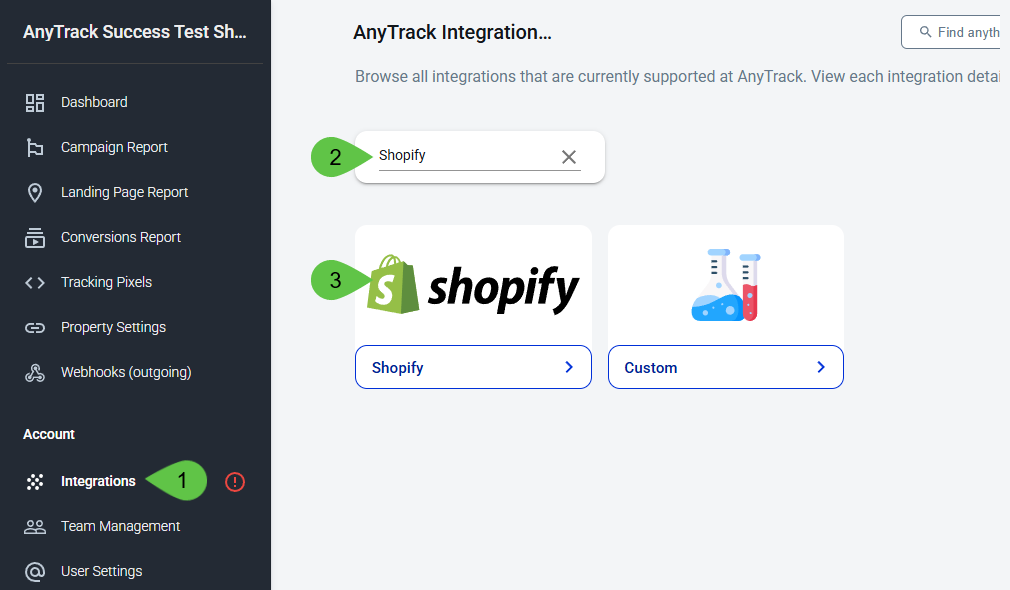
Go to the Integration Catalog and search for Shopify. Then click on the Shopify card.
-
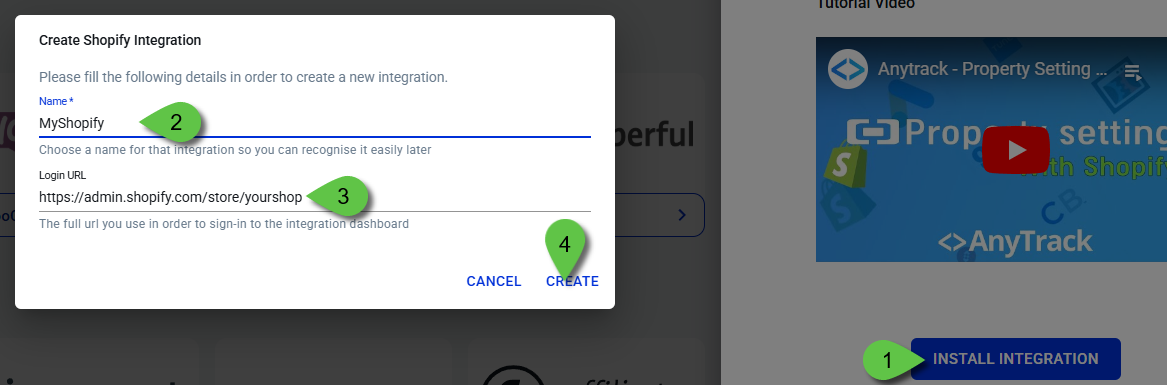
Click on Install Integration.
- Fill the Name enter a name (e.g. MyShopify)
- Fill the URL of your shop or the Shopify admin login url and click Create
Step 3: Connect Your Shopify Customer Events
-
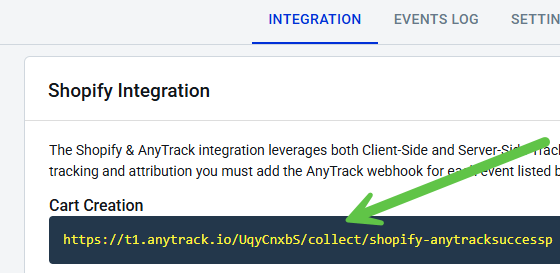
Copy the Webhook URL from the integration
-
Go to your Shopify Admin Panel
-
Navigate to Settings >> Notifications
-
Scroll down to the Webhooks section and click on "Create webhook"
- Select the events according to the list of required events:
- Leave the format as
JSON - Paste the Webhook
- Update the Webhook version to the Latest
- Click on "Save webhook"
NoteRepeat these steps for all (5) events listed on the Integration page.
Watch this video to add webhook notifications in Shopify:
Step 4: Connect Your Ad Platforms
Now that your shop connects with AnyTrack and tracks your customer journeys, you need to configure AnyTrack to send them to your Ad Platform's Conversion API such as Facebook, TikTok or Google Ads.
NoteThe Facebook Ads integration occurs via the AnyTrack Dashboard and does not require any setup on the Shopify Admin.
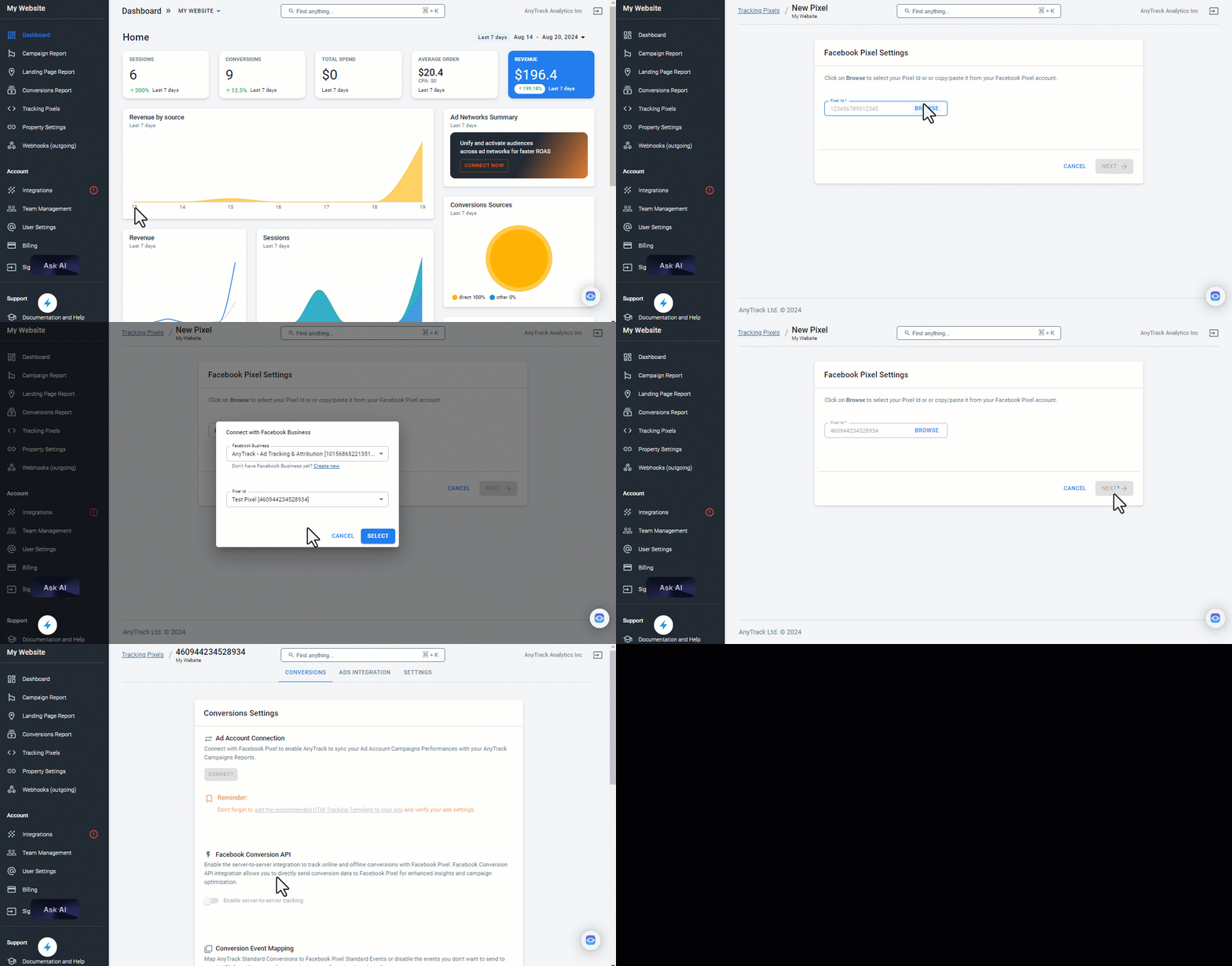
- Navigate to Tracking Tags
- Click on the Facebook Pixel Card
- Click on the button Browse to connect to your Facebook Business Manager.
- Select the Facebook Pixel and Facebook Manager
- Click Next
- Now click on Connect to open a connection with your Ad Account
- Enable the Facebook Conversion API
- Scroll down and Save.
- Now Open the Ads Integration Tab (scroll up to the top of the screen)
- Click on the UTM (Urchin Tracking Module) Tracking Template
- Add the Template to your Facebook Ads
NoteAccess other ad platform integrations to connect your other ad accounts.
ImportantYou must disconnect any other direct integrations that currently send conversions to your ad platforms or you will generate duplicate data in your ad accounts.
Validate Your Integration
This section will enable you to validate the main aspects of your setup.
Conversion Tracking
To validate your setup, wait for a conversion or trigger a test conversion yourself and inspect the conversion logs.
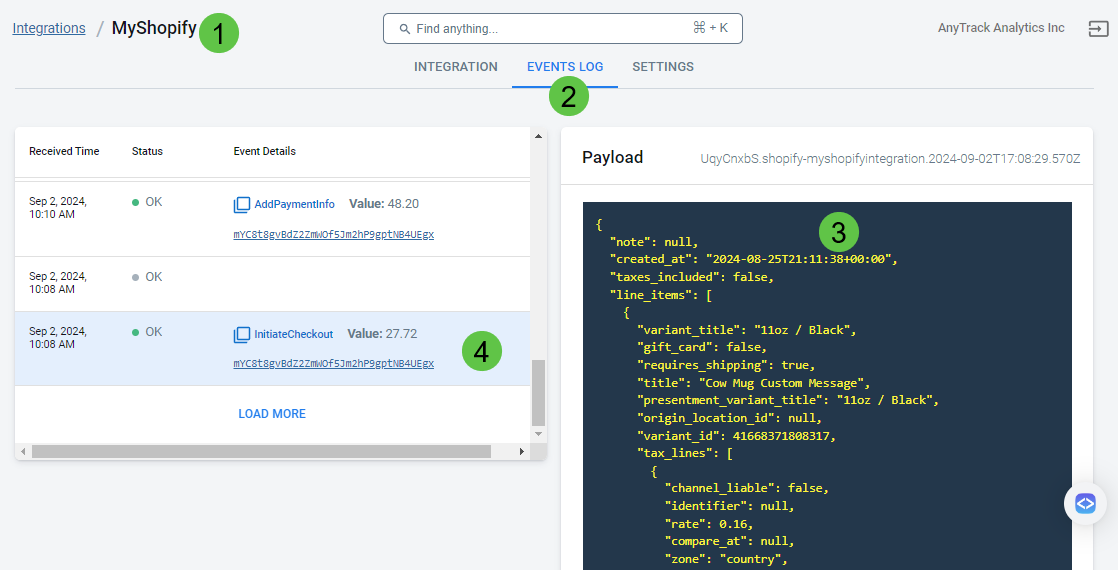
Inspect the Events Log to see the conversions arriving from Shopify.
Shopify conversion payload example
{
  "id": 40881068146749,
  "created_at": "2024-08-25T21:11:38+00:00",
  "total_price": "27.72",
  "subtotal_price": "23.90",
  "total_tax": "3.82",
  "currency": "USD",
  "source_name": "web",
  "line_items": [
    {
      "title": "Cow Mug Custom Message",
      "variant_title": "11oz / Black",
      "price": "11.95",
      "quantity": 1,
      "sku": "24675843150437141759",
      "properties": {
        "_atclid": "mYC8t8gvBdZ2ZmWOf5Jm2hP9gptNB4UEgx"
      }
    }
  ],
  "note_attributes": [
    {
      "name": "__atclid",
      "value": "mYC8t8gvBdZ2ZmWOf5Jm2hP9gptNBCIGGr"
    }
  ],
  "x-Shopify-shop-domain": "0ae3b8-c6.myshopify.com",
  "x-Shopify-topic": "checkouts/create",
  "x-Shopify-api-version": "2024-07"
}
Troubleshooting
NoteBased on thousands of integrations with Shopify, if you've followed the instructions and applied the default integration settings, you will not experience issues.
If you encounter issues, check the following:
- Verify the AnyTrack tag is in the
headsection of your shop - If you're on the Free plan, check the monthly traffic limit in the billing section
- The Free plan does not include Conversion API for ad platforms
- Confirm you've followed the default integration settings
- Install the AnyTrack Pixel Helper Chrome extension to verify the tag is active
Shopify Integration - Frequently Asked Questions
FAQ was last reviewed on 2026-06-02
Related Resources
Updated about 1 month ago