
Cross-Domain Tracking Setup Guide
Complete step-by-step instructions for cross domain tracking between a blog review website and an shopify powered store.
TL;DR
- Why: You need to advertise your own product on Google Ads through a review website, but maintain proper attribution when visitors purchase on your separate Shopify domain.
- How: Cross-domain tracking passes session and first-party data from your review site to Shopify, then reports conversions back to the Google Ads tag on your review website.
- Outcome: Google Ads receives accurate conversion data from Shopify purchases, enabling proper campaign optimization and ROAS calculation.
Use Case Explained
The Business Model: You want to advertise your own product on Google Ads, but instead of sending traffic directly to your Shopify store, you send it to your review website that promotes your product. This approach often works better for certain types of keywords.
The Problem: When visitors click from your review site (reviewblog.com) to your Shopify store (mystore.com), they start a new session. The purchase conversion gets attributed to "reviewblog.com / referral" instead of your original Google Ads campaign.
Why Cross-Domain Tracking is Necessary:
- Pass session data from review site (Domain A) to Shopify store (Domain B)
- Maintain first-party data (Google click IDs, Facebook cookies) across domains
- Send conversion data from Shopify back to the Google Ads conversion tag associated with your review website
- Ensure proper attribution so Google Ads can optimize your campaigns based on actual sales
The Solution: Cross-domain tracking maintains the user's identity and campaign attribution as they move from your review site to your Shopify store, then reports the conversion back to the correct Google Ads campaign.
Prerequisites
Before starting, ensure you have:
- AnyTrack account with a Personal subscription
- Two AnyTrack properties with their respective AnyTrack tracking tags and ads integrations connected and enabled.
- Shopify integration configured with webhook
- Google Ads integration connected to both properties
Step 1: Configure Review Site Property (Source)
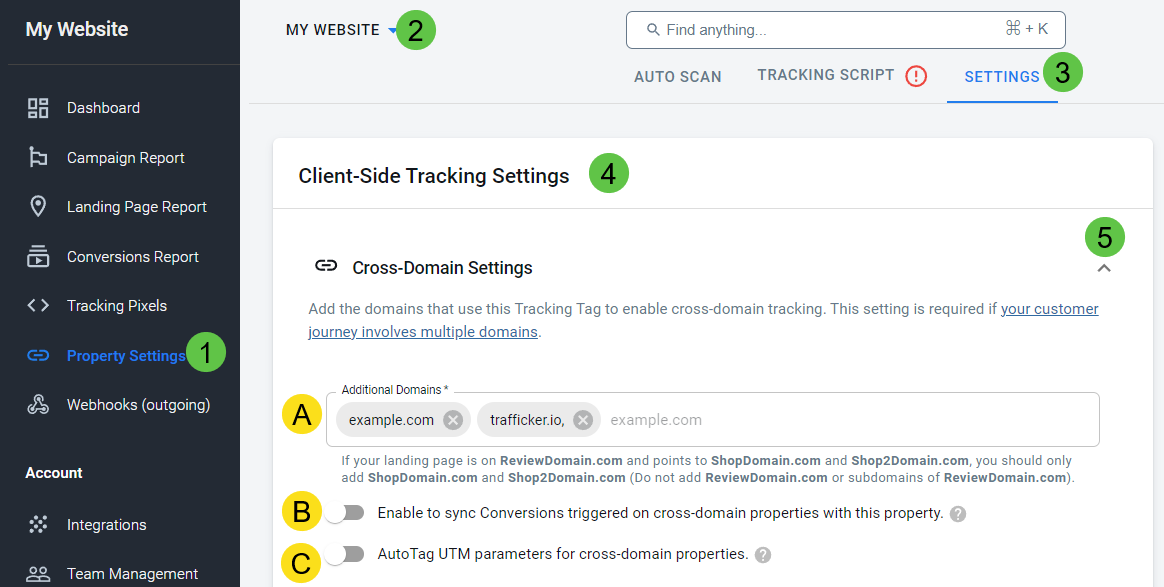
Access Cross-Domain Settings
- Navigate to your review site property (
reviewblog.com) - Click Settings tab
- Scroll to Cross-Domain Tracking section
Add Shopify Domain
- In the Cross-Domain field, enter your Shopify domain:
mystore.com - Click Save
Result: All "Buy Now" links from your review site will automatically include tracking parameters.
Step 2: Configure Shopify Store Property (Destination)
Enable Conversion Syncing
- Navigate to your Shopify store property (
mystore.com) - Click Settings tab
- Scroll to Cross-Domain Tracking section
- Enable "Sync Conversions with cross-domain property"
- Click Save
Result: Purchases on Shopify will be attributed back to the original Google Ads traffic that reached your review site.
Step 3: Configure Ad Integrations
Review Site Property
- Google Ads: Connect with your Google Ads account
- Google Tag: Configure with your review site's Google Tag ID
- Facebook: Connect with your Facebook pixel/dataset (if running Facebook ads)
Shopify Store Property
- Google Ads: Connect with the same Google Ads account
- Google Tag: Configure with your Shopify store's Google Tag ID
- Facebook: Connect with your Facebook pixel/dataset (if applicable)
Important: Each property needs its own ad integrations to receive conversion data properly.
How to Verify Your Setup
1. Check Auto-Tagging
Visit your review site and hover over "Buy Now" links. You should see tracking parameters added:
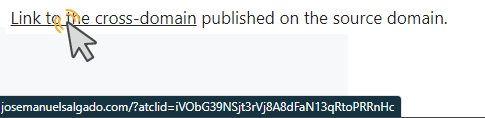
What to look for: ?atrefid=xxxxx parameter in the link preview
2. Test Complete User Journey
- Start fresh: Open incognito browser window
- Visit review site: Go to
reviewblog.com - Click "Buy Now": Click link to your Shopify store
- Complete purchase: Make a test order
- Check attribution: Verify the purchase appears in both properties
3. Verify AutoScan Detection
AutoScan will identify cross-domain links automatically:
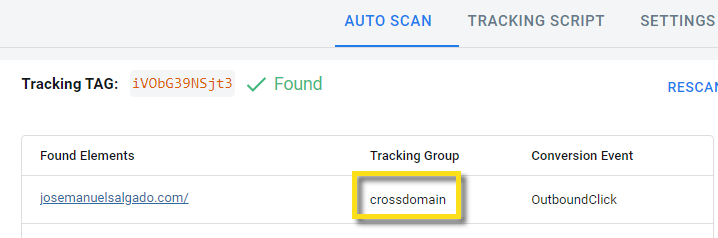
Links should show crossdomain tracking group designation.
4. Platform-Specific Verification
AnyTrack Dashboard:
- Review site: Check for outbound click events
- Shopify store: Verify purchase events with proper attribution
Google Ads:
- Conversions should appear attributed to your review site campaigns
- Allow 2-6 hours for data processing
Google Analytics (if connected):
- Real-time conversions should show proper source attribution
- Purchases attributed to original campaign, not referral
Troubleshooting
Links Not Auto-Tagging
Check: Clear browser cache and test in incognito mode
Verify: Cross-domain field contains correct domain (mystore.com)
Solution: Wait 5 minutes after saving settings, then test again
Purchases Not Syncing to Review Site
Check: "Sync Conversions" enabled on Shopify property
Verify: Shopify webhook integration is working
Test: Ensure test purchase included tracking parameters
Google Ads Not Showing Conversions
Check: Both properties connected to same Google Ads account
Verify: Conversion actions are properly configured
Wait: Allow 2-6 hours for Google Ads data processing
Attribution Shows as Referral Traffic
Check: Original visitor session captured UTM parameters
Verify: Cross-domain parameters made it to Shopify
Solution: Test with fresh campaign traffic including UTMs
FAQ
Q: Do I need separate Google Ads accounts for each domain?
A: No. Use the same Google Ads account but connect it to both AnyTrack properties.
Q: What if my Shopify store is on a subdomain?
A: Use the full subdomain in cross-domain settings (e.g., shop.mystore.com).
Q: Can I track multiple review sites to one Shopify store?
A: Yes. Set up cross-domain tracking from each review site property to your Shopify property.
Q: How long does it take to see results?
A: AnyTrack shows data immediately. Google Ads may take 2-6 hours to display conversions.
Q: Will this affect my page speed?
A: No. Cross-domain tracking adds less than 50ms and happens after page load.
Q: What if I'm also running Facebook ads?
A: Connect Facebook to both properties with their respective pixel IDs/datasets.
Q: Can I see which specific review articles drive the most sales?
A: Yes. Use UTM parameters in your Google Ads pointing to specific review pages, and you'll see attribution in your reports.
Quick Setup Summary
- Review Site: Add Shopify domain to cross-domain settings
- Shopify Store: Enable "Sync Conversions"
- Both Properties: Connect Google Ads integrations
- Test: Verify auto-tagging and complete test purchase
- Verify: Check attribution in both AnyTrack and Google Ads
Expected Result: Google Ads campaigns promoting your review site will show accurate conversion data from Shopify purchases, enabling proper ROAS calculation and campaign optimization.
| Attribution Reporting | source / medium | Campaign | Google Ads | Google Audience | Facebook Audience |
|---|---|---|---|---|---|
| Review | Google / cpc | Google campaign Name | ✅ | ✅ | ✅ |
| Shop | Review / referral | Google Campaign Name | ✅ | ✅ |
Updated about 2 months ago