
Meta Lead Ads + AnyTrack Setup Guide
Overview
This guide walks you through connecting AnyTrack to your Meta Lead Ads campaigns and CRM to solve attribution gaps and improve campaign optimization. You'll learn how to send qualified lead data from your CRM back to Meta using Conversion API for CRM, enabling Meta to identify high-value audience segments and optimize your campaigns.
What This Integration Solves:
- Meta can't see which leads from Lead Ads actually convert to customers
- CRM data isn't reaching Meta with proper identifiers for audience optimization
- Discrepancies between CRM records and Meta attribution data
- Inability to optimize Lead Ads campaigns for downstream conversions
Expected Timeline: 10 minutes for initial setup and 1 hours for data validation
Prerequisites Checklist
Before starting, ensure you have:
Meta Business Access & Assets
- Admin access to Meta Business Manager
- Admin access to Facebook Page (connected to your Lead Ads) and
- Admin access to Meta Ad Account
- A Dataset configured for CRM Events. (If you don't have one, you should create one via the Meta Event Manager.)
- CRM with Lead Access (receiving data from your Instant forms)
- Instant forms configured
CRM Access
- Admin access to your CRM (HubSpot, HighLevel)
- Understanding of your sales funnel stages and lifecycle events
- CRM workflow/automation capabilities to trigger lifecycle stage changes
AnyTrack Requirements
- Active AnyTrack account (Sign up)
- An active property (Your website/landing page where the AnyTrack tag is set)
Understanding the Data Flow
Before AnyTrack:
Meta Lead Ad → Lead submission → CRM → ❌ No feedback to Meta about lead quality
With AnyTrack: Meta Lead Ad → Lead submission → AnyTrack captures → CRM processes lead → CRM triggers lifecycle events → AnyTrack sends to Meta CAPI for CRM → ✅ Meta learns which leads convert
Key Differentiator: AnyTrack automatically orchestrates and handles data flows:
- Event source categorization (Website vs CRM vs Email events)
- Multi-layer identifier enrichment (FBC, FBP, external IDs)
- Deduplication and enrichment from multiple business systems running in parallel (ex: HubSpot + Calendly + Typeform + Stripe)
Step-by-Step Guide
Step 1: Create Your AnyTrack Account and Property
- Navigate to AnyTrack and create your account
- Create a new Property (workspace):
- Property Name: Your business/website name
- Website URL: Your primary domain
- Property Type: Select based on your business model
- Add the AnyTrack tracking Tag to your website head section.
Step 2: Connect Meta Ads Account + CAPI for CRM
Once AnyTrack is connected to your business manager, ad account and Dataset it automatically sends conversion data to your Dataset CAPI for Website and CAPI for CRM.
- Navigate to the AnyTrack Tracking Tag Tracking tab, select Meta Ads
- Click Connect Meta Ads Account and follow the Meta Business Login asset selection.
- Your Business Manager
- Your Ad Account(s)
- Your Dataset (Pixel)- Even if you don't have yet a Dataset for CRM.
- Enable the Lead Ads integration
- Click on Connect Facebook Page
- Select the Facebook Page and click Connect.
SuccessYour AnyTrack account is now connected to Meta Ads and can send conversions to both CAPI for Web and CAPI for CRM.
Step 4: Connect Your CRM (HubSpot Example)
For the complete guide of the HubSpot integration please read the HubSpot Integration guide.
-
In AnyTrack go to the Integrations catalog, (or your CRM)
-
Select HubSpot and Click Install Integration
-
Authorize AnyTrack to access HubSpot and connect.
-
Save
Default HubSpot Conversions for Websites EventsBy default Conversions From HubSpot are mapped according to the following table.
HubSpot Event AnyTrack Meta CAPI for Website Events Form Submission FormSubmitSubmitApplicationContact Created LeadLeadMeeting Booked ScheduleScheduleLifecycle Stage: Customer CompleteRegistrationCompleteRegistration
Step 5: Map HubSpot CRM Lifecycle Events to AnyTrack
AnyTrack tracks HubSpot LifeCycle Stages as well as Lead Status updates so you can report them to AnyTrack according to your current business needs and processes.
The current example follows the Lifecycle Stages, but feel free to use the end points most suitable to your needs.
Map Lifecycle Stages to AnyTrack Events
AnyTrack Events are reported in the AnyTrack Dashboard, Campaign Reports and are available in Meta Ads integration Conversion Mapping.
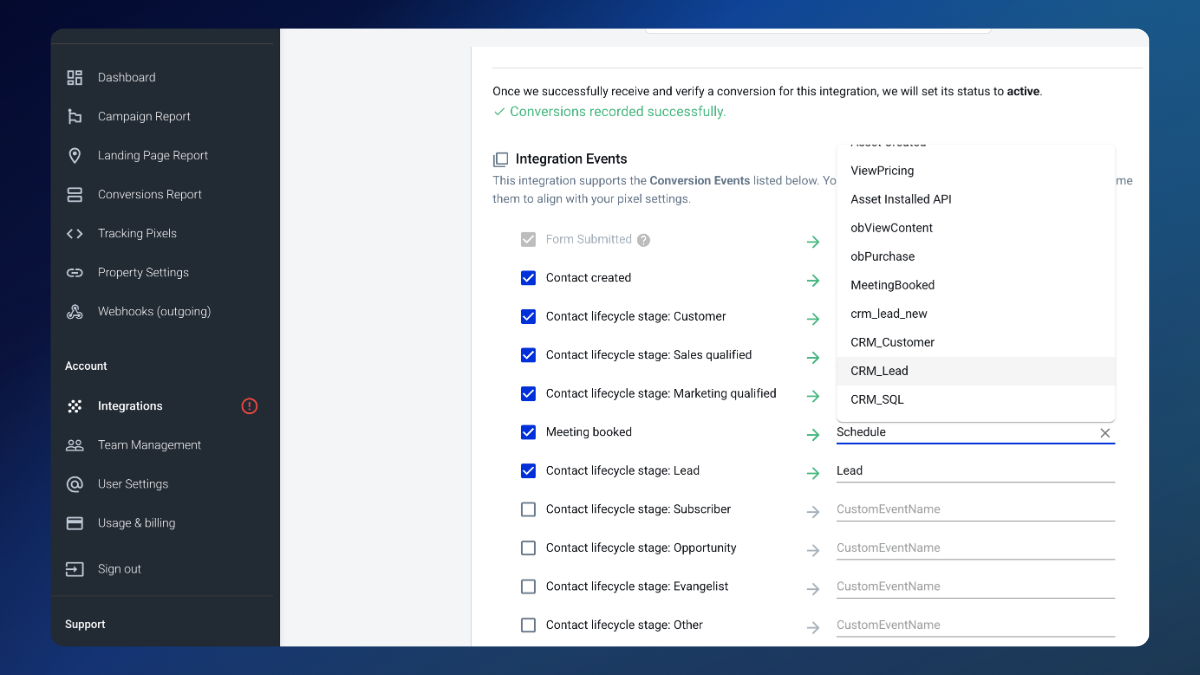
| HubSpot Lifecycle Stage | AnyTrack CRM Events |
|---|---|
| Lifecycle: Marketing Qualified Lead | CRM_MQL |
| Lifecycle: Sales Qualified Lead | CRM_SQL |
| Lifecycle: Opportunity | CRM_Opportunity |
| Lifecycle: Customer | CRM_Customer |
Good to knowLifecycle stages can be updated through HubSpot Workflows automations or manually through the HubSpot UI.
Step 6: Map CRM Events to Meta CAPI for CRM
About CRM Event DataBy Default AnyTrack captures standard customer data coming from the HubSpot CRM. Properties such as email, phone, country and others are automatically mapped to Meta CAPI standard event attributes.
-
In AnyTrack, navigate to Meta Ads Integration Settings
-
Go to Event Mapping section
-
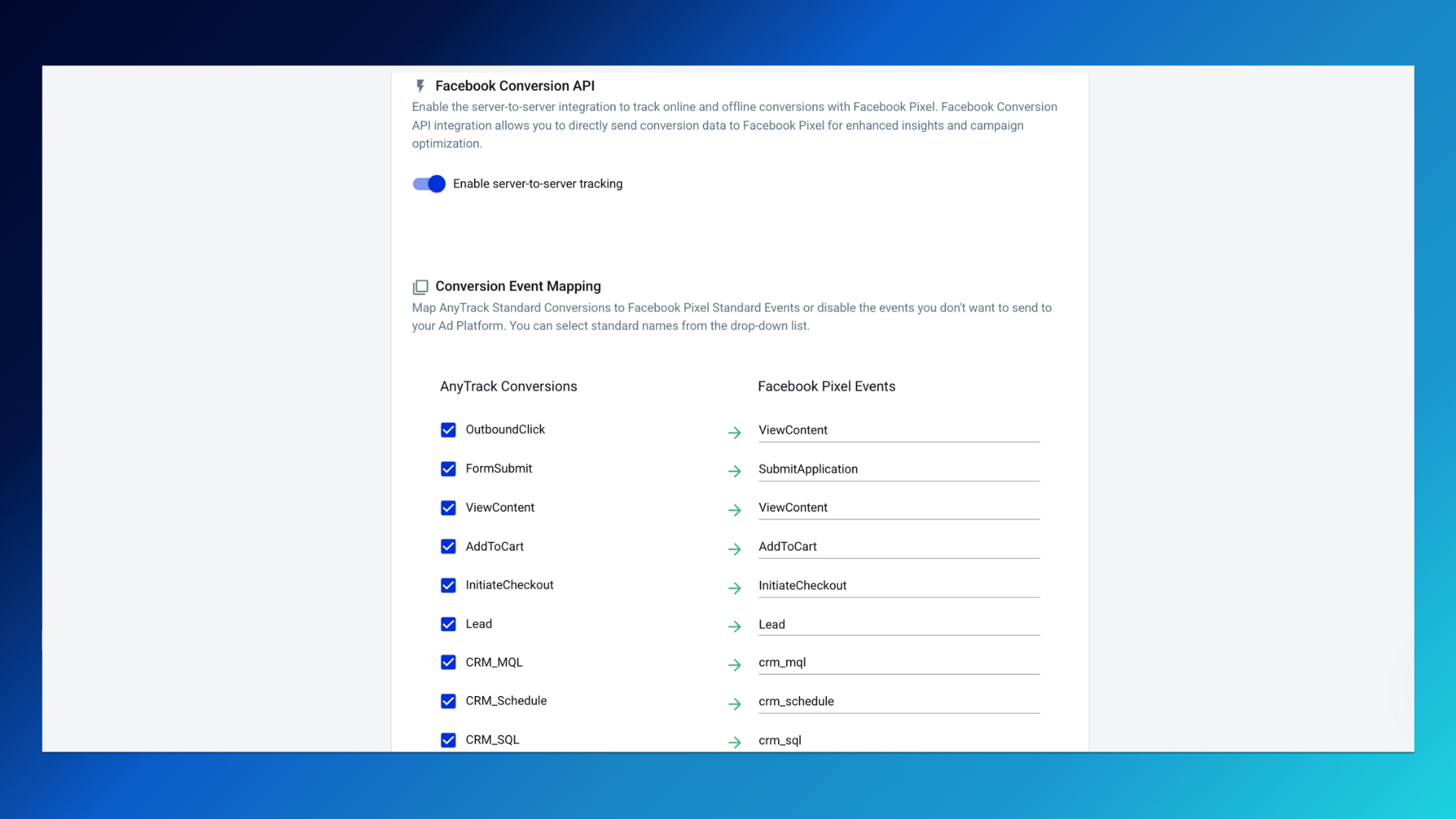
Configure each CRM event
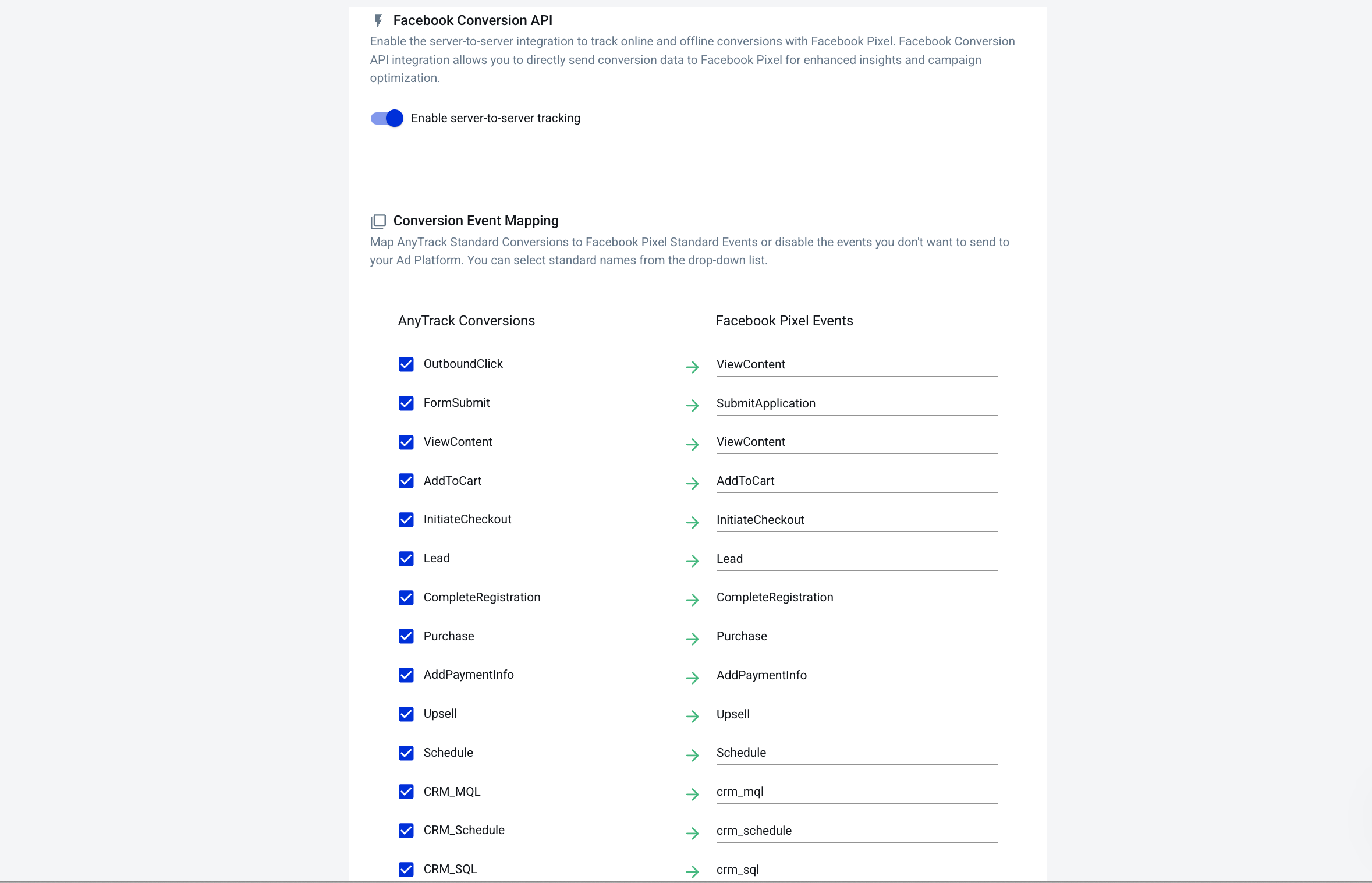
- Select the AnyTrack event on the Left
- Set the Event Name to send to Meta CAPI on the Right column
Step 6: Configure Lead Ads Initial Lead Capture
This ensures AnyTrack captures the initial Lead Ad submission with full Meta identifiers:
- In AnyTrack, navigate to Lead Ads Settings
- Enable "Capture Initial Lead"
- Configure initial lead event:
- Event Name: "LeadAdsInitialLead" (or custom name)
- Send to Meta: YES (optional - some clients prefer only qualified leads)
- Create CRM Contact: YES (if lead doesn't exist)
- Identifier Capture: Ensure FBC and FBP parameters are stored
Why This Matters: The initial lead submission contains critical Meta identifiers (FBC, FBP) that AnyTrack stores and appends to all subsequent CRM events, ensuring proper attribution.
Verification & Testing
Phase 1: Test Lead Form Submission (5 minutes)
-
Submit a Test Lead:
- Use Meta's Lead Ads Testing Tool: https://developers.facebook.com/tools/lead-ads-testing/
- Or submit your actual lead form
- Use a unique email address you can track
-
Verify in AnyTrack (within 60 seconds):
- Go to Conversions Report
- Filter by last hour
- Look for "LeadAdsInitialLead" event
- Click to view full event data - confirm FBC and FBP are captured
-
Verify in CRM (within 2 minutes):
- Check if contact was created in your CRM
- Confirm all form fields were captured
- Note the contact's lifecycle stage
-
Check AnyTrack Integration Logs:
- Navigate to Integrations → HubSpot → Logs
- Look for "Contact Created" event
- Verify timestamp and data payload
Phase 2: Test CRM Lifecycle Event (10 minutes)
-
Trigger a Lifecycle Change:
- In your CRM, manually update the test lead's lifecycle stage
- Example: Change from "Lead" to "Marketing Qualified Lead"
- Ensure your workflow is triggered
-
Verify in AnyTrack (within 30 seconds):
- Go to Integrations → HubSpot → Logs
- Look for lifecycle stage change event
- Confirm event shows "Queued for Meta CAPI"
-
Check AnyTrack Meta Logs (within 60 seconds):
- Go to Integrations → Meta Ads → Event Log
- Find the CRM event you triggered
- Verify:
- Event name matches your mapping
- Customer data includes email, FBC, FBP, external_id
- Event status shows "Sent - Success" (200 response)
Phase 3: Verify in Meta Event Manager (20 minutes)
Meta processes events in batches, so allow 10-20 minutes:
-
Navigate to Meta Events Manager:
- Business Manager → Data Sources → Your CAPI CRM Dataset
- Go to Overview tab
-
Check Event Activity:
- Look for your test event in the event stream
- Initial events may show "Processing" status
- After threshold is met, you'll see:
- Event Quality Score
- Customer Information Score
- Match Rate
-
Verify Event Details:
- Click on individual event
- Confirm:
- Event time is correct
- Event source shows "CRM"
- Customer data was matched
- Event parameters are present
Expected Quality Metrics:
- Event Match Quality: 6.0+ (scale of 0-10)
- Customer Information Score: 8+ parameters
- Match Rate: 70%+ (after sufficient volume)
Phase 4: End-to-End Full Funnel Test (24 hours)
- Submit a new test lead via Lead Ads
- Progress the lead through your entire sales funnel
- Trigger each lifecycle stage change
- Monitor AnyTrack and Meta for each event
- After 24 hours, review:
- Meta attribution reports for the test user
- Event sequence in Meta Events Manager
- Conversion paths in AnyTrack
Success Criteria:
- All lifecycle events appear in Meta within 20 minutes
- Events are properly attributed to original Lead Ad
- No duplicate events are sent
- Customer identifiers match across all events
Troubleshooting Common Issues
Issue: "LeadAdsInitialLead" Event Not Appearing in AnyTrack
Possible Causes:
- Facebook Page not properly connected
- Lead Ads form not linked to connected Page
- Permissions not granted for lead retrieval
Solutions:
- Verify Page connection in AnyTrack
- Check Page has lead retrieval permissions: https://www.facebook.com/business/help/540596413257598?id=735435806665862
- Resubmit test lead and check logs within 30 seconds
Issue: CRM Events Not Sending to Meta
Possible Causes:
- HubSpot workflow not triggering
- Event mapping not configured
- Missing required customer identifiers
Solutions:
- Test HubSpot workflow manually - verify it's active
- Check AnyTrack Integration Logs for error messages
- Verify event mapping includes at least email + external_id
- Ensure contact has valid email address in CRM
Issue: Low Event Match Quality in Meta
Possible Causes:
- Missing FBC/FBP identifiers
- Incomplete customer data
- Email format issues
Solutions:
- Verify initial Lead Ad capture includes FBC and FBP
- Add phone number to event mapping (improves match rate by 15-20%)
- Enable external_id in customer data parameters
- Check AnyTrack's identifier enrichment is enabled
Issue: Events Appearing Twice in Meta
Possible Causes:
- Both browser Pixel and CAPI sending same event
- Multiple CRM automations triggering same lifecycle change
Solutions:
- Use separate Datasets for website events vs CRM events
- Review HubSpot workflows for duplicate triggers
- Enable AnyTrack's deduplication (should be on by default)
- Use event_id parameter to prevent duplicates
Next Steps After Setup
Optimization Phase (Week 1-2)
-
Monitor Event Quality:
- Check Meta Event Manager daily
- Aim for Event Match Quality score of 7+
- Address any low-quality events
-
Volume Analysis:
- Ensure sufficient event volume for optimization (50+ per week minimum)
- If volume is low, consider including earlier funnel stages
-
Attribution Validation:
- Compare Meta attribution data with CRM source tracking
- Identify and resolve any discrepancies
- Document baseline conversion rates
Campaign Optimization (Week 3-4)
-
Create Conversion-Optimized Campaigns:
- Set up new Lead Ads campaign optimizing for "Purchase" (your CRM conversion event)
- Use qualified leads event for value optimization bidding
-
Build Custom Audiences:
- Create audiences based on CRM conversion events
- Exclude converted customers from prospecting
- Build lookalikes from high-value customers
-
Measure Business Impact:
- Track lead quality metrics (MQL%, SQL%, Win Rate)
- Monitor cost per qualified lead vs cost per lead
- Calculate actual ROAS using CRM conversion data
Support Resources
AnyTrack Support:
- Integration documentation: [docs link if available]
- Live chat in AnyTrack dashboard
- Email: [email protected]
Meta Resources:
- Conversions API for CRM: https://developers.facebook.com/docs/marketing-api/conversions-api/crm
- Lead Ads Testing Tool: https://developers.facebook.com/tools/lead-ads-testing/
- Page Permissions Guide: https://www.facebook.com/business/help/540596413257598
Critical Note: Allow 7-14 days of consistent event flow before Meta's algorithm fully adapts to optimize using your CRM conversion data.
Updated 1 day ago