
Cross Domain Tracking
Understand how to configure cross-domain tracking in AnyTrack to track user journeys across multiple websites. Set up domain allowlists and implement the tracking code for accurate attribution across your digital properties that span across multiple domains.
🚧 Affiliate
There’s no need to enable cross-domain tracking if your site features affiliate links directing users to external offers. Cross-domain tracking is for tracking users across your own websites.
📘 Prerequisites
To implement cross-domain tracking:
- Have an AnyTrack account with an active subscription
- Create one property for the landing page where you send traffic
- Create one property for the shop where conversions are triggered
What is Cross-Domain Tracking?
Section titled “What is Cross-Domain Tracking?”Track users as they navigate across multiple domains without losing session data. Cross-domain tracking ensures users maintain their session across sites, preserving campaign identifiers and first-party data as they move between domains.
For example, if you operate a shop and a blog on separate domains and use ads to drive blog traffic, recognize the same visitors when they move to the shop. This ensures purchase conversions are attributed to the original ads, providing accurate ad effectiveness tracking across domains.
Popular Cross-Domain Tracking Use Cases
Section titled “Popular Cross-Domain Tracking Use Cases”- Track users across a blog and Shopify store on different domains
- Track across a website and cart system (refer to Integration Catalog setup guides)
- Track across two AnyTrack accounts
- Track across multiple shops on different domains like
example.com,example.fr,example.co.uk - Run independent ad campaigns for your blog and shop
- Build custom audiences on both properties based on conversions and events from Shopify
Data Flow in Cross-Domain Tracking
Section titled “Data Flow in Cross-Domain Tracking”View how AnyTrack unifies tracking data from a Facebook Ads user who clicks an ad, lands on one domain, and navigates to a shop on another domain. When the user converts, AnyTrack reports which ad drove the sale back to Facebook Ads.
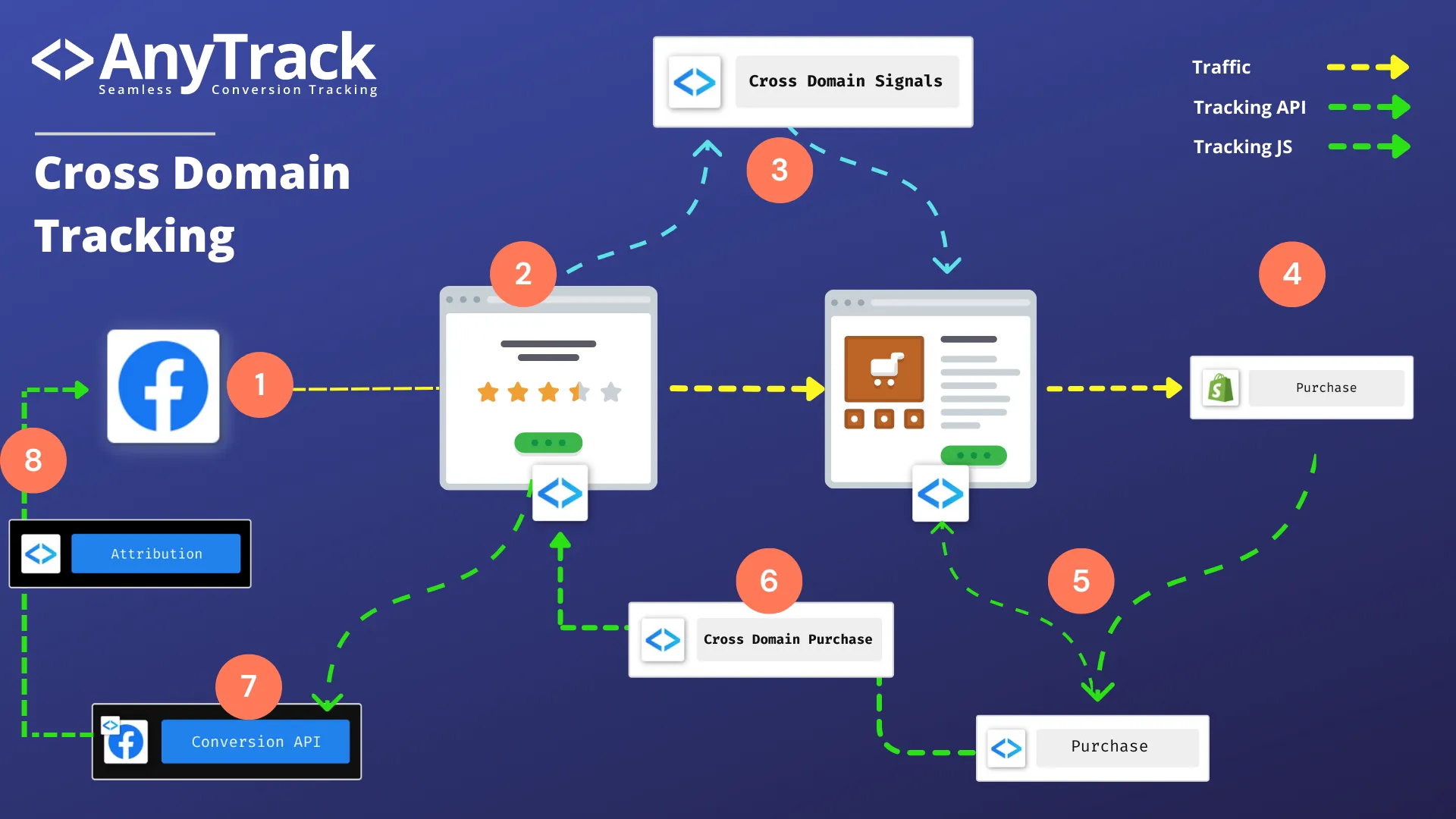
- User clicks a Facebook Ads ad and lands on your blog (domain A)
- AnyTrack collects first-party data (Facebook click ID,
GAcookie) and traffic data (UTM parameters) - AnyTrack AutoTags the product CTA with cross-domain parameters
- User clicks the product CTA; AnyTrack passes cross-domain signals to the CTA URL
- User lands on the shop and purchases the product
- Shopify sends conversion event data to AnyTrack
- AnyTrack tracks the conversion from the shop property
- AnyTrack sends the
Purchaseto the blog property - AnyTrack sends the
Purchaseevent to FacebookConversion API - Facebook applies attribution rules and reports the conversion in Ads Manager
Configuring Your Cross-Domain Settings
Section titled “Configuring Your Cross-Domain Settings”The settings below assume that you have two distinct domains and that you have created a property for each of the domains.
Use these terms:
- Blog: The blog advertised on Facebook Ads containing an article with a Call To Action (CTA) URL pointing to the shop
- Shop: A Shopify store on a different domain than the blog, configured with the AnyTrack Tracking Tag
Prerequisites
Section titled “Prerequisites”- Create a property for each website and install the Tracking Tag on each
- Configure the shop integration (e.g., Shopify with Webhooks)
Blog property settings
Section titled “Blog property settings”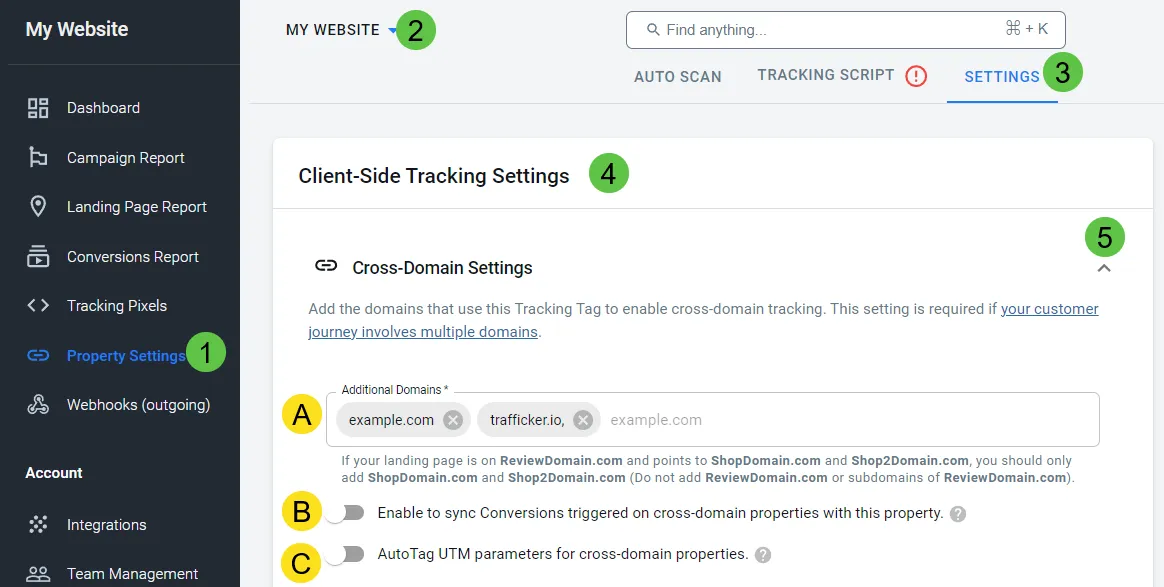
- Open property settings
- Scroll down to cross-domain tracking settings
- Add the shop domain to the cross-domain field and save
📘 Cross domain session
From now on all links from blog pointing to shop will pass the tracking data required to preserve the user session from the blog to the shop.
shop.foo?atclid=iVObG39NSjt34OZlBzUye
Shop property settings
Section titled “Shop property settings”- Open property settings
- Scroll down to cross-domain tracking settings
- Toggle Sync Conversions with the cross-domain property
- Optional: Toggle UTM parameters to forward UTM campaign data to the shop URL
- Save
📘 Cross domain conversions
From now on, all conversions happening on the shop and originating from a cross domain session will be forwarded to the blog property.
Validating Cross-Domain Tracking
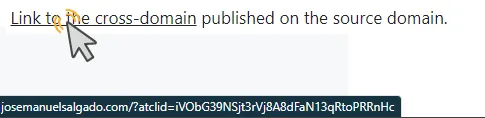
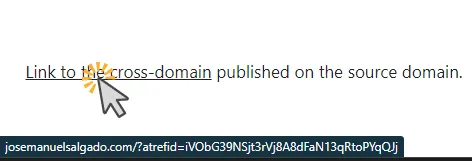
Section titled “Validating Cross-Domain Tracking”- Save cross-domain tracking changes, open the cross-domain property website, and hover on links pointing to the cross-domain destination . You should see the
?atclid=or?atrefid=parameter appended to links. If not visible, open a new incognito/guest window and repeat.
- Click the link and navigate through the funnel
- Open the conversion event page of the cross-domain property to verify conversions received from your shop
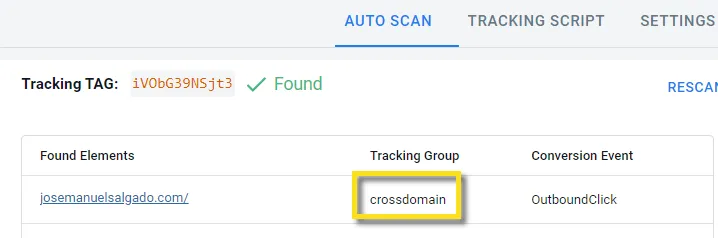
- Use AnyTrack AutoScan to verify links affected by cross-domain settings. The Tracking Group indicates “crossdomain” or “AnyTrack” if Sync Conversions is enabled.
Validation in external tools:
Section titled “Validation in external tools:”- Check Google Analytics real-time dashboard for conversions
- Allow 15-20 minutes for Facebook Event Manager to display conversions
- Use webhooks to send conversions to Google Sheets or Airtable
Cross-Domain Tracking in Cart Systems
Section titled “Cross-Domain Tracking in Cart Systems”🚧 Supported
For cart systems listed in the AnyTrack Integration Catalog, please refer to their respective setup guides. These guides indicate whether cross-domain tracking settings are necessary and how to implement them.
Suppose your online store operates on store.com, but checkout is handled on store.cart.com (a subdomain of a different domain). You’ve installed the same tracking tags (Meta Pixel and Google Analytics) on both the store and cart system. When a user clicks the Checkout button to navigate to the checkout page, several actions occur:
✅ With
- Session Continuity: The session remains open and retains the source/medium from the initial visit, such as a Facebook Ads ad
- Cookie Continuity: Cookie data is passed to the checkout page URL, maintaining tracking data integrity across domains
- Accurate Conversion Tracking: Google Analytics records conversions and attributes them to the correct initial session and user
- Correct Ad Attribution: Conversions are correctly attributed to the ad that initially brought the user to your store, enhancing ad effectiveness
Configure Cross-Domain Tracking Between AnyTrack Accounts
Section titled “Configure Cross-Domain Tracking Between AnyTrack Accounts”Set up cross-domain tracking across different AnyTrack accounts when one partner has a shop and another has a website that promotes the shop. Use an outbound webhook in the cross-domain property account and the AnyTrack Multiaccount Integration in the cross-domain destination account to receive webhooks.
Setup Guide
Section titled “Setup Guide”-
Install the AnyTrack Multiaccount Integration on the cross-domain destination account from the Integration Catalog and copy its postback URL.
Install the AnyTrack integration on the account with the cross-domain destination. -
Set up an Outbound Webhook on the cross-domain property account pointing to the postback URL from Step 1. Include all conversion events you want to sync.
Use an Outbound Webhook to send the events to the cross-domain destination. -
Add the cross-domain destination domain to the cross-domain settings on the cross-domain property account and save.
Frequently Asked Questions
FAQ was last reviewed on 2026-06-22