
AnyTrack Click ID
Learn how the AnyTrack Click ID uniquely identifies visitors across your marketing stack, connecting ad clicks to conversions for accurate cross-platform attribution.
The Click ID is the thread that connects every touchpoint in your customer journey. Generated automatically when users first click an ad or visit your site, this unique identifier follows them through page views, form submissions, external affiliate offers, and final purchases — ensuring every conversion attributes back to the right ad.
Without Click IDs, conversions tracked on third-party platforms (affiliate networks, external checkouts, CRM webhooks) would be orphaned data points with no way to connect back to marketing spend. With Click IDs, every conversion — no matter where it happens — ties directly to campaign performance.
What is the AnyTrack Click ID?
The AnyTrack Click ID is a unique, anonymous and auto-generated alphanumeric string that enables AnyTrack to tie your visitor's actions across your marketing flows and marketing tech stack.
Example Click ID
IBTO9lOfAMybrKiiB1U9YG91IFjs3Dv9AV
NoteThe Click ID is not our invention. Very much like Google has its GCLID or Facebook the FBCLID, AnyTrack also uses a Click ID to anonymously identify visitors and stitch their activities with sessions and other actions.
Automatic vs. Manual Implementation
For most users: The AnyTrack Click ID is automatically generated, instrumented, and orchestrated when you connect AnyTrack to standard integrations available in the AnyTrack catalog. No manual setup is required.
For advanced users: You'll need to manually work with the Click ID only when:
- Connecting with custom platforms and workflows not available in the standard catalog
- Implementing advanced tracking scenarios beyond standard integrations
- Building complex cross-platform attribution systems
How Click IDs Work
Generation Process
The Click ID is automatically generated by the AnyTrack Tracking Tag for every standard and custom event triggered on your website. For example, when a user adds a product to their cart, AnyTrack generates a Click ID.
NoteYou can see this happening in your browser by opening developer mode and inspecting the network logs.
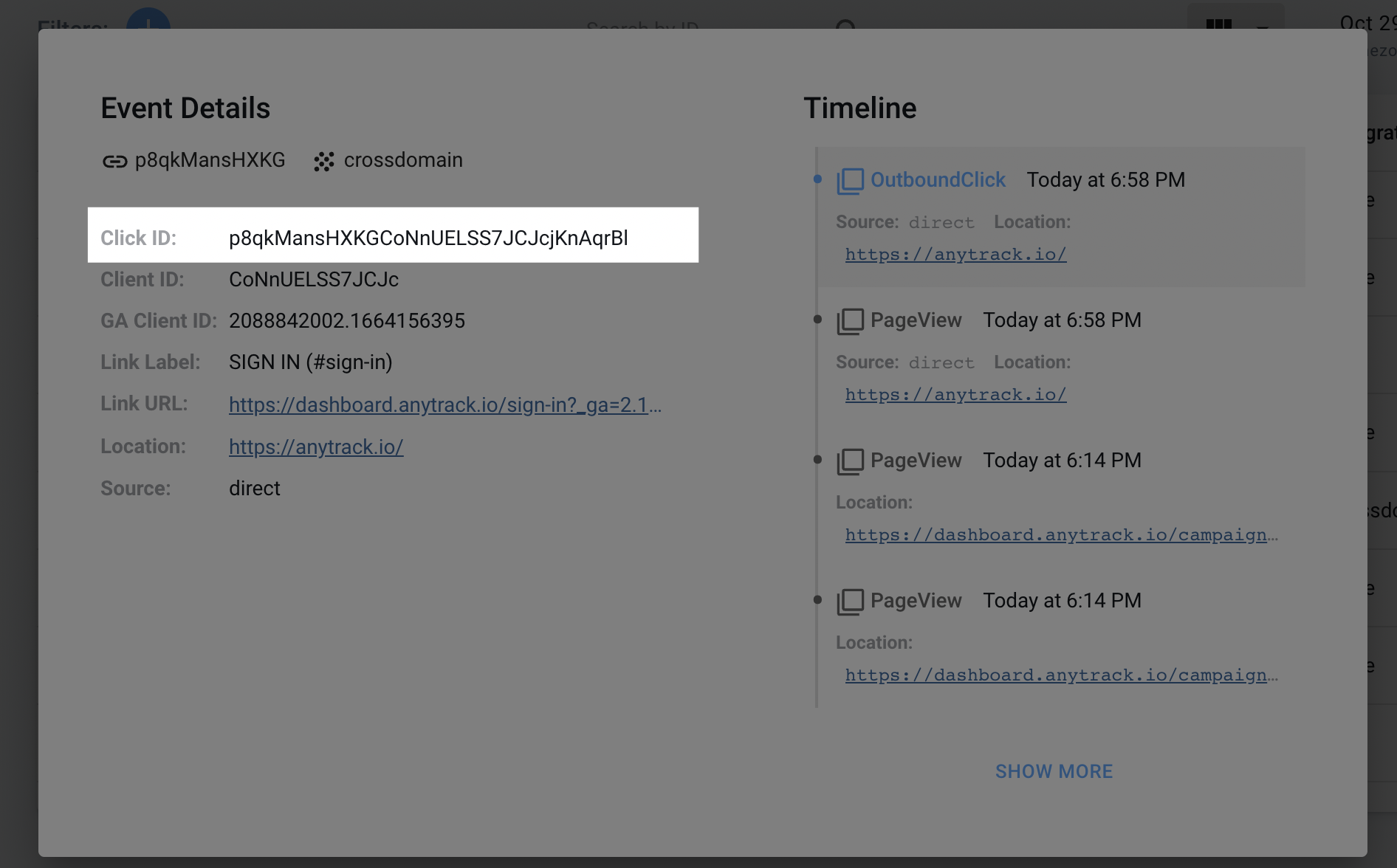
Anatomy of the Click ID
The AnyTrack Click ID is composed of 3 strings that allow AnyTrack to construct the user journey and timeline:
| Property Unique Identifier | The Visitor unique Identifier | Encrypted key |
|---|---|---|
IBTO9lOfAMybr | KiiB1U9YG91IF | js3Dv9AV |
Attribution Flow
The AnyTrack Click ID works by following the user's journey from the moment they click on your ad or affiliate link, through their engagement on your website, and ultimately to their conversion.
This process is achieved through a series of steps:
- Generation: When a user clicks on your ad or affiliate link, AnyTrack generates a unique Click ID
- Attribution: The Click ID is attached to the user's browser session, allowing the platform to attribute all subsequent interactions to that specific user
- Tracking: The AnyTrack platform tracks the user's actions throughout their journey, from ad click to conversion, using the Click ID
- Reporting: The collected data is aggregated into actionable reports, providing you with valuable insights for optimizing your marketing efforts
How the Click ID is Used
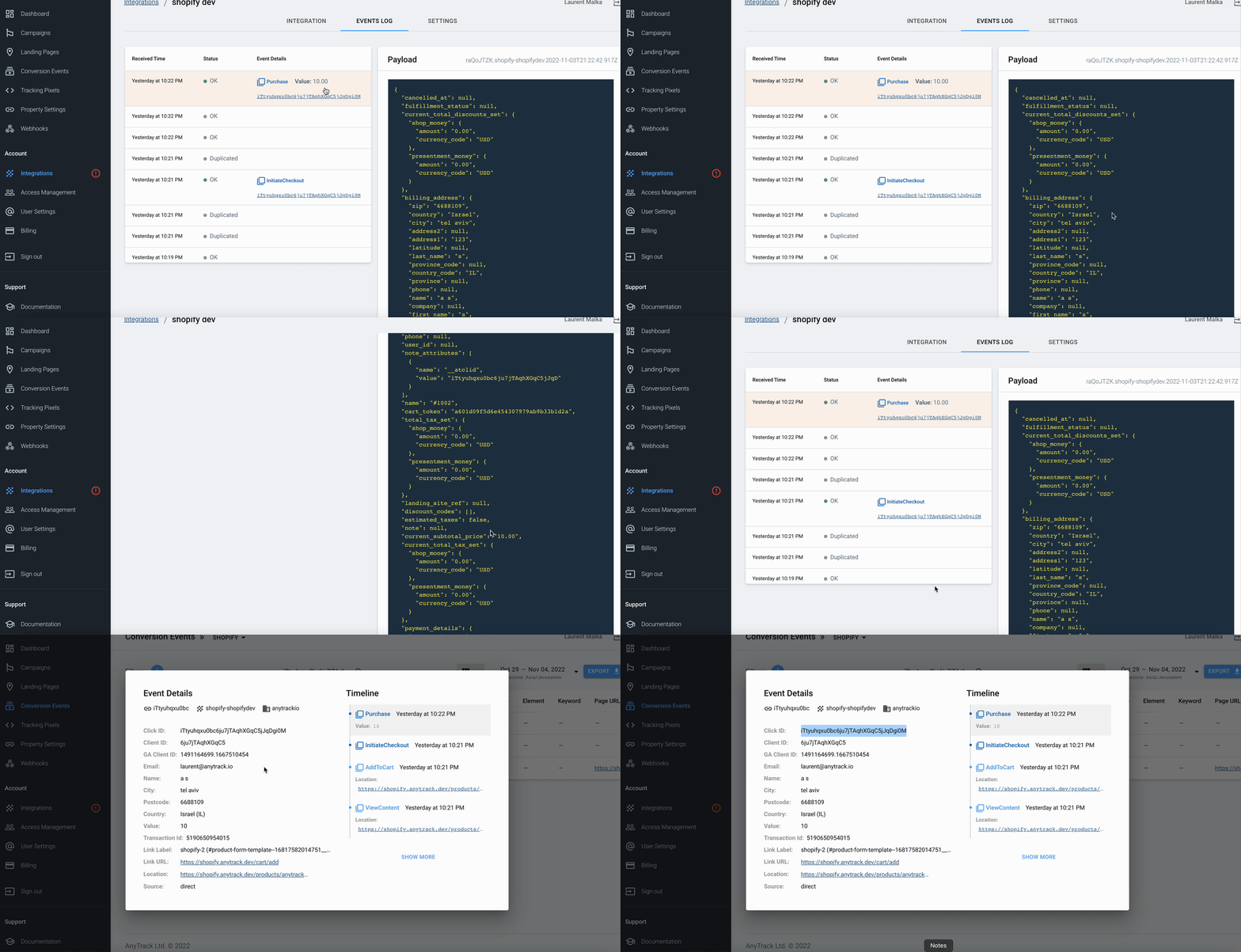
The Click ID is used to stitch client-side and server-side events. For example, the Click ID appended to the Shopify Cart is triggered via the client-side interaction and is recorded in the Shopify servers.
When the customer completes their journey with a Purchase, the Click ID is sent to AnyTrack via the Webhook Notifications triggered in the Shopify Servers.
You can see the Click ID value in the Shopify Event Logs:
Why Click IDs Matter for Marketers
The AnyTrack Click ID (whether automatic or manual) enables you to:
- Accurately attribute conversions — Track user interactions and correctly attribute conversions to specific marketing campaigns, ad placements, and affiliate networks
- Optimize marketing efforts — Make better-informed decisions for optimizing campaigns, ad placements, and affiliate partnerships with accurate attribution data
- Increase ROI — Identify high-performing marketing channels and strategies to allocate budget more effectively
- Enhance user experience — Identify user behavior patterns and preferences to refine website content and user experience
Manual Implementation Guide (Advanced Users Only)
WarningManual implementation should only be used when standard integrations are unavailable. Incorrect implementation can break attribution. Always verify the Tracking Tag is loaded before generating the
atclid.
Basic Setup: Generate the atclid Variable
atclid VariableThe atclid variable is a Click ID generated using the current user session without relating it to any particular event. Use the following code to generate it:
var atclid = AnyTrack('atclid');Important: This code will work only AFTER the Tracking Tag is loaded on your page. To verify the code is already loaded, you can use this script:
AnyTrack(function() {
    var atclid = AnyTrack('atclid');
    // do something with atclid...
});
Google Tag Manager Implementation
- Create a new Javascript Variable
- Insert the following Code and Save
- Now you can use the
atclidvalue in any of the tags within your Google Tag Manager container
function() {
    return atclid = AnyTrack('atclid');
}
Advanced Use Cases
Custom Integrations and Advanced Tracking Methods
When your marketing flow requires more than a standard integration available in the AnyTrack catalog, the Click ID is the key that enables the persistence of a session between the platforms or apps you are using.
As long as the Click ID is passed or synced between the platforms you can be 100% certain that you will be able to track conversions and send them to your analytics and ad platform's Conversion API.
Marketing Automation Platforms
Let's say that you are running ads on Facebook and capturing opt-ins via a Typeform embed on your Elementor/WordPress website:
- Capture the Click ID via Elementor
- Sync the Click ID with ActiveCampaign subscribers
- Trigger Offline Sales: Whenever your sales team updates the subscribers status or deal stage, you can trigger a webhook or a Zapier automation that will send the conversion event to AnyTrack
👉 Learn how to use webhooks and Zapier.
Email Marketing Campaigns and Cross Device Tracking
When you send emails to your subscribers, by appending the clickid identifier to your campaign URLs AnyTrack will identify the customer and stitch this new session with the initial subscriber session.
This enables smooth cross-device tracking and ensures you maintain attribution even when users switch between devices.
Best Practices
- Use standard integrations first — Check the AnyTrack catalog for available integrations before implementing custom solutions
- Always verify that the Tracking Tag is loaded before trying to generate the
atclid(for custom implementations) - Maintain consistency in how you pass Click IDs between different platforms and systems
- Test your implementation regularly to ensure Click IDs are being generated and passed correctly
- Document your custom integrations for future reference and troubleshooting
Related Articles
Frequently Asked Questions
FAQ was last reviewed on 2026-06-02
Updated 16 days ago