
Custom Affiliate Network Integration
" deprecated: false hidden: true metadata: title: "" description: "" robots: index next: description: "
Adding a custom affiliate network in AnyTrack is a straight forward process, that will take you a couple of minutes to complete.
There are a few requirements before you can get started and we outline them in this article.
Before you begin
You will need the following information in order to successfully complete the integration.
Click Tracking query string: What is the query string to pass to the affiliate link?
For example: hasoffers click tracking query string is aff_sub or aff_click_id
Postback Tracking parameters: What are the placeholders that should be added to the AnyTrack postback URL?
Following the hasoffers example, if the click tracking query string was aff_sub, then the postback tracking parameter will be {aff_sub}
https://postbackurl.io?click_id={aff_sub}
If you can't find this information, please fill this form or send it to your affiliate manager.
Integration steps:
Open the catalog and search for "custom"
Name the affiliate network
Add the affiliate network's login page (optional)
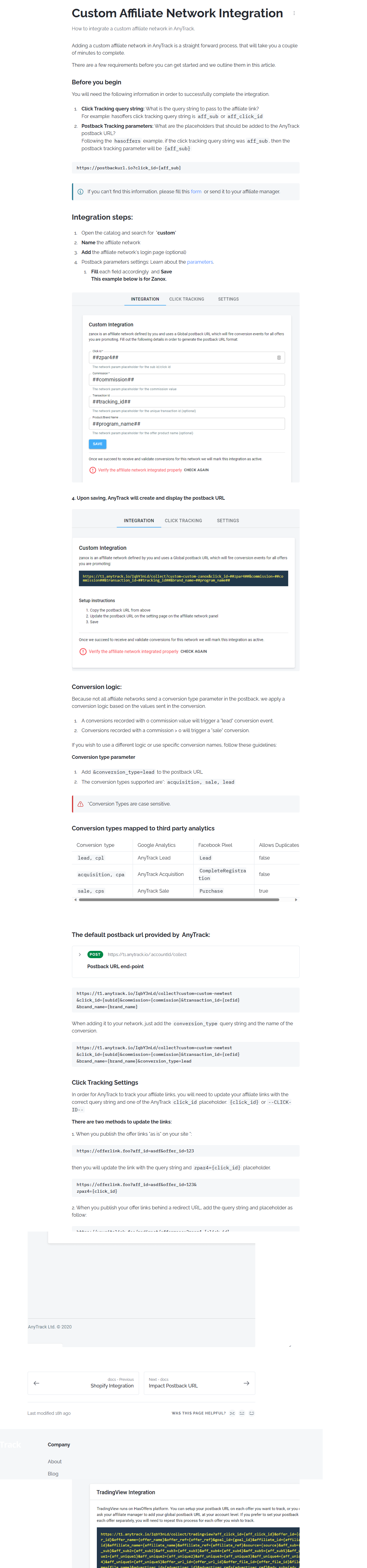
Postback parameters settings: Learn about the parameters.
Fill each field accordingly and Save
This example below is for Zanox.
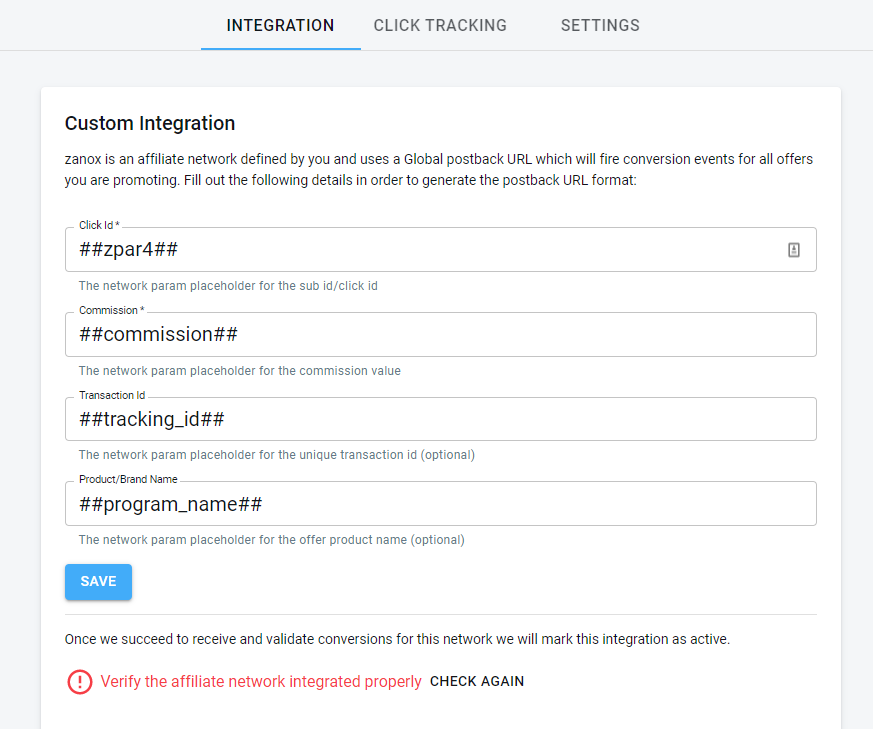
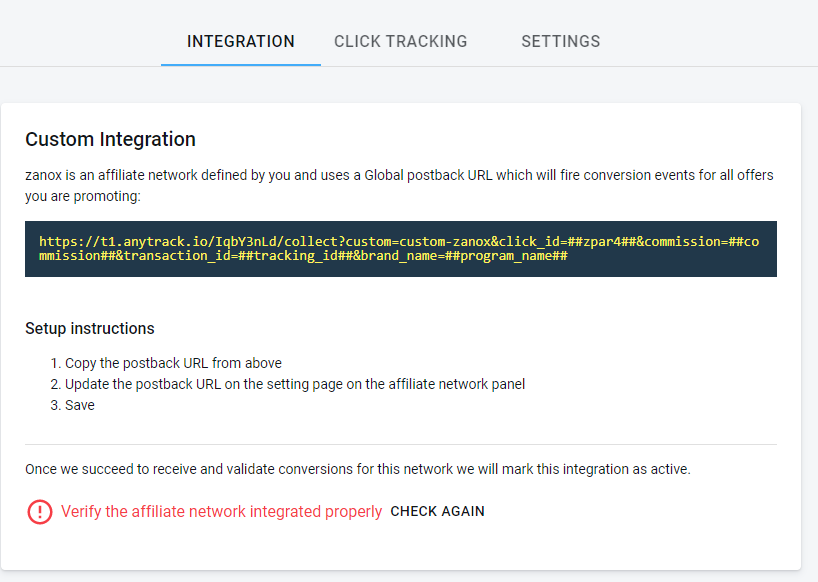
- Upon saving, AnyTrack will create and display the postback URL
Conversion logic:
Because not all affiliate networks send a conversion type parameter in the postback, we apply a conversion logic based on the values sent in the conversion.
A conversions recorded with 0 commission value will trigger a "lead" conversion event.
Conversions recorded with a commission > 0 will trigger a "sale" conversion.
If you wish to use a different logic or use specific conversion names, follow these guidelines:
Conversion type parameter
Add &conversiontype=lead to the postback URL
The conversion types supported are: acquisition, sale, lead
_Conversion Types are case sensitive.
Conversion types mapped to third party analytics
The default postback url provided by AnyTrack:
https://t1.anytrack.io/IqbY3nLd/collect?custom=custom-newtest
&click_id={subid}&commission={commission}&transaction_id={refid}
&brand_name={brand_name}
When adding it to your network, just add the conversion_type query string and the name of the conversion.
https://t1.anytrack.io/IqbY3nLd/collect?custom=custom-newtest
&click_id={subid}&commission={commission}&transaction_id={refid}
&brand_name={brand_name}&conversion_type=lead
Click Tracking Settings
In order for AnyTrack to track your affiliate links, you will need to update your affiliate links with the correct query string and one of the AnyTrack click_id placeholder: {click_id} or --CLICK-ID--
There are two methods to update the links:
- When you publish the offer links "as is" on your site ":
https://offerlink.foo?aff_id=asdf&offer_id=123
then you will update the link with the query string and zpar4={click_id} placeholder.
https://offerlink.foo?aff_id=asdf&offer_id=123&
zpar4={click_id} - When you publish your offer links behind a redirect URL, add the query string and placeholder as follow:
https://yousitelink.foo/redirect/offerzanox?zpar4={click_id}
In both cases, AnyTrack will AutoTag the link with the {click_id} value.
You must ensure that your redirect URL can pass the parameter to the destination URL. This is a standard feature with most redirect plugins. Learn more
Troubleshoot conversions tracking
To troubleshoot conversion tracking errors, you have several options to zero-in the root causes of these problems.
The Debugger: This feature allow you to view the data received by AnyTrack. Try to identify the parameters that should carry the click_id so you can see whether the placeholder is being sent properly.
If the click_id placeholder is empty or not carrying a value such as dz6XK57oLuGtdasd97f8a987df9 it means that the aff_sub query wasn't set on the link.
If the debugger is empty - it means that the network is not firing the postback url. Verify with the affiliate manager whether the postback is approved.
the conversion event reports: This screen allows you to look at all the events going through the platform.
Select event type - Outboundclick & integration - Unknown
All Events displayed are the outbound clicks that were not AutoTag with the click_id parameter. 👉 Follow the onscreen guidelines to fix the links. 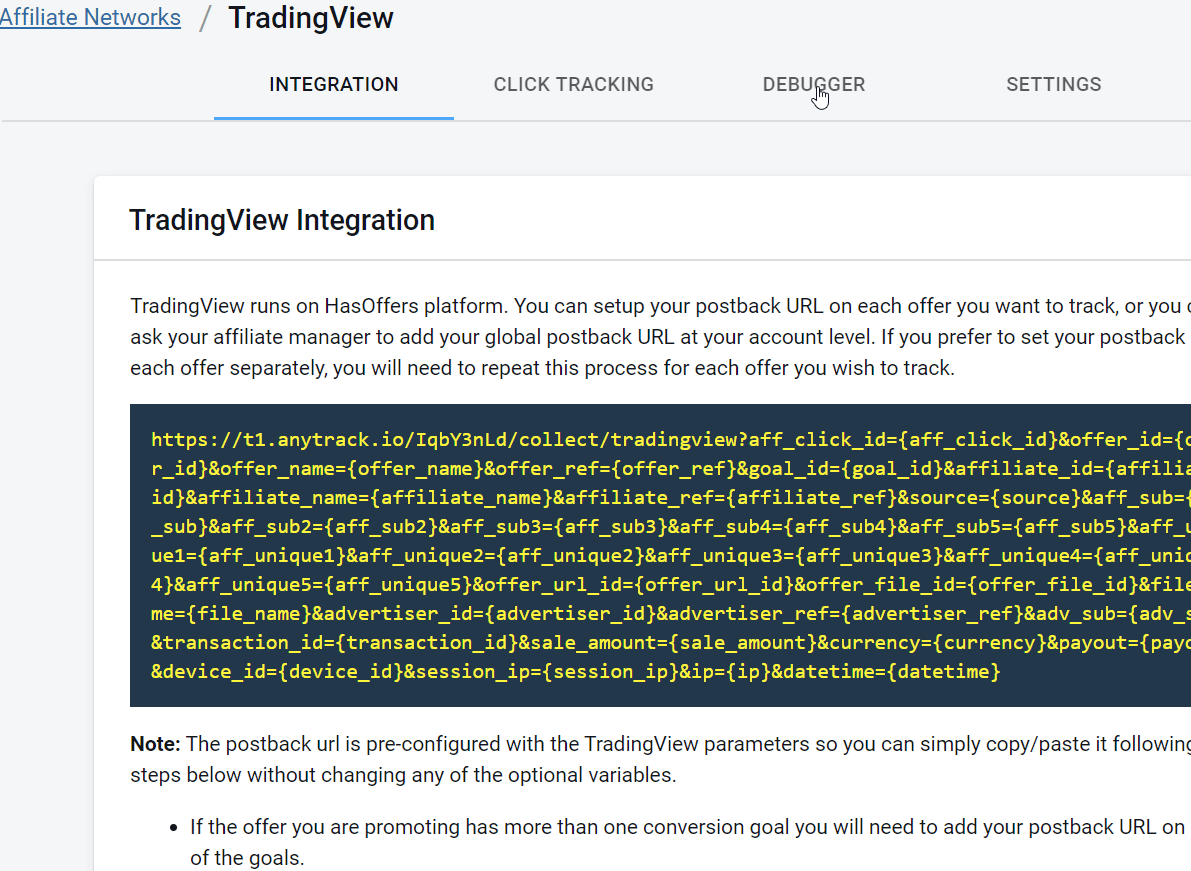
Updated about 3 hours ago