
Facebook Ads Step By Step guide
Learn about Facebook Ads Step By Step guide in AnyTrack. Set up integration for conversion tracking and campaign optimization.

This guide will show you how to quickly connect your Facebook Pixel and Conversion API
Go to dashboard.anytrack.io
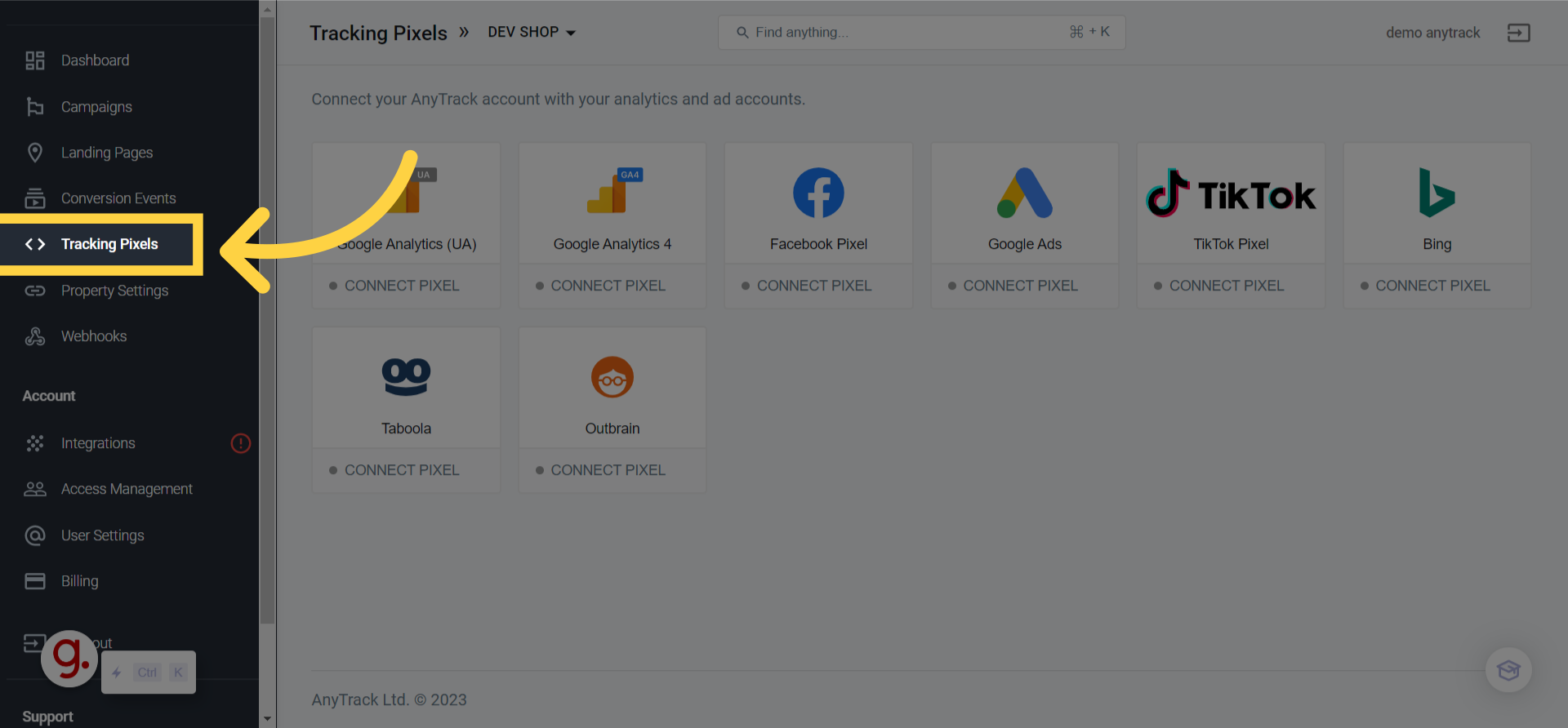
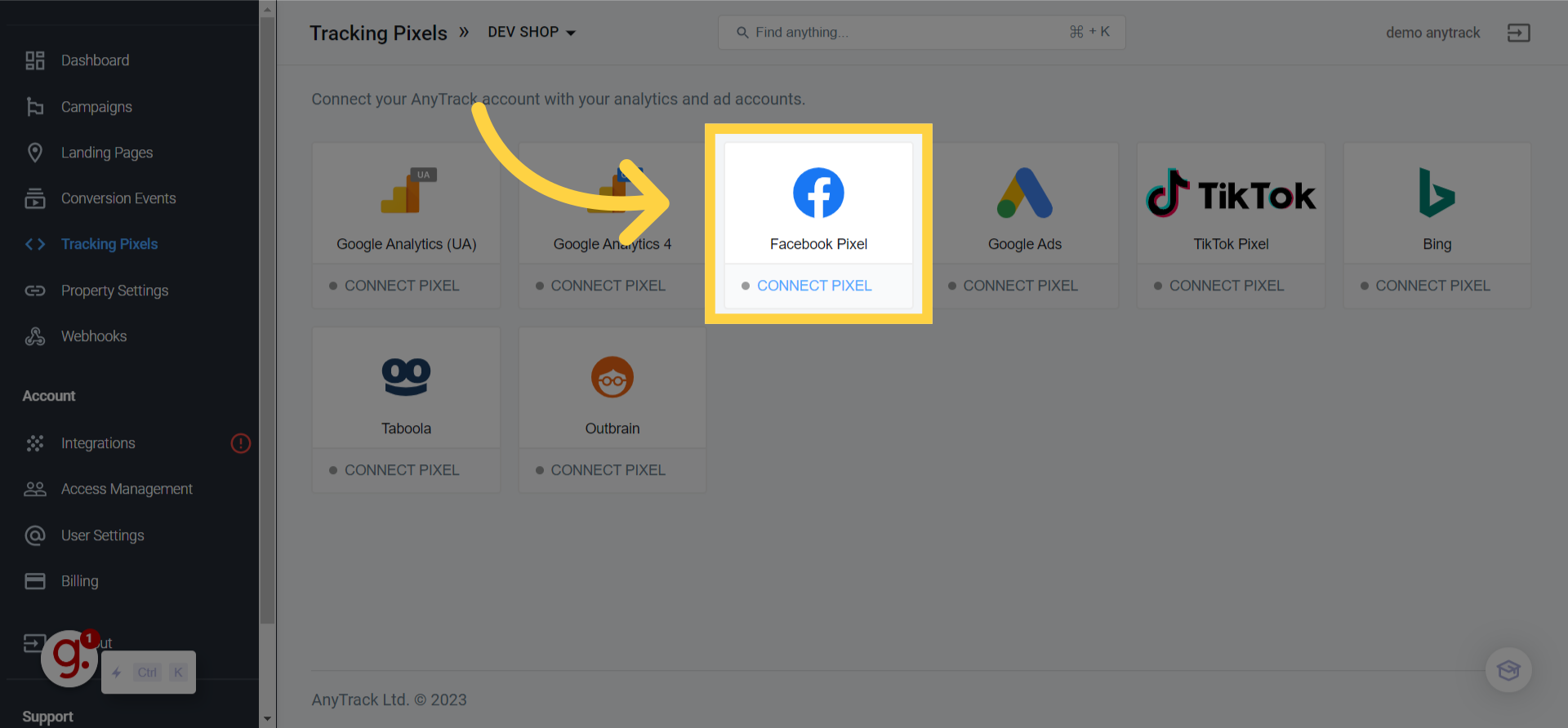
-
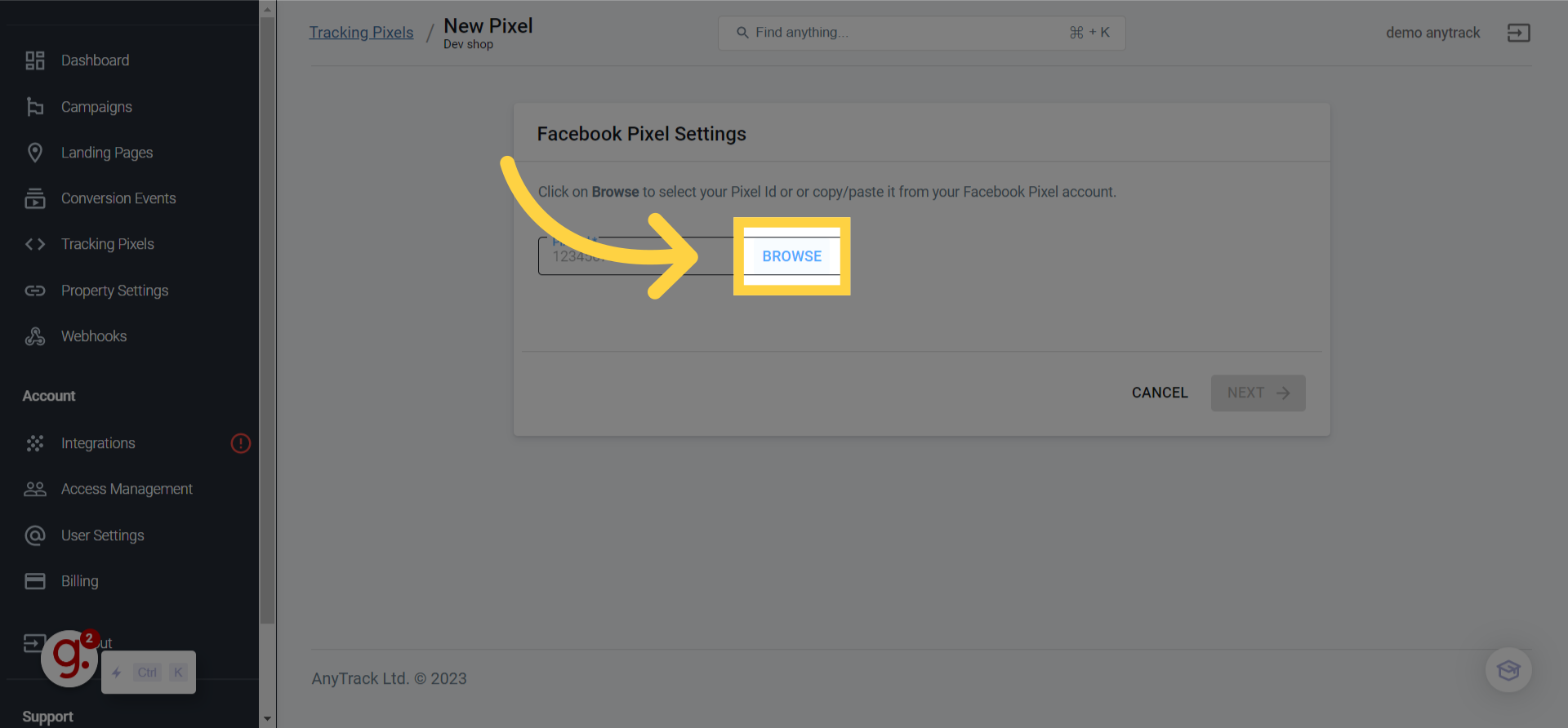
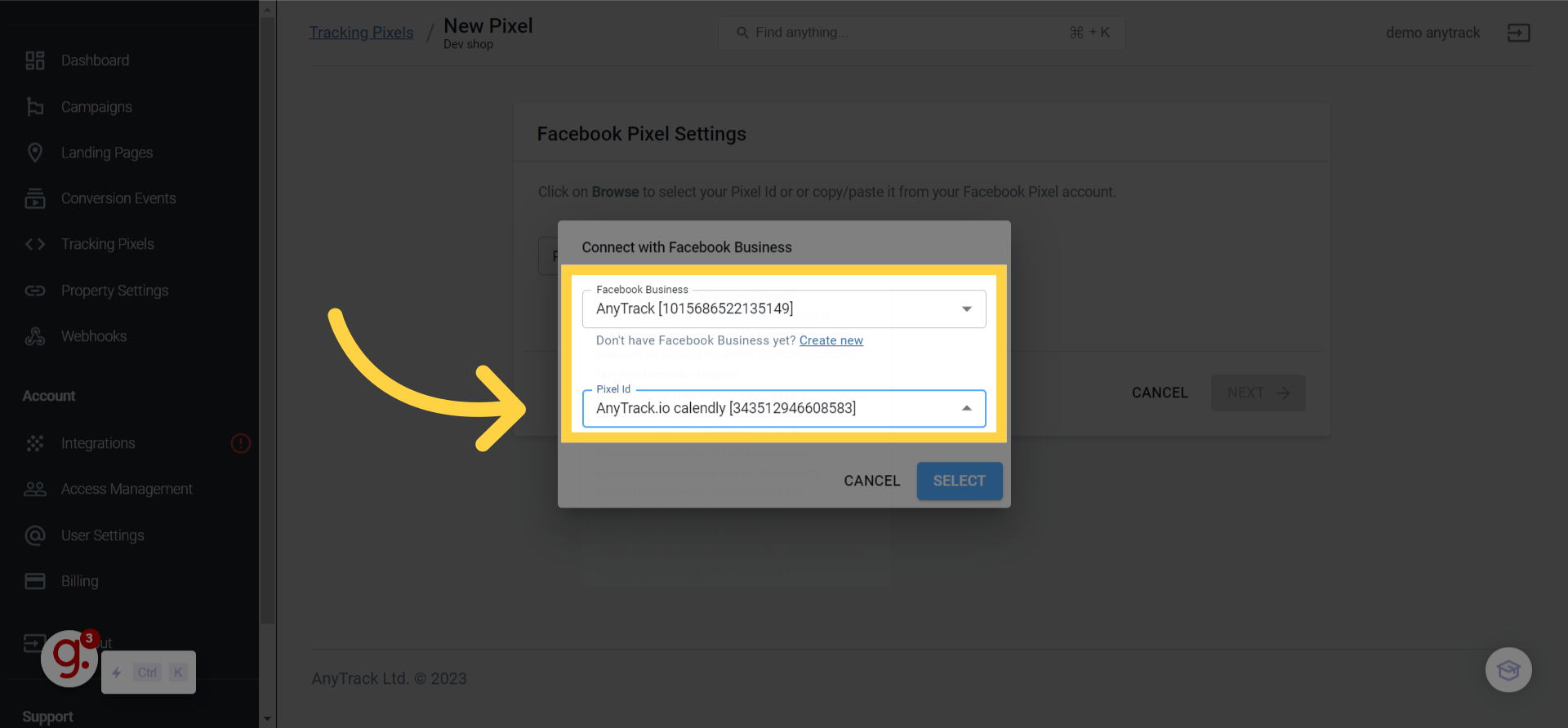
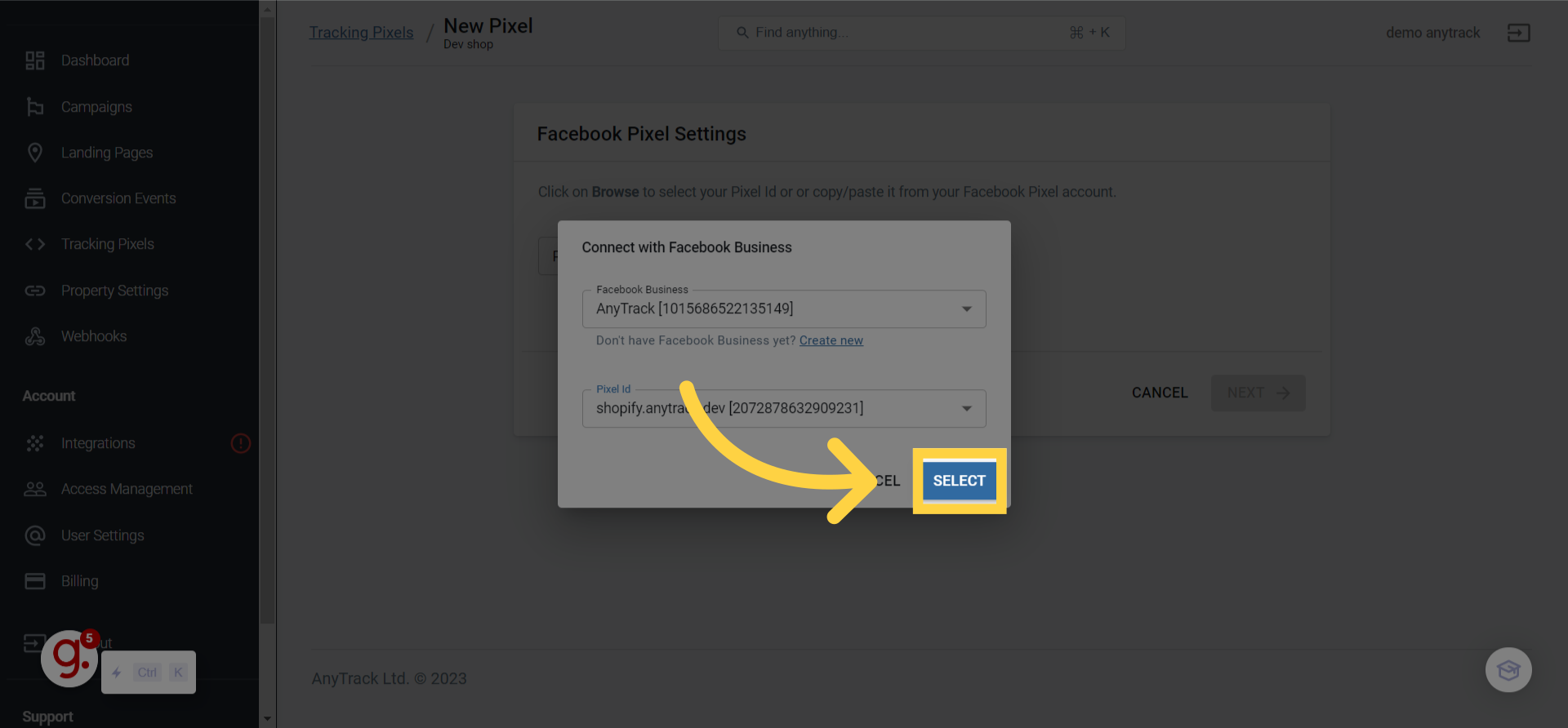
Select your facebook business manager & Pixel ID. The pixel connected in AnyTrack should be the one that your ads are optimizing for.Select your Facebook Business Manager & Pixel ID
-
Once you've selected your business manager and pixel ID, Click "Select" tio authenticate.Click the facebook Business Manager and Facebook Pixel
-
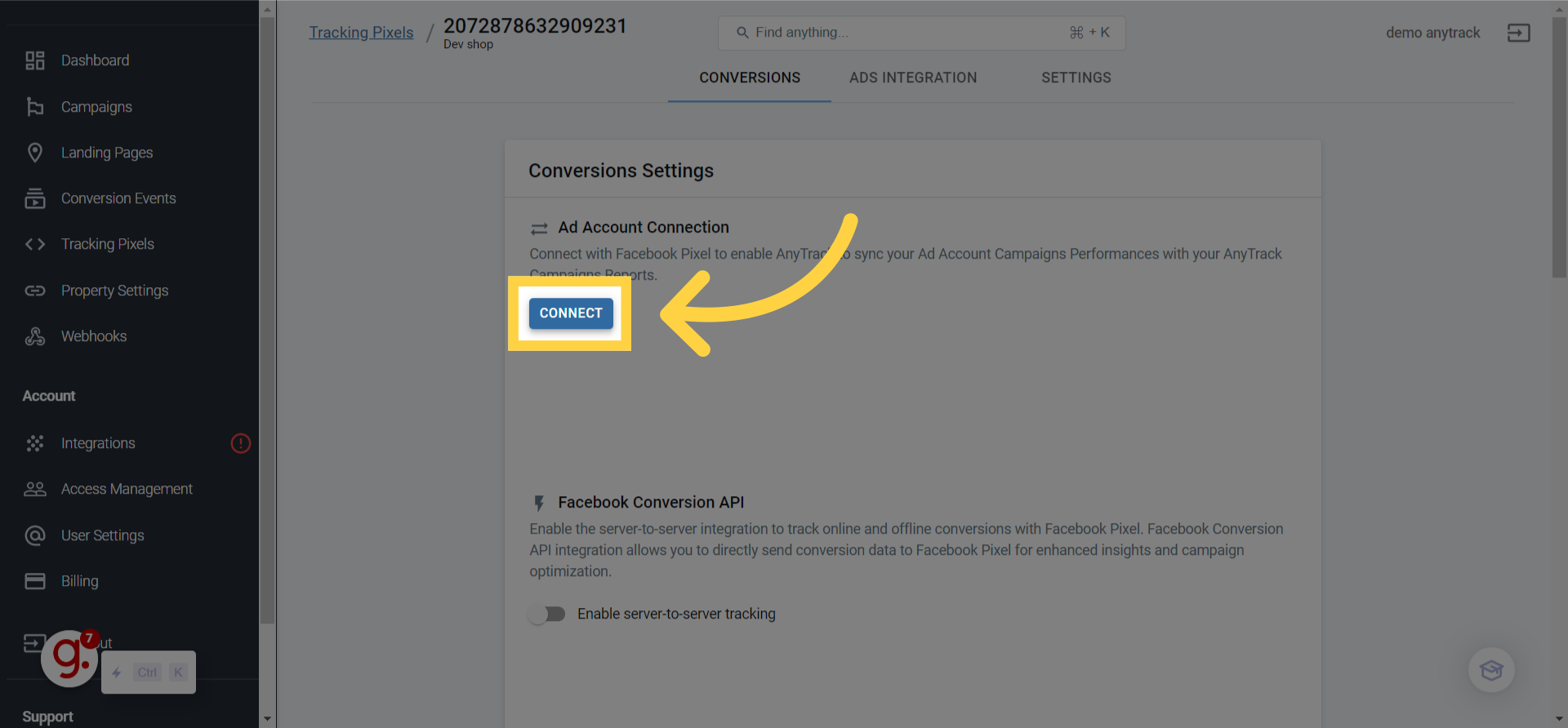
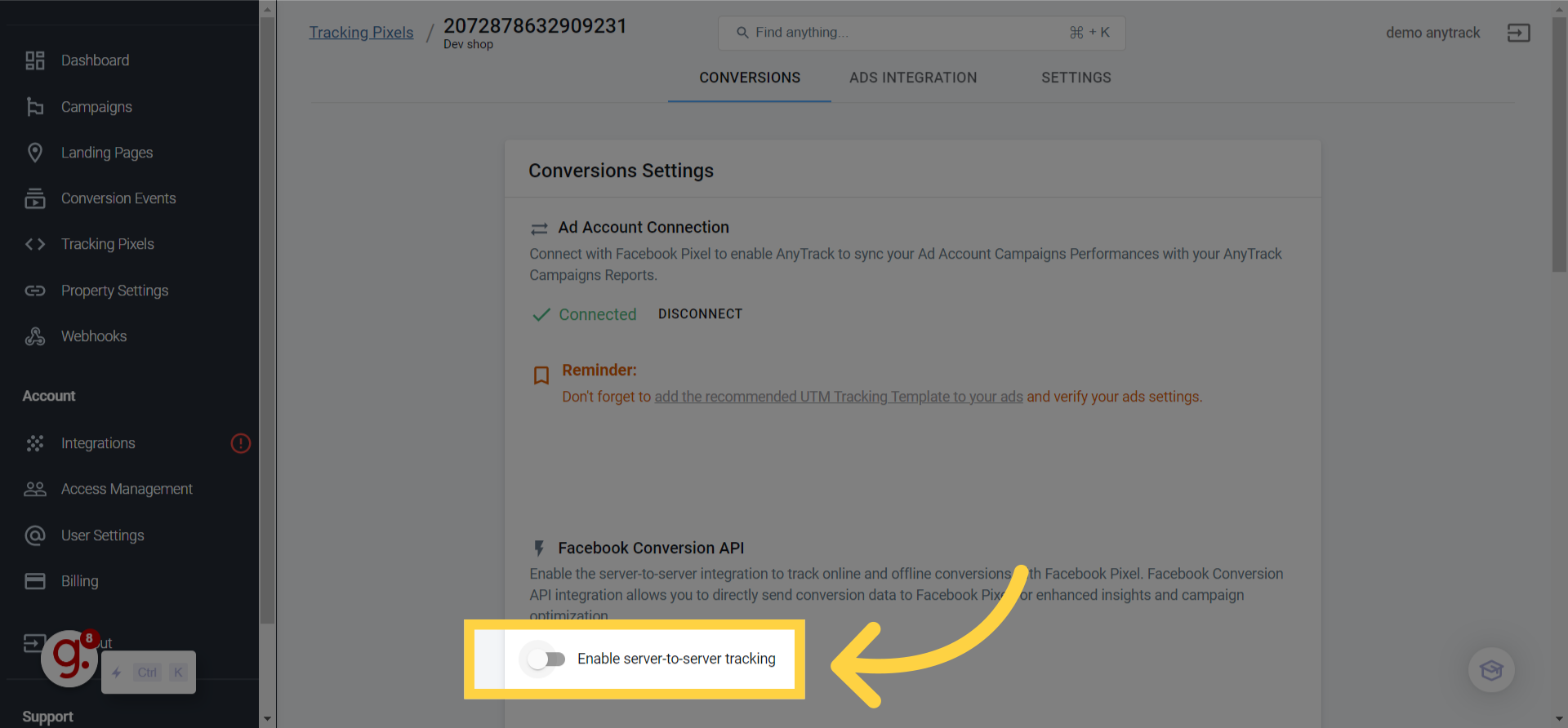
Connect your ad account to enable AnyTrack to sync your Ad Account Campaigns Performance with your AnyTrack Campaigns Report.Click on the "Connect" button to integrate your Facebook Ads Account
-
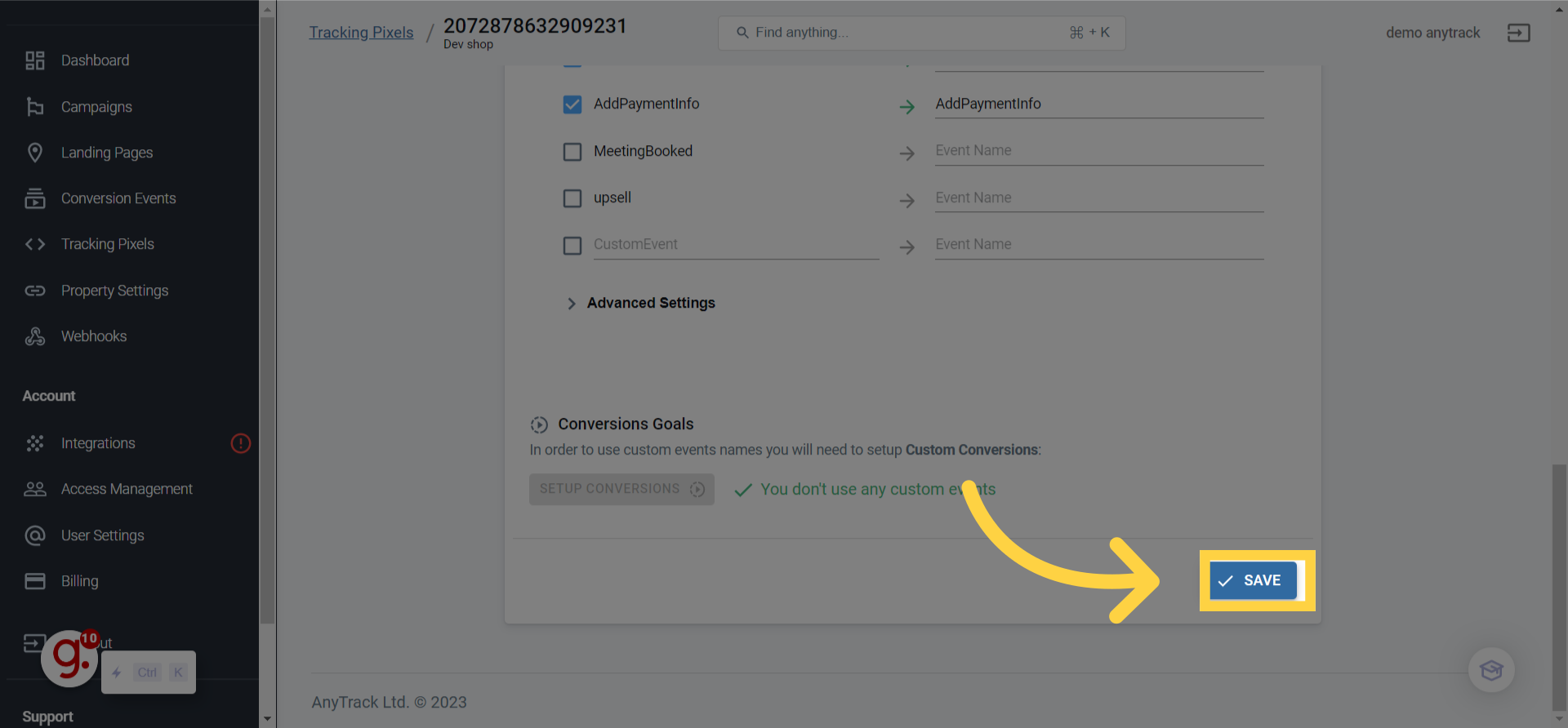
Scroll down and Click the blue SAVE button. AnyTrack can now send conversion data directly to your Facebook Pixel for enhanced insights and campaign optimization.Click on the Save Button to complete the integration.
-
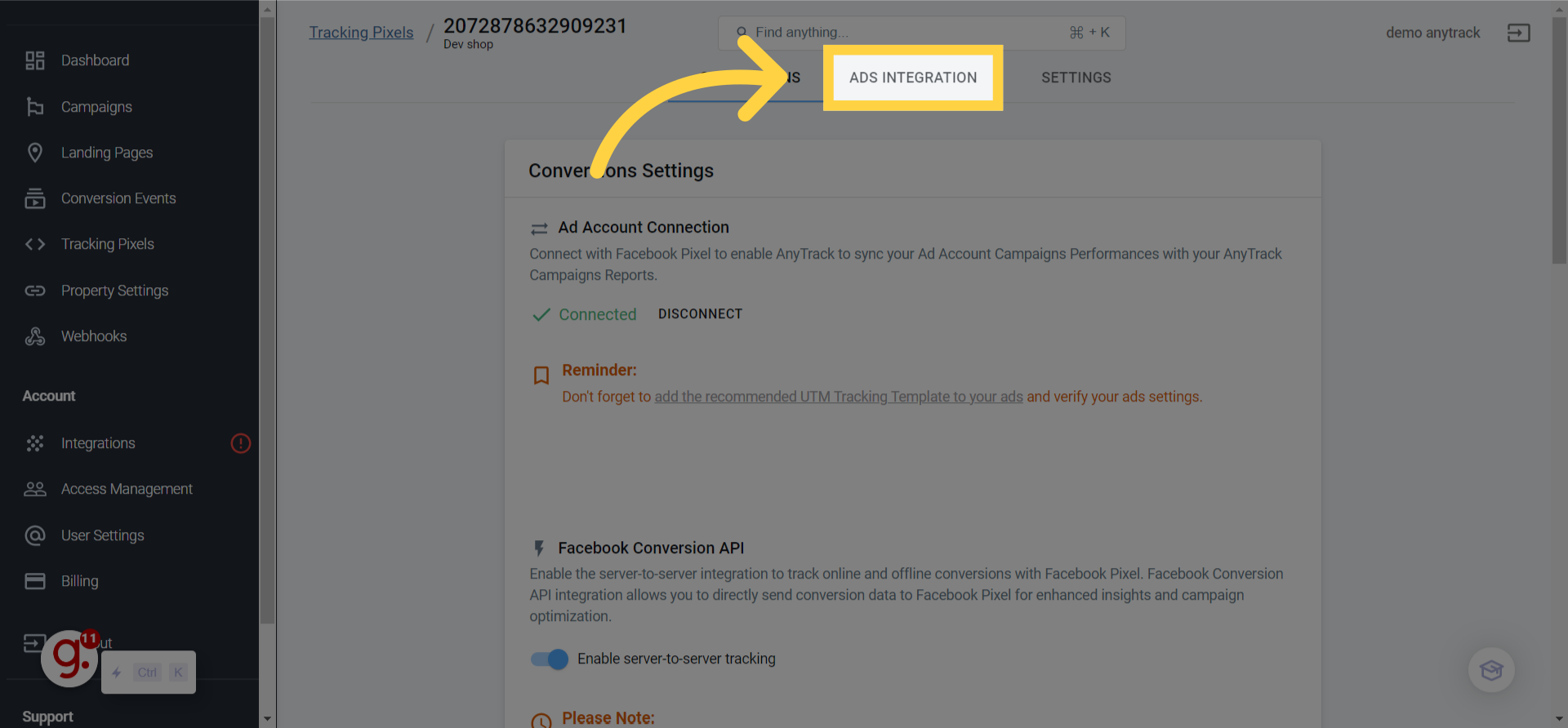
The next step is to add the utm parameters to your ads. To do this click the "Ads Integration" tab at the top of the screenClick on the "Ads Integration" tab.
-
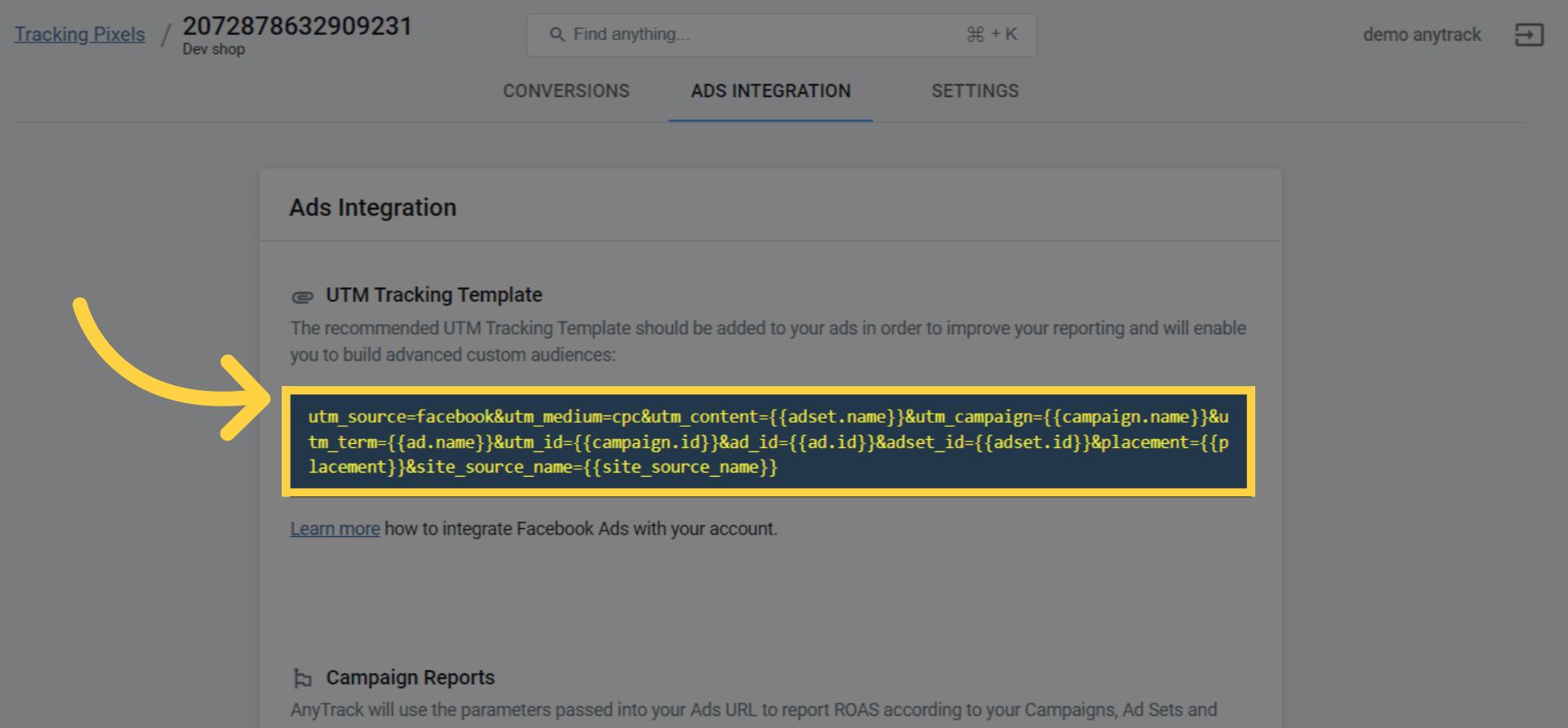
Click to copy the prebuilt UTM Tracking Template. We recommend using our tracking template because it’s built according to best practice for Google Analytics, and enables AnyTrack to accurately report according to campaigns / adsets and ads.Click to copy UTM Tracking Template
-
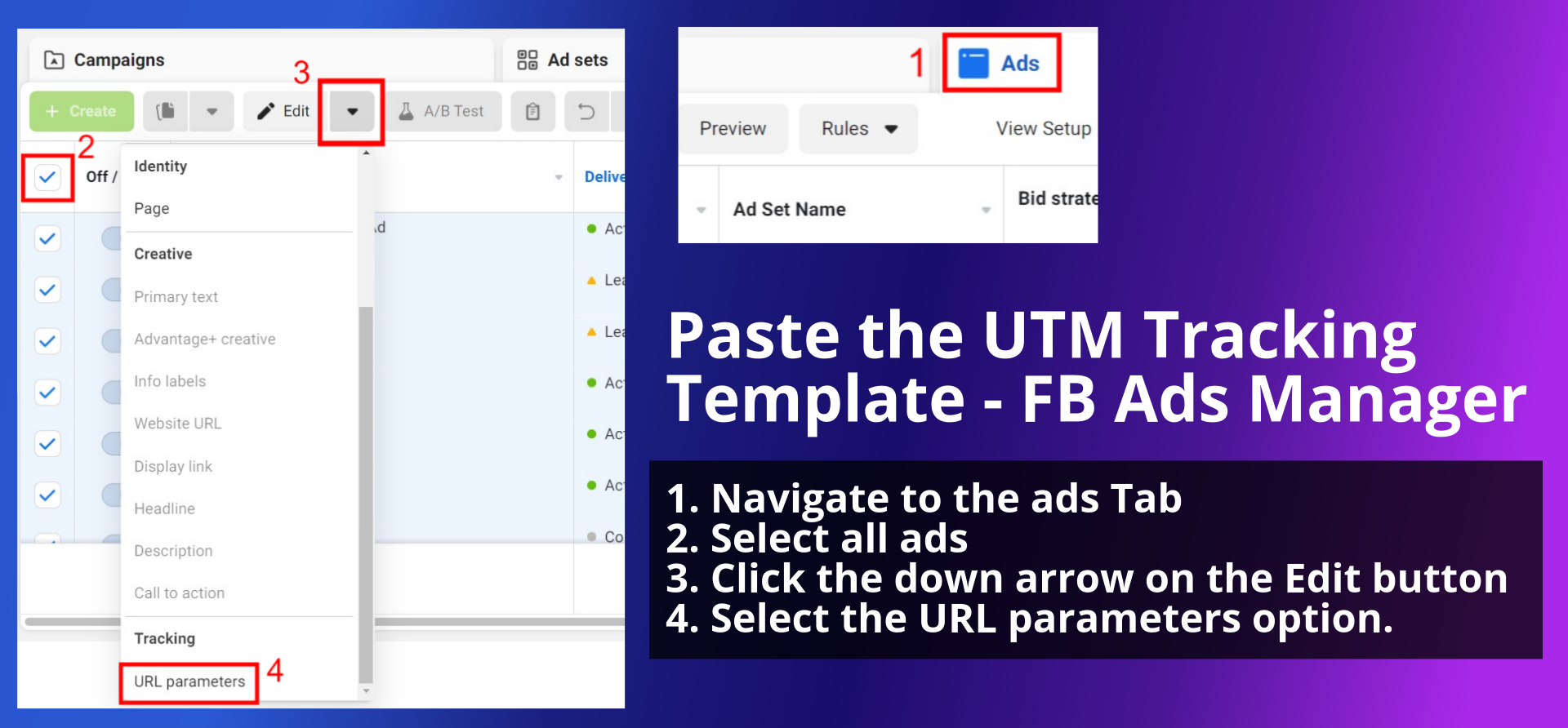
Login to Facebook Ads Manager then follow the steps to bulk add the utm template to your ads.Add the UTM Tracking Template to your ads- Navigate to the ads Tab
- Select all ads
- Click the down arrow on the Edit button
- Select the URL parameters option.
- Paste the Tracking Template and Publish
-
Return to the Ads Integrations tab on your AnyTrack dashboard and Click the blue "Verify Ads Settings" button. AnyTrack will display your ads and their UTM template for verification.Click "Verify Ads Settings"
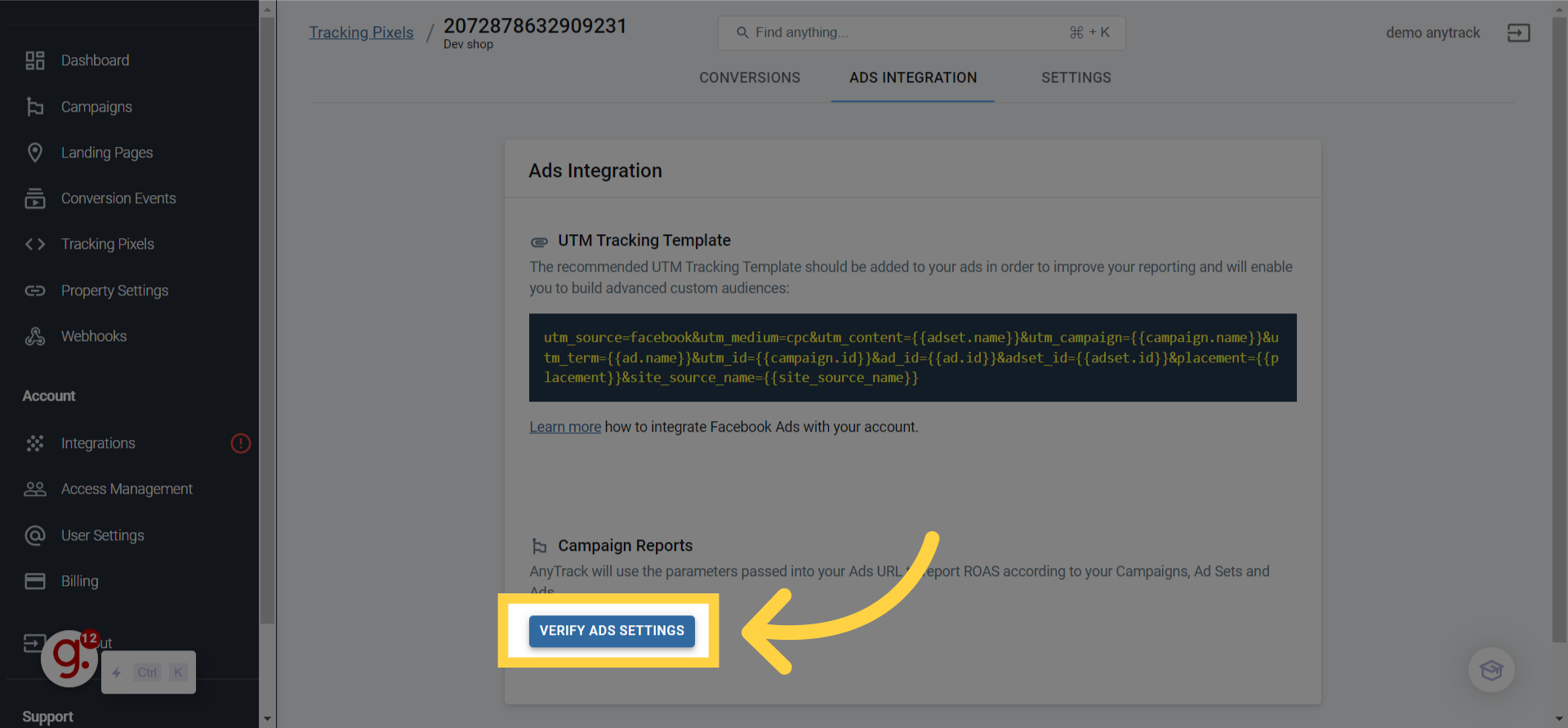
- You will immediately see which ads need to be updated with the new tracking template.
Updated about 2 hours ago