
Google Ads Setup Guide
Learn about Google Ads Setup Guide in AnyTrack. Set up integration for conversion tracking and campaign optimization.
How to Set Up Google Ads in AnyTrack
Prerequisites:
- An AnyTrack Property: Make sure you have an active property set up in AnyTrack. A Property acts as the connection point between your website or shop and AnyTrack. Learn how to create a new property.
- A Connected Conversion Source: Ensure that you have a connectedconversion source from our Integration Catalog to receive the conversions that will be sent to the Google Ads API.
- Access to Google Ads with Standard or Admin permissions.
1. Connect Your Google Ads Account
The first step in integrating Google Ads with AnyTrack is to connect your accounts, allowing automatic syncing of campaign data and conversions through the Google Ads API. No coding needed! Here’s how:
- Log in to your AnyTrack account, navigate to Tracking Pixels and click on Connect Pixel. Follow the prompts to connect your Google Ads account to AnyTrack.
- Enable server-to-server tracking.
- Save your changes.
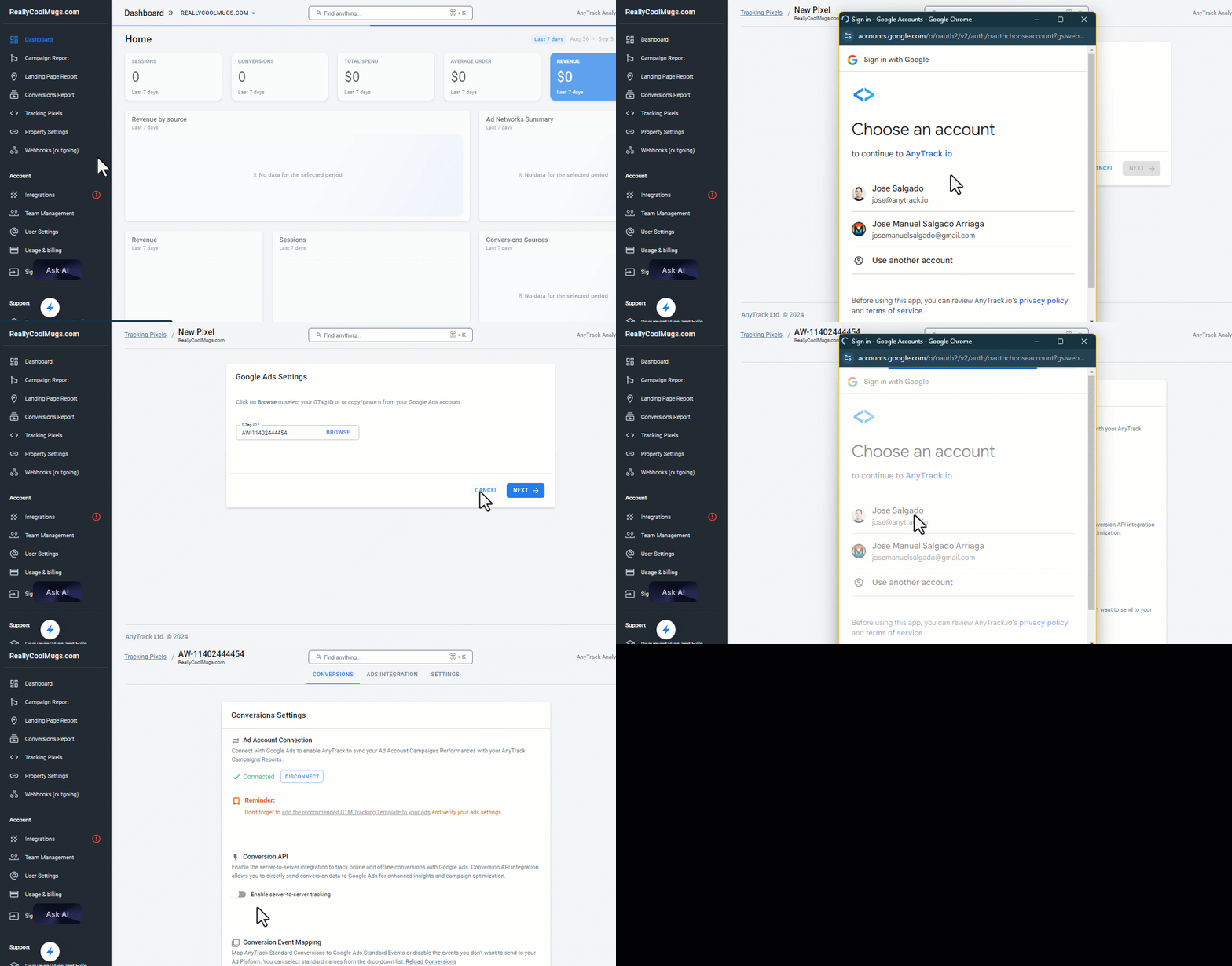
2. Map your AnyTrack Conversions to Google Ads Events.
Scroll down to Conversion Event Mapping to map the conversions tracked in AnyTrack to your Google Ads events. Here's how:
- From the left column, select the events you want to send to Google Ads.
- From the right column, select the corresponding Google Ads events. The Google Ads events are defined by conversion actions created on Google Ads. Learn how to create conversion actions in Google Ads. If you just created a conversion action, click on Reload Conversions to see the updated Google Ads Events.
- Save your changes.
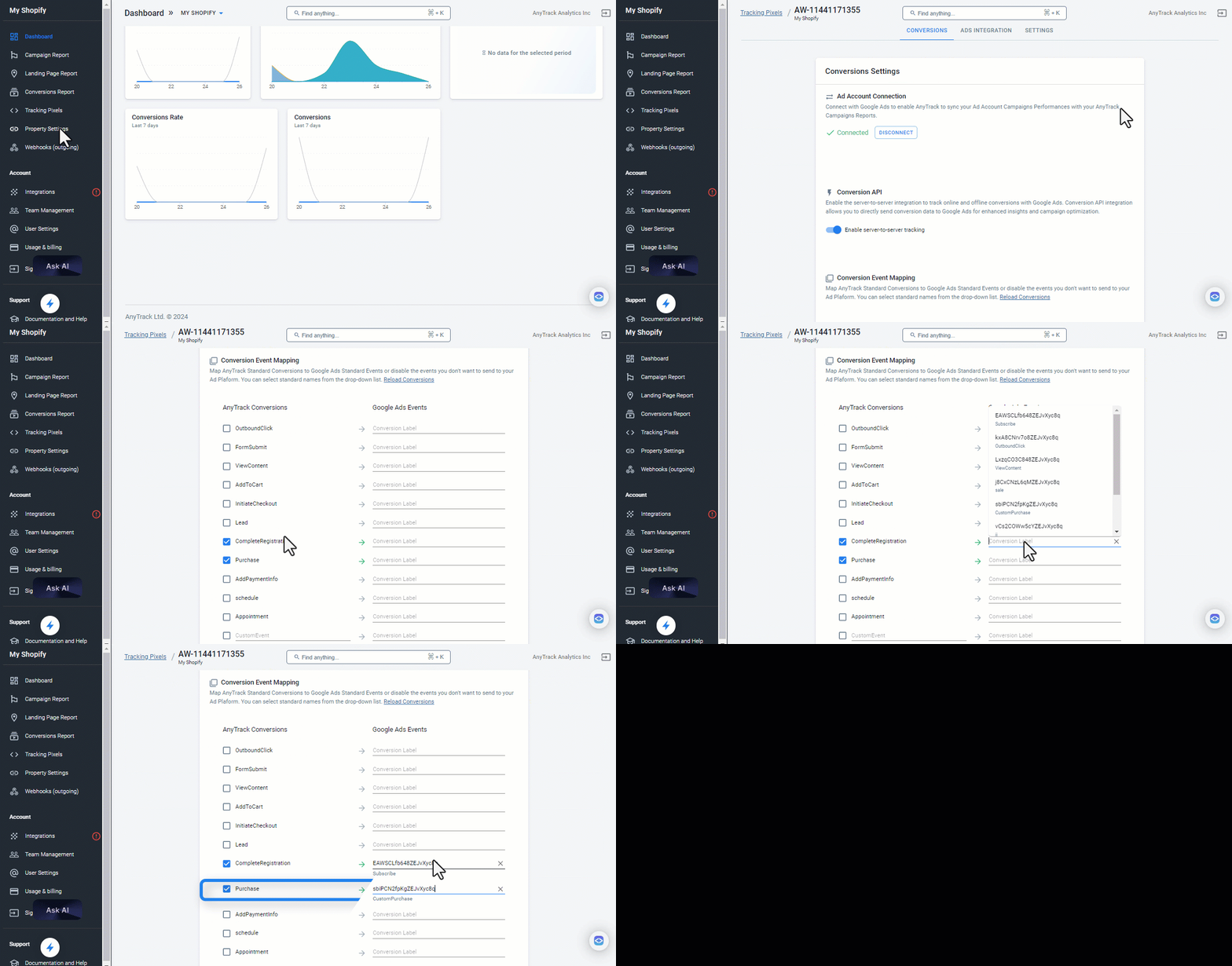
Click on Reload Conversions to load the most recently created conversion goals from Google Ads, map your events and click save.
3. Install the UTM Tracking Template
The UTM Tracking Template allows AnyTrack to accurately identify and attribute conversions to the correct Google Ad. Here’s how to install it:
From your AnyTrack
- Navigate to your Account Settings (To access your account settings, you need to be on the "All Campaigns" view)
- Enable Auto-Tag if it's not enabled yet.
- Open the tracking settings
- Paste the tracking template under the tracking template field.
- Proceed to verify your ads.
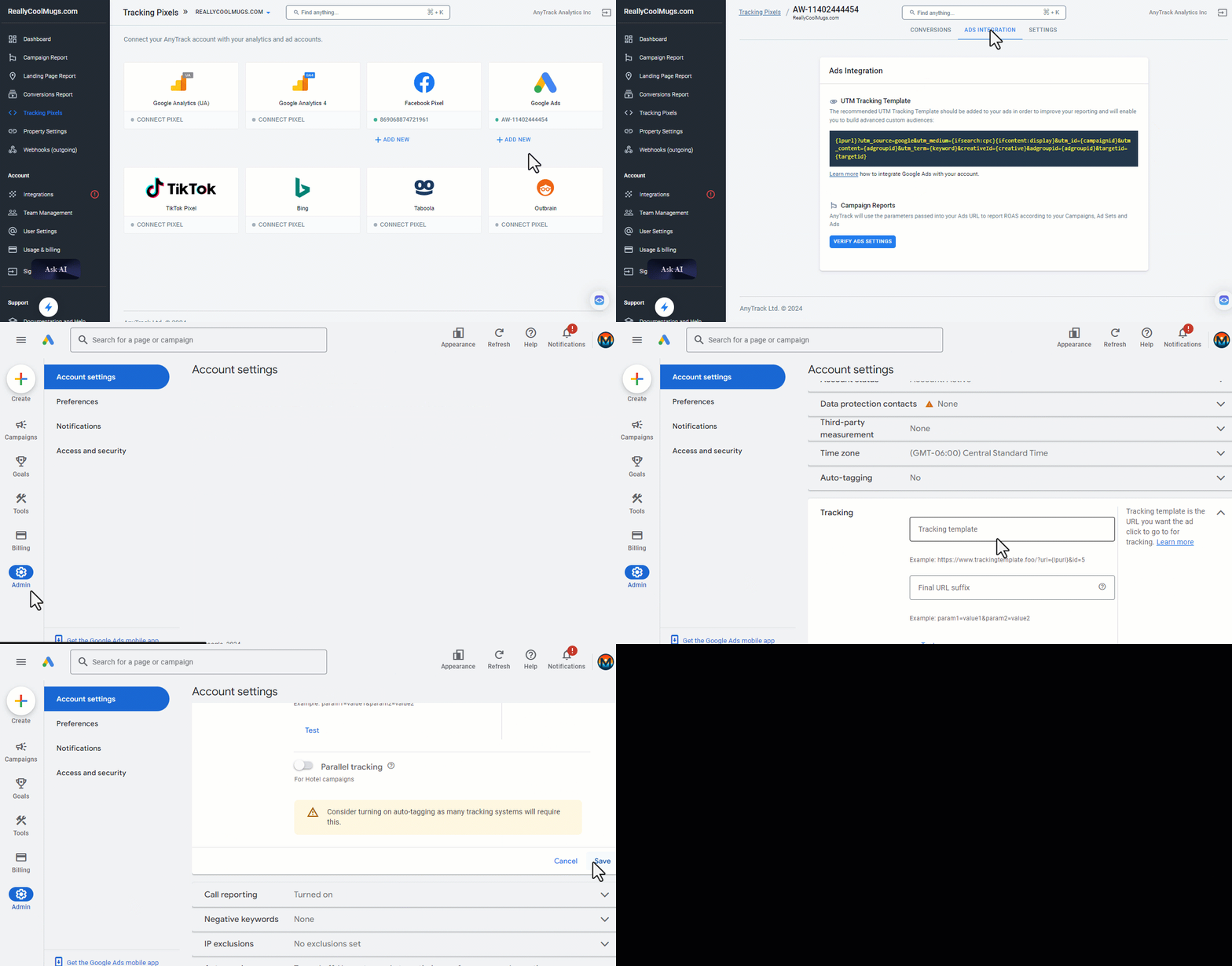
4. Verify Your Ads
Once you’ve connected Google Ads to AnyTrack and installed the UTM Tracking Template, it’s important to verify that your ads are properly configured. Here’s how:
- Navigate to the Tracking Pixels section and select the Google Ads Pixel associated with your campaigns.
- Click the Ads Integration tab.
- Click the Verify Ads Settings button. If the template is correctly installed, you will see a green mark 🟢 next to your campaigns. If you get red or yellow marks click here to troubleshoot your ads.
Updated about 2 hours ago