Track, optimize, and measure Google Ads performance with AnyTrack easy-to-use conversion tracking and attribution platform. Maximize ROAS with server-side tracking and advanced campaign insights.
AnyTrack enables marketers to seamlessly integrate with Google Ads and use advanced data-driven features. Since Google Ads is the most complete advertising platform, understanding the integration scope maximizes each feature’s value.
📘 Not Sure Whether to Use Google Analytics 4 or Google Ads Conversions?
Read our in-depth comparison of Google Ads vs Google Analytics 4 to understand their features, benefits, and determine which tracking method suits your business needs.
Connecting Google Ads to AnyTrack transforms how you track, attribute, and optimize your advertising campaigns. Here’s the business value you’ll unlock:
Immediate ROI Impact:
Real-time decision making — See campaign performance instantly instead of waiting 24-48 hours for Google Ads reporting
Higher conversion attribution . Server-side tracking captures up to 30% more conversions than browser-based tracking
Reduced wasted ad spend . Pause underperforming campaigns immediately when issues appear
Google Tag Integration: AnyTrack automatically integrates with Google Tag (formerly Google Tag Manager) and acts as a tag manager itself.no coding or programming skills required.
Conversion Event Mapping . Control which events you send to Google Ads and customize delivery with the visual mapping interface
Conversion API . Send conversions from your integrations (eCommerce platforms, affiliate networks, CRM systems, APIs) directly to Google Ads servers
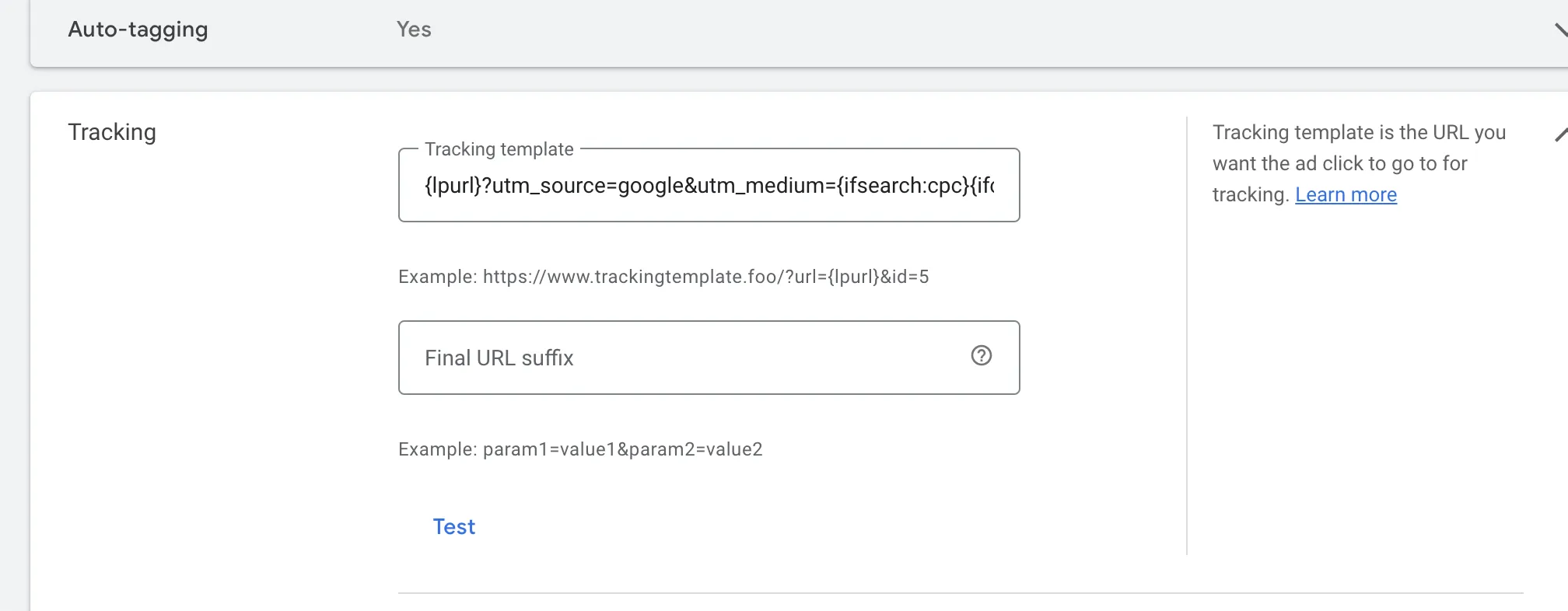
Dynamic UTM Tracking . Use the pre-built UTM tracking template to automatically capture essential traffic metrics
Enhanced Conversions . AnyTrack automatically formats, normalizes, and sends the customer data that Enhanced Conversions requires
Campaign KPIs . AnyTrack connects to your Google Ads account to fetch campaign metrics, enabling real-time performance visibility and campaign optimization before results appear in Google Ads or Google Analytics
Customer Journey Tracking . Drill down into your customer journey and identify touchpoints throughout your sales funnels
Real-time Attribution Reporting . AnyTrack reports update in real time so you always know campaign performance at any moment
Attributed Conversions . AnyTrack sends conversions in real-time, but Google Ads attributes them with a delay (up to 3 hours for last-click, up to 15 hours for other models). Compare attributed conversions with real-time conversions to make faster decisions
Post-View Attribution . The conversion data AnyTrack sends enables Google to attribute post-view conversions (when users see but don’t click ads before converting)
Navigate to the Tracking Tag section in your AnyTrack dashboard and click Google Ads to load the conversion settings for your Google Ads account email.
Turn on server-side events to guarantee maximum conversion attribution. AnyTrack sends conversions directly from our servers to Google Ads servers, which means they don’t rely on cookies, can’t be blocked by ad blockers, and aren’t affected by browser privacy restrictions.
After enabling data connection, map AnyTrack standard events to the conversion actions you created in your Google Ads account.
📘 Good
Learn how Event mapping lets you streamline your conversion data across your entire marketing stack.
Click on Reload Conversions to load the most recently created conversion goals from Google Ads, map your events and click save.
🚧 About
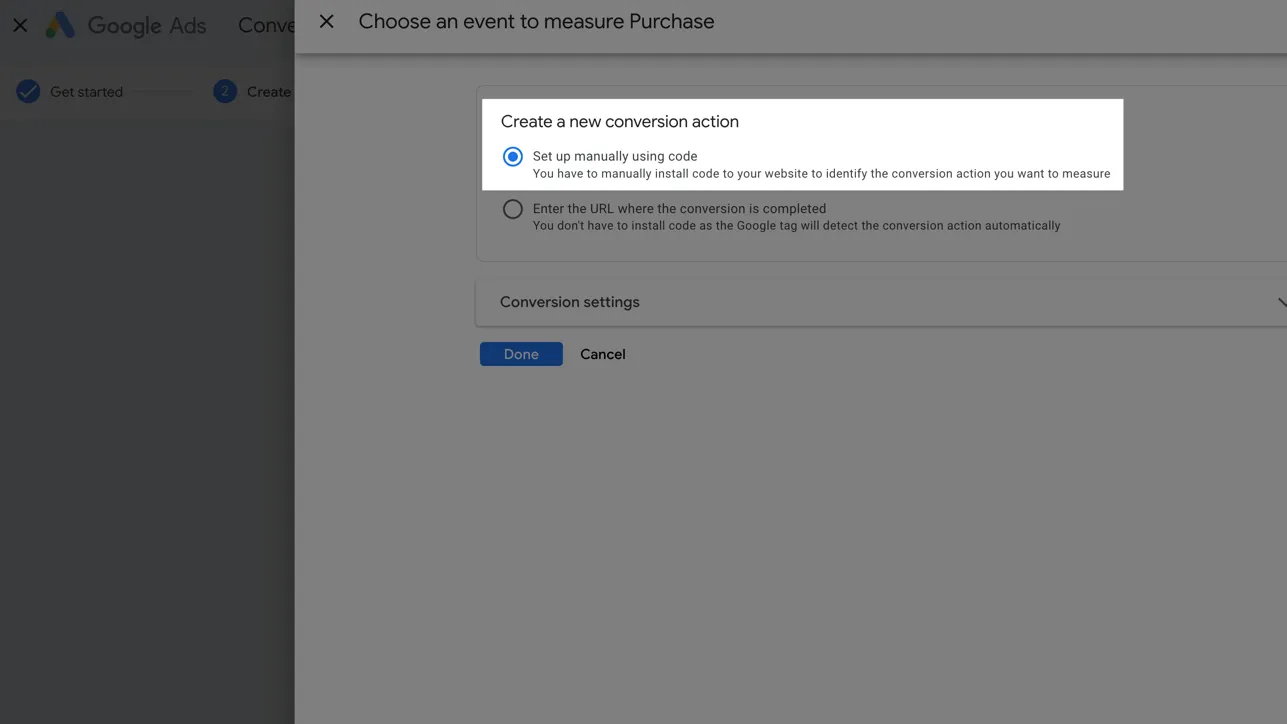
Define your conversions in your Google Ads account under “Tools & Settings >> Measurement >> Conversions”
Create a conversion with the type “Website” and Manual Setup
You can edit each conversion goal according to your requirements, but we recommend following the Event Category that Google Ads recommends, which maps to AnyTrack Standard Events
❗ ****
Check that you’ve connected with the correct Google Conversion Tag
You might not have the right permissions
An MCC (Manager) account created the Conversion Goal
A tracking template in Google Ads collects specific data about interactions with your ads through URL parameters (additional text added to your website links). These parameters can include UTM codes, which track data-driven audience segments and campaign performance.
Standard parameters automatically capture:
The source of the click
The type of device used
Campaign information
Set up tracking templates in the “URL Options” at the account, campaign, or ad group level.
🚧 Reminder
Templates at lower levels (like ad groups or ads) override those at higher levels (like campaigns or accounts).
Navigate to your Account Settings (switch to the “All Campaigns” view first)
Enable Auto-Tag if not already enabled
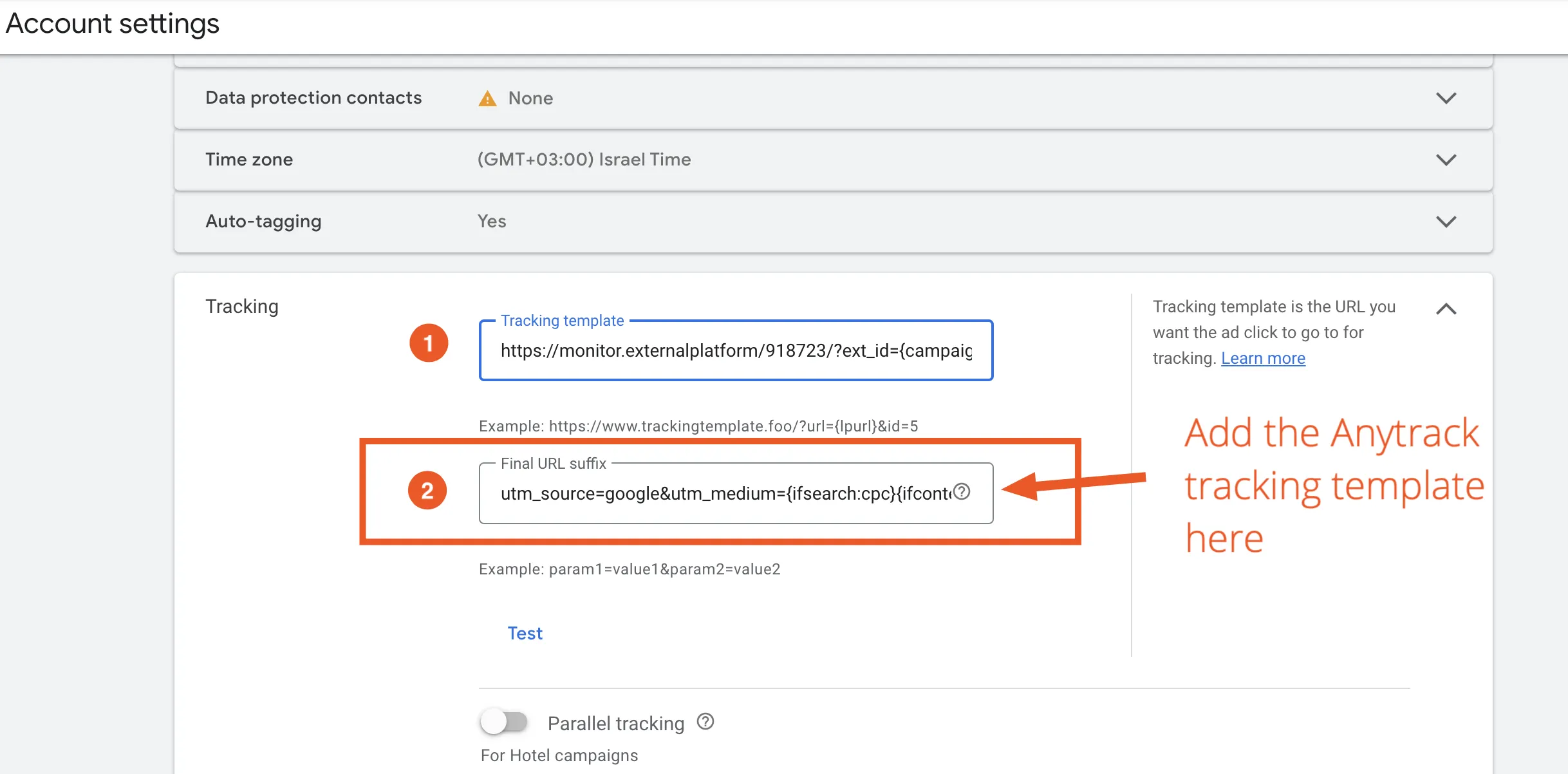
Open the tracking settings
Paste the tracking template in the tracking template field
❗ ****
If you use anti-fraud PPC software like ClickCease, the Tracking Template field might already contain their system code. Add the tracking template to the URL Suffix field instead and remove {lpurl}? from the recommended template.
Google Ads Integration - Frequently Asked Questions
FAQ was last reviewed on 2026-06-22
What are attributed conversions in the AnyTrack Campaign Reports?
Attributed conversions and revenues reflect the primary and/or default Google Ads conversion goals. If you set all your conversion goals as primary or default, they all count in the Attributed Conversions column. Learn more in the Campaign Reports documentation.
Why are conversions not showing in Google Ads?
AnyTrack sends conversions in real-time, but Google Ads processes them on its own schedule. Last-click conversions appear within 3 hours. Non-last-click attribution models (data-driven, time decay, linear) take up to 15 hours. If you import conversions from GA4, add up to 12 additional hours. New conversion goals can take 3-5 days to start displaying data. Google Ads updates basic metrics daily at 3 a.m.
How do I troubleshoot my conversions?
Use Google Ads diagnostic tools: navigate to Tools then Conversions, check the status and diagnosis of each conversion, and update your conversion settings based on the diagnostics.
Why am I seeing too many conversions in my Google Ads account?
If you see more conversions in Google Ads than in AnyTrack, remove any Google Ads Tags from your website or Google Tag Manager. Also verify that only the desired goal is set as a primary conversion and that it maps properly in the AnyTrack Google Ads Event Mapping.
I'm expecting to track leads but AnyTrack is tracking purchases. Why?
AnyTrack automatically tracks and labels conversions from your conversion sources. When a purchase is received, AnyTrack reports a Purchase event and sends it to Google Ads according to your Event Mapping. Check what events AnyTrack receives in the Conversion Event report and update the Event Mapping accordingly.
What are the most appropriate conversion settings in Google Ads?
The right settings depend on your goals. Primary conversion actions optimize your bid strategy and appear in the Conversions column. Secondary actions are for observation only and appear in All Conversions. Primary or secondary actions in a custom goal selected at campaign level appear in the Conversions column.
Why don't I see my conversion goals in the Event Mapping section?
AnyTrack supports conversion goals that you set as Website type and add manually. Goals created through other methods or with specific page view rules may not appear. Also check that you connected with the correct Google Conversion Tag and that you have the right permissions.
Why don't I see all my campaigns in the Campaign Report?
AnyTrack only fetches campaigns that are associated with the Google Ads tag you connected and that have a conversion goal linked to them.
How long does Google Ads take to show conversion data?
Google Ads guarantees standard metrics within 3 hours. Last-click conversions process within 3 hours, while other attribution models take up to 15 hours. GA4-imported conversions add up to 12 hours on top. AnyTrack fetches ad spend and campaign metrics hourly, so you may see conversions in AnyTrack before they appear in Google Ads.