
Google Ads Step by Step Guide
Learn about Google Ads Step by Step Guide in AnyTrack. Set up integration for conversion tracking and campaign optimization.
-
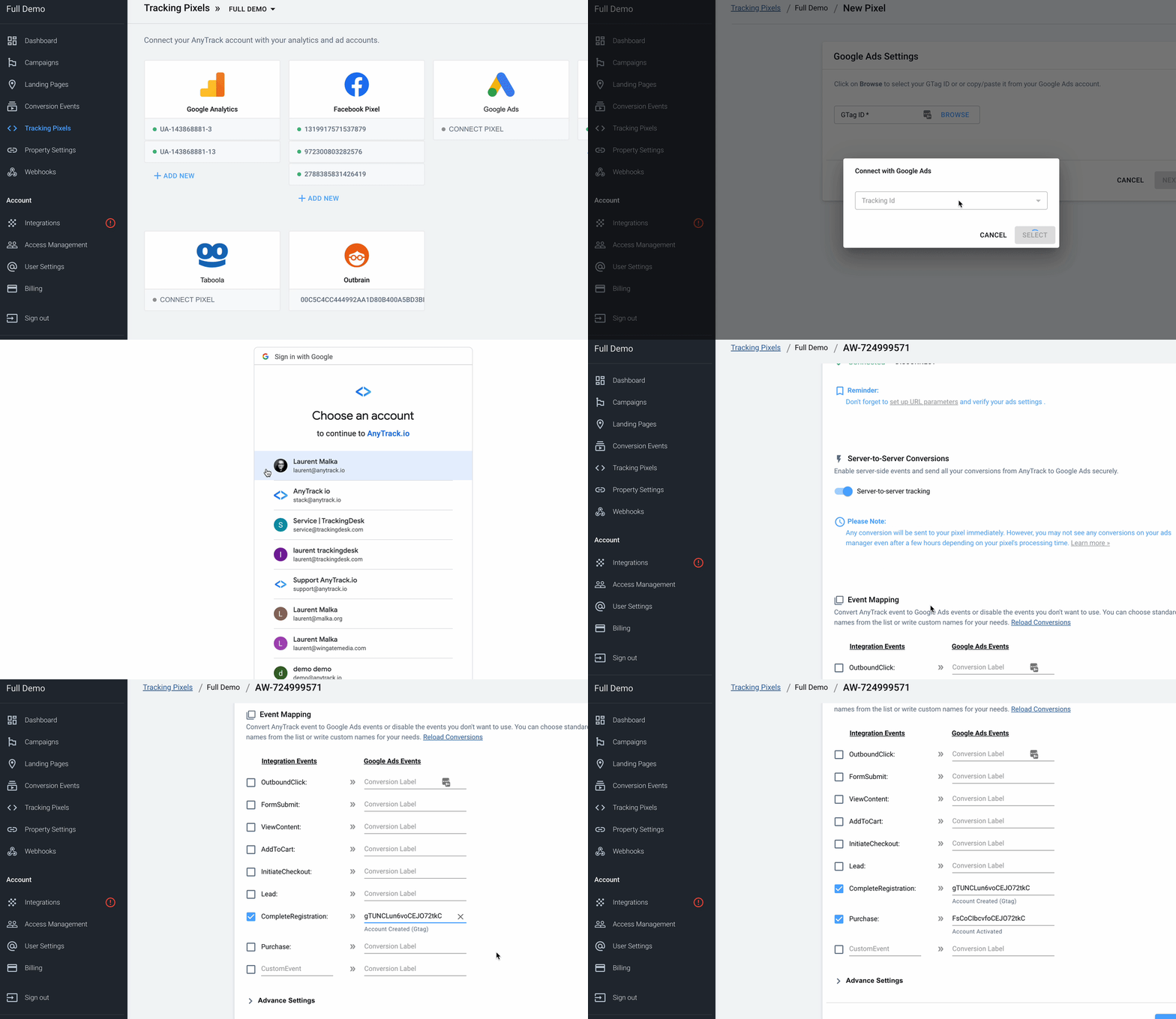
From within the AnyTrack dashboard, navigate to the Tracking Pixel and click on Google Ads to load the Google Ads conversion settings available under the email address you connect to with Google Ads.AnyTrack settings:
-
Provide yourSelect your Google Ads AccountAW-12312312 idand click next to grant your AnyTrack account access to your Google Ads account (it's a standard Google Login via OAuth) -
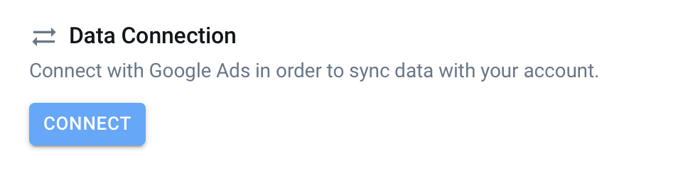
By connecting with your Google Ads account, you give authorization to AnyTrack to fetch your campaign performances and metrics so you can analyze them in the Anytrack dashboard.Data Connection
-
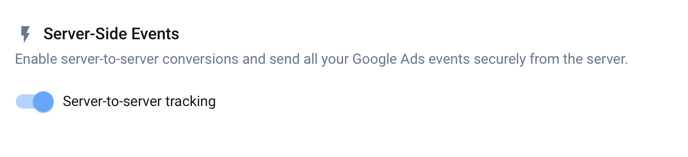
Enabling server-side events is crucial to guarantee maximum attributions to your campaigns.Enable the Conversion API (server-side events)
-
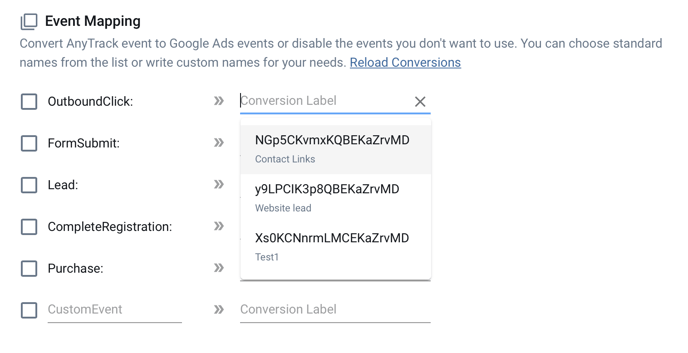
Once you enable data connection, you can map AnyTrack standard events to the conversions you set in your Google Ads account.Event Mapping
About Conversion Goals
- Make sure you define your conversions on your Google ads account{:target="blank"} under “Tools & Settings >> Measurement >> Conversions” and that you created a conversion with the type “Website”.
- You can edit each conversion goal according to your requirements, but we recommend following the Event Category recommended by Google Ads which is mapped to AnyTrack Standard Events.
You don't see your conversion goals?
- Check that you've connected with the correct Google Conversion Tag.
- You might not have the right permissions.
- The Conversion Goal belongs to an MCC account.
-
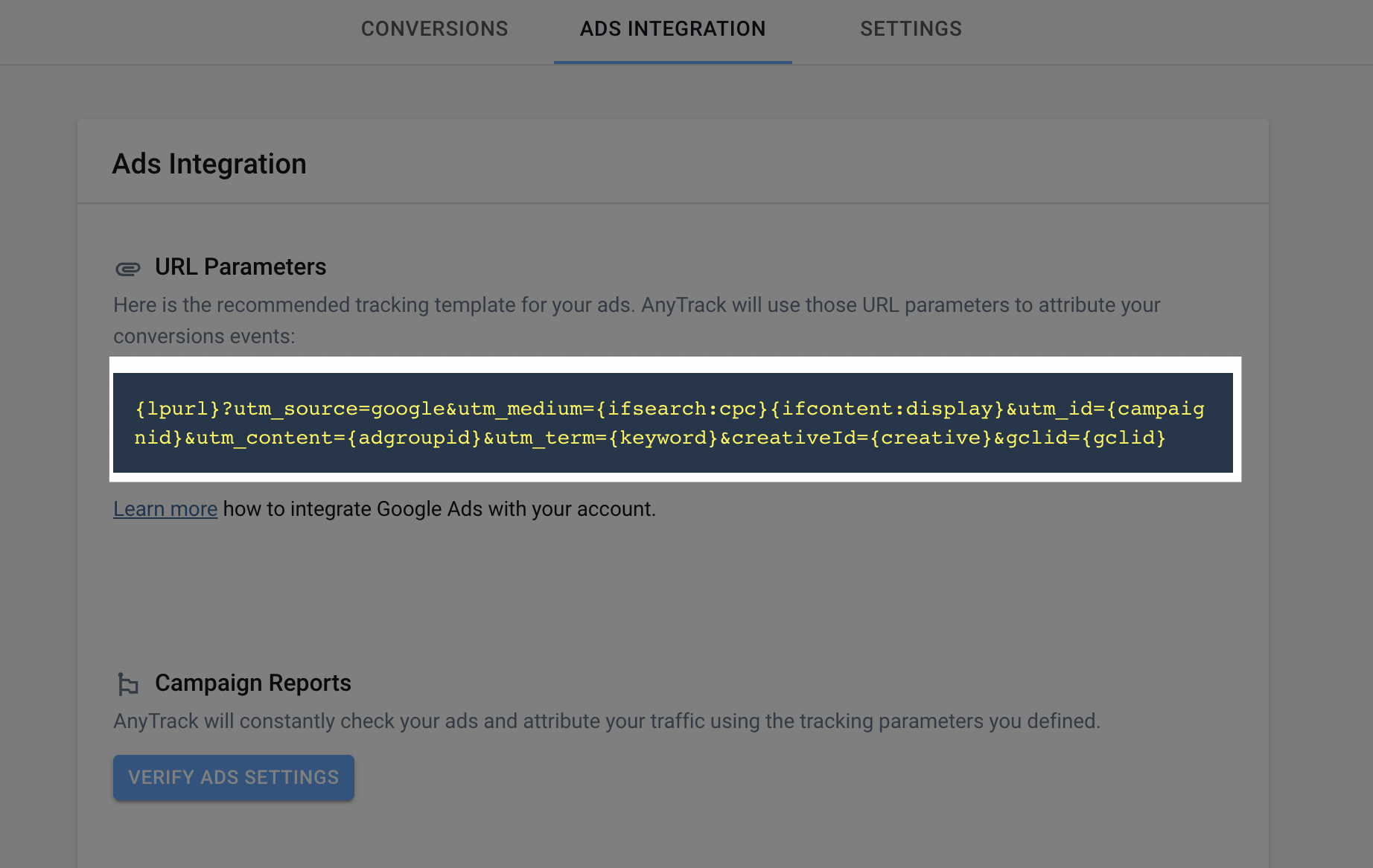
Once you're done with your mapping, save your settings and scroll up to open the Ads Integration tab, and grab the UTM tracking template.UTM Tracking Template
-
Google Ads Account Settings
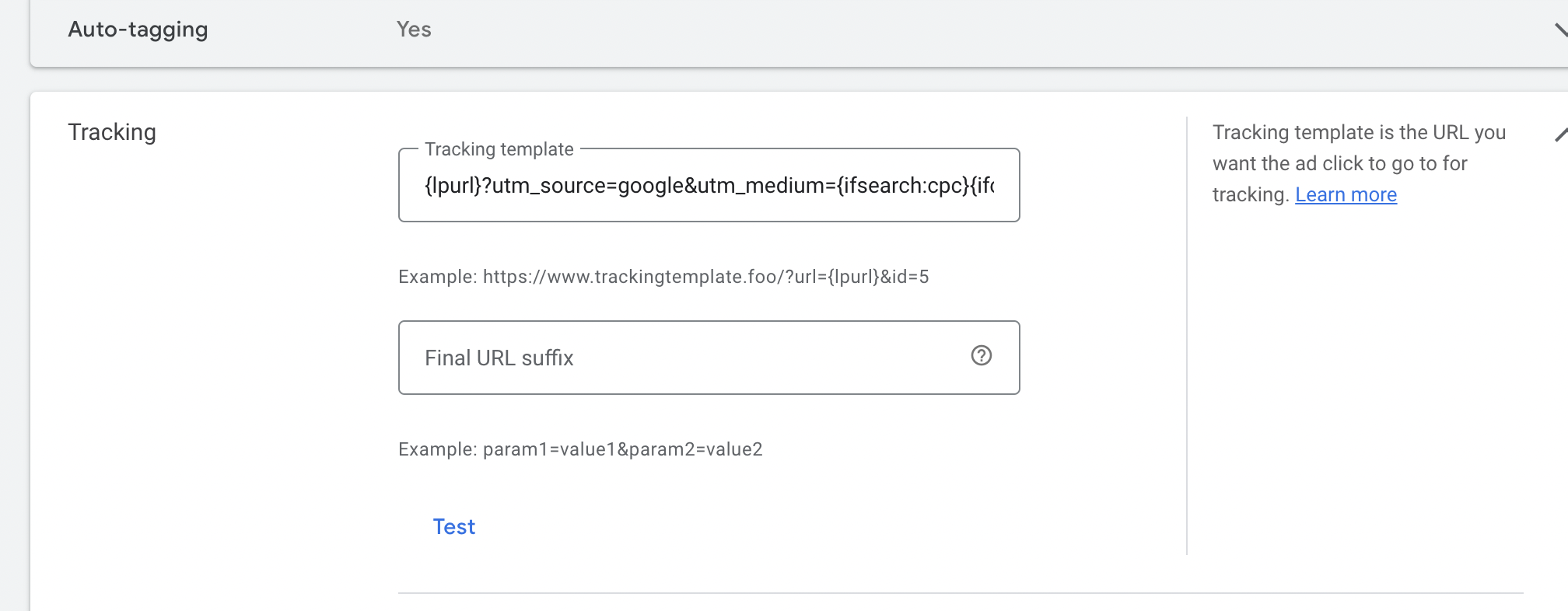
- Navigate to your Account Settings (To access your account settings, you need to be on the "All Campaigns" view)
- Enable Auto-Tag if it's not enabled yet.
- Open the tracking settings
- Paste the tracking template under the tracking template field.
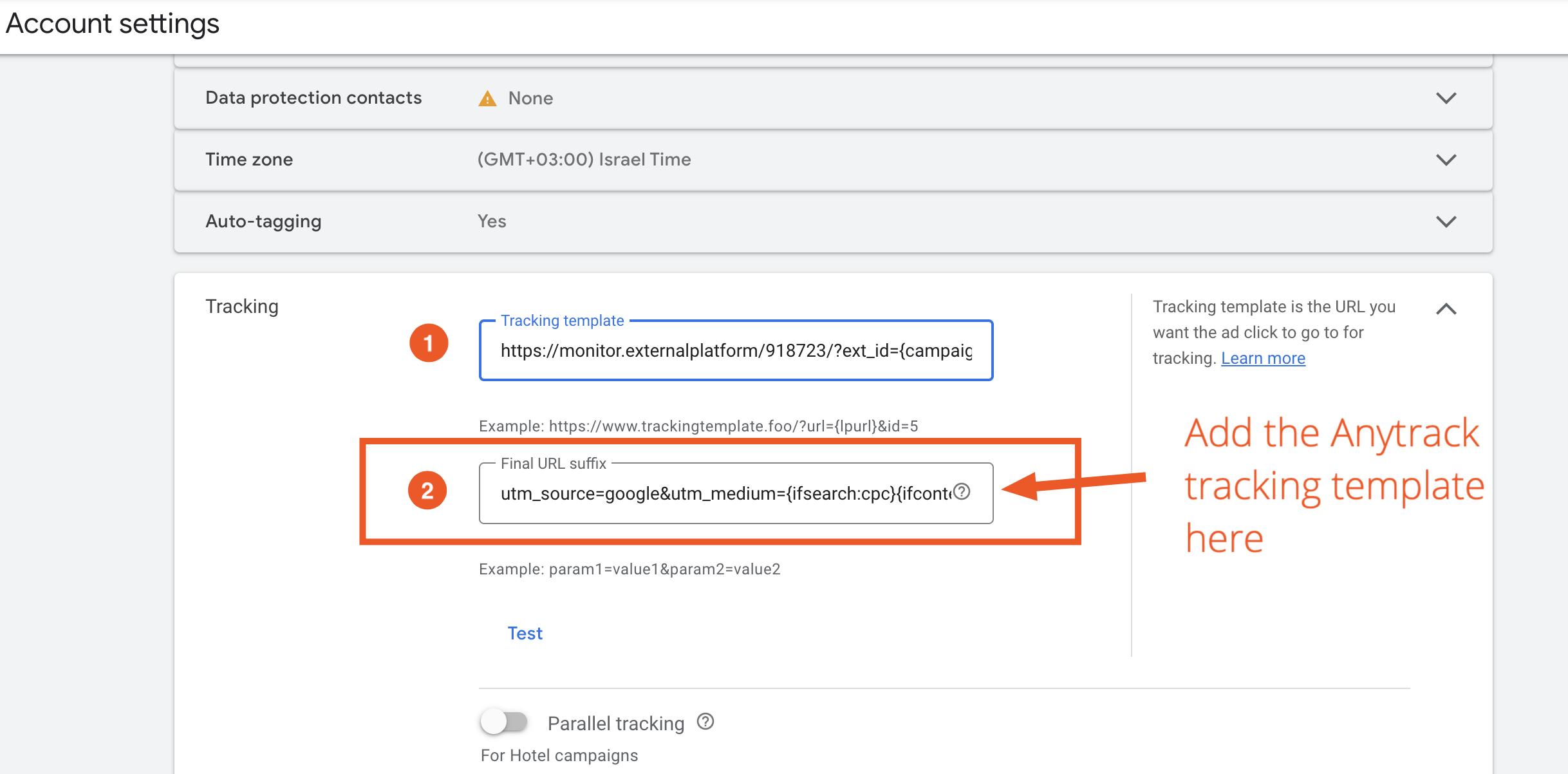
Template conflict:If you are using an anti-fraud ppc software like ClickCease, the Tracking Template field might already be used by their system. In this case you can add the tracking template in the URL Suffix field (but remove the
{lpurl}?from the recommended template (see below).
Updated about 2 hours ago