
Scribe test
Learn about Scribe test in AnyTrack. Set up integration for conversion tracking and campaign optimization.

This guide will walk you through the process of integrating Maxbounty into AnyTrack so you can send Maxbounty Conversions to Facebook Conversion API, Google Ads, and Google Analytics GA4.
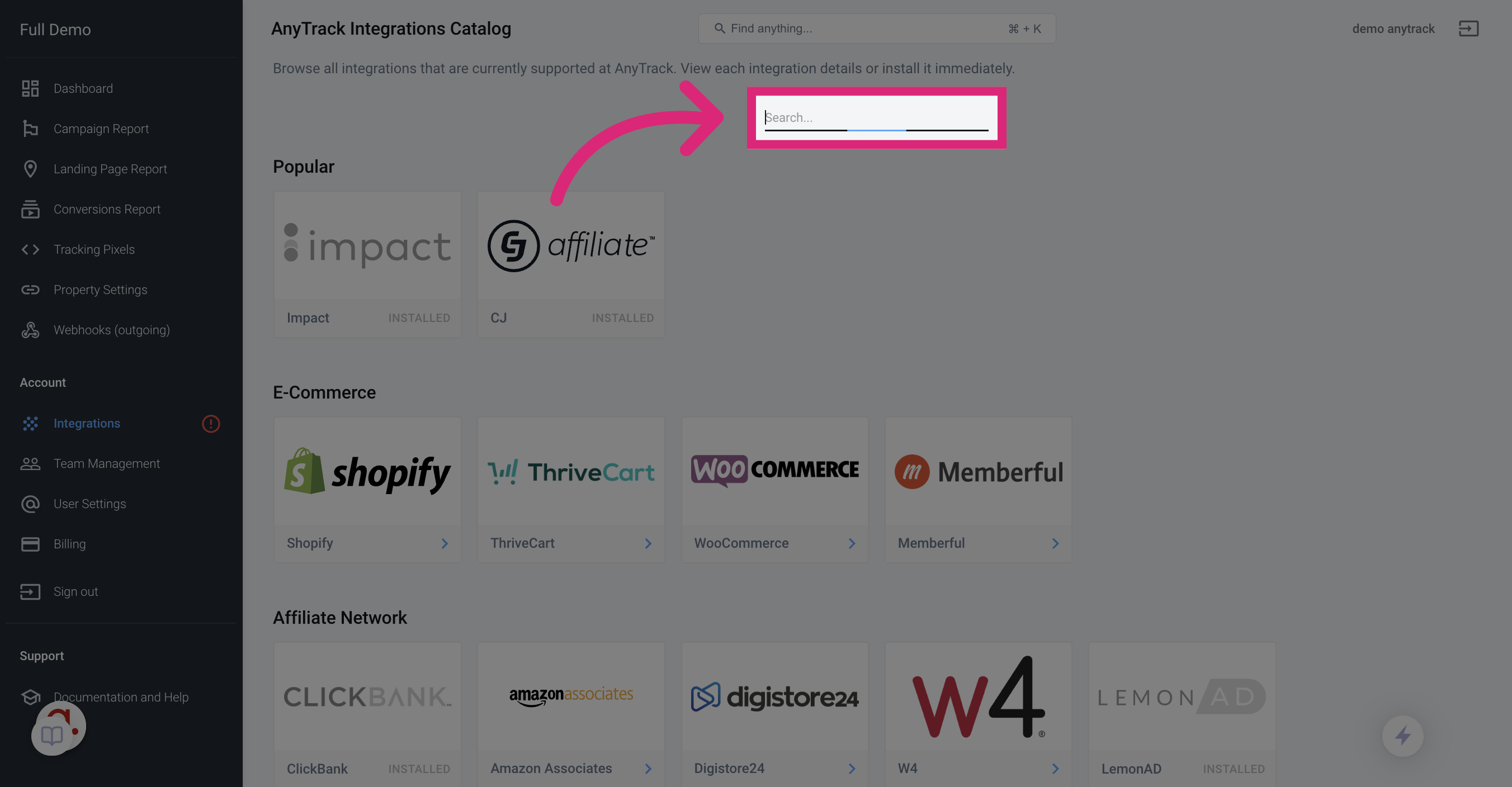
1. Go to the Integration Catalog and search for Maxbounty
Go to the Integration Catalog and search for Maxbounty
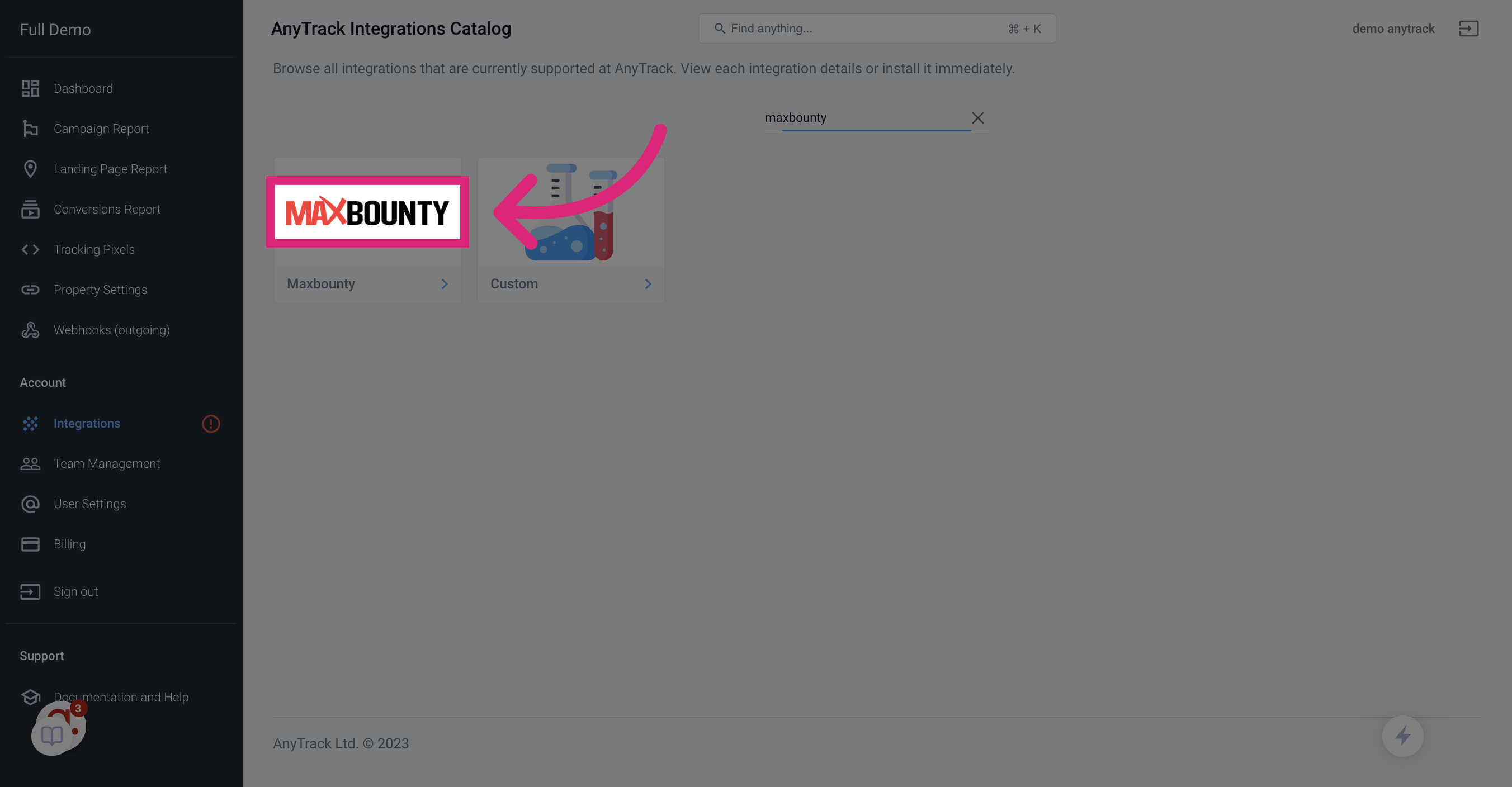
2. Click on the Maxbounty Card
Click on the Maxbounty Card
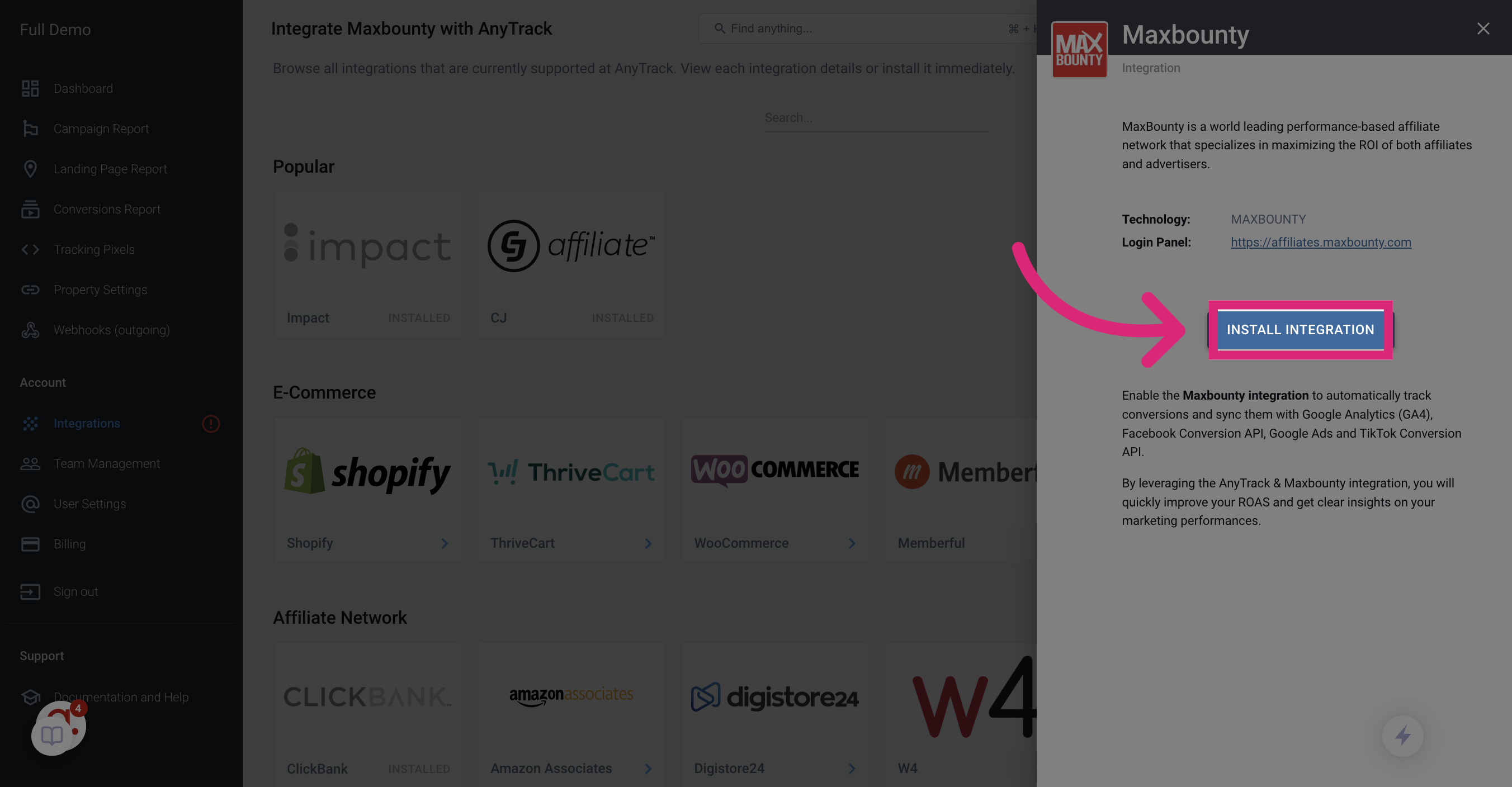
3. Click "Install Integration"
Click on the "Install Integration" button.
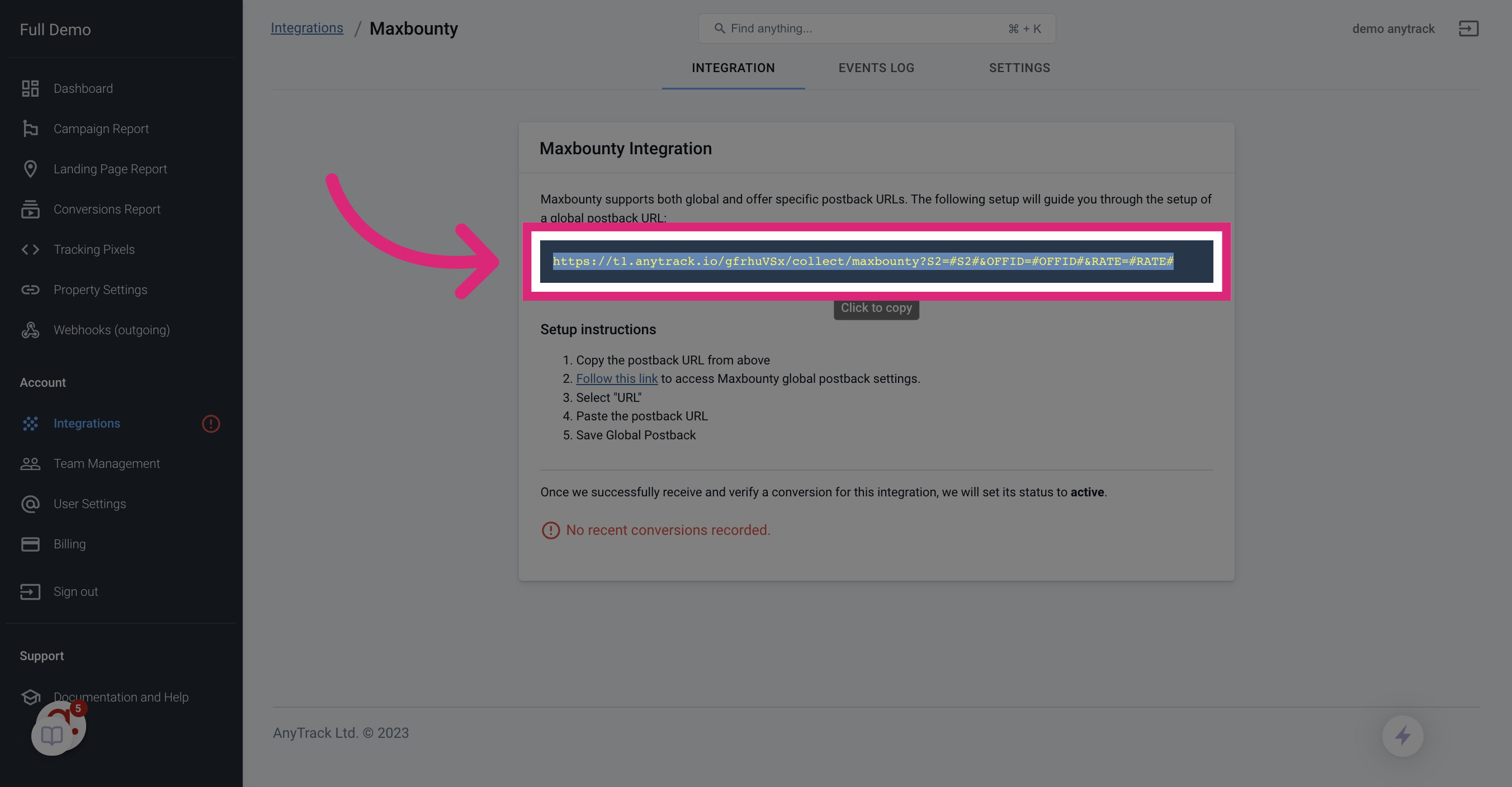
4. Click On the postback URL
The postback URL carries all required parameters and tokens available in Maxbounty so you don't have to modify them or configure them
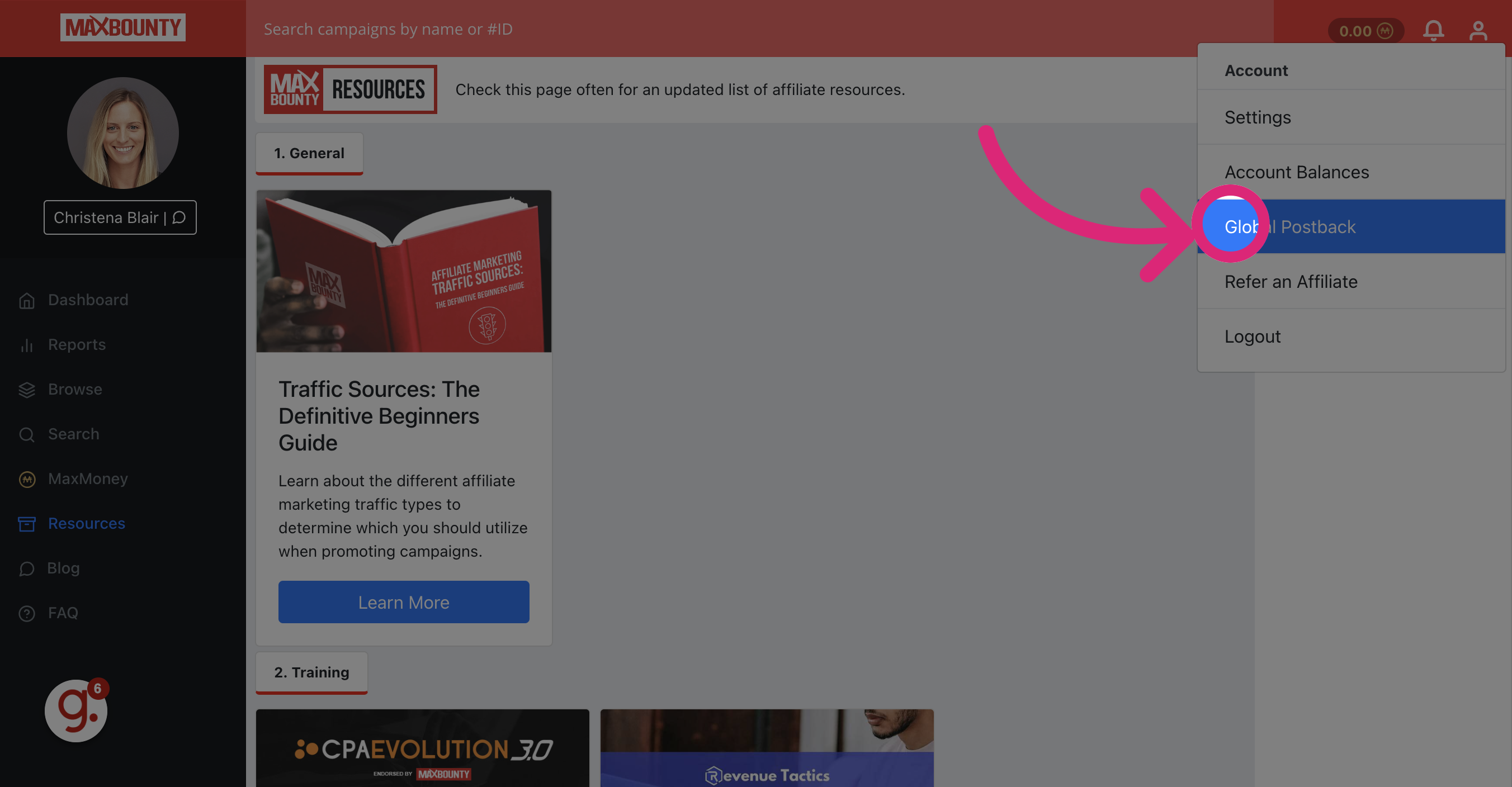
5. Return to Maxbounty and Open the Global Postback Settings
Return to Maxbounty and Open the Global Postback Settings
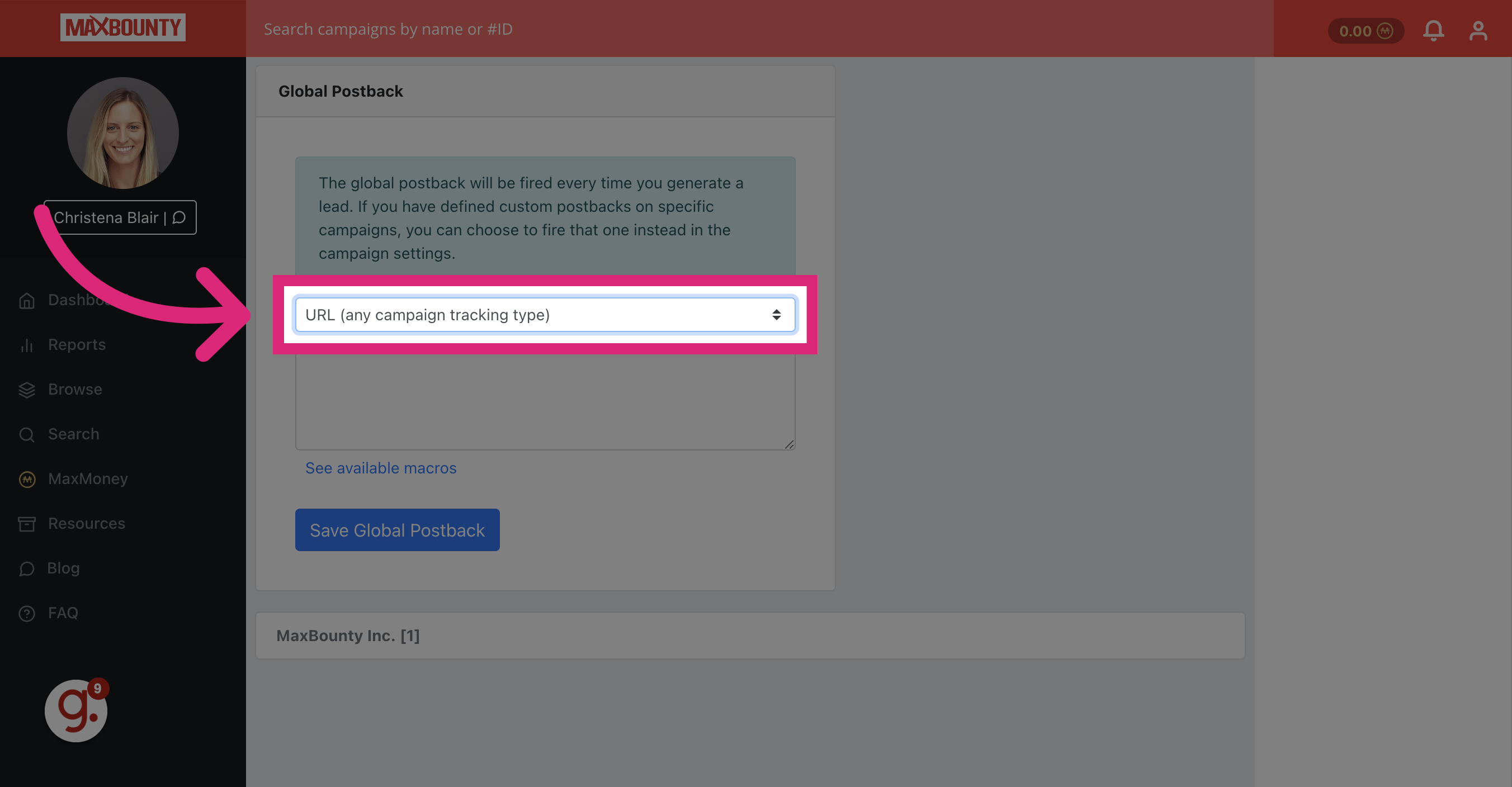
6. Select the "any campaign tracking type" Option
Select the "any campaign tracking type" Option
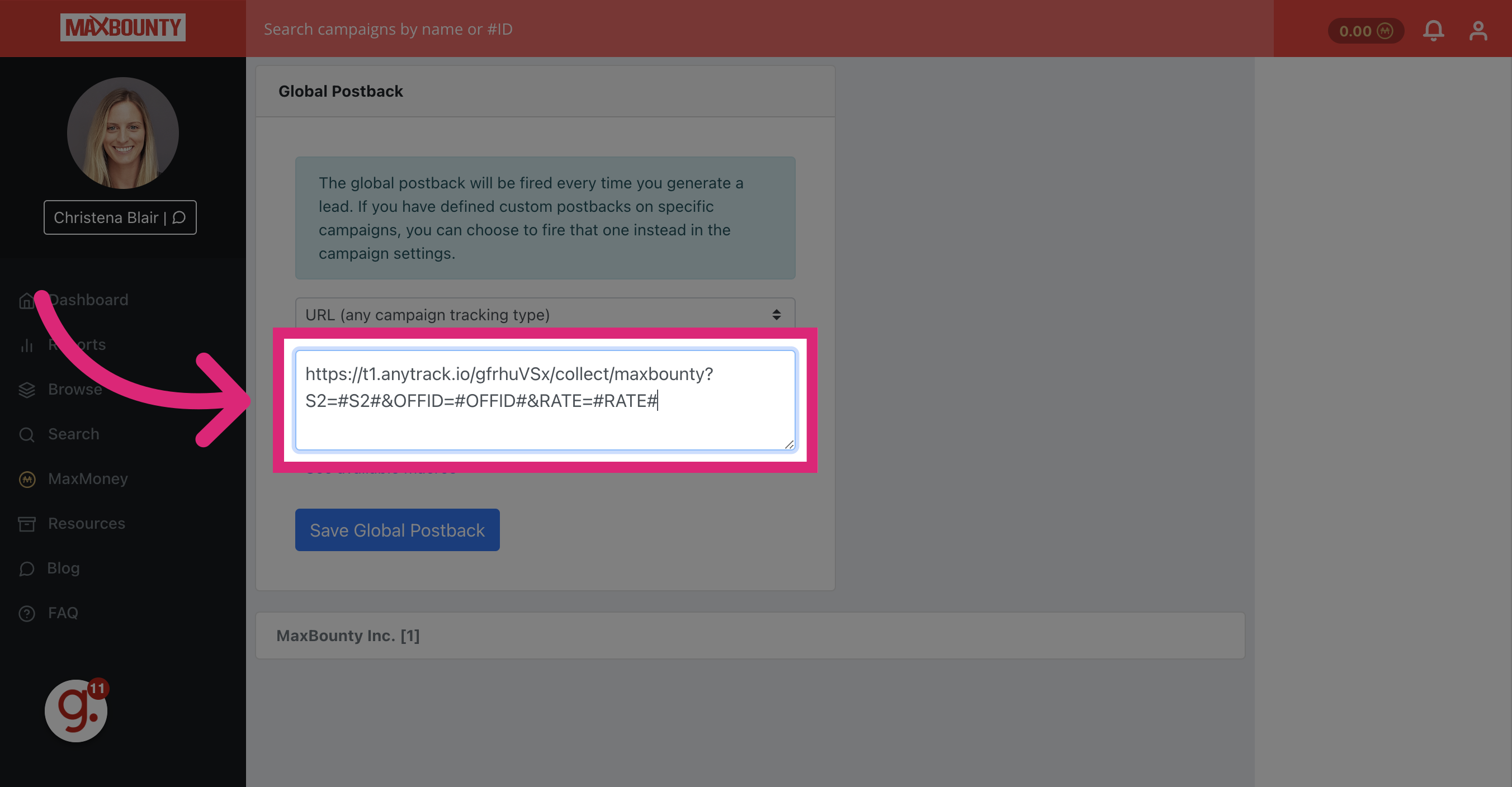
7. Now Paste the AnyTrack Postback URL
Now Paste the AnyTrack Postback URL in the designated field.
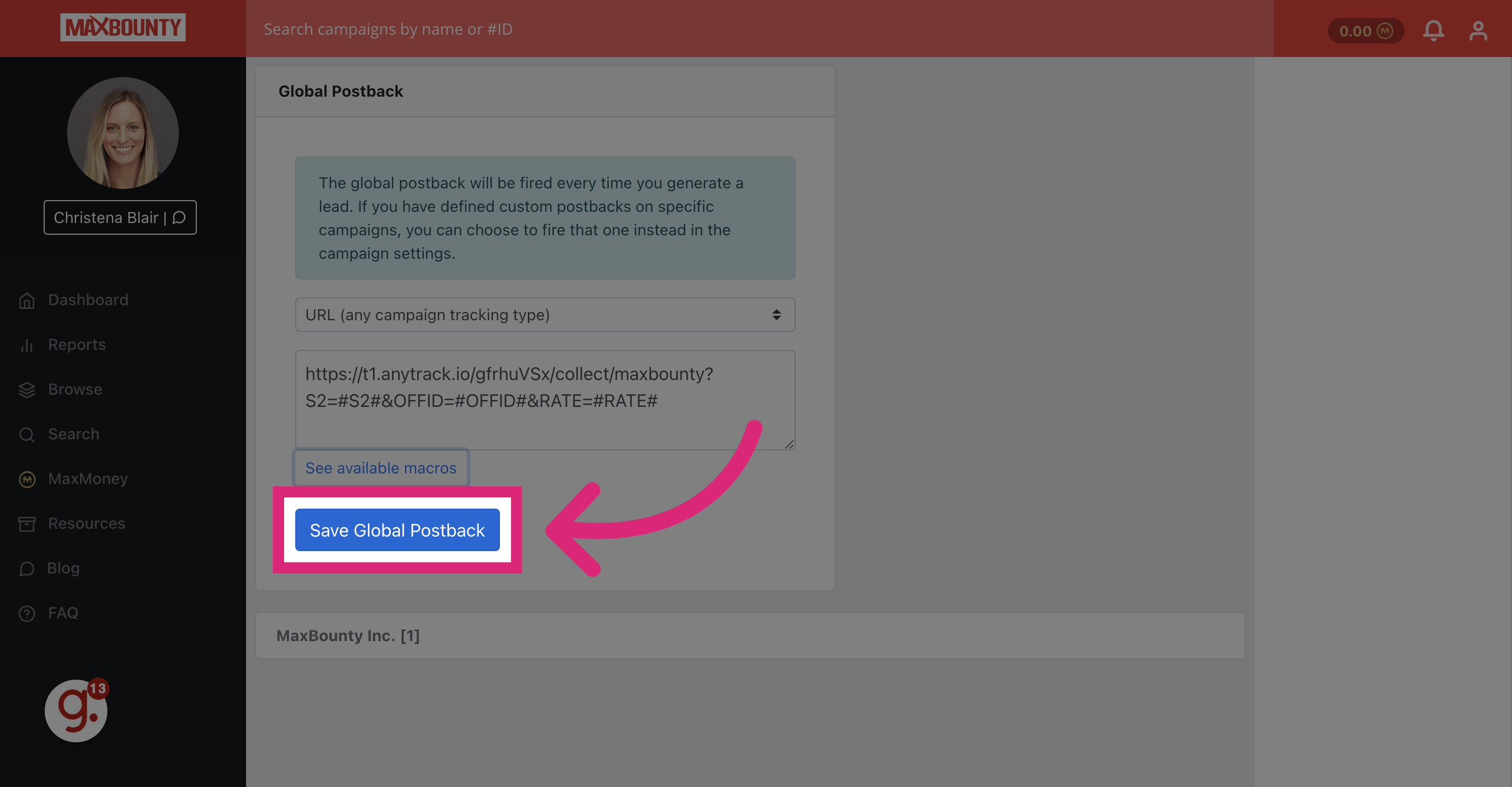
8. Finally Save your Global Postback settings
Finally Save your Global Postback settings
This guide covered the steps required to integrate Maxbounty in AnyTrack and send conversions to Facebook Conversion API, Google Ads, and Google Analytics GA4. > ### Reminder: > The AnyTrack Tracking Tag must be set in the head section of your website or funnel.
Updated about 2 hours ago