
Template Affiliate Networks with tgid
Learn about Template Affiliate Networks with tgid in AnyTrack. Set up integration for conversion tracking and campaign optimization.
{akid} Integration Overview
{akid} runs on the {tgid} platform. AnyTrack enables you to integrate with {akid} and any program running on {tgid} via {method}.
_This article was first published on 03/14/2023and was last updated on 03/14/2023. If you you notice something that is outdated, you can update the article here.
How does the {akid} AnyTrack integration work:
- Traffic: When visitors land on your website, AnyTrack collects visitor behavior, traffic source data and first party data.
- Engagements: When visitors interact with your content and click on affiliate links, AnyTrack does a few things:
- Collects granular data about the outbound click event.
- Triggers Event Tracking requests to your pixels and analytics.
- Conversions: When visitors convert on the merchant's website, AnyTrack receives the Conversion Data through server side api / postback or webhooks.
- Attribution: AnyTrack processes the Conversion Data and reports it in the AnyTrack campaign reports.
Conversion API: AnyTrack then sends conversions to your ad platforms'Conversion APIwhich enables you to optimize your campaigns according to the exact conversion objective you are aiming for.
Technical information
Good to know:In 99% of the cases, the technical information provided in this article won't be needed, as the setup and tracking flow is fully automated. However, you must come back to it if you need to troubleshoot an integration and make some adjustments.
| Reference | Value | Information |
|---|---|---|
| Tracking Group | {tgid} | The Tracking Group reference can be used to activate AutoTag on forms and links. |
| Subid param | {subid} | The subid parameter used to AutoTag tracking links with the click_id. |
| Tracking Method | {trackingMethod} | {trackingMethodDetails} |
Standard Events
| Event Name | Information | Data Source |
|---|---|---|
OutboundClick | When a visitor clicks on {akid} offer links. | AnyTrack JS Tag |
Lead | When a free registration is recorded in {akid}. | {trackingMethod} |
Purchase | When a user generates a commission in {akid}. | {trackingMethod} |
{akid} conversion payload example
Good to knowThe payload example below can be observed in the {akid} conversion event log as soon as you connect your integrations.
{
  //We removed some lines to improve convenience convenience lines removed for readability
  "sub1":"{sub1}",
  "sub2":"{sub2}",
  "sub3":"{sub3}",
  "sub4":"{sub4}",
  "sub5":"{sub5}", //used for the click_id
  "transaction_id":"{transaction_id}", //mapped to transaction di
  "event_name":"{event_name}", //mapped to the conversion event name
  "event_id":"{event_id}",
  "timestamp":[
    "{timestamp}",
    "{timestamp}"
  ],
  "datetime":"{datetime}",
  "affiliate_id":"{affiliate_id}",
  "affiliate_name":"{affiliate_name}",
  "source_id":"{source_id}",
  "offer_id":"{offer_id}", //product_id || item_id
  "offer_name":"{offer_name}",//product_name||item_name
  "offer_currency":"{offer_currency}",
  "payout_amount":"{payout_amount}", //event_value
  "amount":"{amount}",
  "revenue_amount":"{revenue_amount}",
  "advertiser_id":"{advertiser_id}",
  "advertiser_name":"{advertiser_name}",
  "geo_country_code":"{geo_country_code}", //country
  "geo_country_name":"{geo_country_name}",
  "geo_region_code":"{geo_region_code}", //region
  "geo_region_name":"{geo_region_name}",
  "user_id":"{user_id}",
  "random":"{random}",
  "app_id":"{app_id}"
}
Standard Conversion Parameters
| Parameter | Information | Value |
|---|---|---|
click_id | The parameter that carries the AnyTrack click_id which was passed to the offer link | qqeqdfdfdfdfdfddfdfdfweqw |
commission | The parameter that carries the monetary value of the conversion. | 19.00 |
brand_name | The parameter that carries the product / brand name of the conversion. | Nike |
currency | The currency | USD |
event_name | The name of the conversion event. | Purchase |
transaction_id | The transaction ID associated with the conversion. | tid0987889876 |
Prerequisite:You must first add the AnyTrack tag in the
headsection of your website. Learn now to Install the AnyTrack Tag on your website
Setup Guide
- Go to the {akid} integration page and click Install Integration.
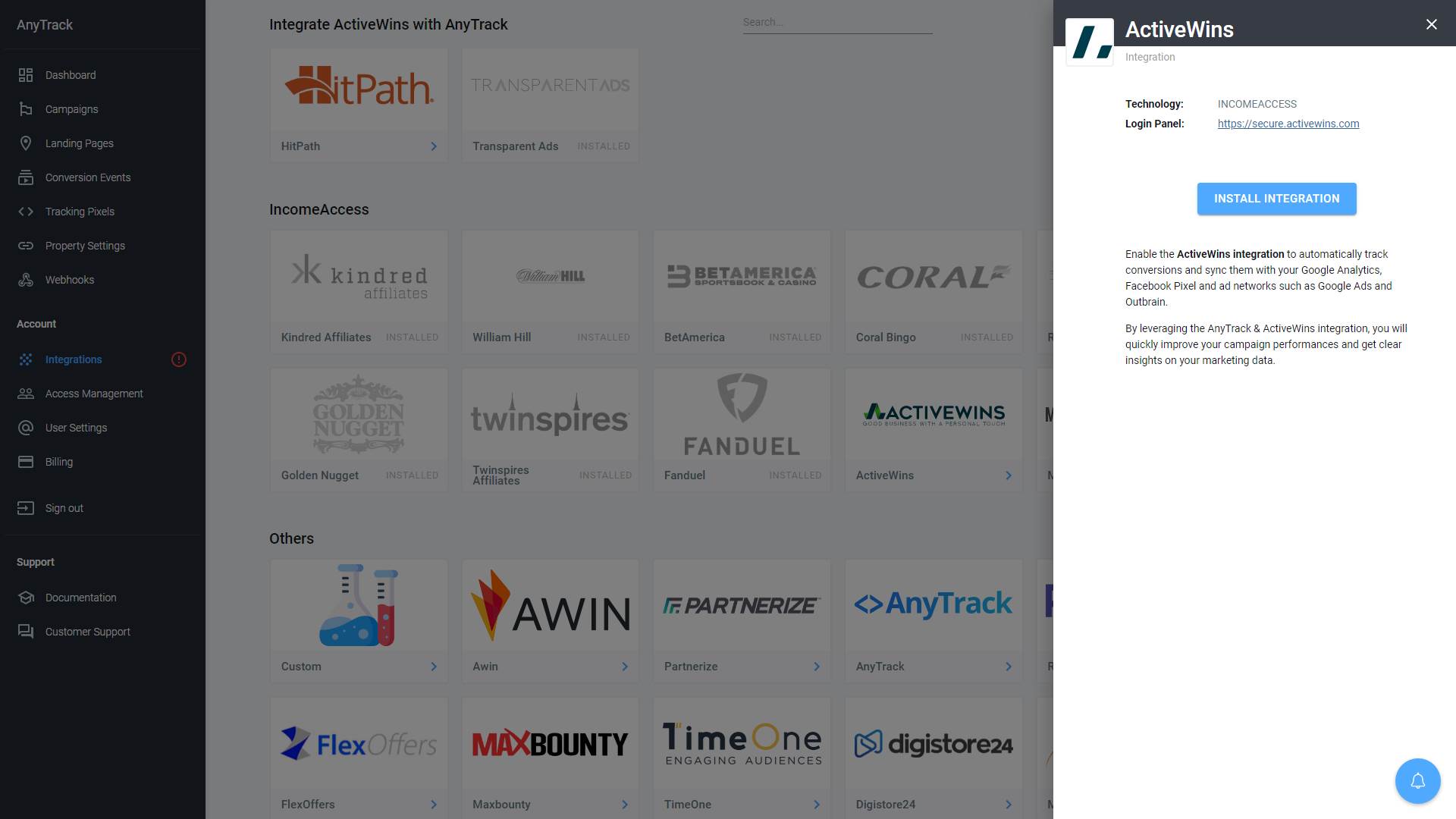
- Follow this link to generate your security key.
- Generate a new key (if you don’t have one already)
- Add the following IP addresses:
0.0.0.0/255.255.255.255 - Copy the Security Key (ctrl+C)
- Return to AnyTrack settings and Paste the Security Key in the corresponding fields.
- Save
Update the Event Mapping
-
Copy the Predefined Postback URL.
-
Login to your affiliate panel.
-
Create a new Postback
-
Paste the Postback URL in the Endpoint URL field.
-
Fill the Postback name (i.e. "AnyTrack")
-
Selected all Event Types as well as Create and Update
-
Click on Create Postback.
-
Click on Send Test Event to validate your setup.
-
Return to AnyTrack and check the Event Log to see the test event.
Validate your integration
This section covers the steps to validate the integration.
Link tracking
Since Tracking starts when visitors clicks on offer links, you must first check that the links are being tracked and that AutoTag is activated.
Reminder about AutoTagAutotag is a function that is enabled by default through the AnyTrack
Tracking Tag, and that appendssubid&click_iddata to affiliate links. Learn more about AutoTag.
Once the links are set up, you can check in your affiliate account reports and see whether the c parameters are passed to the offer links.
Here is an example of how you would manually update links from {groupId}:
<a href="https://anytrack.io" data-tracking-group="incomeaccess">Hover on the incomeaccess Demo
Link to see the AnyTrack click_id</a>
Tracking GroupTracking Group refers to the integration technology. For example, Impact Affiliate Network Tracking Group tracking group is
impactand CJ Affiliates iscj. The Tracking Group
Conversion Tracking
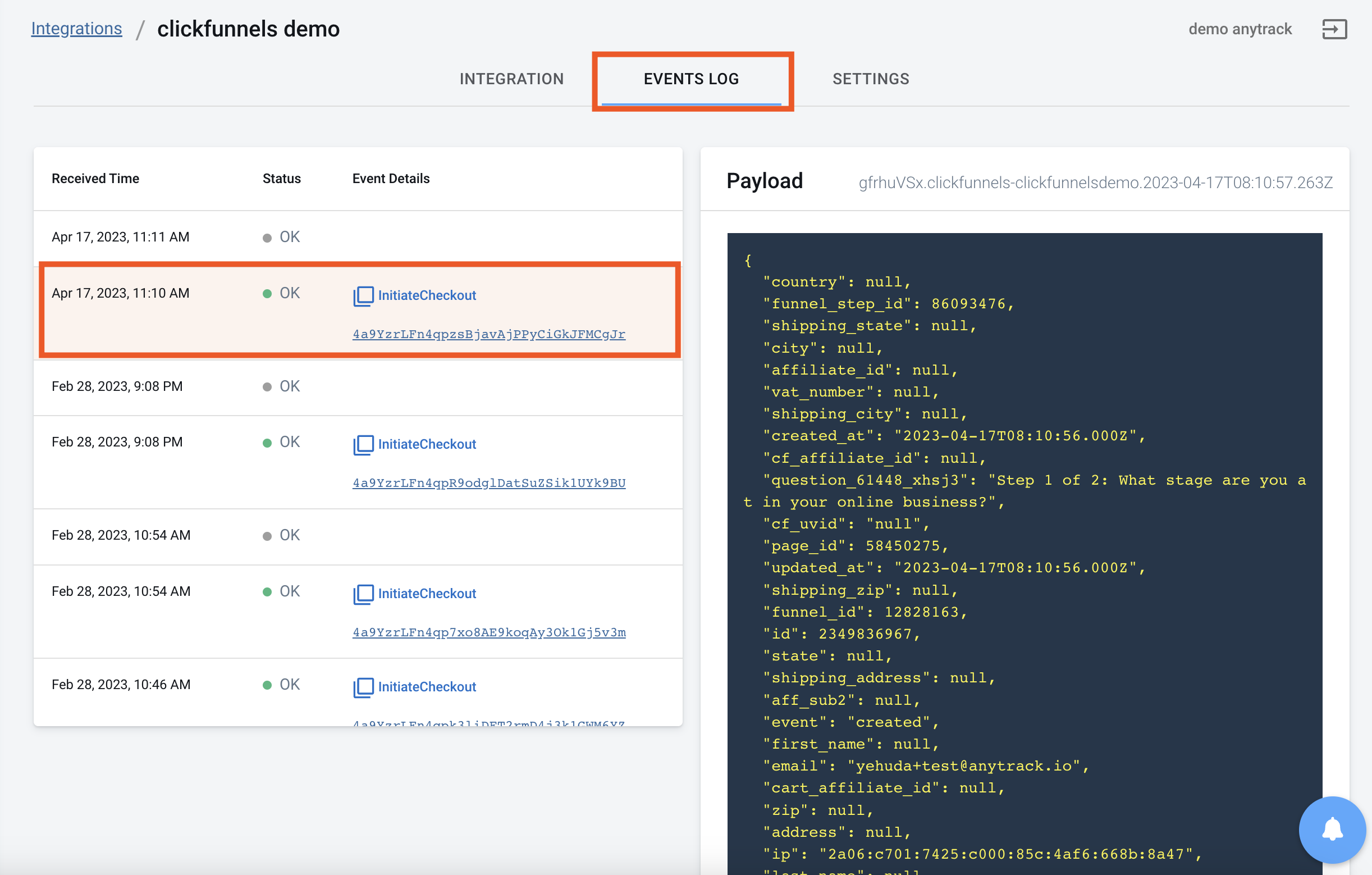
To validate your setup, there aren't many options but to wait for a conversion and inspect the conversion logs.
FAQ & Troubleshooting
-
No. AnyTrack can only ingest conversions that have been triggered following a visitor session on your website.Can I import past conversions into AnyTrack? -
Yes, but this requires a custom setup. Please refer to this article.Can I track direct linking campaigns? -
No.Can I use a differentsubidparameter than the one predefined by AnyTrack? -
No. TheCan I track conversions without theclick_id?click_idpassed to the offer link is required to track conversions. -
You can addThe conversion Event Name is not what I am expecting, how can I change it?event_name=YOUR_CONVERSION_NAMEparameter in the postback URL.
Take these steps to troubleshoot errors you encounter in AnyTrack
-
General troubleshooting
- Verify that your
Tracking Tagis set in theheadsection of your website. - If you're on the free plan, verify that you didn't reach the monthly traffic limit.
- Verify that your
-
When you are not tracking conversions, or most conversions trigger an error follow the guidelines below.Conversion sources
Before you reach out to the support, please inspect the conversion log to see what type of errors you are getting. Try to adjust the integration settings with these troubleshooting guidelines.
-
Native integrations
Native integrations refer to platforms that are predefined in the catalog and should provide an error-free data flow.
The most common error is that theclick_idis unknown or missing and this is the case when AutoTag did not append the anytrackclick_idto the offer link.- Check that your affiliate links are not hidden behind some javascript.
- Check that the links are in a standard
aelement. - Try to manually set the tracking group attribute (check the integration guidelines).
- Check whether your offers are not getting traffic from websites where AnyTrack Tag isn't set.
- If you just installed AnyTrack, errors might be from traffic that wasn't tracked by AnyTrack.
-
Conversion data doesn't trigger an error 🔴, but is not validated 🟢:
- Check that the postback URL set in the integration matches the predefined postback URL we provide.
- Copy the Event Reference and contact the support.
-
You're not getting conversions:
- Check that the AnyTrack postback / webhook or API is set and active in your platform integration.
-
Custom Integrations
Custom integrations refer to integrations that have been set using the Custom Integration and that requires manual setup following standard tracking parameters.
Common errors with custom integrations include missing and unknownclick_idbut can also be the result of using the wrong conversion attributes or postback tokens.- Check that you've properly set the AnyTrack tracking attributes and the integration tokens.
- Check that you're passing the correct AutoTag
subidparameter to the offer link. - Check that the Postback URL is correctly inserted in the custom integration.
Updated about 2 hours ago