
Connect the AnyTrack Account MCP
Connect the AnyTrack Account MCP to Claude, Claude Code, ChatGPT, or another MCP client. Your AI assistant then reads one AnyTrack account with read-only access: reports, conversions, integrations, and webhooks.
The AnyTrack Account MCP lets an AI assistant read one AnyTrack account. After you connect it, ask the assistant for campaign results. Ask it to find a conversion. Ask why an integration does not deliver. The assistant answers from your real account data. The Account MCP is read-only: it cannot change anything in your account.
The Account MCP is a different server from the Docs MCP. The Docs MCP reads the public documentation and needs no sign-in. The Account MCP reads your account data and needs your approval.
What the Account MCP reads
Section titled “What the Account MCP reads”The Account MCP gives the assistant read-only access to the same data as the AnyTrack API reference. The assistant can read these items:
- Properties
- Campaign reports, including CSV exports
- Events reports and conversions reports
- Individual conversions
- Integrations and their logs
- Connections, destinations, and webhooks
The server also holds task guides. The assistant reads a guide to choose the steps for a task. Examples: review campaign performance, investigate a conversion, review your configuration.
The six tools
Section titled “The six tools”The assistant calls these tools. You do not call them yourself.
| Tool | What it does |
|---|---|
anytrack_prime | Gives the assistant an overview of the account data and the reporting rules. |
anytrack_auth_status | Shows the connected account and the access the assistant has. |
anytrack_discover | Lists the available operations and the inputs of each one. |
anytrack_exec | Runs one of the API operations and returns the result. |
anytrack_skills_list | Lists the task guides. |
anytrack_skills_read | Reads one task guide. |
What the consent page shows
Section titled “What the consent page shows”Before the assistant reads anything, AnyTrack shows a consent page. The page lists what the assistant can read across all properties:
- Property, integration, and account settings
- Reports and analytics
- Conversions, including the personal data they contain
- Integration request logs
- Data exports
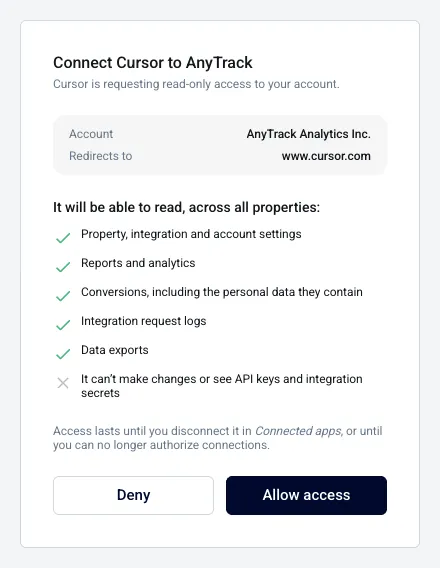
The page also states that the assistant cannot make changes and cannot see API keys or integration secrets. Click Deny to refuse. Access lasts until you disconnect the assistant in Connected Apps, or until you can no longer authorize connections.
Who can approve access
Section titled “Who can approve access”An Owner or a Manager of the account approves access. The approval covers one account. To connect a second account, connect again while you are signed in to that account.
If you lose the Owner or Manager role, the connection stops working until the role returns. For the roles, see Team Management.
Connect the Account MCP
Section titled “Connect the Account MCP”In the steps below, the server address is the address that AnyTrack support sent you. Your assistant opens an AnyTrack page. On that page, you sign in and approve read-only access to your account. The page shows the name of the assistant and the account.
Connect in Claude (web and desktop)
Section titled “Connect in Claude (web and desktop)”Custom connectors work in the Claude web app and desktop app. On Team and Enterprise plans, an Owner of the Claude organization adds the connector first.
- Open Claude and go to Settings → Connectors.
- Click Add custom connector.
- Enter a name, for example AnyTrack Account.
- Enter the server address.
- Click Add.
- Click Connect next to the new connector.
- Sign in to AnyTrack when the page opens.
- Review the access on the consent page and click Allow access.
Connect in Claude Code
Section titled “Connect in Claude Code”- Add the server with the
claude mcp addcommand. Use the HTTP transport and the server address. Name the serveranytrack-account. - Run
claude mcp login anytrack-account. You can also open/mcpin a Claude Code session and select the server. - Sign in to AnyTrack in the browser window. Review the access and click Allow access.
Connect in ChatGPT
Section titled “Connect in ChatGPT”ChatGPT reaches custom MCP servers through Developer mode. Developer mode is available on the web for some ChatGPT plans. See the Docs MCP guide for the plans and for how to turn Developer mode on.
- Open ChatGPT and go to Settings → Apps & Connectors.
- Click Create.
- Enter a name, for example AnyTrack Account.
- Enter the server address and click Create.
- Sign in to AnyTrack when the page opens. Review the access and click Allow access.
Connect another MCP client
Section titled “Connect another MCP client”Use any client that supports remote MCP servers over HTTP.
- Enter the server address.
- Sign in to AnyTrack. Review the access and click Allow access.
Cursor connects the same way. Its consent page shows Connect Cursor to AnyTrack.
Check the connection
Section titled “Check the connection”- Ask your assistant: “Use the AnyTrack Account MCP to check the connection status.”
- The assistant calls
anytrack_auth_status. The result shows the account ID and whether the plan allows API access. - Ask your assistant to list your properties.
If the assistant lists your properties, the connection works.
You can also open Connected Apps in the account menu. The list shows each assistant that you approved.
Remove access
Section titled “Remove access”- Open the account menu at the bottom left of the sidebar.
- Click Connected Apps.
- Disconnect the assistant.
AnyTrack deletes the approval. The next request from the assistant fails. To use the Account MCP again, connect again and approve the access again.
Any Owner or Manager can disconnect an assistant. Connected Apps appears only for accounts that have access to it. If you do not see it, contact AnyTrack support.
To remove the connector from your assistant, use its connector settings. In Claude Code, run claude mcp remove anytrack-account. This step does not delete the approval in AnyTrack. Also disconnect the assistant in Connected Apps.
Personal data in results
Section titled “Personal data in results”The Account MCP does not filter personal data. The API returns the same fields to the assistant that it returns to an API key.
Limits
Section titled “Limits”The Account MCP uses the limits of the AnyTrack API:
| Limit | Value |
|---|---|
| Requests | 60 per minute for each account. API keys and assistants share this limit. |
| Report range | 31 days at most for each request |
If the assistant reaches the request limit, it must wait before the next request. For a longer period, the assistant requests one 31-day range at a time.
Troubleshooting
Section titled “Troubleshooting”- The assistant asks you to connect again: If you disconnected the app, connect again and approve the access again.
- The assistant stops reading the account after a role change: If you lost the Owner or Manager role, ask an account Owner to restore the role. The existing connection then works again.
- You cannot approve the access: Only an Owner or a Manager can approve. Ask an Owner or a Manager to approve it.
- The assistant says the plan does not allow API access: Your account does not have API access. Contact AnyTrack support.
- The assistant shows data for the wrong account: The connection reads the account you approved. Disconnect the app in Connected Apps. Then connect again from the correct account.
- The assistant does not use the connector: Name the connector in your prompt, for example “use the AnyTrack Account MCP”.
If you are still stuck, contact support with your assistant name and the exact error.
Related articles
Section titled “Related articles”AnyTrack Account MCP FAQ
FAQ was last reviewed on 2026-11-11